Automate publishing your test and coverage reports to an Amazon S3 bucket by swapping out a manual upload step with the prebuilt jakejarvis/s3-sync-action in your GitHub Actions workflow.

1. Current Workflow: Placeholder Upload

Your existing reports-s3 job runs after unit-testing and code-coverage, downloads artifacts, merges them, and uses a placeholder echo command:
We’ll replace the final step with the S3 Sync action.

2. Selecting the S3 Sync Action

2.1 Search GitHub Marketplace

In your repository’s GitHub Marketplace, search for S3 and choose jakejarvis/s3-sync-action:
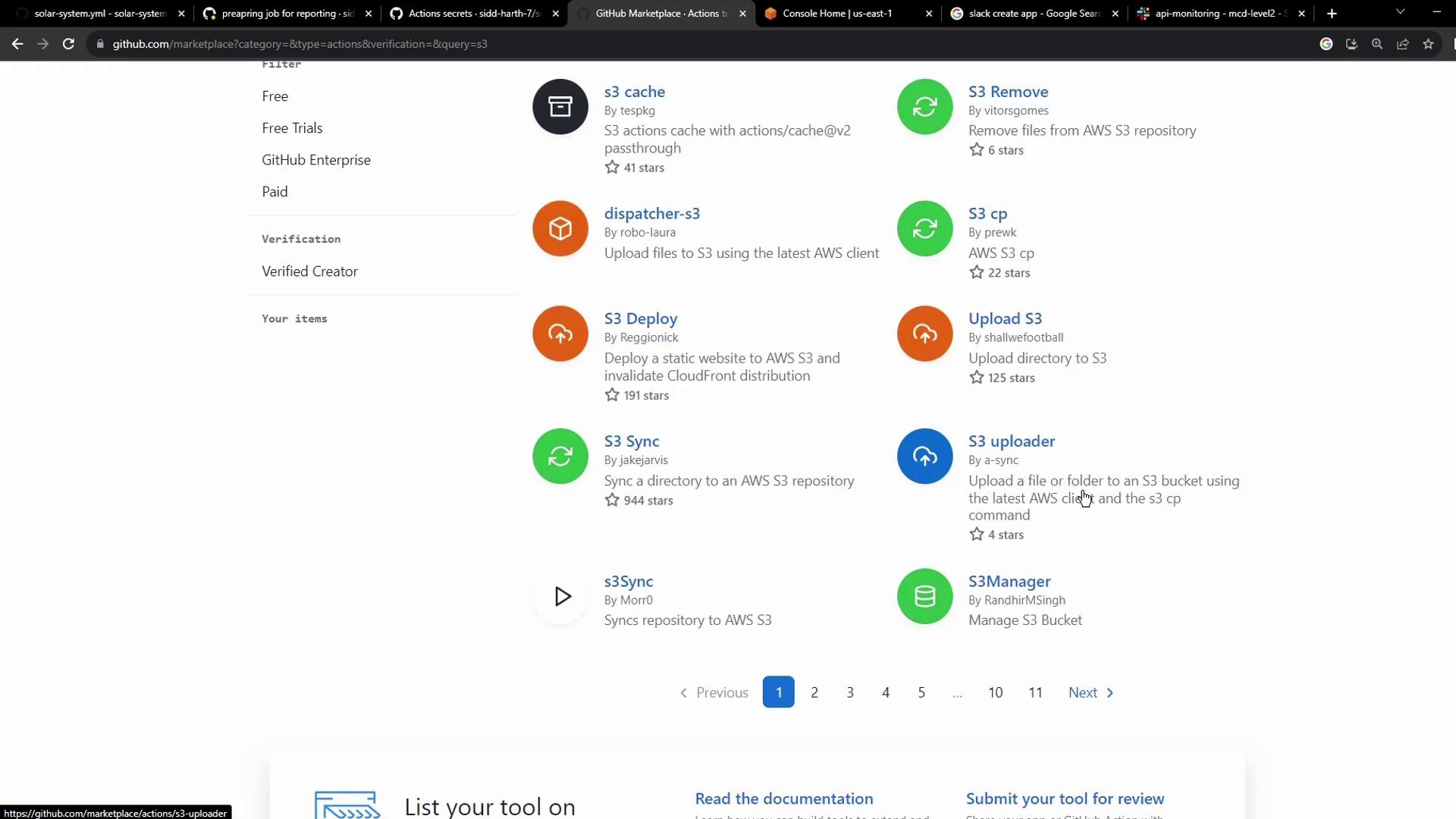
The image shows a GitHub Marketplace page listing various actions related to AWS S3, including tools for caching, removing, deploying, and syncing files. Each action is accompanied by a brief description, star rating, and creator information.

2.2 Action Inputs

Inspect the action’s README for the inputs:
Using the --delete flag will remove files in the bucket that are not present in your source directory. Double-check your SOURCE_DIR before enabling deletion.

3. Updated Workflow: S3 Sync Step

Replace the placeholder with the S3 Sync action. Here’s the complete reports-s3 job:

4. Setting Up AWS S3

4.1 Creating the Bucket

In the AWS S3 console, create a bucket named solar-system-reports-bucket (or your preferred name) in the desired region:
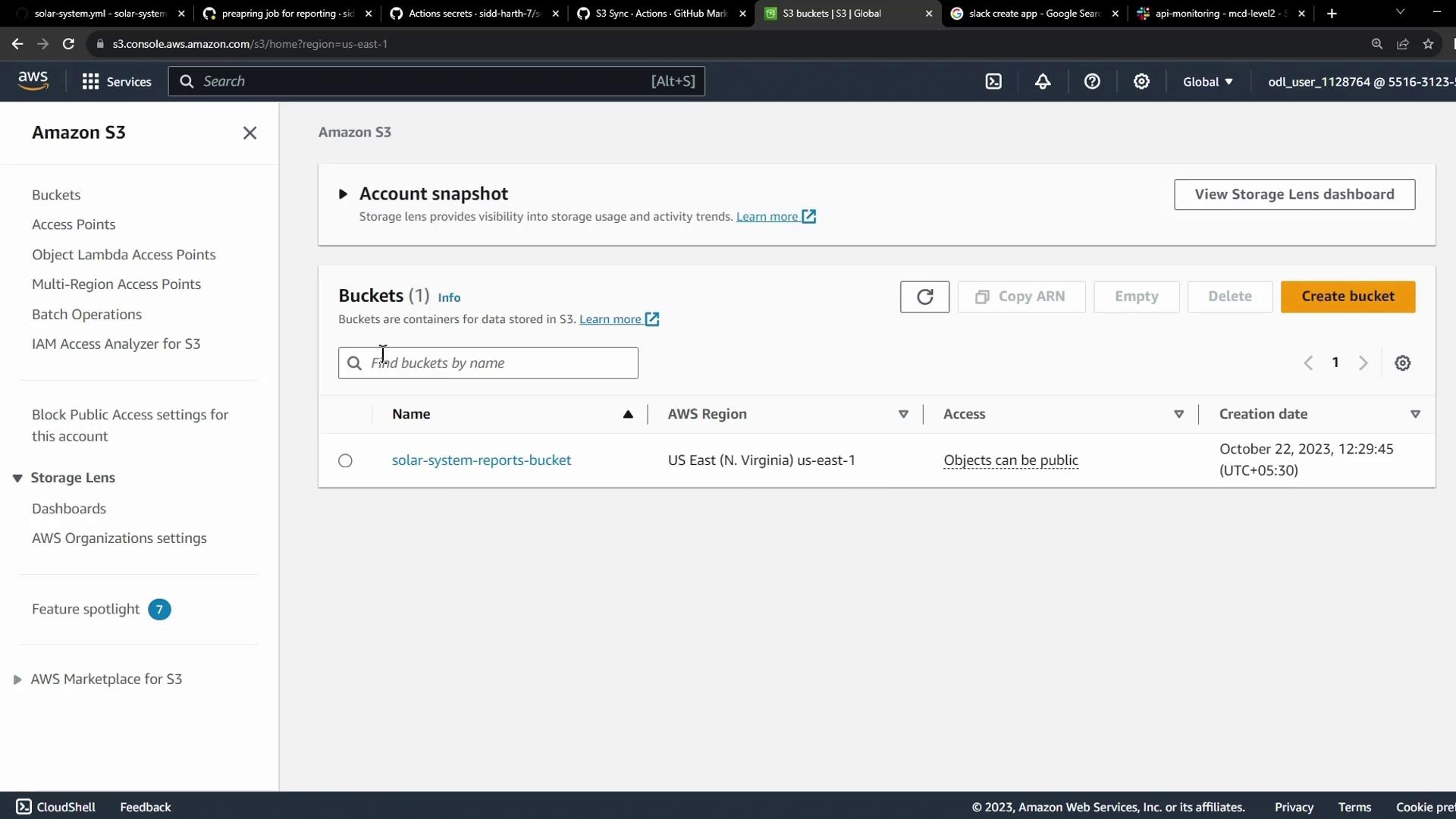
The image shows an Amazon S3 console with a bucket named "solar-system-reports-bucket" in the US East (N. Virginia) region, indicating that objects can be public.

5. Storing AWS Credentials as GitHub Secrets

Add your AWS keys under Settings > Secrets and variables > Actions:
  • AWS_ACCESS_KEY_ID
  • AWS_SECRET_ACCESS_KEY
Storing credentials in GitHub Secrets ensures they remain encrypted and aren’t exposed in your workflow logs.
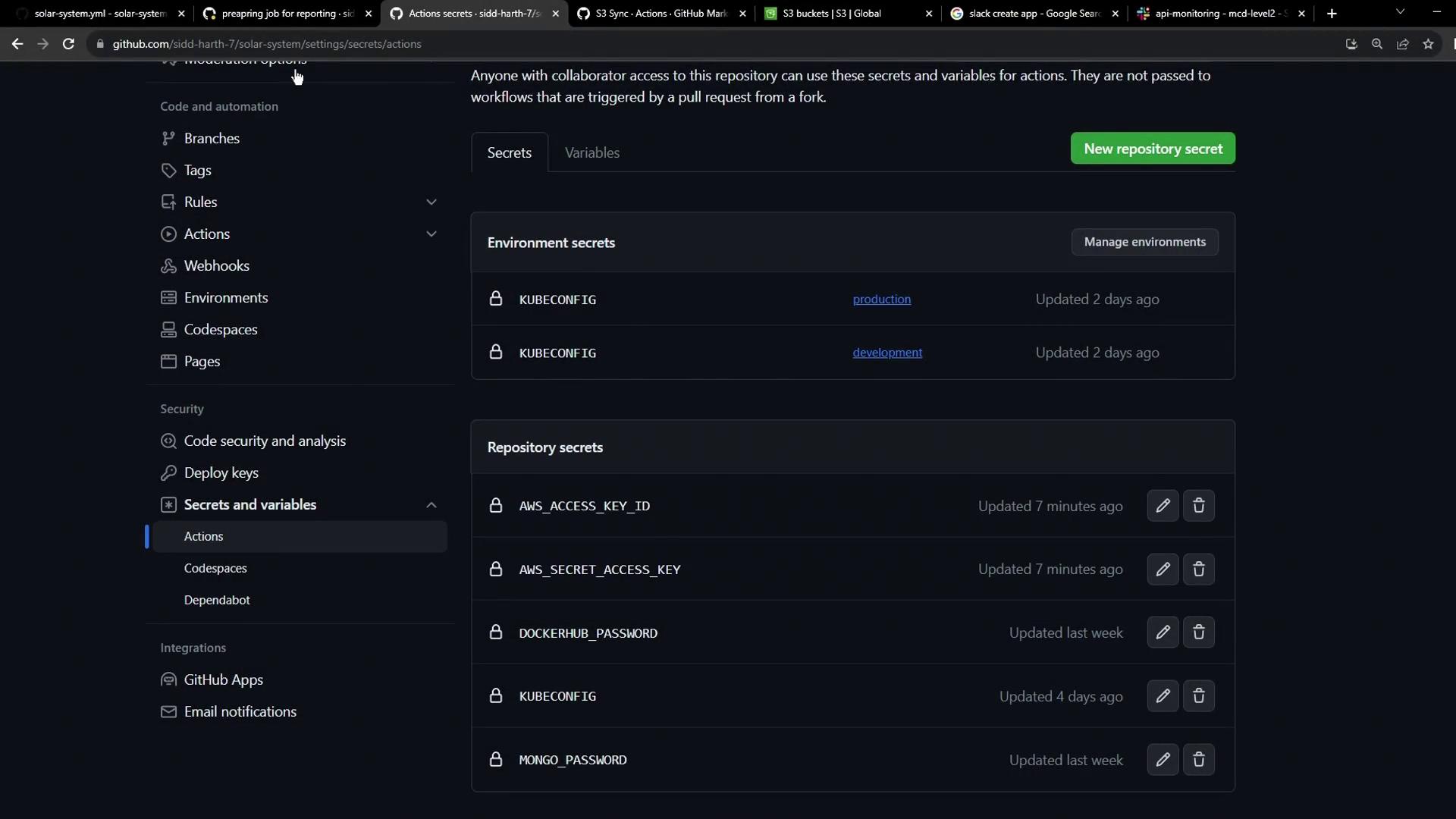
The image shows a GitHub repository settings page, specifically the "Secrets and variables" section, listing environment and repository secrets like AWS keys and passwords.

6. Running the Workflow

Commit and push your changes. The reports-s3 job will queue after unit-testing and code-coverage complete:
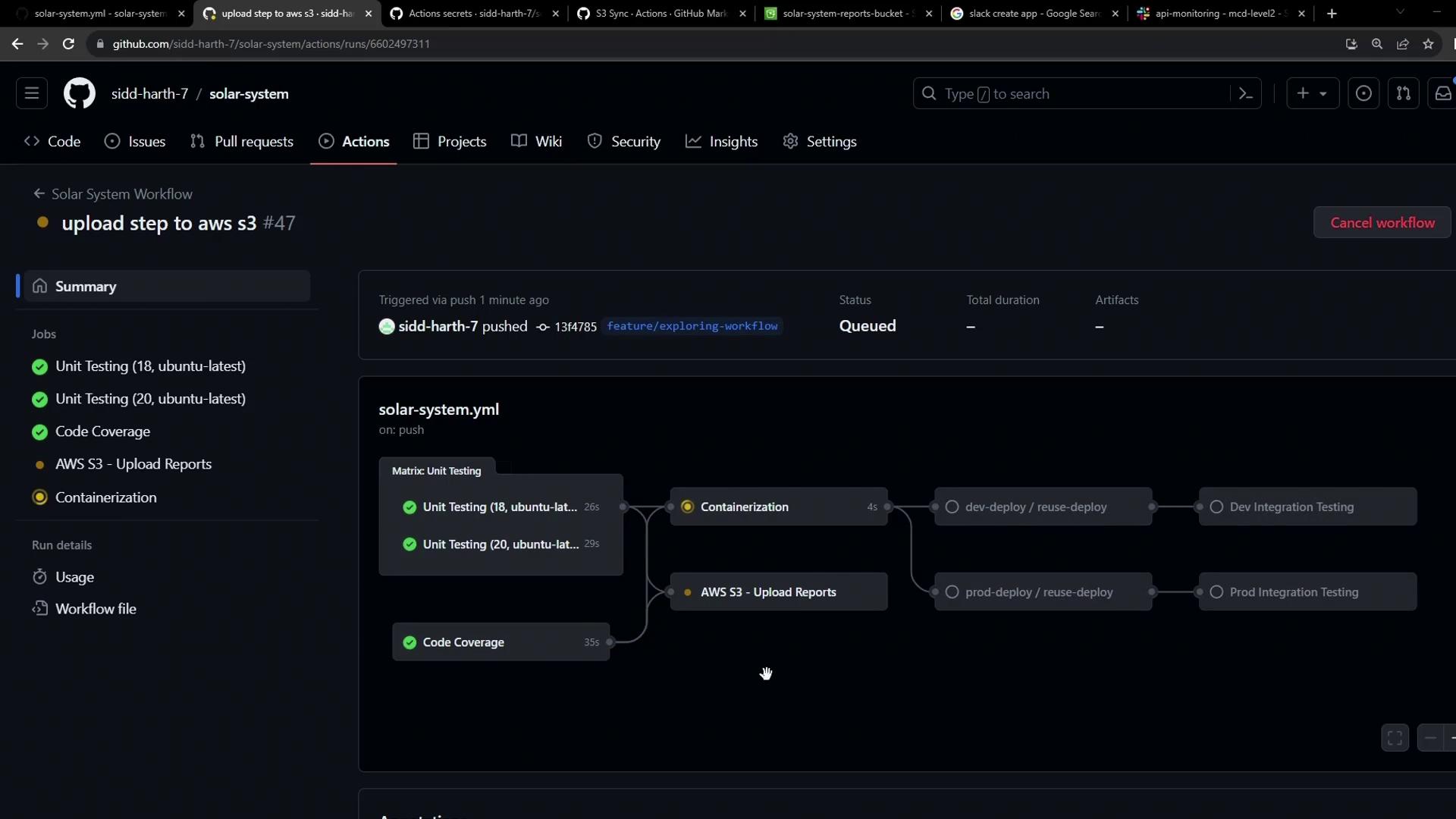
The image shows a GitHub Actions workflow interface for a project named "solar-system," displaying the status of various jobs like unit testing, code coverage, and AWS S3 uploads. The workflow is currently queued and includes steps for containerization and deployment.

6.1 Merge Step Log

6.2 S3 Sync Step Log
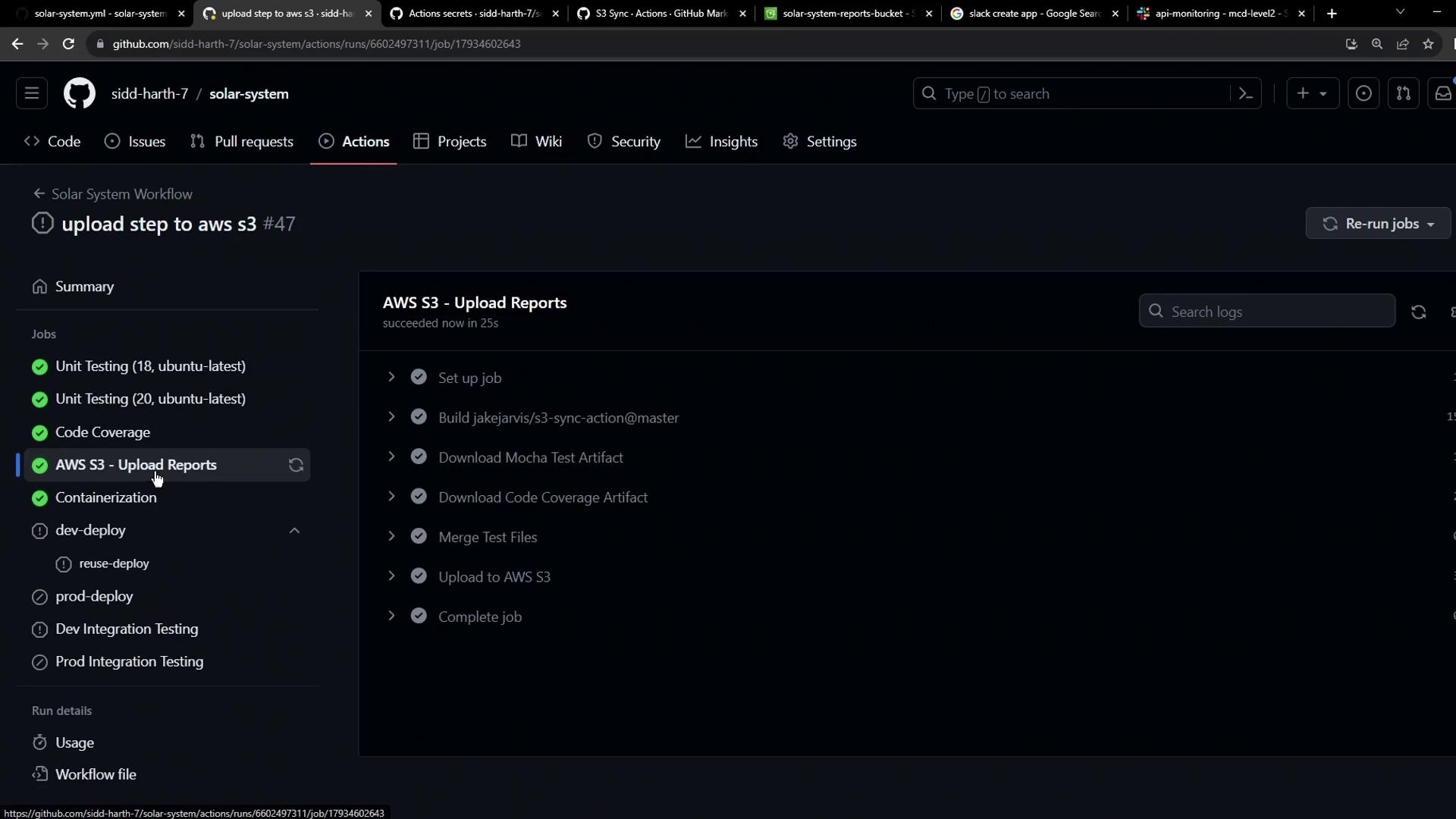
Once complete, the AWS S3 upload step shows success:
The image shows a GitHub Actions workflow interface with a job titled "AWS S3 - Upload Reports" that has successfully completed. The sidebar lists various jobs, including unit testing and deployment tasks.

7. Why the Extra “build” Step?

Because jakejarvis/s3-sync-action is a Docker-based custom action, GitHub builds the container at runtime. You’ll see this as an extra “build” step in the logs:
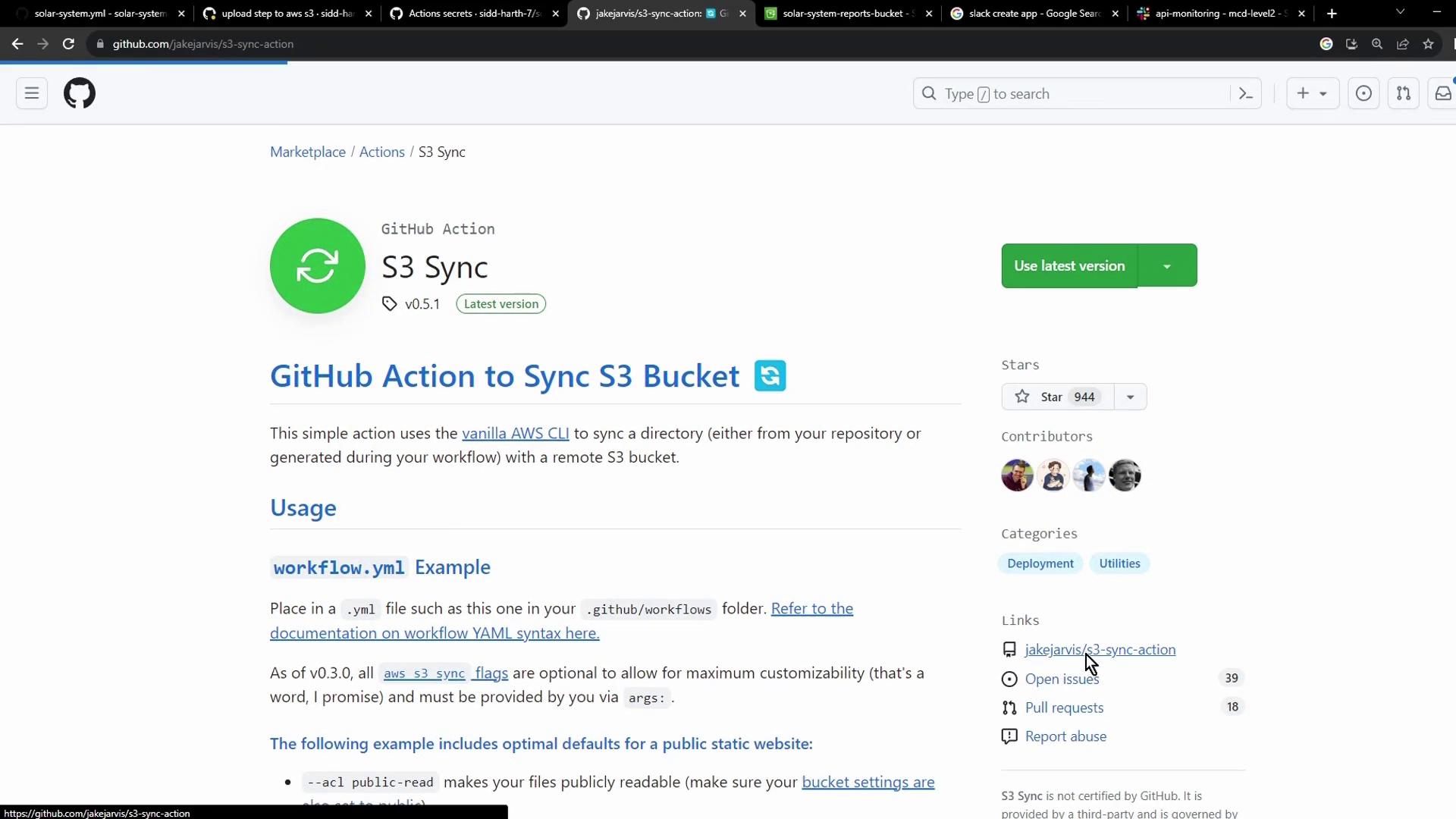
The image shows a GitHub page for a GitHub Action called "S3 Sync," which is used to sync a directory with an AWS S3 bucket. It includes usage instructions and links for further information.

8. Verifying in S3

8.1 Inspect the Commit-SHA Folder

After syncing, refresh your bucket to see a folder named after the commit SHA:
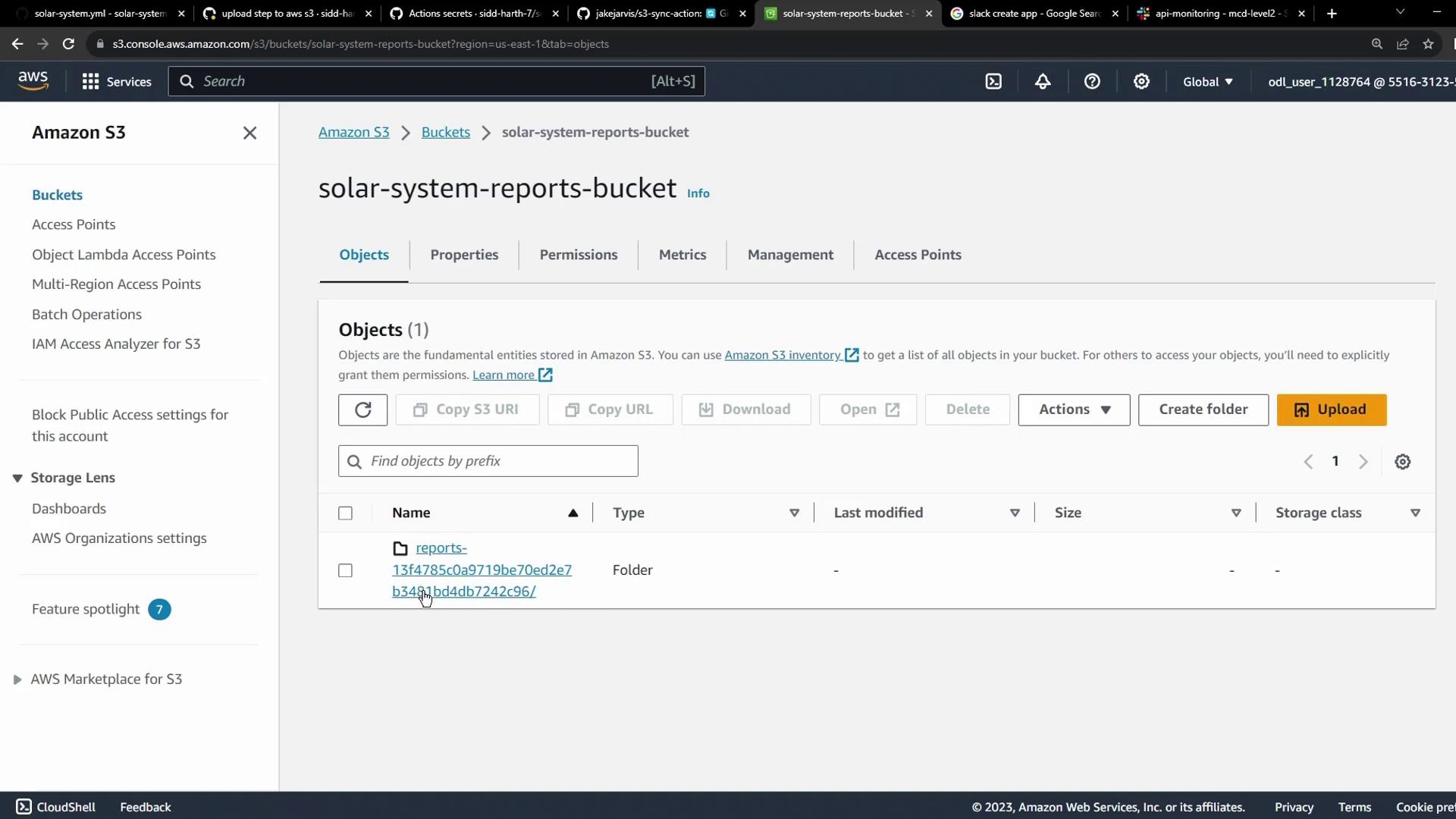
The image shows an Amazon S3 console with a bucket named "solar-system-reports-bucket" containing one folder named "reports-13f4785c0a9719be70ed2e7b34db4db7242c96".

8.2 Check Uploaded Files

Open the folder to confirm your XML reports are present:
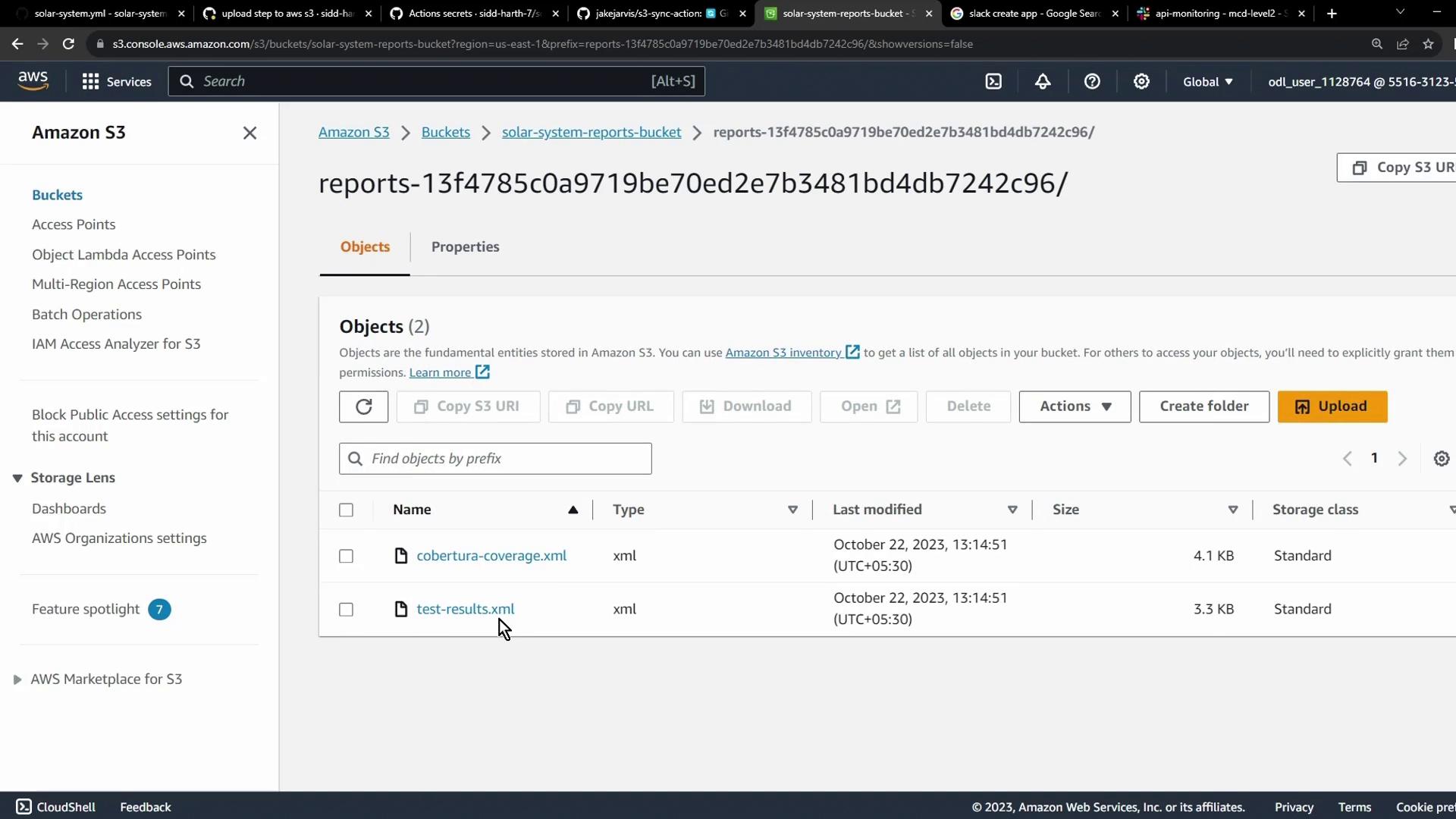
The image shows an Amazon S3 console with a bucket named "solar-system-reports-bucket" containing two XML files: "cobertura-coverage.xml" and "test-results.xml," both last modified on October 22, 2023.

9. Next Steps & Alternatives

You can apply the same pattern to other cloud storage solutions like Azure Blob Storage. Always store credentials securely as GitHub Secrets:
The image shows a GitHub repository settings page, specifically the "Secrets and variables" section under "Actions," displaying environment and repository secrets like AWS keys and passwords.
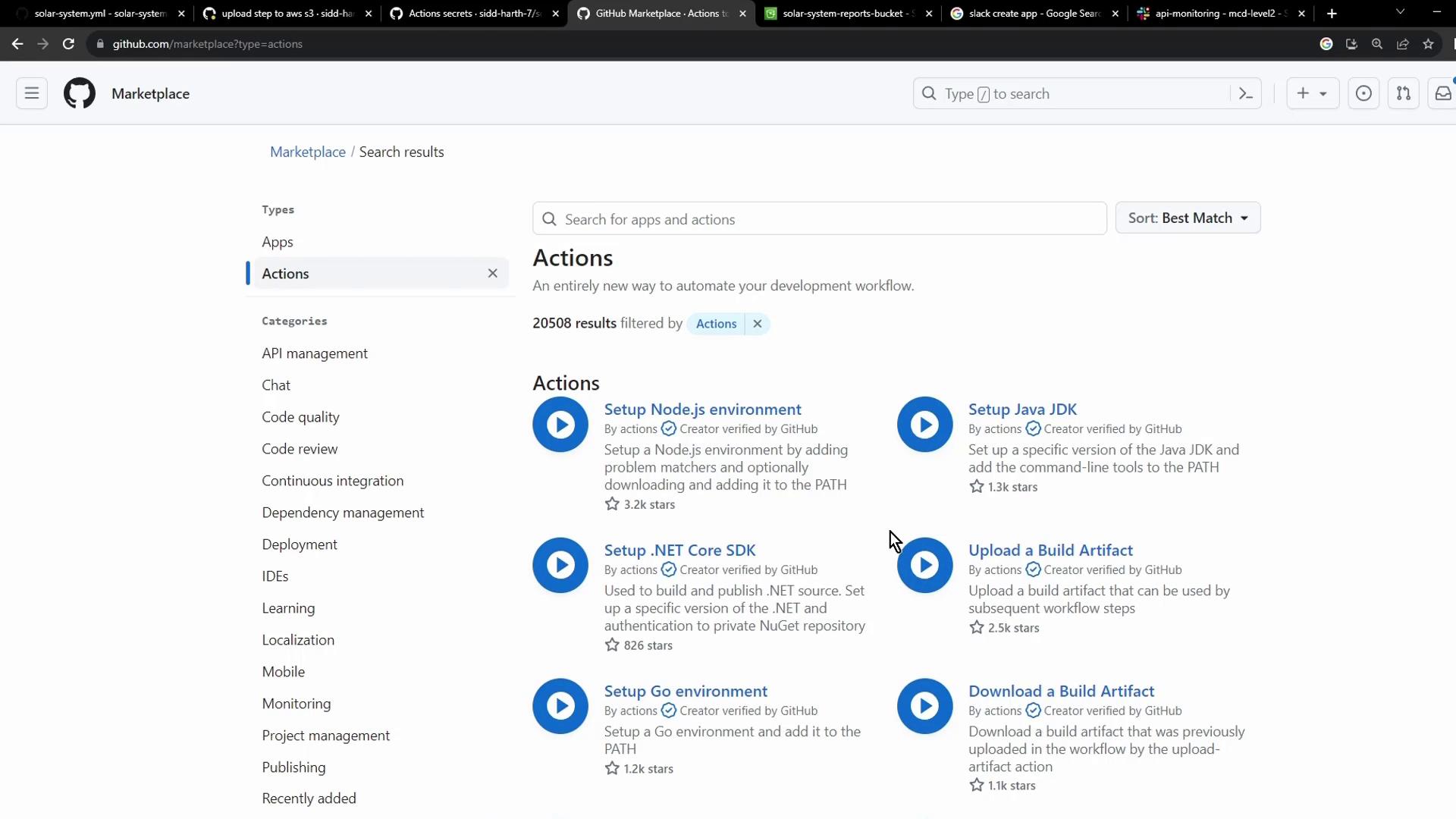
Before building your own plugin, explore the GitHub Marketplace—you may find a prebuilt action that meets your requirements:
The image shows the GitHub Marketplace page filtered for "Actions," displaying various automation tools like "Setup Node.js environment" and "Setup Java JDK" with their descriptions and star ratings.

Watch Video