Let’s explore Jenkins plugins and how they extend your CI/CD workflows. Jenkins is a versatile automation engine that relies heavily on plugins to add functionality across source control, build tooling, quality checks, notifications, cloud integrations, and scaling. With over 1,900 community plugins, Jenkins can be tailored to many development environments and toolchains. Common plugin-provided capabilities include:
  • Source control integration (GitHub, Bitbucket, Gitea, etc.)
  • Build tool support (Maven, Gradle, Node.js toolchains)
  • Quality gates (code coverage, static analysis, linting)
  • Notifications (Slack, Email, PagerDuty)
  • Cloud and infrastructure integration (AWS, GCP, Azure)
  • Scalability support (distributed builds, worker nodes)
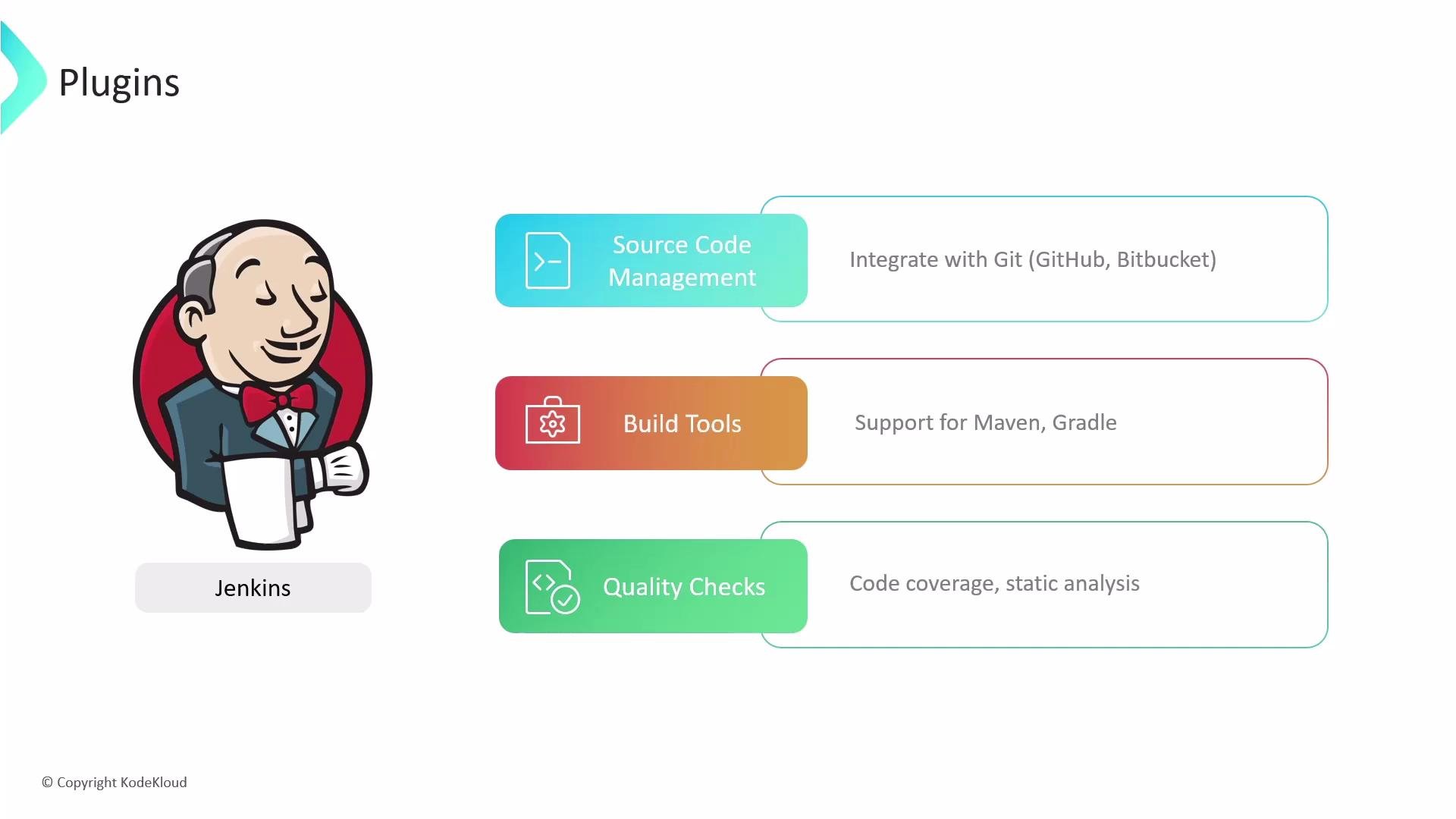
A slide titled "Plugins" showing the Jenkins mascot on the left. On the right are colored boxes listing plugin types: Source Code Management (GitHub/Bitbucket), Build Tools (Maven/Gradle), and Quality Checks (code coverage, static analysis).
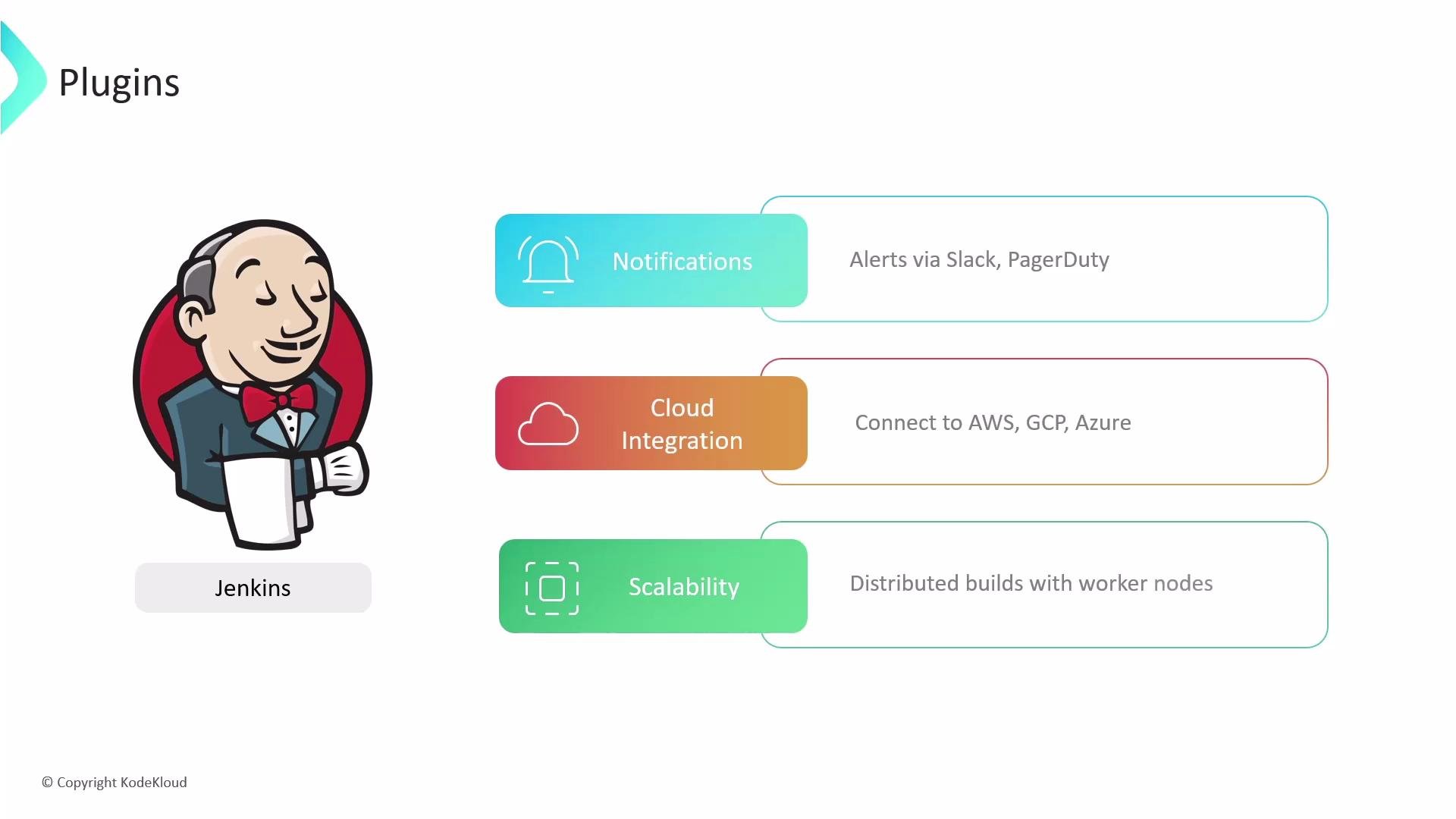
Plugins are the main mechanism for Jenkins to integrate with the tools you use daily. For example, you can configure build notifications to alert teams via Slack or PagerDuty, connect Jenkins to cloud providers for deployments, and scale your CI by distributing jobs to worker nodes.
A slide showing the Jenkins butler logo on the left and three colorful plugin feature cards on the right. The cards list Notifications (alerts via Slack/PagerDuty), Cloud Integration (connect to AWS, GCP, Azure), and Scalability (distributed builds with worker nodes).
Plugin basics
  • Jenkins plugins are delivered as Java archive files with .hpi or .jpi extensions. Historically, .hpi comes from the Hudson plugin format; .jpi is the Jenkins plugin format. Both are ZIP/JAR-based archives containing compiled code, resources, and metadata (manifest and plugin descriptors).
  • If both .hpi and .jpi copies of the same plugin exist, the .jpi will typically take precedence.
  • Installed plugins are stored in the Jenkins home plugins directory. The JENKINS_HOME environment variable points to this location (commonly /var/lib/jenkins/plugins on many Linux distributions).
To inspect the plugins directory on a Linux host:
cd /var/lib/jenkins/plugins
ls -la
Recommended plugin categories and examples
  • The table below maps common categories to typical plugins and their primary use cases.
CategoryCommon PluginsTypical Usage
Source Controlgit, github, bitbucketCheckout code from Git repositories and integrate PR/status checks.
Pipeline & UXworkflow-aggregator (Pipeline), blueoceanAuthor declarative or scripted pipelines; modern visualization.
Build Toolsmaven-plugin, gradle-plugin, nodejsRun Maven/Gradle/Node builds and publish artifacts.
Test & Coveragejunit, jacoco, coberturaPublish test results and code coverage reports.
Static Analysissonar, checkstyle, spotbugsIntegrate static analysis and quality gates.
Notificationsslack, email-ext, pagerdutyPost build status updates to chat, email, or incident systems.
Credentials & Secretscredentials, credentials-bindingManage credentials and inject them into pipeline steps securely.
Container & Clouddocker-plugin, kubernetes, amazon-ecsBuild/push Docker images and run agents in cloud/container providers.
Authentication & Authorizationldap, matrix-authIntegrate external auth and granular role-based access.
Installing and managing plugins Jenkins offers two common approaches during initial setup:
  • Install suggested plugins — a curated set of common plugins (Git, Pipeline, Maven/Gradle, etc.) useful for most teams.
  • Select plugins to install — pick only the plugins you need.
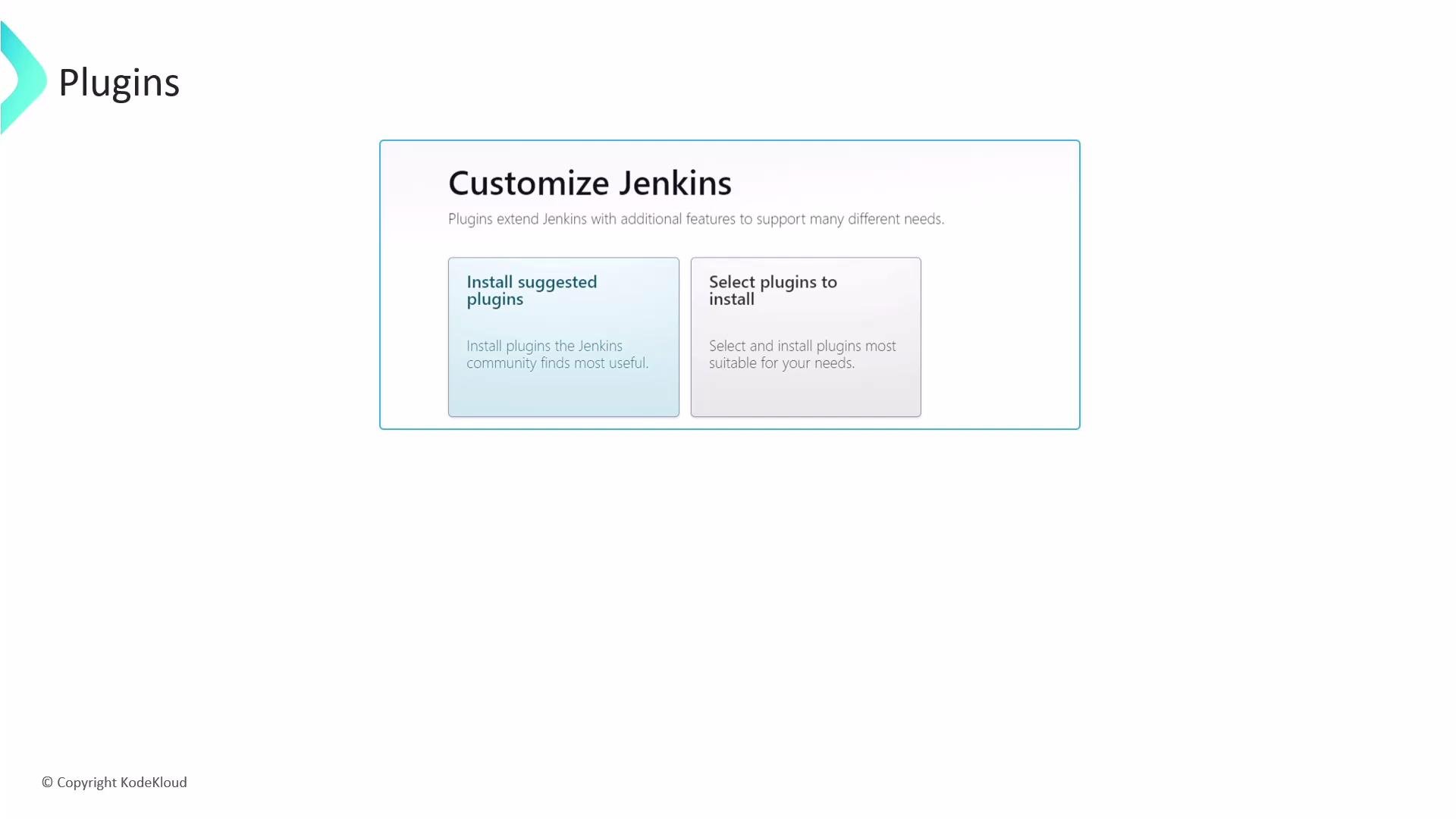
A Jenkins "Customize Jenkins" screen showing two plugin options: "Install suggested plugins" and "Select plugins to install." The slide also has a "Plugins" header and a small KodeKloud copyright.
If you’re unsure which plugins you need, choosing “Install suggested plugins” provides a sensible default set that covers common CI/CD workflows (Git, Pipeline, and basic build tool support).
Manage plugins via the Jenkins web UI (Manage Jenkins → Manage Plugins). From there you can:
  • Install new plugins from the Update Center or upload .hpi/.jpi files.
  • Update installed plugins when new versions become available.
  • Enable/disable plugins or uninstall those you no longer need.
  • Review the plugin dependency tree and plugin update notifications.
Uninstalling a plugin without checking dependencies or testing can break jobs and other plugins. Always review the plugin dependency tree and test plugin changes in a staging Jenkins before applying to production.
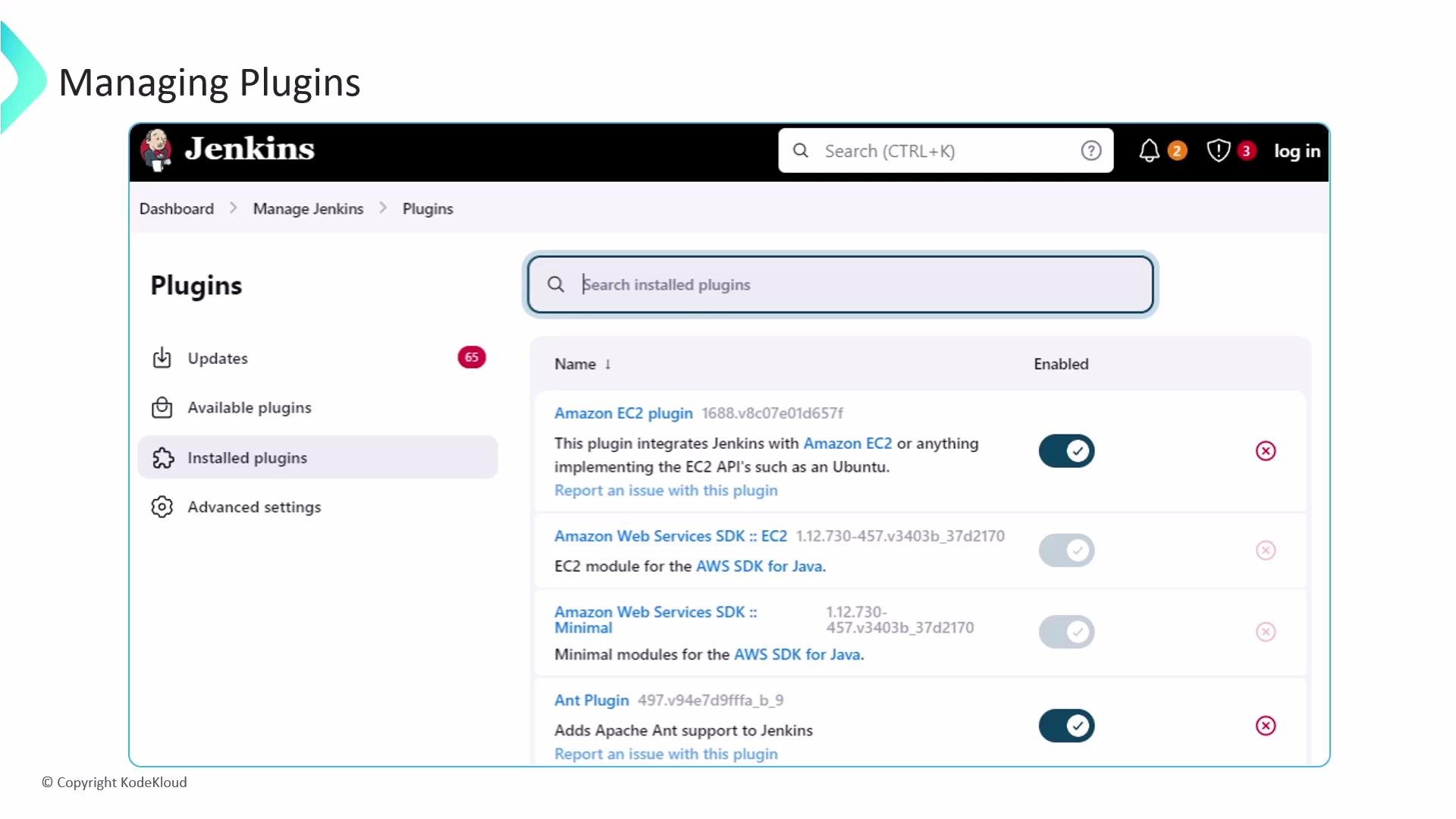
A screenshot of the Jenkins "Manage Plugins" page showing a list of installed plugins (Amazon EC2, AWS SDK, Ant, etc.) with a search box and enable/disable toggles. The left sidebar shows navigation options like Updates, Available plugins, and Installed plugins.
Plugin lifecycle considerations
  • Keep plugins up to date to receive bug fixes and security patches, but test updates in a staging environment first.
  • Prefer widely used, actively maintained plugins to reduce risk.
  • When upgrading Jenkins core, check plugin compatibility and the Update Center release notes.
  • Automate plugin management (version pinning and provisioning) where possible, for example via:
    • Configuration management tools (Ansible, Chef, Puppet)
    • Infrastructure as code (baked images or containers with preinstalled plugins)
    • Jenkins Configuration-as-Code (JCasC) for reproducible plugin configuration
Further reading and references Plugin installation, disabling, updates, and the Update Center are central to healthy Jenkins operations — manage them with care and include plugin maintenance in your regular CI/CD platform routines.

Watch Video