In this lesson we’ll convert the Solar System CI pipeline from Jenkins into a GitHub Actions workflow. This guide assumes you have basic familiarity with GitHub Actions; two concise workflow examples are provided first to illustrate syntax and common patterns. After that we walk through a minimal, practical conversion of the Jenkins pipeline and cover mapping considerations (tools, agents, credentials, and test runtime). Quick note: this is a manual, minimal conversion to get the CI pipeline running in GitHub Actions. Later lessons will show using the GitHub Actions importer to automate parts of this migration.
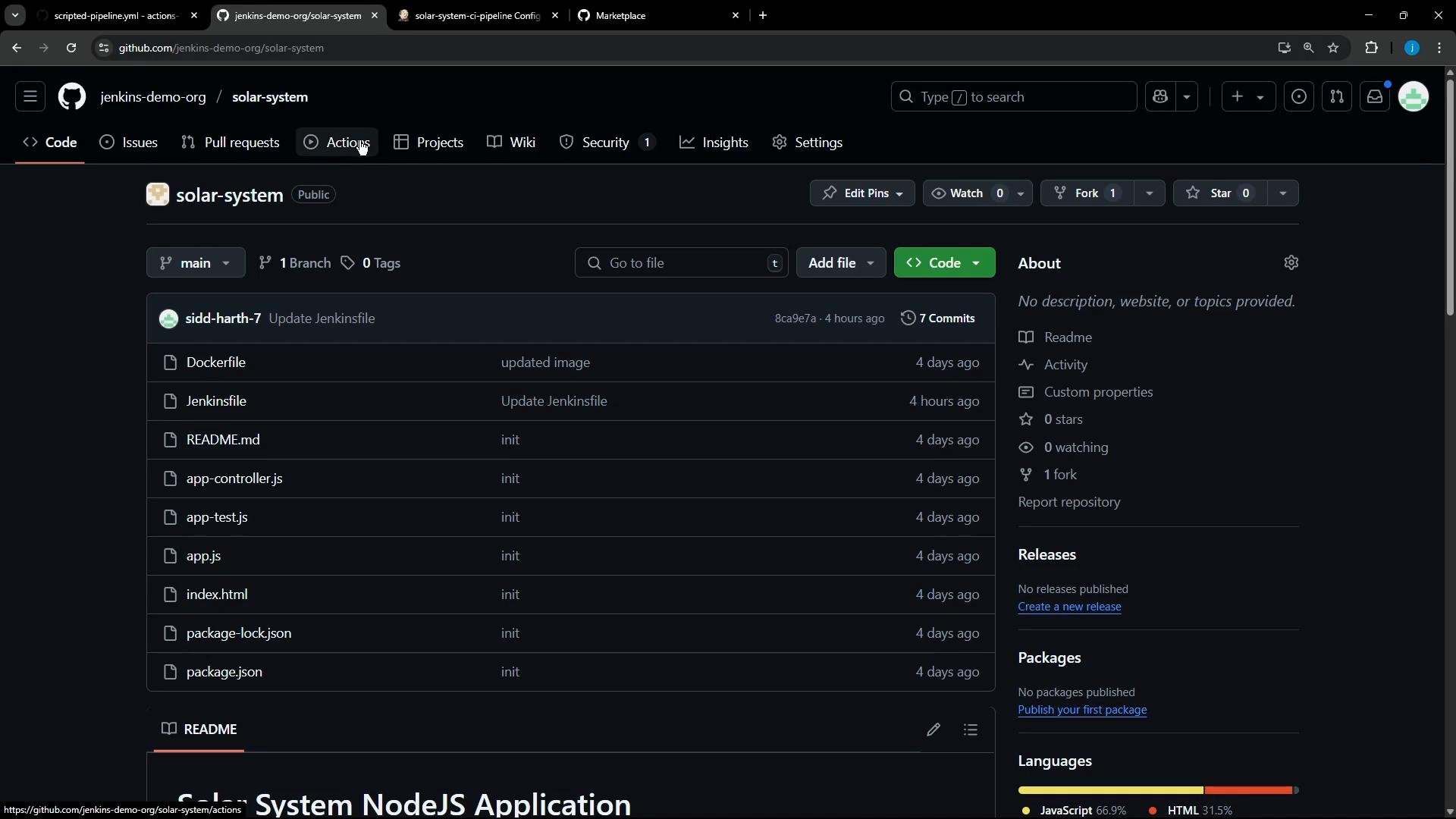
A dark-themed Jenkins dashboard showing a list of CI pipeline jobs with status icons, names, last success/failure times and durations. The left sidebar shows navigation items like New Item, Build History, Manage Jenkins, and build queue/executor status.

Two quick GitHub Actions examples

Example: minimal scripted-style workflow
name: Scripted Pipeline

on:
  workflow_dispatch:

jobs:
  Greet:
    runs-on: ubuntu-latest
    steps:
      - run: echo 'Hello, World!'

  Build:
    runs-on: ubuntu-latest
    steps:
      - run: |
          echo 'Pretending to build...'
          sleep 5s  # simulate work

  Result:
    runs-on: ubuntu-latest
    needs: [Build]
    steps:
      - run: |
          echo "Job completed at $(date)"
Example: using shell commands and an external API inside a job
name: Generate ASCII Artwork

on:
  workflow_dispatch:

jobs:
  build-ascii:
    runs-on: ubuntu-latest
    steps:
      - run: |
          # Build a message by invoking ADVICESLIP API
          curl -s https://api.adviceslip.com/advice > advice.json
          cat advice.json

          # Test to make sure the advice message has more than 5 words.
          cat advice.json | jq -r .slip.advice > advice.message
          if [ $(wc -w < advice.message) -gt 5 ]; then
            echo "Advice has more than 5 words"
          else
            echo "Advice - $(cat advice.message) has fewer than 6 words"
          fi

          # Deploy (install cowsay and render)
          sudo apt-get update -y && sudo apt-get install cowsay -y
          export PATH="$PATH:/usr/games:/usr/local/games"
          cat advice.message | cowsay -f $(ls /usr/share/cowsay/cows | shuf -n 1)

Locate the Jenkins pipeline and repository

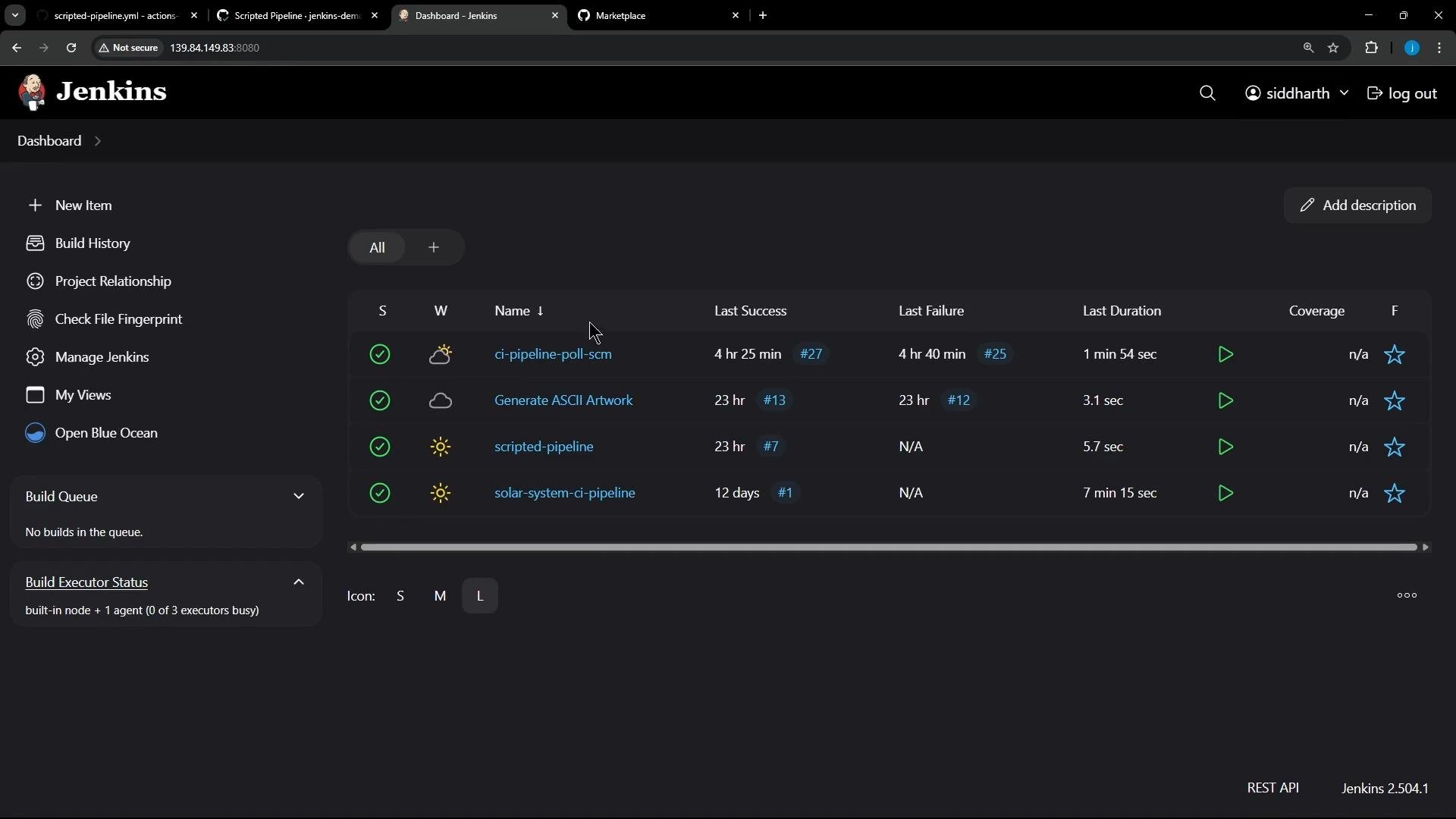
The Jenkins job we’re migrating is a manual-trigger job (no SCM webhook triggers). It is stored in this GitHub repository:
  • Repository: https://github.com/jenkins-demo-org/solar-system
  • Branch: main
Open the repository in GitHub and create a new workflow file under .github/workflows/.
A dark-theme screenshot of a GitHub repository page for "solar-system" (jenkins-demo-org) showing the main branch file list (Dockerfile, Jenkinsfile, README.md, app.js, etc.). The right sidebar shows repository details like stars, forks, and language usage.

Review the Jenkinsfile: what to map

Inspect the Jenkinsfile to identify stages, tools, agents, and credentials. Here is a simplified excerpt showing the key structure and stages to map to Actions:
pipeline {
    agent { label 'us-west-1-ubuntu-22' }
    tools { nodejs 'nodejs-22-6-0' }
    environment {
        MONGO_URI = "mongodb+srv://supercluster.d83jj.mongodb.net/superData"
        MONGO_DB_CREDS = credentials('mongo-db-credentials')
        MONGO_USERNAME = credentials('mongo-db-username')
        MONGO_PASSWORD = credentials('mongo-db-password')
    }
    stages {
        stage('Installing Dependencies') {
            agent { docker { image 'node:24'; args '-u root:root' } }
            steps { sh 'npm install --no-audit' }
        }
        stage('Dependency Scanning') { /* ... */ }
        stage('Unit Testing') {
            agent { docker { image 'node:24'; args '-u root:root' } }
            options { retry(2) }
            steps {
                sh 'npm test'
                junit allowEmptyResults: true, testResults: 'test-results.xml'
            }
        }
        stage('Code Coverage') { /* ... */ }
        stage('Build Publish Image') { /* ... */ }
        stage('Trivy Vulnerability Scanner') { /* ... */ }
    }
}

Key mapping considerations

  • Jenkins stages can be mapped to:
    • Separate GitHub Actions jobs — good for parallelism and isolation, and for using needs: to control ordering.
    • Steps inside a single job — keeps everything on the same runner sequentially, useful if you need a consistent environment between stages.
  • Jenkins tools and agent { docker { image } } choices:
    • Use actions/setup-node to install Node on the runner, or
    • Use container: node:24 at the job level to run all steps inside that Docker image (closer to Jenkins Docker agent behavior).
  • Jenkins credentials become GitHub Secrets (repository or org-level). Use secrets. in Actions to pass them as environment variables.
  • Test reports: in Jenkins the pipeline used junit. In Actions you can upload test-results.xml as an artifact and/or use community actions to parse JUnit output and annotate the run.
Jenkins conceptGitHub Actions equivalentNotes / example
agent / runner labelruns-on (job)runs-on: ubuntu-latest or specific self-hosted runner.
Docker agentcontainer: (job level)container: node:24 runs every step inside the image.
Tool installers (Node)actions/setup-node@v4uses: actions/setup-node@v4 with node-version.
Jenkins credentialsGitHub SecretsSettings → Secrets & variables → Actions; reference as ${{ secrets.MONGO_URI }}.
junit test resultsactions/upload-artifact or test report parsersUpload test-results.xml and/or use actions to annotate results.
Stage orderingneeds: (job-level dependency)Use needs: [test] to order jobs.

Minimal functional conversion

A minimal conversion that mirrors Jenkins “Installing Dependencies” and “Unit Testing” as steps in a single GitHub Actions job looks like this. Save as .github/workflows/solar-system-ci.yml:
name: Solar System CI

on:
  push:
  workflow_dispatch:

jobs:
  install_and_test:
    runs-on: ubuntu-latest
    # Optionally run the whole job inside a container (similar to Jenkins docker agent):
    # container: node:24
    steps:
      - name: Checkout repository
        uses: actions/checkout@v4

      - name: List repository files
        run: ls -ltr

      - name: Set up Node.js
        uses: actions/setup-node@v4
        with:
          node-version: '22'

      - name: Install dependencies
        run: npm install --no-audit

      - name: Run unit tests
        run: npm test
Notes:
  • To run the job inside the same Node Docker image used by Jenkins, uncomment container: node:24. Then all steps execute inside that container.
  • The app’s unit tests may require MongoDB connection details. In Jenkins these were injected via credentials — in Actions you must supply equivalent secrets (see the callout below).
Store sensitive values like MONGO_URI, MONGO_USERNAME, and MONGO_PASSWORD as GitHub Secrets (Repository → Settings → Secrets & variables → Actions). Reference them in the workflow with env: or per-step env: using the secrets. context (for example env: MONGO_URI: ${{ secrets.MONGO_URI }}).

Example: passing secrets to the job

jobs:
  install_and_test:
    runs-on: ubuntu-latest
    env:
      MONGO_URI: ${{ secrets.MONGO_URI }}
      MONGO_USERNAME: ${{ secrets.MONGO_USERNAME }}
      MONGO_PASSWORD: ${{ secrets.MONGO_PASSWORD }}
    steps:
      - name: Checkout repository
        uses: actions/checkout@v4
      # ...

Common runtime failure: undefined DB URI

When this workflow was first executed, the npm test step failed because the MongoDB URI was not supplied. Example trimmed output:
Run npm test
> Solar System@6.7.6 test
> mocha app-test.js --timeout 10000 --reporter mocha-junit-reporter --exit
error!! MongooseError: The `uri` parameter to `openUri()` must be a string, got "undefined".
Make sure the first parameter to `mongoose.connect()` or `mongoose.createConnection()` is a string.
Server successfully running on port - 3000
Error: Process completed with exit code 8.
Why this happened:
  • The tests attempt to connect to MongoDB via a URI provided by environment variables. The workflow did not inject those secrets, so mongoose.connect() received undefined and the test runner exited with a non-zero code.
How to fix this:
  • Add the required secrets to the repository or organization (recommended for real credentials), or
  • Use a GitHub Actions service container to run a temporary MongoDB instance for tests, or
  • Mock the database connections in tests so they do not require a running DB.
Example service container (run MongoDB as a service container for the job):
jobs:
  install_and_test:
    runs-on: ubuntu-latest
    services:
      mongo:
        image: mongo:6
        ports:
          - 27017:27017
    env:
      MONGO_URI: mongodb://localhost:27017/superData
    steps:
      - uses: actions/checkout@v4
      - name: Set up Node
        uses: actions/setup-node@v4
        with:
          node-version: '22'
      - name: Install deps
        run: npm install --no-audit
      - name: Run tests
        run: npm test

Converting remaining stages

Convert the remaining Jenkins stages (dependency scanning, coverage, image build & publish, Trivy scanning) into discrete jobs. Recommendations:
  • Model each logical Jenkins stage as an Actions job for clarity and failure isolation:
    • dependency-scan (uses language-specific scanners),
    • unit-test (JUnit reporting, upload test artifacts),
    • coverage (upload coverage artifacts, publish to coverage services),
    • build-and-publish-image (build Docker image, push to registry using secrets),
    • trivy-scan (scan image artifacts; fail on high-severity vulnerabilities).
  • Use needs: to preserve ordering (e.g., coverage should need: [unit-test], and build-and-publish-image should need: [coverage]).
  • Use actions/upload-artifact for test reports and coverage files, or use community actions to parse JUnit and produce GitHub annotations.
That’s all for this lesson. A follow-up article will show:
  • Wiring up repository/organization secrets,
  • Adding JUnit parsing and annotations,
  • Converting the remainder of the Jenkins pipeline with needs: and containerized jobs,
  • Using the GitHub Actions importer to help automate the migration.

Watch Video