

withDockerRegistry step into equivalent GitHub Actions steps (Docker login + build/push). In Jenkins, withDockerRegistry provides Docker credentials so the pipeline can log in (e.g., to Docker Hub) and run docker push. When migrating to GitHub Actions, the common equivalent is docker/login-action (authentication) and docker/build-push-action (build + push), or a separate docker build step with a subsequent push.
What you’ll learn
- How
withDockerRegistrymaps to GitHub Actions. - How to extract the
docker pushcommand from the imported Jenkins JSON. - How to write a concise custom transformer (example in Ruby) that emits Actions steps with proper variable substitution.
- How to prepare GitHub repository variables and secrets needed by the converted workflow.
Relevant Jenkins pipeline excerpt
What withDockerRegistry does
- Supplies Docker credentials (from Jenkins credentials store) to allow
docker push. - For migration, the natural mapping in GitHub Actions is:
docker/login-action— to authenticate to a registry.docker/build-push-action— to build and push images (can also be split intodocker build+docker push).
Marketplace actions and references
Search the GitHub Actions Marketplace for Docker-related actions. Typical choices:docker/login-action@v3— login to Docker Hub (or other registries).docker/build-push-action@v6— build and push images.
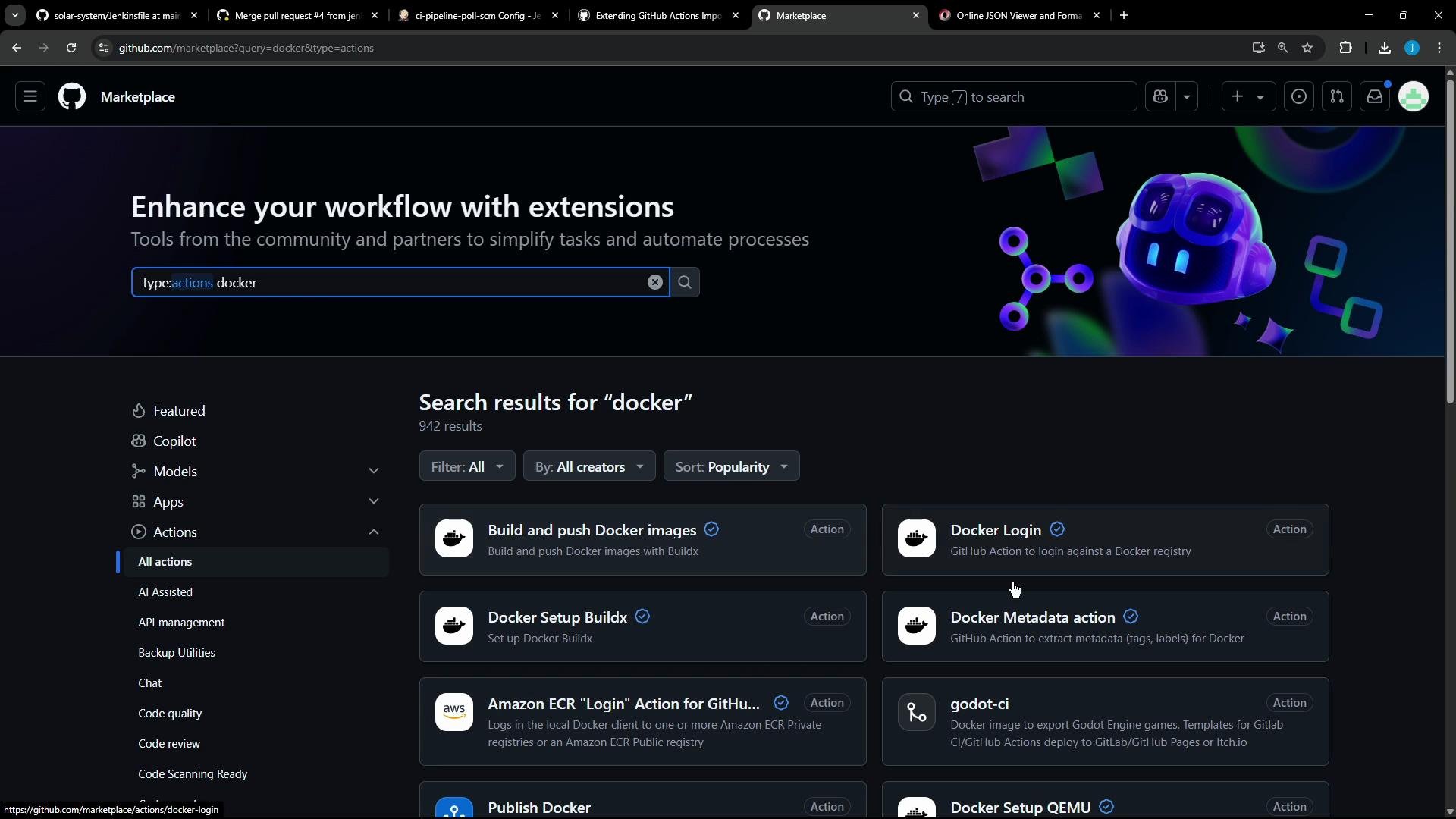
- docker/login-action: https://github.com/docker/login-action
- docker/build-push-action: https://github.com/docker/build-push-action
- Trivy: https://aquasecurity.github.io/trivy/latest/
Minimal GitHub Actions job example
If you need to both build and push in one job, the typical pattern is:docker build earlier, you can issue only the login and docker push steps (or use build-push-action to only push an already built image).
What the importer produced (problem)
The importer emitted a job with an unrecognizedwithDockerRegistry node in the Jenkins JSON. The children included an sh step with docker push <image>:$GIT_COMMIT, but no existing transformer handled it — so we create one.
Example simplified JSON snippet the transformer receives
Transformer goals
The transformer should:- Extract the
docker pushcommand from the childshstep. - Parse the image name and tag from that push command.
- Replace Jenkins-specific variables and hardcoded values:
$GIT_COMMIT→${{ github.sha }}- Hardcoded username/image → use GitHub Actions variables like
${{ vars.DOCKERHUB_USERNAME }}and${{ vars.IMAGE_NAME }}
- Emit steps for:
- Docker login (
docker/login-action@v3) - Build and push (
docker/build-push-action@v6) or a push-only step if the image is already built
- Docker login (
Example custom transformer (Ruby) — concise
This Ruby transformer (for the importer’s transformer DSL) extracts the push command, rewrites variables, and emits Actions steps for login and build+push:- The transformer replaces Jenkins credential references (
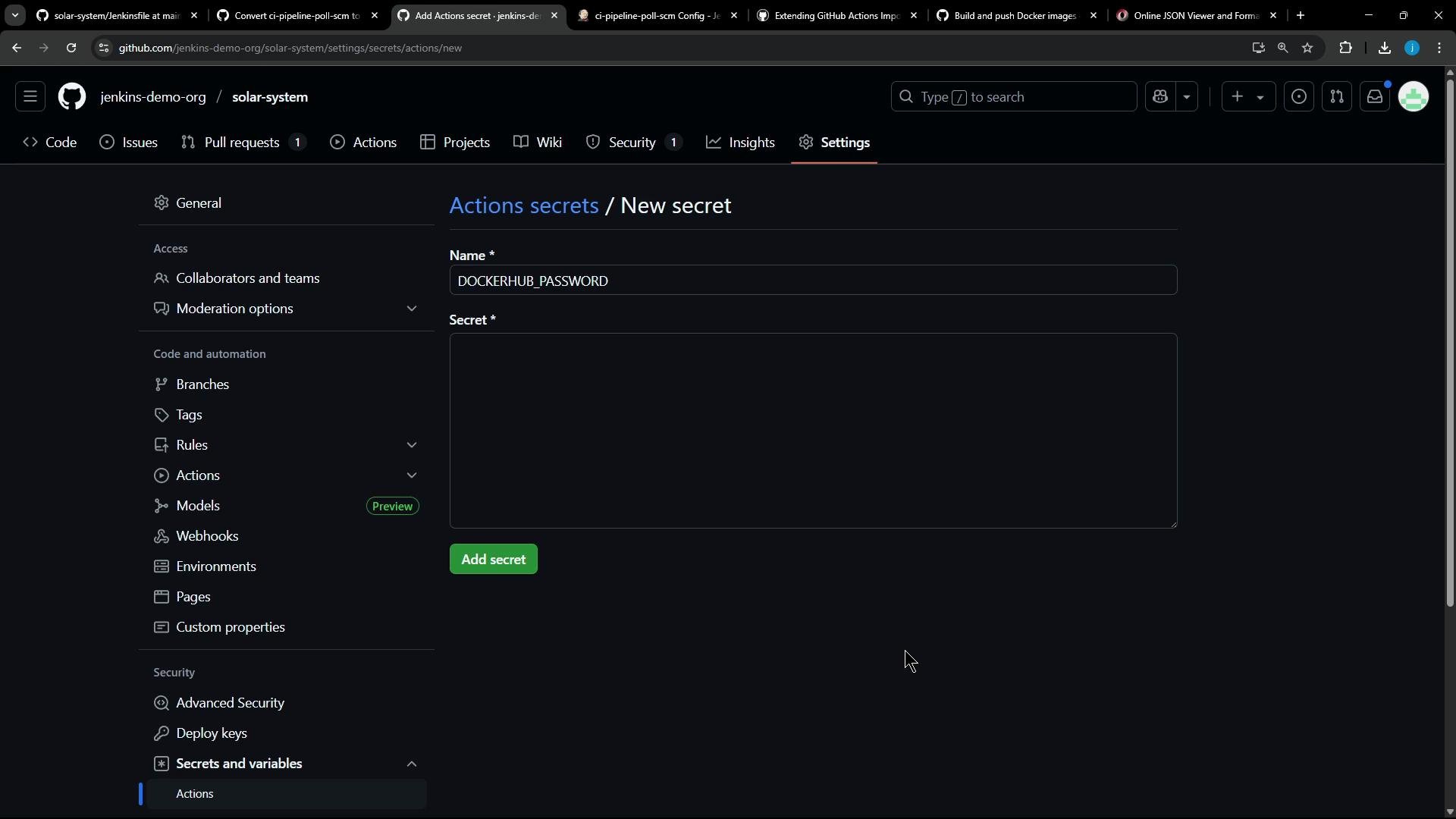
credentialsId) with GitHub Actions variables and secrets:username→${{ vars.DOCKERHUB_USERNAME }}password→${{ secrets.DOCKERHUB_PASSWORD }}image name→${{ vars.IMAGE_NAME }}
- If the importer already produced an earlier
docker buildstep, you can emit a push-only action or leave the build step and usebuild-push-actionin push-only mode.
Resulting GitHub Actions job (after transformer)
Run the importer (dry-run and migrate)
Dry-run (inspect generated workflows):Add required repository variables and secrets
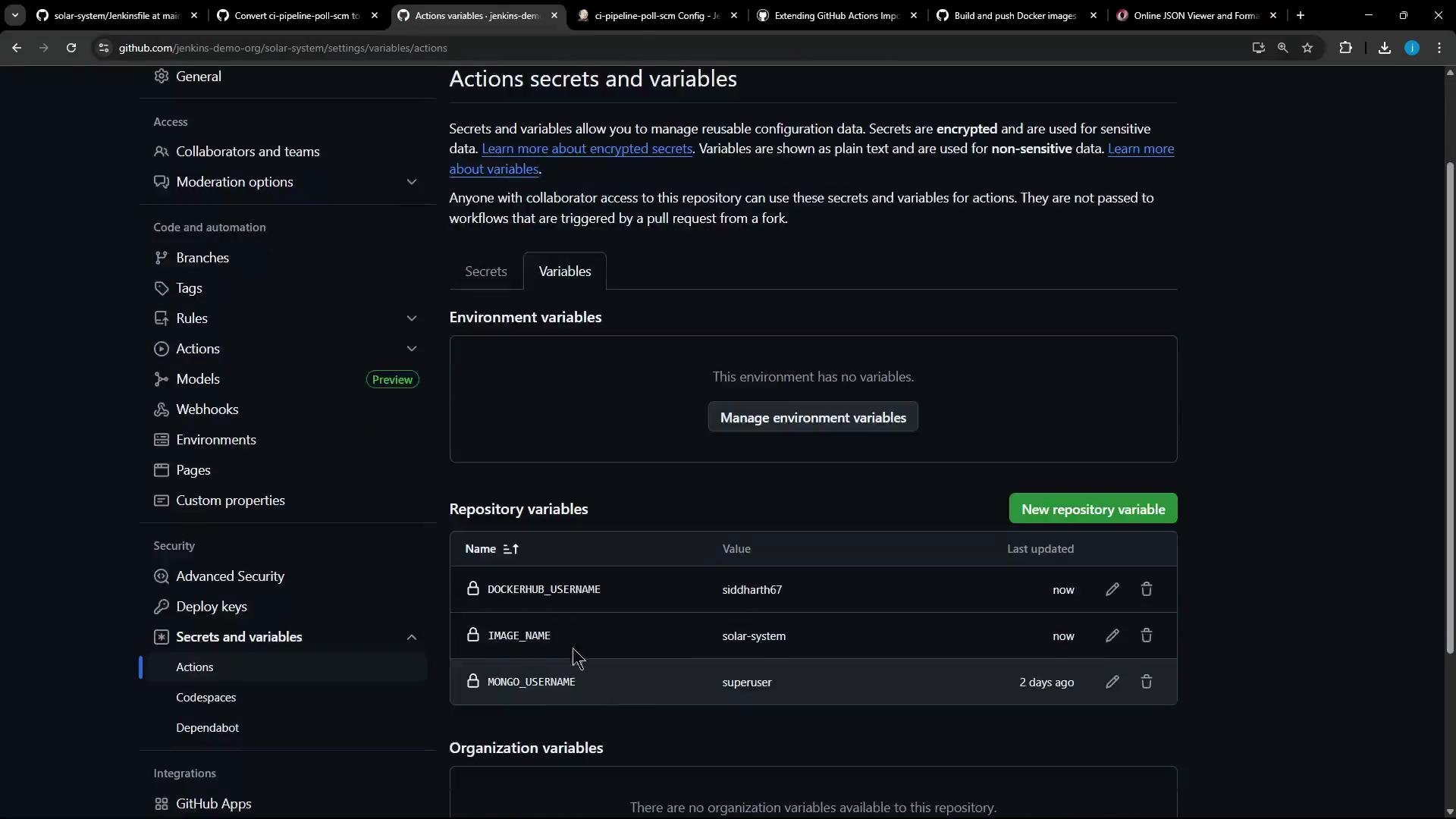
Before merging the PR and running workflows, create the required repository-level variables and secrets. Recommended repository variables and secrets
Add them in the repository Settings → Actions → Secrets and variables. After creation, they will appear in the repository’s Actions > Secrets and variables settings.
Merge the PR and verify the workflow run
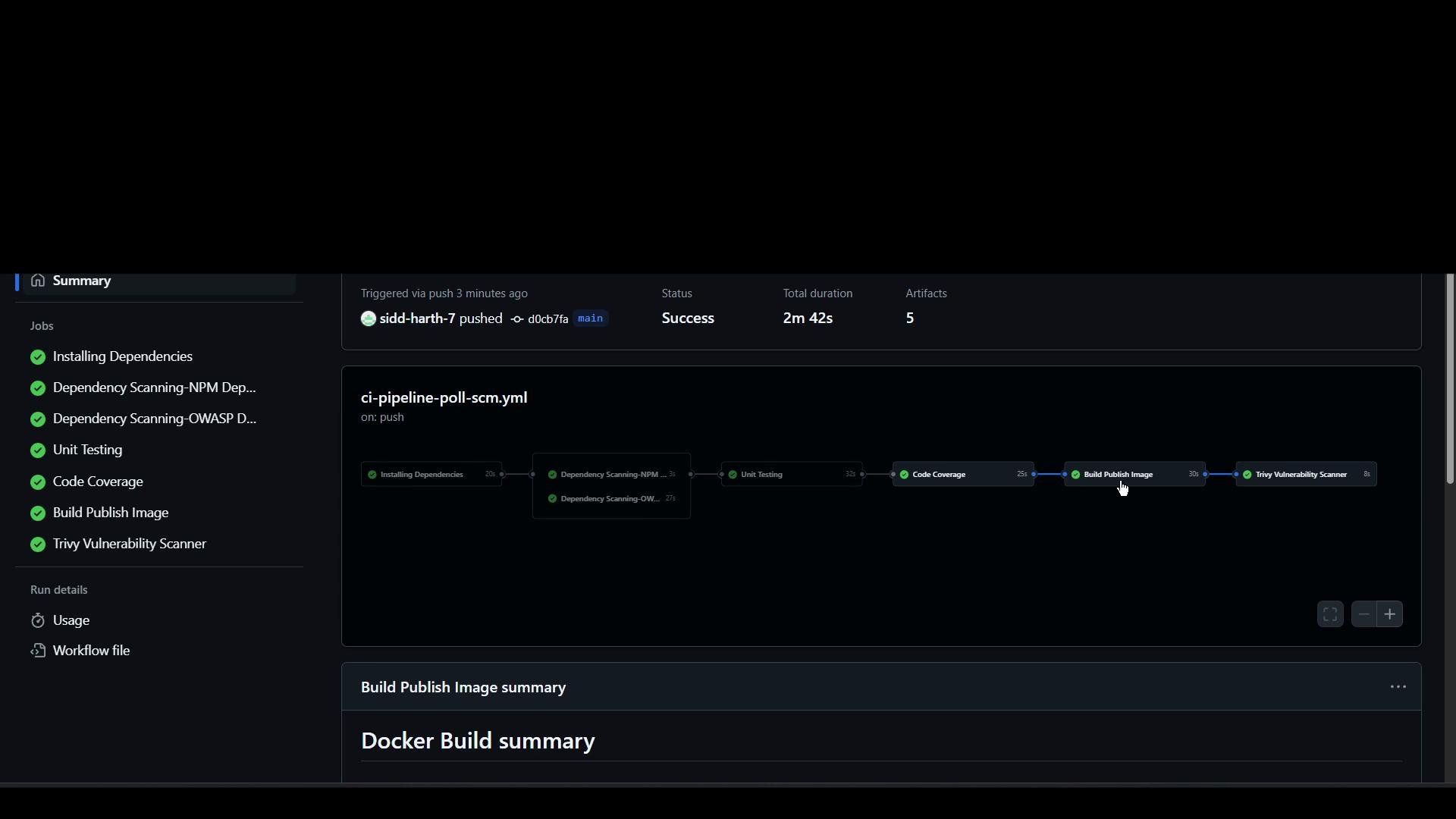
- Merge the pull request created by the importer.
- The merged workflow should trigger and perform: checkout, build (if configured), Docker login, and push to the registry (depending on the emitted job).
Key takeaways
- Jenkins
withDockerRegistrycleanly maps todocker/login-action+docker/build-push-actionin GitHub Actions. - Custom transformers should:
- Extract
docker push(or credential info) from the Jenkins JSON, - Substitute Jenkins variables with GitHub contexts and repository variables,
- Emit the appropriate Actions steps (login and build/push or push-only).
- Extract
- Create repository-level variables and secrets prior to running the workflow:
DOCKERHUB_USERNAMEandIMAGE_NAME(variables).DOCKERHUB_PASSWORD(secret).
docker/build-push-actioncan both build and push—adjust emitted steps if a build is already present.
Remember to create repository variables (
DOCKERHUB_USERNAME, IMAGE_NAME) and repository secrets (DOCKERHUB_PASSWORD) before merging; otherwise the workflow will fail at runtime when trying to access those values.