Earlier we audited and forecasted the entire Jenkins server. This lesson shows how to limit that audit/forecast to a single folder inside Jenkins — useful when you only need metrics for a subset of jobs (for focused capacity planning, migration assessments, or targeted troubleshooting).
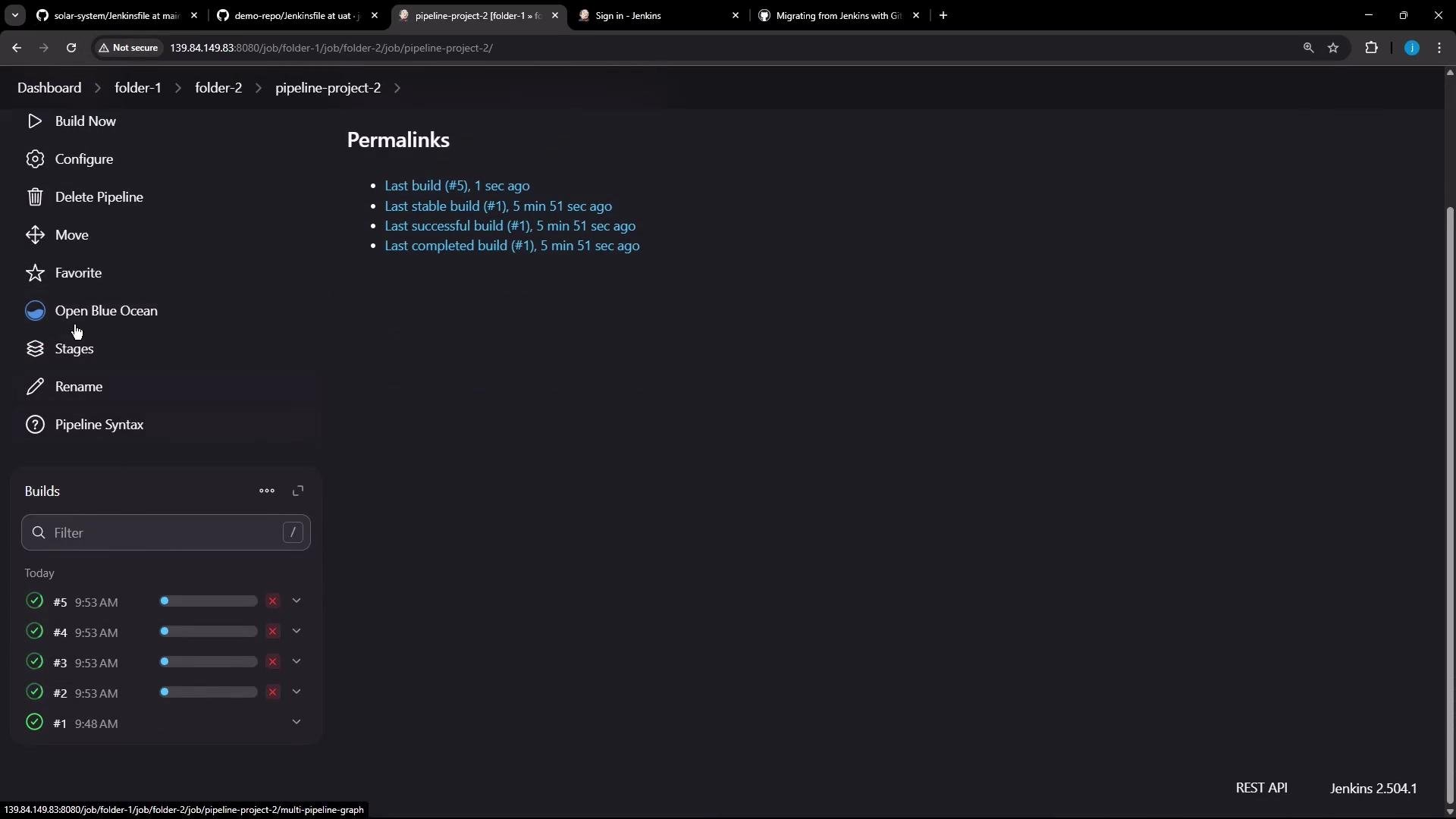
A screenshot of a Jenkins dashboard showing a list of jobs and pipelines, with a folder item named "folder-1" outlined in red. The left sidebar displays Jenkins menu options (New Item, Build History, Manage Jenkins, etc.) and build queue/status.
What you’ll see in this example:
  • A folder named folder-1.
  • Inside folder-1:
    • project1 — a Freestyle job that runs a simple sleep command (30 seconds).
    • A nested folder-2 that contains additional jobs (including a Pipeline).
To illustrate the effect of concurrent executors, I triggered the Freestyle job several times. Because the Jenkins master in this demo has two executors, two builds run concurrently; subsequent builds queue until an executor is free. Quick summary of jobs in folder-1:
Job / FolderTypeBehavior
project1FreestyleRuns sleep 30 (multiple triggered runs observed)
folder-2FolderContains pipeline jobs (see below)
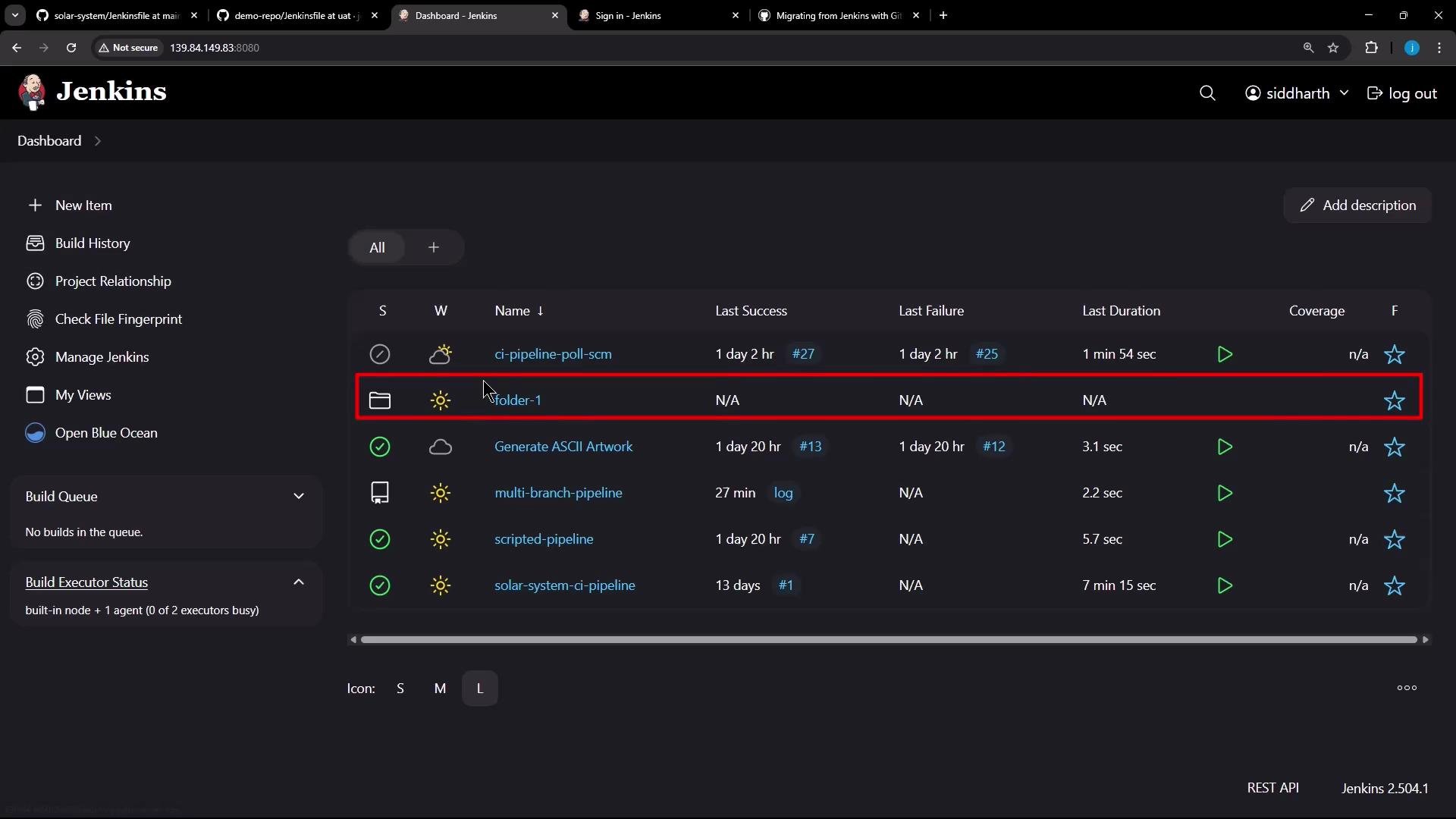
pipeline-project-2Declarative PipelineTwo stages with echo / sleep steps
Next, open folder-2 to inspect the Pipeline job.
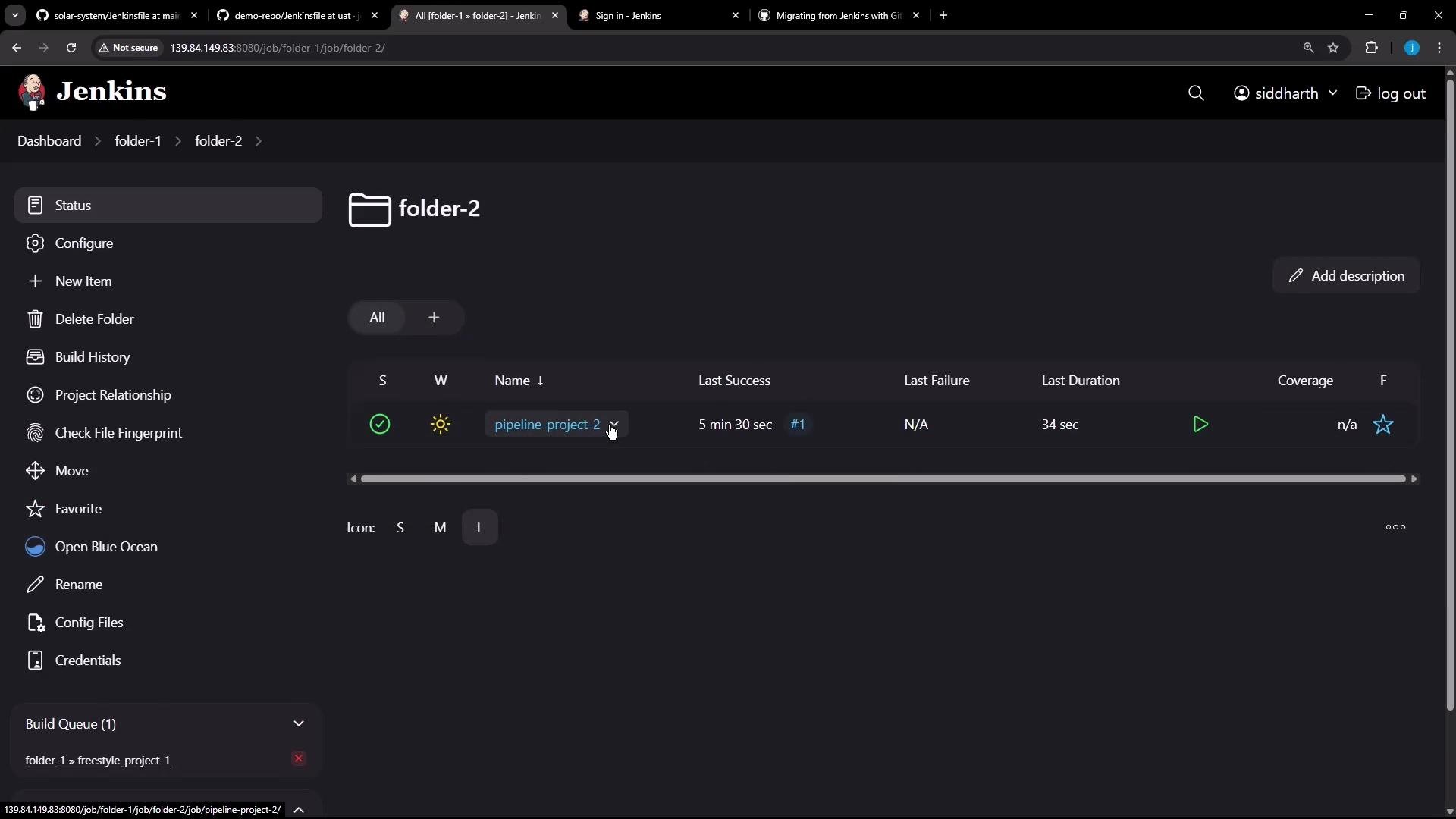
A dark‑theme Jenkins web interface showing a folder titled "folder-2" with a listed pipeline job (pipeline-project-2) and columns for last success, last failure and duration. The left sidebar displays folder actions (Configure, New Item, Delete Folder, etc.) and a small build queue panel is visible.
The pipeline is a minimal Declarative example; it contains two stages that echo a message and sleep for a few seconds:
pipeline {
  agent any
  stages {
    stage('First Stage') {
      steps {
        echo 'Starting the first stage...'
        sleep time: 5, unit: 'SECONDS'
        echo 'First stage completed.'
      }
    }

    stage('Second Stage') {
      steps {
        echo 'Starting the second stage...'
        sleep time: 10, unit: 'SECONDS'
        echo 'Second stage completed.'
      }
    }
  }
}
I triggered this pipeline multiple times as well. Actual start times vary depending on executor availability and queued tasks.
A screenshot of a Jenkins pipeline project page (pipeline-project-2) showing the left action menu (Build Now, Configure, Open Blue Ocean, etc.), a central "Permalinks" list of recent builds, and a Builds panel with recent build statuses. The UI is in dark mode and shows the Jenkins version 2.504.1 in the corner.
Restrict the audit/forecast to a folder
  • Use the -f (or --folder) argument to limit the scope to a single folder inside Jenkins. The folder name should match the name shown in the Jenkins UI.
Use -f <folder-name> to restrict the audit/forecast to a single folder (e.g., folder-1). The folder name should match the name visible in Jenkins.
Example command that targets only folder-1:
gh actions-importer forecast jenkins --output-dir tmp/forecast --no-http-cache -f folder-1
Abbreviated sample output from the run:
[2025-05-22 09:55:20] Logs: 'tmp/forecast/log/valet-20250522-095520.log'
[2025-05-22 09:55:20] Forecasting 'http://139.84.149.83:8080/'
[2025-05-22 09:55:21] Output file(s):
[2025-05-22 09:55:21]   tmp/forecast/jobs/05-22-2025-09-55_jobs_0.json
[2025-05-22 09:55:21]   tmp/forecast/forecast_report.md
Interpreting the folder-scoped forecast
  • The generated report and job JSON files contain only the jobs present inside the specified folder (folder-1 in this example).
  • In this run the forecast report summarized:
    • 2 pipeline projects
    • 9 total job runs (4 runs of the Freestyle project1 and 5 runs of the Pipeline)
    • Metrics limited to those jobs: execution time, queue time, concurrency, and per-job run statistics
Why use folder-scoped forecasts?
  • Focused capacity planning: measure executor needs for a subset of jobs (e.g., a team folder).
  • Migration assessments: analyze only the jobs you plan to migrate.
  • Faster runs: smaller scope reduces runtime and output size compared to full-server audits.
References and further reading
  • Jenkins: What is Jenkins?
  • Jenkins Pipelines: Pipeline as Code
  • GitHub CLI & actions-importer (example usage): refer to your project or extension documentation for gh actions-importer usage and flags
If you want, I can provide a step-by-step checklist to run the folder-scoped forecast in your environment or show how to parse the generated jobs_*.json for custom metrics.

Watch Video