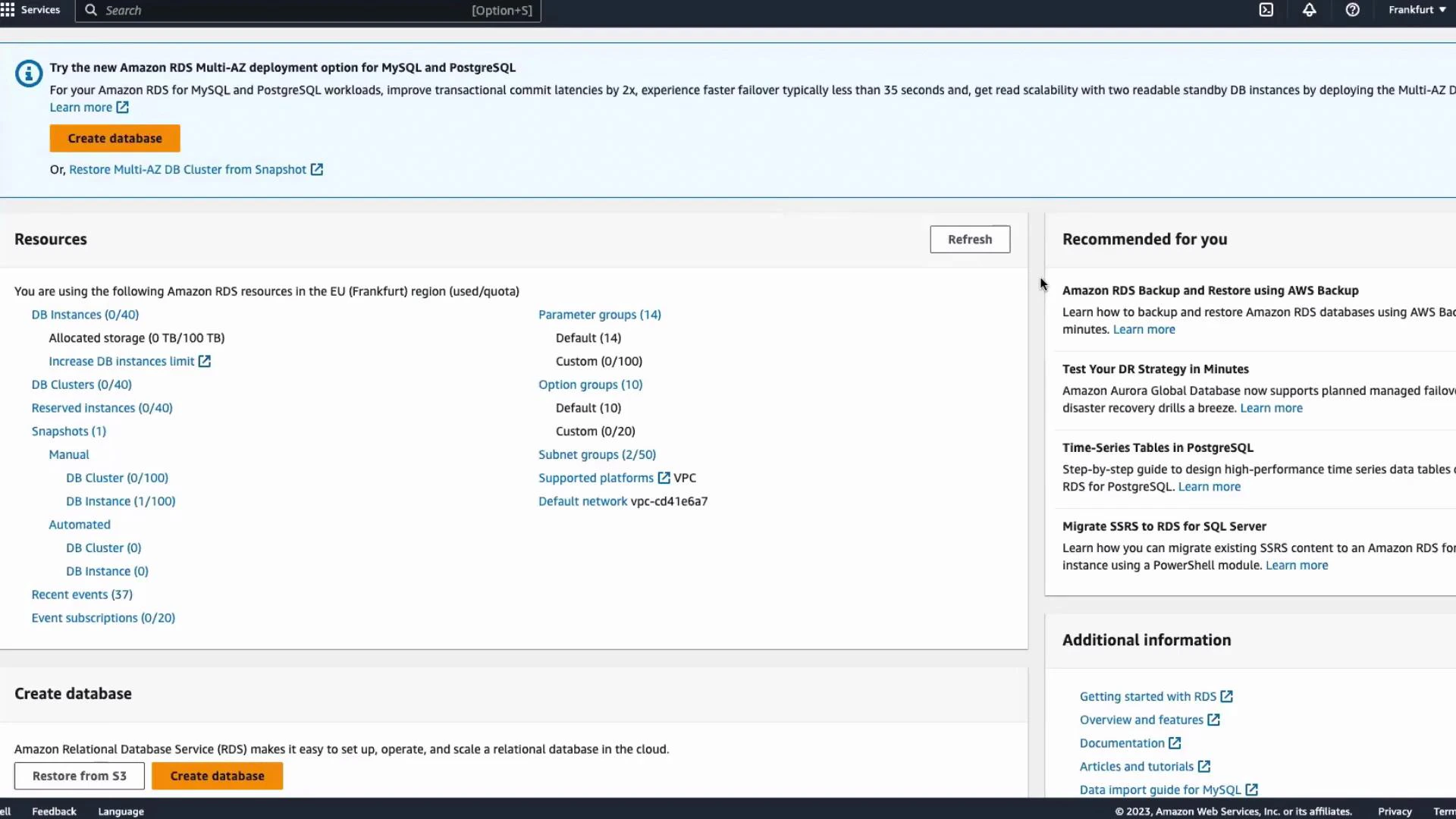
Hello, and welcome back. In this lesson you’ll see how Amazon RDS handles backups and restores in practice. We’ll create a PostgreSQL instance, add sample data, take a manual snapshot, delete the instance, and restore it from that snapshot so you can verify the data is preserved.
A screenshot of the Amazon RDS console (EU — Frankfurt) showing a Resources summary, a prominent "Create database" button, and a "Recommended for you" panel with links and tips.

1. Create a new PostgreSQL instance

  1. From the RDS console, click Databases → Create database.
  2. Keep the default creation method (Standard create).
  3. Select the engine: PostgreSQL.
  4. Leave the DB instance identifier (database-1) and master username (postgres) as defaults.
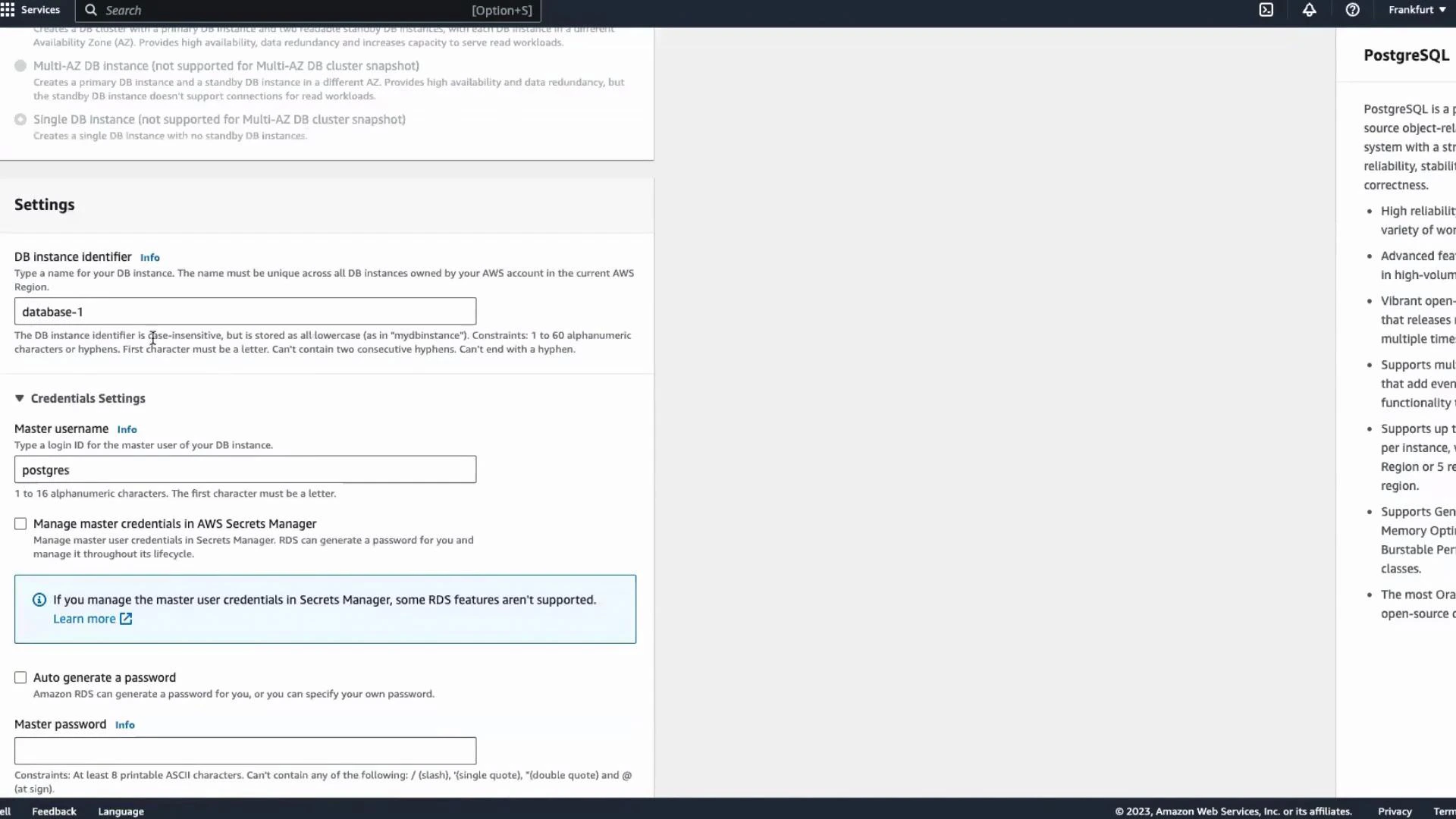
A screenshot of the AWS RDS console for creating a PostgreSQL instance, showing the Settings panel with DB instance identifier set to "database-1" and master username "postgres." The right side displays PostgreSQL product information.
Let the console auto-generate the master password (or provide your own). Scroll to Networking and configure access:
  • Set Public access to Yes if you need to connect from your laptop or an external SQL client.
  • Confirm VPC, subnets, and security groups match your network requirements.
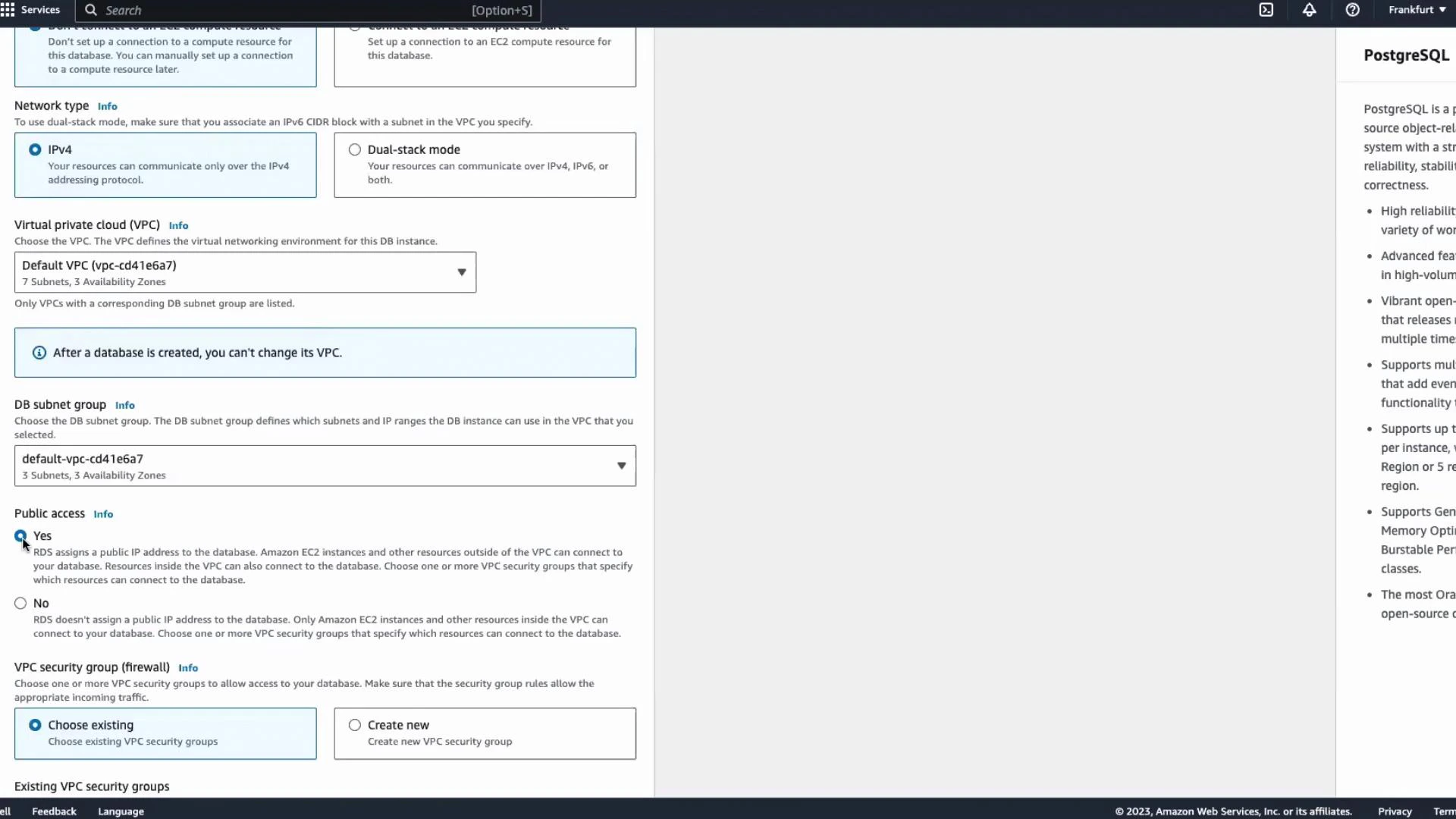
A screenshot of the AWS RDS database setup screen showing network settings — Network type (IPv4), VPC and DB subnet group selection, Public access set to Yes, and VPC security group options. A right-hand panel shows descriptive information about PostgreSQL.
Setting Public access to Yes exposes the database endpoint to the internet. For production or organizational environments, avoid public access unless you have strict network controls (security groups, IP whitelisting) in place.
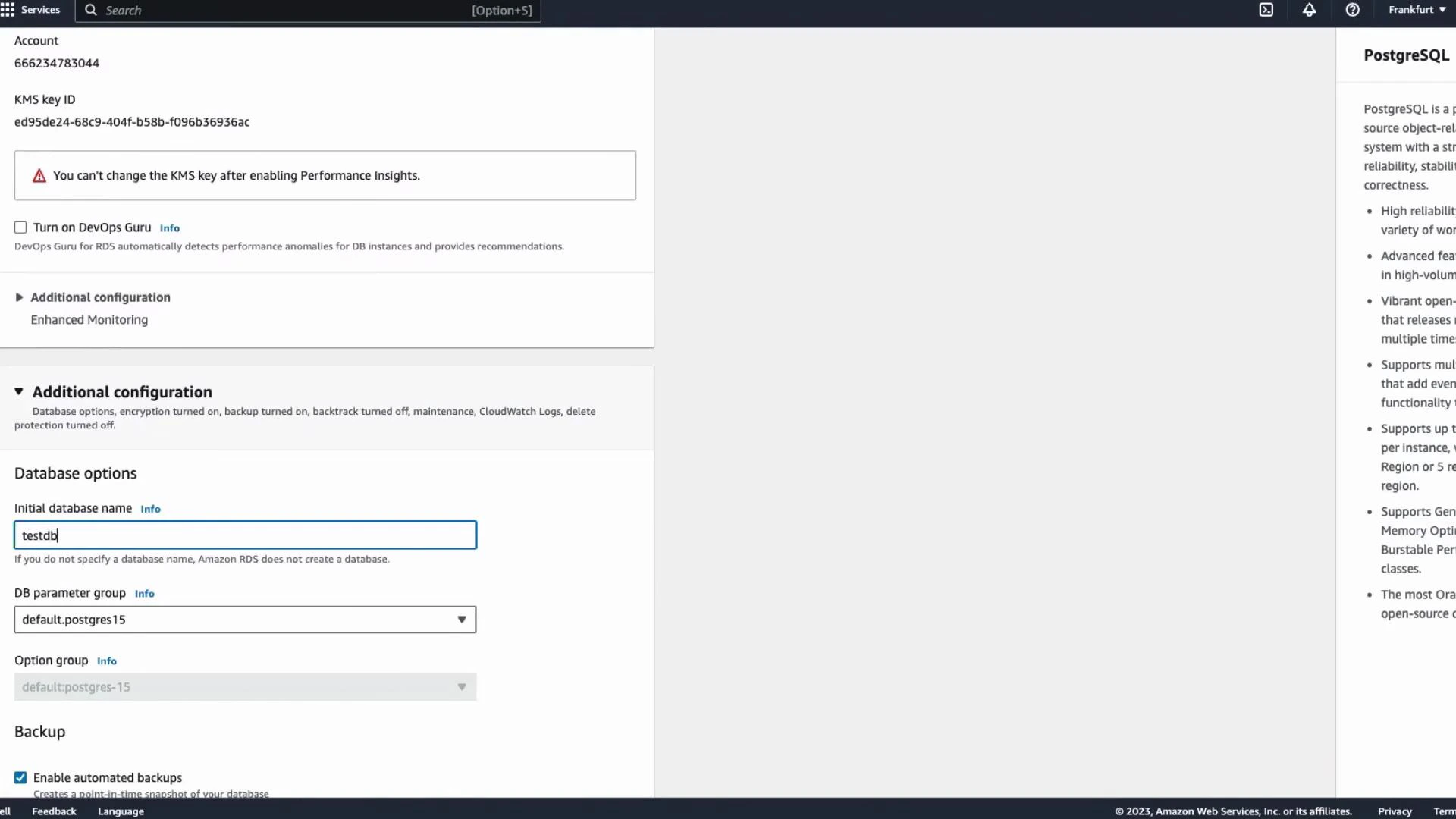
Under Additional configuration, set the initial database name to testdb so the database is created as part of instance initialization. Then click Create database. Instance provisioning typically takes 10–15 minutes.
A screenshot of the Amazon RDS configuration page for creating a PostgreSQL instance, showing "Additional configuration" and database options with the initial database name set to "testdb." The page also shows a KMS key ID and a warning that the KMS key can't be changed after enabling Performance Insights.
When status becomes Available, copy the master username and generated password from the console banner — you’ll need them to connect.
A screenshot of the AWS RDS console showing estimated monthly costs and free-tier details for a PostgreSQL DB instance. The "Create database" button is visible and highlighted at the bottom.

2. Connect and create sample data

Open your preferred PostgreSQL client (DBeaver, psql, pgAdmin, etc.) and create a new connection using:
  • Host: RDS endpoint (from the instance details)
  • Port: 5432
  • Database: testdb
  • Username: postgres
  • Password: the generated password
Test and save the connection.
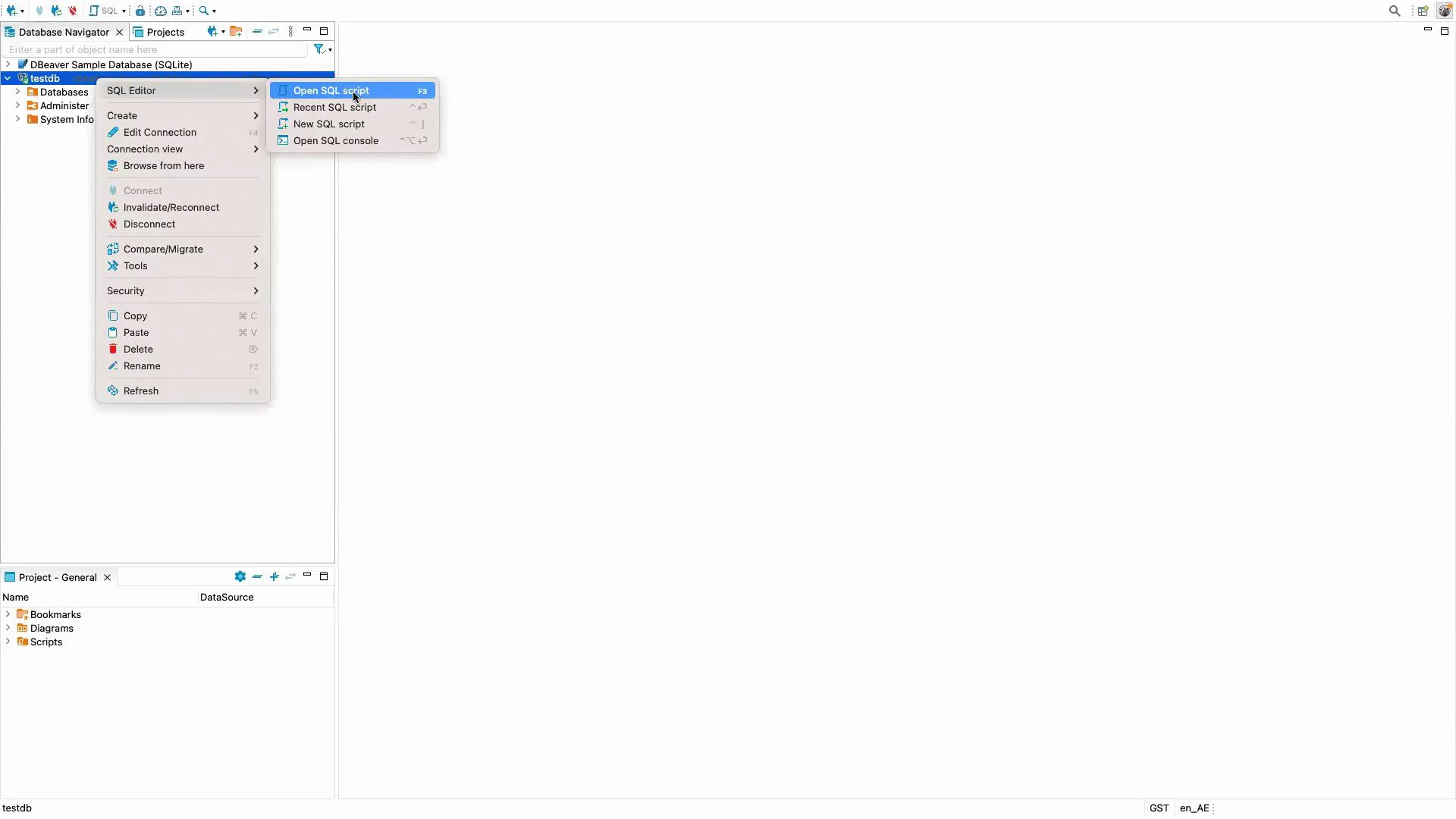
A screenshot of a database IDE (DBeaver) showing the Database Navigator on the left with a context menu open for a "testdb" connection (highlighting "Open SQL script") and a large empty editor area on the right. The bottom pane shows a "Project - General" panel with Bookmarks, Diagrams, and Scripts.
Open an SQL editor connected to testdb and run the following script to create a small table and insert sample rows:
-- Create customers table
CREATE TABLE customers (
  customerid SERIAL PRIMARY KEY,
  customername VARCHAR(255),
  contactname VARCHAR(255),
  country VARCHAR(255),
  email VARCHAR(255)
);

-- Insert sample data
INSERT INTO customers (customername, contactname, country, email) VALUES
  ('John Doe', 'John', 'USA', 'john.doe@example.com'),
  ('Jane Doe', 'Jane', 'UK', 'jane.doe@example.com'),
  ('Emily Smith', 'Emily', 'Canada', 'emily.smith@example.com');

-- Verify the data
SELECT * FROM customers;
You should see output similar to:
 customerid | customername | contactname | country |              email
-----------:|--------------|-------------|---------|-----------------------------------
          1 | John Doe     | John        | USA     | john.doe@example.com
          2 | Jane Doe     | Jane        | UK      | jane.doe@example.com
          3 | Emily Smith  | Emily       | Canada  | emily.smith@example.com

3. Take a manual snapshot

Manual snapshots capture the full state of the DB instance at a point in time. In the RDS console:
  1. Select the database instance.
  2. Actions → Take snapshot.
  3. Provide a meaningful snapshot name and confirm.
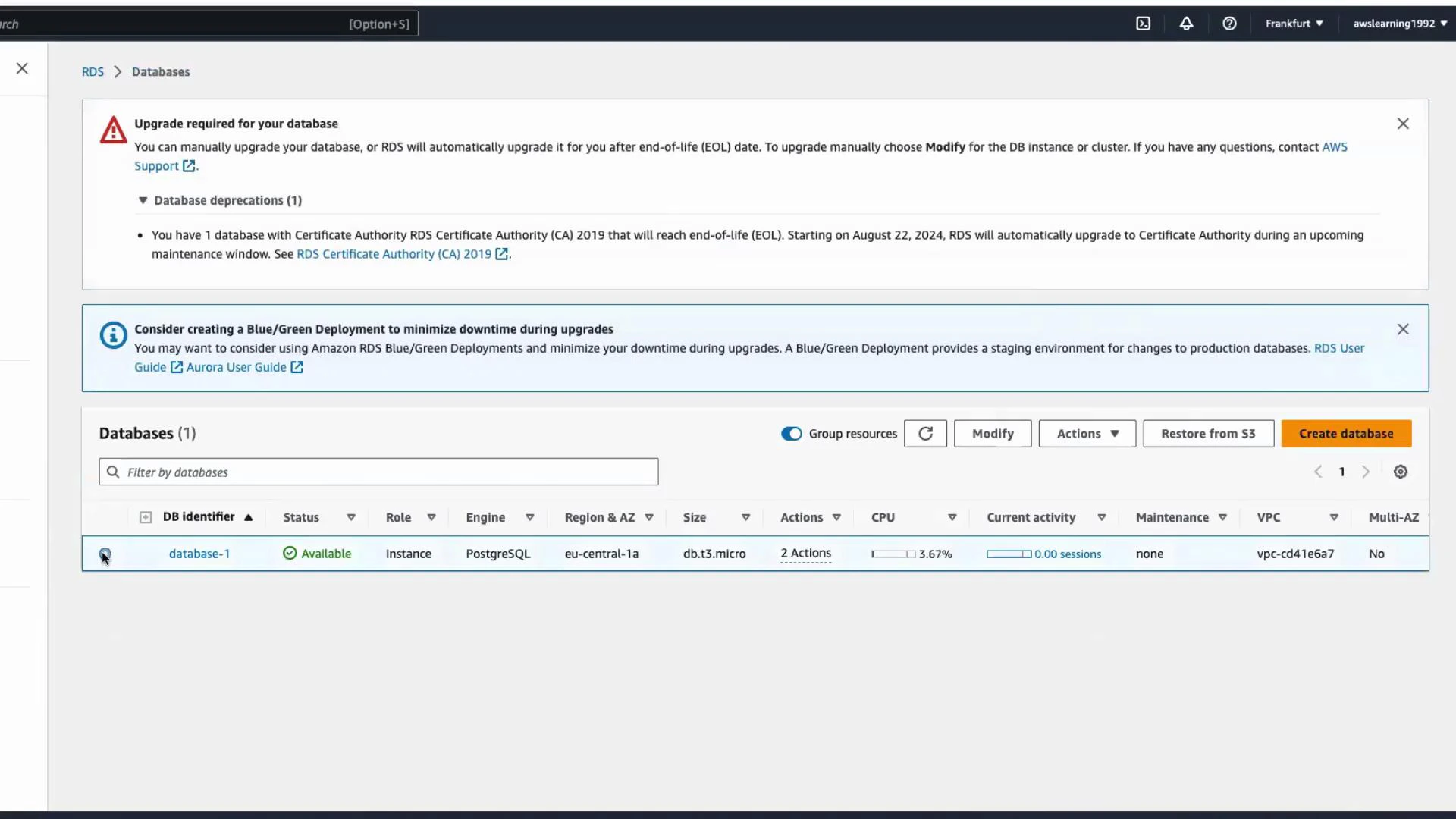
Snapshot creation may take several minutes depending on the data size. When the snapshot becomes Available you can restore it later.
A screenshot of the AWS RDS Databases console showing an "Upgrade required for your database" banner and guidance about blue/green deployments. The table lists one available PostgreSQL instance named "database-1" (db.t3.micro in eu-central-1a).

4. Delete and restore from the snapshot (demo)

To demonstrate restore behavior, delete the original instance (if you choose to follow this demo, ensure you have the snapshot completed first). Then:
  1. In the RDS console, open Snapshots.
  2. Select the snapshot you created.
  3. Actions → Restore snapshot.
  4. Provide a unique DB instance identifier (e.g., database-1-snapshot).
  5. Keep defaults or adjust as needed — set Public access to Yes if you need external connectivity.
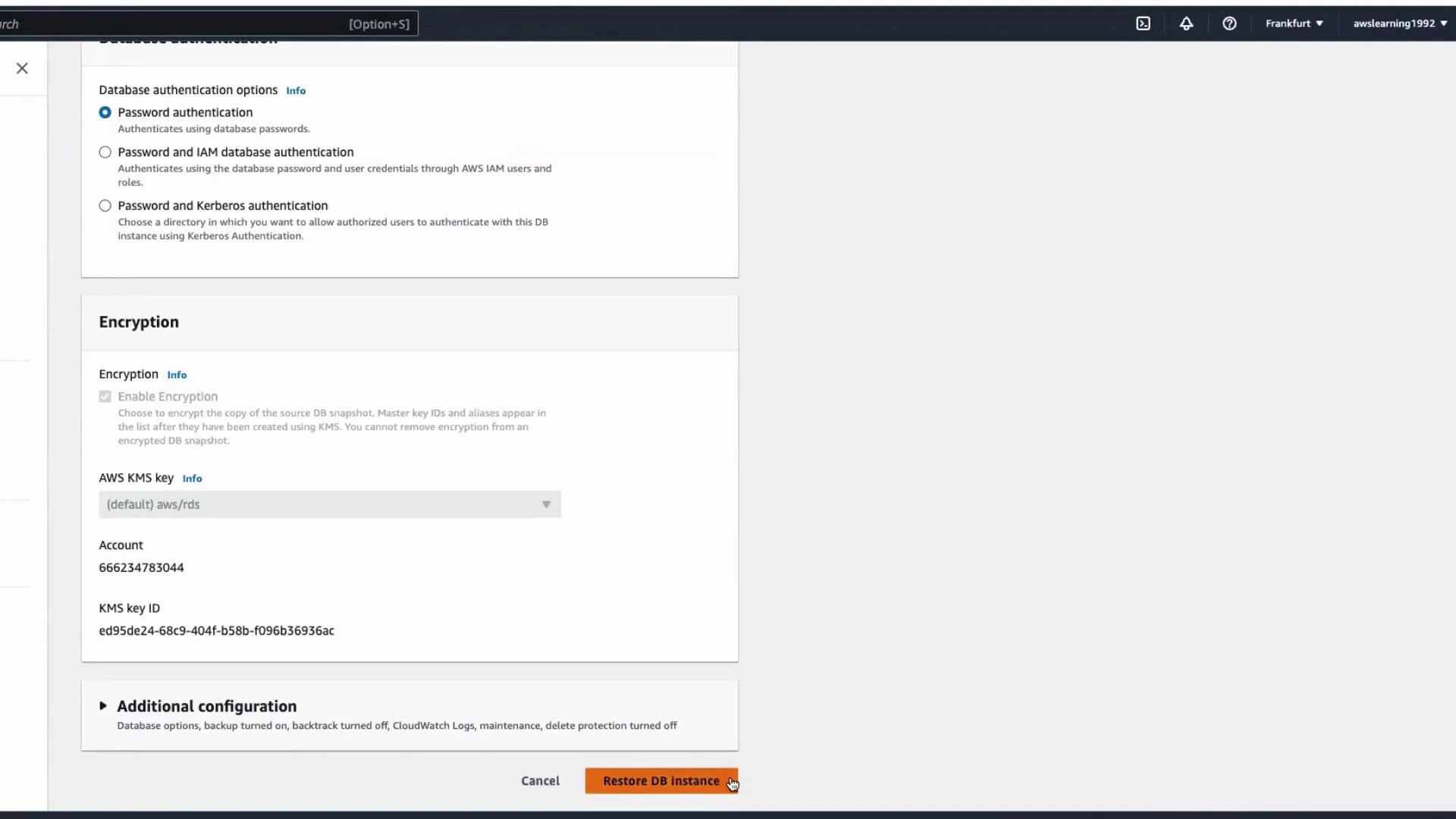
  6. Click Restore DB instance.
A screenshot of the AWS RDS console showing database authentication and encryption settings for restoring a DB instance. The page displays options for password/IAM/Kerberos authentication, KMS key details, and a "Restore DB instance" button.
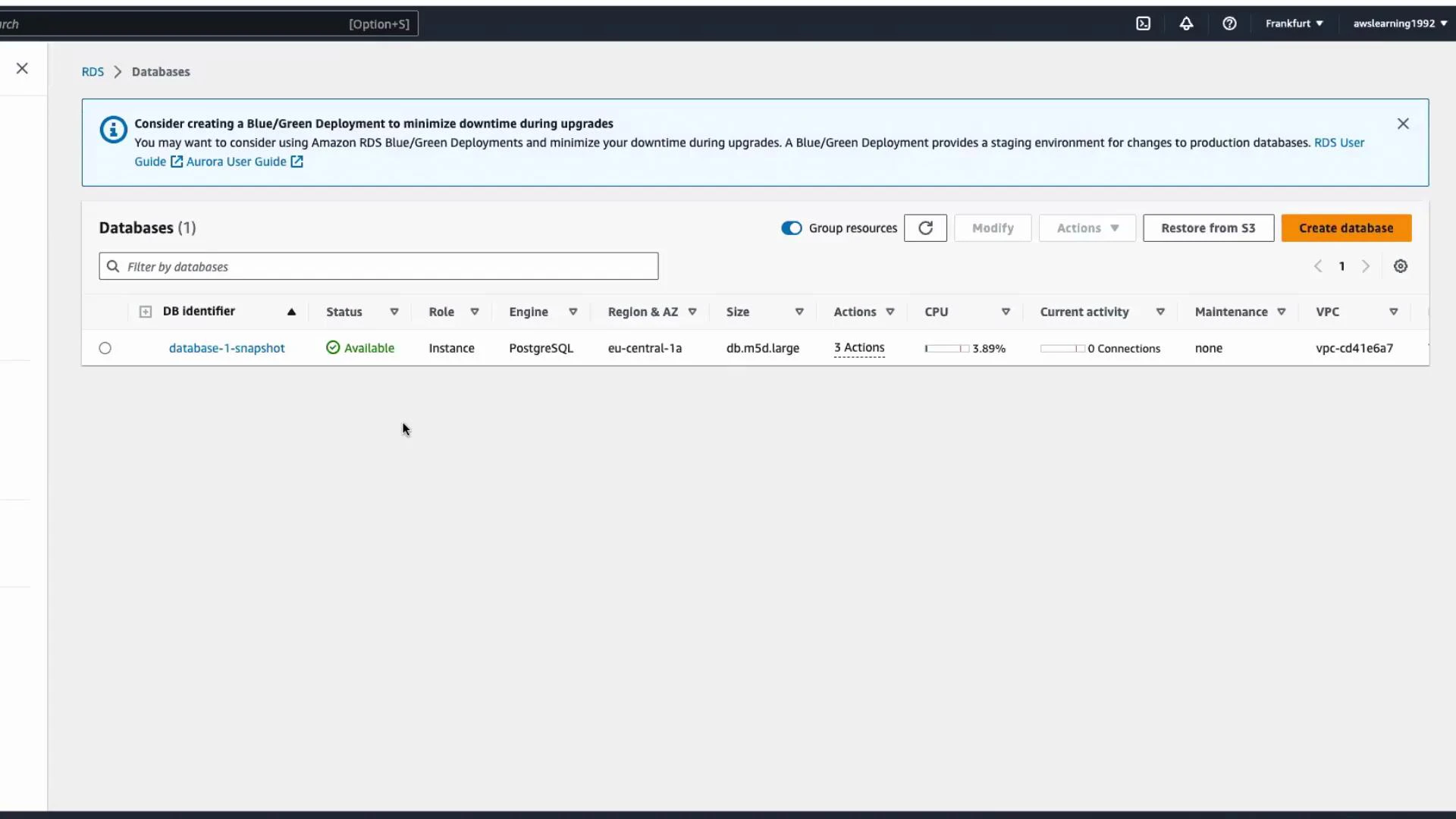
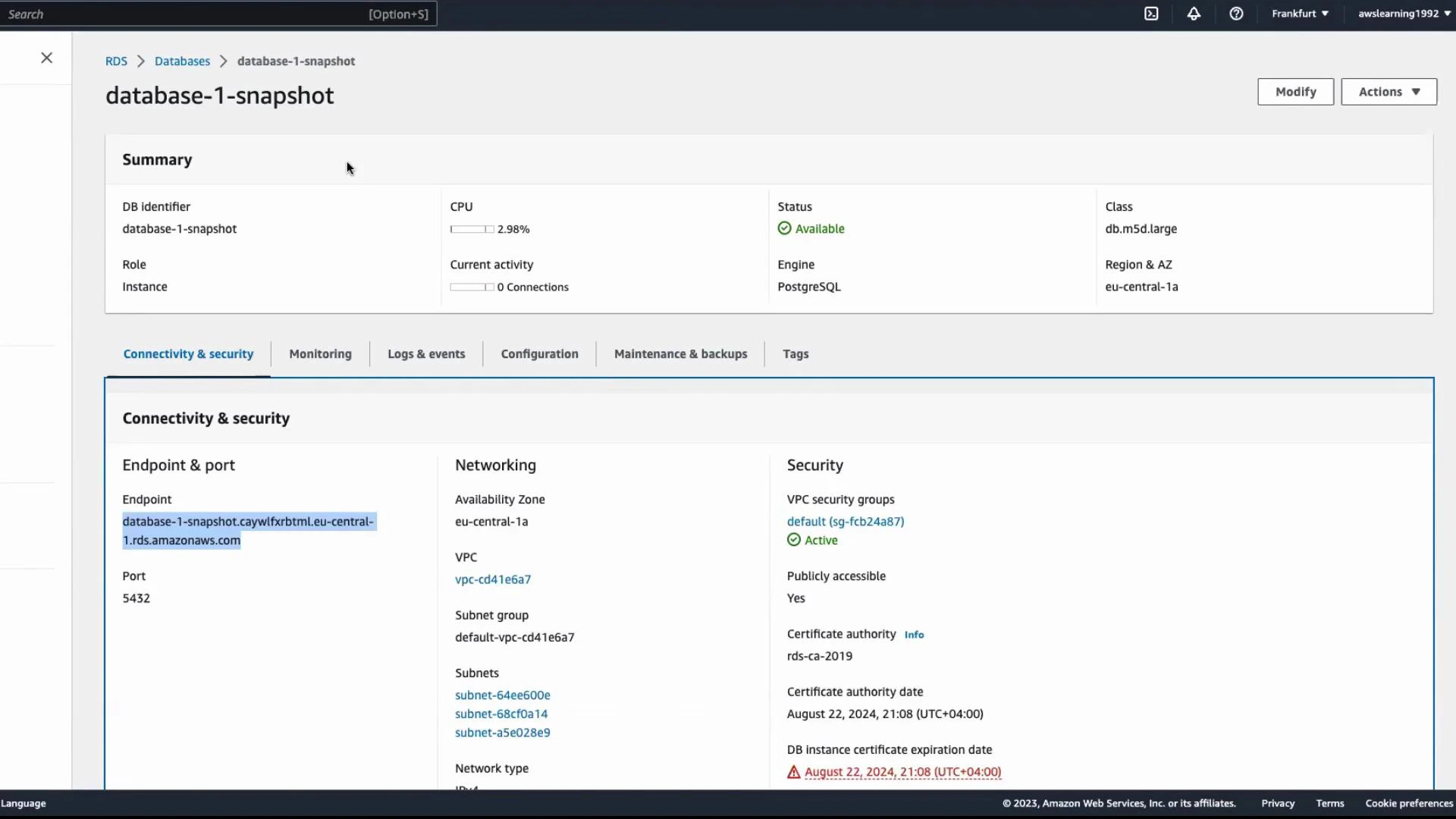
Important: the restored instance inherits the engine version, master username, and many configuration settings from the snapshot. You can choose a new master password during restore — the original generated password cannot be retrieved from the console after it was first shown. If you want to keep credentials consistent, supply the original password at restore time, or reset the password after restoring. Restoration can take several minutes. When the restored instance status is Available, obtain its endpoint from the instance details and reconnect.
A screenshot of the AWS RDS Databases console showing one PostgreSQL instance named "database-1-snapshot" with status "Available." The row shows instance details like role (Instance), region eu-central-1a, and size db.m5d.large.

5. Reconnect and verify restored data

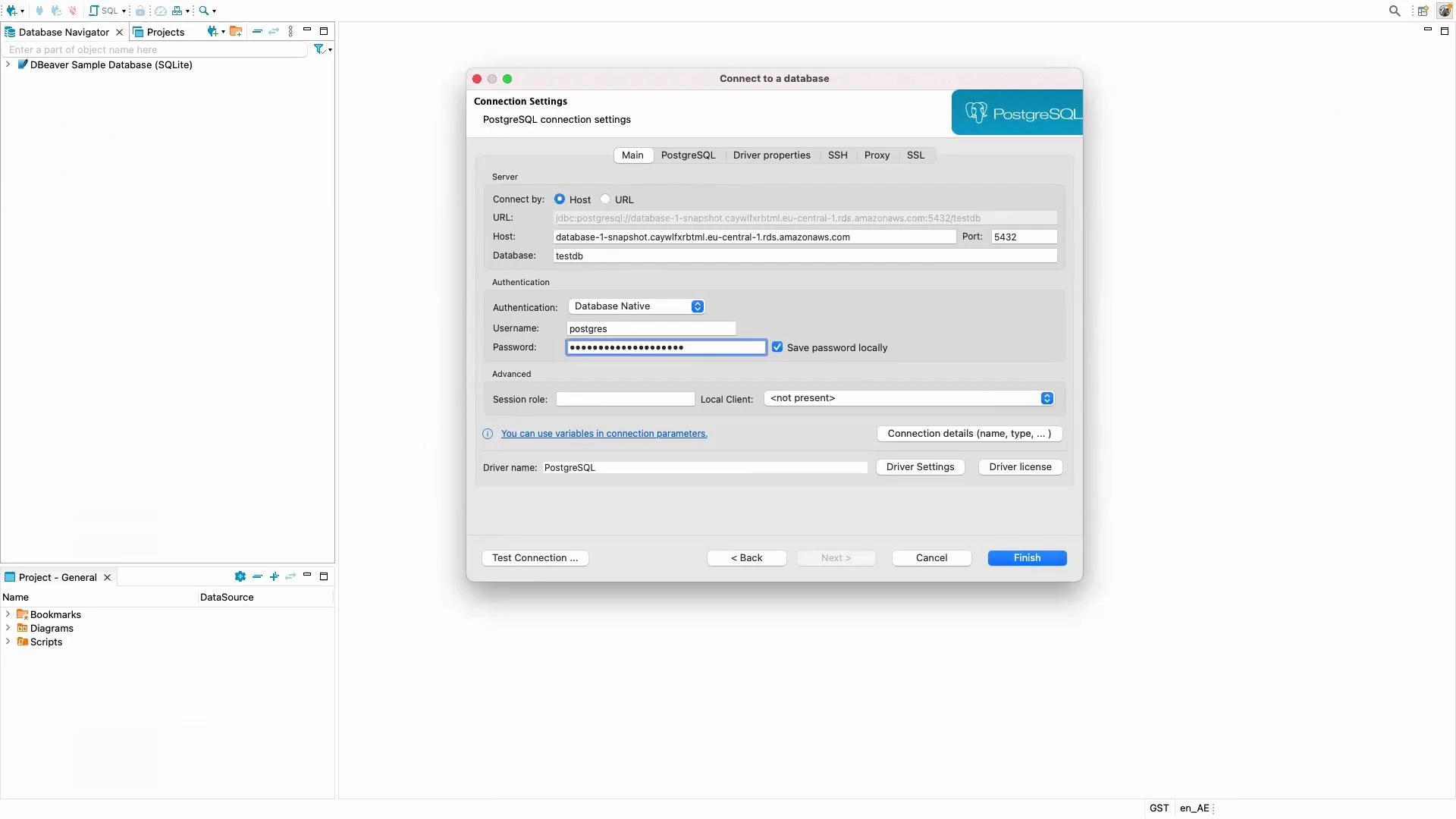
Create a new connection in your SQL client using the restored instance endpoint, port 5432, database testdb, and the master credentials. Test the connection and open an SQL editor.
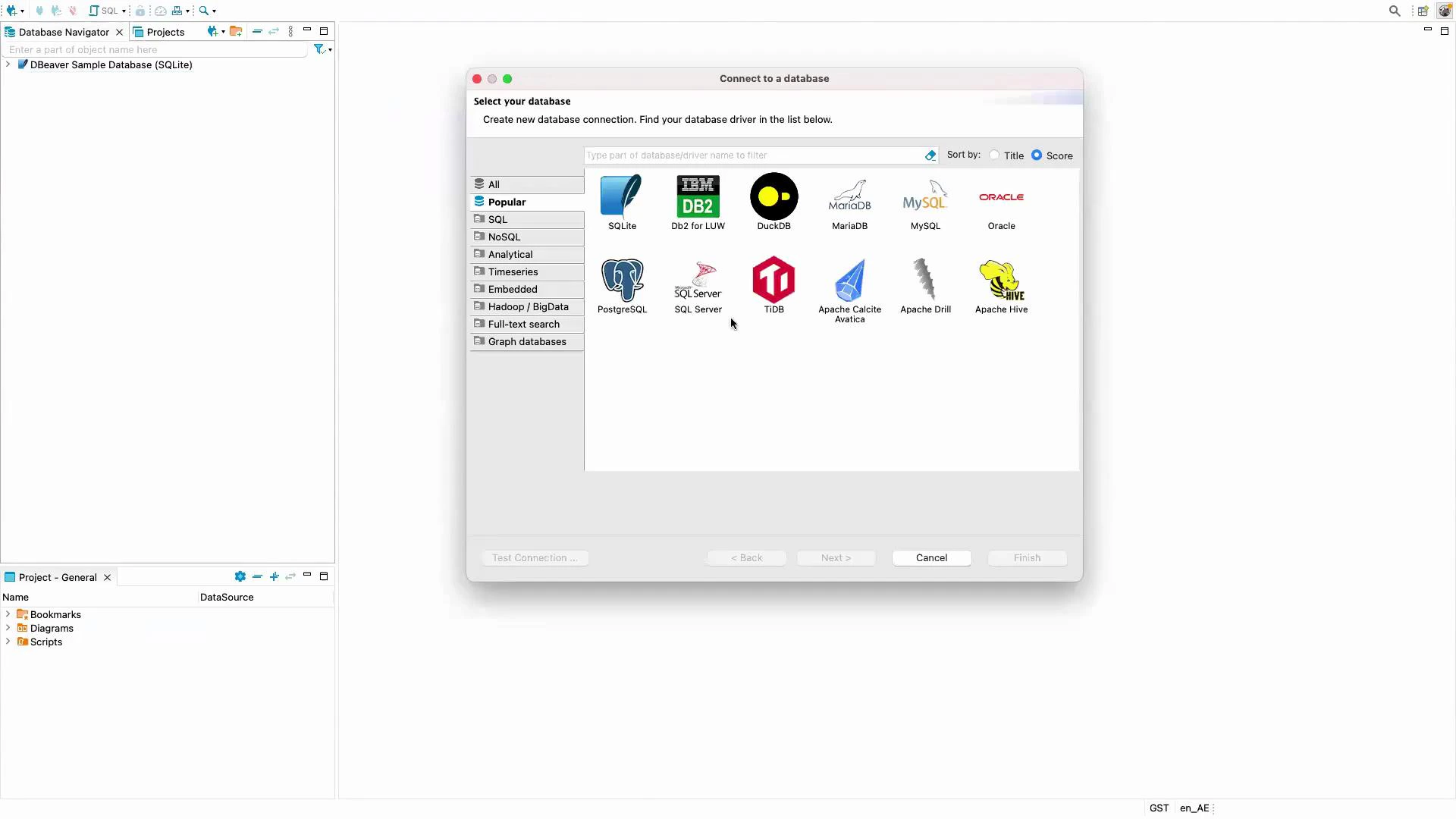
A screenshot of the DBeaver database GUI showing the "Connect to a database" dialog with icons for various database types (SQLite, DB2, DuckDB, MariaDB, MySQL, Oracle, PostgreSQL, SQL Server, TiDB, Apache tools, Hive, etc.). The left side shows a Database Navigator with a sample SQLite database and a project panel below.
A screenshot of a database client showing a "Connect to a database" dialog for PostgreSQL with fields for host, port, database, username and password. The left pane shows a Database Navigator with a sample SQLite database and project folders.
Run:
SELECT * FROM customers;
You should see the same rows that existed when the snapshot was taken, confirming the snapshot and restore correctly preserved your data:
 customerid | customername | contactname | country |              email
-----------:|--------------|-------------|---------|-----------------------------------
          1 | John Doe     | John        | USA     | john.doe@example.com
          2 | Jane Doe     | Jane        | UK      | jane.doe@example.com
          3 | Emily Smith  | Emily       | Canada  | emily.smith@example.com
A screenshot of the AWS RDS console showing the "database-1-snapshot" PostgreSQL DB snapshot summary and status. The Connectivity & Security panel (highlighted) shows the endpoint, port 5432, VPC/subnets, and security group details.

Backup options overview

Backup TypeUse CaseNotes
Automated backupsContinuous automated backup and point-in-time recovery (PITR)Enable retention window and monitor storage usage
Manual snapshotsAd-hoc point-in-time capture for long-term retention or pre-change snapshotsStored until explicitly deleted
Use automated backups for continuous protection and point-in-time recovery, and take manual snapshots for critical milestones (before upgrades or destructive changes). Remember to manage snapshot lifecycle and IAM permissions for snapshot access.

Summary and best practices

  • Manual snapshots capture the full DB instance state at a specific point in time and can be restored to create a new instance.
  • Restored instances inherit engine version and many configuration settings from the snapshot; set or reset credentials as needed during restore.
  • Avoid enabling public access for production databases unless you require it and have strict security controls in place.
  • Combine automated backups (PITR) with regular manual snapshots for critical checkpoints.
  • Monitor snapshot storage and establish lifecycle/retention policies to control costs.
Links and references That concludes the demo on backing up and restoring an RDS PostgreSQL instance using snapshots. See you in the next lesson.

Watch Video