

- Inspecting database behavior with Performance Insights and the RDS console
- Creating a CloudWatch alarm for DatabaseConnections
- Configuring SNS notifications for alarm actions
- Simulating load with a Python script to trigger the alarm
Inspect the database with Performance Insights and RDS monitoring
Performance Insights provides detailed, database-level telemetry for Aurora and other RDS engines. You can also use the Monitoring tab in the RDS console for a quick overview of common metrics.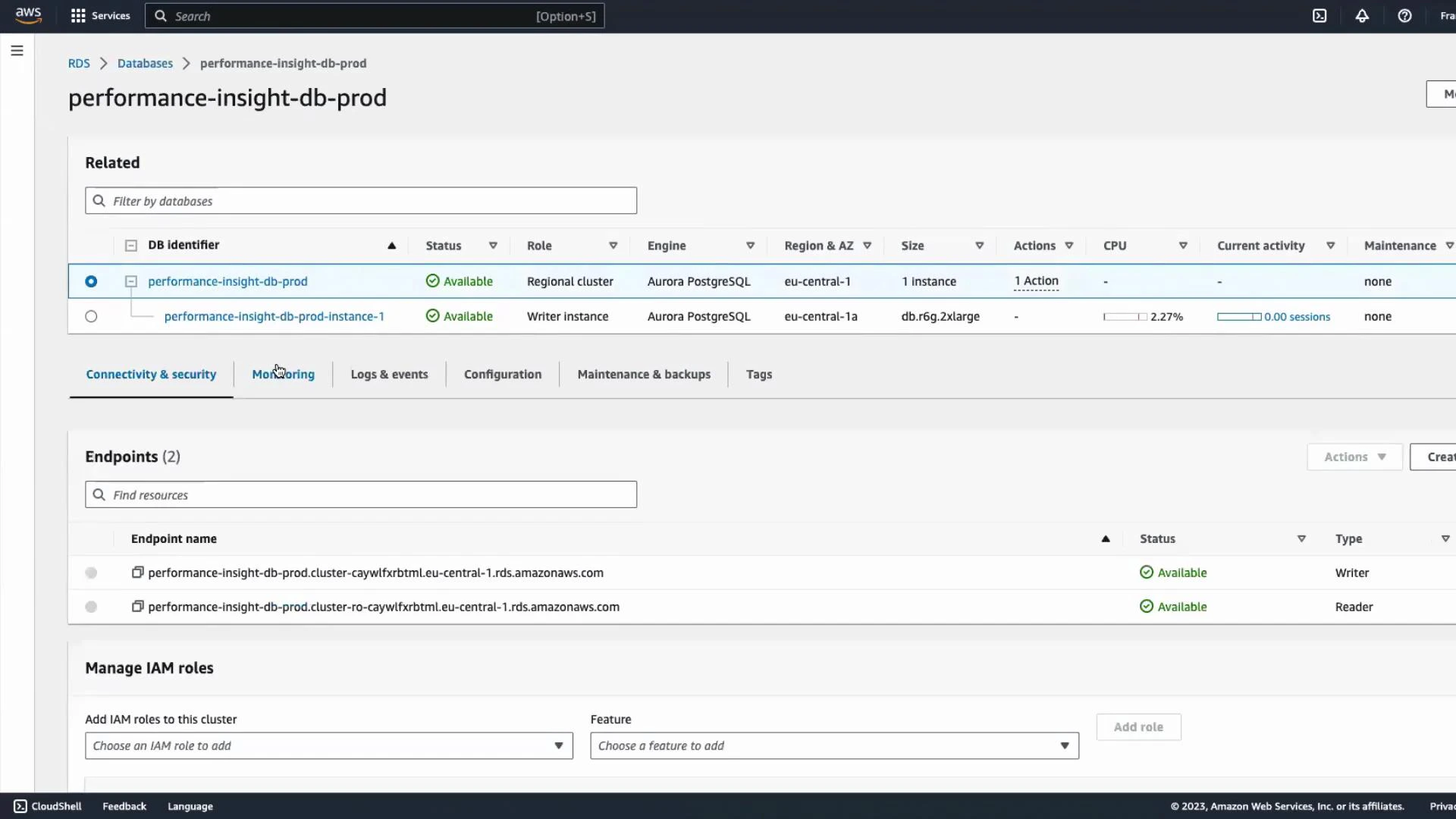
Create a CloudWatch alarm for DatabaseConnections (step-by-step)
- Open the CloudWatch console and go to Alarms → Create alarm.
- Select a metric source: choose RDS and filter by your DB identifier/role (WRITER/READER). For this guide we’ll use the DatabaseConnections metric.
- Preview the time series to confirm you’re selecting the intended resource and timeframe.
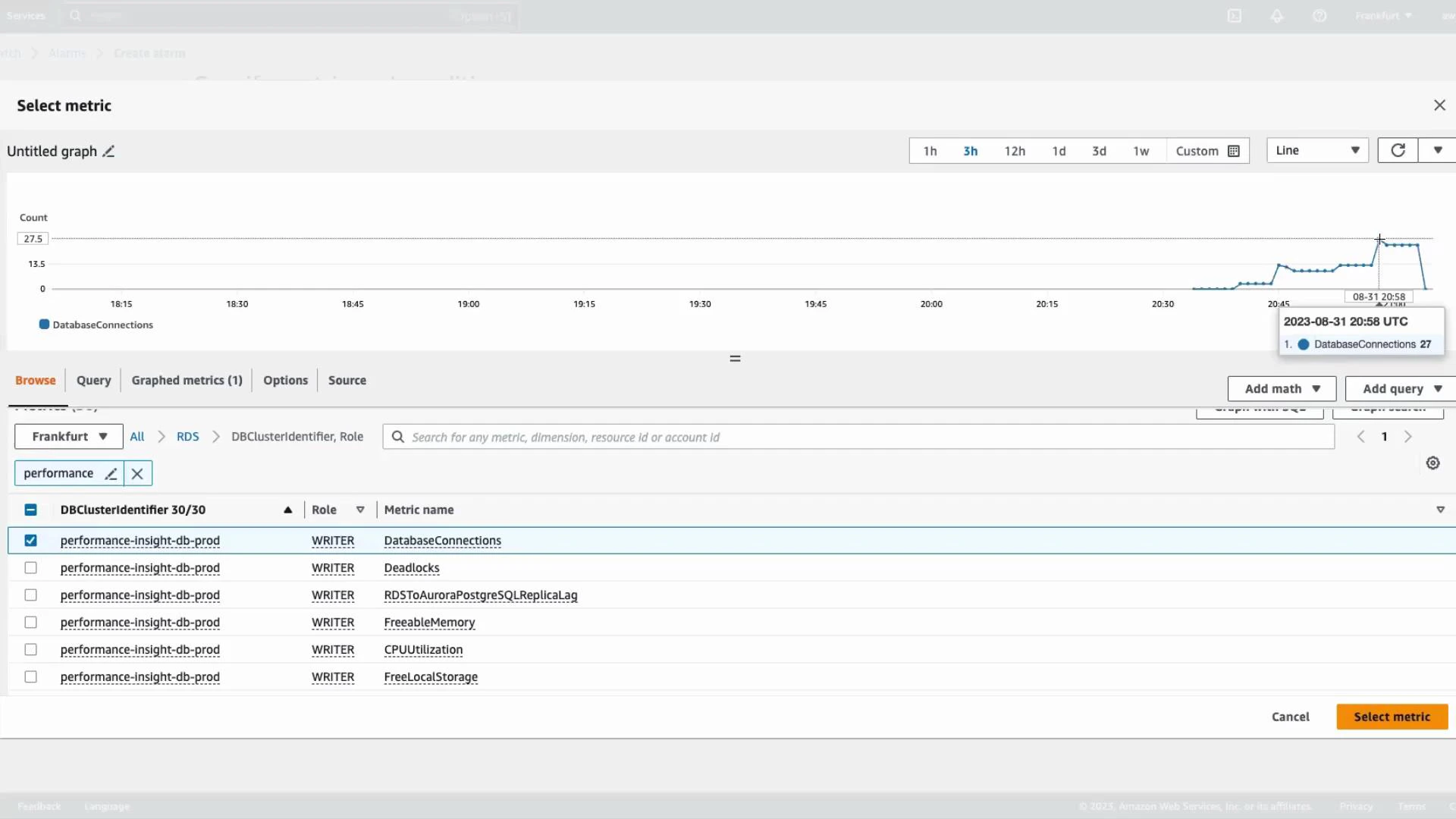
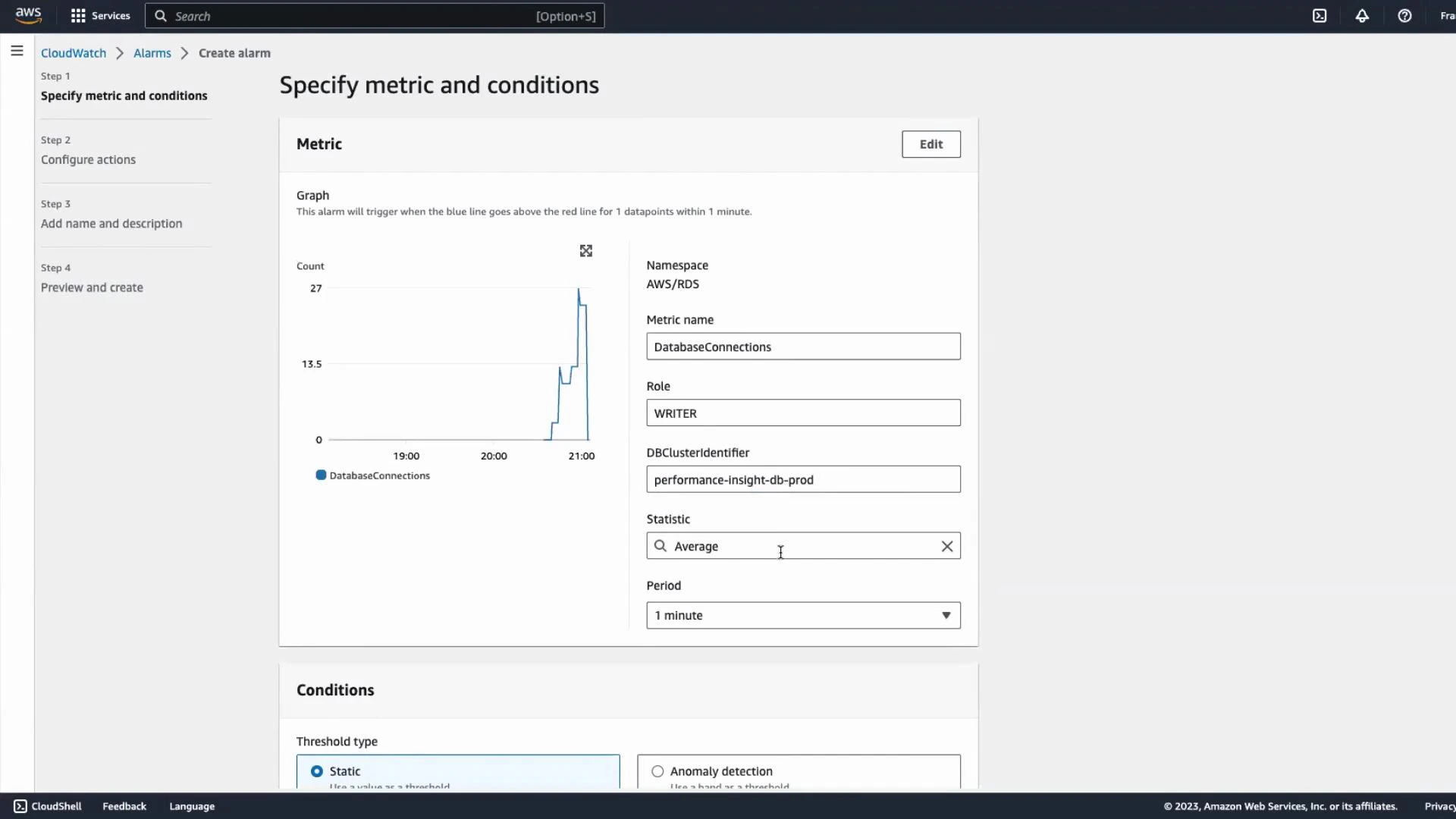
- Configure the metric evaluation:
- Choose Statistic (e.g., Average) and Period (e.g., 1 minute) that match your desired sensitivity.
- Set the evaluation period and datapoints to alarm according to how quickly you want alerts.
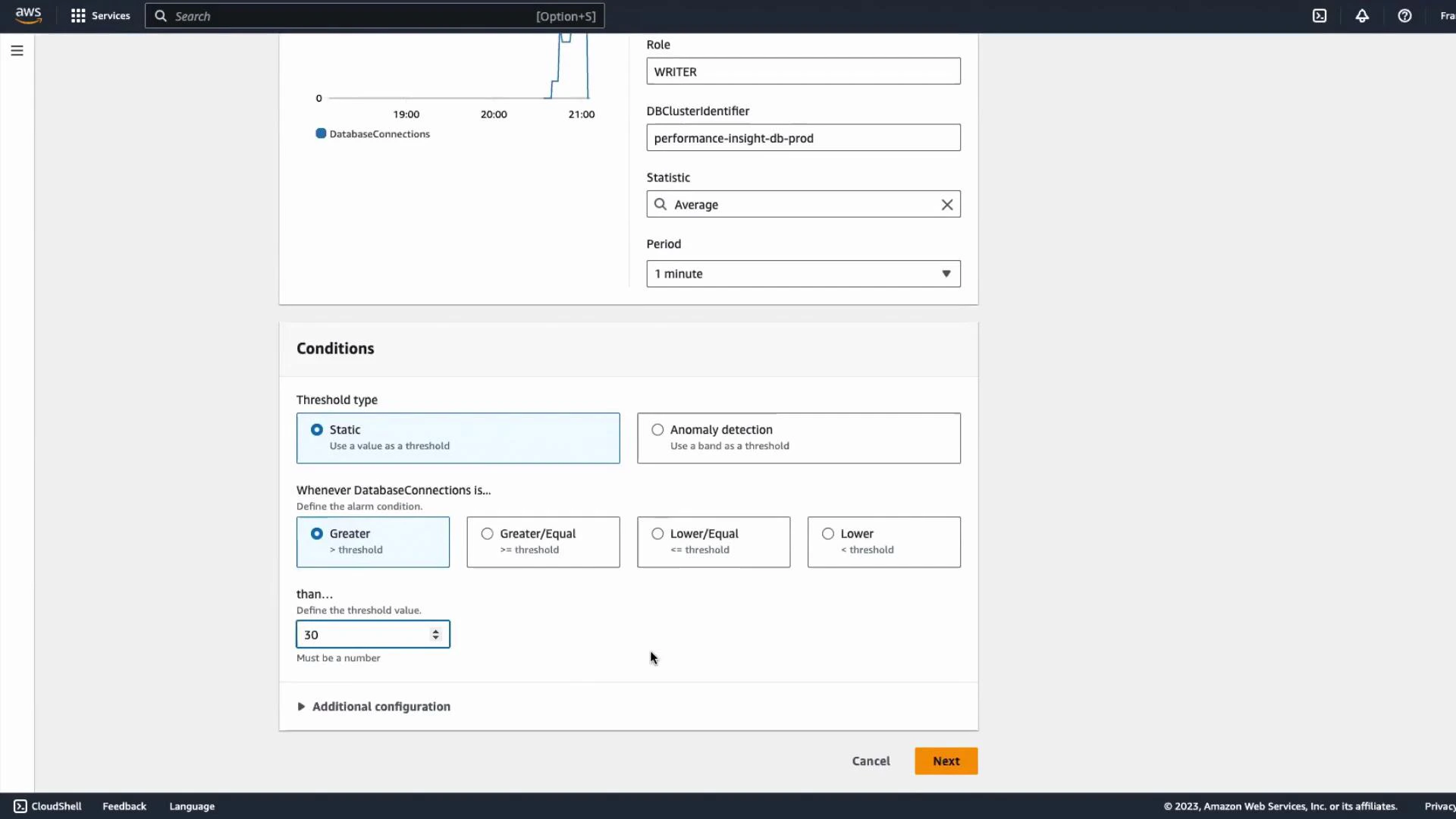
- Define the threshold. For this demo, use a static threshold:
- Trigger when DatabaseConnections > 30.
- Adjust threshold and evaluation windows for your production needs.
- Configure alarm actions:
- Create or choose an existing SNS topic to send notifications (email, SMS, Lambda, HTTP endpoints).
- Add subscribers (for example, an email address). You can create a new SNS topic as part of the alarm workflow.
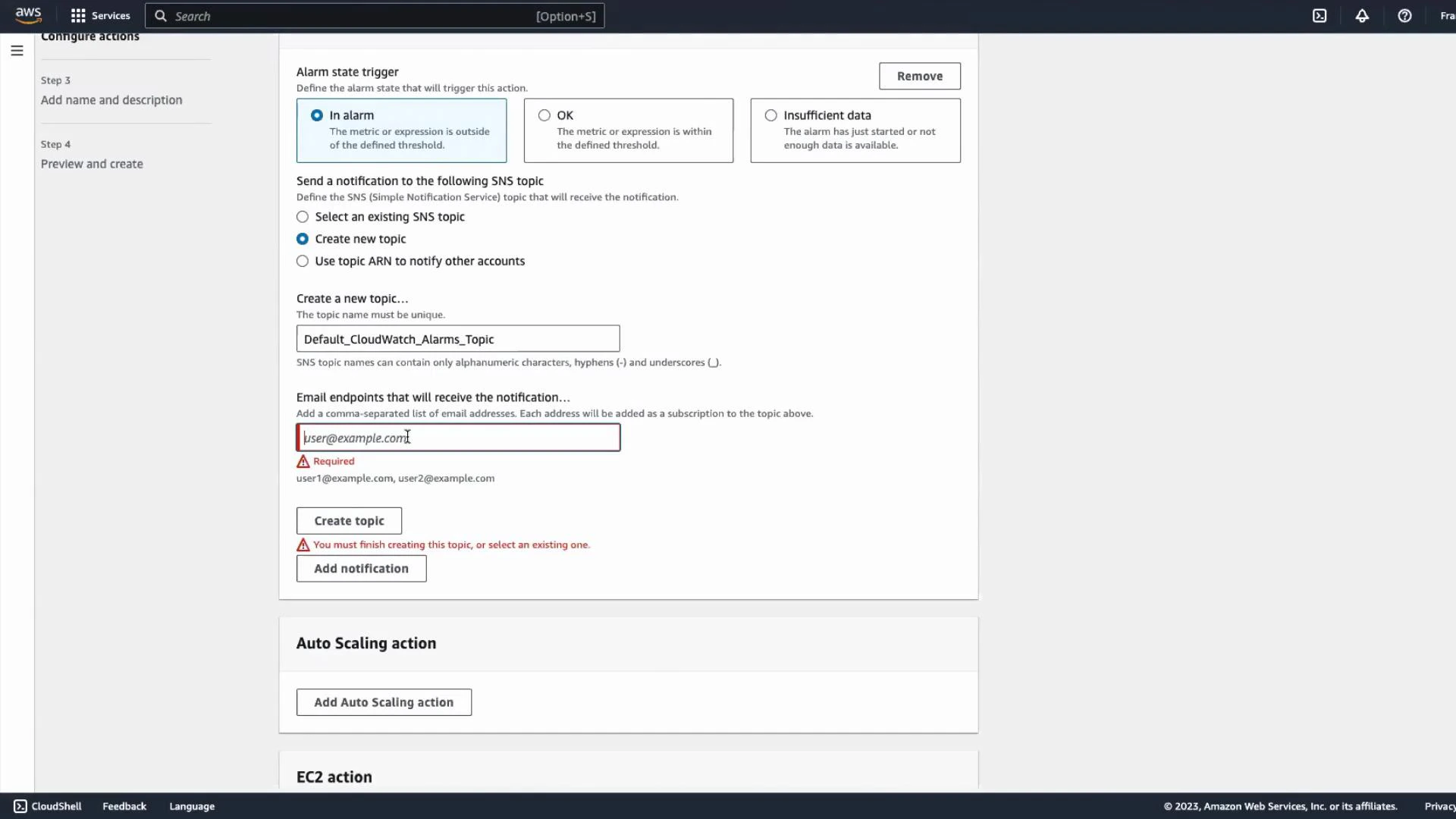
After creating an SNS topic and adding an email endpoint, you must confirm the subscription from the email inbox. Until the subscription is confirmed you will not receive alarm notifications.
- Name the alarm (for example, “High DB connections”) and create it. CloudWatch will evaluate the metric and change the alarm state to ALARM when conditions are met.
Simulate load to trigger the alarm
To demonstrate the alarm firing, you can run a short Python script that opens many concurrent connections to the DB. Replace the connection parameters with your own host, database, username, and password.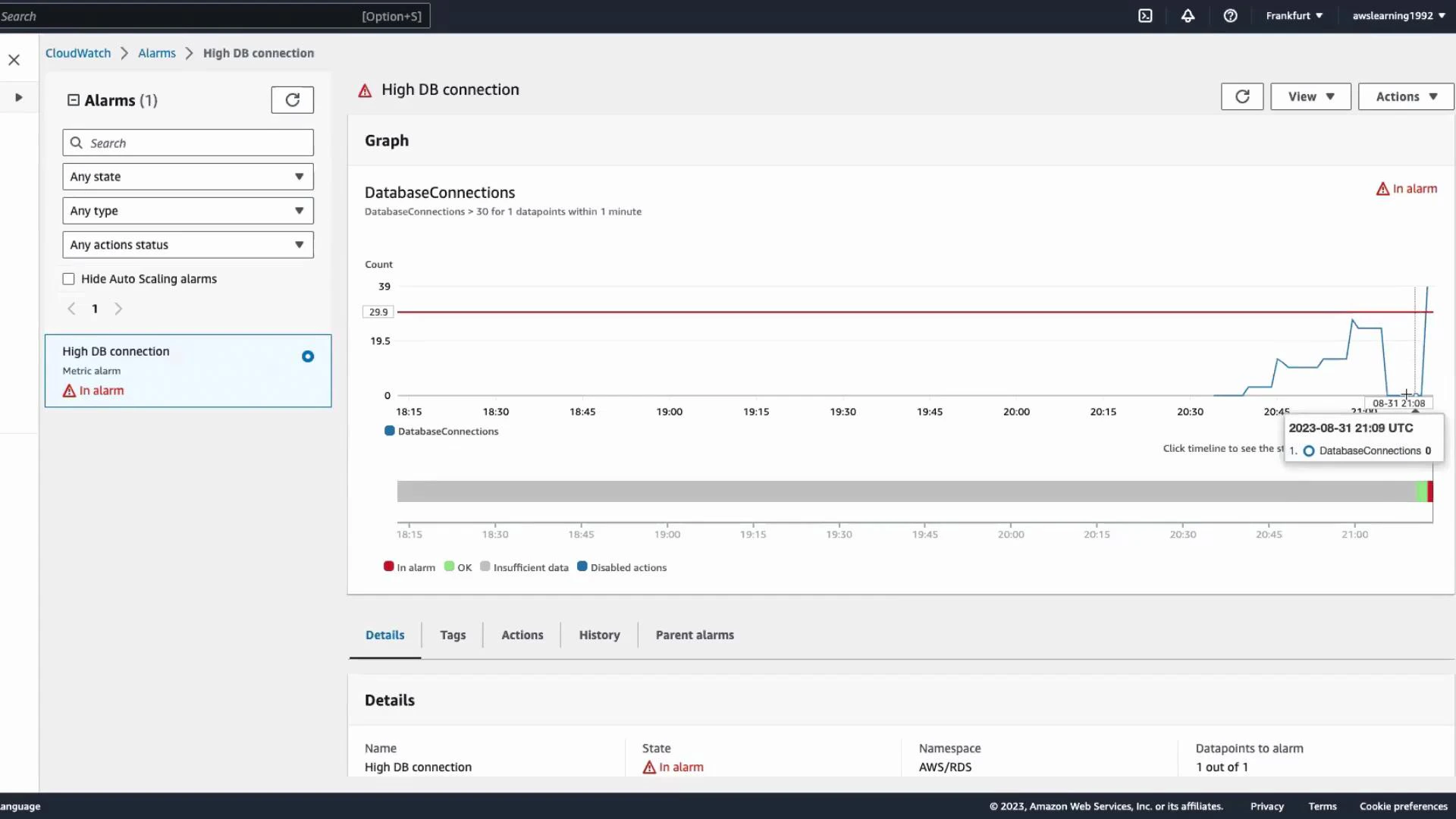
Do not run aggressive connection or load tests against production databases. Simulate load only against non-production environments or during controlled maintenance windows to avoid impacting users.
Common RDS metrics to monitor
Next steps and references
- If you need automated remediation, subscribe a Lambda function to the SNS topic to run scripts or scaling actions.
- Consider using dynamic thresholds or anomaly detection in CloudWatch for more adaptive alerting.
- Combine Performance Insights with CloudWatch metrics to correlate query load and infrastructure signals.
- Amazon RDS (overview): https://docs.aws.amazon.com/AmazonRDS/latest/UserGuide/Welcome.html
- Aurora User Guide: https://docs.aws.amazon.com/AmazonRDS/latest/AuroraUserGuide/CHAP_Aurora.html
- CloudWatch alarms: https://docs.aws.amazon.com/AmazonCloudWatch/latest/monitoring/AlarmThatSendsEmail.html
- Performance Insights: https://docs.aws.amazon.com/performance-insights/latest/userguide/what-is-pi.html
- SNS documentation: https://docs.aws.amazon.com/sns/latest/dg/welcome.html
- Lambda documentation: https://docs.aws.amazon.com/lambda/latest/dg/welcome.html