In this guide you’ll learn how to create an Aurora PostgreSQL cluster that supports the in-console RDS Query Editor and how to connect to it from the AWS Management Console. The Query Editor is ideal for quick ad-hoc SQL against supported RDS/Aurora engines without installing a local client, but it requires specific engine versions and configuration (not all engines or versions are supported). What you’ll do:
  • Create an Aurora (PostgreSQL-compatible) cluster in the AWS RDS console
  • Enable the Data API (required for Serverless + Query Editor)
  • Connect using the RDS Query Editor and run a sample SQL query
Prerequisites
  • AWS account with permissions to create RDS/Aurora clusters
  • Console access to Amazon RDS
  • A username/password pair you will remember for DB authentication
Step 1 — Start creating the database
  1. In the RDS console, go to Databases (or DB instances).
  2. Click Create.
  3. Choose Standard create.
  4. Select Aurora (PostgreSQL-compatible).
  5. Scroll to choose an engine version that supports the Query Editor (for this demo we used PostgreSQL 13.9).
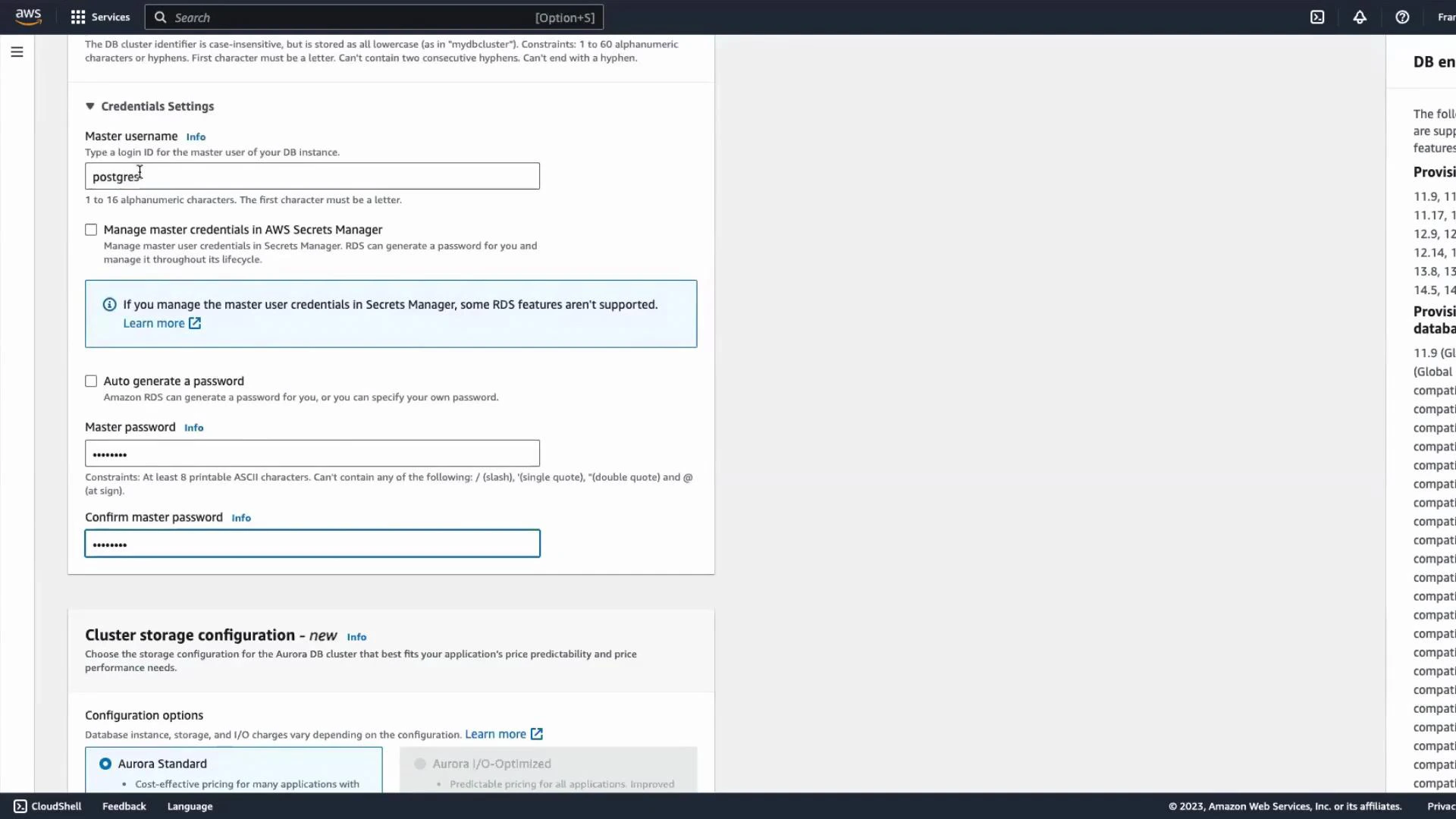
Set your credentials (use something you will remember). In the demo below I used postgres for both username and password.
A screenshot of the AWS Management Console showing the RDS/Aurora DB creation form with Credentials Settings (master username set to "postgres" and masked password fields) and cluster storage configuration options. The right pane lists supported DB engine versions and provisioning details.
Step 2 — Configure cluster, capacity and connectivity
  • Keep default cluster settings unless you need custom networking, VPC, or subnet groups.
  • For capacity, choose Serverless if you want Aurora Serverless. In the demo min and max capacity were both set to two capacity units.
  • Leave connectivity defaults unless a specific VPC/subnet/security group is required.
In Additional configuration make sure to enable the Data API when using Aurora Serverless. The Data API lets the Query Editor (and other tools) communicate with Serverless clusters without a persistent database network connection.
Enable the Data API if you plan to use the RDS console Query Editor with Aurora Serverless. Without the Data API enabled, the Query Editor will be unable to connect to the cluster.
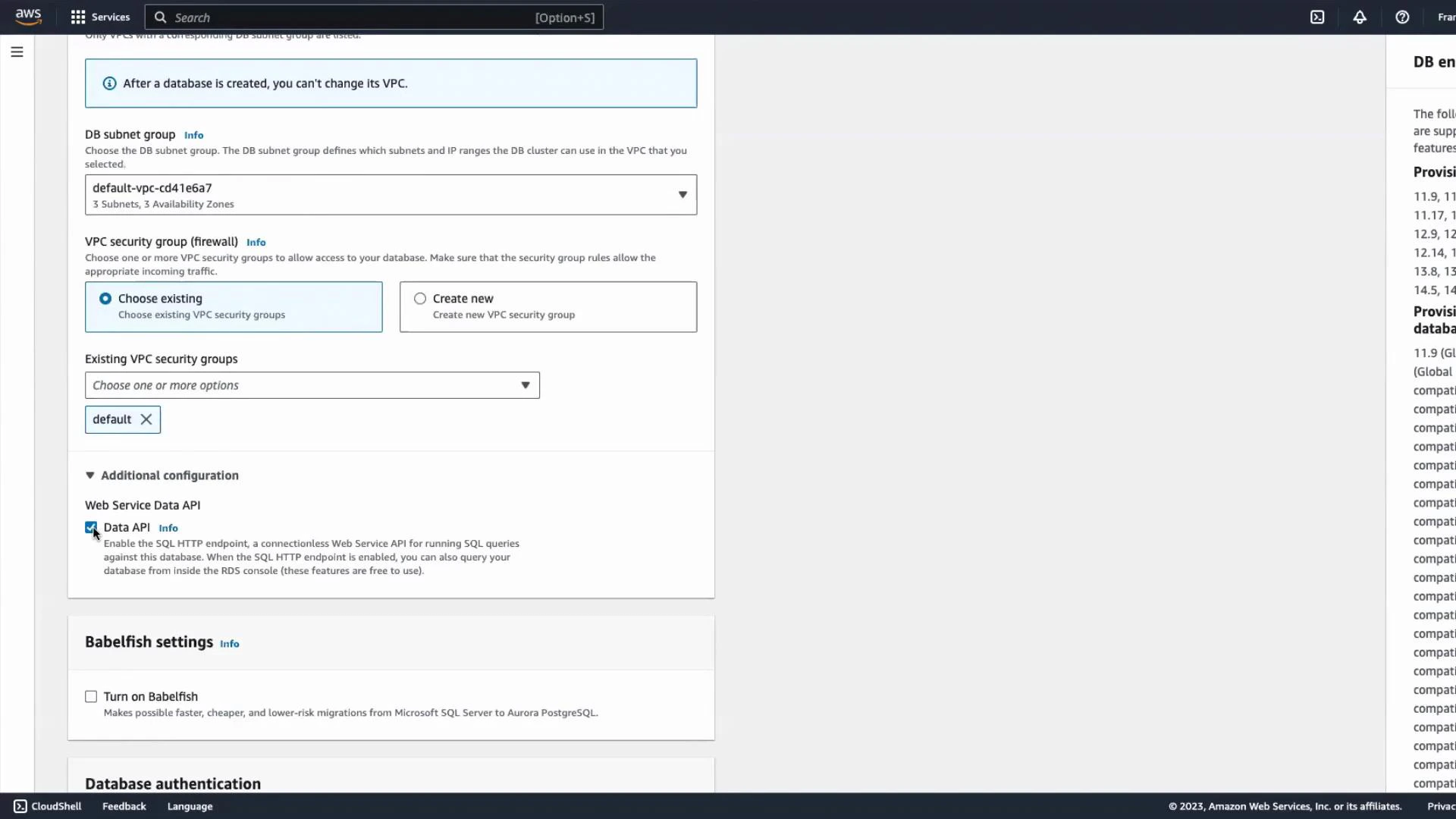
A screenshot of the AWS RDS/Aurora console showing network and additional configuration options, including DB subnet group, VPC security group selection, and a checked Data API option. The page also shows Babelfish settings and other database authentication sections.
Step 3 — Create and wait for availability
  • Review all settings and click Create database.
  • Wait for the cluster to show as available in the Databases list before attempting to connect.
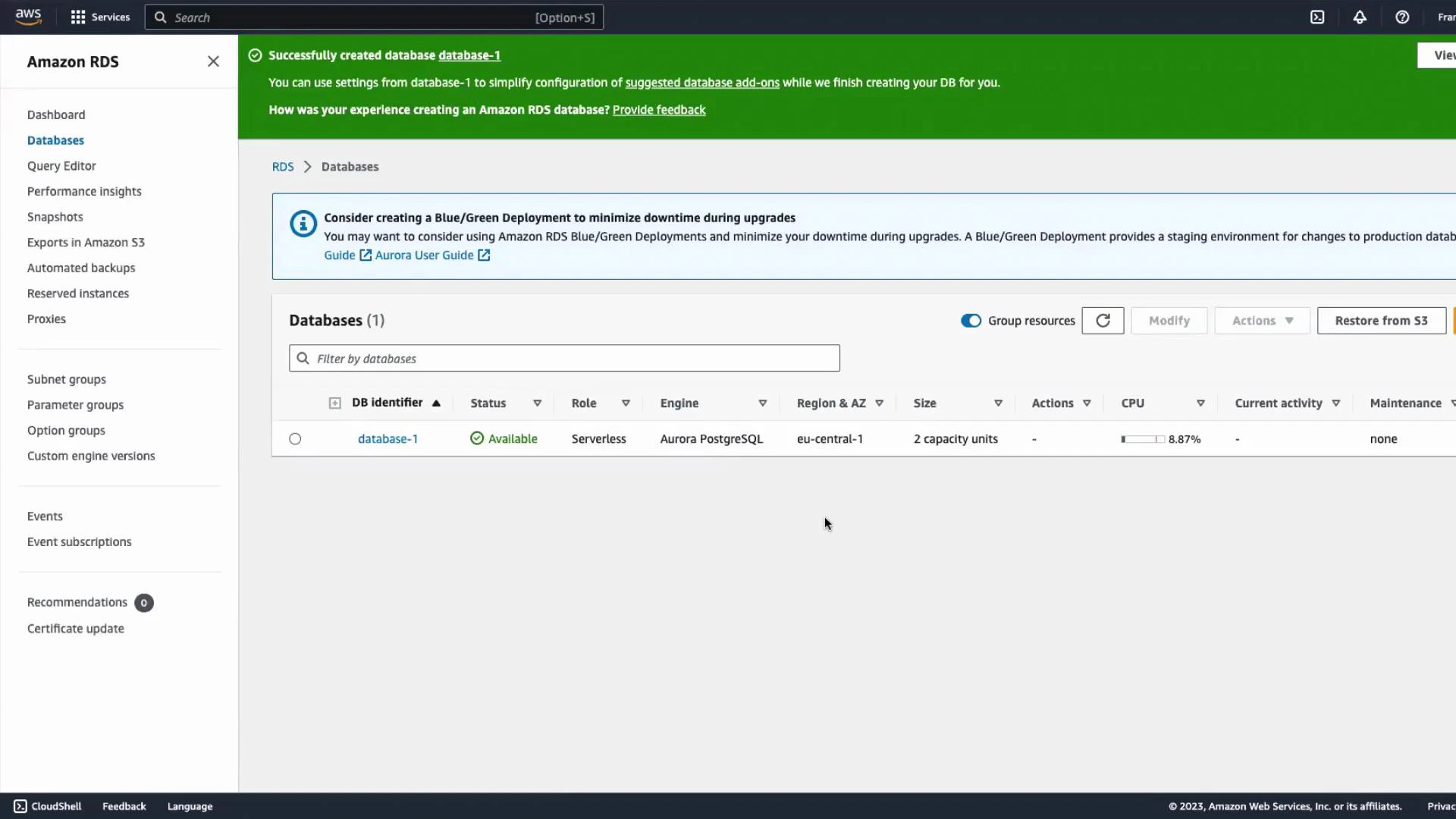
Screenshot of the Amazon RDS console with a green success banner saying "Successfully created database database-1." The Databases list shows one available Aurora PostgreSQL Serverless instance (database-1) in eu-central-1.
Step 4 — Open and connect with the Query Editor
  1. In the RDS console, open Query Editor.
  2. From the database dropdown select the newly created database.
  3. If prompted, provide the database credentials (username and password you configured) and click Connect database.
Note: The Query Editor requires valid database credentials (or an appropriate authentication method) and the necessary IAM permissions to use the editor in the console. For Aurora Serverless clusters, the Data API must be enabled so the editor can connect.
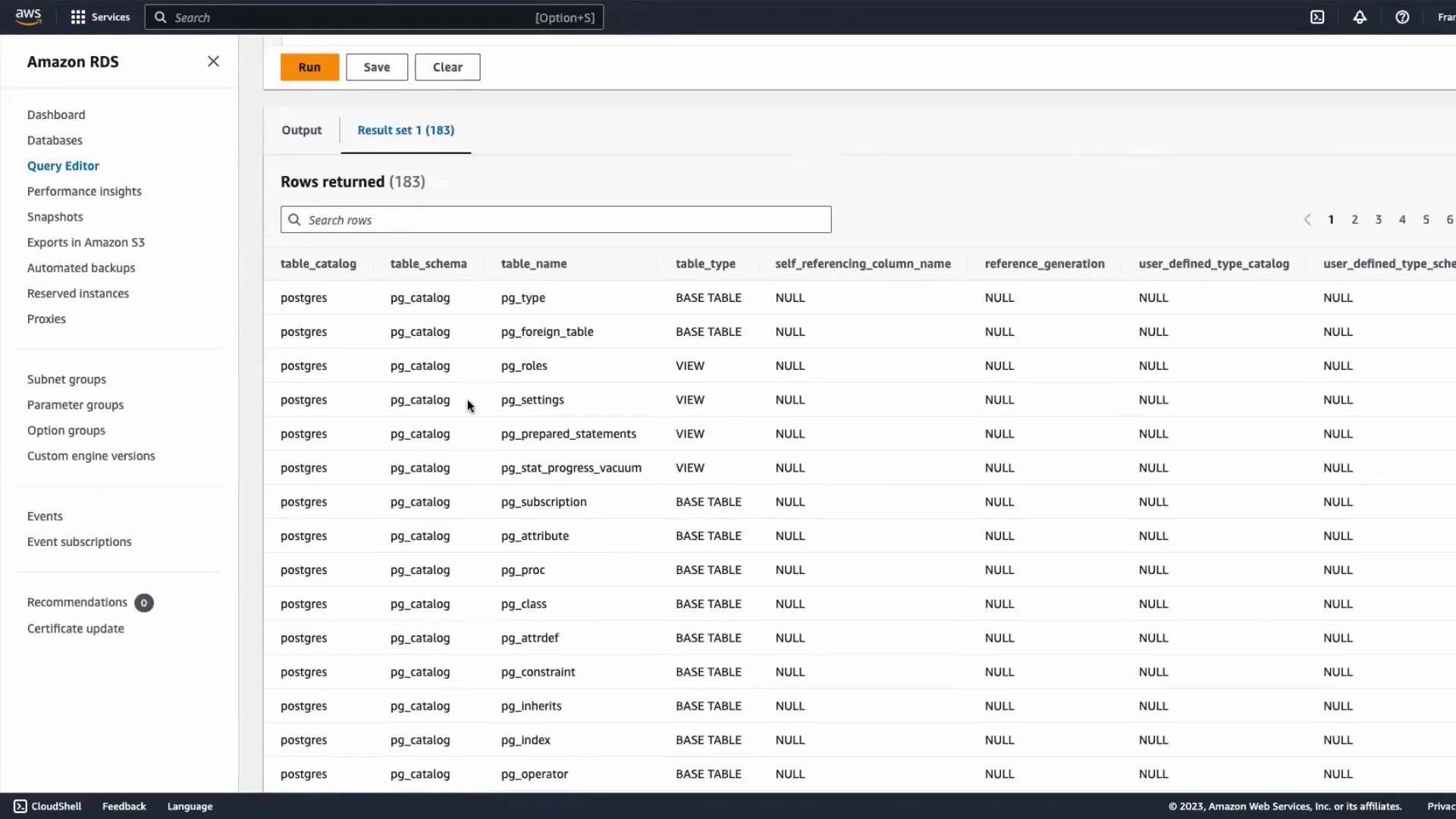
Running SQL in the Query Editor Once connected you can run SQL directly in the editor. Example — list tables in the current database:
select * from information_schema.tables;
-- Press Run to see the current database tables below
After executing the query, results appear in the pane below the editor. By default a newly created Aurora PostgreSQL cluster typically contains a default database named postgres; that is the DB you are querying here.
Screenshot of the Amazon RDS Query Editor showing a result set (183 rows) listing PostgreSQL catalog tables. The table displays columns like table_catalog, table_schema, table_name and table_type with entries such as pg_type, pg_roles and pg_settings.
Saving, switching and managing queries
  • Save queries: Click Save, give the query a name (e.g., “RDS query”) — saved queries appear in the Saved queries section.
  • Recent queries: The Recent tab lists queries you have executed.
  • Switch databases: Use Change database in the Query Editor, select a different DB, and provide the correct credentials.
Quick compatibility and checklist
ItemRequirement / NotesLinks & References
EngineAurora PostgreSQL (supported versions only)See AWS docs below
Serverless + Query EditorData API must be enabledhttps://docs.aws.amazon.com/rds/
AuthenticationValid DB credentials and console IAM permissionsConsole access and DB user/password
Use caseAd-hoc queries and light administration from browserGood for quick checks; use full clients for heavy operations
Troubleshooting tips
  • If the Query Editor cannot connect, confirm Data API is enabled (for Serverless) and that you used the correct DB username/password.
  • Ensure your AWS IAM role/user has permissions to use RDS console Query Editor and related APIs.
  • If you need persistent client access, configure network/security groups and connect with a local psql client or use AWS Systems Manager Session Manager for secure access.
Further reading That covers the essentials of using the RDS Query Editor with an Aurora PostgreSQL cluster configured for the Data API. See you in the next lesson.

Watch Video

Practice Lab