In this lesson you’ll provision an Amazon RDS (MariaDB) instance, capture the auto-generated master password shown during creation, and securely store that credential in AWS Secrets Manager so your applications can retrieve it at runtime. This pattern reduces secrets sprawl, enables automatic rotation, and follows least-privilege and auditable access to database credentials. What you will do
  • Create an RDS (MariaDB) instance and let RDS auto-generate a strong master password.
  • Retrieve the generated password from the RDS creation banner (the password is displayed only once).
  • Store the username/password pair in AWS Secrets Manager and link the secret to the RDS instance.
  • Use example client code (Python and Java) that reads the secret before creating DB connections.
Create the RDS instance
  1. Open the AWS Management Console and navigate to Amazon RDS.
  2. Choose “DB instances” → “Create DB instance”.
  3. For this demo select MariaDB and choose the Free tier (if eligible).
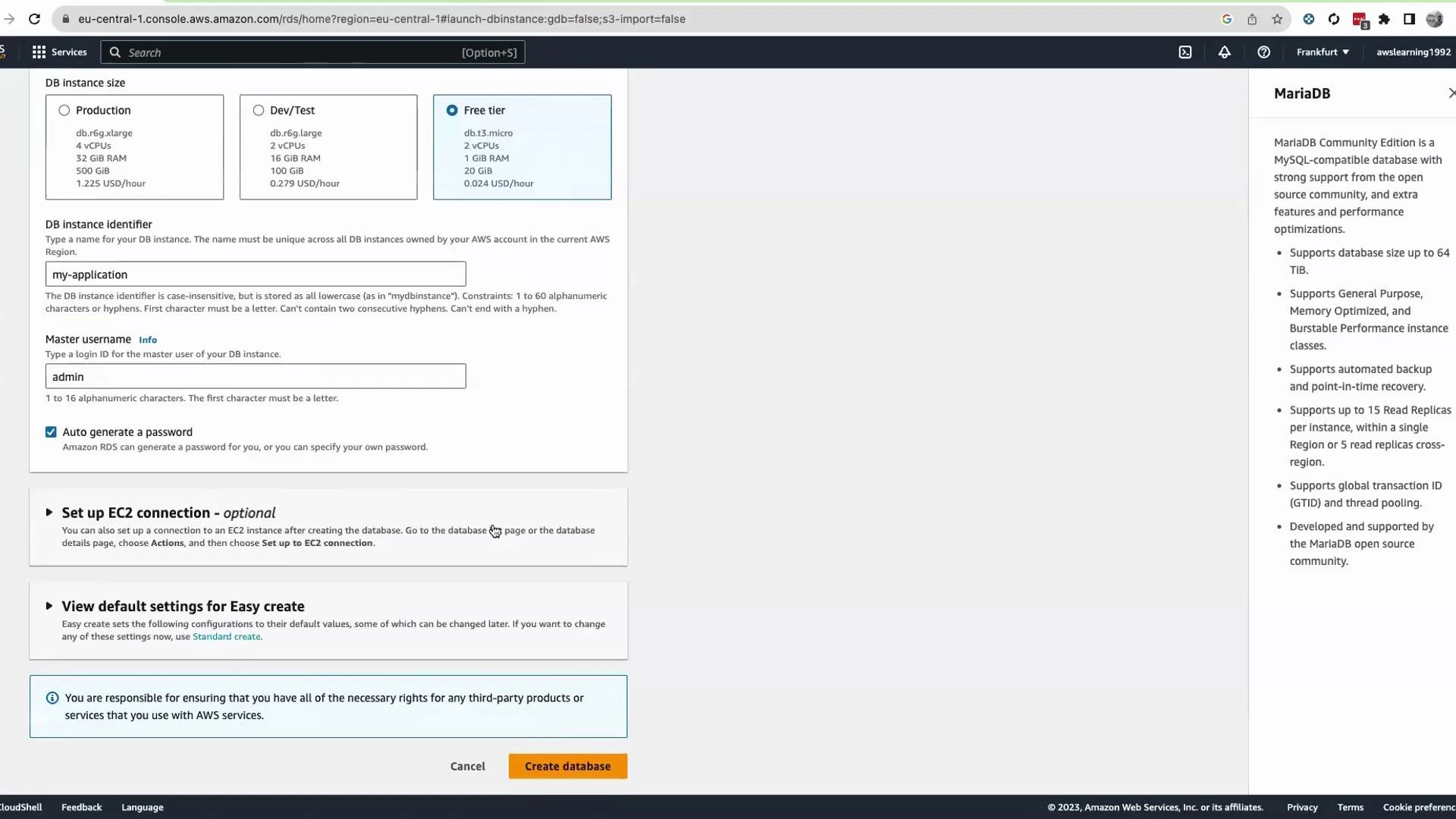
  4. Provide a DB instance identifier (for example, my-application) and a master username (for example, admin).
  5. Click “Auto-generate a password” to have RDS create a strong master password. Leave other defaults as appropriate for your environment.
  6. Click “Create database”.
A screenshot of the AWS RDS Create database page configuring a MariaDB instance, showing DB instance size options (Production, Dev/Test, Free tier), a DB identifier "my-application" and master username "admin." The right panel displays MariaDB details and there's a "Create database" button at the bottom.
Wait for the database to finish provisioning (typically 10–15 minutes). When creation completes, the RDS console displays a banner with connection details including the master username and the auto-generated master password. Click “View connection details” and copy the master password to a secure temporary location so you can store it in Secrets Manager.
The auto-generated master password is shown only once in the RDS creation banner. If you close the banner without saving it elsewhere, the password cannot be retrieved — you would need to reset the master password.
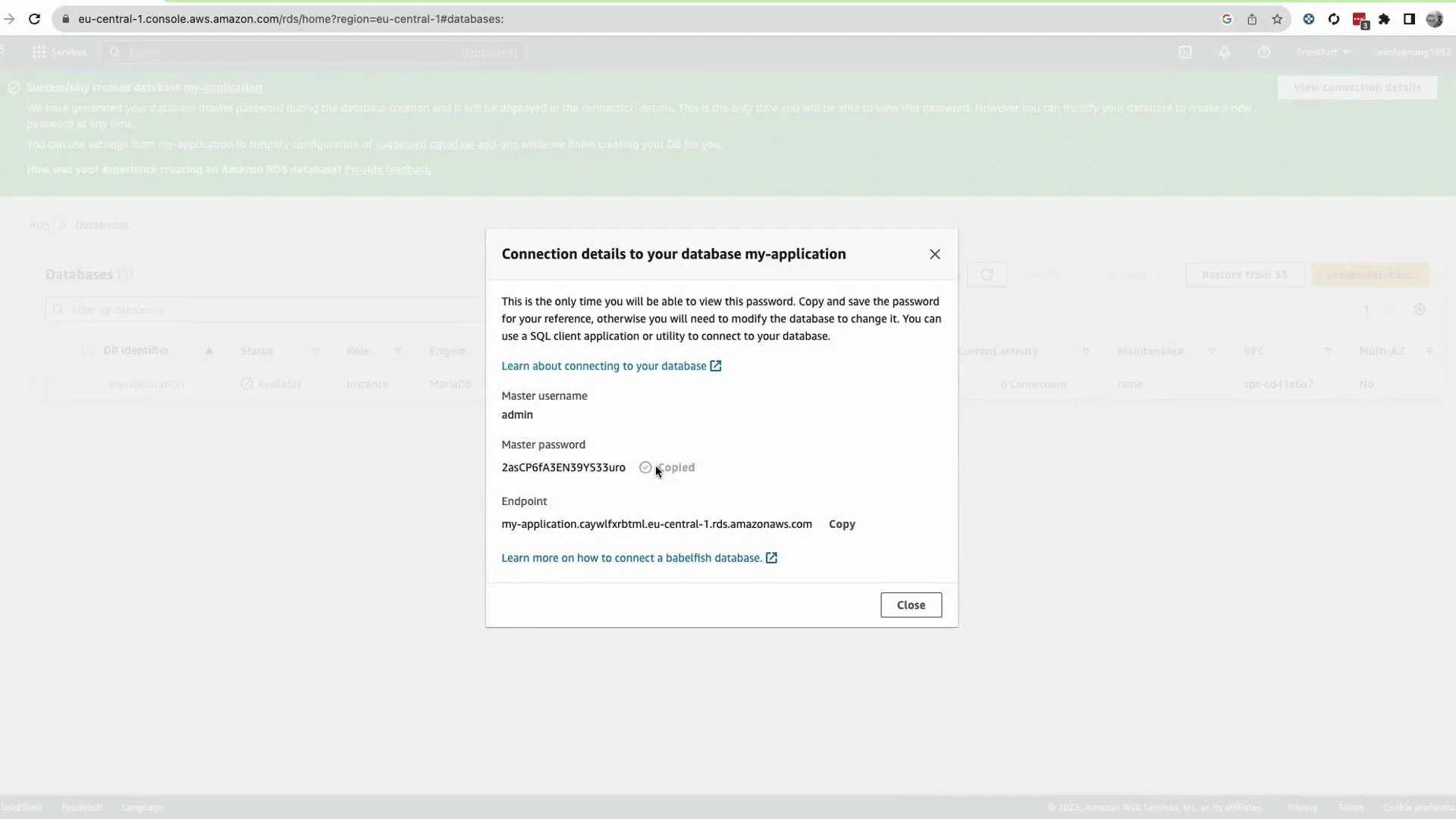
A screenshot of the AWS RDS web console showing a pop-up titled "Connection details to your database my-application." It displays the master username (admin), a generated master password, and the database endpoint with copy/close options.
Store the credential in AWS Secrets Manager
  1. In the AWS Console search bar open AWS Secrets Manager.
  2. Click “Store a new secret”.
  3. Choose the secret type: “Credentials for RDS database”.
  4. Enter the DB username (admin) and paste the master password you copied from the RDS banner.
  5. Keep the KMS encryption key as the default (aws/secretsmanager) unless you require a custom KMS key.
  6. Secrets Manager will list RDS instances available in the account/region — select the RDS instance you created (for example, my-application).
  7. Click “Next”.
  8. Provide a secret name (for example, application-01-secret) and an optional description.
  9. Configure cross-region replication only if you need it; otherwise continue with “Next”.
  10. Click “Store” to persist the secret into Secrets Manager.
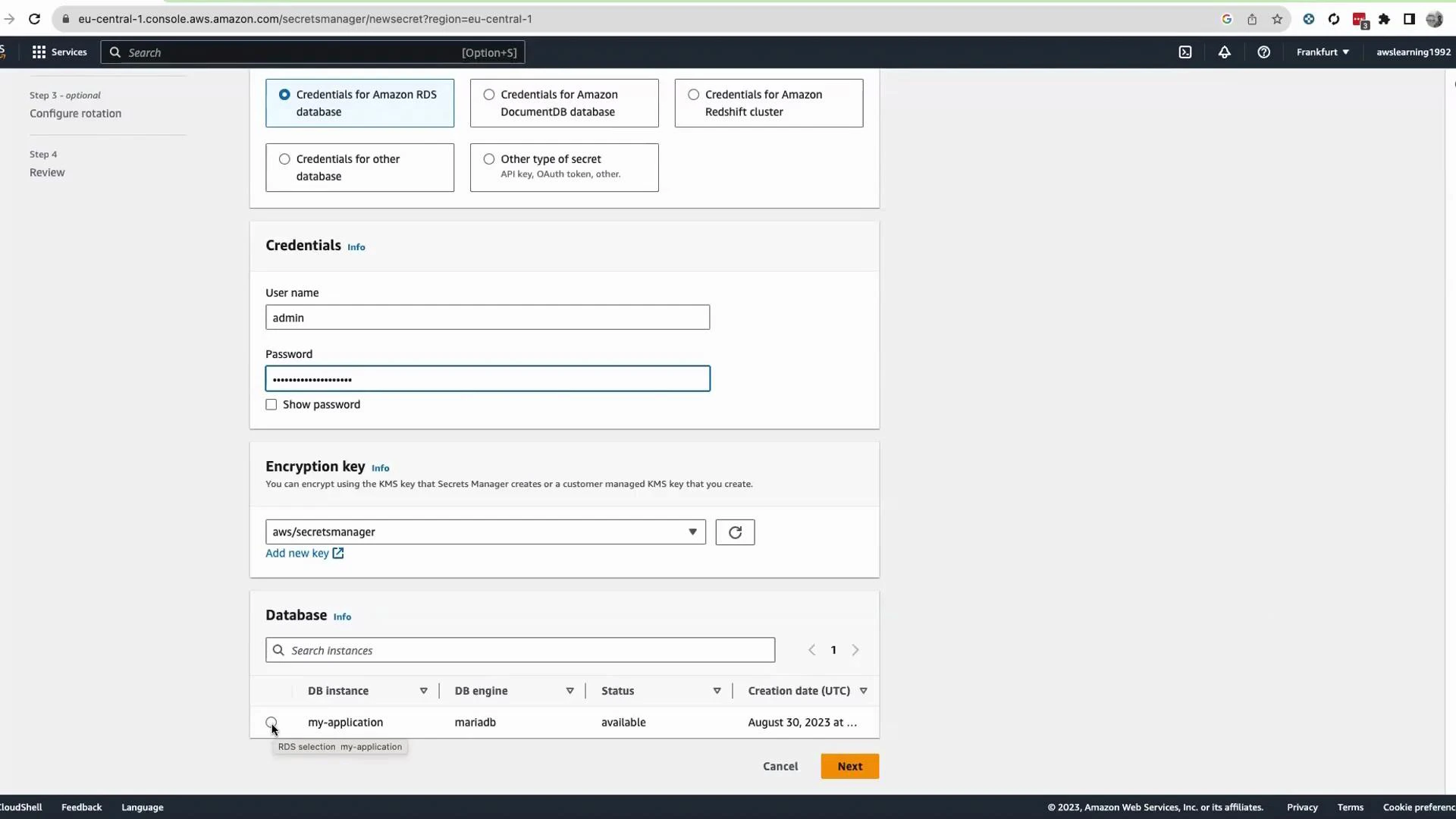
A screenshot of the AWS Secrets Manager "New secret" page configured for Amazon RDS credentials, showing the username "admin", a masked password field, and the KMS encryption key set to "aws/secretsmanager." The Database section lists an RDS instance named "my-application" (mariadb) with status "available."
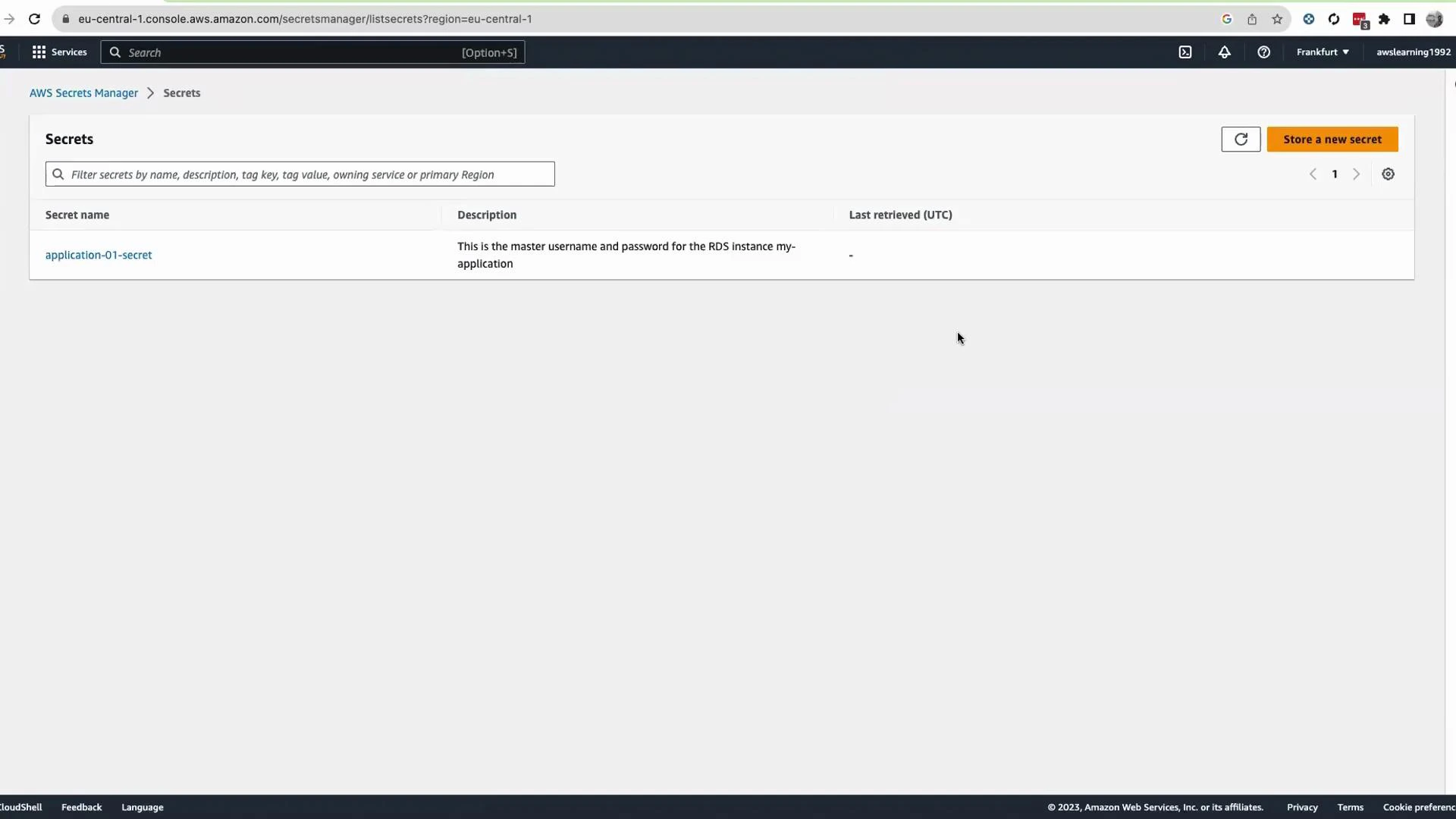
After storing the secret you will see it listed in the Secrets Manager console (for example, application-01-secret). The stored secret contains the master username and password associated with your RDS instance.
A screenshot of the AWS Secrets Manager console showing a single secret named "application-01-secret." The secret's description says it contains the master username and password for the RDS instance "my-application."
Using Secrets Manager from your application Best practice: retrieve the secret at application startup (or immediately before creating database connections) so the application uses credentials returned by Secrets Manager instead of hard-coded values. The AWS console includes snippets for many languages; below are ready-to-use examples for Python (boto3) and Java (AWS SDK v2). Python (boto3)
import json
import boto3
from botocore.exceptions import ClientError

def get_secret(secret_name: str, region_name: str) -> dict:
    """
    Retrieve a secret from AWS Secrets Manager and return it as a dict.
    If the secret's SecretString contains JSON, this returns the parsed JSON.
    Otherwise returns {"secret": <SecretString>} or {"secretBinary": <bytes>}.

    Example secret JSON for RDS:
      {"username": "admin", "password": "generated-password", "host": "...", "port": 3306}
    """
    client = boto3.client("secretsmanager", region_name=region_name)

    try:
        response = client.get_secret_value(SecretId=secret_name)
    except ClientError as e:
        # Propagate or handle specific errors as required by your app
        raise e

    # SecretString contains a string; SecretBinary contains bytes if used.
    if "SecretString" in response and response["SecretString"]:
        secret_string = response["SecretString"]
        try:
            return json.loads(secret_string)
        except json.JSONDecodeError:
            return {"secret": secret_string}
    else:
        # SecretBinary is base64-encoded bytes
        return {"secretBinary": response.get("SecretBinary")}
Java (AWS SDK v2)
  • Ensure your build includes the AWS SDK v2 Secrets Manager module and that the app’s IAM identity has GetSecretValue permission.
  • The method below returns the secret string; if it contains JSON, parse it into an object using your JSON library of choice.
// import software.amazon.awssdk.regions.Region;
// import software.amazon.awssdk.services.secretsmanager.SecretsManagerClient;
// import software.amazon.awssdk.services.secretsmanager.model.GetSecretValueRequest;
// import software.amazon.awssdk.services.secretsmanager.model.GetSecretValueResponse;
// import software.amazon.awssdk.services.secretsmanager.model.SecretsManagerException;

public static String getSecret(String secretName, String region) {
    Region awsRegion = Region.of(region);
    try (SecretsManagerClient client = SecretsManagerClient.builder()
            .region(awsRegion)
            .build()) {

        GetSecretValueRequest getSecretValueRequest = GetSecretValueRequest.builder()
                .secretId(secretName)
                .build();

        GetSecretValueResponse getSecretValueResponse = client.getSecretValue(getSecretValueRequest);

        if (getSecretValueResponse.secretString() != null) {
            return getSecretValueResponse.secretString();
        } else {
            // If secret is in binary form, handle it accordingly
            return getSecretValueResponse.secretBinary().asUtf8String();
        }
    } catch (SecretsManagerException e) {
        throw e;
    }
}
Integration and operational notes
TopicRecommendationReference
Retrieval timingFetch secrets at startup or immediately before DB connections to avoid long-lived secrets in memoryhttps://docs.aws.amazon.com/secretsmanager/latest/userguide/intro.html
PermissionsGrant minimal IAM permissions (GetSecretValue) to the application role; include kms:Decrypt if using a custom KMS keyhttps://docs.aws.amazon.com/secretsmanager/latest/apireference/API_GetSecretValue.html and https://docs.aws.amazon.com/kms/latest/developerguide/overview.html
Automatic rotationEnable Secrets Manager rotation for supported engines to rotate and update DB credentials automaticallyhttps://docs.aws.amazon.com/secretsmanager/latest/userguide/rotating-secrets.html
Secret formatStore RDS secrets as JSON (username, password, host, port) to simplify parsing in appsConsole samples and SDK examples
AWS provides sample snippets for many languages in the Secrets Manager console. Use those samples as a starting point and adapt them to your application’s error handling, caching, and refresh strategy.
Additional resources Summary
  • You provisioned a MariaDB instance in RDS and used the auto-generated master password.
  • The auto-generated password is visible only once during creation; copy it immediately or store it in Secrets Manager.
  • You stored the credential in AWS Secrets Manager and learned how to retrieve it from Python and Java applications, enabling secure, auditable access to DB credentials.
  • Consider enabling automatic rotation and apply least-privilege IAM policies for production deployments.
That is it for this lesson.

Watch Video