Documentation Index
Fetch the complete documentation index at: https://notes.kodekloud.com/llms.txt
Use this file to discover all available pages before exploring further.
In this guide, you’ll install Alertmanager on a Linux VM and configure it to send alerts directly to Slack. We’ll cover downloading the binary, inspecting defaults, setting up Slack webhooks, and reloading Alertmanager without downtime.
Prerequisites
- A Linux VM with internet access
wget, tar, and curl installed
- A Slack workspace with permissions to create Incoming Webhooks
1. Download and Extract Alertmanager
Download the latest Alertmanager release (v0.22.2) and unpack it:
wget https://github.com/prometheus/alertmanager/releases/download/v0.22.2/alertmanager-0.22.2.linux-amd64.tar.gz
tar xzvf alertmanager-0.22.2.linux-amd64.tar.gz
Change into the directory and verify the contents:
cd alertmanager-0.22.2.linux-amd64/
ll
Expected output:
total 47796
-rwxr-xr-x 1 root root 27407406 Jun 27 07:51 alertmanager*
-rw-r--r-- 1 root root 1813684 Jun 27 07:52 alertmanager.yml
-rwxr-xr-x 1 root root 9340 Jun 27 15:56 amtool*
-rw-r--r-- 1 root root 4158 Jun 27 15:56 NOTICE
-rw-r--r-- 1 root root 1470 Jun 27 15:56 LICENSE
2. Inspect the Default Configuration
Open alertmanager.yml to review the default routing and inhibition settings:
route:
group_by: ['alertname']
group_wait: 30s
group_interval: 5m
repeat_interval: 1h
receiver: 'web.hook'
receivers:
- name: 'web.hook'
webhook_configs:
- url: 'http://127.0.0.1:5001'
inhibit_rules:
- source_match:
severity: 'critical'
target_match:
severity: 'warning'
equal: ['alertname', 'dev', 'instance']
3. Start Alertmanager
Launch Alertmanager and confirm it listens on port 9093:
You should see logs like:
level=info ts=2021-06-27T15:39:57.100Z caller=main.go:221 msg="Starting Alertmanager" version="(version=0.22.2, branch=HEAD, revision=...)"
level=info ts=2021-06-27T15:39:57.514 msg="Listening address=:9093"
level=info ts=2021-06-27T15:39:57.514 msg="TLS is disabled." http2=false
Open your browser at http://<VM_PUBLIC_DNS>:9093 to verify the UI.
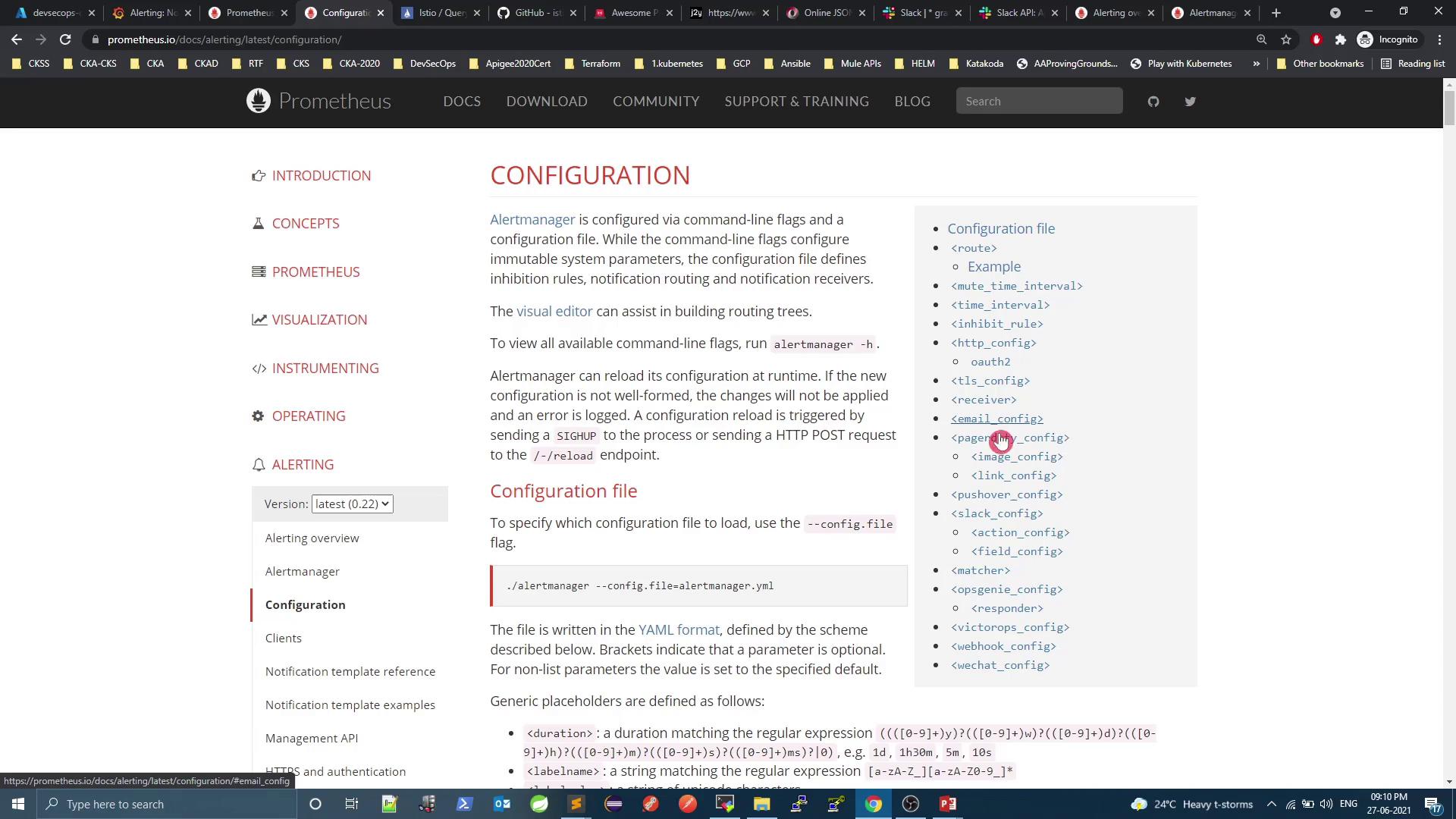
To route alerts to Slack, update alertmanager.yml with your workspace’s Incoming Webhook URL.
Below is a sample Slack configuration—replace <YOUR_SLACK_WEBHOOK_URL> with your actual webhook URL and adjust the channel as needed:
global:
resolve_timeout: 1m
slack_api_url: '<YOUR_SLACK_WEBHOOK_URL>'
route:
receiver: 'slack-notifications'
group_by: ['alertname', 'datacenter', 'app']
group_wait: 30s
group_interval: 5m
repeat_interval: 1h
receivers:
- name: 'slack-notifications'
slack_configs:
- send_resolved: true
api_url: '<YOUR_SLACK_WEBHOOK_URL>'
channel: '#alerts'
username: '{{ template "slack.default.username" . }}'
color: '{{ if eq .Status "firing" }}danger{{ else }}good{{ end }}'
title: >
{{ $status := .Status | toUpper }}{{ if eq $status "FIRING" }}:{{ .Alerts.Firing | len }}{{ end }} {{ .CommonLabels.alertname }} for {{ .CommonLabels.job }}
text: |
{{ range .Alerts -}}
*Alert:* {{ .Annotations.summary }}
*Description:* {{ .Annotations.description }}
{{ end }}
short_fields: false
footer: '{{ template "slack.default.footer" . }}'
icon_emoji: '{{ template "slack.default.iconemoji" . }}'
Create a Slack Incoming Webhook
- In Slack, Create an App (e.g., “Prometheus Alerting”).
- Enable Incoming Webhooks and add a webhook to your target channel.
- Copy the generated URL and insert it in both
slack_api_url and api_url above.
- Save
alertmanager.yml.
5. Reload Alertmanager Configuration
Reload without downtime by sending an HTTP POST:
curl -X POST http://localhost:9093/-/reload
Refresh the UI (http://<VM_PUBLIC_DNS>:9093) to confirm your Slack receiver is active.
Next Steps
- Configure Prometheus to forward alerts to Alertmanager
- Define custom alerting rules in Prometheus
- Explore advanced routing and inhibition in Alertmanager
Links and References