In this hands-on guide, you’ll use a Jenkins Pipeline to build a Spring Boot JAR with Maven, run unit tests, then build and push a Docker image to Docker Hub, tagging it with the Git commit SHA.

Pipeline Stages

StagePurpose
Build Artifact – MavenCompile code and package the JAR
Unit Tests – JUnit & JaCoCoExecute tests and collect coverage
Docker Build & PushBuild Docker image, tag with $GIT_COMMIT, and push

Dockerfile

Include this Dockerfile at the repo root to define your container:
FROM openjdk:8-jdk-alpine
EXPOSE 8080
ARG JAR_FILE=target/*.jar
ADD ${JAR_FILE} app.jar
ENTRYPOINT ["java", "-jar", "/app.jar"]
This:
  • Starts from the lightweight openjdk:8-jdk-alpine image
  • Exposes port 8080 (Spring Boot default)
  • Adds the JAR built by Maven
  • Runs the JAR on container start

Initial Jenkinsfile

Add a Docker Build & Push stage after Maven build and unit tests:
pipeline {
    agent any

    stages {
        stage('Build Artifact - Maven') {
            steps {
                sh 'mvn clean package -DskipTests=true'
                archive 'target/*.jar'
            }
        }

        stage('Unit Tests - JUnit and Jacoco') {
            steps {
                sh 'mvn test'
            }
            post {
                always {
                    junit 'target/surefire-reports/*.xml'
                    jacoco execPattern: 'target/jacoco.exec'
                }
            }
        }

        stage('Docker Build and Push') {
            steps {
                sh 'printenv'
                sh 'docker build -t siddharth67/numeric-app:"$GIT_COMMIT" .'
                sh 'docker push siddharth67/numeric-app:"$GIT_COMMIT"'
            }
        }
    }
}
printenv lists all Jenkins environment variables. We leverage $GIT_COMMIT to tag images uniquely.

Inspecting Images on the Jenkins VM

On the VM where Docker runs, list existing images:
root@devsecops-cloud:~$ docker images
REPOSITORY                             TAG        IMAGE ID      CREATED         SIZE
weaveworks/weave-npc                  latest     d1a364dc548d  2 weeks ago     133MB
weaveworks/weave-kube                 2.8.1      f792d56d4ff  6 months ago    39.3MB
k8s.gcr.io/kube-proxy                 v1.20.0    df29c2434e6  6 months ago    89MB
...
Trigger the pipeline. The Docker Build step succeeds but the Push fails:
Successfully built c2552997972a
Successfully tagged siddharth67/numeric-app:936d67ea8d593e435dcdf8878fef8578c71c886
The push refers to repository [docker.io/siddharth67/numeric-app]
denied: requested access to the resource is denied
Push failure means Jenkins doesn’t have Docker Hub credentials configured.

Configuring Docker Hub Credentials in Jenkins

Ensure the Docker Pipeline plugin is installed:
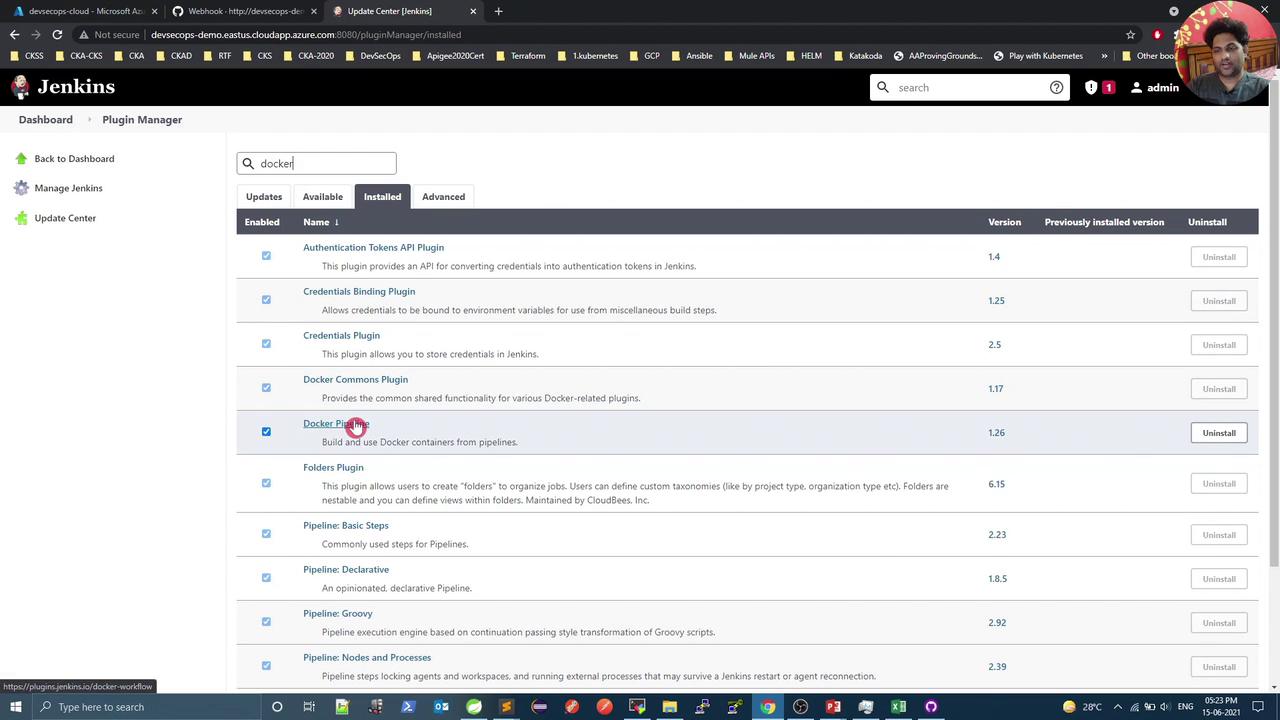
The image shows the Jenkins Plugin Manager interface with a list of installed plugins, including Docker-related plugins. A search for "docker" is highlighted, and various plugins are listed with options to uninstall.
Then add Docker Hub credentials:
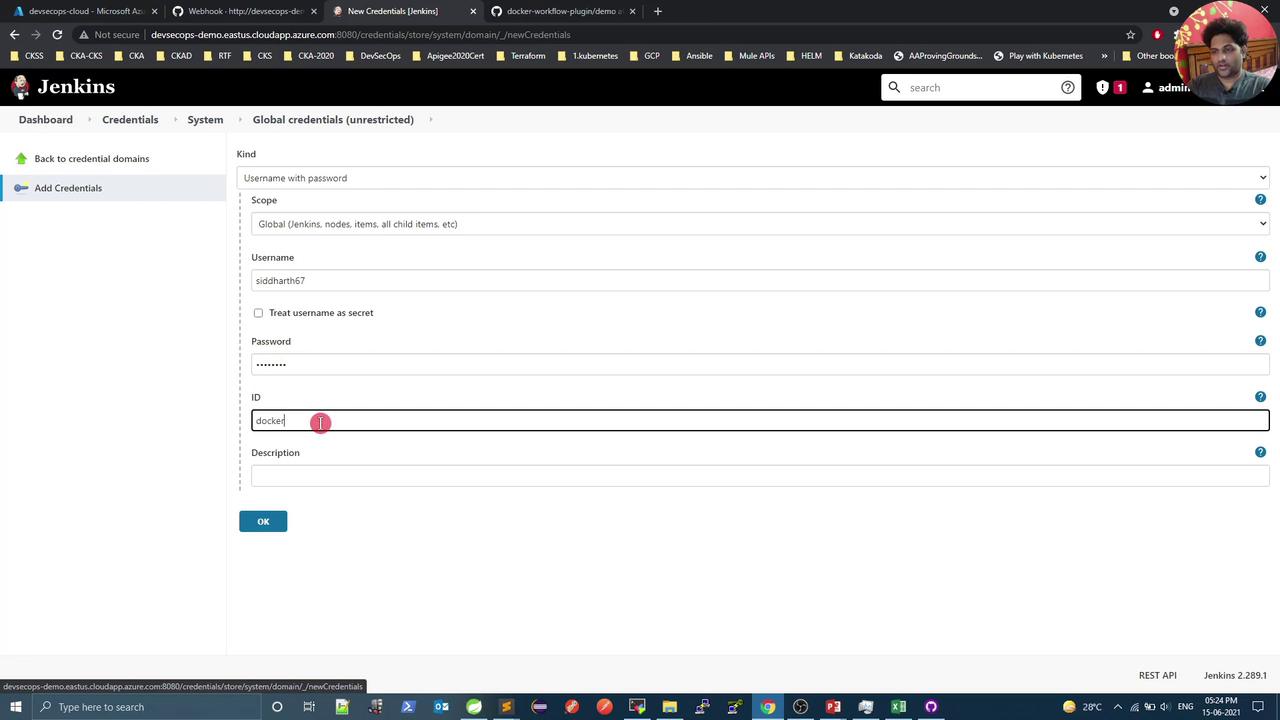
  1. Go to Manage JenkinsManage CredentialsGlobalAdd Credentials
  2. Select Username with password
  3. Enter your Docker Hub username & password
  4. Set an ID (e.g., docker-hub) and save
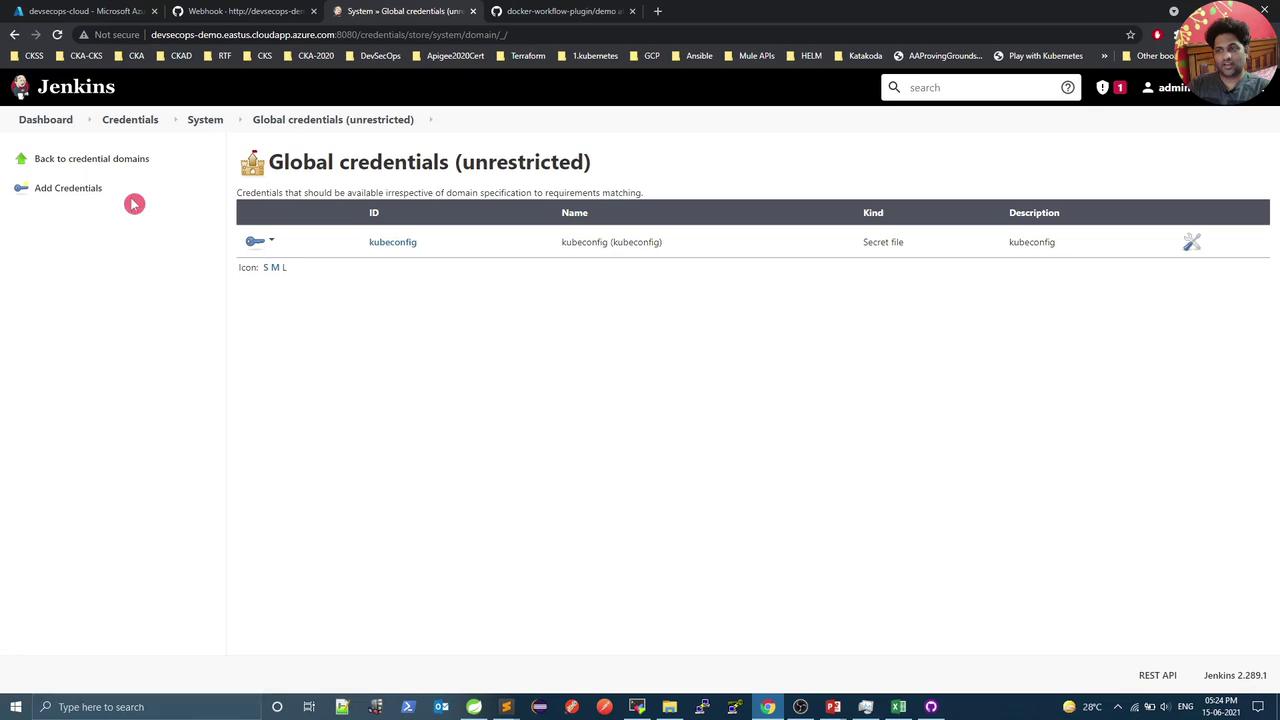
The image shows a Jenkins interface displaying the "Global credentials (unrestricted)" section, with a credential named "kubeconfig" listed as a secret file.
The image shows a Jenkins interface where a user is adding global credentials, including a username, password, and ID. The browser tabs and taskbar are also visible.

Updated Jenkinsfile

Wrap Docker commands in withDockerRegistry, referencing the credential ID:
pipeline {
    agent any

    stages {
        stage('Build Artifact - Maven') {
            steps {
                sh 'mvn clean package -DskipTests=true'
                archive 'target/*.jar'
            }
        }

        stage('Unit Tests - JUnit and Jacoco') {
            steps {
                sh 'mvn test'
            }
            post {
                always {
                    junit 'target/surefire-reports/*.xml'
                    jacoco execPattern: 'target/jacoco.exec'
                }
            }
        }

        stage('Docker Build and Push') {
            steps {
                withDockerRegistry(credentialsId: 'docker-hub', url: '') {
                    sh 'docker build -t siddharth67/numeric-app:"$GIT_COMMIT" .'
                    sh 'docker push siddharth67/numeric-app:"$GIT_COMMIT"'
                }
            }
        }
    }
}
An empty url defaults to Docker Hub. Make sure credentialsId matches the ID you created.

Verifying Build & Push

Re-run the pipeline. You should see:
# Shell Script - docker build -t siddharth67/numeric-app="$GIT_COMMIT"  # (self time 9s)
# Shell Script - docker push siddharth67/numeric-app="$GIT_COMMIT"      # (self time 310ms)
List images again to confirm the new tags:
root@devsecops-cloud:~$ docker images
REPOSITORY                       TAG                                 IMAGE ID        CREATED          SIZE
siddharth67/numeric-app         8be376a2279c6b3d924c62779a9e90c71   a014560b0908    32 seconds ago   122MB
siddharth67/numeric-app         93d6e7e8ad593a435bcdf8787b7fe8f5   c52599977e7a    4 minutes ago    122MB
nginx                           latest                              d1a364dc548d    2 weeks ago      133MB
...
You’ve now successfully built and pushed your Docker image. Next, integrate deployment to your Kubernetes cluster via the Jenkins Pipeline.