

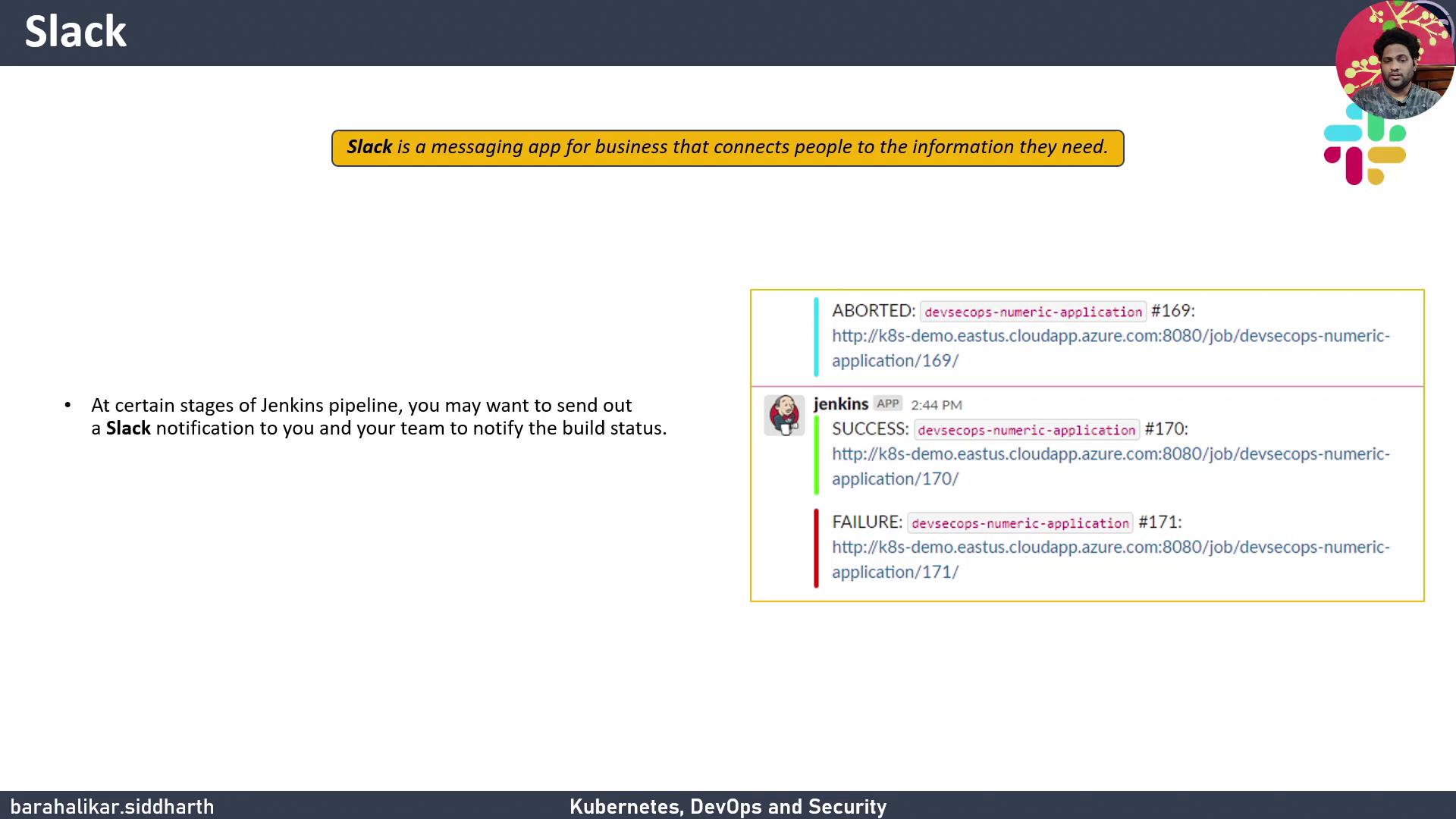
- Build status
- Job name and build number
- Direct link to build results
- Install & verify the Slack Notification Plugin
- Create a Slack workspace & channel
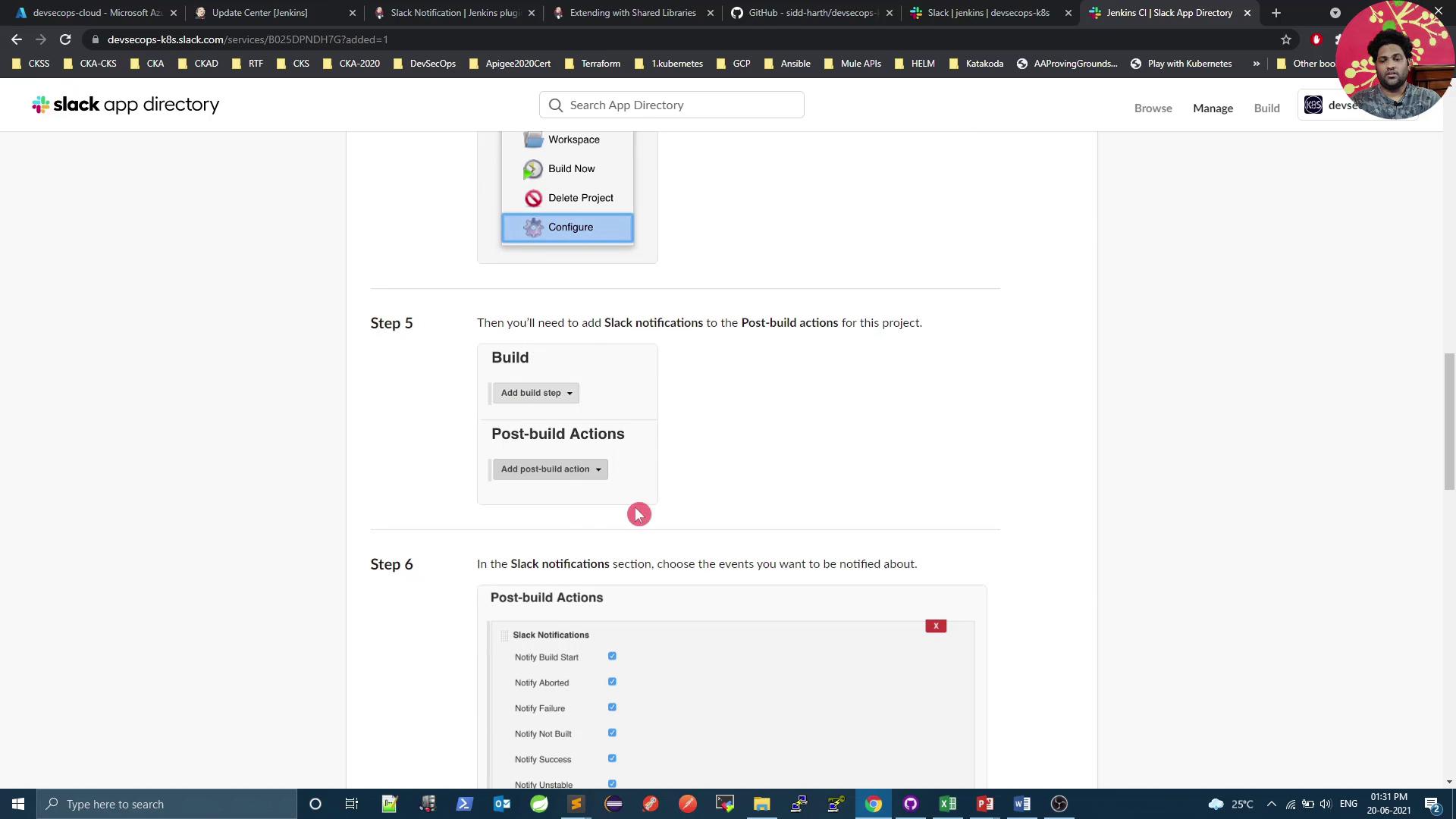
- Add Jenkins CI to Slack
- Configure Jenkins global settings
- Define a shared library for notifications
- Implement the notification logic
- Integrate in your Jenkinsfile
- Test the integration
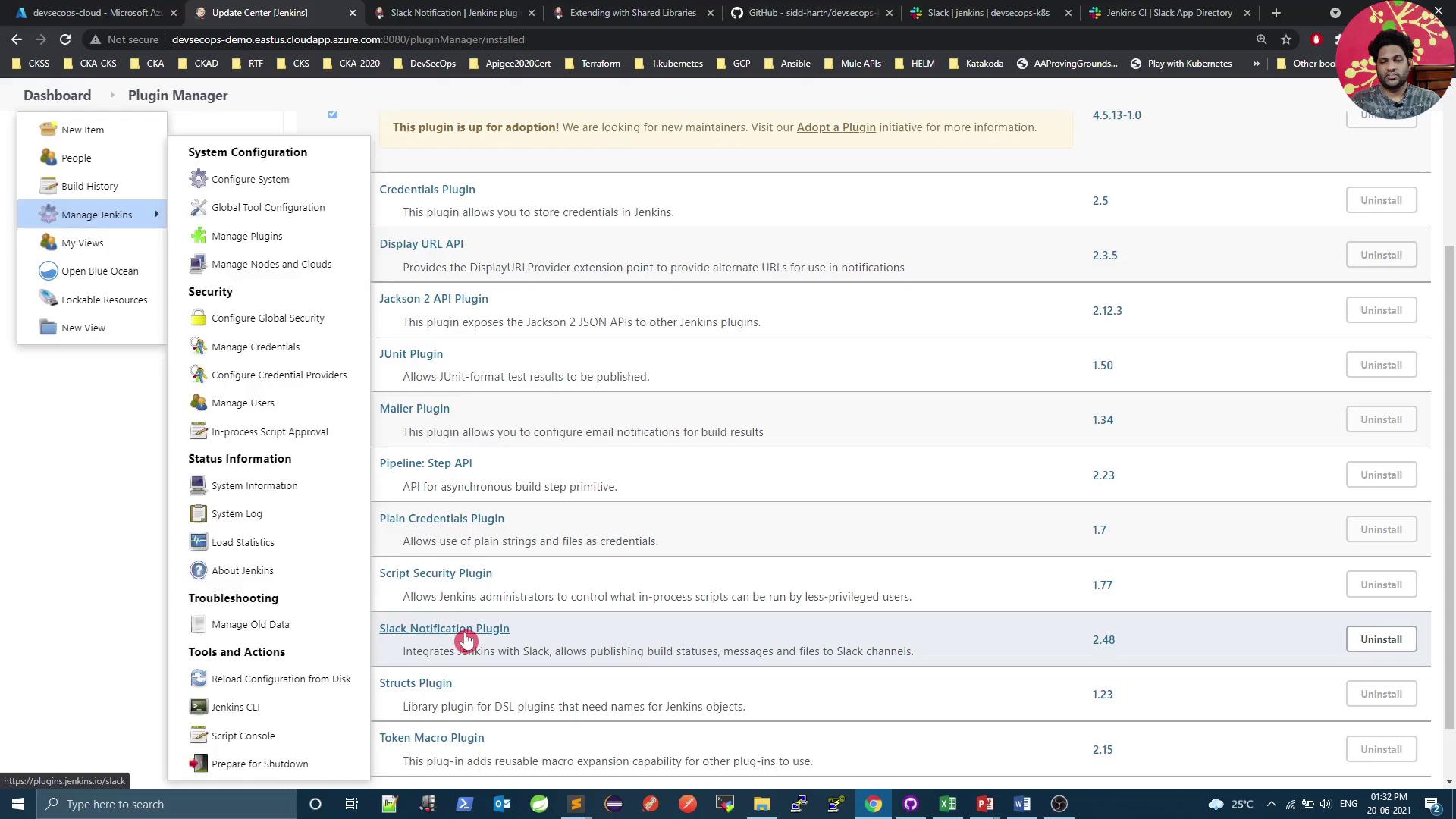
1. Install and Verify the Slack Notification Plugin
Install the official Slack Notification Plugin on your Jenkins instance. We’re using version 2.48.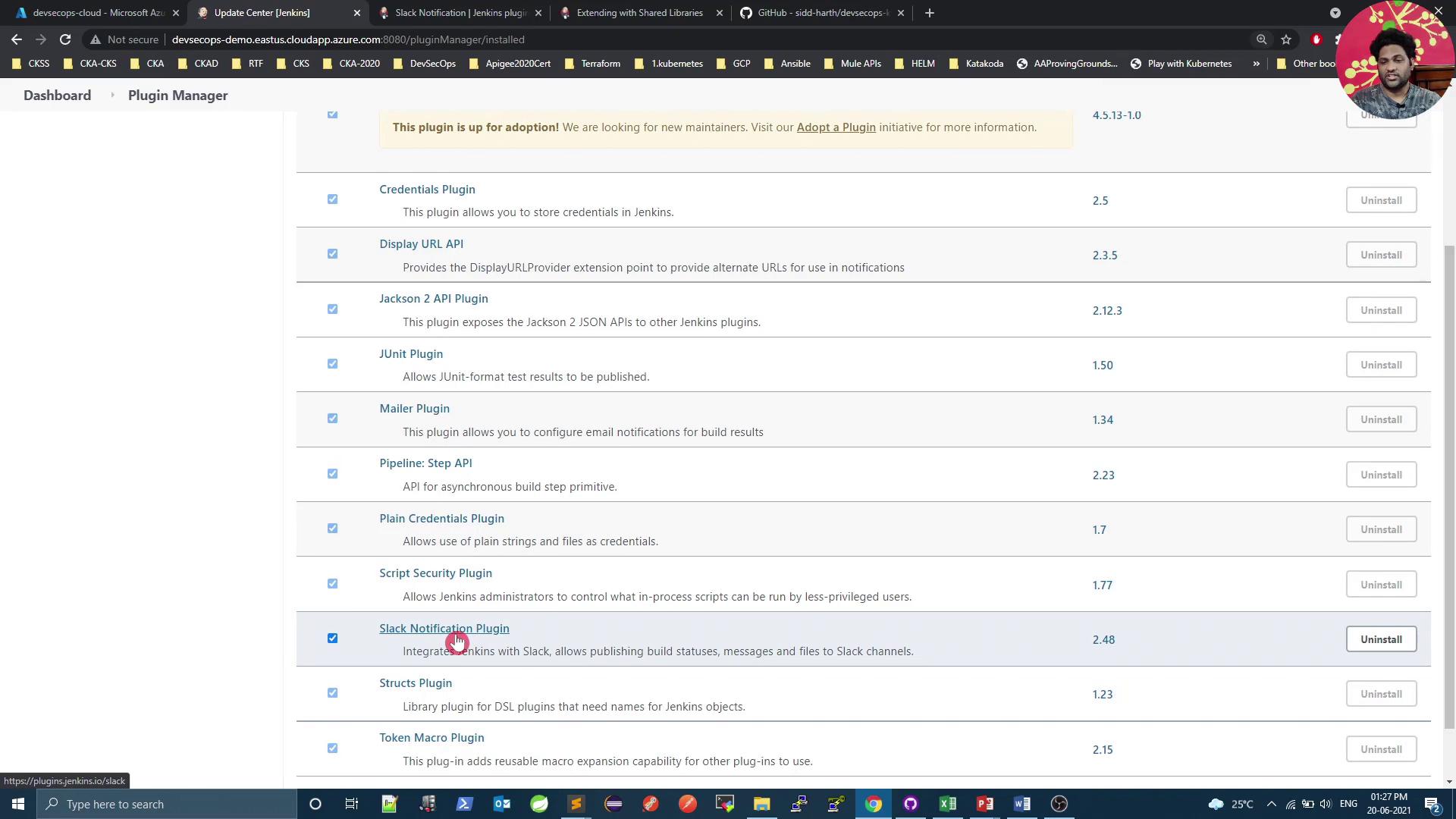
Note: Compatibility
Verify plugin compatibility with your Jenkins LTS/core version. Check the plugin’s changelog before upgrading.
2. Create a Slack Workspace and Channel
- Sign in to your Slack workspace (the free plan works).
- Create a new channel named #jenkins (or any name you prefer). This is where Jenkins will post notifications.
Note: Channel Permissions
Ensure Jenkins has posting permissions. Workspace admins can adjust these under Settings & administration.
3. Add the Jenkins CI App to Slack
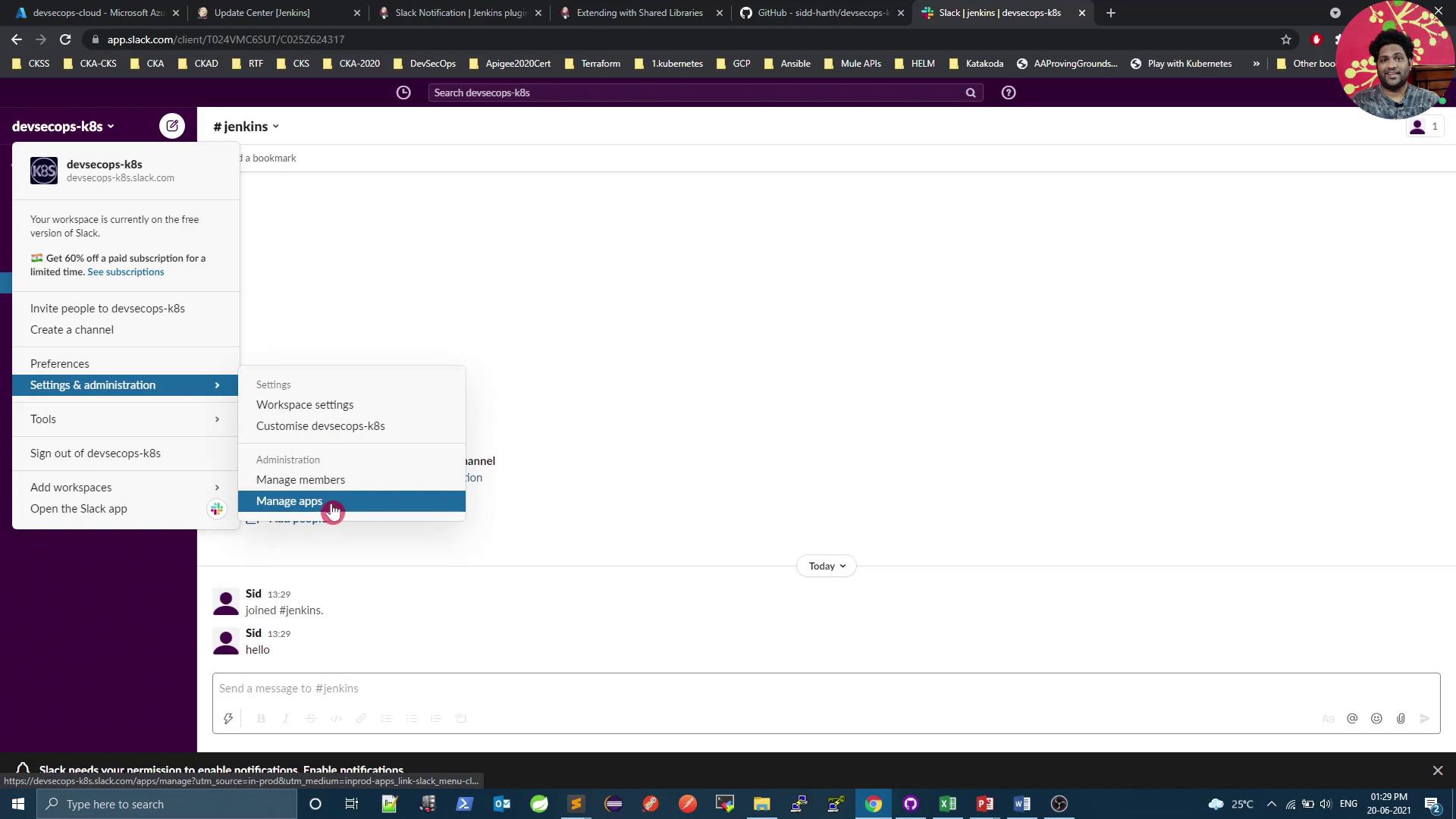
- In Slack, click your workspace name → Settings & administration → Manage apps.
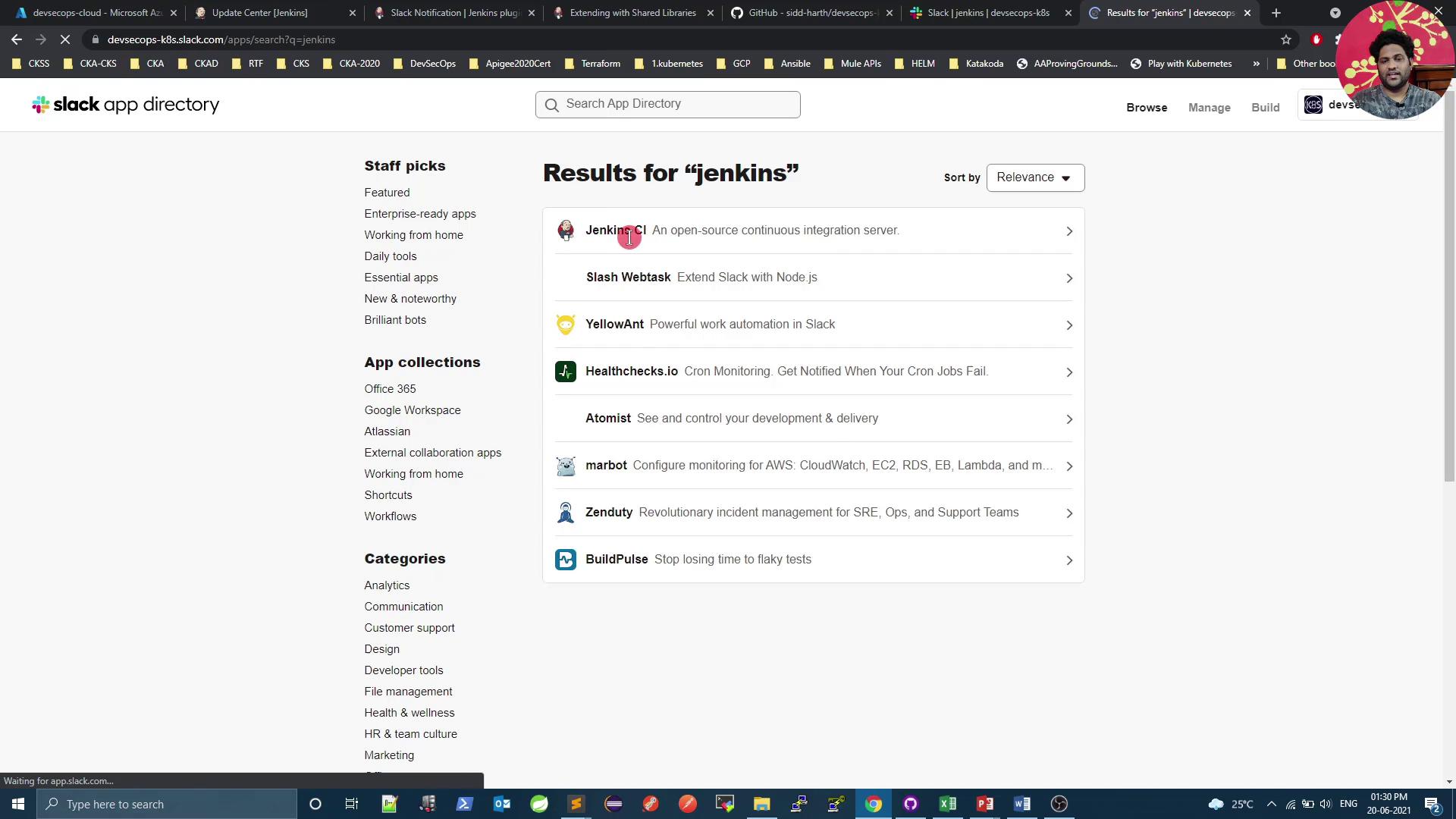
- Search for Jenkins in the App Directory and select Jenkins CI.
- Click Add to Slack and follow the prompts.
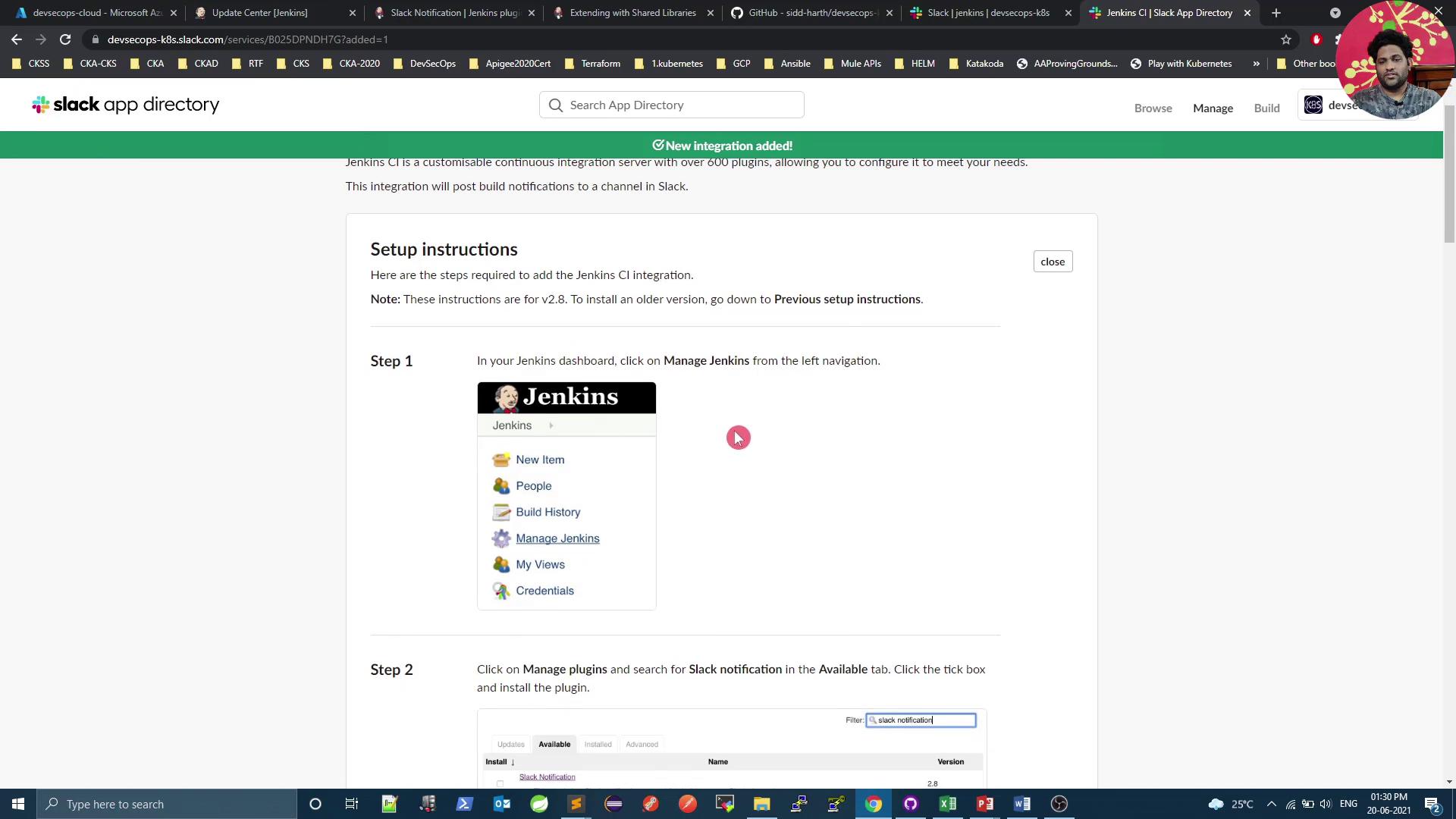
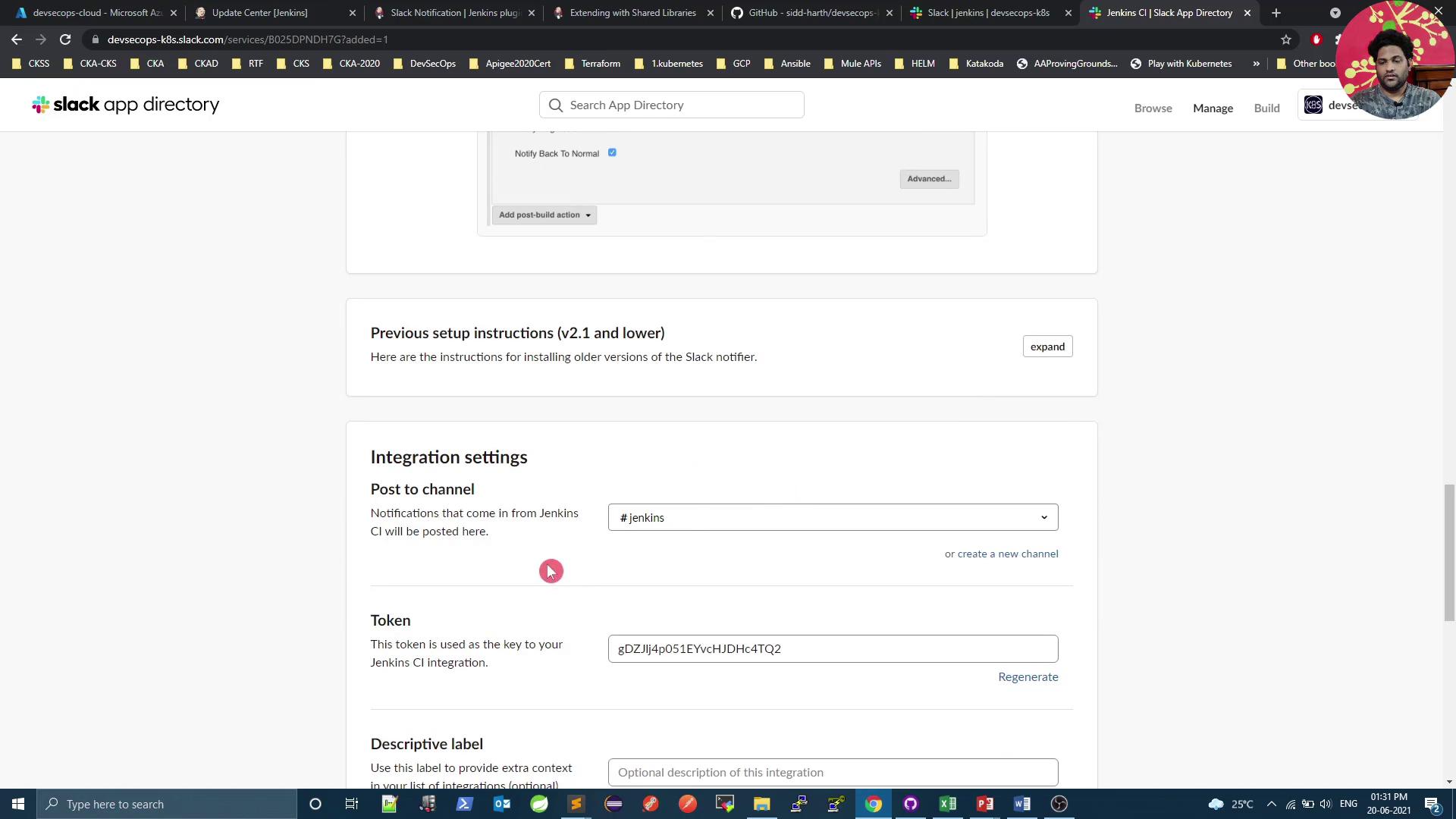
- Choose the #jenkins channel and authorize the app.
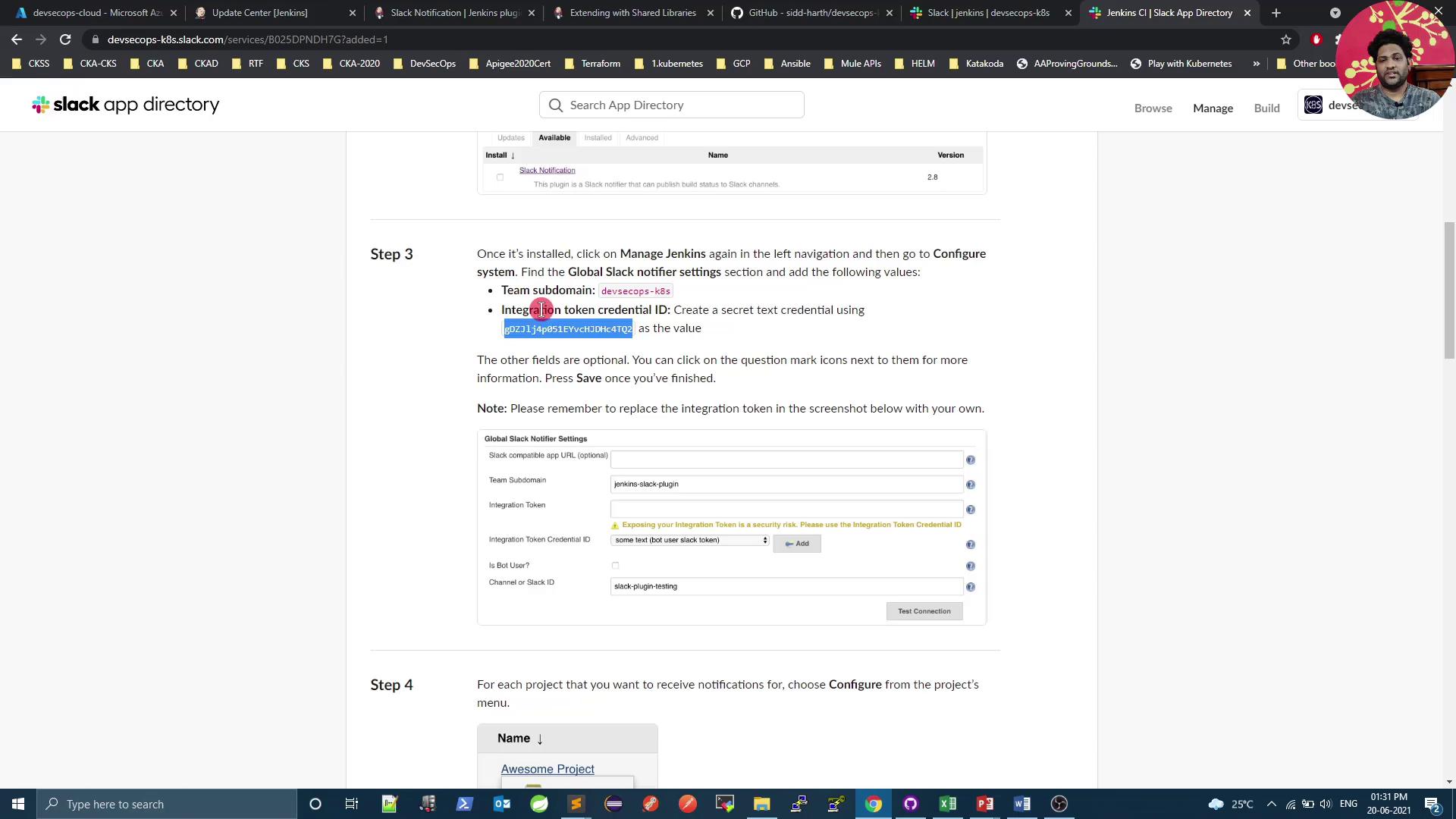
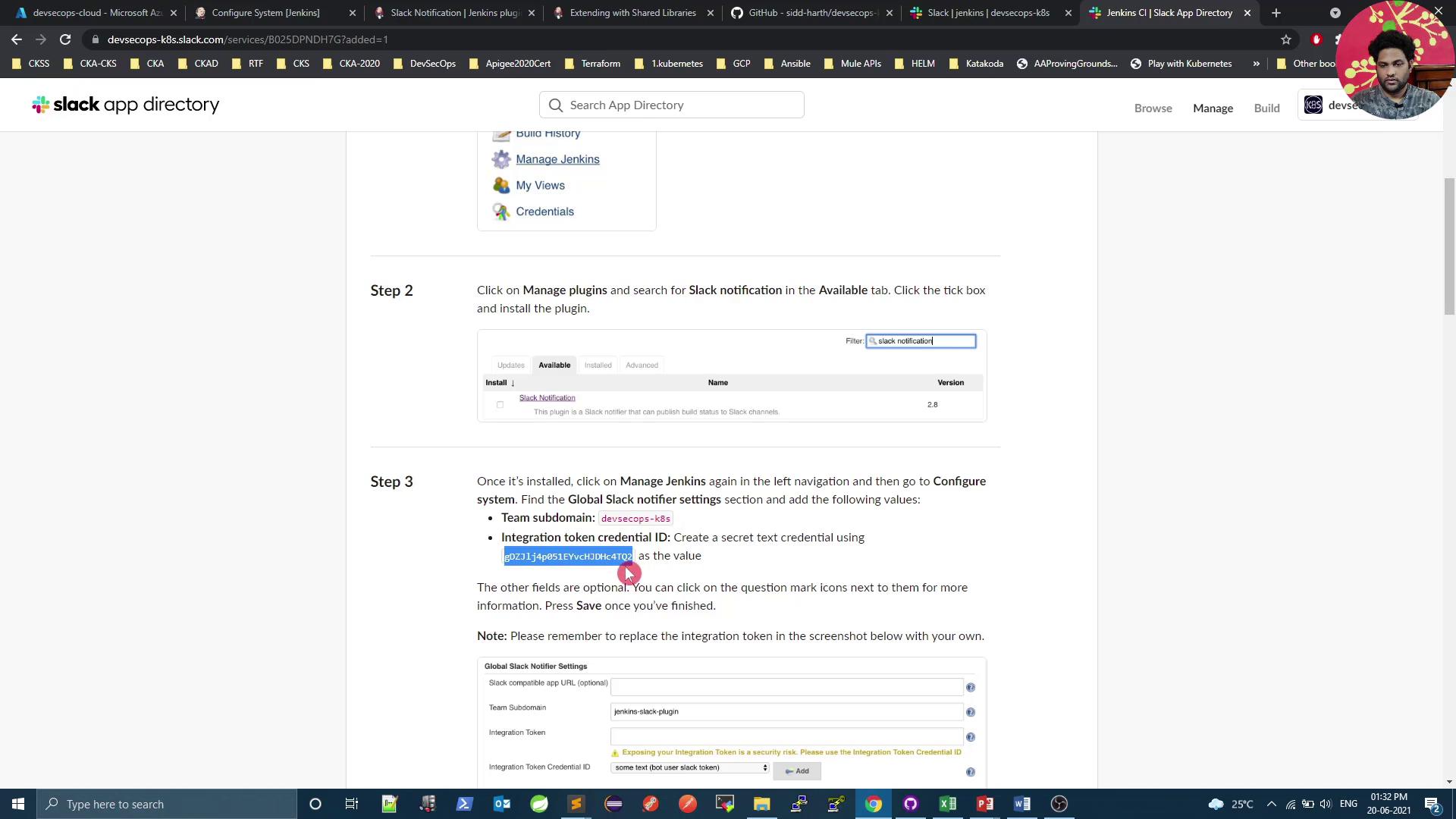
- Copy the Integration Token provided.
- Note your Team Subdomain (e.g.,
devsecops-k8s) and Token for Jenkins configuration.
4. Configure Jenkins Global Settings
- In Jenkins, go to Manage Jenkins → Configure System and scroll to the Slack section.
- Enter your Team Domain and click Add under Credentials.
- Choose Secret Text, paste your Slack token, and save.
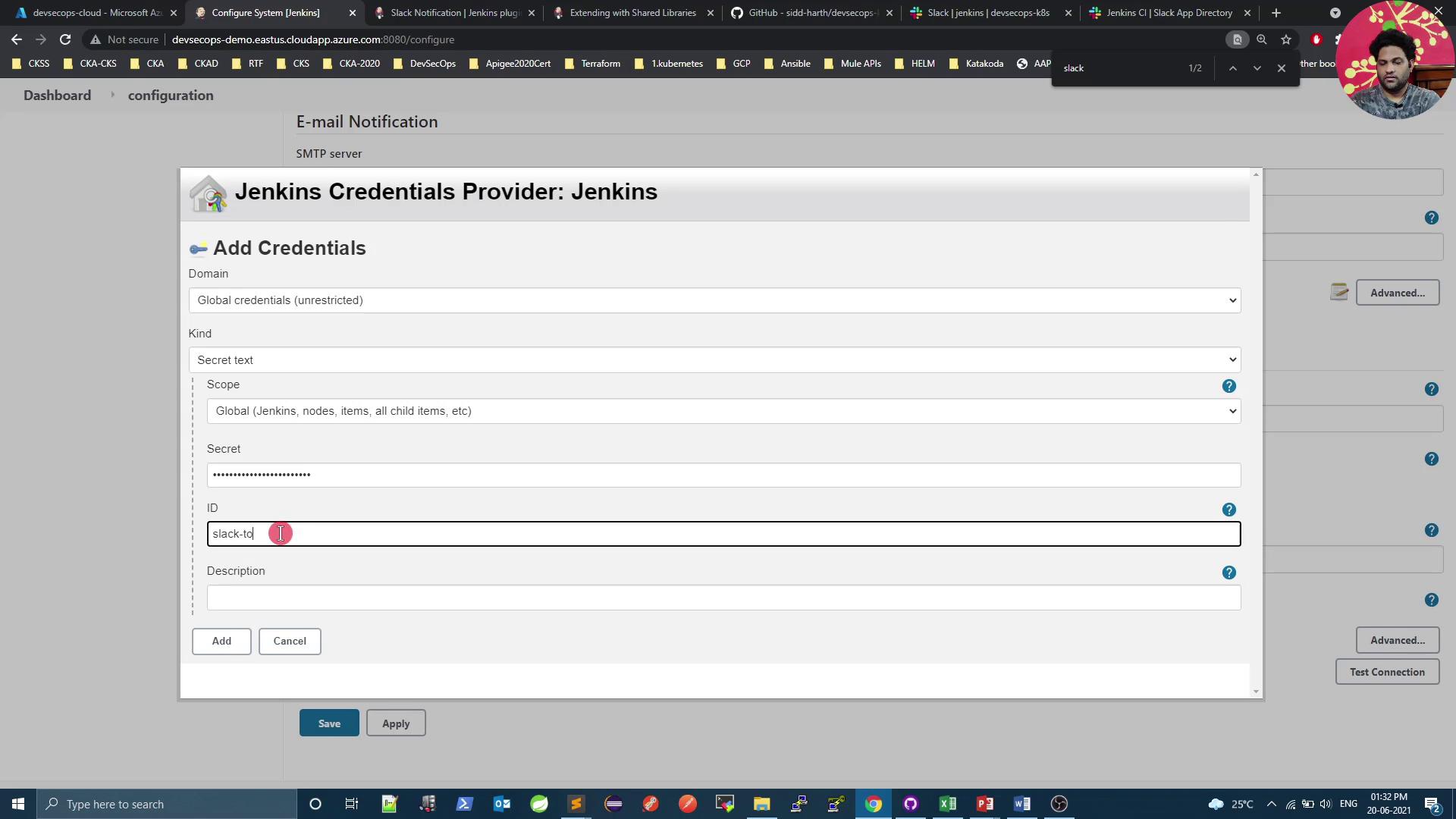
- Click Test Connection to verify Jenkins can post to Slack. You should receive a confirmation message in your channel.
Warning: Protect Your Token
Never expose your Slack token in logs or code—always store it as a Jenkins credential.
5. Define a Shared Library for Notifications
Centralize your Slack notification logic by creating a Jenkins Shared Library in a Git repo:5.1 Configure the Global Pipeline Library
- In Jenkins, go to Manage Jenkins → Configure System → Global Pipeline Libraries.
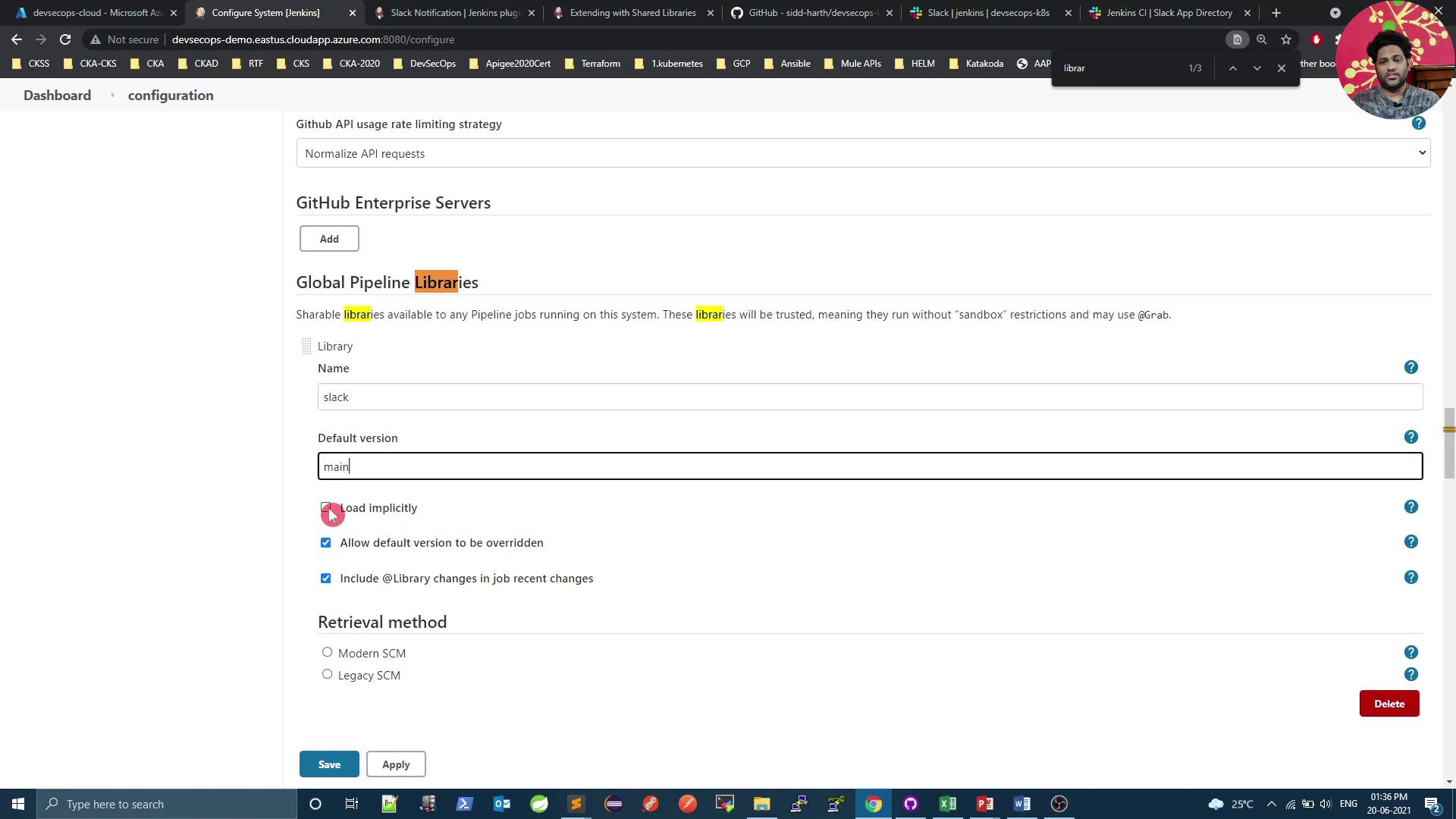
- Click Add and configure:
- Name:
slack - Default Version:
main - Retrieval Method: Git
- Project Repository:
<your-git-repo-url>
- Name:
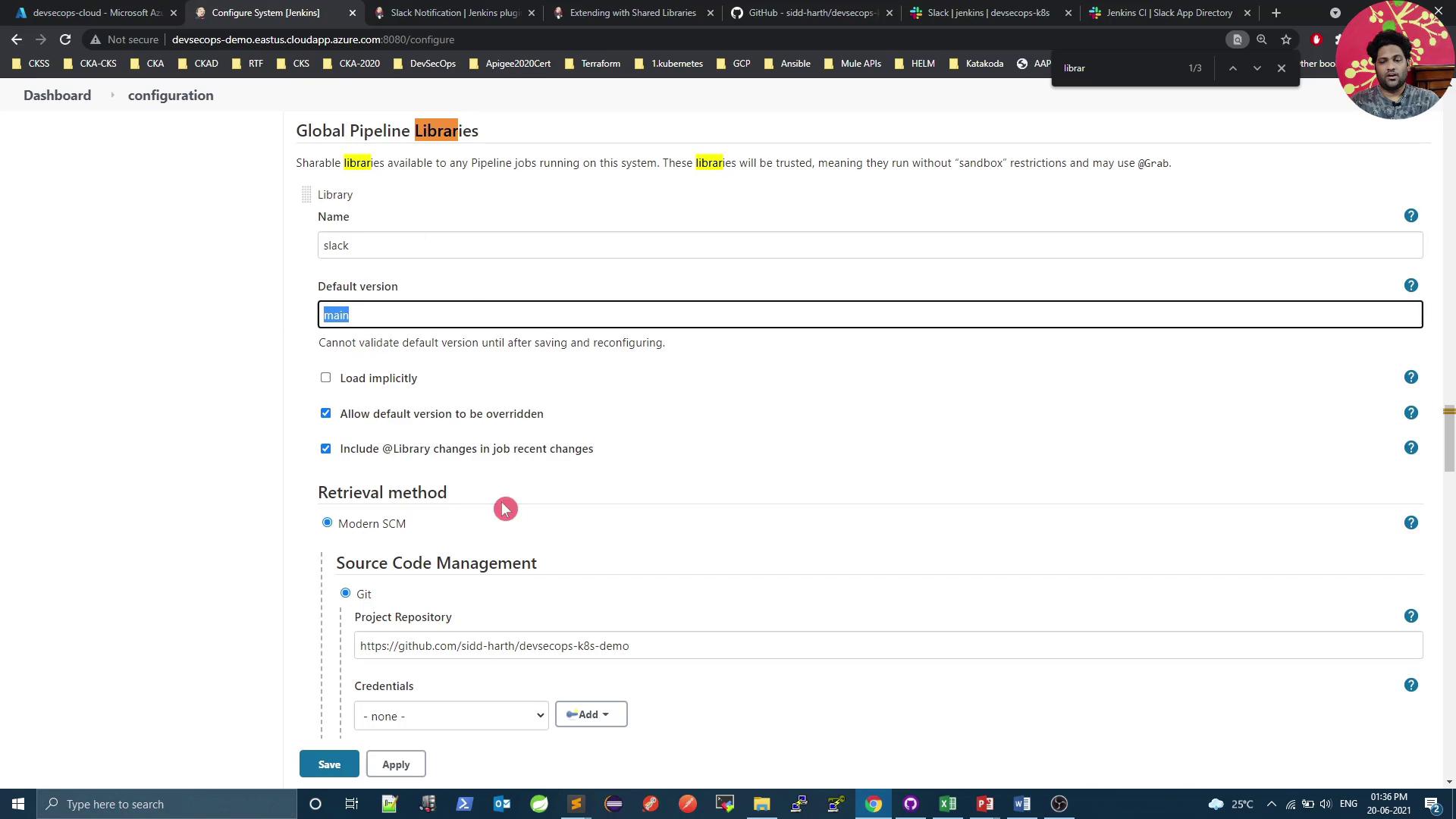
- Save the configuration.
6. Implement the Notification Logic
Createvars/sendNotification.groovy in your shared library:
7. Integrate in Your Jenkinsfile
Atop yourJenkinsfile, load the library and invoke sendNotification in the post block:
Note: Customizing Notifications
You can extendsendNotificationto include Slack attachments, fields, and action buttons for richer messages.
8. Test the Integration
- Commit and push your shared library and
Jenkinsfile. - Trigger a new build in Jenkins.
- Review the build in Jenkins:
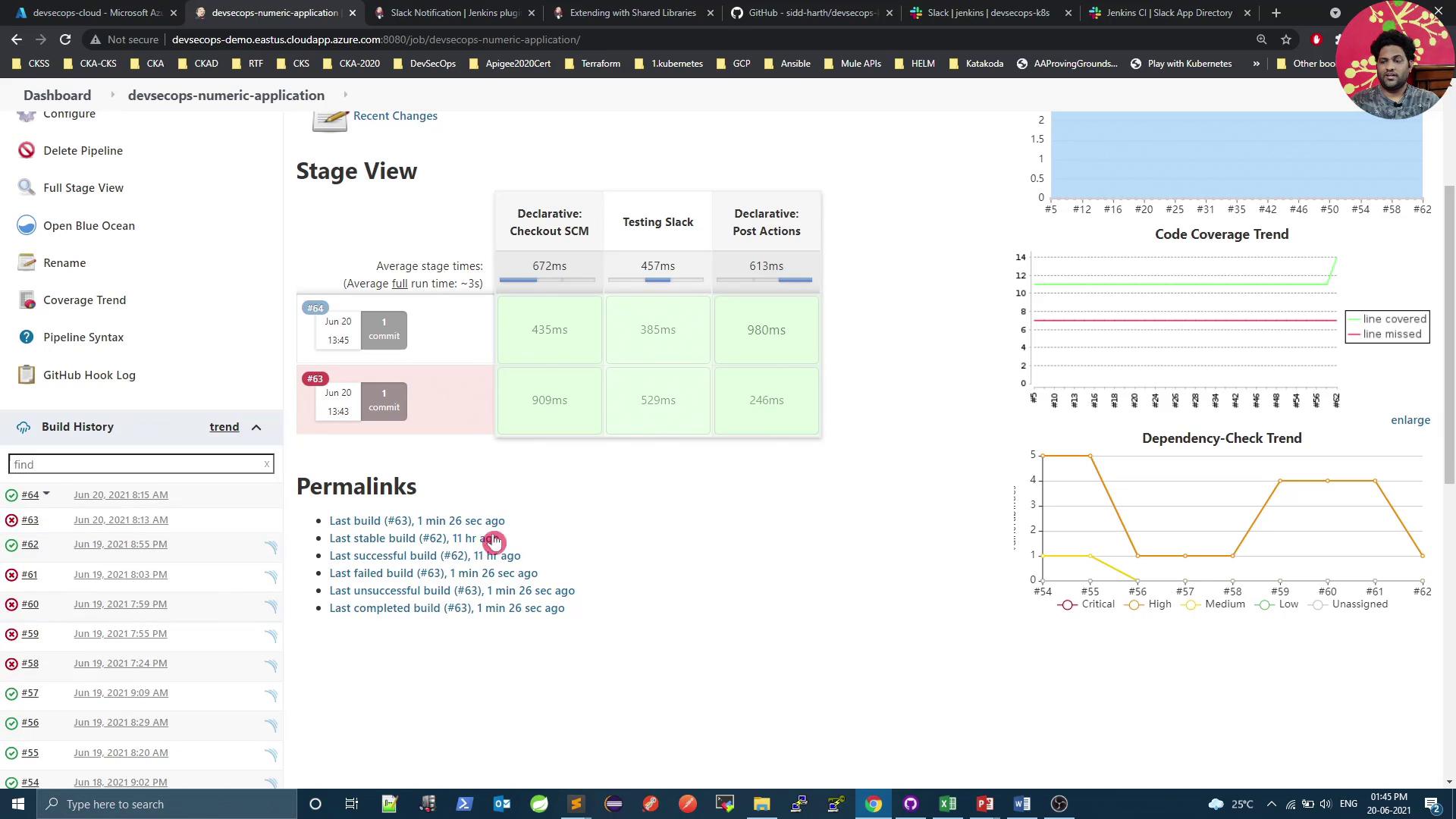
- Check Slack’s #jenkins channel for a green “SUCCESS” notification:
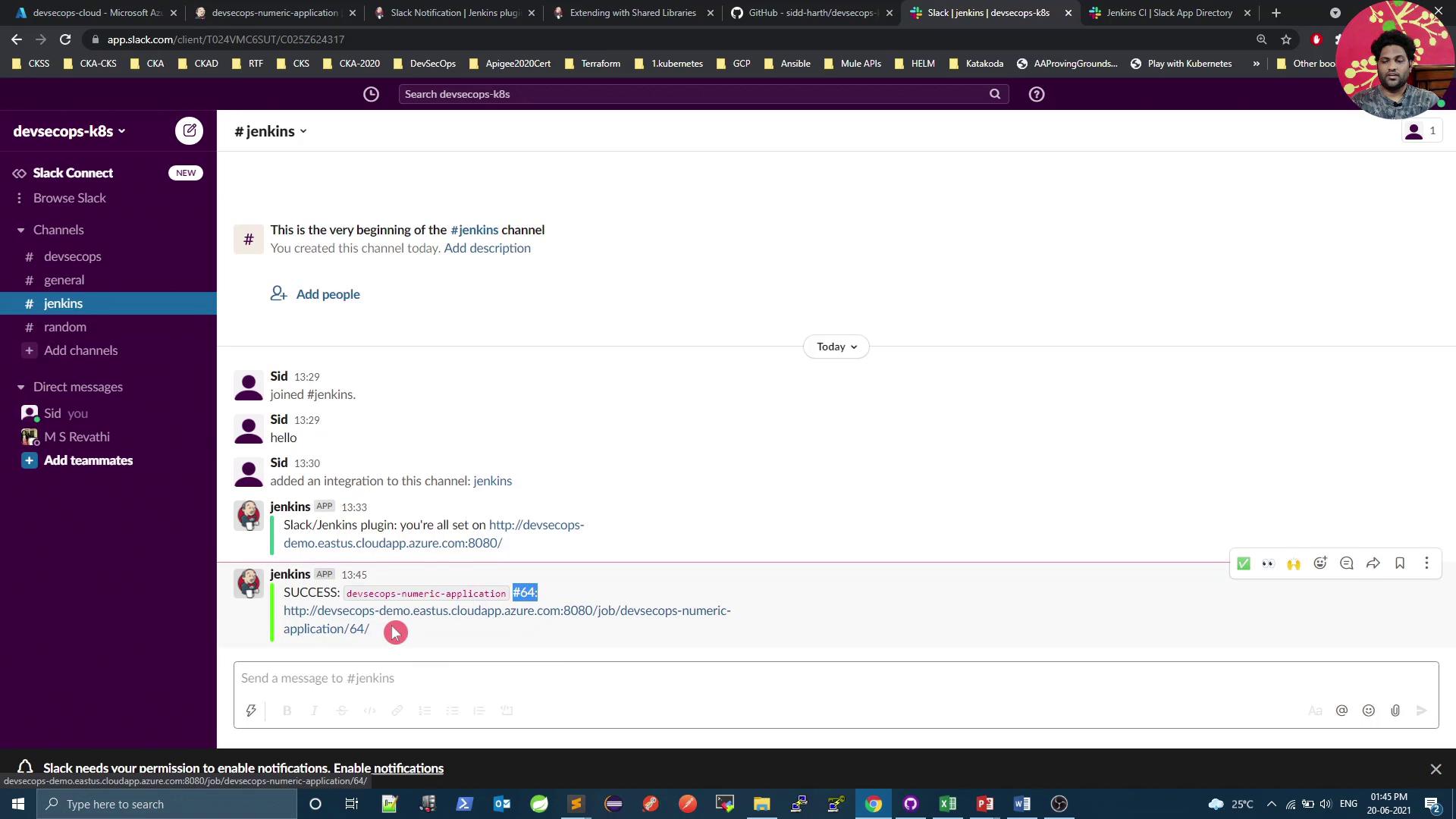
- To simulate a failure, add
sh 'exit 1'in a build step, push, and confirm a red “FAILURE” alert.
Next Steps
You’ve set up basic Slack notifications with build status, job name, ID, and URL. Coming up:- Slack attachments with fields and images
- Dynamic channels based on branch or environment
- Interactive message buttons and menus
Links and References
- Slack API Documentation
- Slack Notification Plugin for Jenkins
- Jenkins Shared Library Guide
- Jenkins Pipeline Syntax
- Slack App Directory