

Installation
You can install Trivy as a standalone binary or run it via Docker.Standalone Binary
Download the latest release from the Trivy GitHub Releases page, then:If you skip the vulnerability database update (
--skip-update), you may miss newly disclosed CVEs.Using Docker
Use the official Trivy image and mount a cache to speed up repeat scans:Mounting
~/.cache ensures that vulnerability databases persist between runs, dramatically reducing scan time.Scan Exit Codes
Control your CI/CD pipeline behavior by setting one of these exit codes:--exit-code 0
Always returns 0—even if vulnerabilities are found.--exit-code 1
Returns 1 when vulnerabilities meet or exceed your severity threshold.
Output Formats
Trivy supports three formats:
Example:
Listing All Packages
By default, Trivy only reports packages with known vulnerabilities. To list every package in the image:Common Options
Sample Report
Below is a sample Trivy table output, showing each vulnerability’s ID, severity, installed version, and fixed version when available: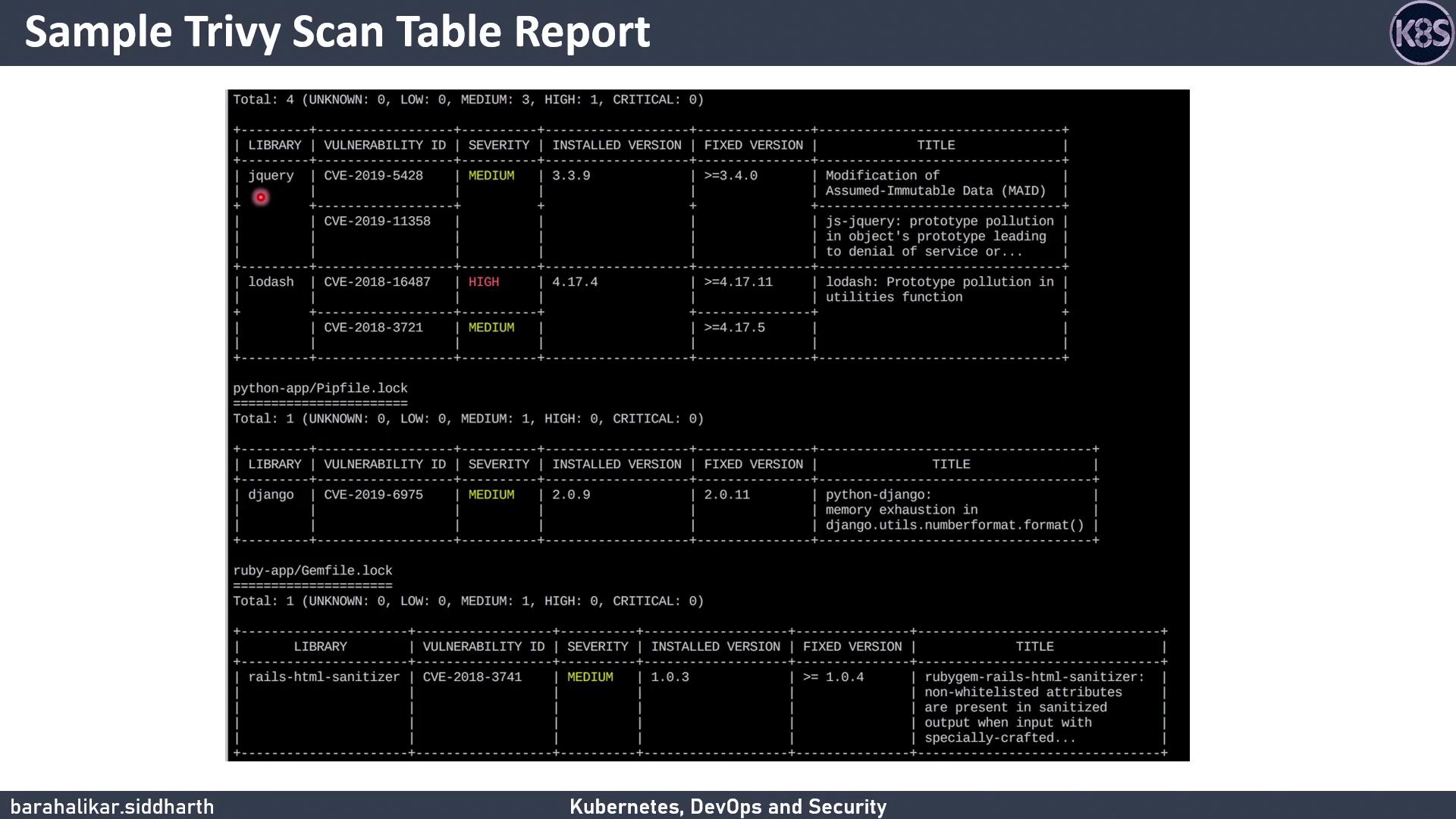
- Vulnerability ID (e.g., CVE-2021-1234)
- Severity level
- Installed version
- Fixed version (if available)