

slackSend step. You’ll learn how Block Kit structures messages as JSON, how to prototype with the Block Kit Builder, and how to construct and send attachments from a Jenkins shared library.
The Slack API messaging docs are a great reference:
- Messaging docs: https://api.slack.com/messaging
- Block Kit Builder: https://app.slack.com/block-kit-builder/
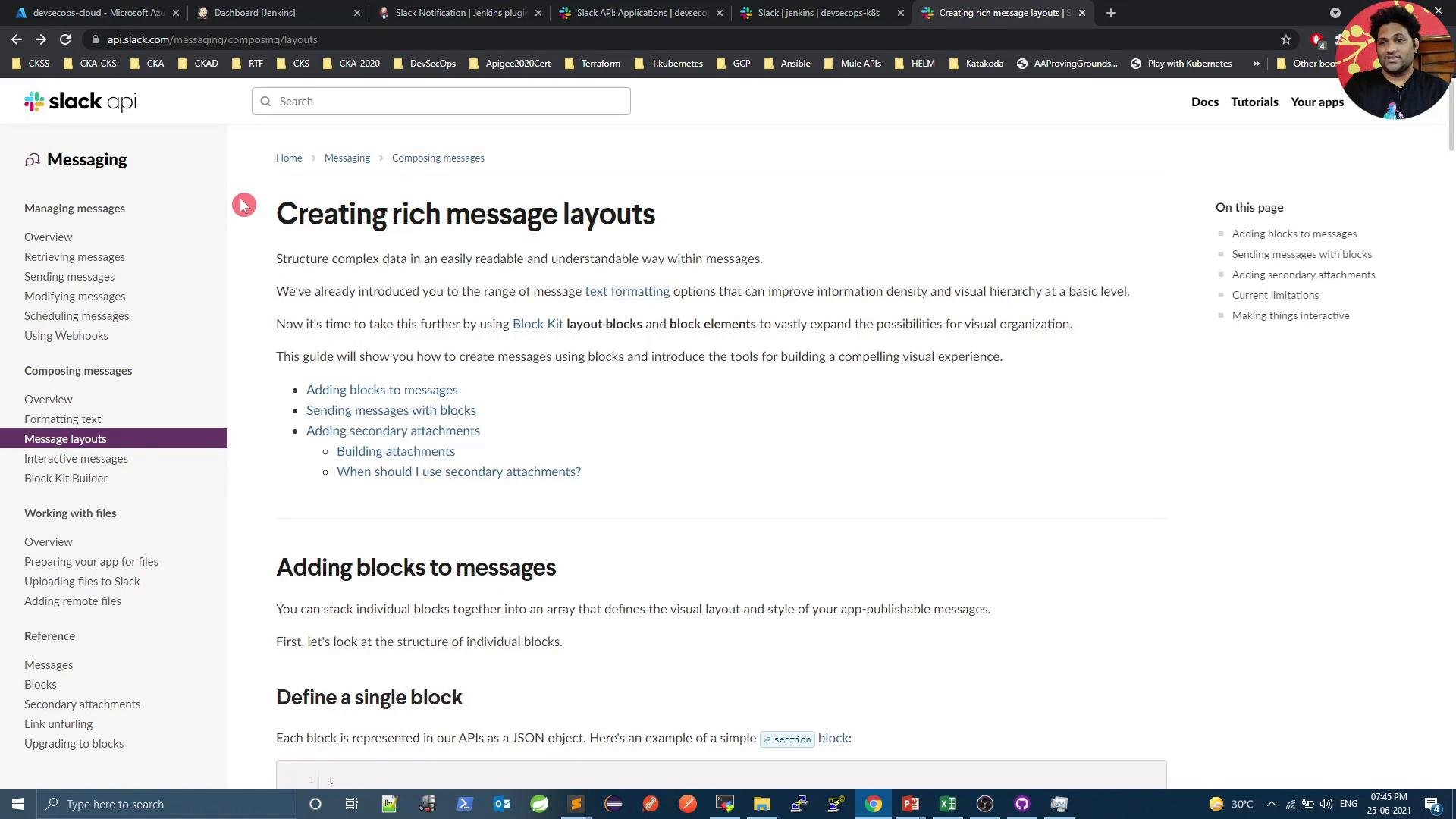
- Block Kit composes messages from modular blocks (e.g.,
section,divider,header,actions). - Use the Block Kit Builder to preview desktop and mobile renderings before sending.
- Block Kit payloads are JSON. Build the structure locally or programmatically (Groovy) and send via Jenkins’s
slackSend.
Use the Block Kit Builder to prototype your JSON payload and test “Send to Slack” (you must be logged in). When integrating with Jenkins, construct the same JSON structure in Groovy and then either pass the Groovy list/map directly or convert it to a JSON string depending on your
slackSend implementation.- An attachment is a wrapper that may contain fields such as
colorand ablocksarray. - Many Slack integrations send attachments that include
blocksfor rich layouts. - Build your attachments payload in the same shape the Block Kit Builder shows, then deliver it via
slackSend.
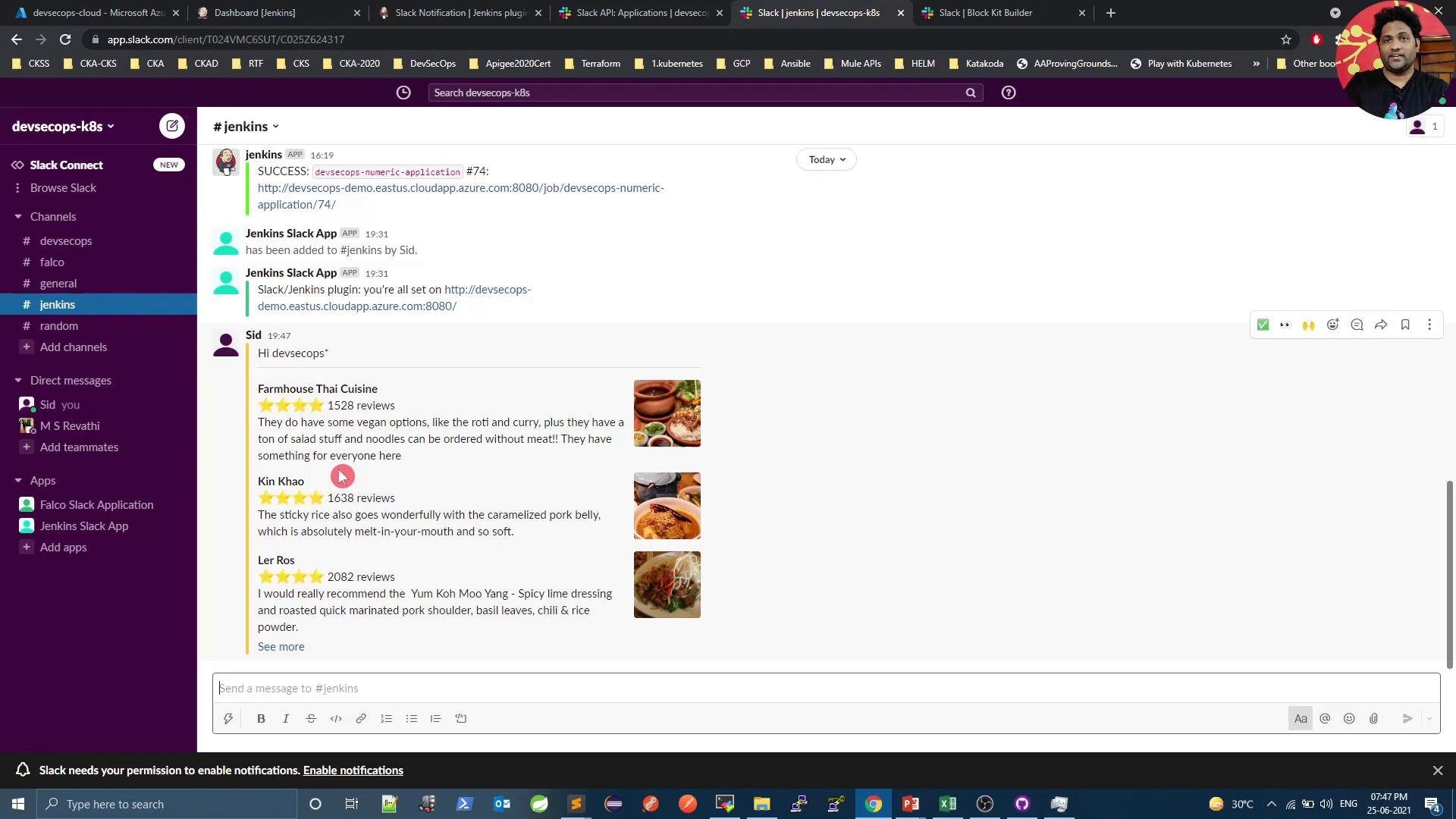
- Jenkins’s Slack Notifications plugin exposes the
slackSendpipeline step for sending messages. - Different plugin versions accept attachments differently: some accept Groovy lists/maps, others expect a JSON string. If necessary wrap your Groovy structure with
groovy.json.JsonOutput.toJson(attachments). - Best practice: build the attachments payload as Groovy maps/lists in a shared library and call
slackSend()in post-build steps.
vars/sendNotification.groovy). It:
- selects color and emoji by build status,
- composes an
attachmentspayload with header, job fields, failed stage, and action buttons, - calls
slackSend(either with Groovy structures or JSON string depending on your plugin).
- Ensure the shared library is configured and the library name matches your
@Library('...')directive. - Call
sendNotificationfrom post-build blocks (e.g.,success,failure) and set helpful environment variables likefailedStageandemojito provide contextual data.
- If
junitfails with “Test reports were found but none of them are new,” it means test results were published but no tests ran in this build. Guard or comment out report publishers when you skip tests during Slack testing. - If Jenkins errors with “No such DSL method ‘sendNotifications’ found”, confirm the shared library function name matches the call site (
sendNotificationvssendNotifications). - If images/icons do not appear:
- Ensure image URLs are publicly accessible.
- Alternatively upload the images to Slack and use a custom emoji name for
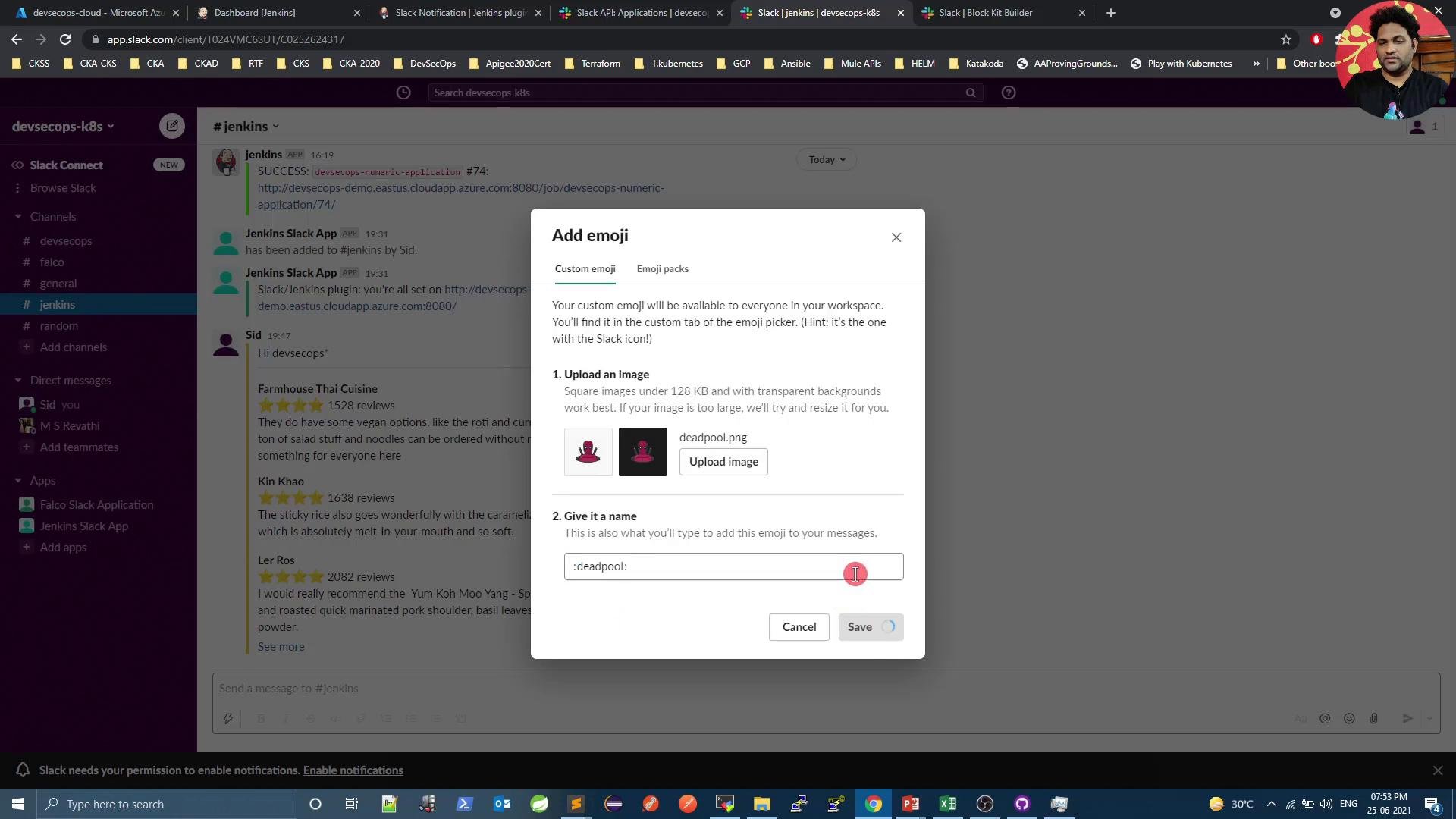
iconEmoji. - Custom emoji names must match exactly when referenced (e.g.,
:deadpool:).
If your
slackSend implementation requires a JSON string for attachments, convert the Groovy structure with groovy.json.JsonOutput.toJson(attachments) before sending. Also verify that image URLs are reachable from Slack (public or Slack-hosted).- In Slack: Workspace menu → Customize → Emoji, upload an image, assign a name, and then use that name (for example,
:deadpool:) withiconEmojiinslackSend.
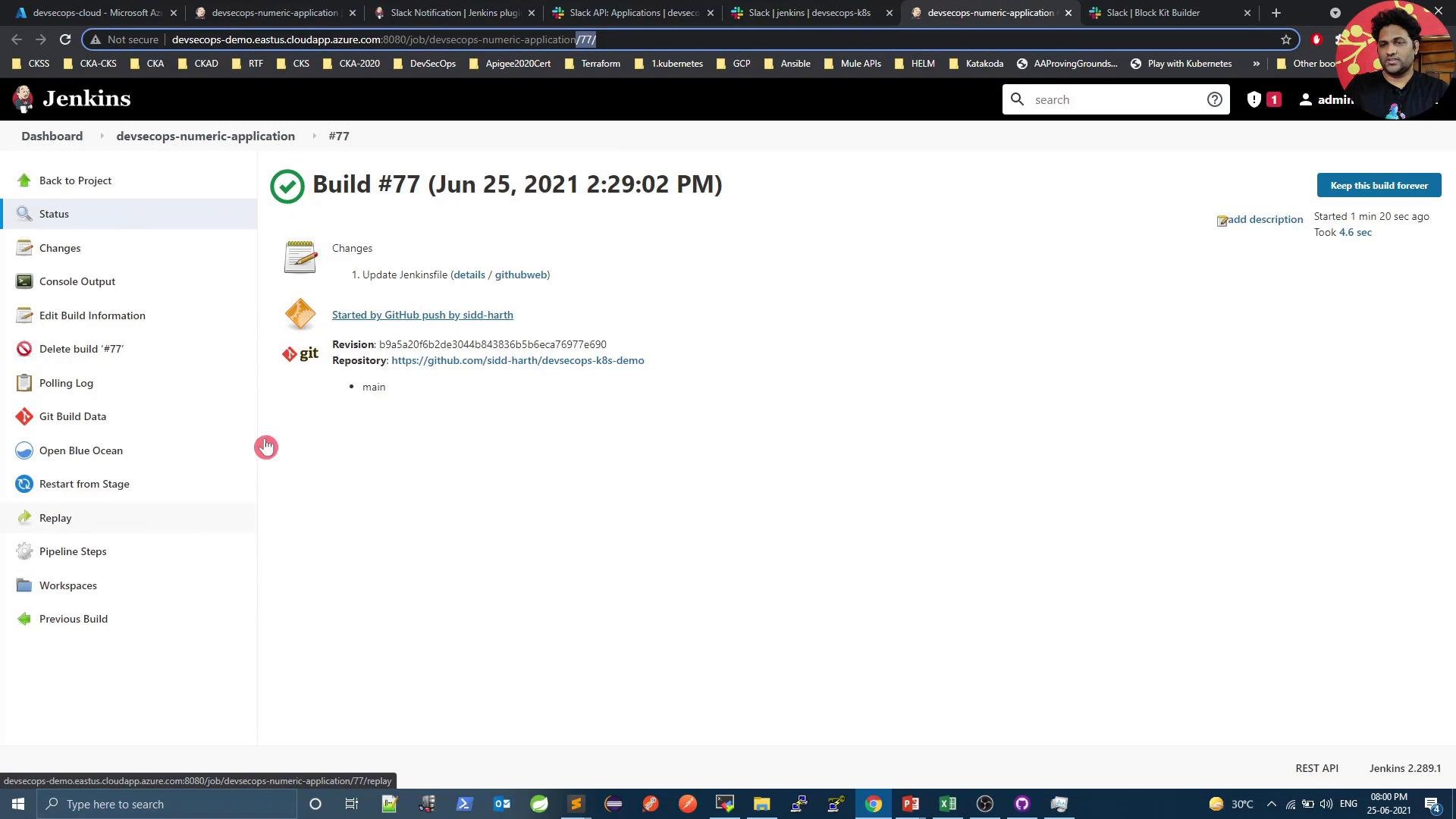
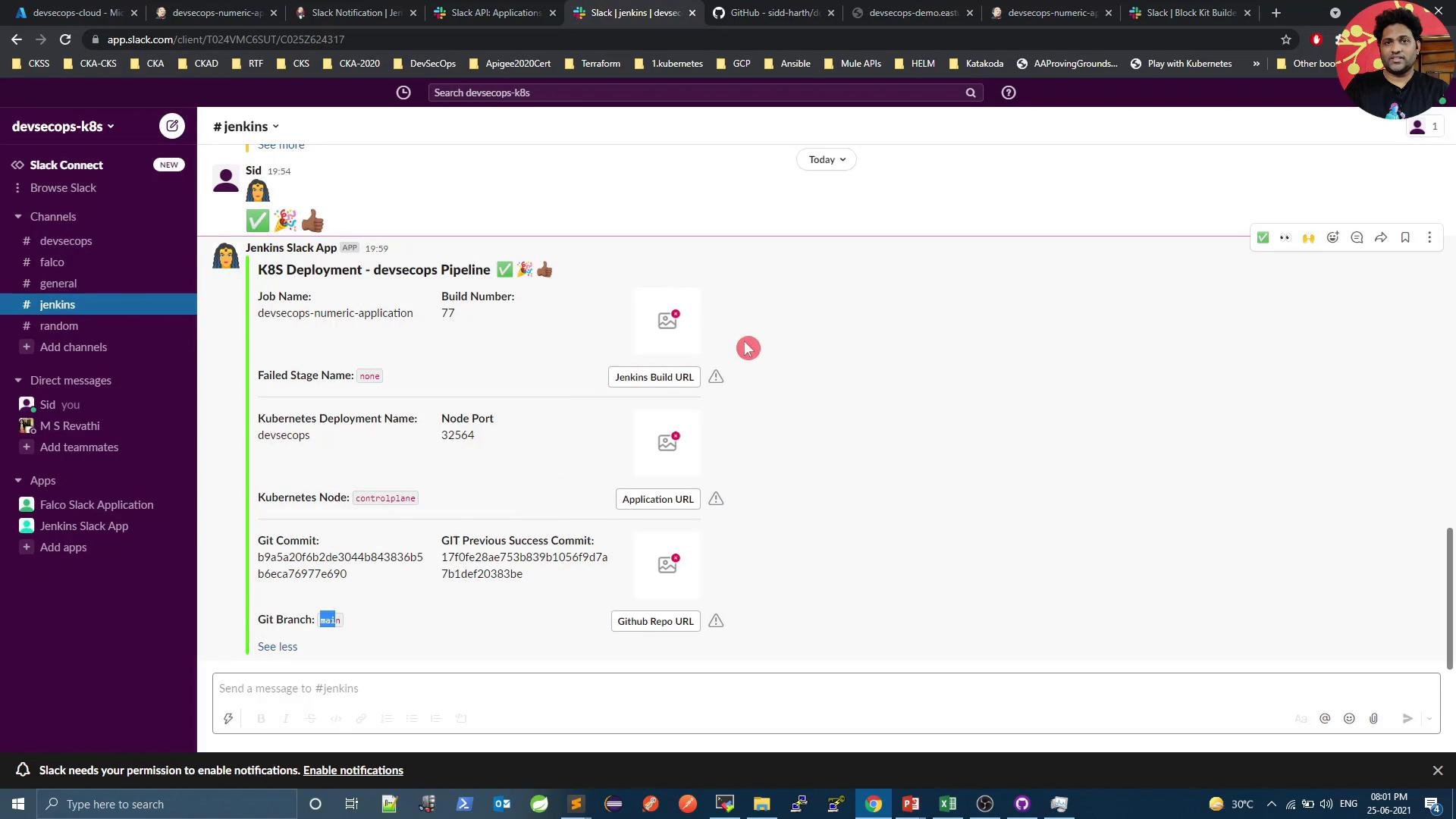
- After configuring the shared library and payload, run a test build that triggers the post step.
- A successful message will include:
- header with pipeline name,
- job name and build number,
- failed stage (if any),
- Kubernetes deployment info and node port,
- Git commit and branch info,
- action buttons for Jenkins build and Git repo URLs.
Links and references
- Slack Block Kit docs: https://api.slack.com/messaging
- Block Kit Builder: https://app.slack.com/block-kit-builder/
- Jenkins Pipeline Syntax & Shared Libraries: https://www.jenkins.io/doc/book/pipeline/shared-libraries/
- Prototype Block Kit messages in the Block Kit Builder, then recreate the same
attachments/blocksstructure in Groovy. - Keep the payload consistent between Block Kit Builder and Jenkins; convert to JSON if your plugin requires a string.
- Upload any custom icons to Slack and reference them via
iconEmojiwhen callingslackSend. - Add logic in your shared library to capture failed stage names and other contextual metadata to improve the usefulness of notifications.