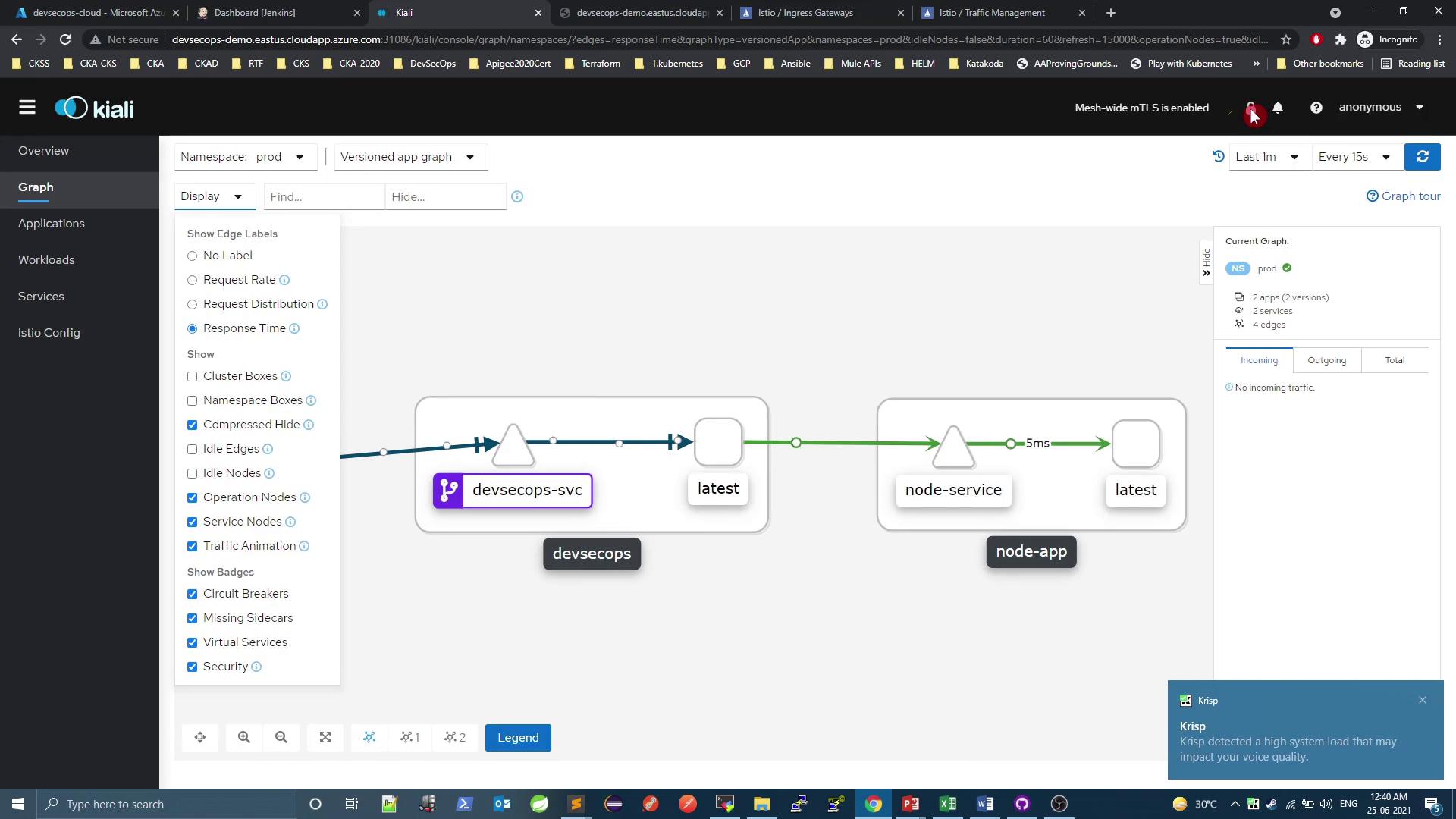
In this guide, you’ll learn how to use Istio’s Ingress Gateway and VirtualService to expose and control traffic for a Kubernetes-based DevSecOps application. We’ll define the necessary custom resources, apply them, and verify external access. Finally, you’ll see how Kiali can help you visualize and troubleshoot your service mesh configuration.

Istio Ingress Gateway

An Ingress Gateway acts as an edge load balancer for your service mesh, handling incoming HTTP/TCP traffic. It exposes ports and protocols, but unlike Kubernetes Ingress, it does not include routing rules—that’s delegated to a VirtualService.
A Gateway only configures the listener. Use a VirtualService to define how traffic is routed.
Here’s a minimal Gateway CRD:
Apply the Gateway:

Istio VirtualService

A VirtualService lets you define routing rules that map incoming requests (from a Gateway or internal service) to destinations in the mesh.
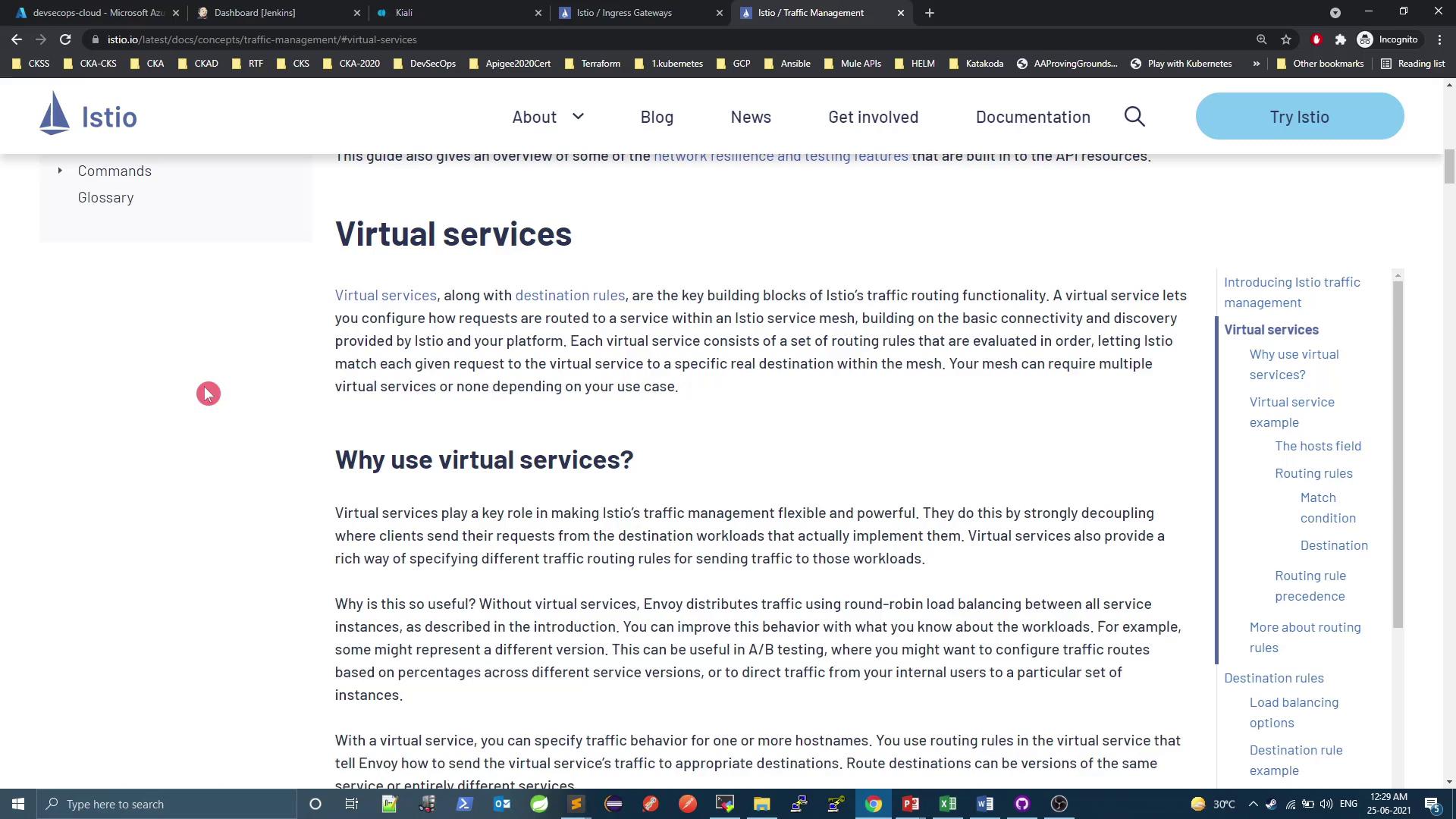
The image shows a webpage from the Istio documentation, specifically discussing "Virtual services" and their role in traffic management. It includes sections on why virtual services are used, with a navigation sidebar on the right.
Example: route all HTTP traffic for httpbin.example.com to the httpbin service on port 8000.
Apply it:

Exposing the DevSecOps Application

Our application devsecops-svc is currently a ClusterIP service on port 8080 in the prod namespace:
Internally it responds as expected:

Create Gateway + VirtualService for prod

Create both resources in a single manifest (istio-gateway-vs.yaml):
Apply and verify:

Access via Istio Ingress Gateway

Istio’s istio-ingressgateway Service is typically a LoadBalancer or NodePort. In this environment it’s exposed on NodePort 32564:
Test external access:
Both / and /increment are reachable through the Gateway.

Restricting Paths with VirtualService

To disable the root path (/) externally, remove or comment out the exact-match rule:
Apply and test again:

Viewing Configuration in Kiali

Kiali provides a UI for inspecting Istio resources.
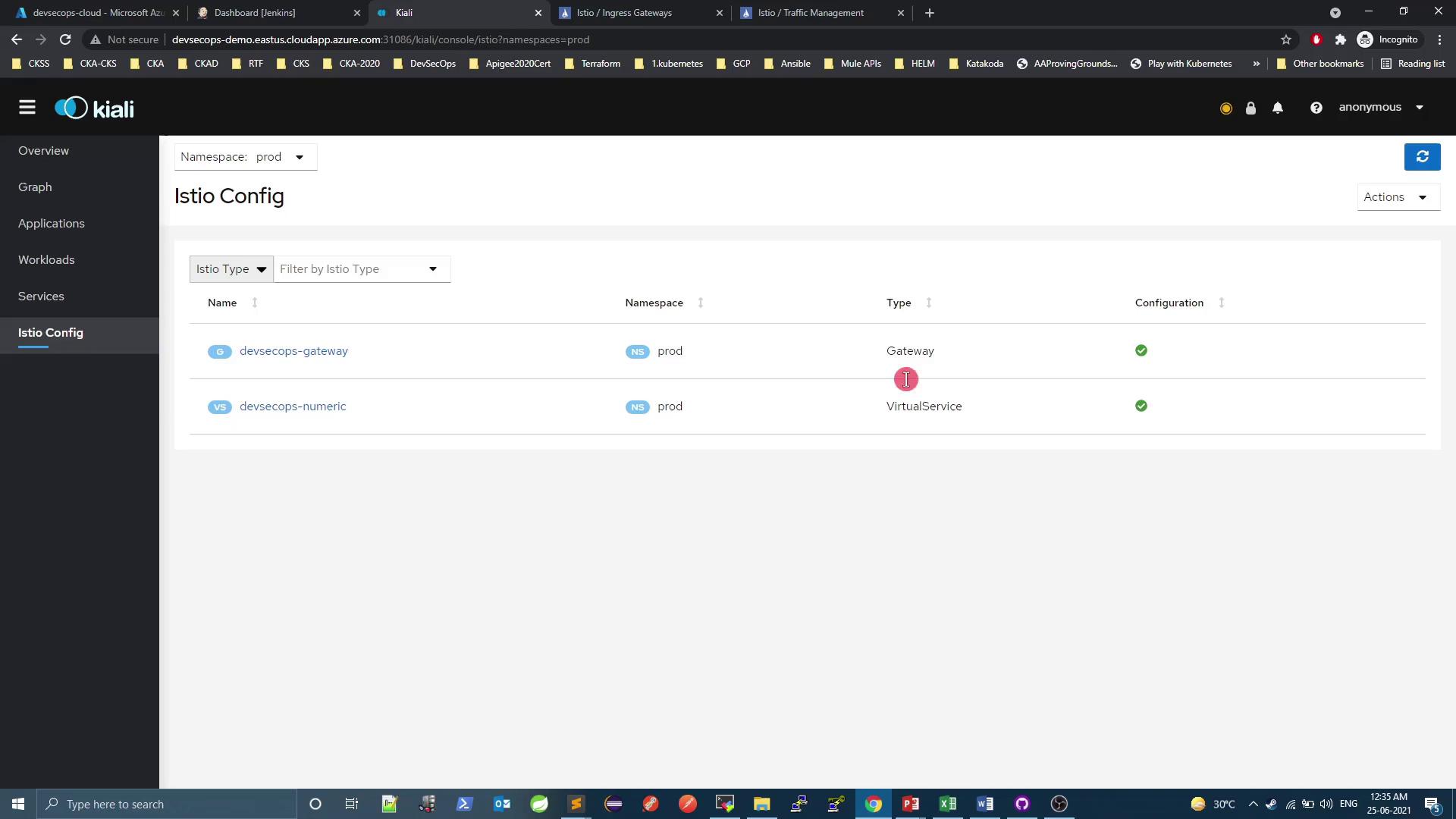
The image shows a Kiali dashboard displaying Istio configuration for a namespace "prod," listing a Gateway and a VirtualService with their configurations.
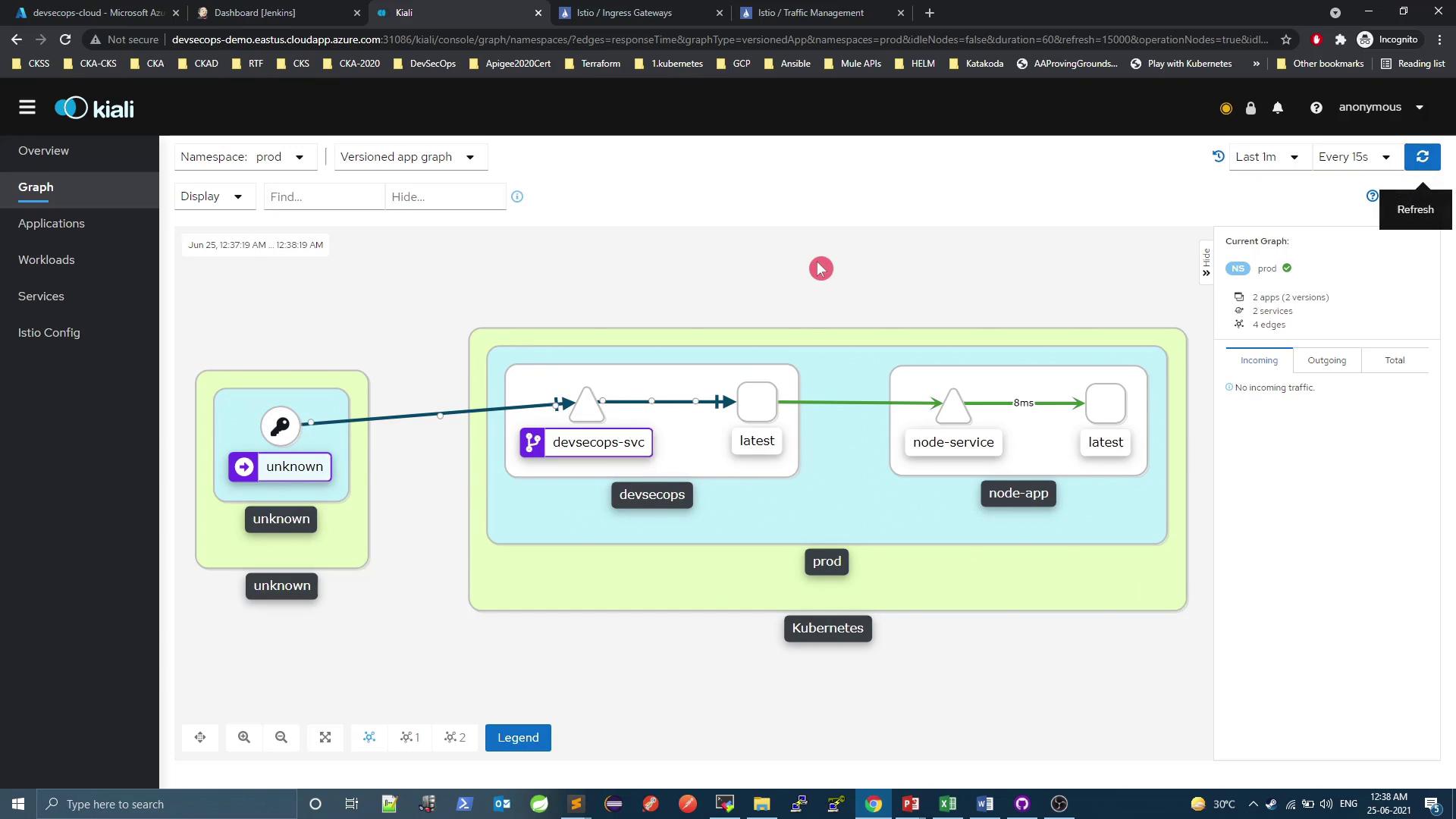
You can also view your service mesh topology:
The image shows a Kiali dashboard displaying a service mesh graph with nodes representing services and their interactions within a Kubernetes environment. The graph includes services like "devsecops-svc" and "node-service" with connections indicating data flow.
And inspect metrics & traffic:
The image shows a Kiali dashboard displaying a service mesh graph with nodes representing services and their interactions, including "devsecops-svc" and "node-service." The graph is set to show response time and other metrics within a specified namespace.

Summary

Watch Video

Practice Lab