

- Time series — trending and velocity
- Stat — single current value (summary)
- Gauge — percentage with thresholds
- Pie chart — categorical distribution
1) Create the dashboard and add a Time series panel
The Time series visualization is the go-to for trends and velocity. Create a new dashboard, add a panel, select your Prometheus data source, and choose the Time series visualization.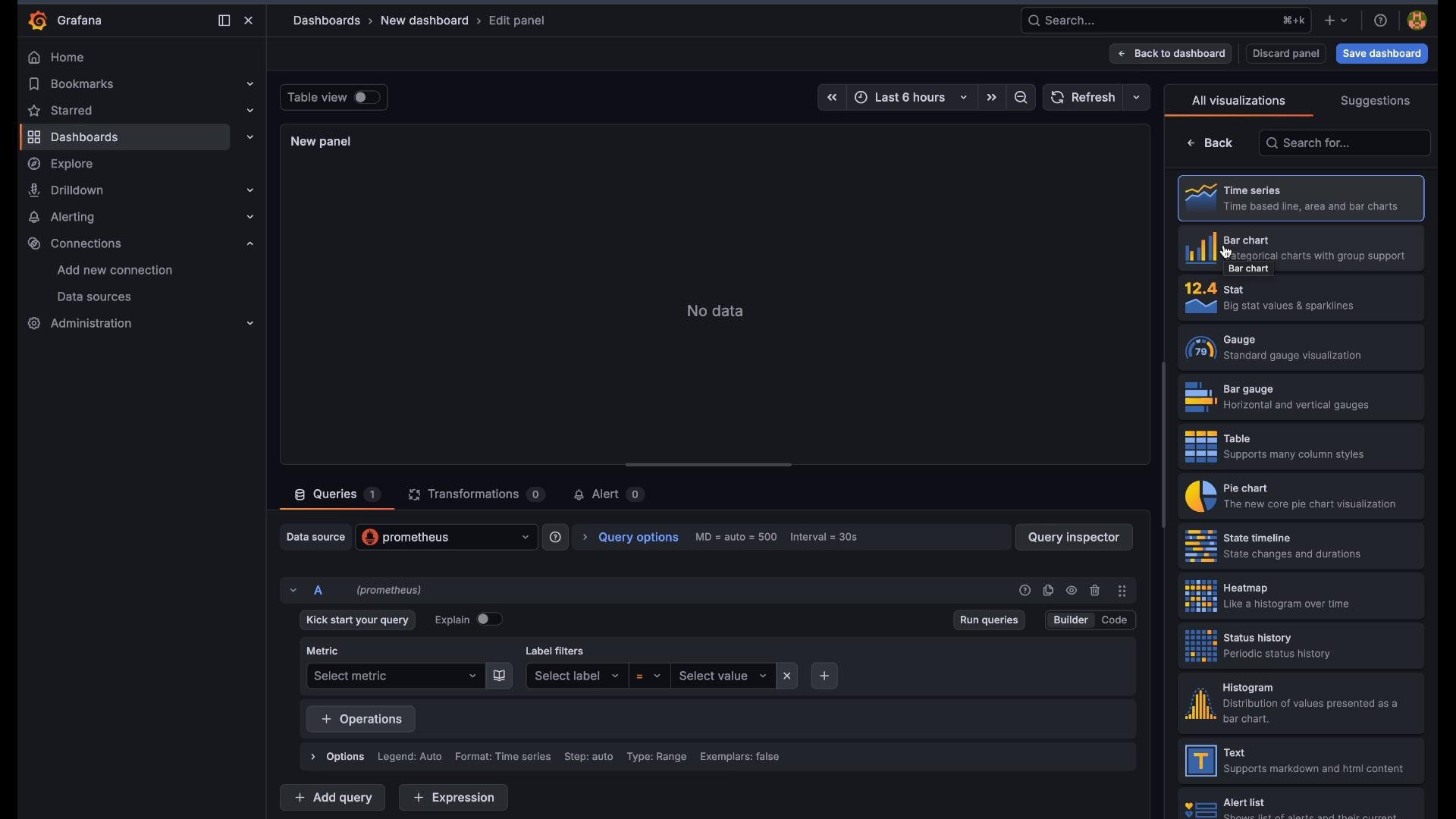
pod produces one series per pod:
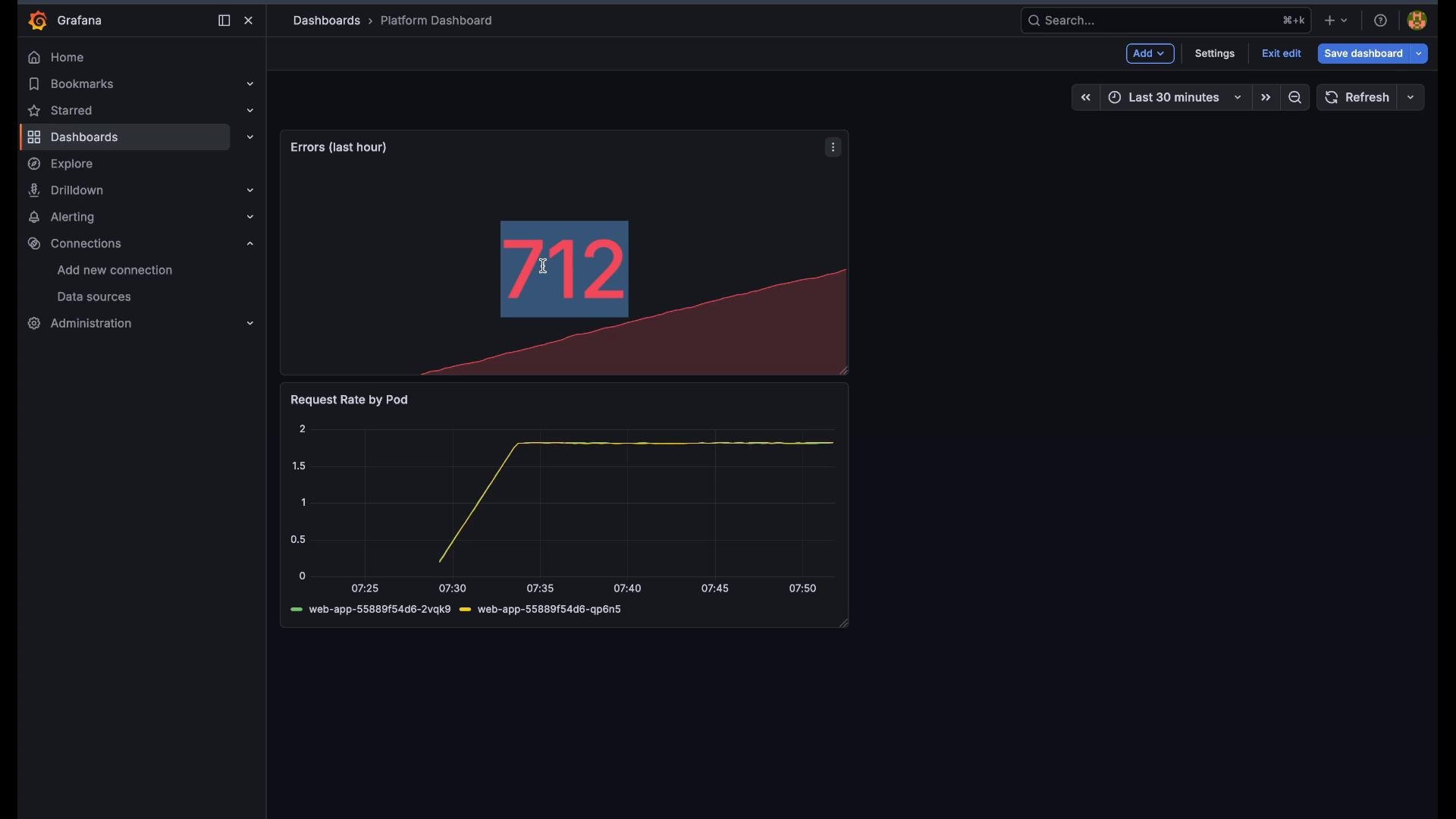
- Set the panel title to “Request Rate by Pod”.
- Adjust the dashboard time range (for example, last 30 minutes) to view recent trends.
- Save the dashboard as “Platform Dashboard”.
2) Add a Stat panel for an at-a-glance metric
Stat panels are ideal for showing a single current value such as an error count over a time window. Create another panel, choose the Stat visualization, and use this PromQL query to total errors over the last hour:- Title the panel “Errors Last Hour”.
- Configure thresholds in the Stat options (for example: yellow at 80, red above 200) so the numeric display changes color when values cross danger levels.
- Save the panel and return to the dashboard.
3) Add a Gauge panel for percentage-based metrics
Gauges work well for percentages and visuals that use thresholds. Use a PromQL expression that computes memory used as a percentage of total memory across nodes:- Name the panel “Memory Gauge Panel”.
- Configure gauge thresholds (for example: base 0, yellow at 70, red at 90) so the needle or fill color changes as usage moves into risky territory.
- Set the unit to “percent (0-100)” in the visualization options for correct formatting.
- Save the panel and refresh the dashboard to confirm the current value (for example, 24%).
4) Add a Pie chart to show distribution by category
Pie charts are useful for proportional distributions where totals over a window matter. Useincrease() to get totals rather than per-second rates. For example, to show requests by HTTP status code over the last hour:
- Title the panel “Pie Chart Panel”.
- Enable the legend and show numeric values so each slice displays its count.
- The query groups requests by
code(e.g. 200, 400, 500), and each status code becomes a slice sized by the number of requests.
When choosing between
rate() and increase(): use rate() (per-second velocity) for trend and velocity charts (Time series); use increase() when you need totals over a time window (for example, totals for a pie chart or an hourly count).Panel summary
These four panels together provide a concise platform overview:Save and share
Save your “Platform Dashboard” and share it with teammates. These four visualization types cover most platform-monitoring needs: trends, current-state indicators, thresholded percentages, and category distributions. Adjust queries, time windows, and thresholds to match your workloads and SLAs.Links and references
- PromQL basics: https://prometheus.io/docs/prometheus/latest/querying/basics/
rate()function: https://prometheus.io/docs/prometheus/latest/querying/functions/#rateincrease()function: https://prometheus.io/docs/prometheus/latest/querying/functions/#increase- Grafana documentation: https://grafana.com/docs/