

- Secure non-interactive authentication — Pipelines cannot use interactive browser logins or MFA. A service connection lets the pipeline authenticate non-interactively using a service principal or managed identity, avoiding stored user passwords or manual logins.
- Scoped access — Service connections are scoped to a subscription, resource group, or management group. This enables least-privilege access: pipelines only receive the permissions explicitly granted.
- Identity separation and traceability — Deployments are performed by the service identity, not developer user accounts. Assign RBAC to that identity so all actions are auditable and attributable to the pipeline.
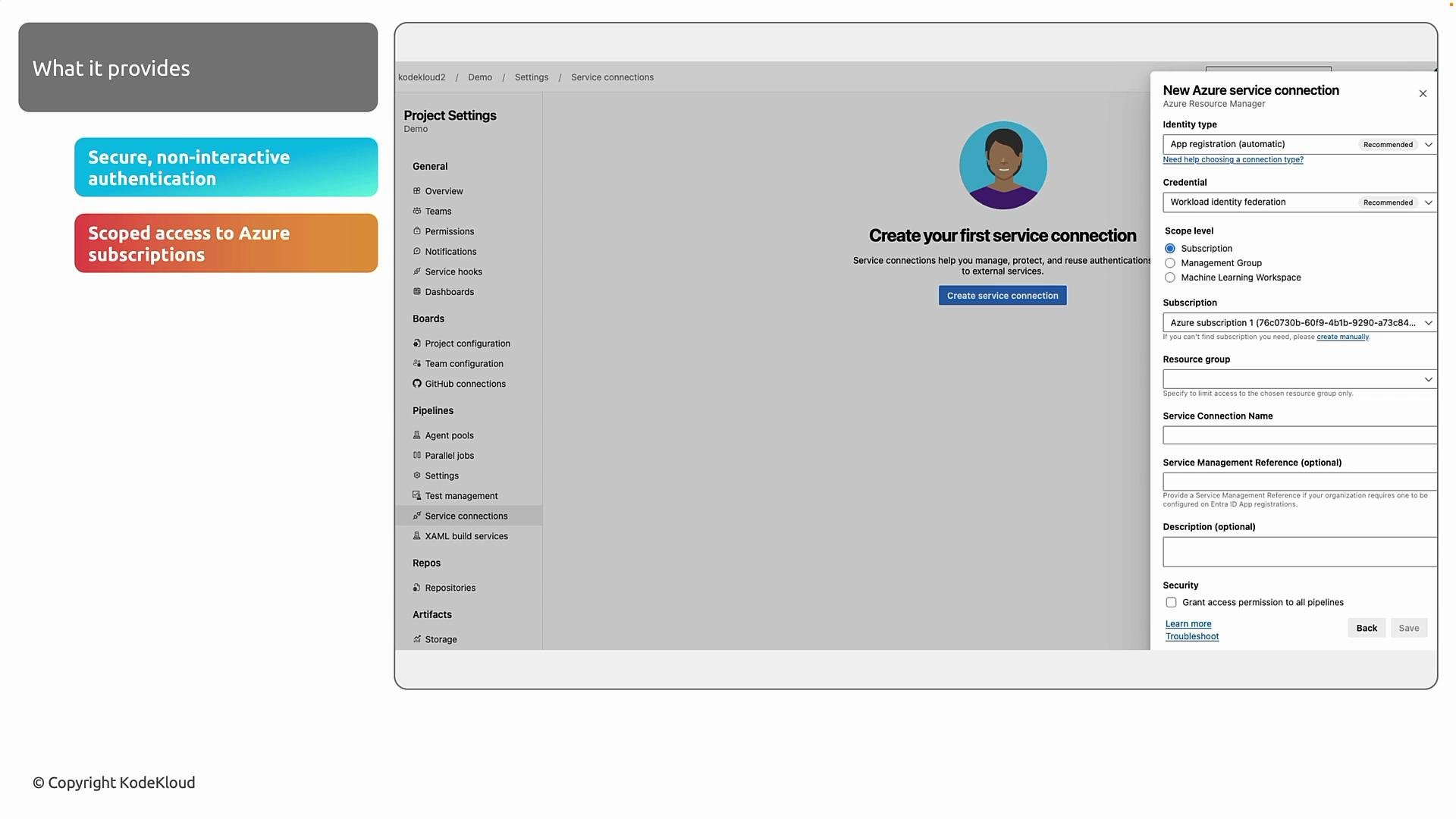
- Backend access — When you use a remote backend (for example, Azure Storage), Terraform requires authentication to read state, acquire locks, and write state. The service connection supplies that access securely.
- ARM operations — During
terraform planandterraform apply, Terraform calls the Azure Resource Manager API. Using the service connection identity, it can create, update, or destroy resources according to the RBAC permissions granted.
- An Azure DevOps organization.
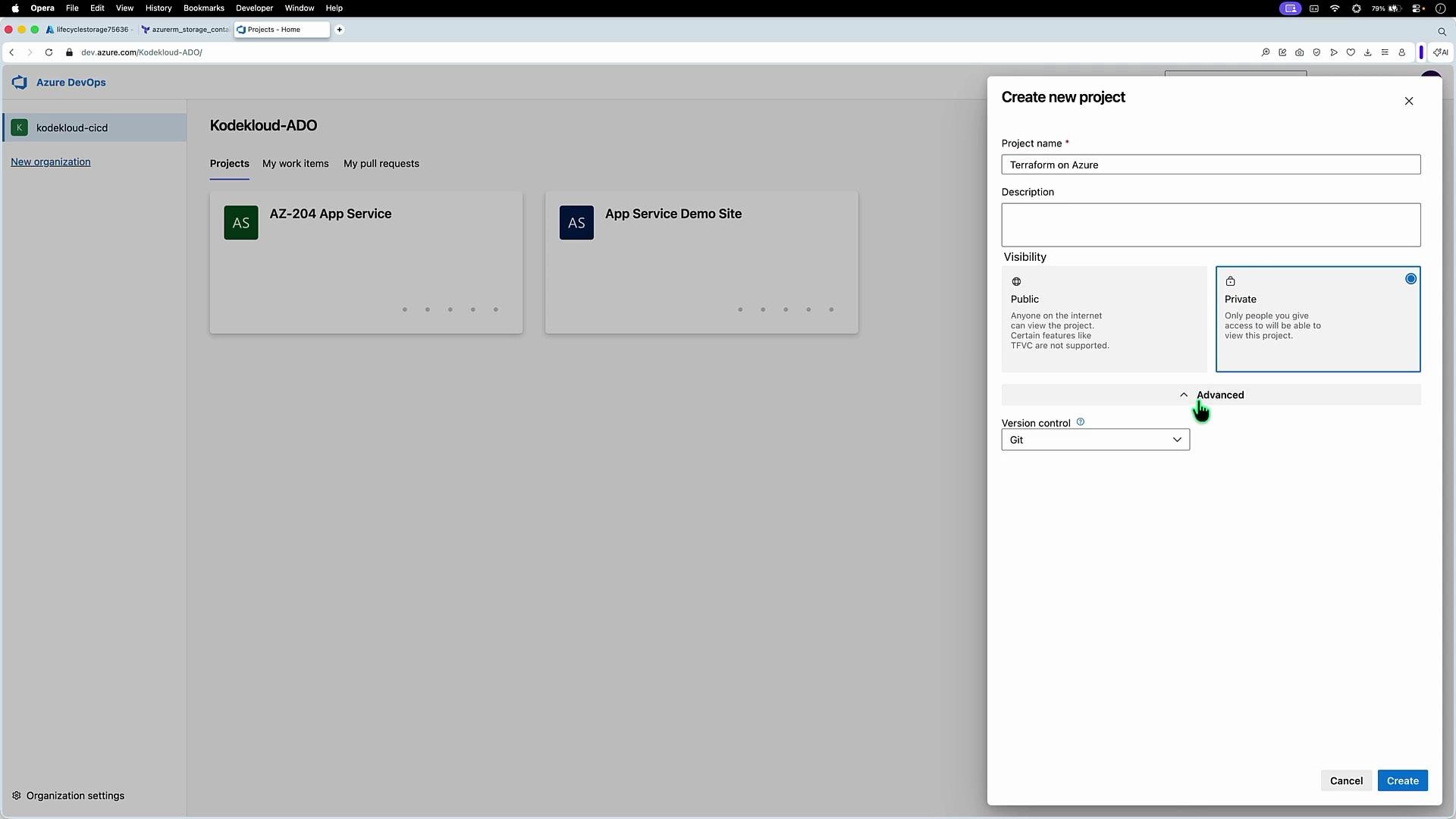
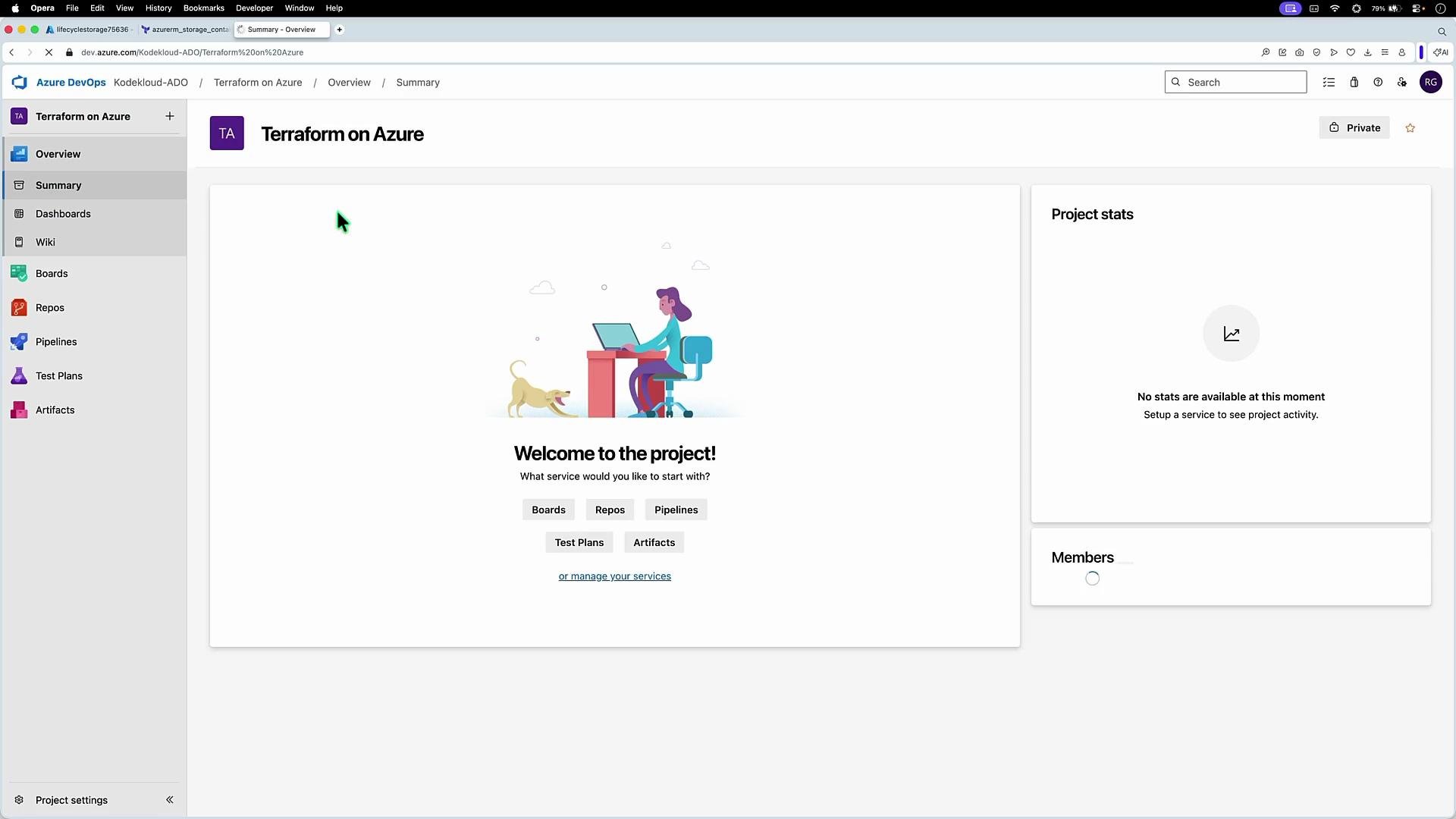
- At least one project in that organization. Create a new project for this work (for example, “Terraform on Azure”), and set visibility and version control as required.
- Click Create service connection and select Azure Resource Manager.
- Choose the identity and credential options that suit your security and operational needs.
- Select the scope (management group, subscription, or resource group) — follow least privilege.
- Give the connection a descriptive name (you will reference this name from pipelines).
- Save the connection. If you selected automatic app registration with workload identity federation, Azure DevOps will create the app registration and establish the trust relationship automatically.
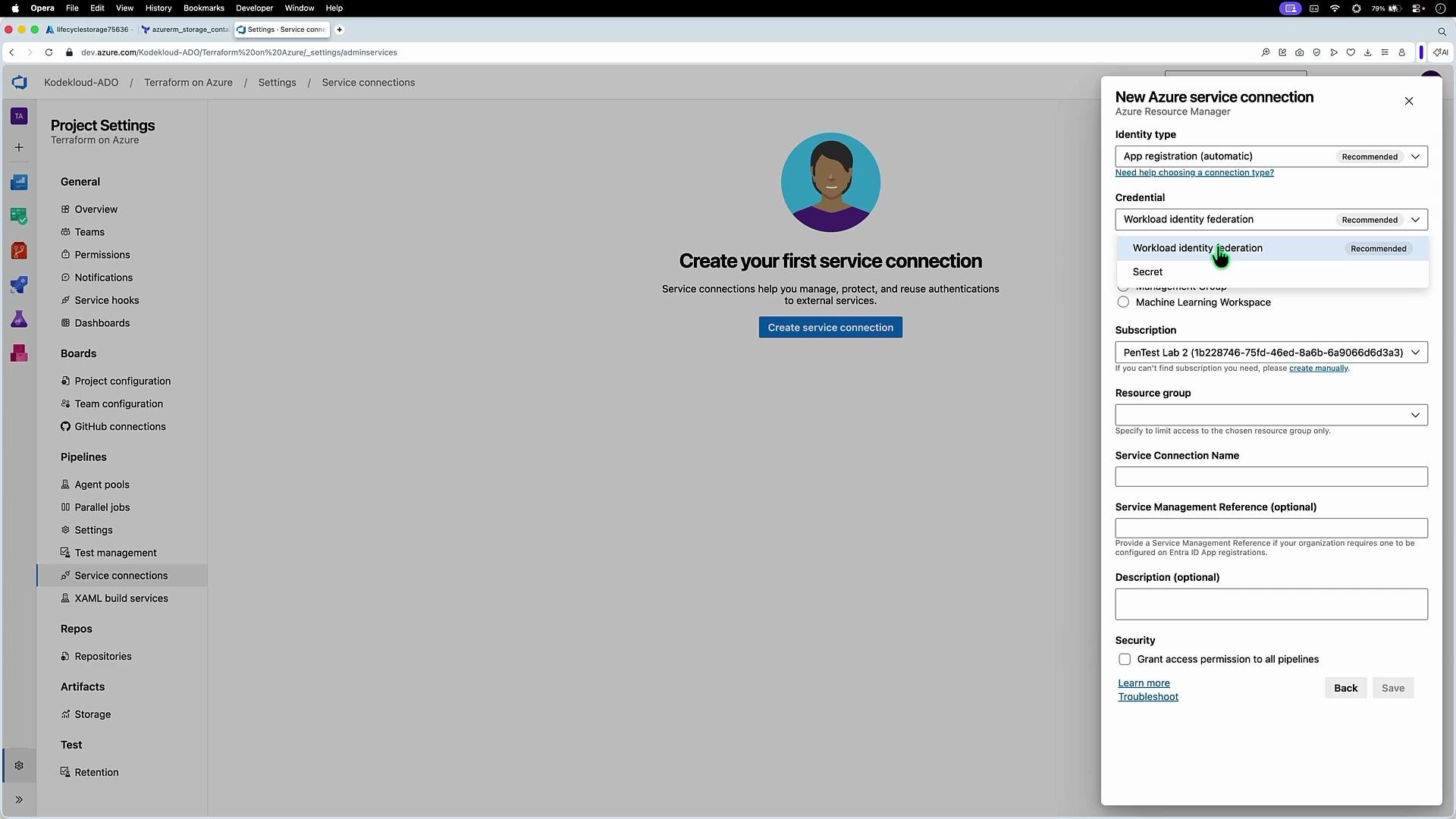
- Choose the smallest scope that still allows your pipelines to operate (resource group or single subscription is common).
- Name the service connection clearly (for example,
Terraform-Azure-ProdorTerraform-Shared-State) so pipelines reference the correct connection across environments.
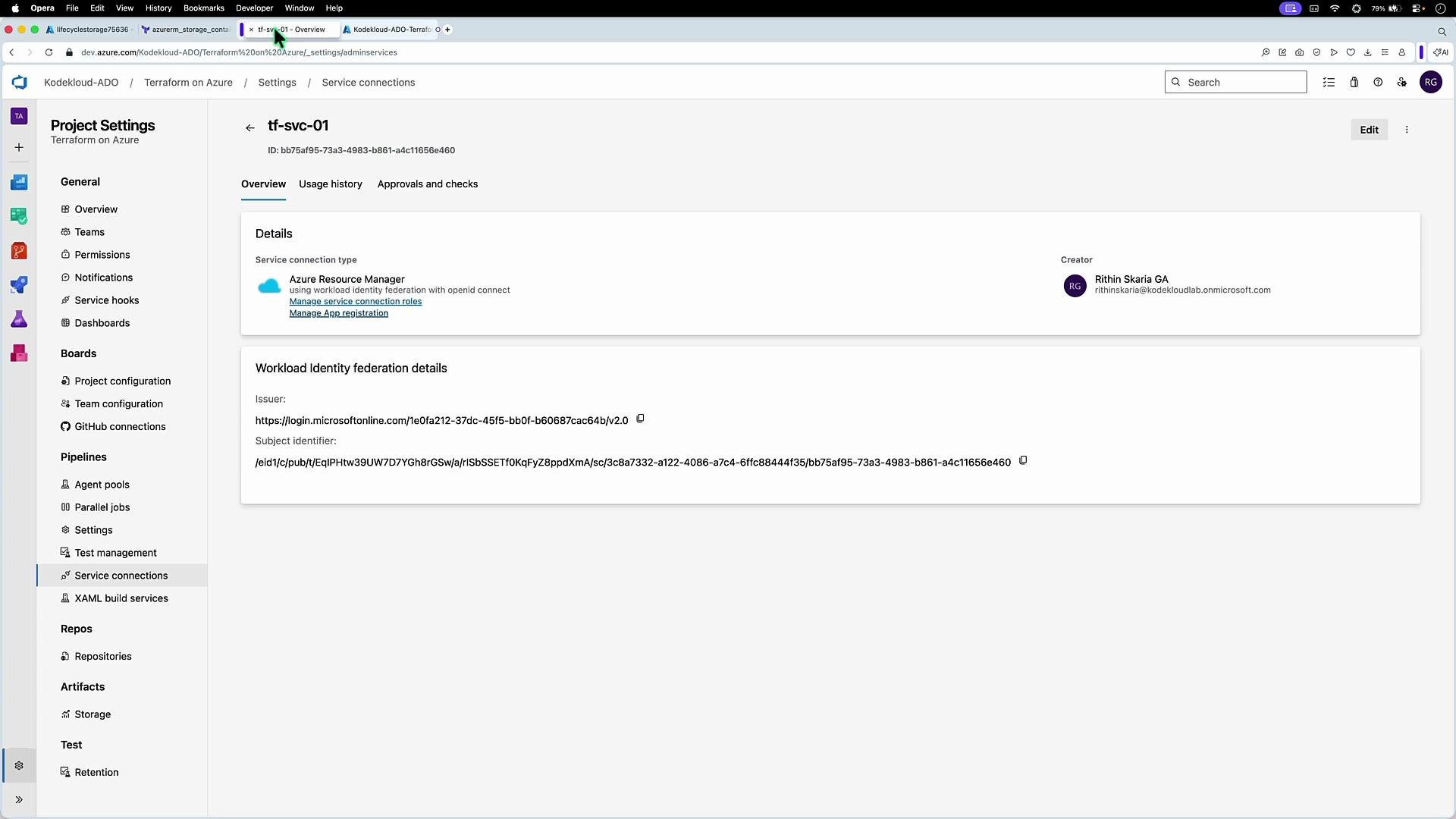
- Grant
Storage Blob Data Contributorto the service identity on the Storage account used for Terraform state. - Grant
Contributoror a scoped custom role for resource deployment, limiting permissions to the minimum required.
Workload identity federation is recommended because it avoids long-lived client secrets. If you must use client secrets, plan for regular rotation and update the service connection credentials when they change.
- You can create multiple service connections to support different subscriptions, environments, or third-party integrations. Keep naming and scopes consistent.
- Reference the service connection by name from your pipeline tasks (for example, Azure CLI or Terraform tasks) so the pipeline uses the correct identity at runtime.
- Ensure the service identity has both remote backend access (e.g., Storage account permissions) and sufficient RBAC for the ARM operations your Terraform code performs.
- Azure DevOps service connections — Microsoft Docs
- Workload identity federation for Azure AD — Microsoft Docs
- Terraform remote backends — Terraform Docs
- Azure RBAC overview — Microsoft Docs