

- an initial Azure resource group configuration,
- how Terraform plans and applies an in-place update when you add tags,
- how Terraform shows a destroy plan and performs destruction,
- how multiple resources interact during updates and removals,
- and what the state file looks like after a full destroy.
Terraform models desired state rather than imperative commands. Always run
terraform plan before terraform apply to review what will change, and keep your state file backed up or versioned.Initial configuration
Here is a minimal Terraform configuration that configures the Azure provider and creates one resource group.terraform apply the first time, Terraform compares this configuration to the current Azure state. Since the resource group does not yet exist, Terraform will create it.
Updating resources (adding tags)
Suppose you modify the same resource group to include tags. Terraform will compare the desired state (your HCL) with the current state and plan an in-place update if the provider supports updating the attribute without replacement. Updated configuration with atags block:
terraform plan will show the detected change as an in-place update. The tilde (~) symbol means “update in-place”.
Example plan output:
Owner tag) and confirms the resource will be modified in-place instead of being replaced.
Quick reference: plan symbols
Note: Whether an attribute change causes an in-place update or a full replacement depends on the provider and the specific attribute. For details check the Azure provider docs.
Destroying resources
To remove managed resources from Azure, useterraform destroy. Terraform will build a destroy plan showing resources that will be removed; a minus (-) symbol denotes destruction. If the entire resource is scheduled for removal, the minus applies to the resource block; if just an attribute is removed from the configuration, the minus may apply only to that attribute.
Example interactive terraform destroy output:
Destroy is destructive and irreversible through Terraform. Always review the plan carefully and ensure you have backups or snapshots if required.
Working with multiple resources
Real-world Terraform configurations typically manage many resources together. The example below shows a storage account and a virtual network managed alongside a resource group.terraform plan will present both an in-place update and a planned destroy for the storage account:
terraform destroy will remove everything after confirmation.
State file after a full destroy
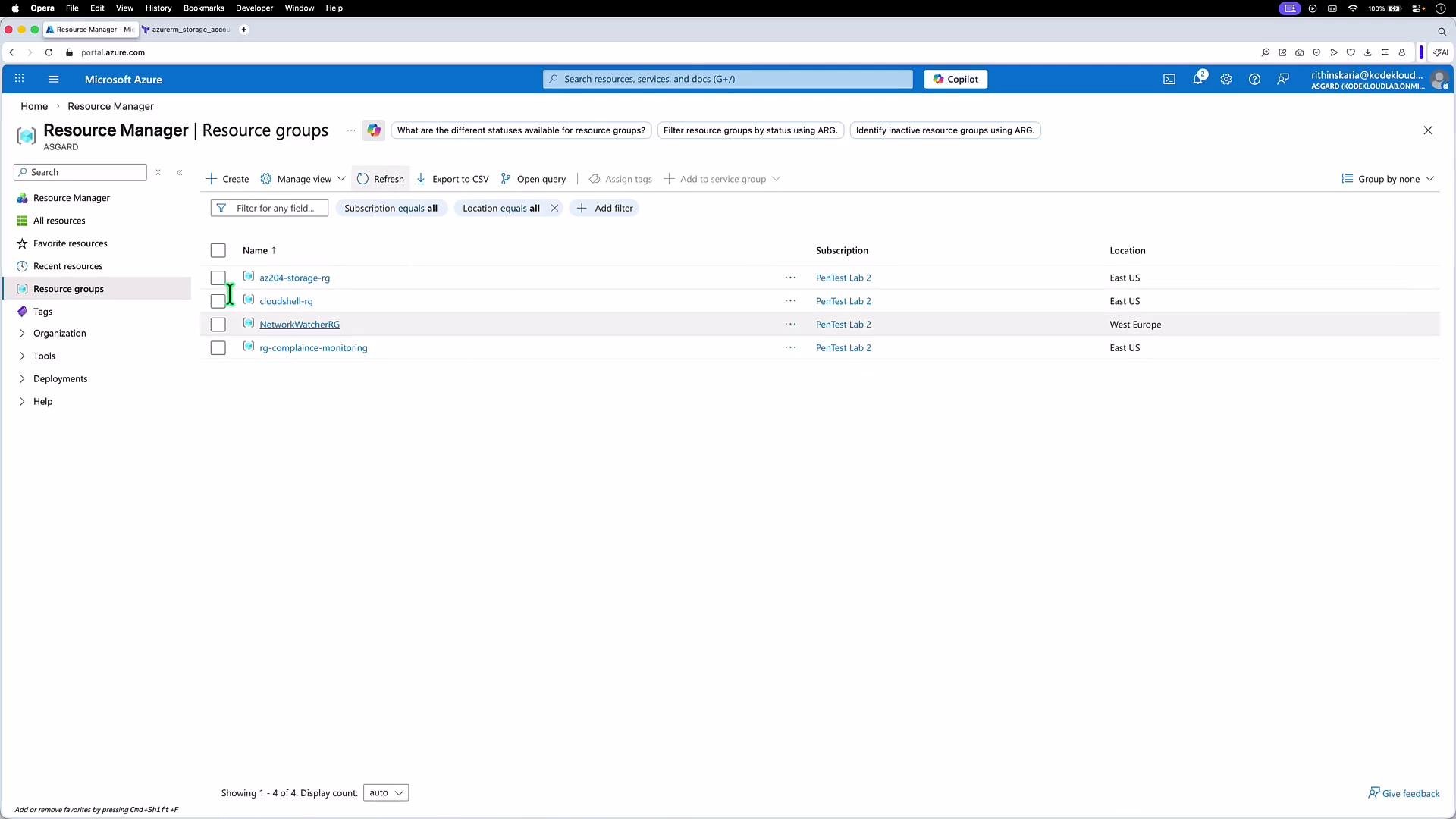
After successfully destroying all managed resources, Terraform updates the state file. A state file showing no managed resources will have an emptyresources array, for example:
Links and references
- Terraform: https://www.terraform.io/docs
- Azure Provider (azurerm): https://registry.terraform.io/providers/hashicorp/azurerm/latest/docs
- Azure Portal: https://portal.azure.com