Before you start using Terraform with Azure, install a few foundational tools on your workstation. These utilities enable authentication, source control, and smooth interaction with Azure resources. This guide covers the minimum dependencies required to work with Terraform on Azure: Azure CLI, Git, and how to verify your Azure authentication context.

What you need

Install the Azure CLI

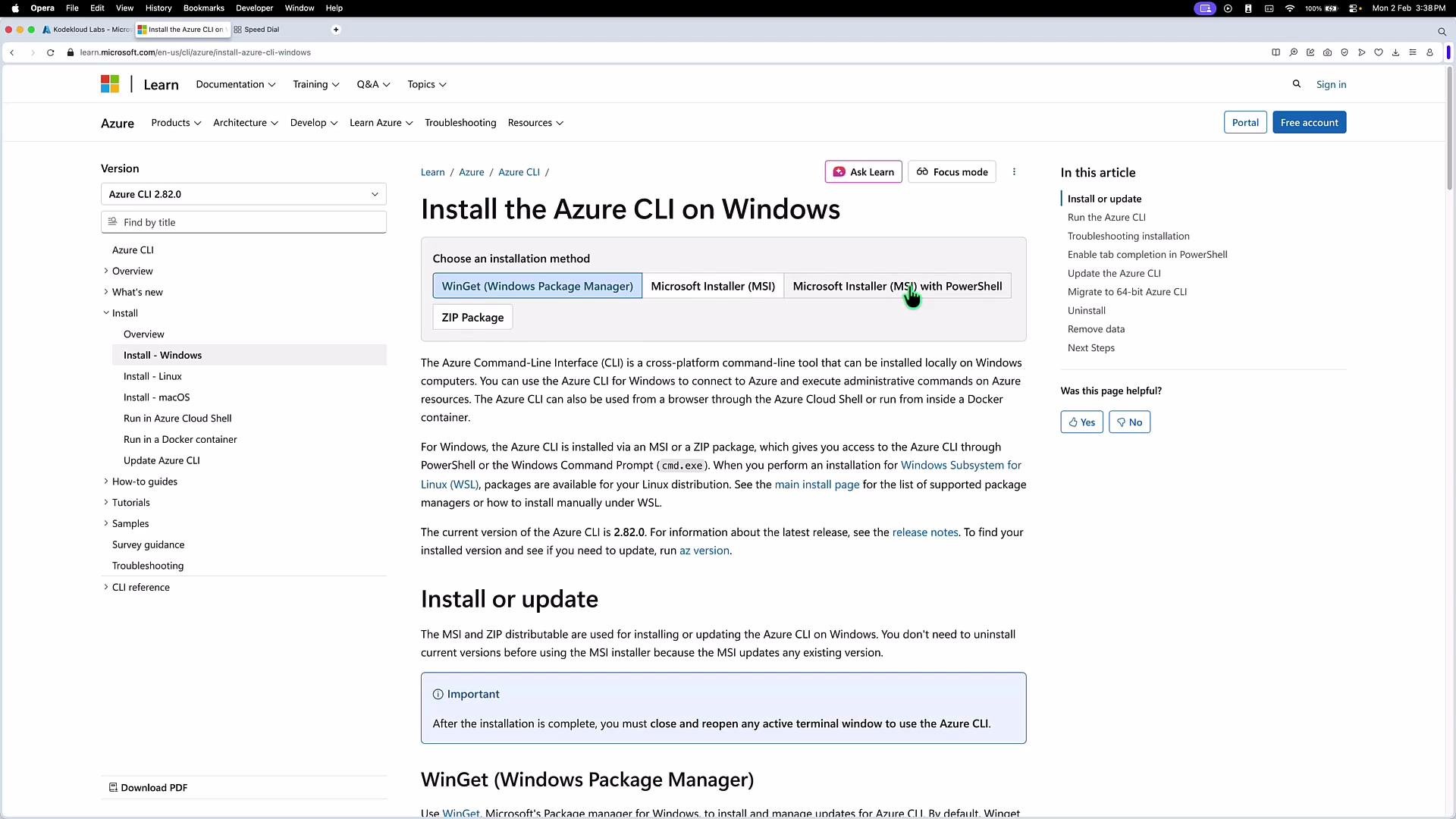
Azure CLI is commonly used for Terraform authentication and to manage Azure resources from the command line. Choose the installation method for your OS. Windows — download and silently install the MSI (PowerShell example):
macOS — install via Homebrew:
Linux — follow the distribution-specific instructions on Microsoft’s docs:
The image shows a Microsoft Learn webpage detailing how to install the Azure CLI on Windows, with options for different installation methods like WinGet and MSI.

Install Git (if needed)

Git manages Terraform configuration files as source-controlled code, enabling version tracking, collaboration, and rollbacks. Install Git and verify the installation: Windows (winget):
Verify Git:
Git integrates with platforms like Azure Repos, GitHub, and others—use it to push Terraform code from editors like Visual Studio Code.

Verify Azure CLI and sign in

After installing the Azure CLI, check the version and authenticate so Terraform can use your credentials. Confirm the installation:
Authenticate interactively using the device code flow (useful for machines without a browser):
This prints a short URL (https://microsoft.com/devicelogin) and a numeric code to enter in a browser. After completing the browser flow, the CLI retrieves the subscriptions available to your account. Example (truncated) device code output:
Inspect the active account context:
Example JSON output (truncated):
Azure CLI and Azure PowerShell operate with a context that targets one subscription at a time. If you have multiple subscriptions, switch the active context:
List all subscriptions visible to your account:
Example array output (truncated):
Azure CLI commands run in the context of a single subscription. Confirm az account show reports the subscription you intend to use before running Terraform commands that create or modify resources.

Next steps

Once Azure CLI and Git are installed and you’ve confirmed your Azure account context, proceed to install Terraform and configure your workspace. For Terraform installation and platform-specific packages, see: Now you’re ready to configure Terraform’s Azure provider and begin defining infrastructure as code.

Watch Video