

apply?
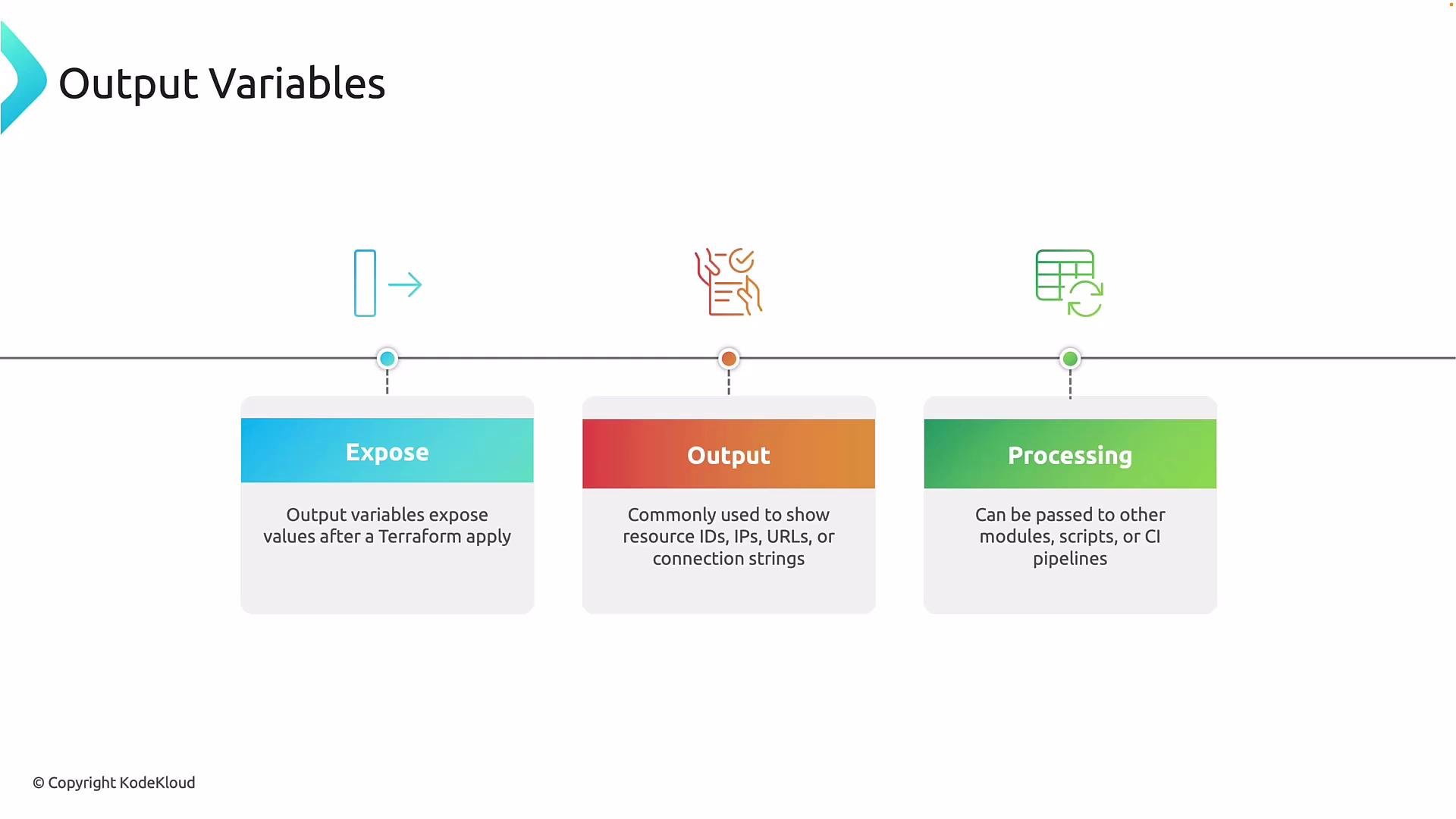
Common use cases for outputs:
- Expose values only known after creation (for example, IP addresses or resource IDs).
- Display operational information such as public IPs, URLs, or connection strings.
- Pass values to other modules, scripts, or CI/CD pipelines to enable further automation and orchestration.
Example resources
We’ll use a minimal example: an Azure resource group and an Azure public IP. Theip_address attribute is assigned by Azure only after the resource is created — which is exactly why outputs are useful.
Output block structure
Anoutput block provides a name and a value, and may optionally include a description, sensitive, and other arguments. The value is normally a reference to a resource attribute — not a hard-coded literal.
General form:
apply because ip_address is assigned dynamically by Azure.
Where to put outputs
Terraform will load outputs from any.tf file in the current working directory (for example, main.tf). As a best practice, keep outputs in a dedicated outputs.tf file for clarity and easier maintenance.
Example showing both locations are valid:
Plan and apply behavior
Duringterraform plan, attributes that Terraform cannot compute until apply are shown as (known after apply). Outputs referencing such attributes will also be reported as (known after apply) in the plan.
Example (condensed):
Retrieve outputs
Afterapply you can fetch outputs at any time:
terraform output— lists all outputsterraform output <name>— shows a single output valueterraform show— displays the full state; outputs appear in the Outputs section
apply, and subsequent terraform output reads values from state (not by re-querying the provider).
Outputs are stored in the Terraform state file. If an output contains sensitive information, mark it with
sensitive = true to avoid printing it to the CLI by default.Do not expose secrets via outputs unless absolutely necessary. Use
sensitive = true and restrict access to your remote state backend.Output arguments reference (quick)
Using outputs in a workflow — step-by-step demo
Below is a concise walkthrough to create resources and outputs in a workspace.- Create a new folder (for example,
outputs) and add your Terraform configuration.
- (Optional) Target a specific resource for exceptional cases (recovery, incremental testing). Use
-targetwith care — Terraform will warn that the plan may be incomplete.
-target:
- Add a public IP resource and create an output for the IP address.
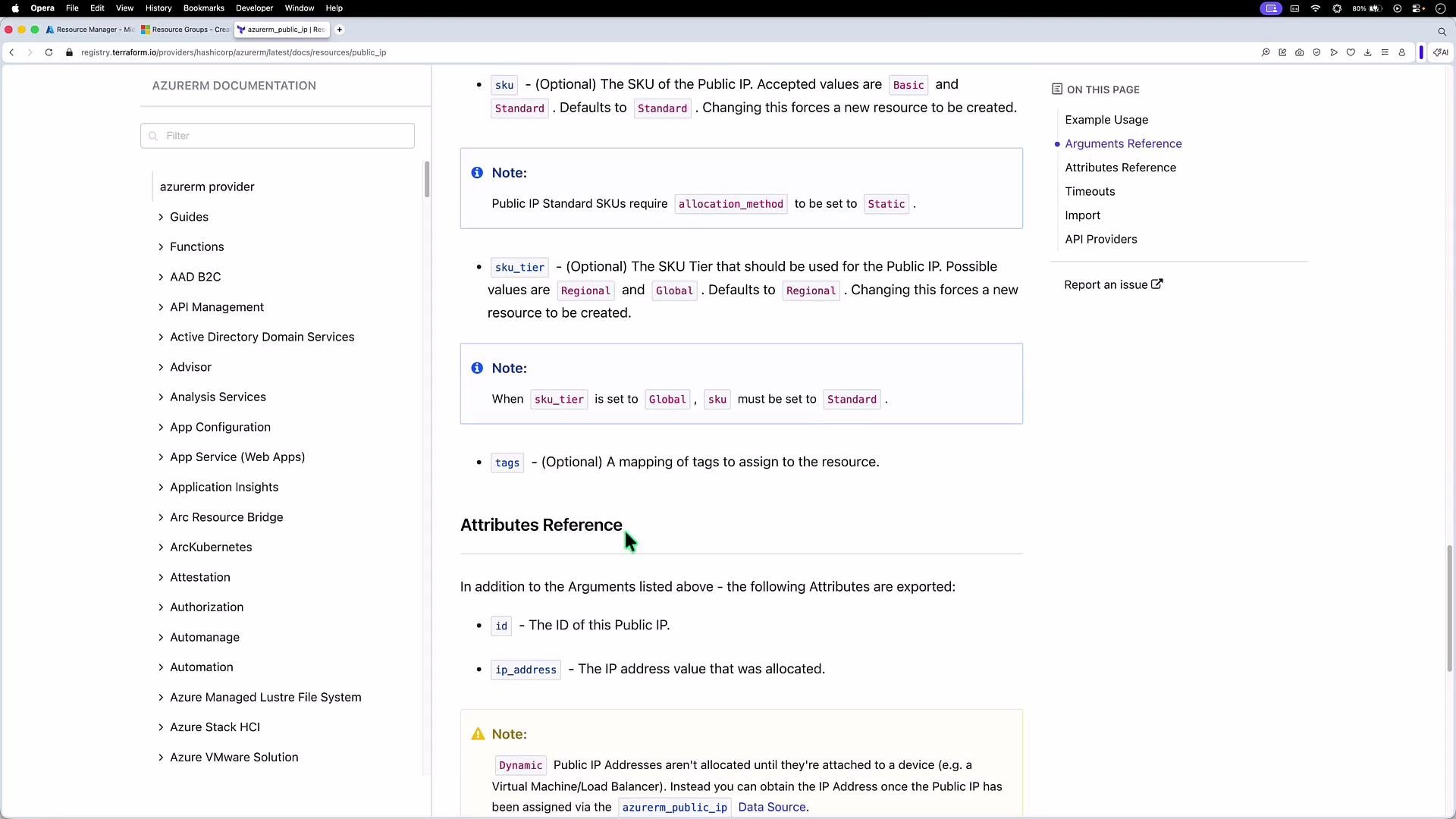
- Consult the provider/resource documentation to learn which attributes are exported. For AzureRM
azurerm_public_ipthe exported attributes includeid,ip_address, and (if applicable)fqdn. See the AzureRM docs for details: https://registry.terraform.io/providers/hashicorp/azurerm/latest/docs/resources/public_ip
- Create
outputs.tfand define the output using the attribute discovered in the docs:
- Initialize, plan, and apply:
Common CLI commands
Verification
Cross-check the printed public IP in the Azure Portal: https://portal.azure.com — navigate to the resource group and thePublic IP resource to confirm the allocation matches the Terraform output.
Summary
Terraform outputs let you expose runtime values for humans and automation. Use outputs to:- Export values only known after creation (IP addresses, IDs, FQDNs).
- Provide connection details or metadata to scripts and CI/CD pipelines.
- Keep outputs organized in
outputs.tffor clarity.
sensitive = true and protect access to your state backend. For more provider-specific exported attributes, consult the provider docs such as the AzureRM azurerm_public_ip resource: https://registry.terraform.io/providers/hashicorp/azurerm/latest/docs/resources/public_ip.