

terraform plan or terraform apply can change even when you didn’t edit any files.
Terraform performs a state refresh automatically during
plan and apply. The provider queries Azure for current resource attributes, compares those live values with your configuration and the saved state, and produces a plan that reconciles any differences. This is how Terraform detects drift and keeps your infrastructure consistent.- Terraform calls the provider (here: AzureRM) to fetch the current resource attributes.
- It compares those live attributes against:
- the values in your Terraform configuration, and
- the values stored in
terraform.tfstate.
- Any mismatches produce a plan to reconcile differences (for example, an in-place update).
- You create an Azure Storage Account. By default the storage account setting
public_network_access_enabledistrue. - Later you change your Terraform configuration to set
public_network_access_enabled = false.
terraform plan
- Terraform refreshes the resource state from Azure.
- It discovers the actual value (for example,
true) and compares it to the configured value (false). - Terraform generates a plan showing an in-place update from
true→false.
-refresh=false
You can skip the state refresh by passing -refresh=false to terraform plan or terraform apply. When you do, Terraform trusts the state file and will not query Azure for current resource attributes.
Use cases:
- Speeding up operations in isolated test environments where you control all changes.
- CI pipelines where you have confidence no out-of-band changes occur.
- If the state file is outdated, skipping refresh can cause Terraform to apply unnecessary changes or to miss real drift.
- If the state and your configuration already match, skipping refresh produces a no-op even if Azure has diverged.
Skipping refresh with
-refresh=false can be dangerous in production: it hides drift and can cause configuration and real infrastructure to silently diverge. Prefer the default refresh behavior for safety and predictable outcomes.- Minimal Terraform configuration: provider, resource group, and storage account.
- Initialize, plan and apply:
terraform.tfstate contains resource attributes (including sensitive values like storage account keys). Example snippet:
- State is stored securely (use remote state backends like Azure Storage with proper access controls).
- Do not commit
terraform.tfstateto public repositories.
- Change the storage account config to disable public network access:
- Run
terraform plan(default behavior). Terraform will refresh state, query Azure, detect that the existing setting istrue, and plan an in-place update to set it tofalse:
- Example: apply while skipping refresh
- If your state still showed
true(and Azure istrue), skipping refresh will still apply the change and update state. - If your state already showed
false, but someone manually changed Azure back totrue, then--refresh=falsewill skip detection and do nothing—leaving Azure and state/config out of sync. This is the risky scenario.
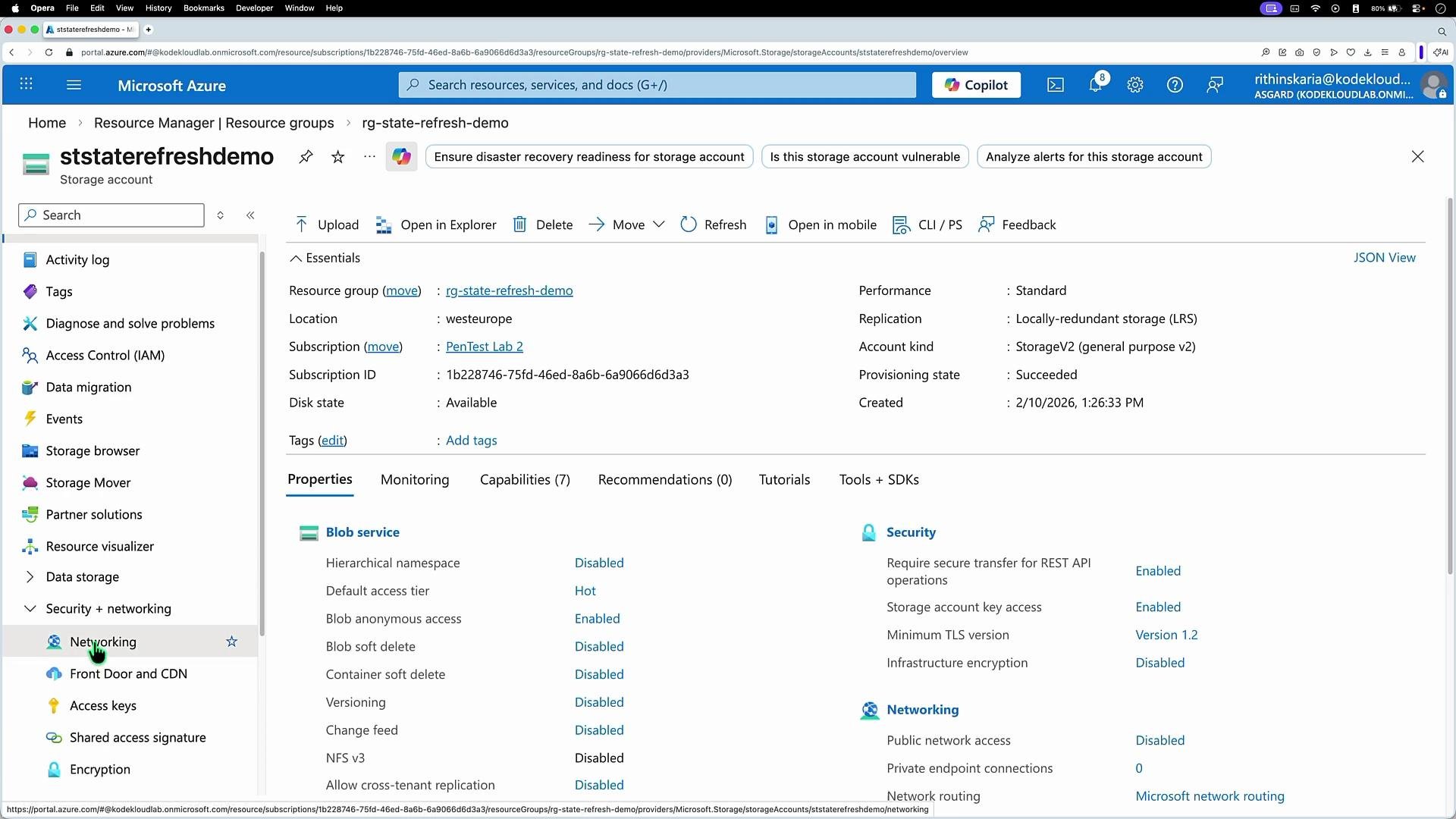
-refresh=false).
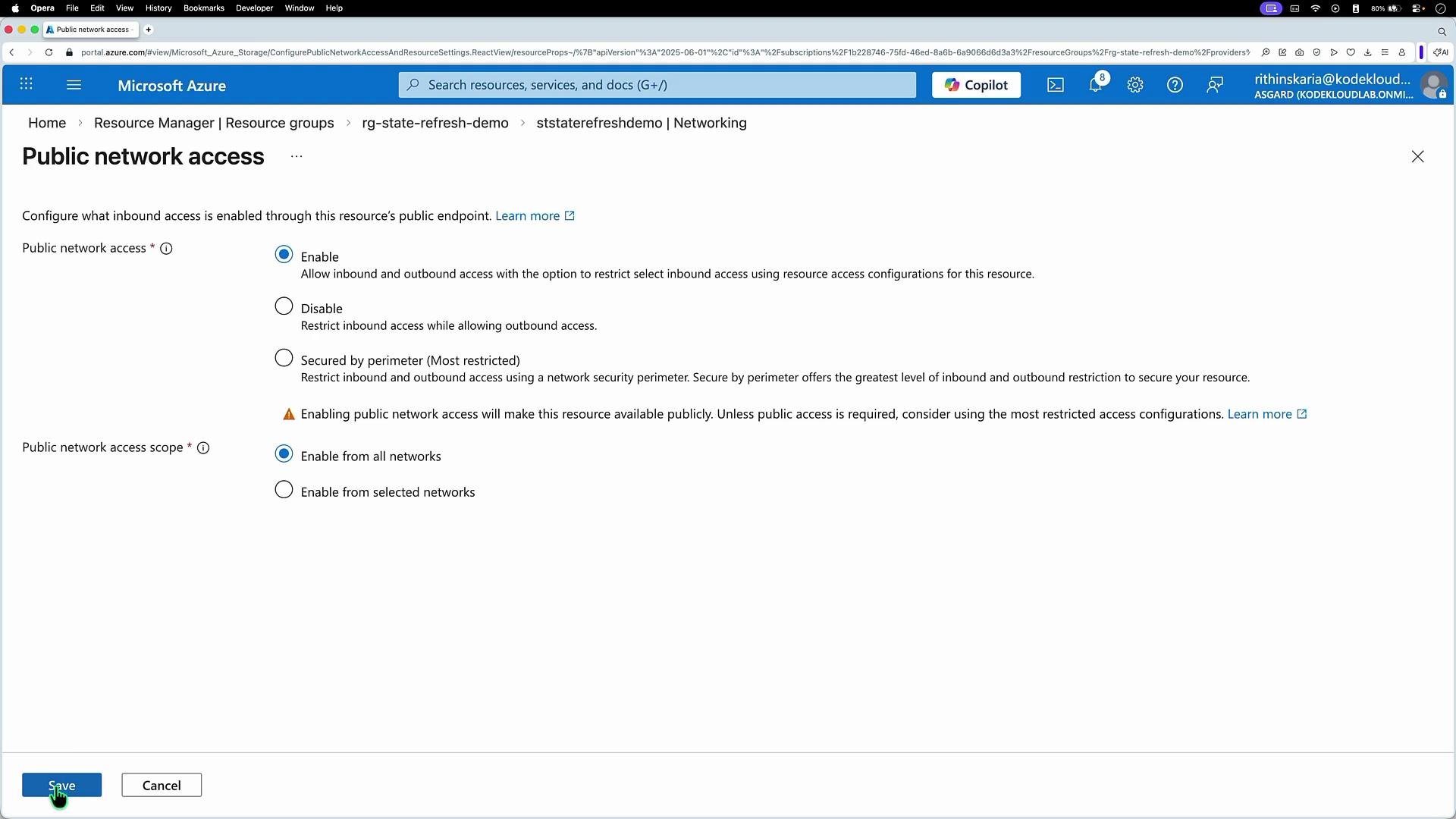
- Default Terraform behavior is to refresh state before planning or applying; this ensures plans reflect live infrastructure and detect out-of-band changes.
-refresh=falsecan speed up execution but is risky: it relies solely on the state file and can hide drift.- In production, prefer the default refresh behavior for safety, accuracy, and predictable outcomes.
- Terraform state and remote backends: https://www.terraform.io/docs/language/state/index.html
- AzureRM provider documentation: https://registry.terraform.io/providers/hashicorp/azurerm/latest/docs
- Azure Storage Account networking docs: https://learn.microsoft.com/azure/storage/common/storage-network-security-overview