This guide covers managing updates and rollbacks in Kubernetes deployments, including rollouts, versioning, deployment strategies, and practical commands for minimal downtime.
Welcome to this guide on managing updates and rollbacks in Kubernetes deployments. In this article, we explore key concepts such as rollouts, versioning, and various deployment strategies. We also provide practical commands to update your deployments with minimal downtime and to revert changes when necessary.
This article covers the process of monitoring deployment rollouts, updating container images, and performing rollbacks using Kubernetes commands.
When you create a deployment, Kubernetes initiates a rollout that establishes the first deployment revision (revision one). Later, when you update your application—say by changing the container image version—Kubernetes triggers another rollout, creating a new revision (revision two). These revisions help you track changes and enable rollbacks to previous versions if issues arise.
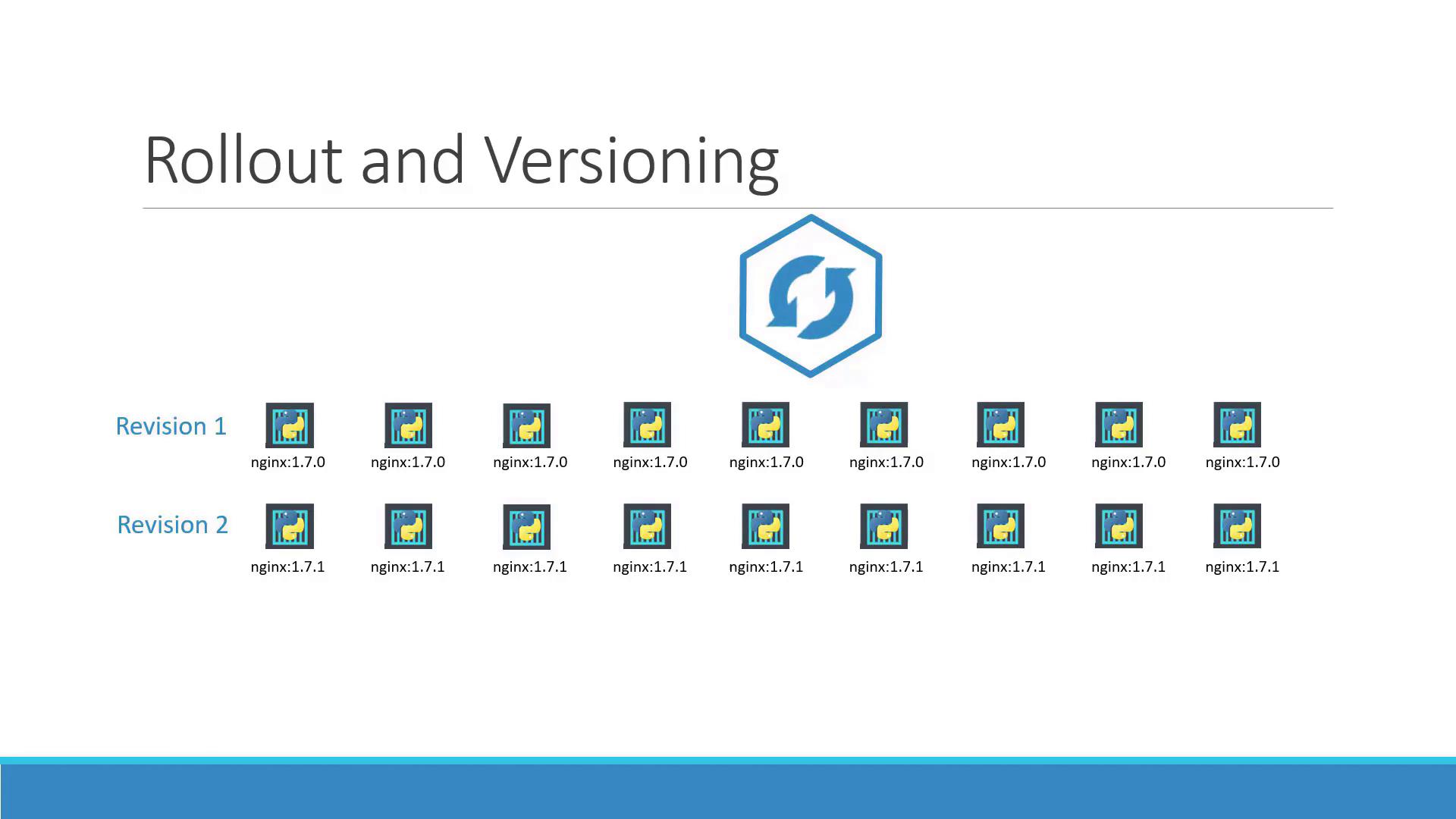
To monitor and review these rollouts, you can use the following commands:Check the rollout status:
Copy
Ask AI
kubectl rollout status deployment/myapp-deployment
View the history of rollouts:
Copy
Ask AI
kubectl rollout history deployment/myapp-deployment
There are different strategies to update your applications. For example, consider a scenario where your web application is running five replicas.One approach is the “recreate” strategy, which involves shutting down all existing instances before deploying new ones. However, this method results in temporary downtime as the application becomes inaccessible during the update.
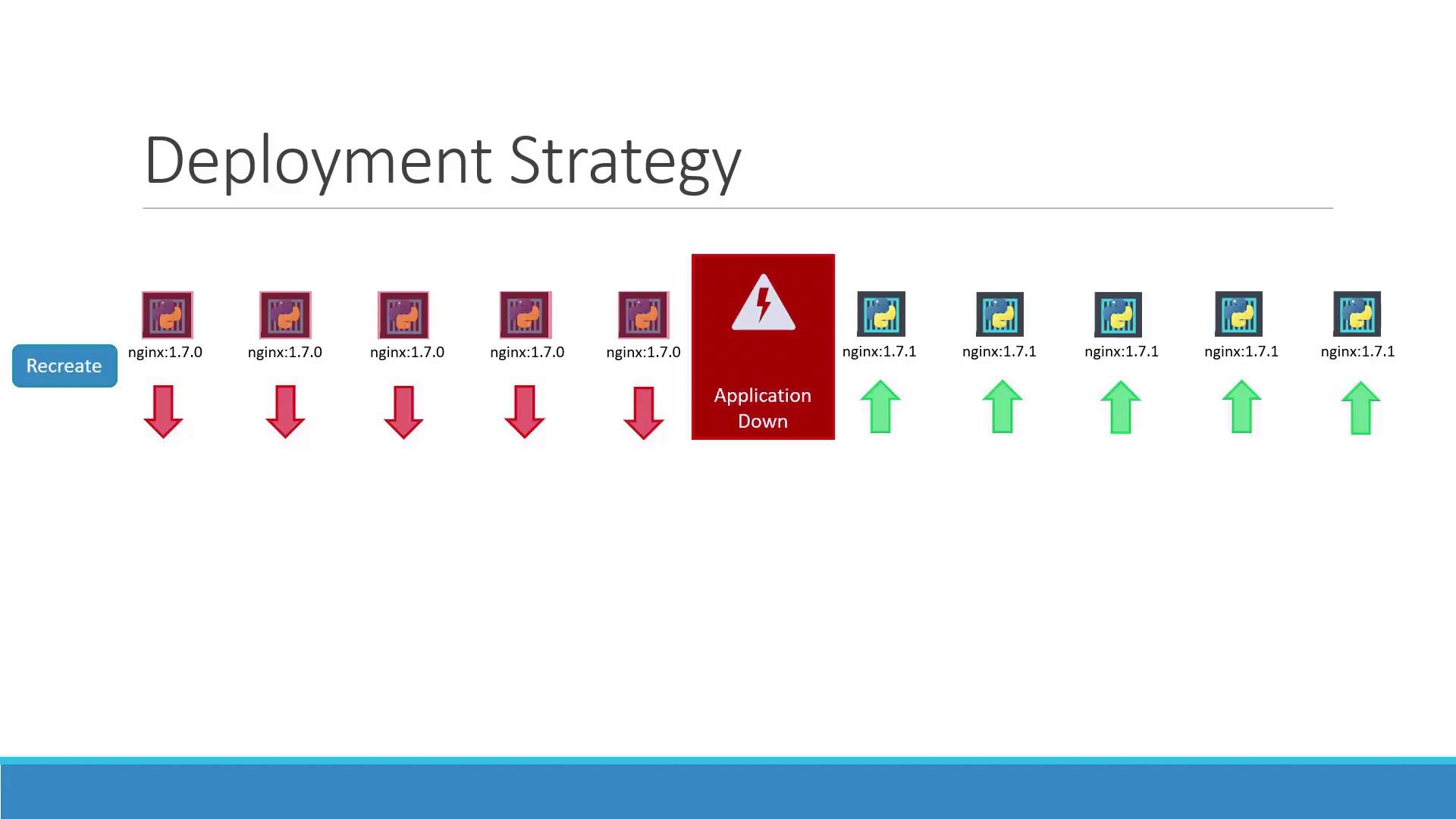
A more seamless approach is the “rolling update” strategy. Here, instances are updated one at a time, ensuring continuous application availability throughout the process.
If no strategy is specified when creating a deployment, Kubernetes uses the rolling update strategy by default.
There are several methods to update your deployment, such as adjusting the container image version, modifying labels, or changing the replica count. A common practice is to update your deployment definition file and then apply the changes.For example, consider the following deployment definition:
This action triggers a new rollout and creates a new deployment revision.Alternatively, you can update the container image directly using the following command:
Copy
Ask AI
kubectl set image deployment/myapp-deployment nginx-container=nginx:1.9.1
Remember, using kubectl set image updates the running deployment but does not modify your deployment definition file. Ensure you update the file as well for future reference.
To retrieve detailed information about your deployment—including rollout strategy, scaling events, and more—use:
Copy
Ask AI
kubectl describe deployment myapp-deployment
This output shows different details depending on the strategy used:
Recreate Strategy: Events indicate that the old ReplicaSet is scaled down to zero before scaling up the new ReplicaSet.
Rolling Update Strategy: The old ReplicaSet is gradually scaled down while the new ReplicaSet scales up.
For example, a deployment with the recreate strategy might display the following events:
Copy
Ask AI
Name: myapp-deploymentNamespace: defaultCreationTimestamp: Sat, 03 Mar 2018 17:01:55 +0000Labels: app=myappAnnotations: deployment.kubernetes.io/revision=2 kubectl.kubernetes.io/change-cause=kubectl apply --filename=deployment-definition.ymlSelector: 5 desired, 1 updated, 5 total, 5 available, 0 unavailableStrategyType: RecreateMinReadySeconds: 0Pod Template: Labels: app=myapp type=front-end Containers: nginx-container: Image: nginx:1.7.1 Port: <none>Conditions: Type Status Reason ---- ------ ------ Available True MinimumReplicasAvailable Progressing True NewReplicaSetAvailableOldReplicaSets: <none>NewReplicaSet: myapp-deployment-54c7d6ccc (5/5 replicas created)Events: Type Reason Age From Message ----- ------ ---- ---- ------- Normal ScalingReplicaSet 11m deployment-controller Scaled up replica set myapp-deployment-6795844b58 to 5 Normal ScalingReplicaSet 11m deployment-controller Scaled down replica set myapp-deployment-6795844b58 to 0 Normal ScalingReplicaSet 56s deployment-controller Scaled up replica set myapp-deployment-54c7d6ccc to 5
In contrast, a rolling update strategy output would reflect gradual scaling changes:
Copy
Ask AI
kubectl describe deployment myapp-deployment
Copy
Ask AI
Name: myapp-deploymentNamespace: defaultCreationTimestamp: Sat, 03 Mar 2018 17:16:53 +0800Labels: app=myappAnnotations: deployment.kubernetes.io/revision=2 kubectl.kubernetes.io/change-cause=kubectl apply --filename=deployment-definition.ymlSelector: 6 desired, 5 updated, 6 total, 4 available, 2 unavailableStrategyType: RollingUpdateMinReadySeconds: 0RollingUpdateStrategy: 25% max unavailable, 25% max surgePod Template: Labels: app=myapp type=front-end Containers: nginx-container: Image: nginx Port: <none>Conditions: Type Status Reason ---- ------ ------ Available True MinimumReplicasAvailable Progressing True ReplicaSetUpdatedOldReplicaSets: myapp-deployment-67c749c58c (1/1 replicas created)NewReplicaSet: myapp-deployment-75d7bdbd8d (5/5 replicas created)Events: Type Reason Age From Message ----- ------ ---- ---- ------- Normal ScalingReplicaSet 1m deployment-controller Scaled up replica set myapp-deployment-67c749c58c to 5 Normal ScalingReplicaSet 1m deployment-controller Scaled down replica set myapp-deployment-75d7bdbd8d to 2 Normal ScalingReplicaSet 1m deployment-controller Scaled up replica set myapp-deployment-67c749c58c to 4 Normal ScalingReplicaSet 1m deployment-controller Scaled down replica set myapp-deployment-75d7bdbd8d to 3 Normal ScalingReplicaSet 0s deployment-controller Scaled down replica set myapp-deployment-75d7bdbd8d to 1 Normal ScalingReplicaSet 0s deployment-controller Scaled down replica set myapp-deployment-67c749c58c to 0
During an upgrade, Kubernetes creates a new ReplicaSet for the updated containers while the original ReplicaSet continues to run the old version. This rolling update process ensures that new pods replace the old ones gradually without causing downtime.
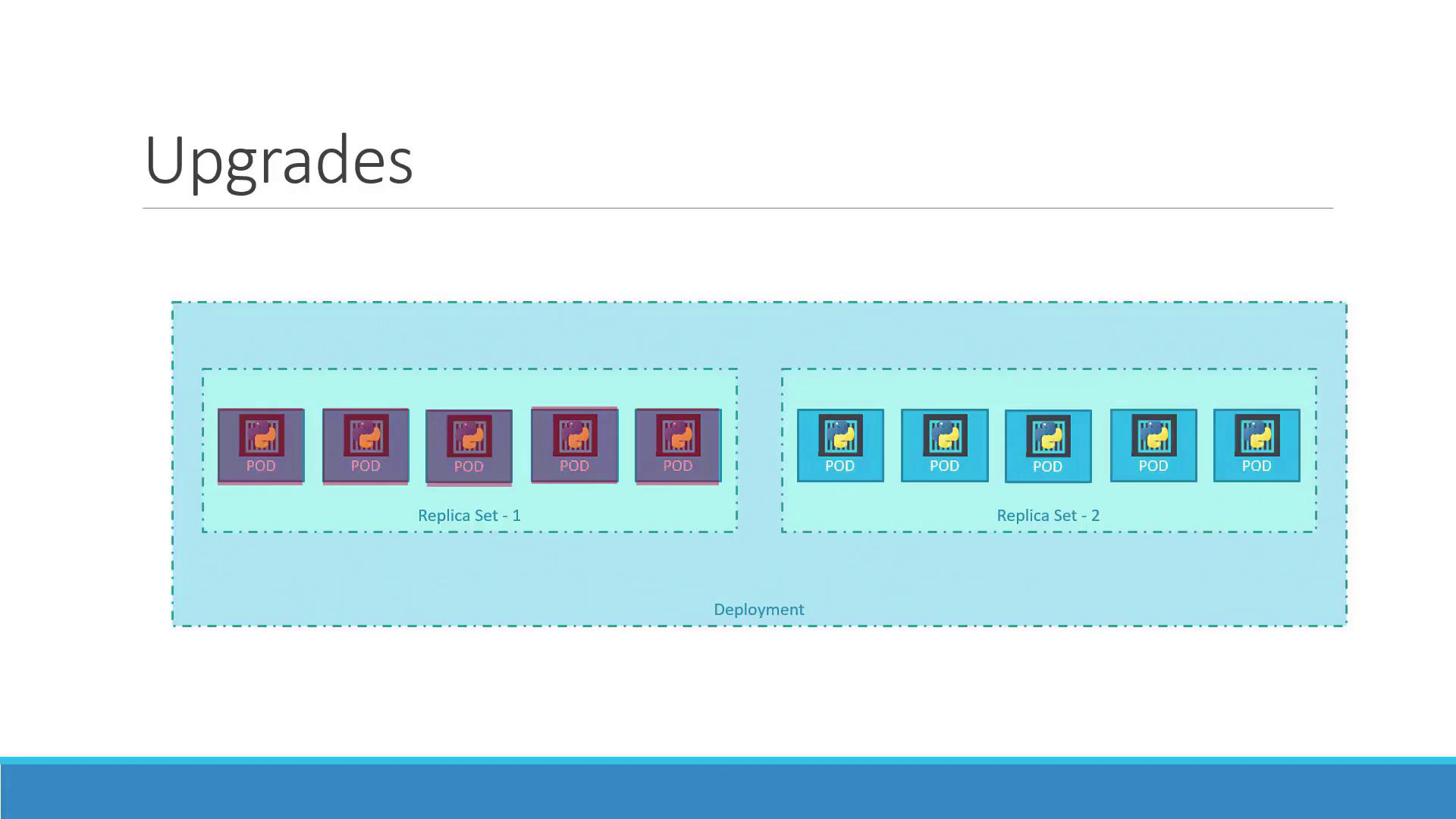
If an issue is detected after an upgrade, you can revert to the previous version using the rollback feature. To perform a rollback, run:
Copy
Ask AI
kubectl rollout undo deployment/myapp-deployment
This command scales down the new ReplicaSet, restoring pods from the older ReplicaSet. Verify the state of ReplicaSets before and after a rollback with:
Copy
Ask AI
kubectl get replicasets
For example, before the rollback you might see:
Copy
Ask AI
NAME DESIRED CURRENT READY AGEmyapp-deployment-67c749c58c 0 0 0 22mmyapp-deployment-7d57dbd8d 5 5 5 20m
After executing the rollback command, the old ReplicaSet is restored while the new one is scaled down.
Below is a quick reference table of the key commands discussed in this article:
Command Description
Command
Create the deployment
kubectl create -f deployment-definition.yml
List existing deployments
kubectl get deployments
Update deployment from the YAML definition
kubectl apply -f deployment-definition.yml
Update the container image with kubectl set image
kubectl set image deployment/myapp-deployment nginx-container=nginx:1.9.1
Check the status of the rollout
kubectl rollout status deployment/myapp-deployment
Rollback to a previous deployment revision
kubectl rollout undo deployment/myapp-deployment
With these commands and strategies, you can manage your Kubernetes deployments confidently, ensuring minimal downtime and a reliable process for both updates and rollbacks.For additional information, see the Kubernetes Documentation.