

Deploying and Inspecting the Application
We have deployed a simple web application. Begin by inspecting the pods and services to verify the deployment status. When running:Validating Application Color and Running Tests
By default, the application is set to blue. Validate this by checking the pods:curl-test.sh to simulate multiple user requests. The output should confirm the application’s version and color:
- Container image:
kodekloud/webapp-color:v1 - RollingUpdate strategy details (25% max unavailable, 25% max surge)
The rolling update strategy ensures that only a subset of pods is updated at a time, providing a smooth transition during application upgrades.
Reviewing the Rolling Update Strategy
The current deployment strategy is RollingUpdate, meaning that only a few pods are taken down at any given time during an upgrade. Verification using the following commands confirms the strategy in action:- StrategyType: RollingUpdate
- RollingUpdateStrategy: 25% max unavailable, 25% max surge
Upgrading the Application to v2
To simulate an upgrade, update the container image tokodekloud/webapp-color:v2. There are two methods available:
- Edit the deployment manually using
kubectl edit deployment frontend. - Use the
kubectl set imagecommand.
- The deployment revision increments (e.g., revision: 2).
- The output shows a mix of updated and non-updated pods.
- Running the test script now reveals mixed responses:
Adjusting the Deployment Strategy to Recreate
Next, we modify the deployment strategy from RollingUpdate to Recreate. In the Recreate strategy, all existing pods are shut down before new ones are created, which might result in temporary downtime. Edit the deployment using: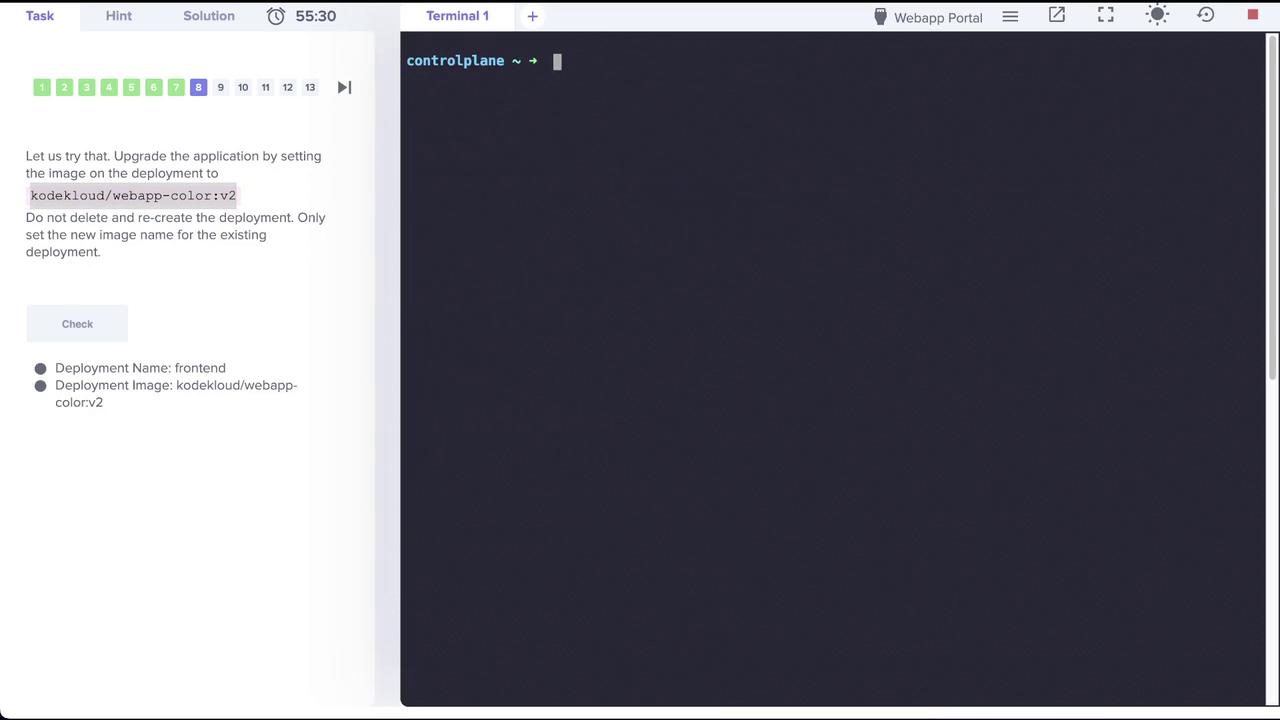
kubectl edit deployment frontend, update the strategy section. Change from:
Switching to the Recreate strategy will result in downtime since all the pods are terminated before new ones are created.
Upgrading the Application to v3 with Recreate Strategy
Now that the deployment is set to the Recreate strategy, upgrade the application by updating the container image tokodekloud/webapp-color:v3: