

- Question 1 — Pod with three containers and a shared volume
- Question 2 — Install cri-dockerd on node01
- Question 3 — Save VPA CRD names to a file
- Question 4 — ClusterIP Service for messaging Pod
- Question 5 — Deployment hr-web-app (2 replicas)
- Question 6 — Fix init container typo in orange Pod
- Question 7 — NodePort service for hr-web-app on port 30082
- Question 8 — PersistentVolume pv-analytics (hostPath)
- Question 9 — HorizontalPodAutoscaler webapp-hpa (CPU-based)
- Question 10 — VerticalPodAutoscaler analytics-vpa in Auto mode
- Question 11 — Gateway resource web-gateway in nginx-gateway
- Question 12 — Update Helm repo and upgrade release to chart version 18.1.5
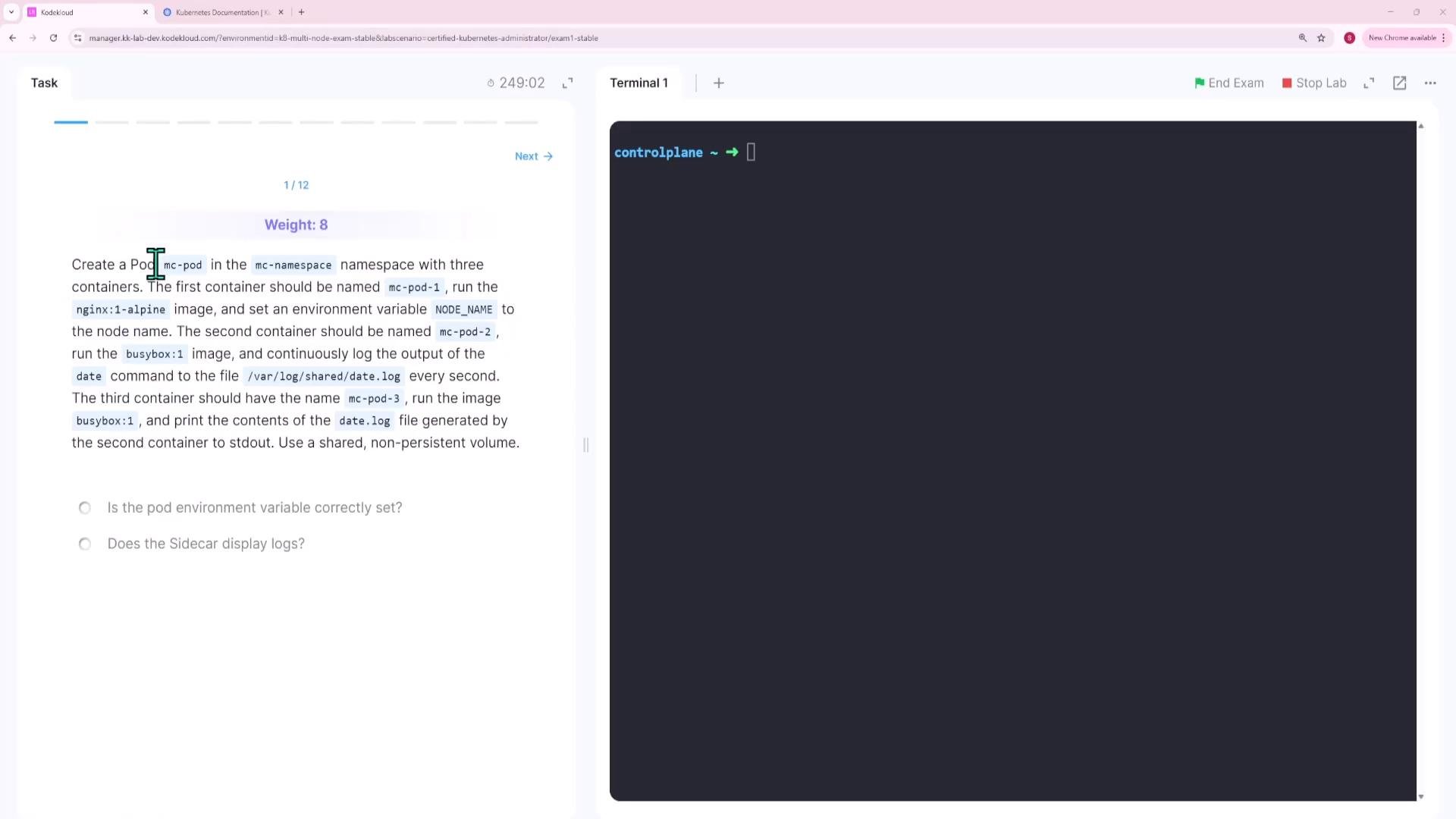
Question 1 — Create a Pod mc-pod in namespace mc with three containers and a shared non-persistent volume
Requirements
- Pod name:
mc-podin namespacemc - Containers:
mc-pod-1:nginx:1-alpine, with env varNODE_NAMEsourced fromspec.nodeNamemc-pod-2:busybox:1, appendsdateto/var/log/shared/date.logevery secondmc-pod-3:busybox:1, tails/var/log/shared/date.log
- Shared ephemeral volume:
emptyDirmounted at/var/log/sharedfor containers 2 and 3
mc-pod:
mc-pod-3) to confirm the shared emptyDir behavior:
mc-pod-2 and read by mc-pod-3.
emptyDir is ephemeral and exists only for the lifetime of the Pod. Use it for intra-Pod sharing (multiple containers in the same Pod). For persistent data across Pod restarts or node failures, use PersistentVolumes instead.Question 2 — Prepare node01 by installing cri-dockerd
Task summary
- SSH to
node01as userbob - Become root and install the
cri-dockerdDebian package located in/root - Start and enable the
cri-dockerdsystemd service
dpkg -ishows the package configured and service/unit symlinks createdsystemctl status cri-dockerdreportsActive: active (running)systemctl is-enabled cri-dockerdreturnsenabled
Question 3 — Save Vertical Pod Autoscaler CRD names to /root/vpa-crds.txt
On the control plane, list CRDs and filter for Vertical Pod Autoscaler resources. This saves the CRD names into /root/vpa-crds.txt.
Efficient one-liner:
Question 4 — Create ClusterIP Service messaging-service on port 6379 (internal only)
Expose the existing Pod messaging within the cluster on port 6379. A ClusterIP service (default type) provides internal-only access.
Imperative creation:
kubectl expose poduses the Pod’s labels as the service selector. If themessagingPod has no labels, the Service will have no selector (no endpoints). Add labels to the Pod or create a corresponding Endpoints object if needed.
kubectl describe svc should show an endpoint mapping to the messaging Pod IP and port 6379 when labels and selectors match.
Question 5 — Create Deployment hr-web-app (image kodekloud/webapp-color) with 2 replicas
Create the Deployment imperatively:
kubectl get deployment hr-web-app -o yaml and save it.
Question 6 — Fix the orange Pod (init container CrashLoopBackOff)
Symptom
orangePod stuck inInit:CrashLoopBackOff- Init container
init-myservicefails with exit code 127 - Logs show:
sh: sleeeep: not found— a typo.
- Export the current Pod manifest for editing:
- In
question6.yaml, fix the init container command:
sleeeep 2; with sleep 2;:
- Replace the Pod with the corrected manifest (force replace since Pods are not controlled by a controller):
- Verify:
Running.
Question 7 — Expose hr-web-app as a NodePort Service hr-web-app-service using node port 30082
Requirements
- Service name:
hr-web-app-service - Type:
NodePort - Service port:
8080 - NodePort:
30082 - Selector:
app: hr-web-app(matching the deployment pods)
describe output should show NodePort: 30082/TCP and endpoints that correspond to the deployment’s pods.
NodePort values must be within the cluster’s allowed NodePort range (usually 30000-32767). Ensure the chosen
30082 is available and not already in use.Question 8 — Create a PersistentVolume pv-analytics (hostPath) with 100Mi and RWX
Specifications
- Name:
pv-analytics - Capacity:
100Mi - AccessModes:
ReadWriteMany - hostPath:
/pv/data-analytics - volumeMode:
Filesystem
Available until a PersistentVolumeClaim binds to it.
Note: hostPath PVs are node-local. ReadWriteMany on hostPath may not provide the same semantics across multiple nodes; use a distributed storage solution for real multi-node RWX needs.
Question 9 — Create Horizontal Pod Autoscaler webapp-hpa (CPU-based, 50% target, 300s stabilization window)
Requirements
- Target: Deployment
kk-app-deploy(default namespace) - minReplicas: 2
- maxReplicas: 10
- Target average CPU utilization: 50%
- Scale-down stabilization window: 300 seconds
- Use
autoscaling/v2API to set behavior
autoscaling/v2 requires metrics to be available (for example, metrics-server). Ensure a metrics provider is installed and returning CPU metrics for HPA to evaluate and scale the deployment.Question 10 — Create Vertical Pod Autoscaler analytics-vpa in Auto update mode
Requirements
- Name:
analytics-vpa - Target: Deployment
analytics-deploymentindefaultnamespace - Update mode:
Auto(VPA may evict and recreate pods to apply new resource requests)
Auto mode may cause pod restarts to adjust requests.
Question 11 — Create a Gateway resource web-gateway in namespace nginx-gateway
Specifications
- Name:
web-gateway - Namespace:
nginx-gateway gatewayClassName:nginx- One listener named
http, protocolHTTPon port80
nginx-gateway namespace. If a gateway controller (nginx or other) is active, it will program the Gateway and report status.
Question 12 — Update Helm repo and upgrade the release to chart version 18.1.5
Context- Helm release in namespace
kk-nswith namekk-mock1 - Current chart version
18.1.0, goal: upgrade to18.1.5
- List Helm releases in the namespace:
- Update Helm repositories:
- (Optional) Search for available chart versions:
- Upgrade the release to the target chart version:
- Verify the upgrade:
nginx-18.1.5 for the kk-mock1 release.
Links and References
- Kubernetes Documentation: https://kubernetes.io/docs/
- Kubernetes Services: https://kubernetes.io/docs/concepts/services-networking/service/
- Horizontal Pod Autoscaler: https://kubernetes.io/docs/tasks/run-application/horizontal-pod-autoscale/
- Vertical Pod Autoscaler (project): https://github.com/kubernetes/autoscaler/tree/master/vertical-pod-autoscaler
- Helm: https://helm.sh/docs/