

/etc/hosts), how to point systems at a central DNS server (/etc/resolv.conf), how lookup order is decided (/etc/nsswitch.conf), and how to test DNS using tools like ping, nslookup, and dig. The examples use two hosts on the same network:
- Host A: 192.168.1.10
- Host B: 192.168.1.11 (runs database services)
db) instead of remembering an IP address.
Local name resolution with /etc/hosts
On small networks you can map names to IPs in/etc/hosts. By default, Linux resolves names from the local hosts file first (depending on nsswitch.conf—see below).
Example: host A can ping host B by IP but cannot ping it by name until you map the name:
/etc/hosts is local-only and is considered authoritative by the resolver on that machine. Host A will use the mapping you added even if the remote system’s own hostname (output of hostname) is different.
You can map any domain locally. For example, map www.google.com to the same IP for testing:
/etc/hosts for web, db, NFS, etc.:
Centralized DNS with a nameserver
To manage names centrally, run a DNS server and point clients at it. Suppose your DNS server is at 192.168.1.100; configure each host to use it by writing/etc/resolv.conf:
- If a name is not found in
/etc/hosts, the system queries the configured DNS server(s). - If a service IP changes, update the DNS server and clients will resolve the new IP without editing
/etc/hosts.
Editing
/etc/resolv.conf directly may be temporary: many systems use DHCP, NetworkManager, or systemd-resolved which can overwrite that file. To make persistent changes, configure your network manager or DHCP client, or update the system resolver configuration according to your distribution. See the resolv.conf man page for details: https://man7.org/linux/man-pages/man5/resolv.conf.5.html/etc/hosts entries for temporary or lab-only names. Example:
Lookup order — /etc/nsswitch.conf
If the same name exists in both/etc/hosts and DNS with different IPs, the system consults /etc/nsswitch.conf to decide which source to check first. A common setting:
files=/etc/hostsdns= DNS servers listed in/etc/resolv.conf
files dns, /etc/hosts is consulted first; only if the name is not found locally will DNS be queried. You can change the order in /etc/nsswitch.conf if you want DNS to take precedence.
DNS hierarchy and how resolution works
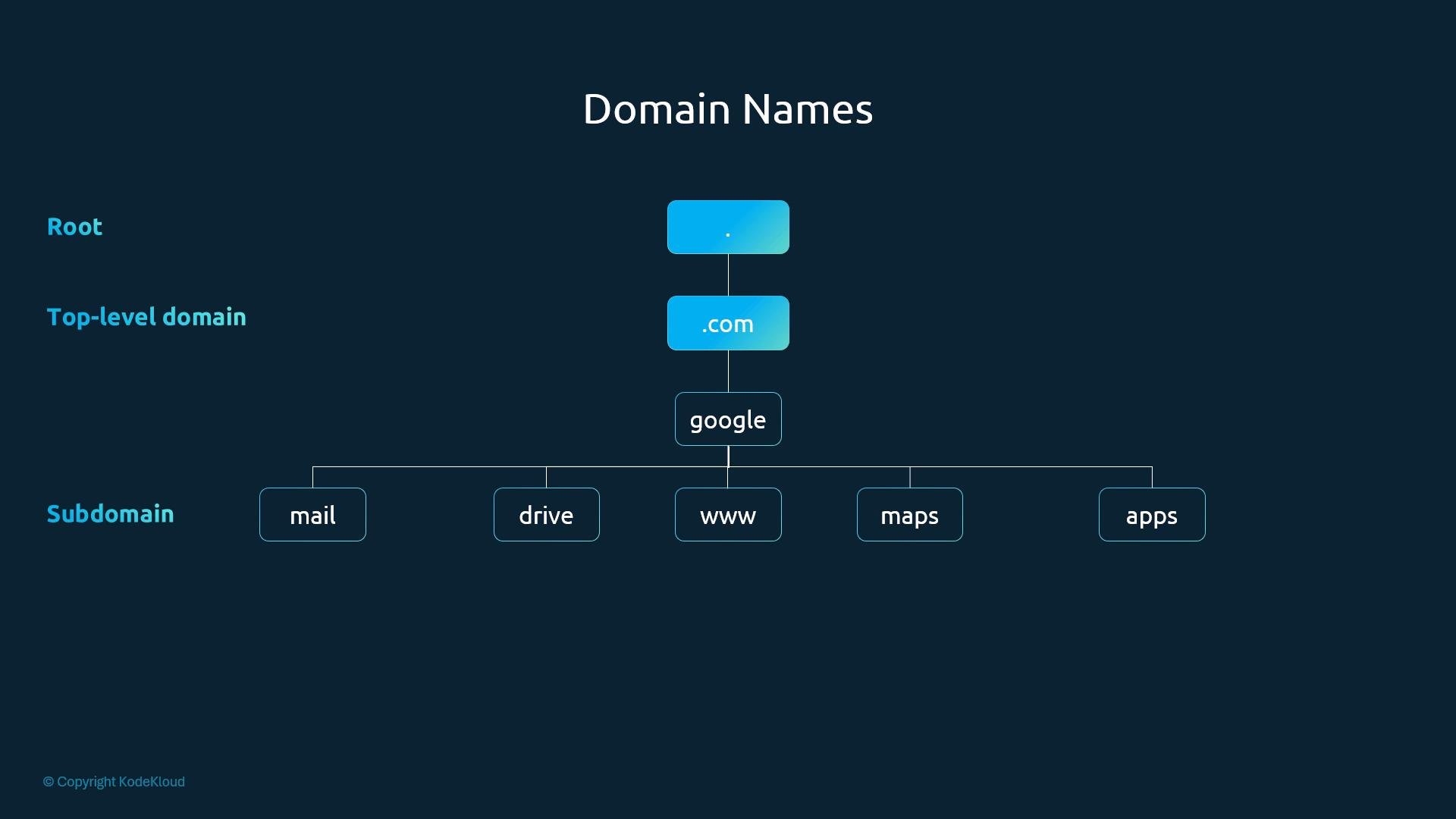
Domain names are hierarchical (labels separated by dots). The rightmost label is the top-level domain (TLD) like.com, .org, .net, etc. Example: www.google.com resolves through the DNS hierarchy:
- Root (implicit trailing dot)
.com(TLD)google(second-level domain)www(subdomain)
maps.google.com, drive.google.com, mail.google.com).
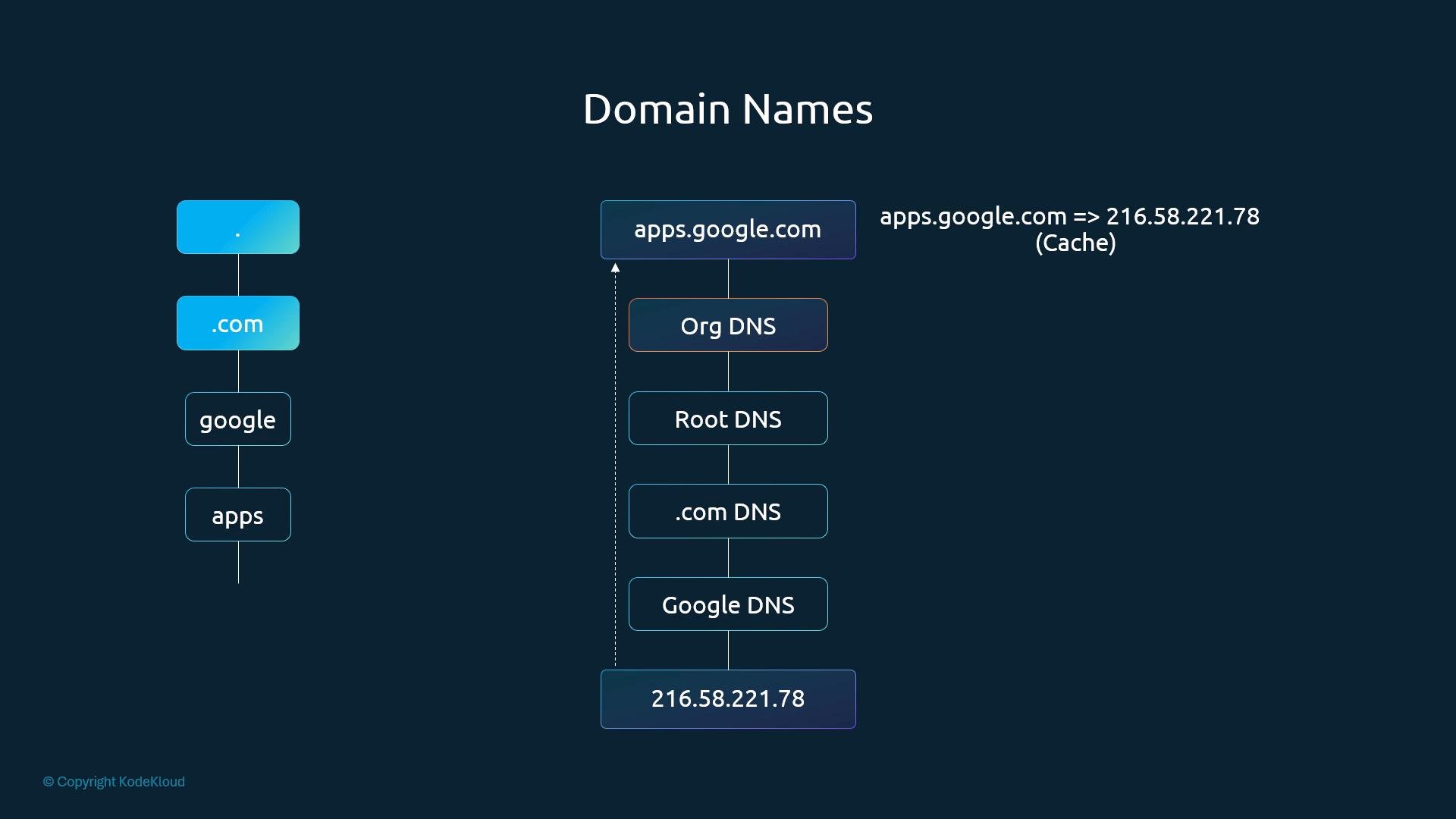
- Query root servers → get
.comnameservers. - Query the
.comnameservers → getgoogle.comnameservers. - Query
google.comauthoritative nameservers → get the IP forapps.google.com. - The organization’s DNS caches the answer for the TTL.
mycompany.com) and create subdomains for services (web.mycompany.com, db.mycompany.com, etc.). To use short names like web instead of web.mycompany.com, add search domains in /etc/resolv.conf. The resolver appends each search domain and tries to resolve the short name.
Example:
ping web will try:
web.mycompany.comweb.prod.mycompany.com
web.mycompany.com.), the resolver treats it as absolute and will not append search domains. The resolver behavior can also be influenced by the ndots option in /etc/resolv.conf.
Common DNS record types
DNS supports different record types. Use the table below as a quick reference: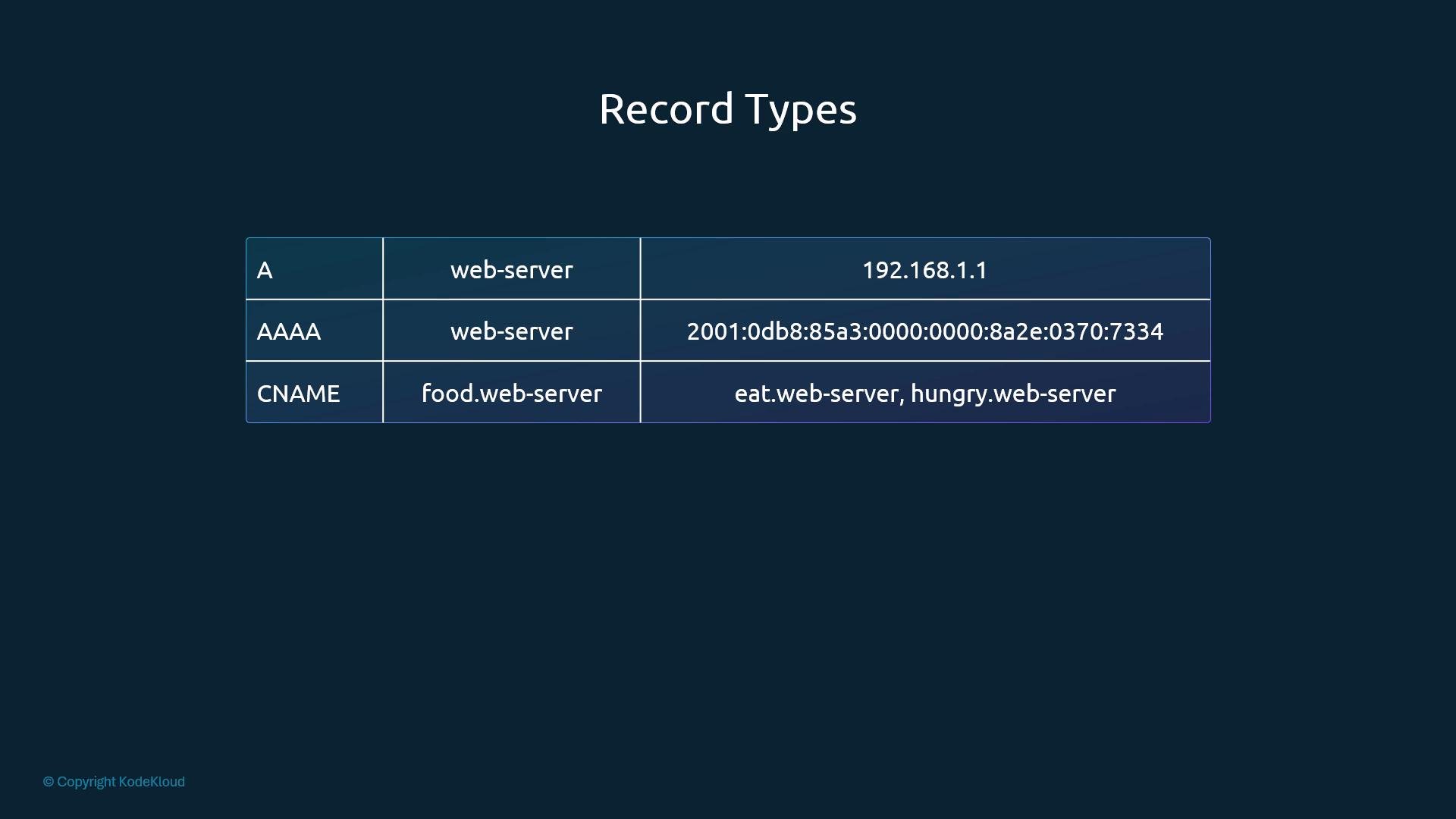
- A and AAAA records map names directly to IP addresses.
- CNAME records create aliases to another name; the resolver must then resolve that canonical name to an A/AAAA record.
Testing DNS: ping, nslookup, dig
pinguses the system resolver stack (consults/etc/hosts, followsnsswitch.conf, and queries DNS servers in/etc/resolv.conf).nslookupqueries DNS servers directly and ignores/etc/hosts. It’s useful to ask specific DNS servers for answers or to verify what DNS returns.digprovides detailed DNS query results and is commonly used for troubleshooting and viewing record data.
nslookup:
dig:
If a name resolves locally via
/etc/hosts but nslookup/dig returns nothing, the name is local-only and not present in DNS.Practical tips and next steps
- Use
/etc/hostsfor quick, local mappings or lab testing. - Use a central DNS server for scalable name management in production.
- Make persistent resolver changes using your system’s network configuration tools (NetworkManager, systemd-resolved, DHCP client configuration, etc.).
- Practice with
digandnslookupto inspect authoritative vs. cached DNS answers. - Later in this series you’ll deploy a DNS server (CoreDNS) and create records so hosts can resolve names via DNS.
- resolv.conf man page: https://man7.org/linux/man-pages/man5/resolv.conf.5.html
- nsswitch.conf man page: https://man7.org/linux/man-pages/man5/nsswitch.conf.5.html
- DNS RFCs and authoritative guides (for deeper study).