Welcome to this guide on managing updates and rollbacks in Kubernetes deployments. In this article, we explore key concepts such as rollouts, versioning, and various deployment strategies. We also provide practical commands to update your deployments with minimal downtime and to revert changes when necessary.
This article covers the process of monitoring deployment rollouts, updating container images, and performing rollbacks using Kubernetes commands.

Understanding Rollouts and Versioning

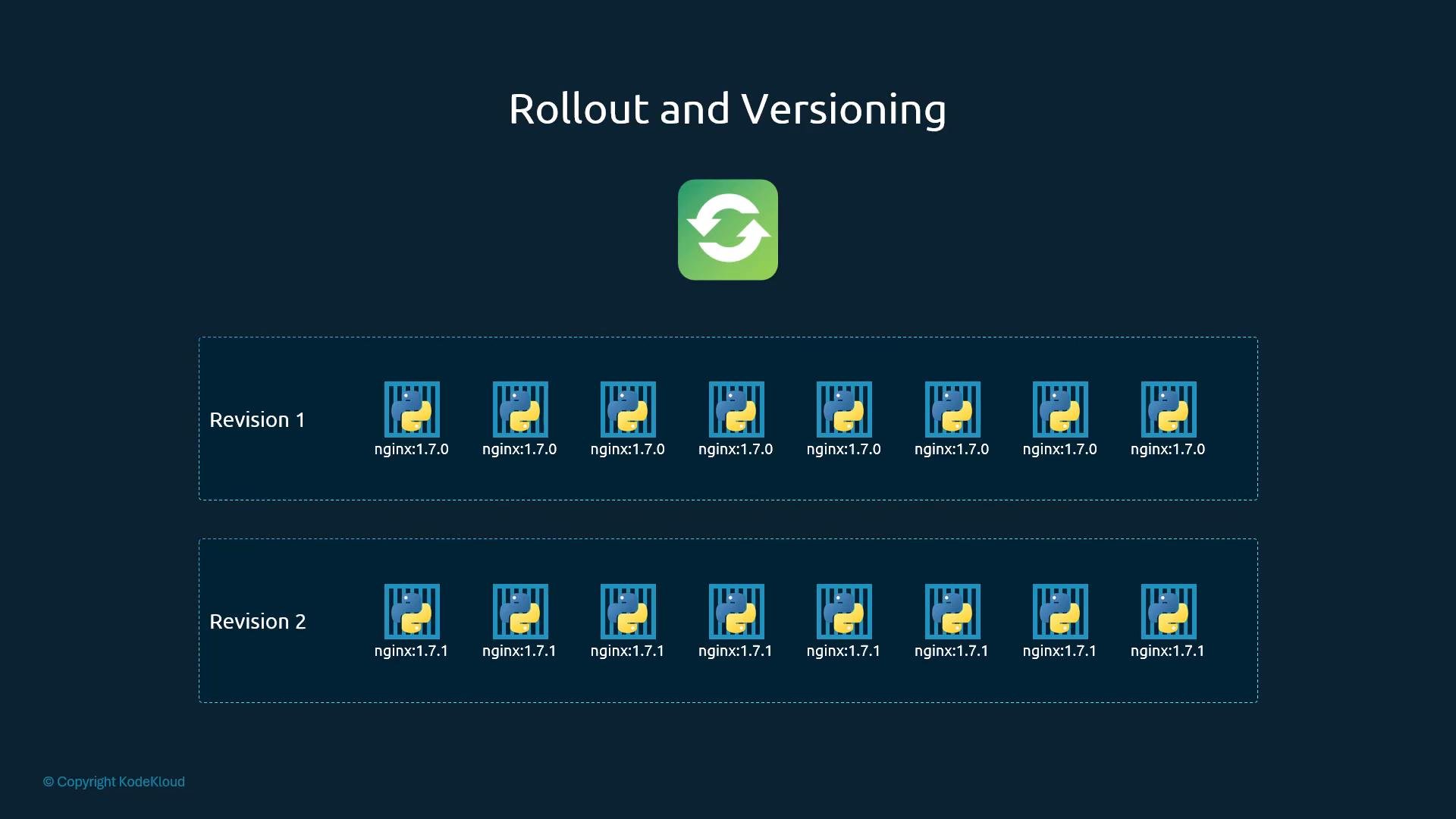
When you create a deployment, Kubernetes initiates a rollout that establishes the first deployment revision (revision one). Later, when you update your application—say by changing the container image version—Kubernetes triggers another rollout, creating a new revision (revision two). These revisions help you track changes and enable rollbacks to previous versions if issues arise.
The image illustrates rollout and versioning with two revisions of nginx:1.7.0 and nginx:1.7.1, each containing multiple instances.
To monitor and review these rollouts, you can use the following commands: Check the rollout status:
View the history of rollouts:

Deployment Strategies

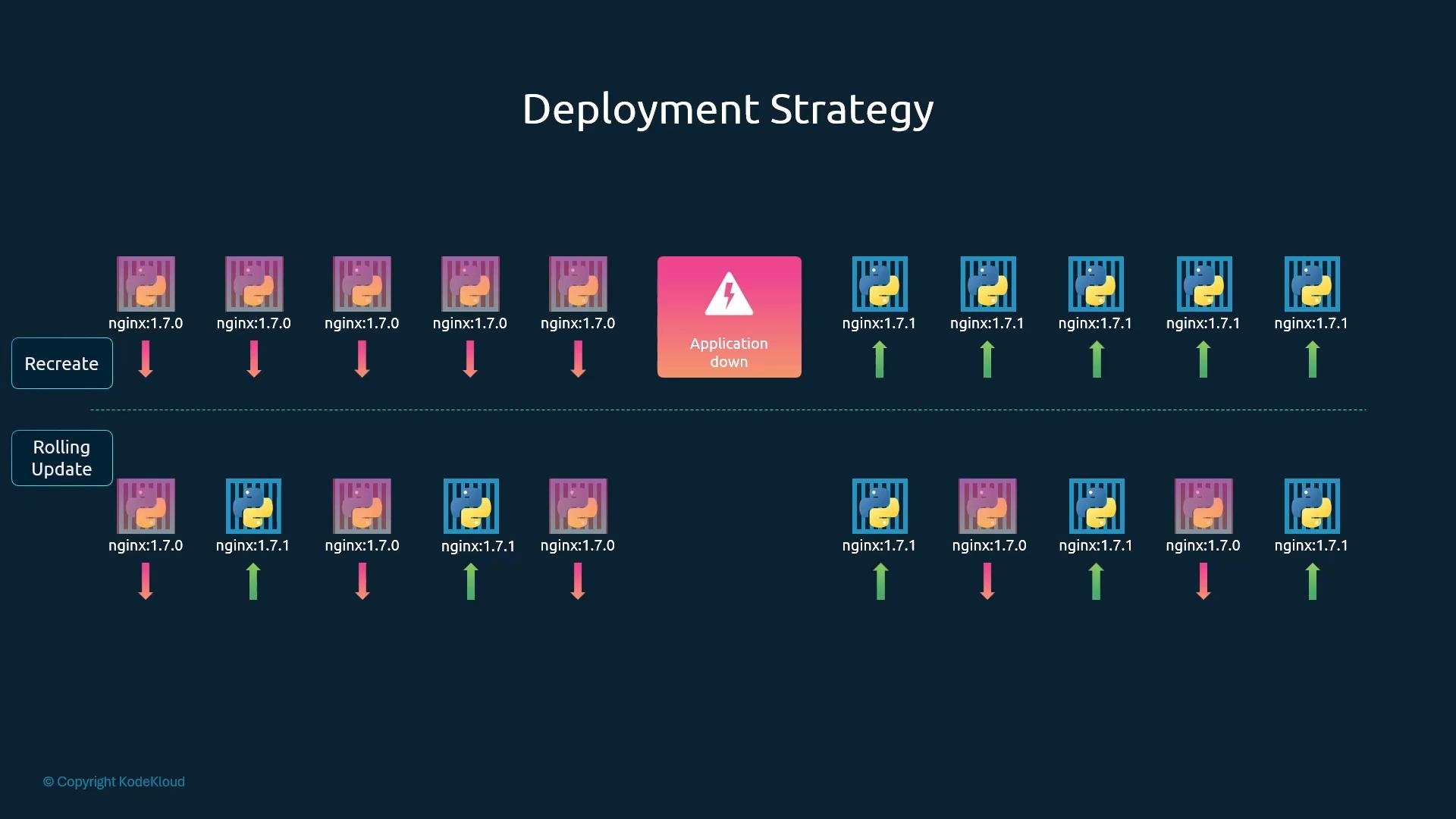
There are different strategies to update your applications. For example, consider a scenario where your web application is running five replicas. One approach is the “recreate” strategy, which involves shutting down all existing instances before deploying new ones. However, this method results in temporary downtime as the application becomes inaccessible during the update.
The image illustrates a deployment strategy showing a transition from nginx version 1.7.0 to 1.7.1, with an application downtime during the process.
A more seamless approach is the “rolling update” strategy. Here, instances are updated one at a time, ensuring continuous application availability throughout the process.
The image illustrates two deployment strategies: "Recreate" and "Rolling Update," showing the transition from nginx version 1.7.0 to 1.7.1, with application downtime in "Recreate."
If no strategy is specified when creating a deployment, Kubernetes uses the rolling update strategy by default.

Updating a Deployment

There are several methods to update your deployment, such as adjusting the container image version, modifying labels, or changing the replica count. A common practice is to update your deployment definition file and then apply the changes. For example, consider the following deployment definition:
After updating the file, apply the changes:
This action triggers a new rollout and creates a new deployment revision. Alternatively, you can update the container image directly using the following command:
Remember, using kubectl set image updates the running deployment but does not modify your deployment definition file. Ensure you update the file as well for future reference.

Viewing Deployment Details

To retrieve detailed information about your deployment—including rollout strategy, scaling events, and more—use:
This output shows different details depending on the strategy used:
  • Recreate Strategy: Events indicate that the old ReplicaSet is scaled down to zero before scaling up the new ReplicaSet.
  • Rolling Update Strategy: The old ReplicaSet is gradually scaled down while the new ReplicaSet scales up.
For example, a deployment with the recreate strategy might display the following events:
In contrast, a rolling update strategy output would reflect gradual scaling changes:

Upgrading and Rolling Back

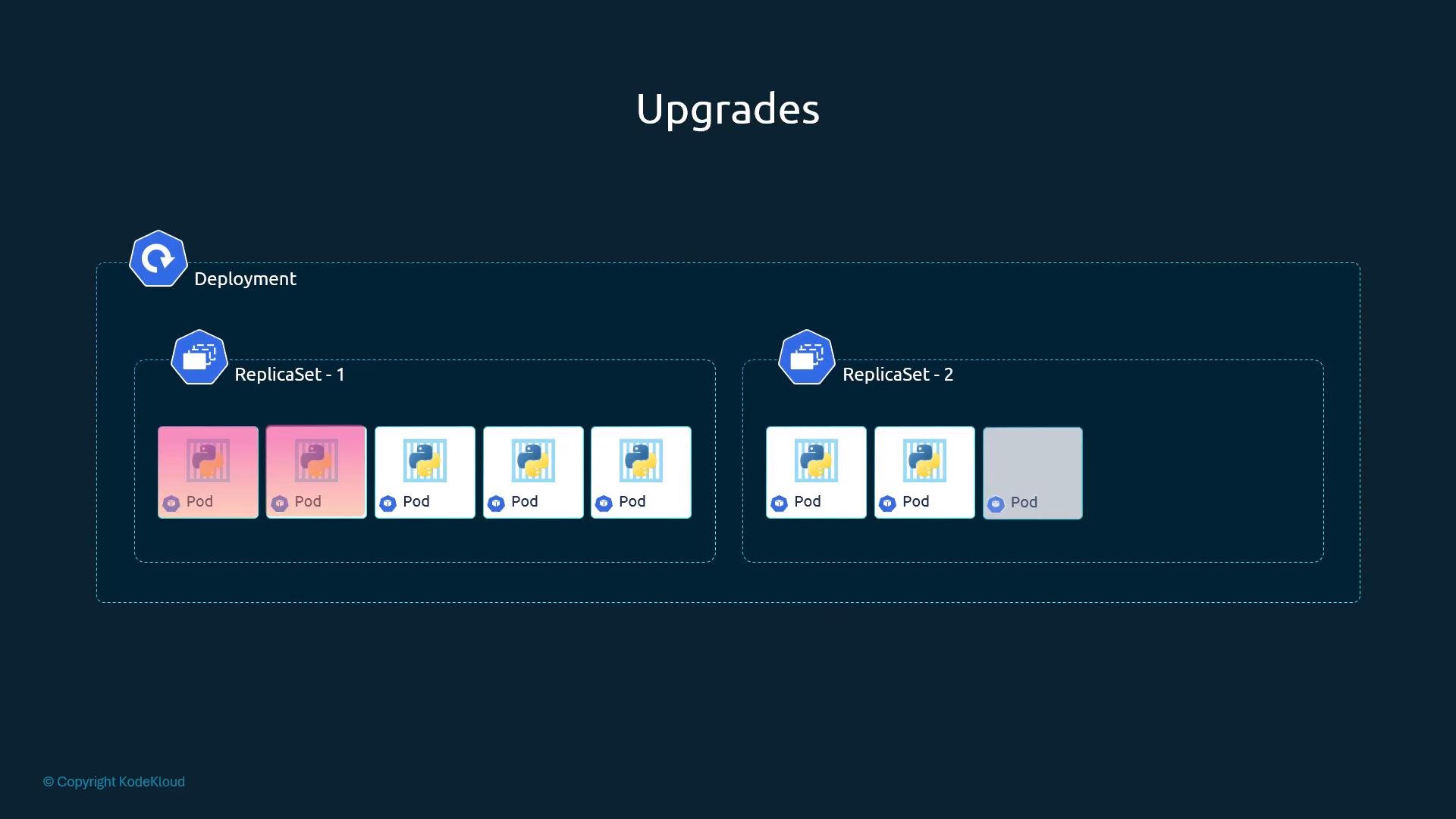
During an upgrade, Kubernetes creates a new ReplicaSet for the updated containers while the original ReplicaSet continues to run the old version. This rolling update process ensures that new pods replace the old ones gradually without causing downtime.
The image illustrates a Kubernetes deployment with two replica sets, each containing multiple pods, labeled "Upgrades."
If an issue is detected after an upgrade, you can revert to the previous version using the rollback feature. To perform a rollback, run:
This command scales down the new ReplicaSet, restoring pods from the older ReplicaSet. Verify the state of ReplicaSets before and after a rollback with:
For example, before the rollback you might see:
After executing the rollback command, the old ReplicaSet is restored while the new one is scaled down.

Summary of Commands

Below is a quick reference table of the key commands discussed in this article: With these commands and strategies, you can manage your Kubernetes deployments confidently, ensuring minimal downtime and a reliable process for both updates and rollbacks. For additional information, see the Kubernetes Documentation.

Watch Video

Practice Lab