

Environment: aliases and verification
I use the aliask for kubectl. Confirm the aliases:
The
k alias points to kubectl which is further aliased to k3s kubectl on this control plane. Use k for the commands in this guide.Inspect the deployed application
List pods and the Deployment to confirm the current state: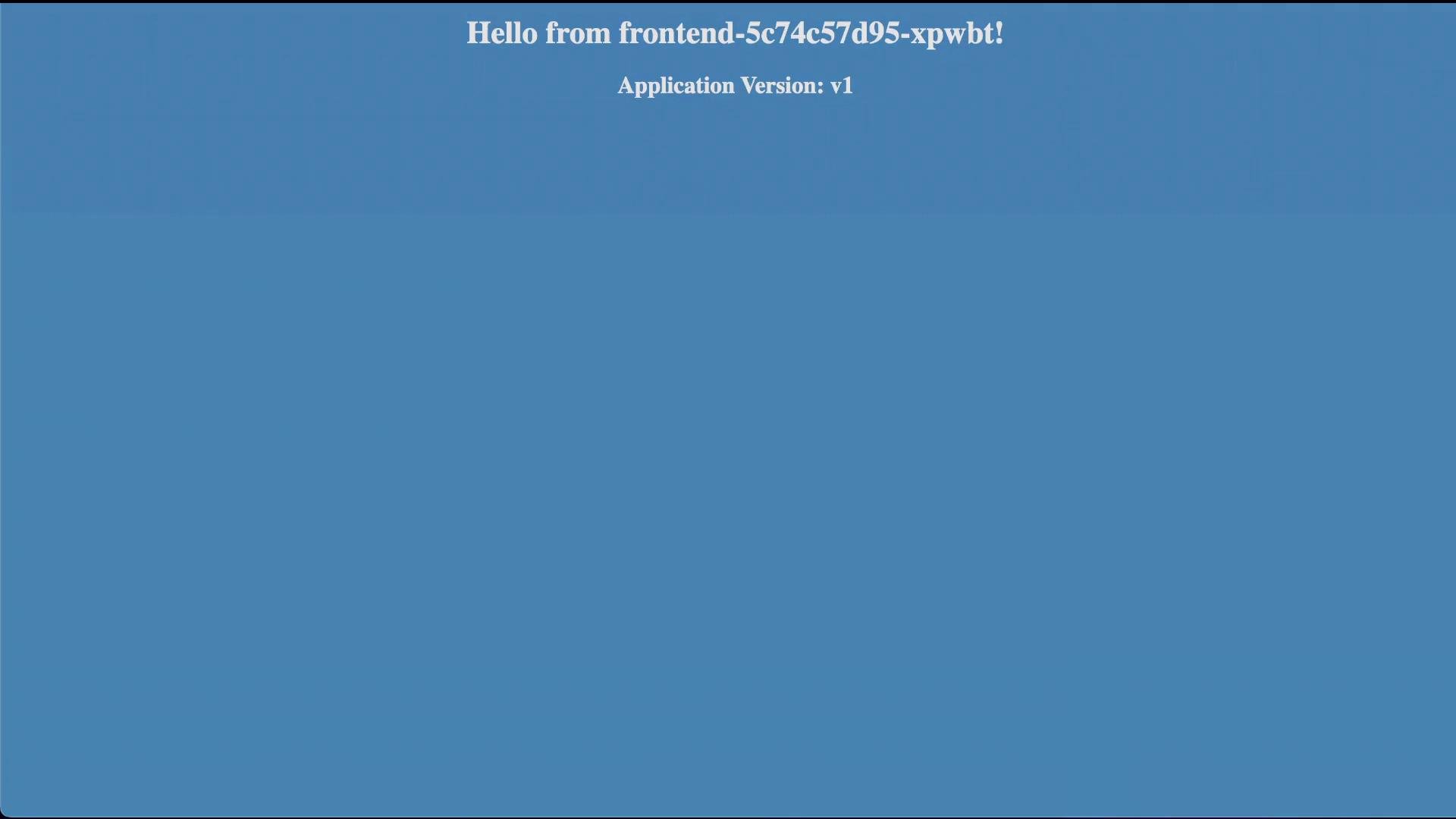
- The page is blue — the running pods serve version
v1(blue).
curl-test.sh) to repeatedly hit the application and confirm responses:
Which container image is used?
Describe the Deployment to inspect the image and rollout strategy:- Image in use:
kodekloud/webapp-color:v1 - Current strategy:
RollingUpdatewithmaxUnavailable: 25%andmaxSurge: 25%.
- With 4 replicas,
25%maxUnavailable allows at most 1 pod to be unavailable during the update. RollingUpdate replaces pods gradually to avoid full downtime.
Perform a rolling upgrade to v2
Update the Deployment image to v2:- During a RollingUpdate you will see a mix of
v1(blue) andv2(green) responses as pods are replaced incrementally. The update is performed with minimal disruption.
Switch strategy to Recreate
To observe a different behavior, change the Deployment strategy toRecreate (this will terminate all old pods before creating new ones). Example Deployment snippet:
Recreate will terminate all existing pods before creating new ones. Expect downtime during an upgrade with this strategy, especially if you have a single replica or limited capacity.
Upgrade to v3 using Recreate and observe behavior
Change the image to v3 while the strategy isRecreate:
Recreate is in effect:
- Early during the upgrade, requests may fail (e.g., load balancer or proxy returns “Bad Gateway”) while all old pods are terminated and the new pods are not yet ready.
- After new pods are up, responses will come from
v3(red):
- Under
Recreateyou will see downtime during the transition; once the new pods are ready, the application servesv3(red).
Quick comparison: RollingUpdate vs Recreate
Useful commands
- Update image:
k set image deploy frontend simple-webapp=kodekloud/webapp-color:<tag> - Inspect rollout and strategy:
k describe deployment frontend - Watch rollout status:
k rollout status deployment/frontend - Roll back to previous revision:
k rollout undo deployment/frontend
Summary
- RollingUpdate (default) replaces pods incrementally; with
maxUnavailable: 25%on 4 replicas, at most 1 pod is unavailable at a time. - Recreate stops all old pods before starting new ones — this can cause downtime.
- Use
kubectl set imageto update the image andkubectl describe deploymentorkubectl rollout statusto monitor progress.