

kubectl to extract, filter, and format information from Kubernetes API JSON output.
This article covers:
- Why JSONPath is useful in Kubernetes.
- How
kubectlexposes JSON output from the API server. - A step-by-step workflow to build JSONPath queries.
- Practical examples:
rangeloops, custom columns, sorting. - Best practices and testing recommendations.
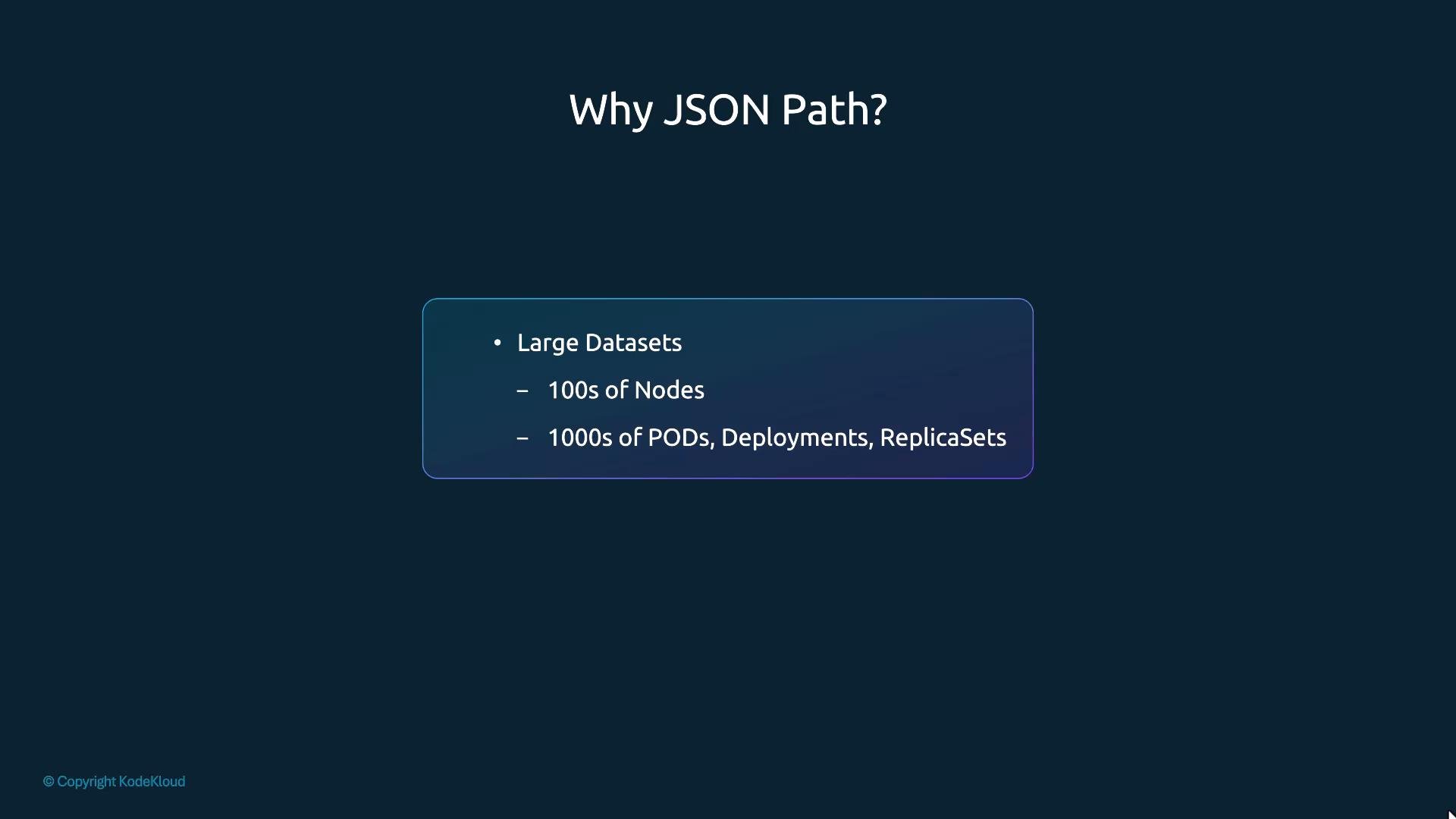
kubectl provides convenient human-readable tables, but those default views hide many fields. JSONPath lets you query the raw JSON from the Kubernetes API to:
- Extract specific fields across many objects.
- Create compact reports (name → image, name → CPU, name → taints).
- Feed results into scripts or monitoring tools.
kubectlqueries the Kubernetes API server.- The API server returns JSON documents for the requested resources.
kubectlformats those documents as tables by default; use-o jsonto see full JSON.- JSONPath expressions let you extract parts of that JSON; pass them with
-o jsonpath='<expr>'.
kubectl get -o wide shows, -o json and kubectl describe expose fields like status.capacity, spec.taints, status.conditions, and more.
Common use cases
Step-by-step workflow to build JSONPath queries
- Identify the
kubectlcommand that returns the resource:kubectl get nodes,kubectl get pods, etc. - Inspect JSON output:
kubectl get <resource> -o jsonto learn the object structure. - Draft the JSONPath expression (test with online JSONPath evaluators or directly with
kubectl). - Run
kubectl get <resource> -o jsonpath='<your-expression>'. Wrap the expression in single quotes to avoid shell interpolation.
Start by running
kubectl get <resource> -o json to inspect the structure. Finding the correct path in the JSON before writing the JSONPath expression saves time.- Inspect the pod JSON:
-
JSONPath for the first container image:
.items[0].spec.containers[0].image -
Use with
kubectl:
- Names of all nodes:
- Architecture of all nodes:
- CPU capacity of all nodes:
\n) and tab (\t) characters inside JSONPath output by embedding them as quoted strings in the expression:
range
The JSONPath range construct produces row-based output (one resource per line) which is ideal for human-readable reports:
range .items[*]— loop over each array element.{.metadata.name}— print name.{"\t"}— tab separator.{.status.capacity.cpu}— print CPU capacity.{"\n"}— newline after each row.{end}— close loop.
-o json or an external JSONPath tester.
Custom columns with -o custom-columns
For simple tabular output, -o=custom-columns is often easier. Note: paths are relative to the item (no leading .items):
--sort-by
Sort resources by a JSONPath expression (path should start with a dot and reference fields of the item):
- Sort by name:
- Sort and show custom columns:
- Get pod images across all pods:
- List node names only:
- Inspect
-o jsonfirst to locate the exact path. - Build JSONPath expressions incrementally and test frequently.
- Use
custom-columnsfor simple, fixed-column tabular output. - For multi-line, row-oriented reports prefer
rangeorcustom-columns. - Quote JSONPath expressions with single quotes in the shell to avoid unwanted expansions.
If you are new to JSONPath, practice on sample
kubectl -o json output. Iteratively build the path and test with kubectl -o jsonpath to reduce trial-and-error.- Kubernetes Documentation
- JSONPath reference and testers (search for “JSONPath evaluator” to find interactive tools)
- KodeKloud learning platform for hands-on Kubernetes labs