Prerequisite Switching Routing Gateways CNI in kubernetes
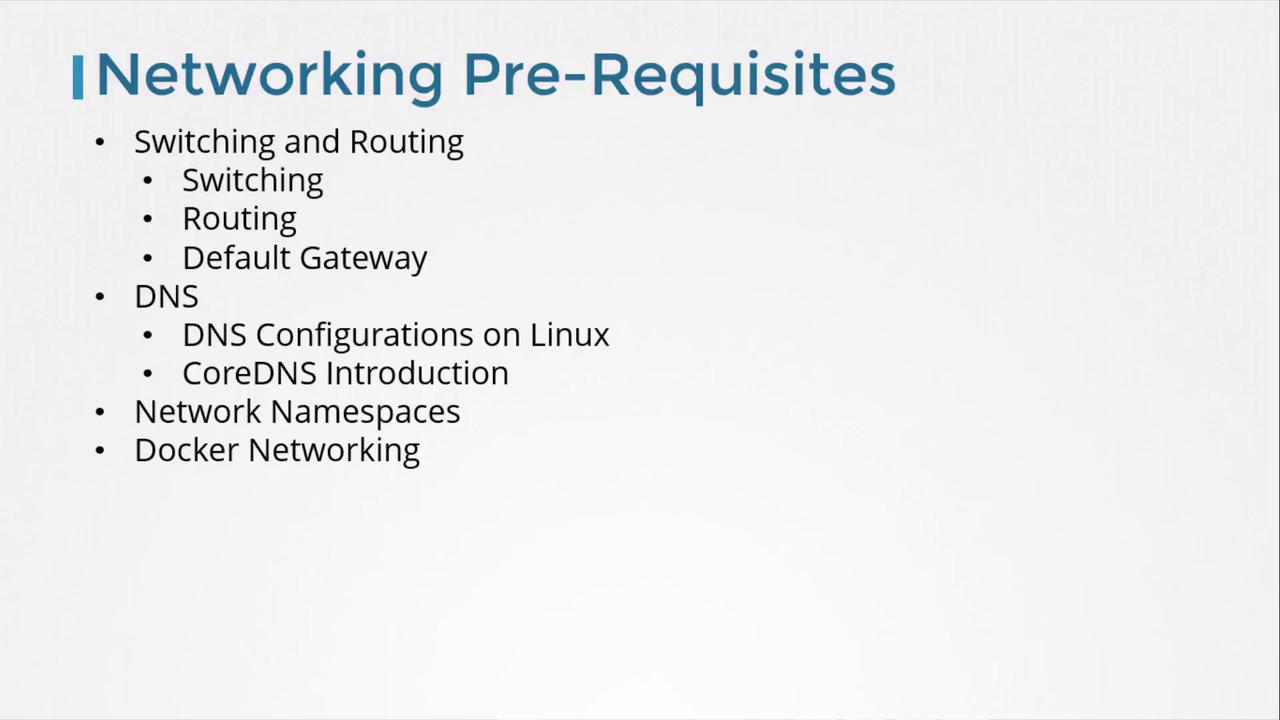
This article explores essential networking concepts for configuring Kubernetes environments, covering switching, routing, gateways, DNS, network namespaces, and Docker networking.
In this article, we explore essential networking concepts from a Linux perspective that are fundamental for configuring Kubernetes environments. We will cover topics such as switching, routing, gateways, DNS, network namespaces, and Docker networking. This guide targets both system administrators and application developers. If you are already confident with Linux networking, feel free to jump ahead to the Kubernetes-focused sections.
Consider two systems—labeled A and B—that could be laptops, desktops, or virtual machines. To enable communication between them, each system must be connected to a switch with its respective network interface (either physical or virtual). To list available interfaces on a Linux host, execute:
Copy
Ask AI
ip link
A sample output might be:
Copy
Ask AI
eth0: <BROADCAST,MULTICAST,UP,LOWER_UP> mtu 1500 qdisc fq_codel state UP mode DEFAULT group default qlen 1000
Assuming these systems belong to the network 192.168.1.0, you can assign IP addresses using the following command:
Copy
Ask AI
ip addr add 192.168.1.10/24 dev eth0
After configuration, test connectivity by pinging another host within the same network:
Copy
Ask AI
ping 192.168.1.11
A successful ping might look like:
Copy
Ask AI
Reply from 192.168.1.11: bytes=32 time=4ms TTL=117
Now, consider a second network, such as 192.168.2.0, with hosts assigned IPs like 192.168.2.10 and 192.168.2.11. For communication between these two networks, a router is necessary.A router interconnects two or more networks and holds an IP address in each network—e.g., 192.168.1.1 for the first network and 192.168.2.1 for the second. When a system on network 192.168.1.0 (say, with IP 192.168.1.11) needs to communicate with a system on network 192.168.2.0, it forwards packets to the router.
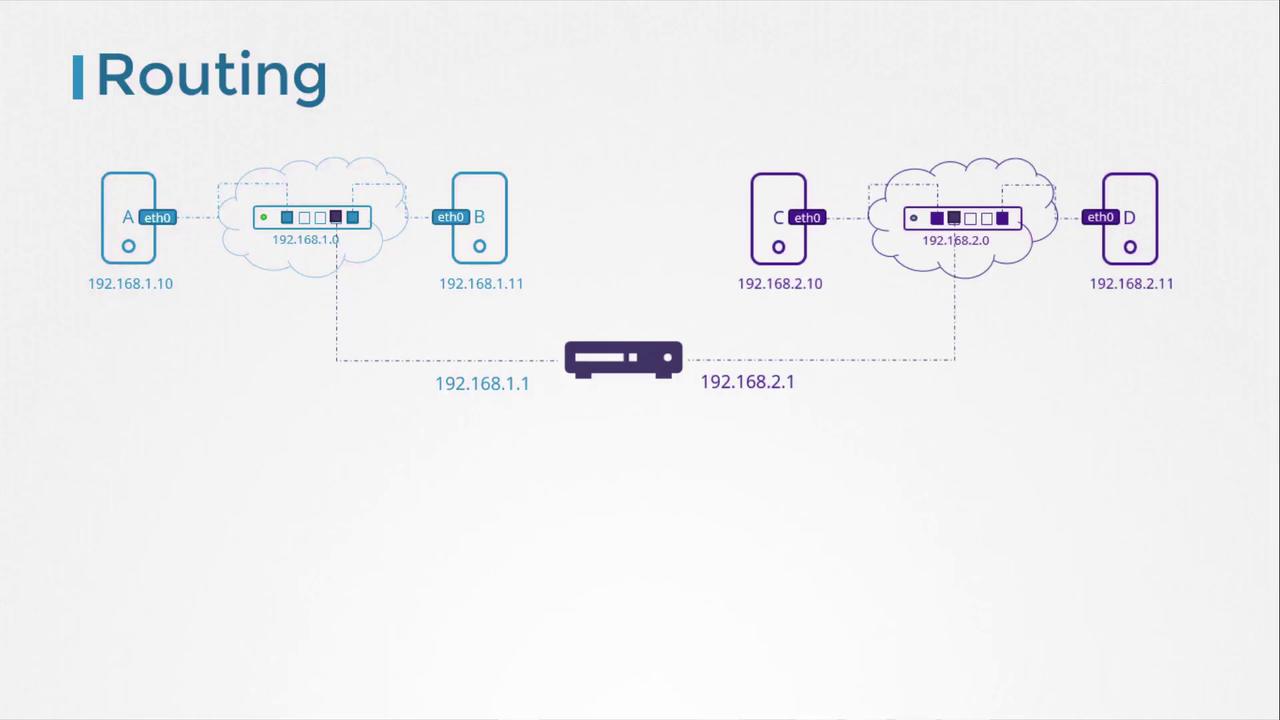
Each system must be configured with a gateway or specific route entries to ensure that packets reach the intended destination. To view the current routing table, use:
Copy
Ask AI
route
Initially, communication will be limited to the same subnet. To route traffic destined for 192.168.2.0 via the router (with IP 192.168.1.1), add the following route:
Copy
Ask AI
ip route add 192.168.2.0/24 via 192.168.1.1
After adding the route, verifying the routing table should show an entry similar to:
Copy
Ask AI
routeKernel IP routing tableDestination Gateway Genmask Flags Metric Ref Use Iface192.168.2.0 192.168.1.1 255.255.255.0 UG 0 0 0 eth0
If a return route is required (for instance, for a host in network 192.168.2.0 to reach a host in 192.168.1.0), add the appropriate route on that system using its corresponding gateway (e.g., 192.168.2.1).
To enable internet access (such as reaching external hosts like 172.217.194.0), configure the router as the default gateway. This is done by adding a default route:
Copy
Ask AI
ip route add default via 192.168.2.1
Afterward, your routing table might resemble the following:
Copy
Ask AI
routeKernel IP routing tableDestination Gateway Genmask Flags Metric Ref Use Iface192.168.1.0 192.168.2.1 255.255.255.0 UG 0 0 0 eth0172.217.194.0 192.168.2.1 255.255.255.0 UG 0 0 0 eth0default 192.168.2.1 0.0.0.0 UG 0 0 0 eth0
The “default” or “0.0.0.0” entry indicates that any destination not explicitly listed in the routing table will be directed through the specified gateway.
For scenarios involving multiple routers—such as one handling internet traffic and another managing internal networks—ensure each network has its specific routing entry along with a default route for all other traffic. For example, to route traffic to network 192.168.1.0 via an alternative gateway (192.168.2.2), use:
Copy
Ask AI
ip route add 192.168.1.0/24 via 192.168.2.2
The updated routing table should include:
Copy
Ask AI
routeKernel IP routing tableDestination Gateway Genmask Flags Metric Ref Use Ifacedefault 192.168.2.1 0.0.0.0 UG 0 0 0 eth0192.168.1.0 192.168.2.2 255.255.255.0 UG 0 0 0 eth0
If you encounter internet connectivity issues, reviewing the routing table and default gateway configuration is a good troubleshooting practice.
Consider a scenario with three hosts (A, B, and C) where host B connects to two subnets (192.168.1.x and 192.168.2.x) using two interfaces. For example:
Host A: 192.168.1.5
Host B: 192.168.1.6 and 192.168.2.6
Host C: 192.168.2.5
For host A to communicate with host C, host A must direct traffic aimed at network 192.168.2.0 to host B. On host A, execute:
Copy
Ask AI
ip route add 192.168.2.0/24 via 192.168.1.6
Similarly, host C needs a route for the 192.168.1.0 network via host B (using 192.168.2.6 as the gateway):
Copy
Ask AI
ip route add 192.168.1.0/24 via 192.168.2.6
Once these routes are established, the “network unreachable” error should no longer occur when pinging between host A and host C.
Even with the correct routing table, Linux does not forward packets between interfaces by default, as a security measure. This setting is controlled by the IP forwarding parameter in /proc/sys/net/ipv4/ip_forward.To check the IP forwarding status, run:
Copy
Ask AI
cat /proc/sys/net/ipv4/ip_forward
A return value of 0 indicates that packet forwarding is disabled. To enable forwarding temporarily, run:
Copy
Ask AI
echo 1 > /proc/sys/net/ipv4/ip_forward
Verifying again should now show:
Copy
Ask AI
cat /proc/sys/net/ipv4/ip_forward
with the output:
Copy
Ask AI
1
To ensure this setting persists across reboots, modify /etc/sysctl.conf and add or update the following line:
Copy
Ask AI
net.ipv4.ip_forward = 1
Modifying /etc/sysctl.conf ensures that IP forwarding remains enabled even after a system restart.
Below is a summary table of essential commands covered in this article:
Operation
Command Example
List network interfaces
ip link
View assigned IP addresses
ip addr
Assign an IP address
ip addr add 192.168.1.10/24 dev eth0
View the routing table
route
Add a specific route
ip route add 192.168.1.0/24 via 192.168.2.1
Set a default gateway
ip route add default via 192.168.2.1
Check IP forwarding status
cat /proc/sys/net/ipv4/ip_forward
Enable IP forwarding temporarily
echo 1 > /proc/sys/net/ipv4/ip_forward
Remember, changes made with these commands are temporary and will be reset upon reboot unless they are saved in the appropriate configuration files.That concludes this article. In the next installment, we will dive into DNS configurations and further enhance your understanding of Kubernetes networking.For additional details and further reading, refer to resources like Kubernetes Documentation and Docker Hub.