

1. Verify the Existing Deployment
Before proceeding, ensure all your pods are running across all namespaces. Execute the command:2. Setup: Ingress Namespace and Required Resources
a. Create the Ingress Namespace
Create a dedicated namespace for the Ingress controller:b. Create a ConfigMap
The NGINX Ingress Controller requires a specific ConfigMap. Create it using the command below (replace the literal configuration with your actual settings if needed):c. Create a Service Account
Deploy a service account namedingress-serviceaccount in the ingress-space namespace:
d. Set Up Roles and RoleBindings
Assign the required roles to ensure proper permissions for the Ingress controller. Verify the roles:3. Deploy the NGINX Ingress Controller
Deploy the Ingress controller by creating a deployment in theingress-space namespace. Use the YAML configuration below (ensure proper spacing and namespace specifications):
4. Expose the Ingress Controller via a Service
To make the Ingress controller accessible externally, expose it using a NodePort.-
Expose the deployment:
-
Verify the service details:
nodePort field under the port configuration to 30080 and save.
5. Create the Ingress Resource to Route Traffic
Now configure routing rules to forward traffic from specified paths to your applications located in theapp-space namespace. In this example:
- Requests to
/wearroute to thewear-serviceon port 8080. - Requests to
/watchroute to thevideo-serviceon port 8080.
6. Troubleshooting: Resolving Excessive Redirects
If you experience continuous HTTP 308 redirects when accessing the/watch path, inspect the Ingress controller logs:
7. Validate the Complete Setup
Ensure that the Ingress routes traffic correctly to your services:-
Validate that the backend pods are running in the
app-spacenamespace: -
Check the logs of the video and wear applications to ensure new requests are reaching them:
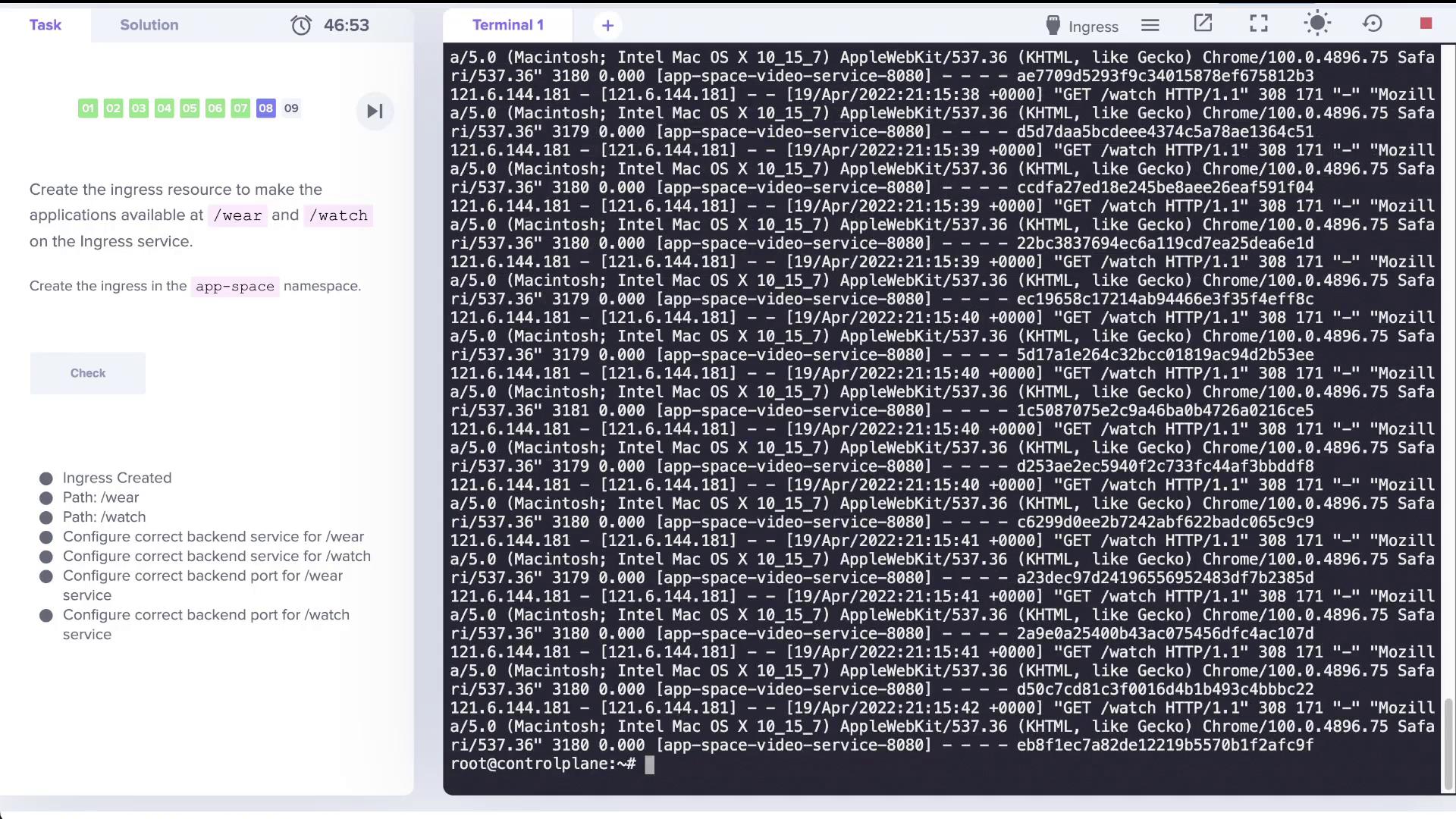
Congratulations! You have successfully deployed an Ingress controller, exposed it via a NodePort service, configured the Ingress resource to route traffic to two distinct services, and resolved an SSL redirection issue. Happy networking!