

Case 1: Alpha Namespace
In the alpha namespace, although the UI loads, the application state shows as failed. The error message indicates: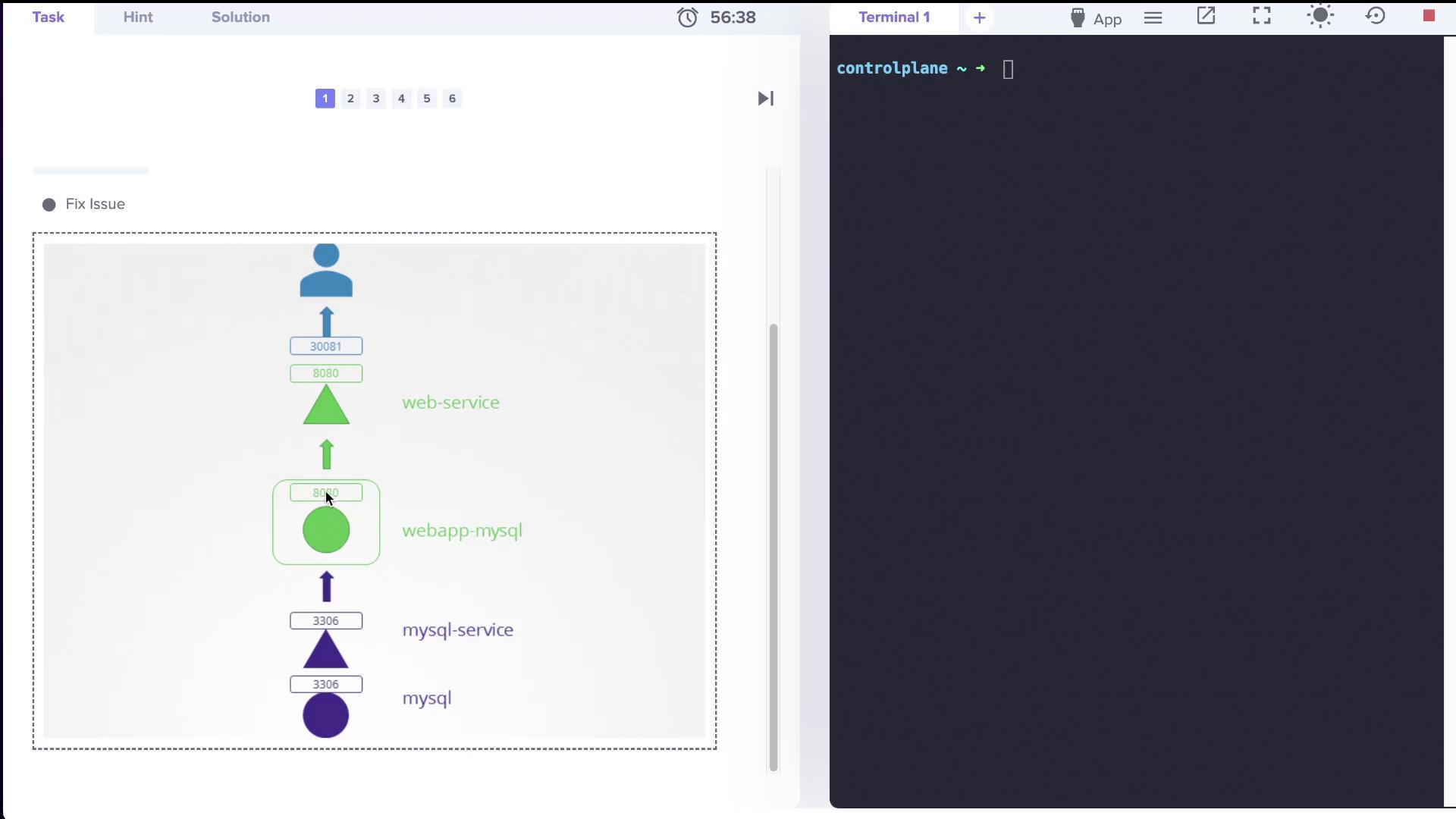
Troubleshooting Steps
-
Check Pods in the Alpha Namespace
Verify that the pods in the alpha namespace are running correctly.
-
Set Default Namespace to Alpha
To prevent repeatedly specifying the namespace, execute:
-
Inspect Deployments and Services
Confirm that the web application is deployed as a deployment and that the services for both the web application and MySQL exist.
-
To check deployments:
-
To check services:
-
To check deployments:
-
Resolve MySQL Name Resolution Issue
The error occurs because the application expects the MySQL service name to be
mysql-service, but the actual service is namedmysql. To fix this, update the MySQL service to match the expected name:-
Create a YAML file (for example,
/tmp/kubectl-edit-3970124164.yaml) with the following content: -
Then, run:
-
Verify the changes:
-
Create a YAML file (for example,
After these corrections, the application is able to successfully connect to the MySQL service.
Case 2: Beta Namespace
In the beta namespace, the tutor application initially fails with the following error message:Troubleshooting Steps
-
Switch Context to Beta
-
Verify Pods and Services
-
Check the pods:
-
Check the services:
-
Check the pods:
-
Inspect Deployment for Environment Variables
Ensure that the deployment’s configuration sets
DB_Hosttomysql-service: -
Fix Target Port Mismatch
The issue was caused by a mismatch in port configuration; the MySQL service’s
targetPortwas set to 8080 rather than 3306. Update the service configuration:-
Sample YAML configuration:
-
After editing, verify the update:
-
Sample YAML configuration:
The adjustment of the target port enables the application to correctly connect to the MySQL service.
Case 3: Gamma Namespace
In the gamma namespace, both pods and services report running status, yet the application initially fails to load.Troubleshooting Steps
-
Switch Context to Gamma
-
Verify Pods and Services
-
Inspect pods:
-
Inspect services:
-
Inspect pods:
-
Examine the Web Service Configuration
Confirm that the selectors and endpoints are set properly by describing the service:
The output should indicate that the web service on port 8080 (exposed via NodePort 30081) correctly maps to the pod IP address (e.g., 10.42.0.1:8080).
-
Review the Deployment Configuration
Verify that the deployment’s environment variables (DB_Host, DB_User, DB_Password) and image configuration are correct:
-
Check the MySQL Service Selector
If endpoints are missing from the MySQL service, confirm that its selector matches the MySQL pod labels. If necessary, adjust the selector:
Case 4: Delta Namespace
The delta namespace presents two issues. Initially, the application shows a connection error:Troubleshooting Steps
-
Switch Context to Delta
-
Check Pods and Services
-
Inspect pods:
-
Inspect services:
-
Inspect pods:
-
Review and Update Deployment Credentials
Describing the deployment shows that
DB_Useris set assql-user:To resolve the credential issue (the correct user should beroot), edit the deployment:ChangeDB_Userfromsql-usertorootand save the modification. - Monitor the Pod Update Ensure that the updated pod is running. Once the deployment refreshes, the application should successfully connect to the MySQL service.
Case 5: Epsilon Namespace
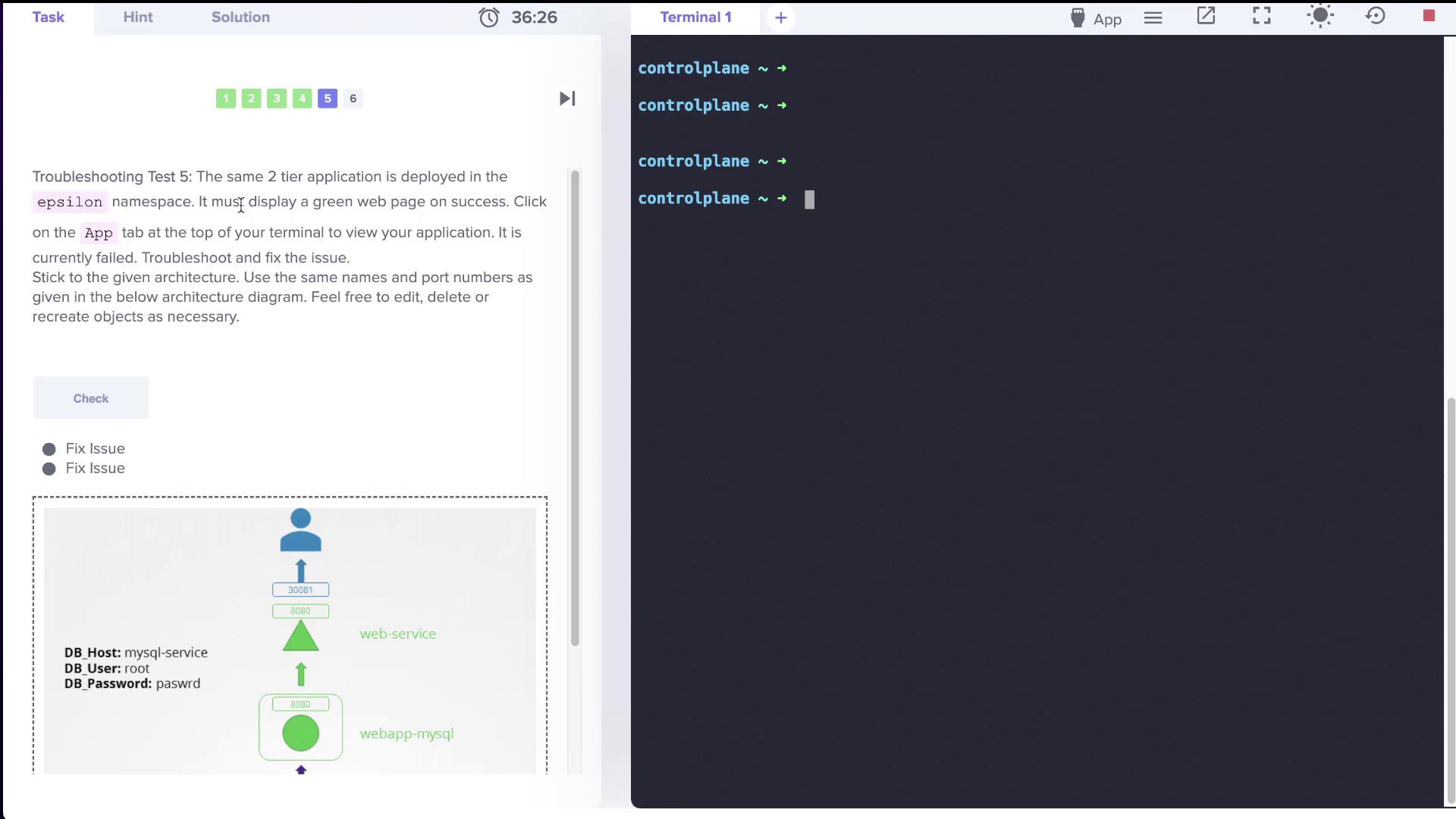
In the epsilon namespace, the initial error encountered is an “Access denied” message:Troubleshooting Steps
-
Switch Context to Epsilon
-
Verify Pods
Confirm that both MySQL and the web application pods are running:
-
Edit Deployment for Correct Credentials
Access and modify the deployment to change
DB_Userfromsql-usertoroot:After updating and saving, verify that the error now reflects the root user. -
Check MySQL Pod Configuration
Describe the MySQL pod to confirm the
MYSQL_ROOT_PASSWORD:If theMYSQL_ROOT_PASSWORDdoes not matchpaswrdas expected, update the MySQL configuration. Since changing pod configurations may require recreating the pod, use the command below:
In production, environment variables are best managed with ConfigMaps and Secrets rather than being hard-coded in deployments.
Case 6: Zeta Namespace
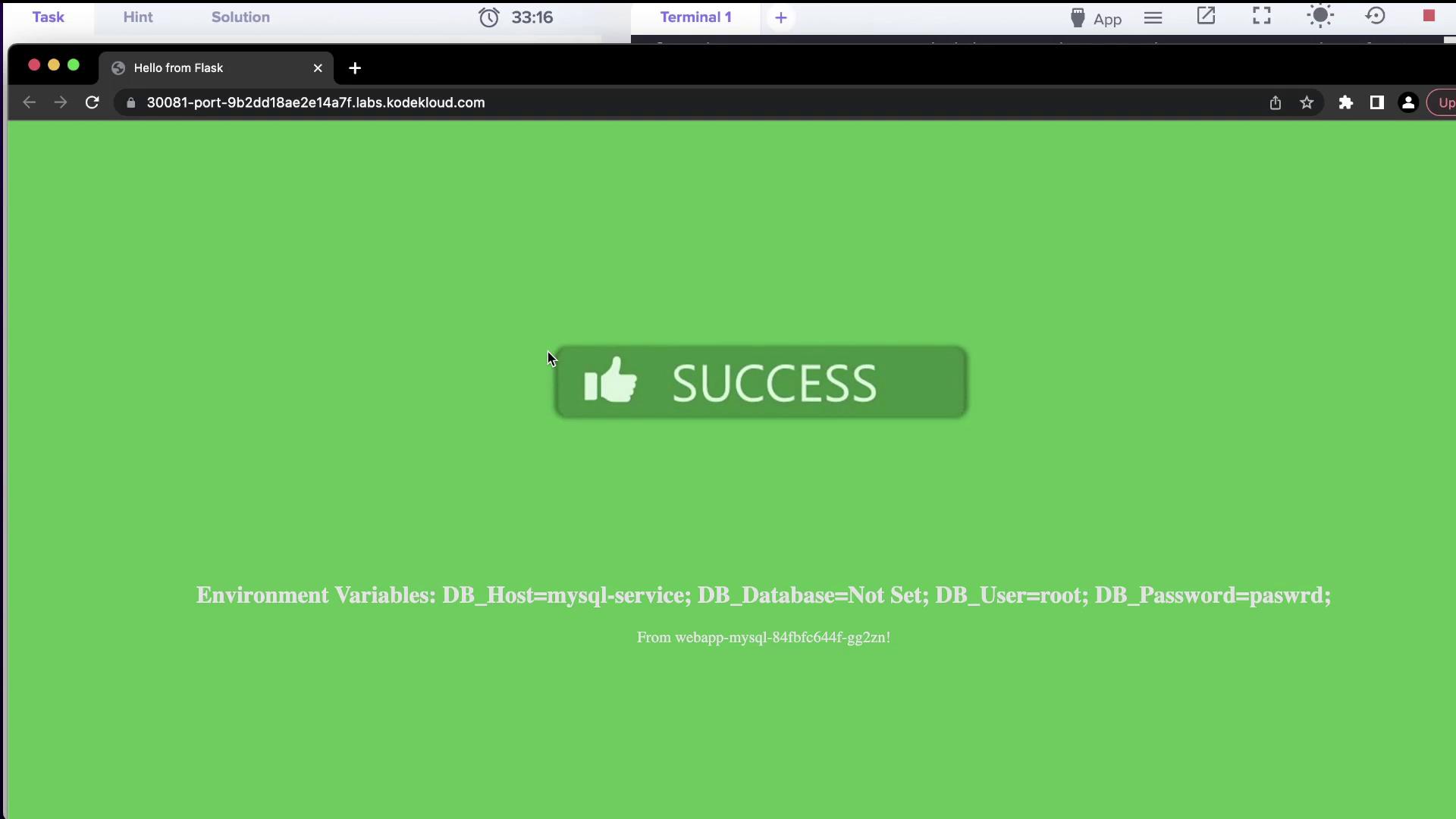
The zeta namespace initially returned a “Bad Gateway” error.Troubleshooting Steps
-
Switch Context to Zeta
-
Inspect the Web Service Configuration
On examining the service, it was discovered that the NodePort was set incorrectly (e.g., 30088 instead of the required 30081). To update the NodePort, edit the web service with the following YAML:
Save the file and verify the update:
-
Update Deployment Credentials
An “Access denied” error still appeared, indicating that
DB_Userwas set tosql-userinstead ofroot:Edit the deployment to update the credential:ChangeDB_Userfromsql-usertorootand save. Deploy the updated configuration and verify that the pod is running with the correct credentials. -
Verify MySQL Pod Password
Lastly, check that the MySQL pod’s
MYSQL_ROOT_PASSWORDis correctly configured. If it is not, update the value using:
Conclusion
This troubleshooting session illustrates the importance of verifying pod status, inspecting service configurations, and maintaining correct environment variables across Kubernetes namespaces. The table below summarizes the key challenges and their resolutions:
Following these systematic troubleshooting methods helps ensure that service names, port configurations, selectors, and credentials are properly set, leading to a successful connection between the web and database components.
Happy troubleshooting, and stay tuned for more labs and lessons in upcoming sessions!
For more in-depth Kubernetes information, check out the Kubernetes Documentation.