

- Setting up an organization and teams
- Creating users and assigning them to teams
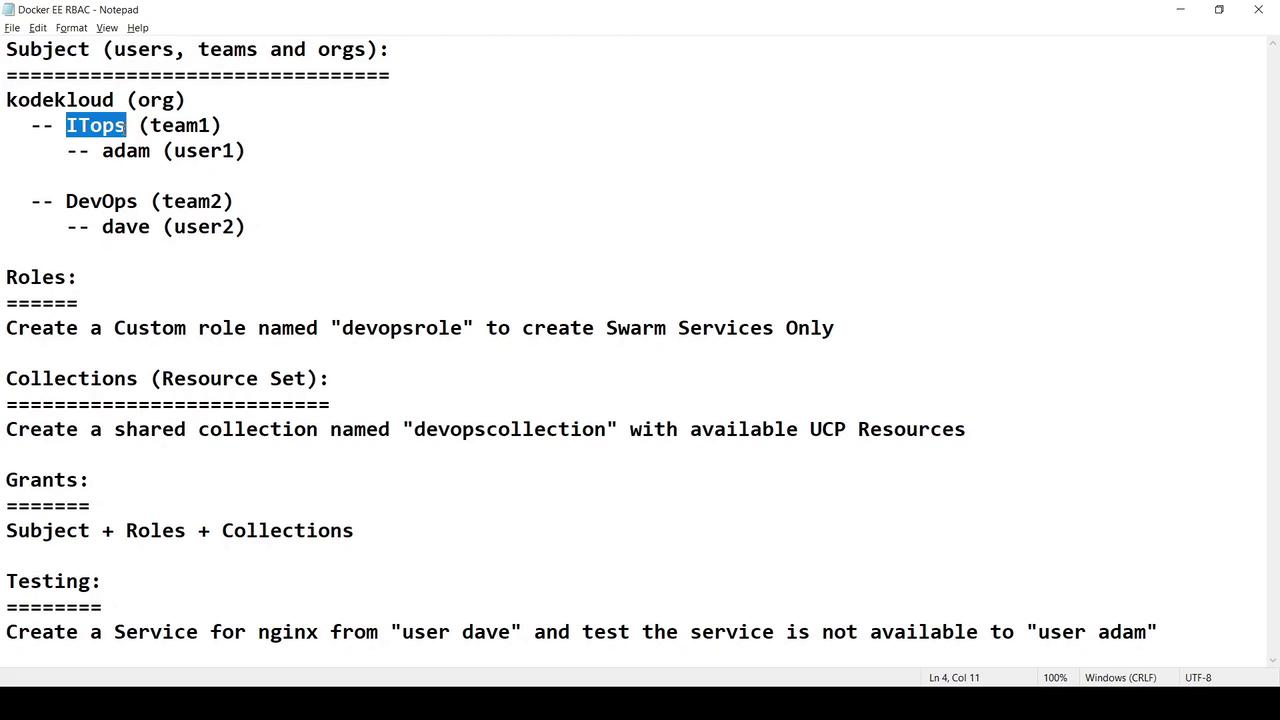
- Defining a custom role and collection
- Granting permissions
- Verifying access for each user
Use Case Overview
We want to implement RBAC for an organization namedKodeKloud, with two teams and two users. Here’s the plan:
1. Creating Users
You must be logged in as a UCP admin (e.g.,
Yogesh Raheja) to manage users.- Sign in to UCP as the admin user.
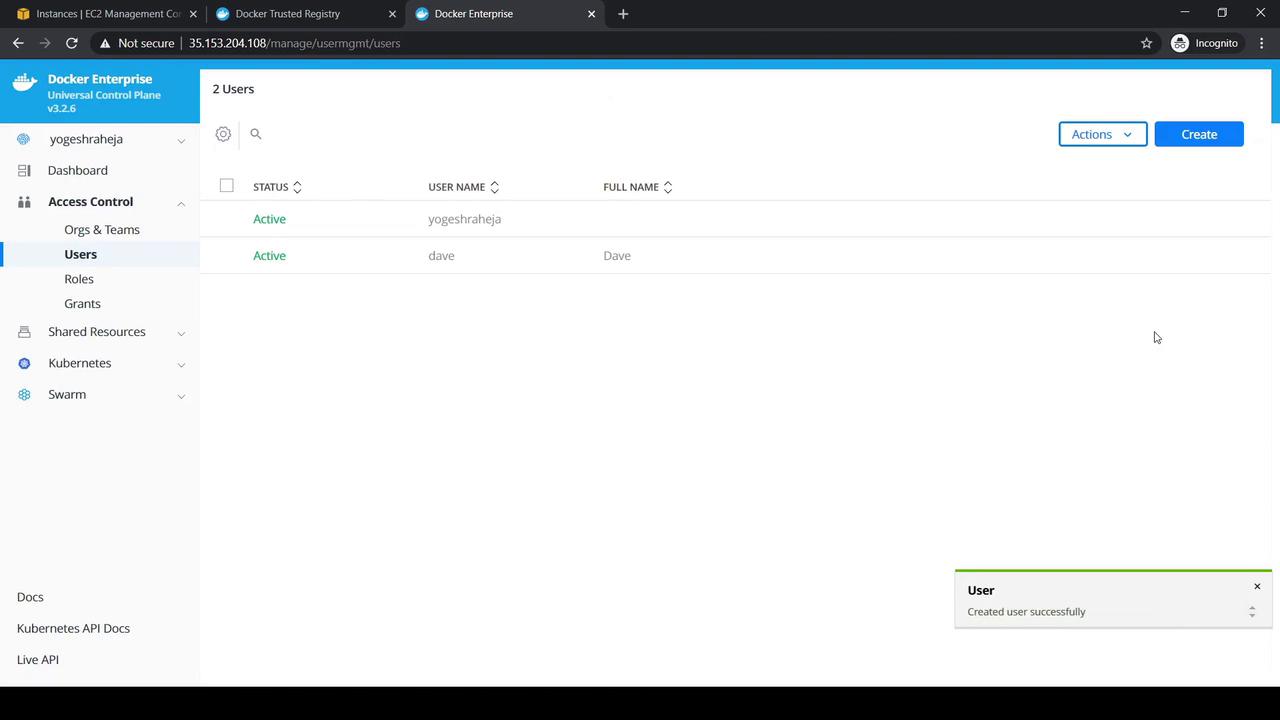
- Navigate to Access Control → Users and click Create.
- Enter Dave’s details (username, password, full name) and Create.
- Repeat the process to add Adam.
2. Creating Organization and Teams
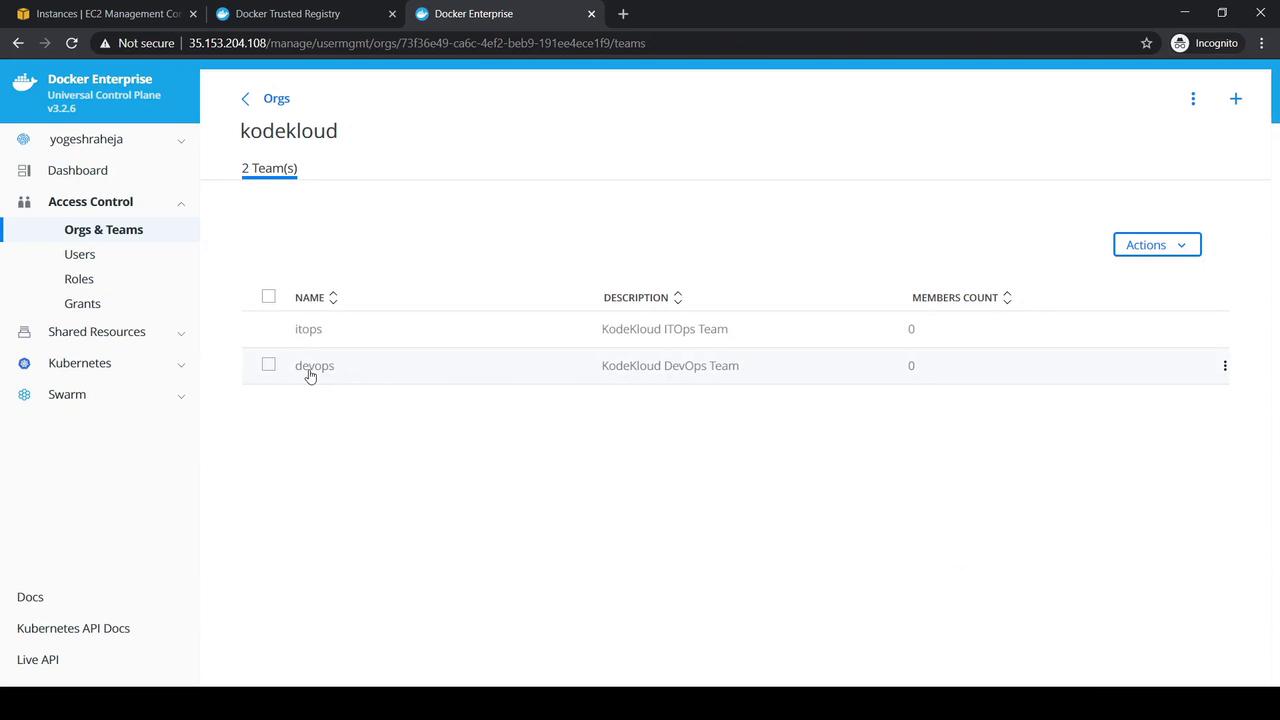
- Go to Access Control → Orgs & Teams.
- Click Create, set Name to
KodeKloud, and save. - Under the new org, select Create a Team and add
ITOps. - Click the + icon again to add the
DevOpsteam.
3. Assigning Users to Teams
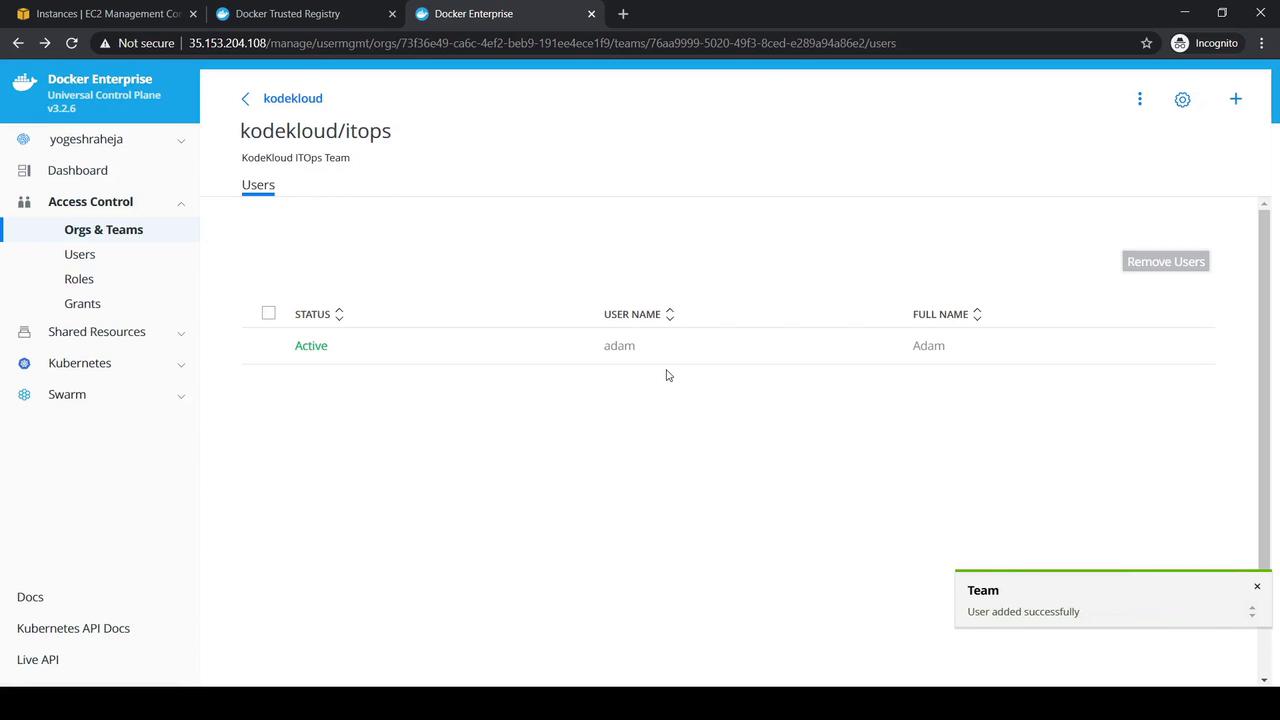
- Select DevOps → Add User → choose Dave.
- Select ITOps → Add User → choose Adam.
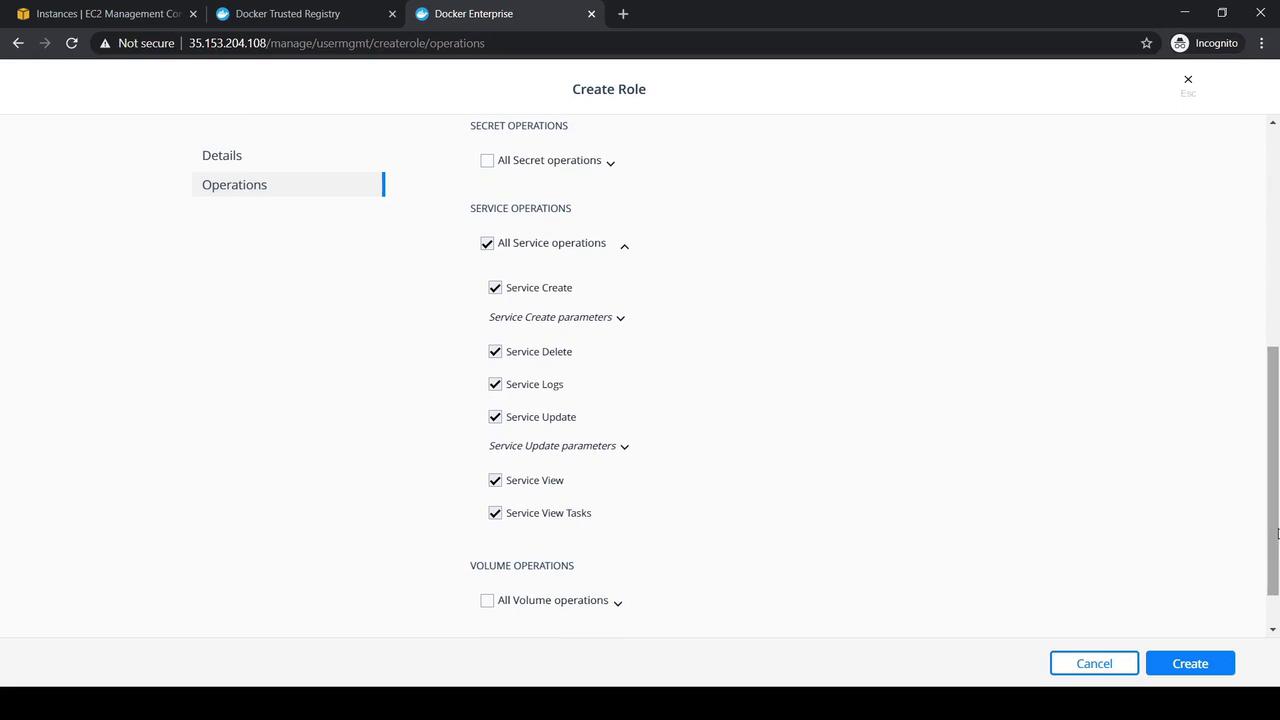
4. Creating the DevOps Role
- Navigate to Access Control → Roles → Swarm.
- Click Create, set Role Name to
DevOps Role. - Expand Service under Operations and select All Service Operations.
- Click Create.
5. Creating the DevOps Collection
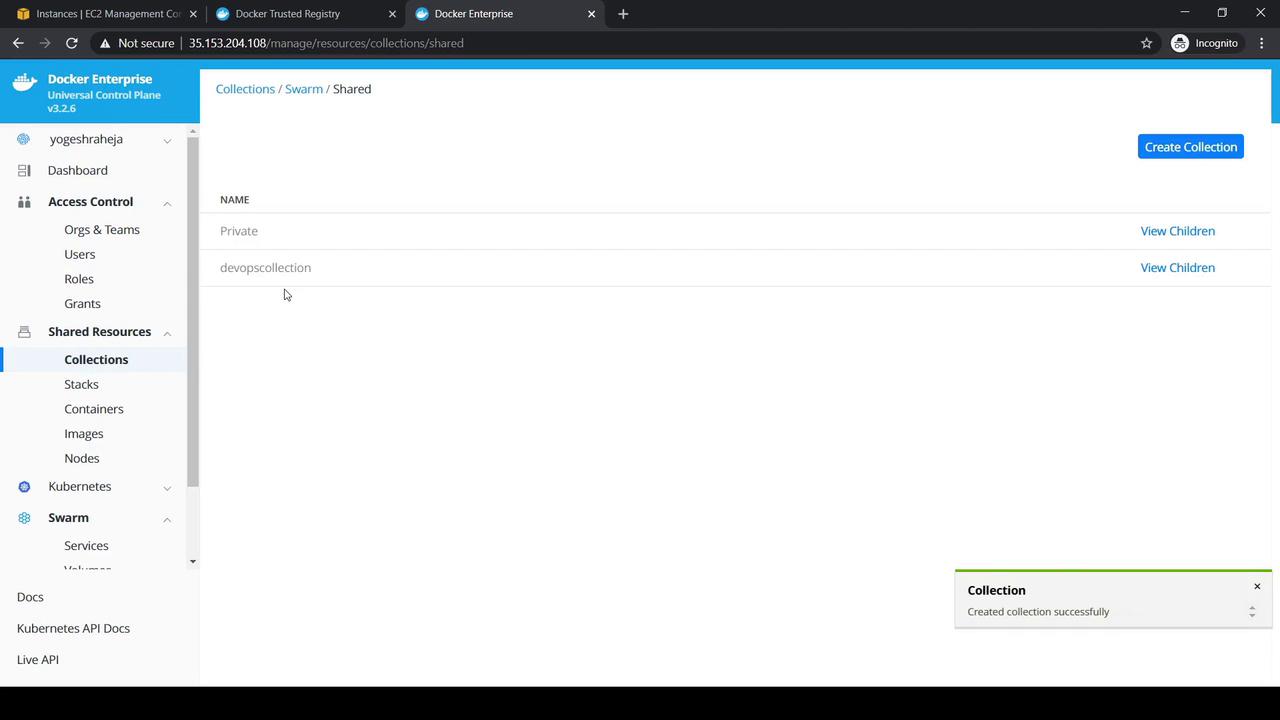
- Go to Shared Resources → Collections.
- Under the Swarm default collection, click View Children and choose Shared.
- Click Create Collection, name it
DevOps Collection, and save.
6. Granting the Role and Collection
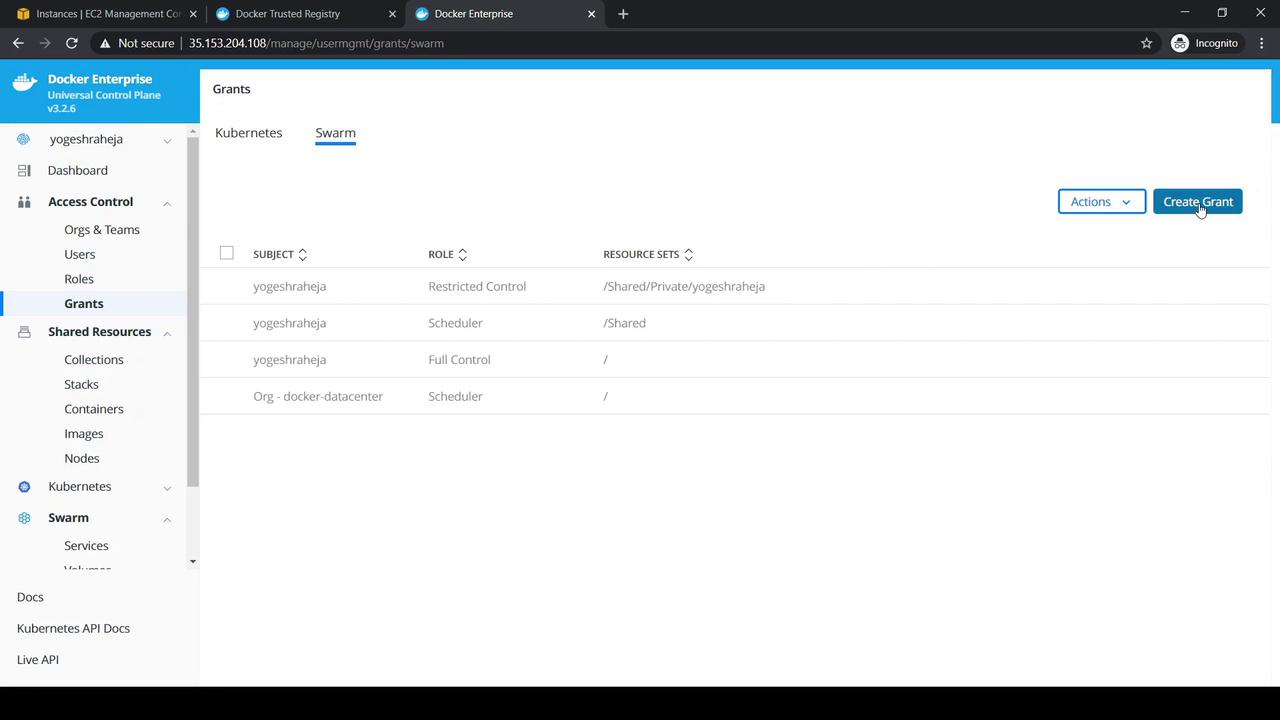
- Head to Access Control → Grants → Swarm and click Create Grant.
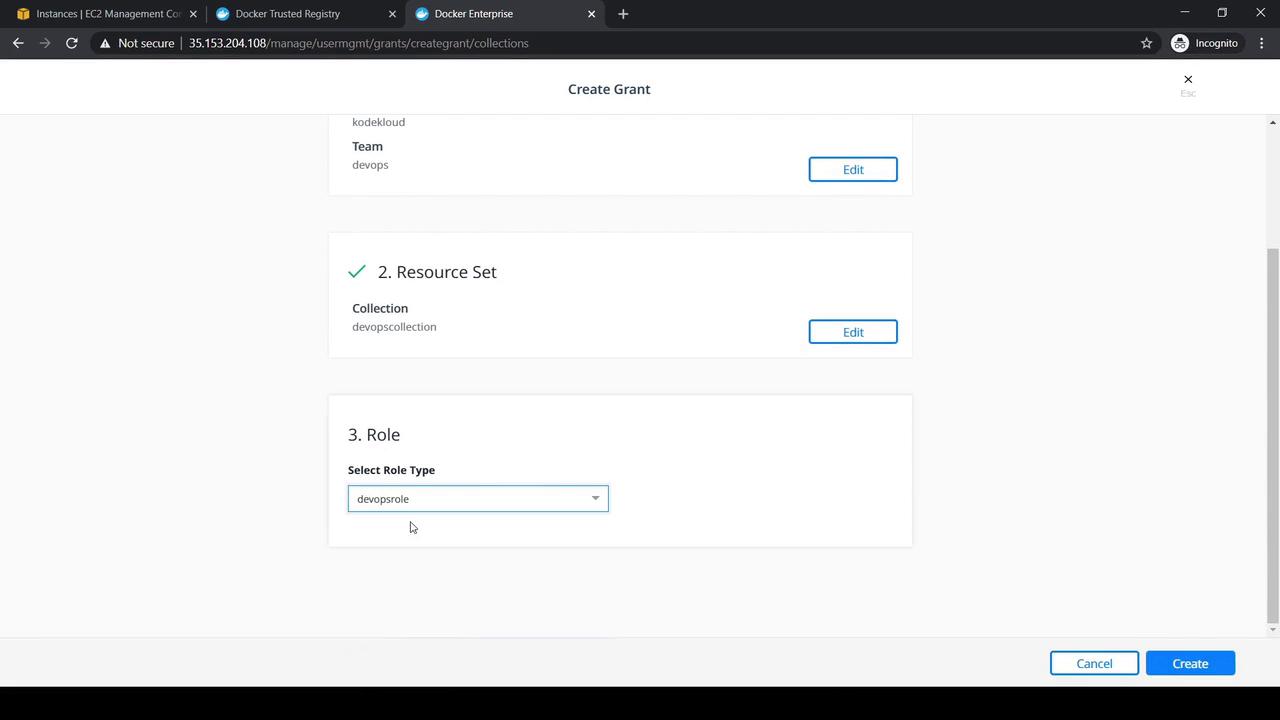
- Under Subject, select Organization: KodeKloud and Team: DevOps, then Next.
- Choose DevOps Collection for the Resource Set, then Next.
- Pick DevOps Role under Role Type and click Create.
7. Testing RBAC as Dave
- Log out, then sign in to UCP as Dave.
- Verify that his profile displays the DevOps Collection, DevOps Role, and the grant.
- Switch to the Swarm tab and click Create Service:
- Service Name:
nginx - Image:
nginx:latest - Mode:
replicated(replicas:1)
- Service Name:
- Click Create and confirm the service appears.
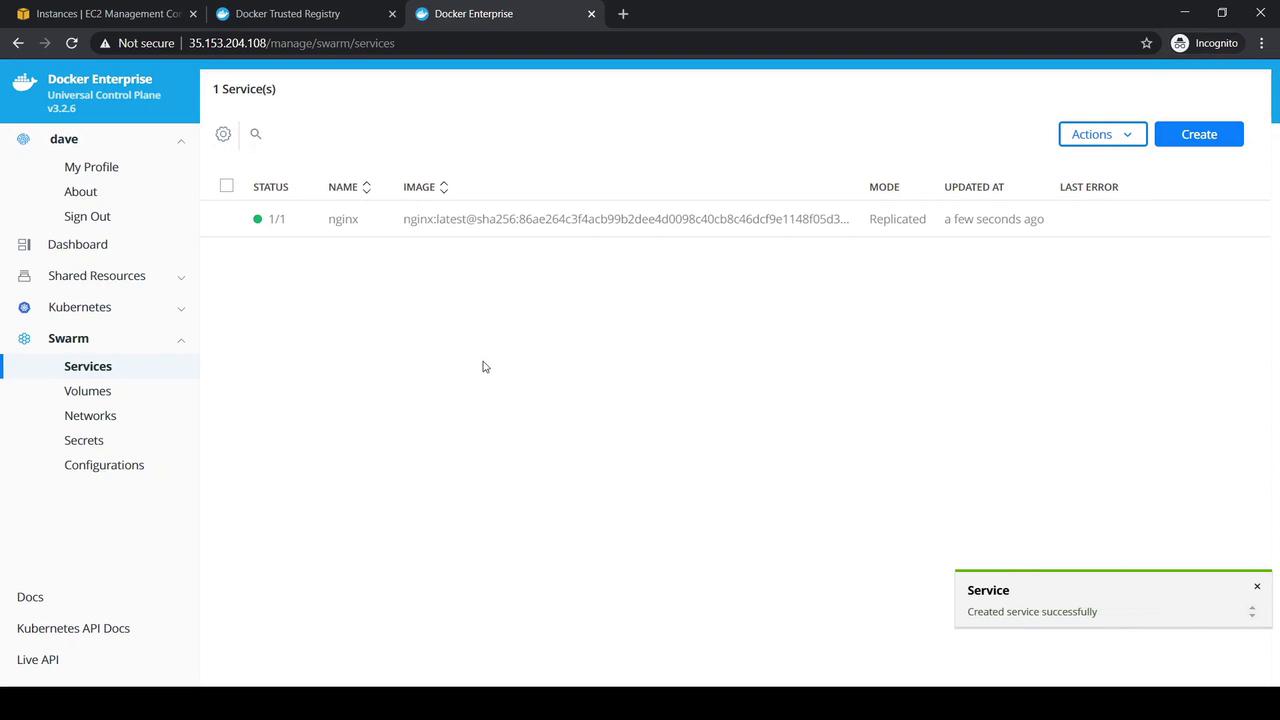
8. Verifying Adam Has No Access
- Log out and sign back in as Adam.
- Navigate to Swarm → Services.
- Adam should see no services, including the one Dave created.
Links and References
- Docker UCP RBAC Best Practices
- Docker Enterprise Edition Overview
- Docker Certified Associate Exam Guide
Consider automating user and team management with the UCP CLI or API for large-scale environments.