

Default Registries
On top of Docker Hub, organizations can deploy private registries internally or use managed services from cloud providers: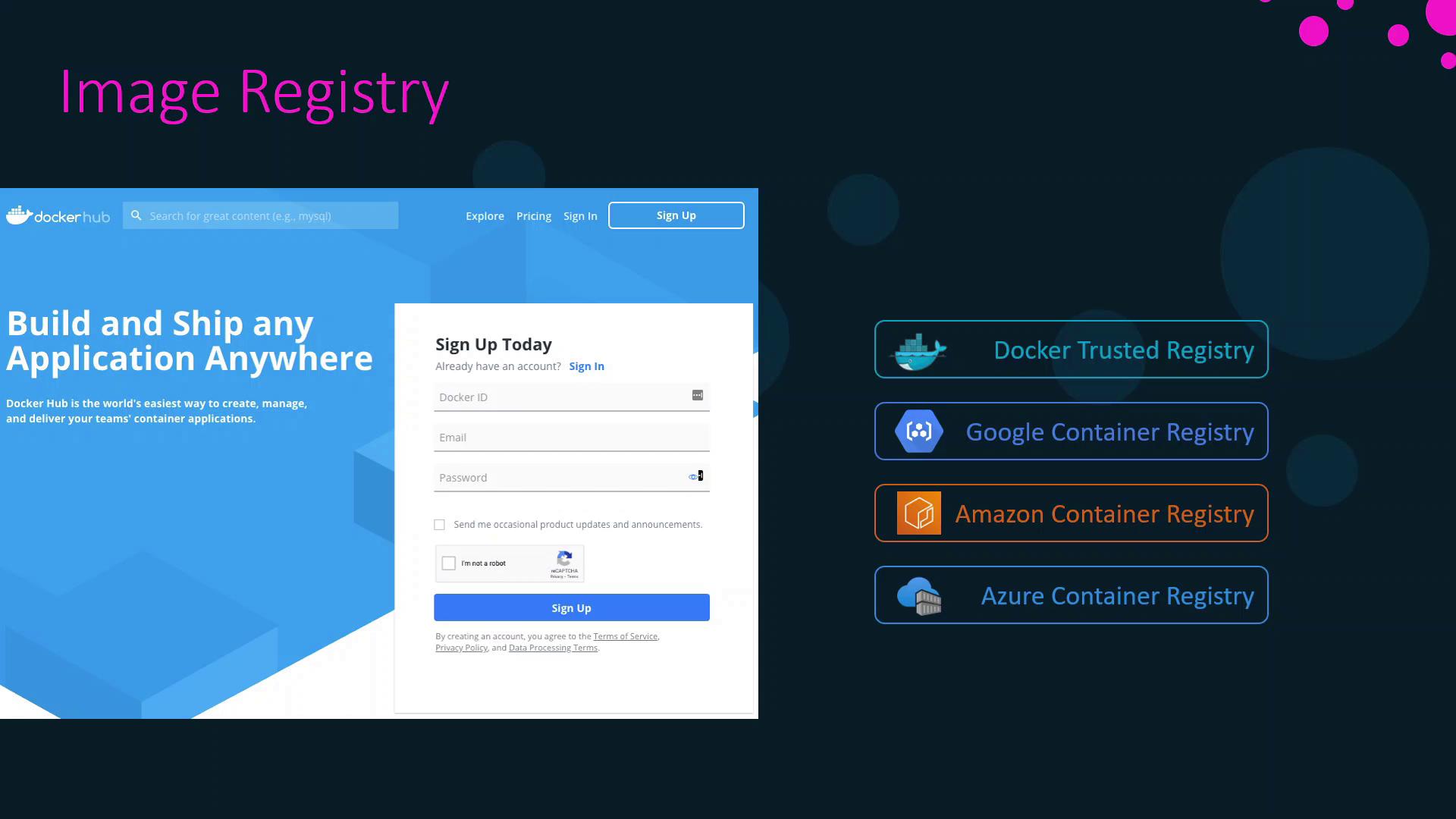
Image Categories on Docker Hub
On Docker Hub, images are organized into three categories: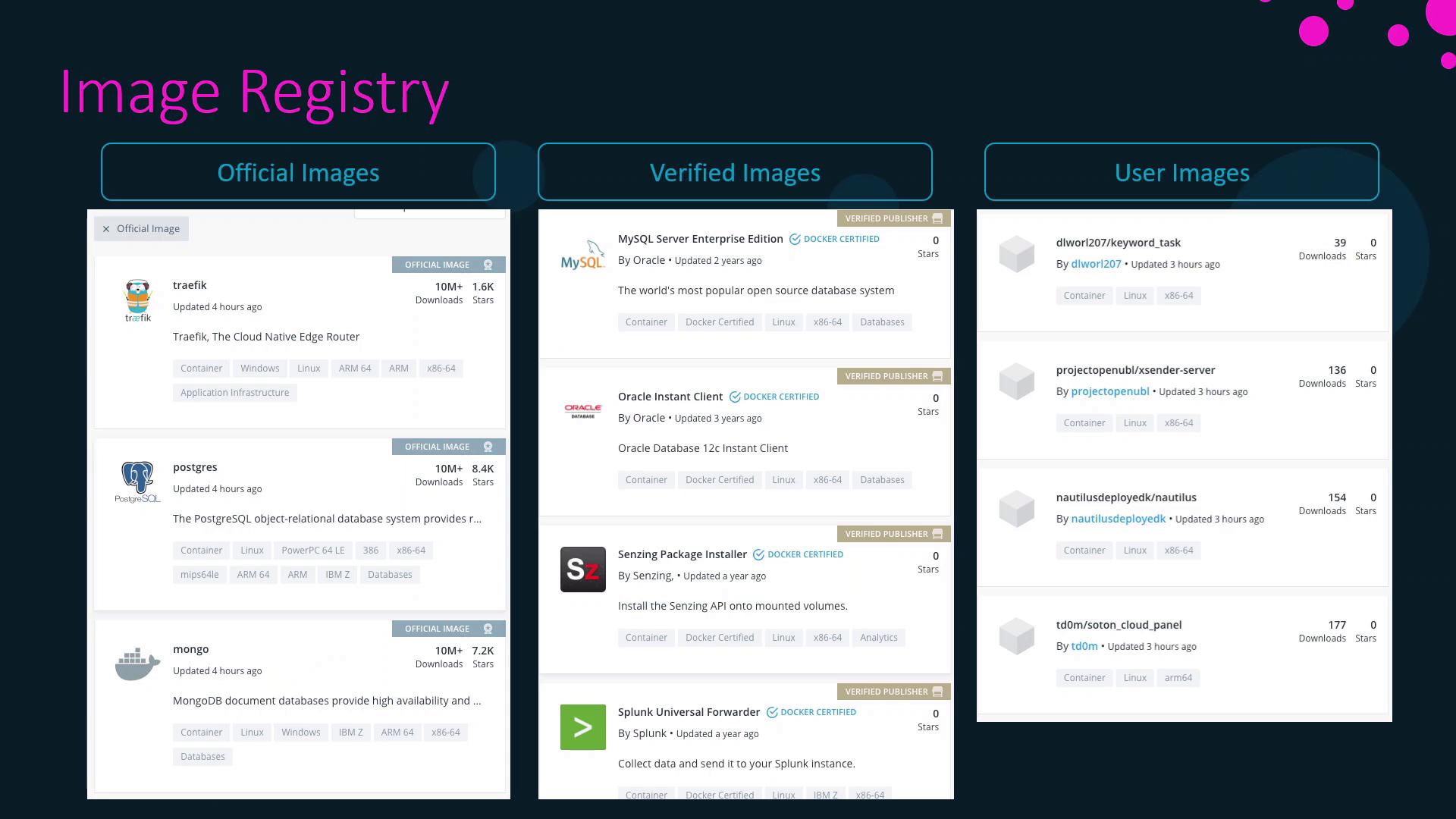
Searching for Images on Docker Hub
You can browse and search images via the web interface. For example, searching for “Ubuntu” displays official Ubuntu images along with download counts and star ratings: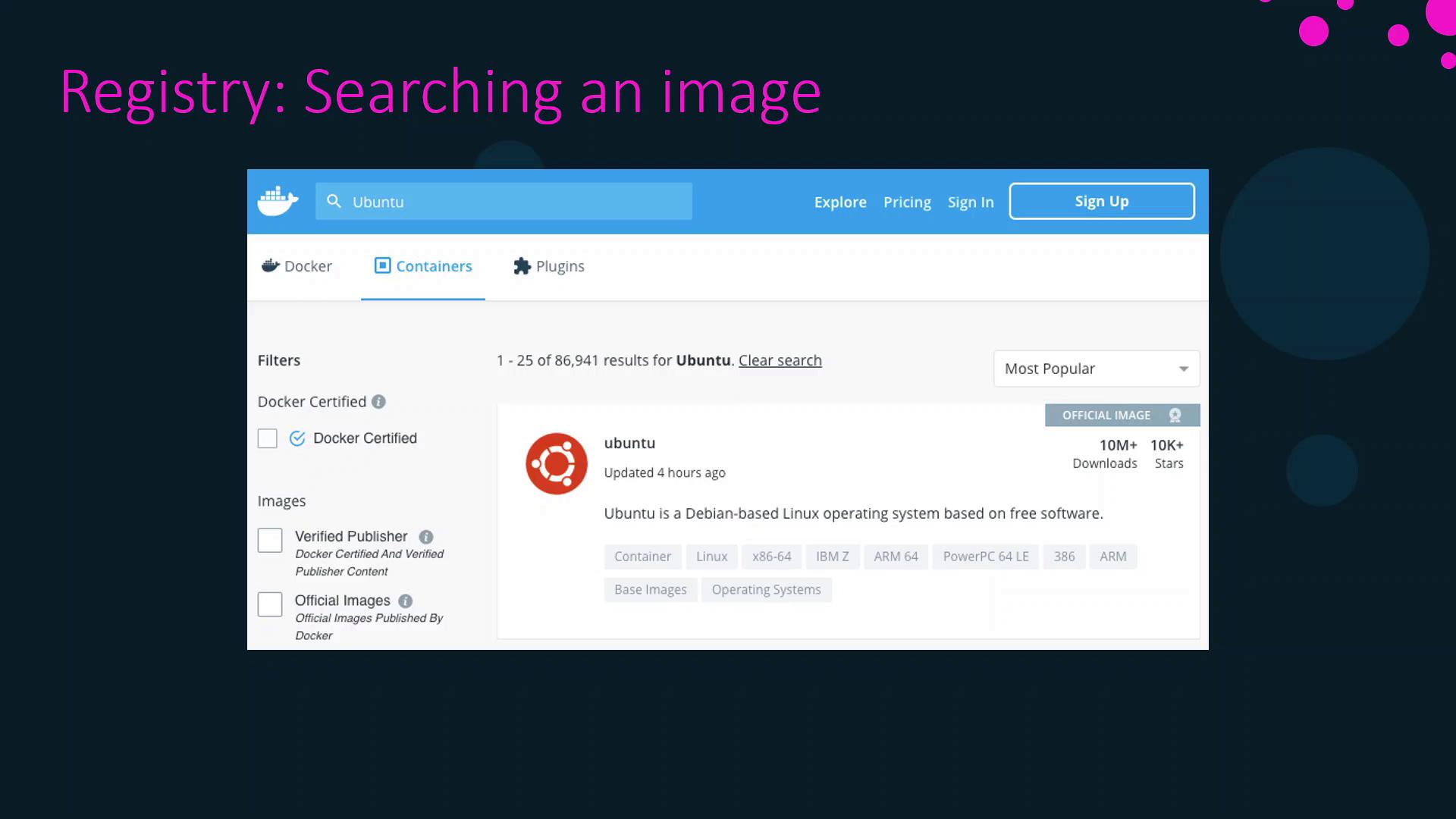
Working with Image Tags
Each image can have multiple tags. When you pull or run an image without specifying a tag, Docker uses the default tag:latest. This tag points to the version designated by the image maintainers.
Pulling
ubuntu is equivalent to pulling ubuntu:latest, which currently refers to Ubuntu 20.04.bionic, and Ubuntu 14.04 as trusty:
Listing and Searching Images from the CLI
List Local Images
To display all images on your host:Search Docker Hub from Terminal
Filter Search Results
Use filters likestars and is-official to refine results:
Pulling Images Without Running Containers
If you only want to download an image without starting a container:That concludes this lesson on Docker image registries. In the next lesson, we’ll dive into container management.
References
- Docker Hub
- Docker Trusted Registry
- Google Container Registry
- Amazon Elastic Container Registry
- Azure Container Registry