

1. Exploring the UCP Documentation
Start by reviewing the official Docker Engine Enterprise (EE) and UCP docs:- Visit the Docker Engine Enterprise documentation.1
- Under Product Manuals, select Docker Enterprise.
- Click Universal Control Plane → Access UCP.
- Follow the CLI-Based Access instructions to obtain the UCP client bundle.
2. Downloading the UCP Client Bundle
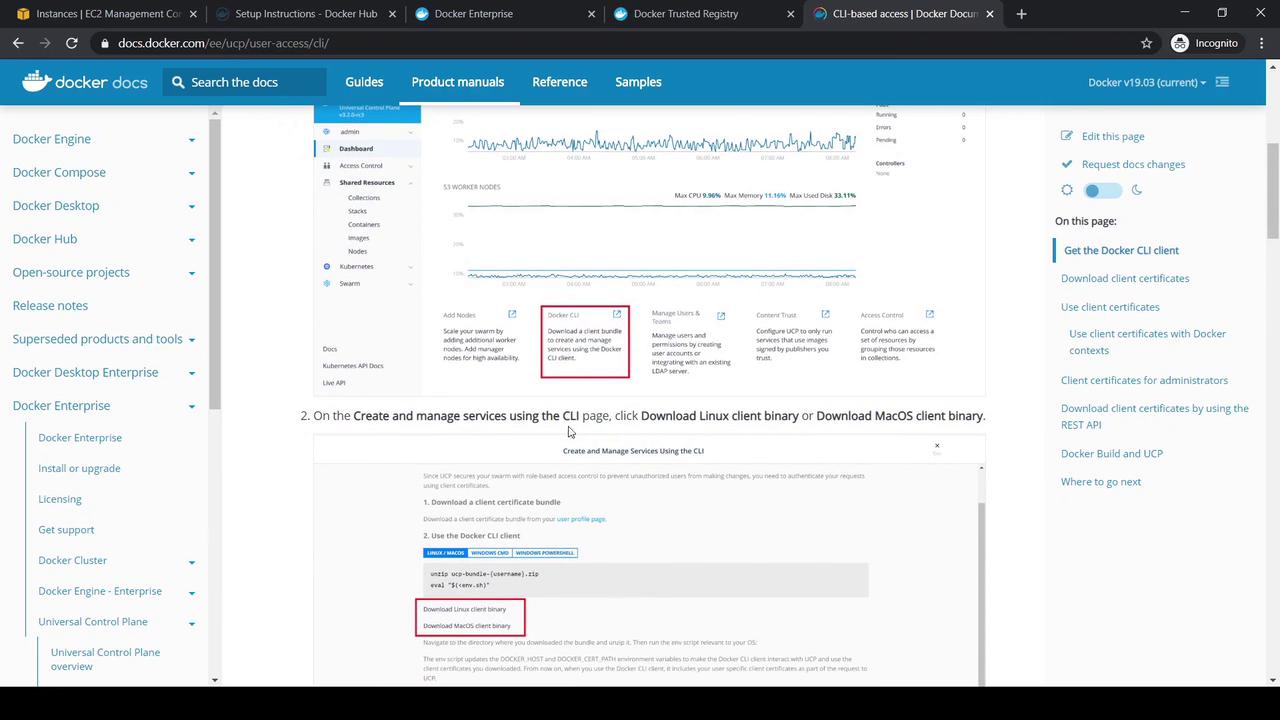
- In your UCP console dashboard, locate the Docker CLI section and click Download.
- Choose the Linux or macOS binary.
- Under My Profile (your admin user), download the client certificates ZIP.
Keep your client certificates secure. Do not commit them into version control.
dockerCLI binaryucp-bundle-{username}.zip
3. Setting Up a Remote Client
For this example, we provisioned a CentOS host on AWS namedYogesh Client Bundle Test. Transfer both the Docker CLI binary and the UCP client bundle (e.g., via WinSCP), then:
Your private keys and certificates grant full access to your UCP cluster. Handle them with care.
4. Configuring Environment Variables
Execute the provided environment script to set Docker CLI variables:5. Verifying Connectivity
Ensure your CLI can communicate with UCP:6. Deploying a Test Application
Create a simple HTTP service on port 83:http://<UCP_WORKER_IP>:83 in your browser. You should see the default Apache welcome page. The service also appears under Swarm in the UCP console.
7. Cleaning Up
Remove the test service:kodekloudtest service will be gone.