Prerequisites
- A running Docker UCP cluster (v3.2+ recommended)
- Administrator credentials for UCP
- LDAP/AD server details (URL, Bind DN, Base DN, certificates)
1. Log In to the UCP Console
- Open your browser and go to your UCP console URL (e.g., https://ucp.example.com).
- Enter your administrator Username and Password, then click Login.
Make sure your browser can resolve the UCP hostname and that port 443 is accessible.
2. Navigate to Authentication Settings
- From the top-right menu, click Admin Settings.
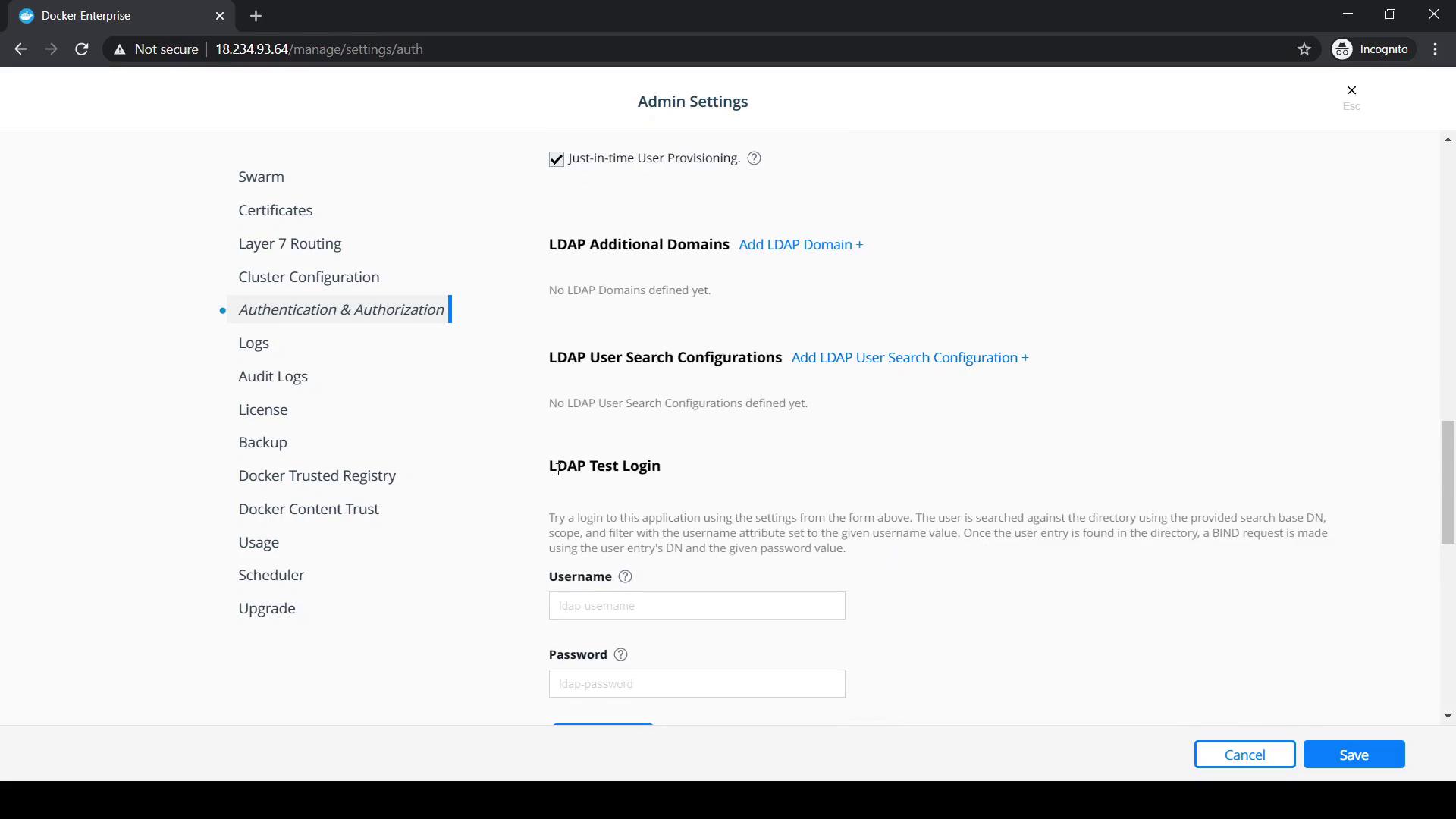
- Select Authentication & Authorization to reveal UCP’s identity management options.
3. Enable LDAP Integration
- Scroll to the LDAP section.
- Toggle LDAP Enabled to Yes.
If your LDAP server requires encryption, ensure you use an
ldaps:// URL or provide a CA certificate for TLS.4. Configure LDAP Directory Details
Once you enable LDAP, the configuration form expands. Complete these fields as provided by your LDAP administrator:Note: Consult your LDAP/AD administrators for the exact values and any custom search scopes.
5. Test Connection and Synchronize Accounts
- Under Test Login, enter a sample LDAP username and password, then click Test to verify connectivity.
- Once the test succeeds, click Manual Synchronization to import users and groups into UCP.
- Review the synchronization results to confirm that expected accounts appear.