- Setting up the build context
- Crafting an optimized
Dockerfile - Adding a simple
index.html - Building, testing, and pushing your image to Docker Hub
1. Prepare the Build Context
First, create an isolated directory for all build artifacts. This ensures that nothing outside the folder is accidentally added to your image.Everything in this directory (including subdirectories) is sent to the Docker daemon during the build. Keep it lean to speed up image creation.
2. Write the Dockerfile
Create a file namedDockerfile:
Running containers as root can pose risks. For production workloads, consider adding a non-root user and switching with
USER.3. Create the HTML Page
Add a simpleindex.html in the same directory:
4. Build the Docker Image
Use a clear, versioned tag for your image:5. Test the Container
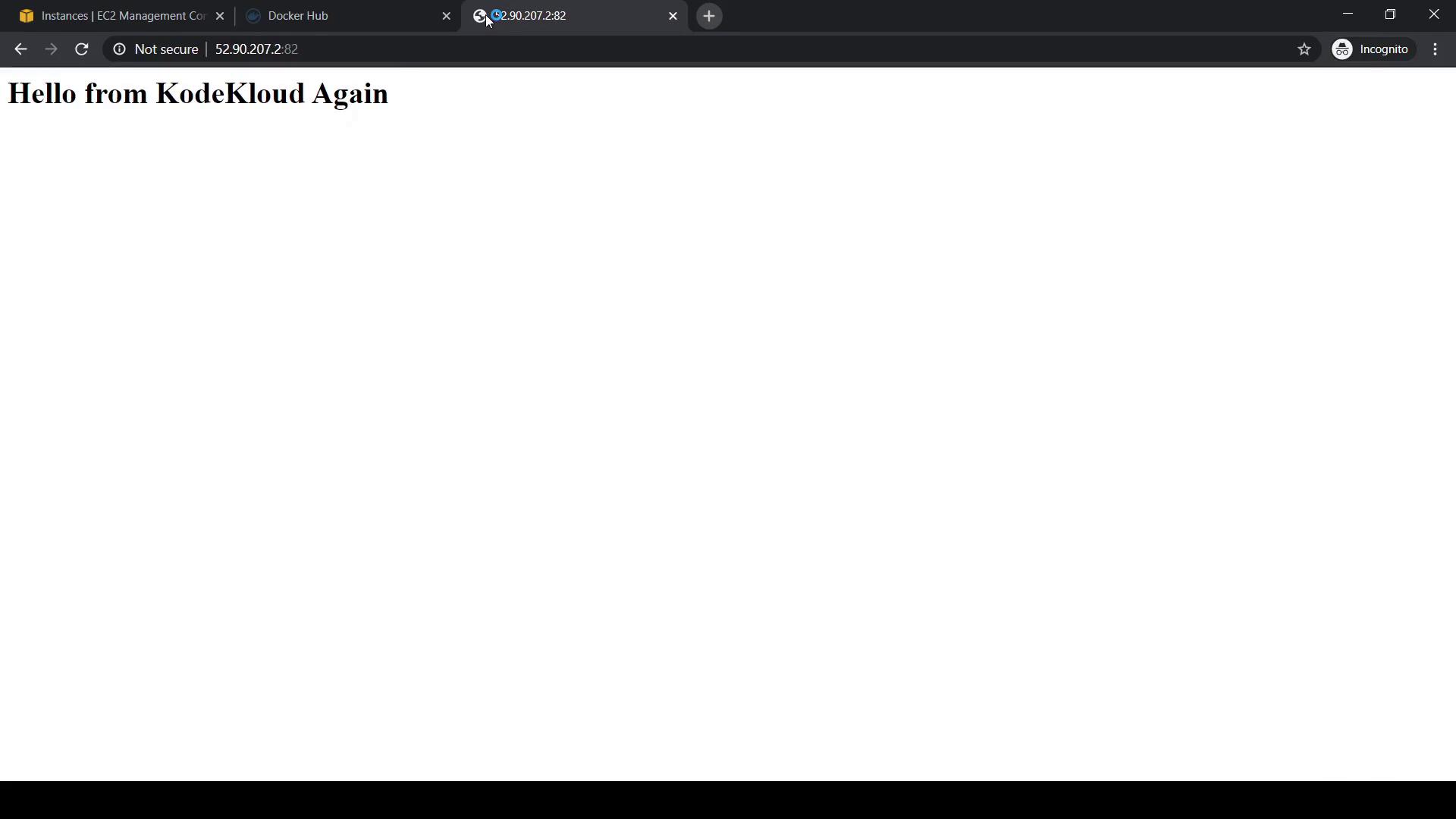
Run a container, mapping host port 82 to container port 80:http://<host_ip>:82. You should see your custom page: