

kubectl.
Prerequisites
Before proceeding, we assume the following are already in place:- Your application is built into a Docker image and pushed to a container registry (for example, Docker Hub).
- A Kubernetes cluster is available and operational (single-node or multi-node) with cluster services running.
What is a Pod?
Kubernetes schedules and runs application containers across a set of worker nodes. Rather than placing containers directly on nodes, Kubernetes groups containers into a Pod. Key facts about Pods:- A Pod is the smallest deployable unit in Kubernetes.
- A Pod usually represents a single instance of an application.
- In the simplest form, a Pod contains one container. Pods can contain multiple containers when those containers must be tightly coupled.
Scaling and scheduling
To scale an application horizontally, you create additional Pods—one Pod per application instance—rather than adding containers to an existing Pod. If the cluster needs more capacity, add nodes to the cluster and Kubernetes will schedule Pods onto those nodes. This separation makes horizontal scaling straightforward: increase or decrease the number of Pods.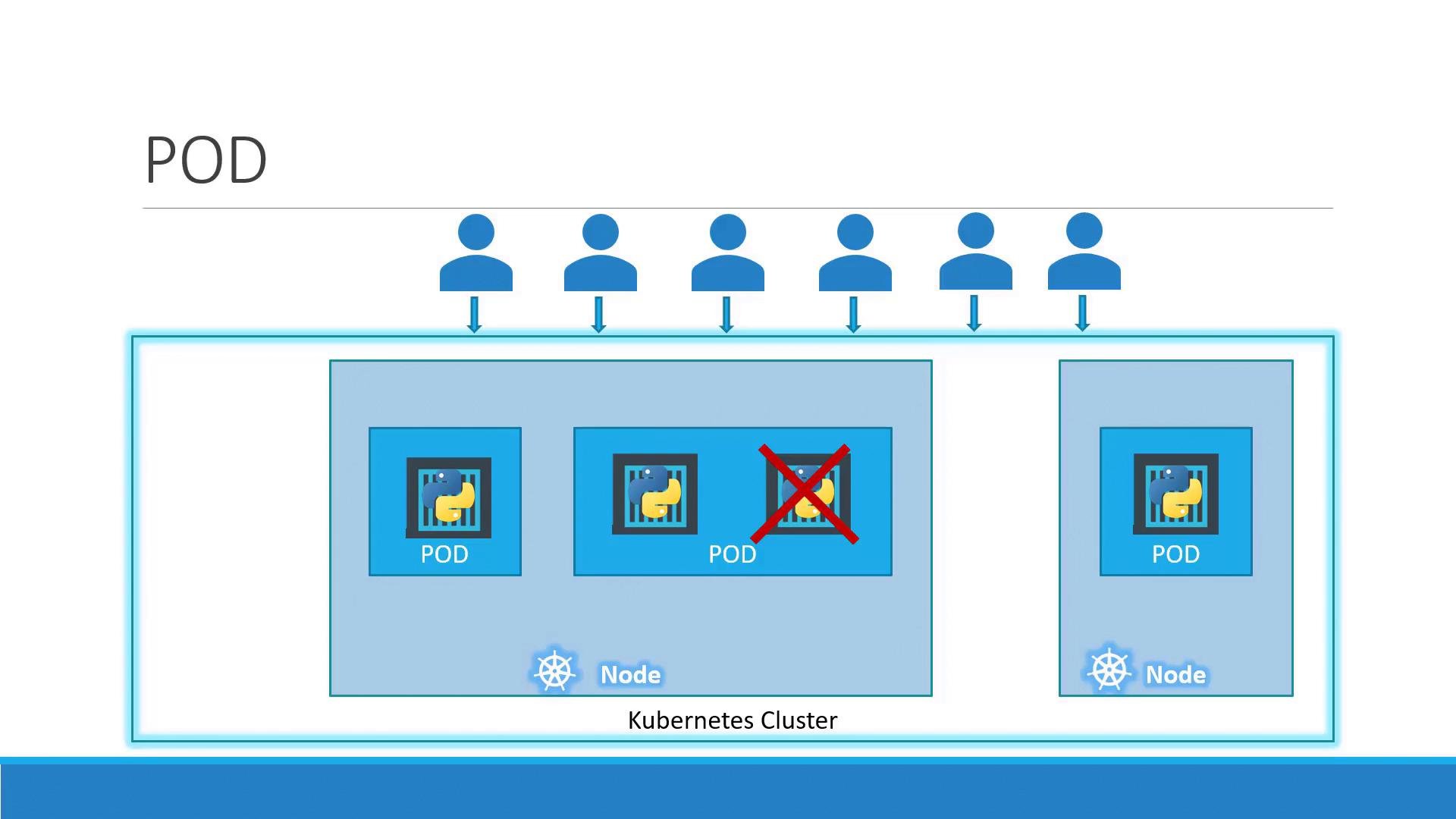
Multi-container Pods
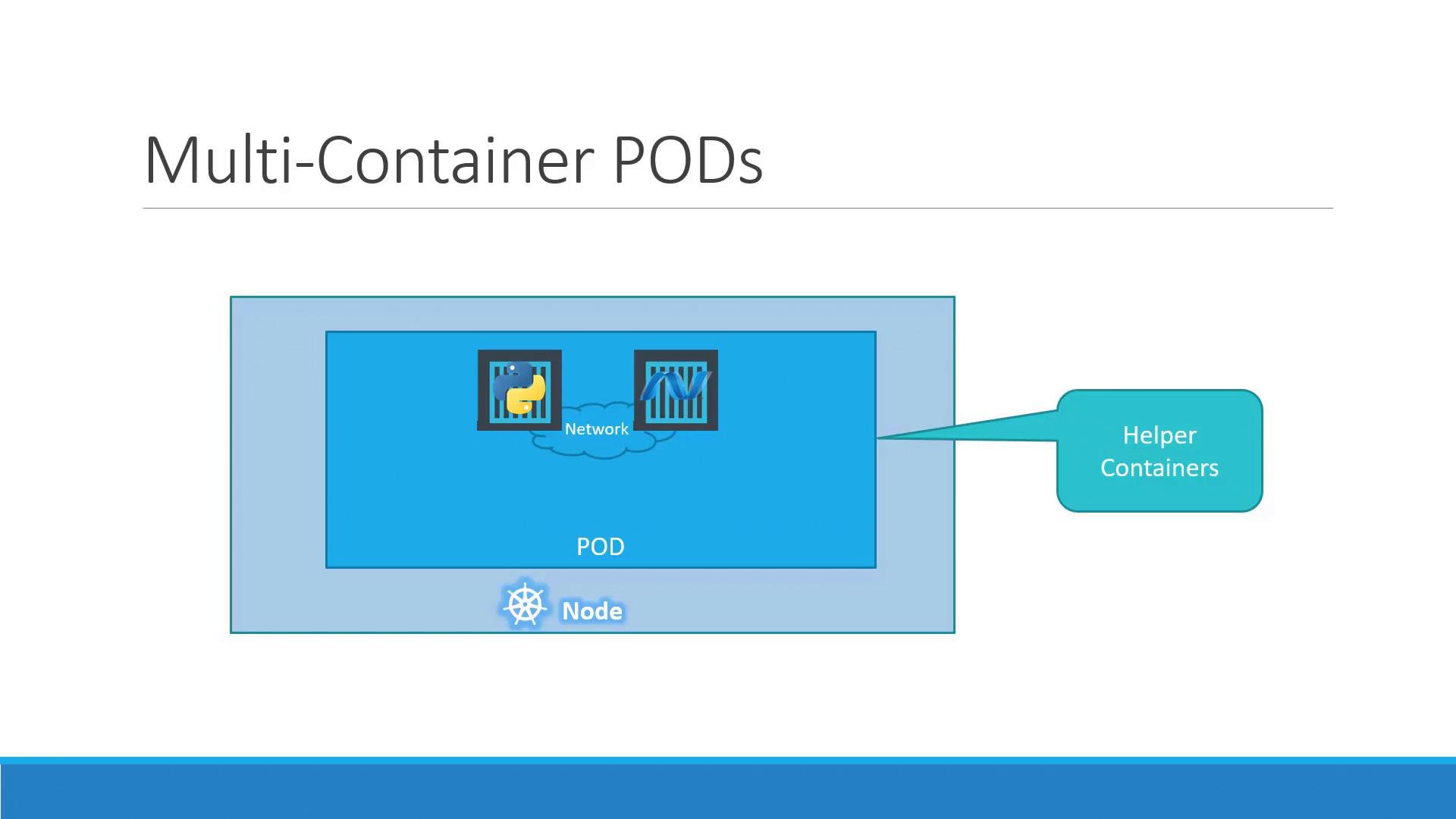
Yes — a Pod can contain more than one container. Multi-container Pods are appropriate when containers must work closely together and share networking, storage, and lifecycle. Common multi-container Pod patterns:- Sidecar containers: auxiliary containers that extend or augment the main container (e.g., log collectors, proxies).
- Ambassador/proxy containers: handle communication with external services.
- Adapter containers: transform or enrich data for the main container.
- Network namespace — containers can communicate via
localhost. - Shared volumes — persistent or ephemeral storage can be mounted across containers.
- Unified lifecycle — all containers in the Pod are scheduled and terminated together.
Pod vs. raw Docker on a single host
Compare managing many containers manually with Docker to using Pods: Example of launching multiple containers directly with Docker:- Creating custom networks or links to connect related containers.
- Manually creating and sharing volumes.
- Monitoring containers and ensuring helpers stop when their paired app dies.
- Launching additional helpers when new app containers are created.
- Containers are scheduled on the same node.
- They share networking and storage as configured.
- They follow the same lifecycle (created and terminated together).
Most applications in practice use one container per Pod. Use multi-container Pods only when containers must be tightly coupled and share the same lifecycle and namespaces.
Deploying Pods with kubectl
You can create a Pod directly withkubectl. Note: kubectl run behavior changed over time and may create a Deployment by default. To create a single Pod (one-off), specify --restart=Never:
nginx that runs the public nginx image (pulled from the configured registry).
To list Pods in the current namespace:
If you omit
--restart=Never, kubectl run may create a Deployment (which manages ReplicaSets and Pods) depending on your kubectl version. Use Deployments when you want managed, restartable replicas; use Pods (with --restart=Never) for single, short-lived containers or demos.Accessing Pods
A running Pod does not automatically expose a port externally. Exposing services, load balancing, and service discovery are handled via Kubernetes Services and Ingress objects — topics we will cover next.Summary
- Pods are the basic scheduling unit in Kubernetes.
- Pods can contain one or multiple containers; multi-container Pods are for tightly coupled processes.
- Use Deployments to manage replicas and automatic restarts; use single Pods for one-off or short-lived tasks.
- Use
kubectl run --restart=Neverto create a direct Pod for demos or transient work.