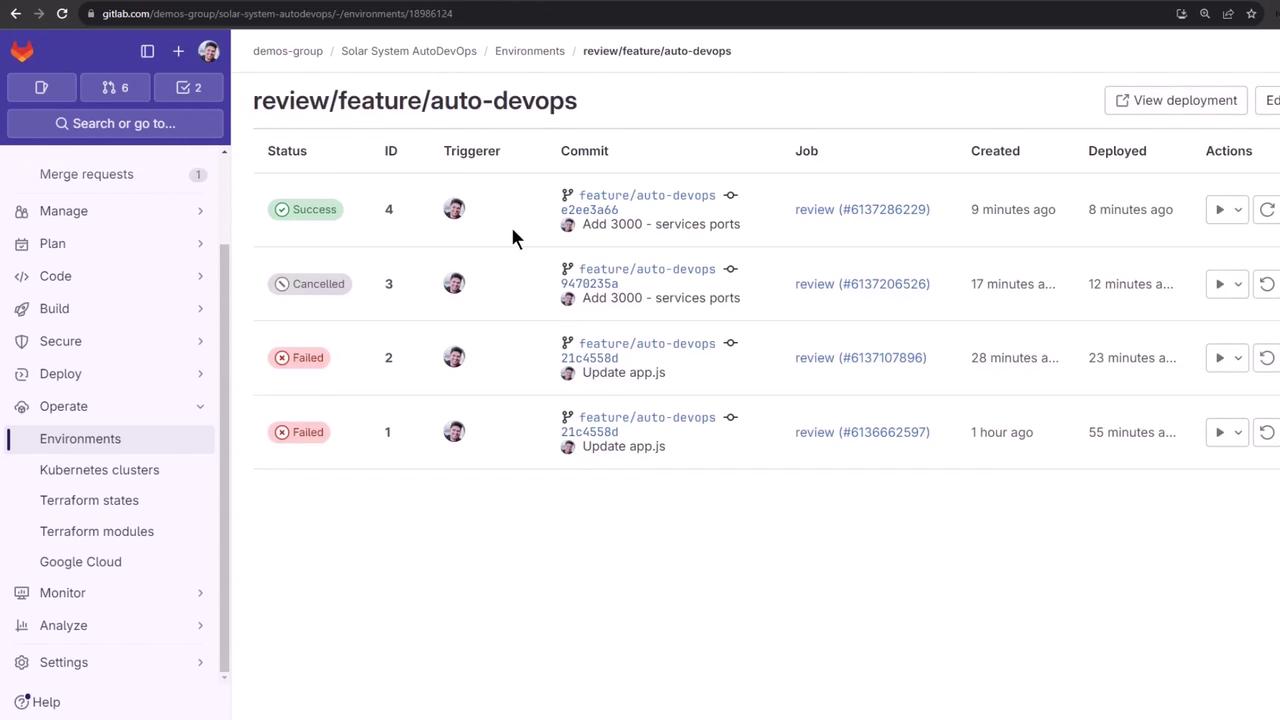
1. Identifying the Pipeline Failure
The review stage failed because the application pod couldn’t access the MongoDB environment variables: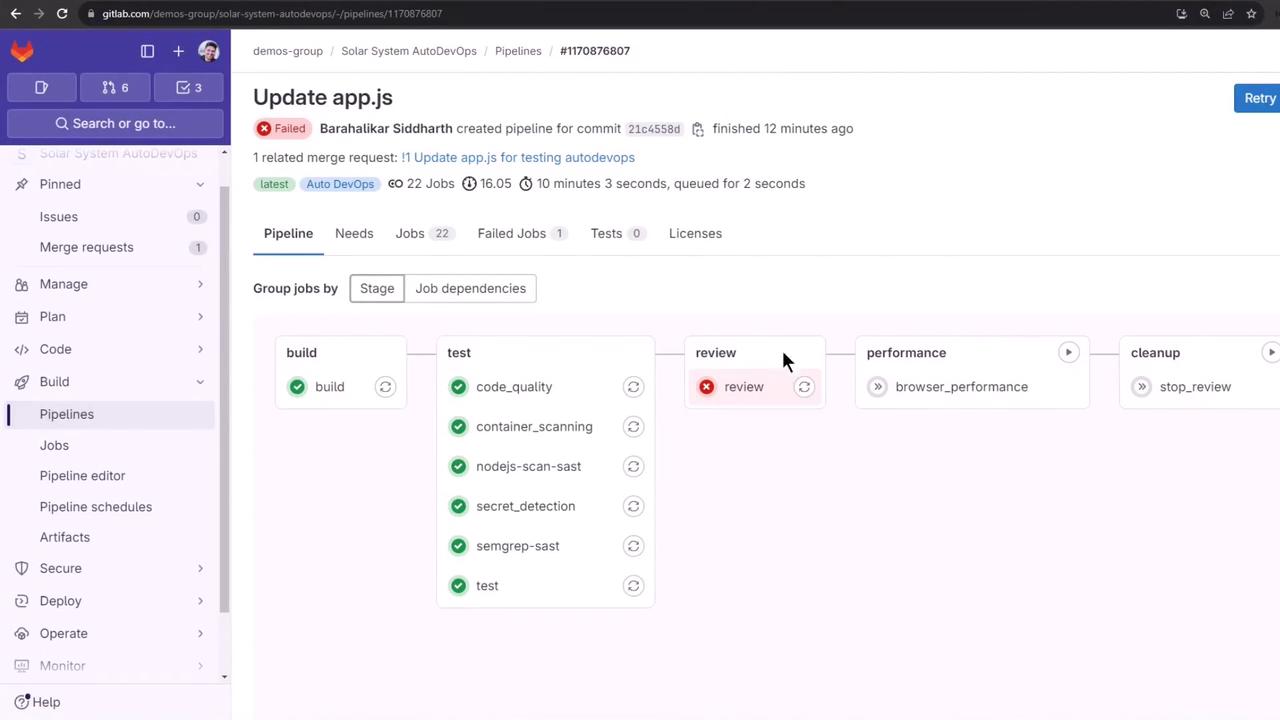
2. Configuring Kubernetes Secrets via CI/CD Variables
Store your MongoDB credentials as CI/CD variables in GitLab:- Go to Settings > CI/CD > Variables under the Auto DevOps customizer.
- Prefix each key with
K8S_SECRET_so Auto DevOps creates a Kubernetes Secret and injects it into pods.
Auto DevOps will map
K8S_SECRET_<NAME> to a Kubernetes secret named <NAME>, making it available as an environment variable inside your pod.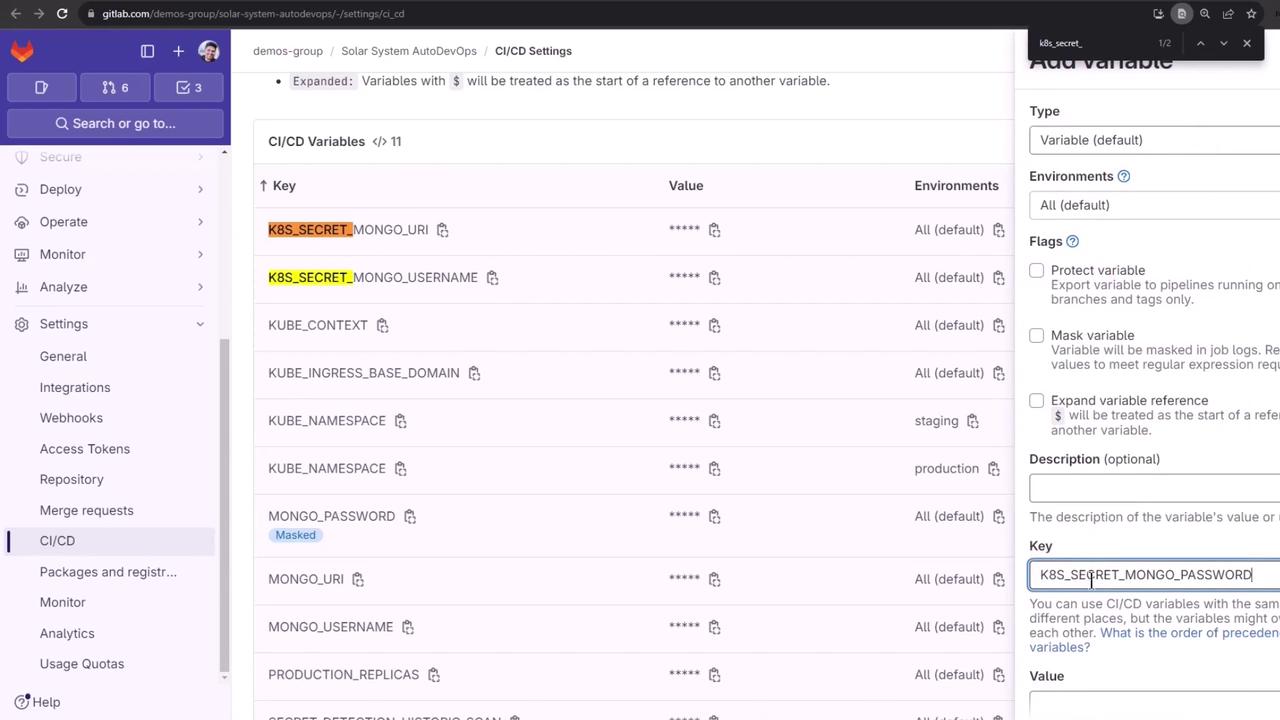
curl API):
3. Cleaning Up the Default Namespace
Before re-running the review job, remove any leftover review resources:Ensure you’re only deleting review-specific secrets. Running deletions in
default can impact other workloads.4. Rerunning and Monitoring the Review Job
Trigger the review job again in GitLab or via API. Then inspect:5. Diagnosing Probe Failures
Describe the pod to view probe errors: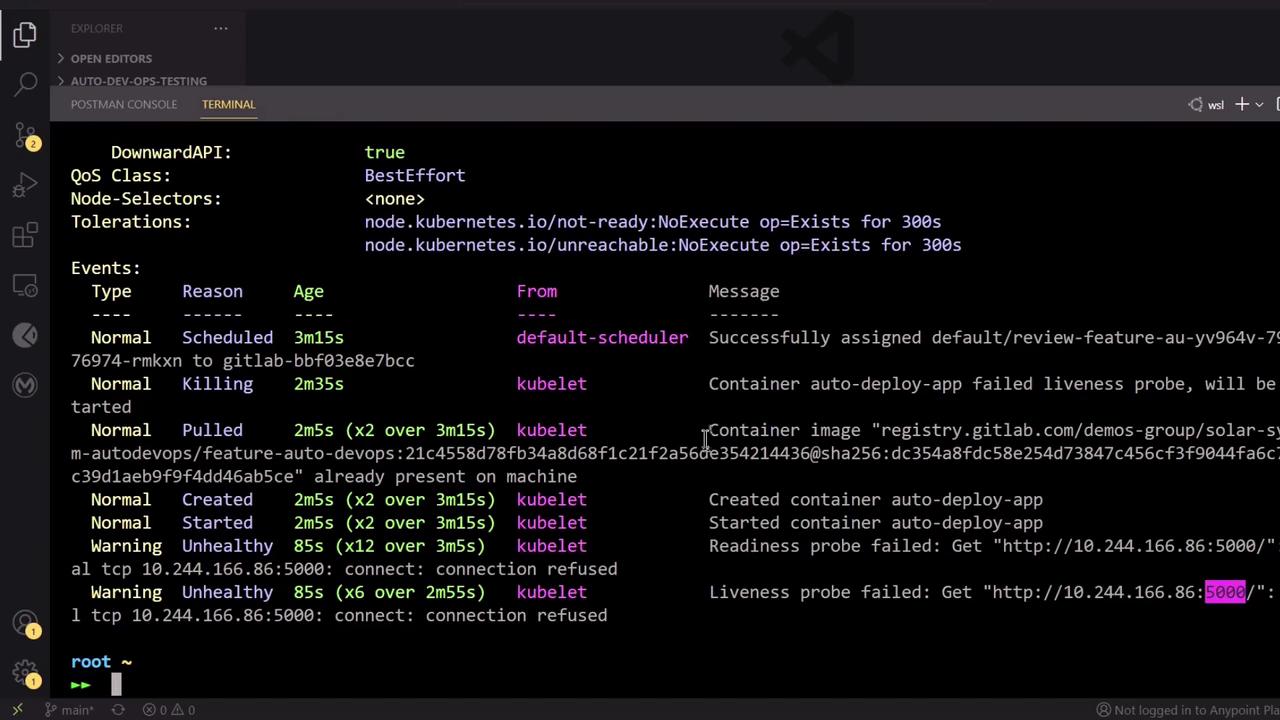
5000, but your app listens on 3000:
6. Troubleshooting Auto DevOps Timeouts
Auto DevOps may report a “timed out waiting for the condition” error due to mismatched probe ports: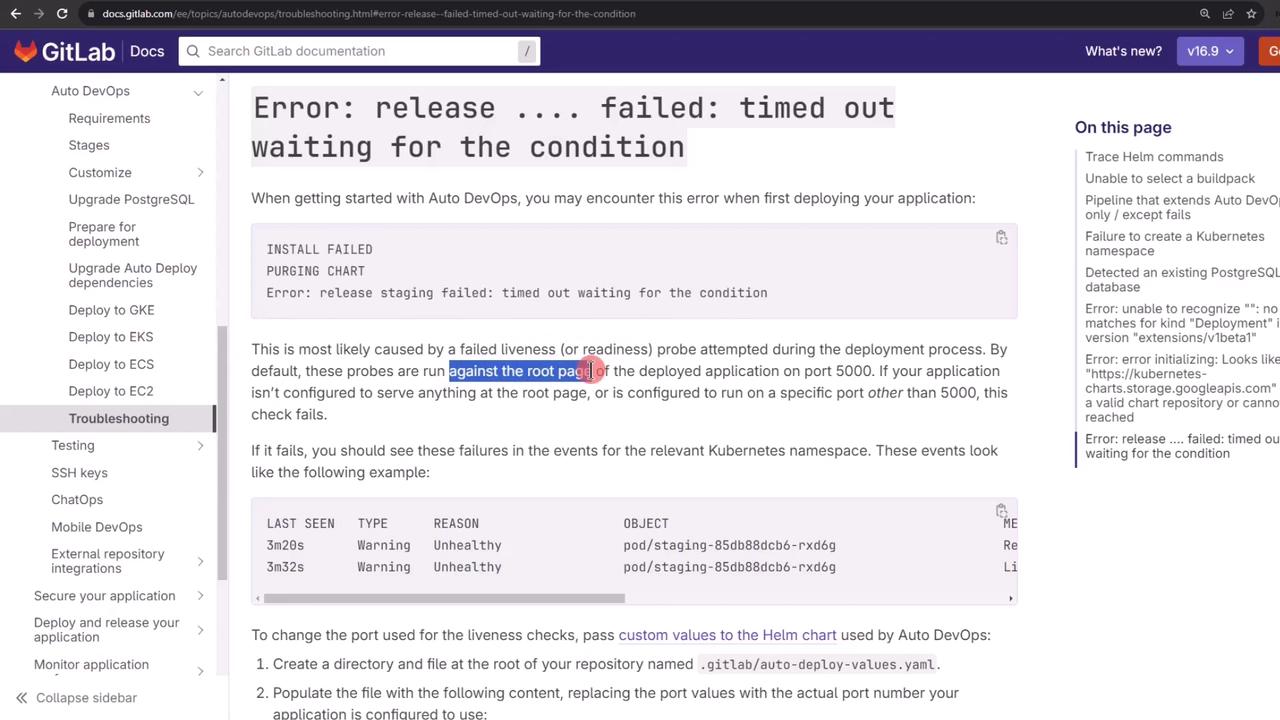
5000 for readiness and liveness:
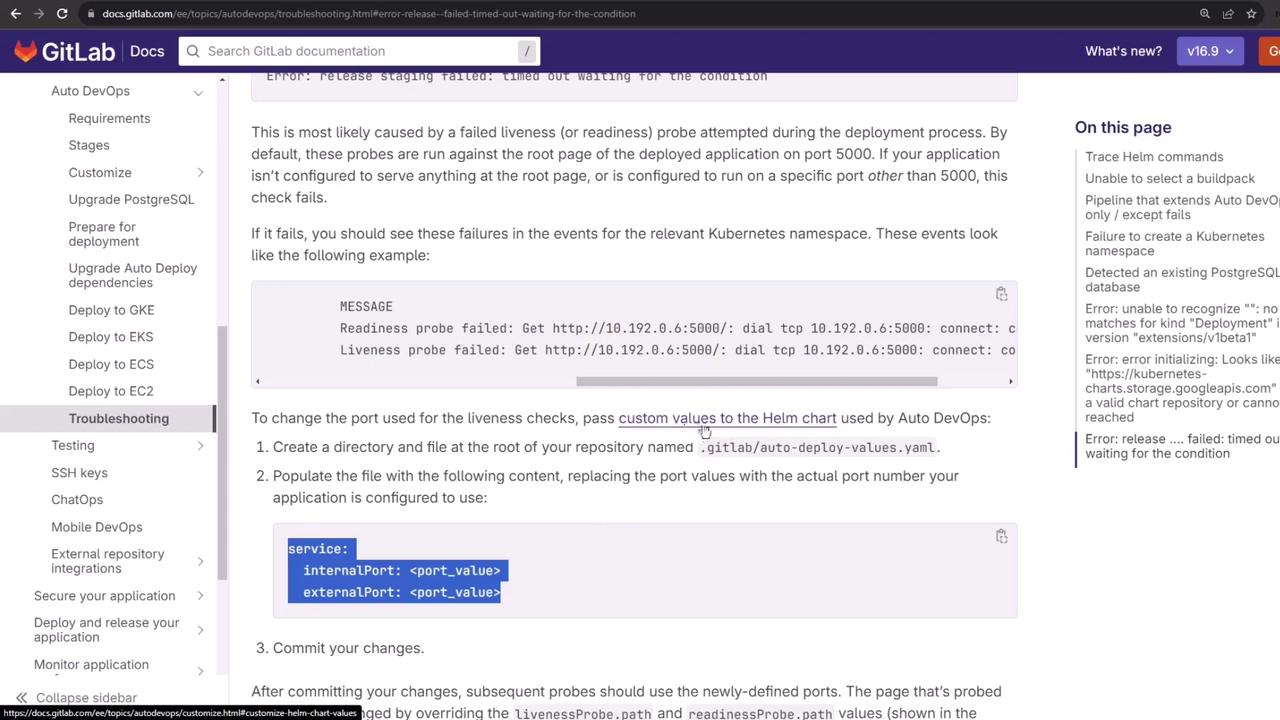
7. Customizing the Helm Chart Values
Create a.gitlab/auto-deploy-values.yaml at the root of your branch to override the probe ports:
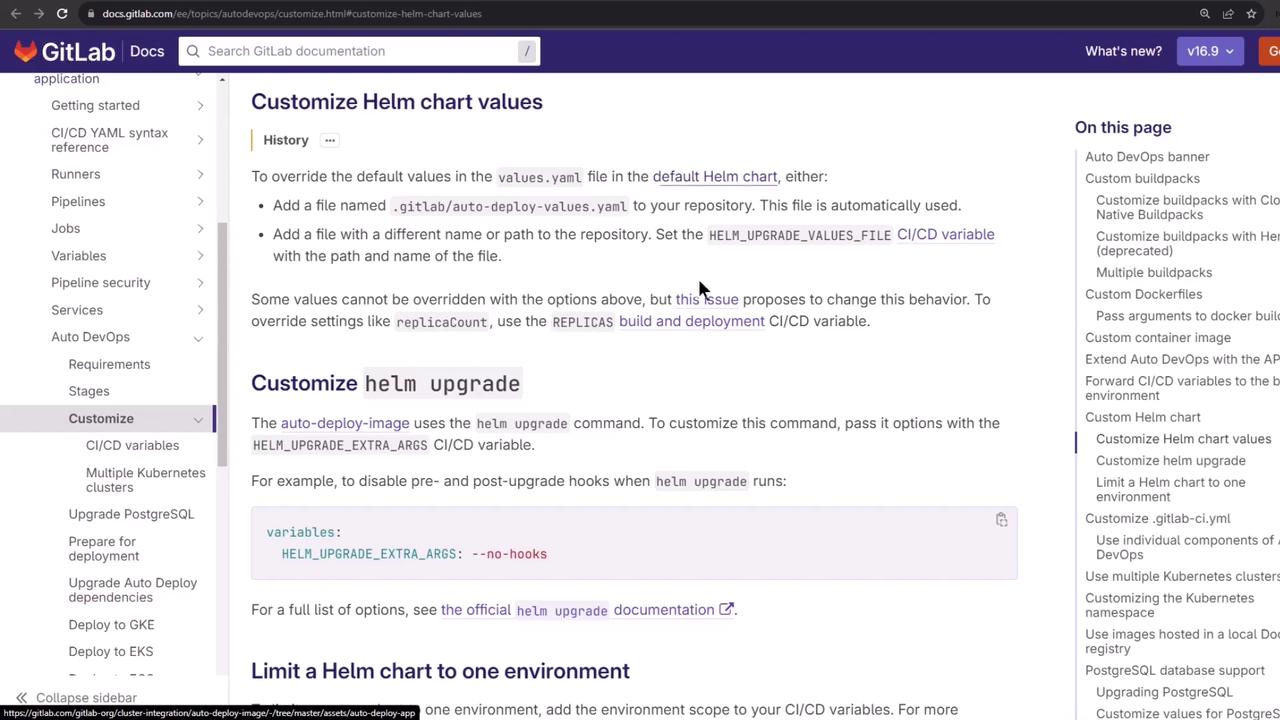
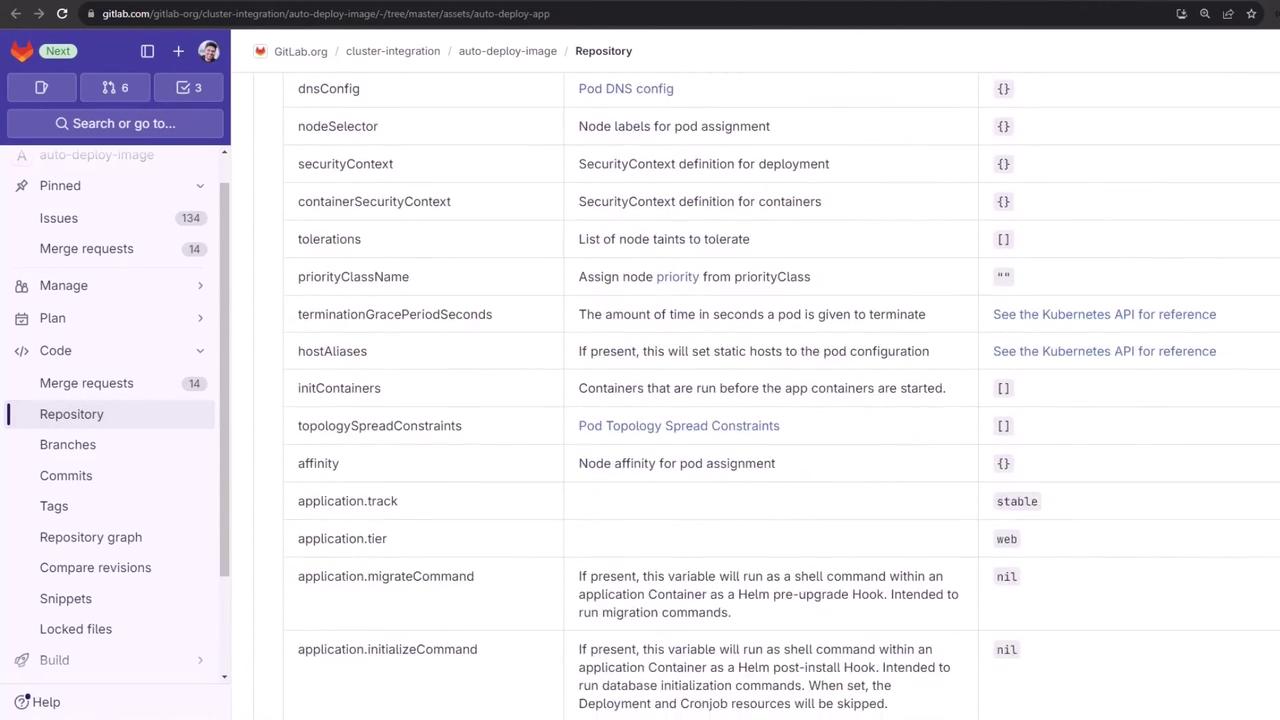
auto-deploy-values.yaml:
8. Verifying the Updated Pipeline
After pushing, your pipeline will rerun with the correct ports: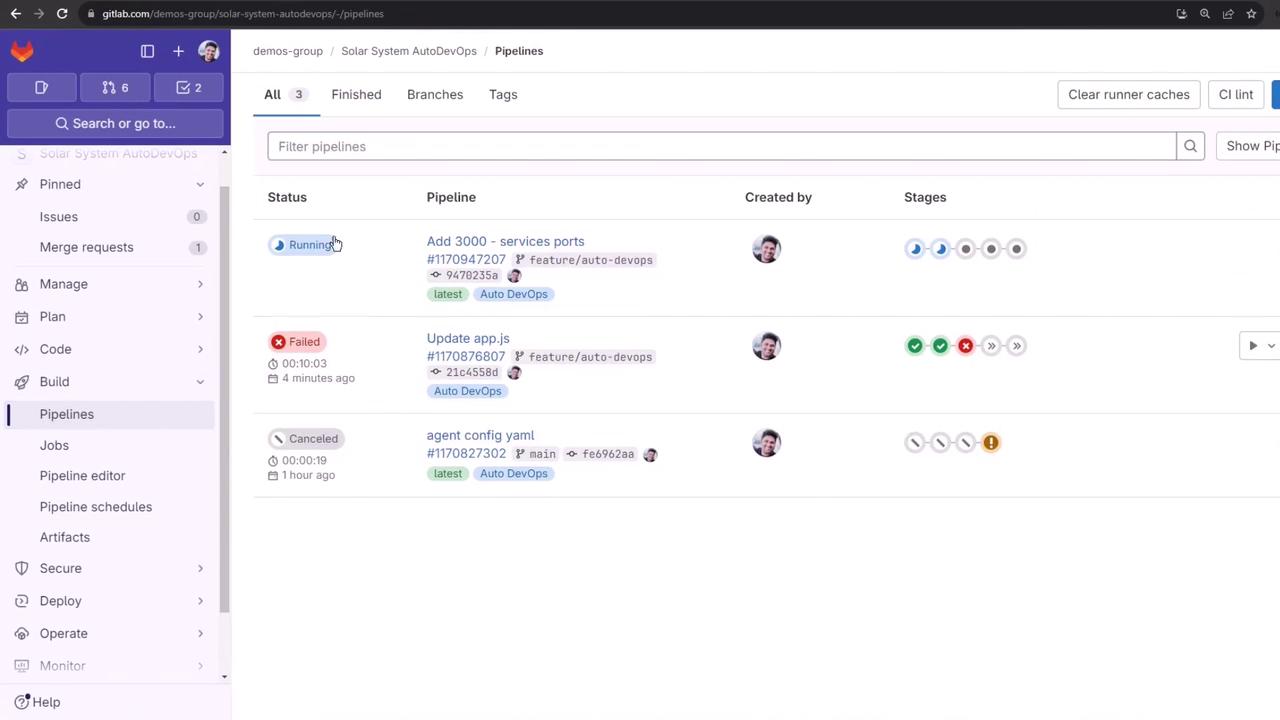
9. Successful Deployment to Review Environment
Once the review job succeeds, you’ll see the application URL:10. Auto Browser Performance Testing
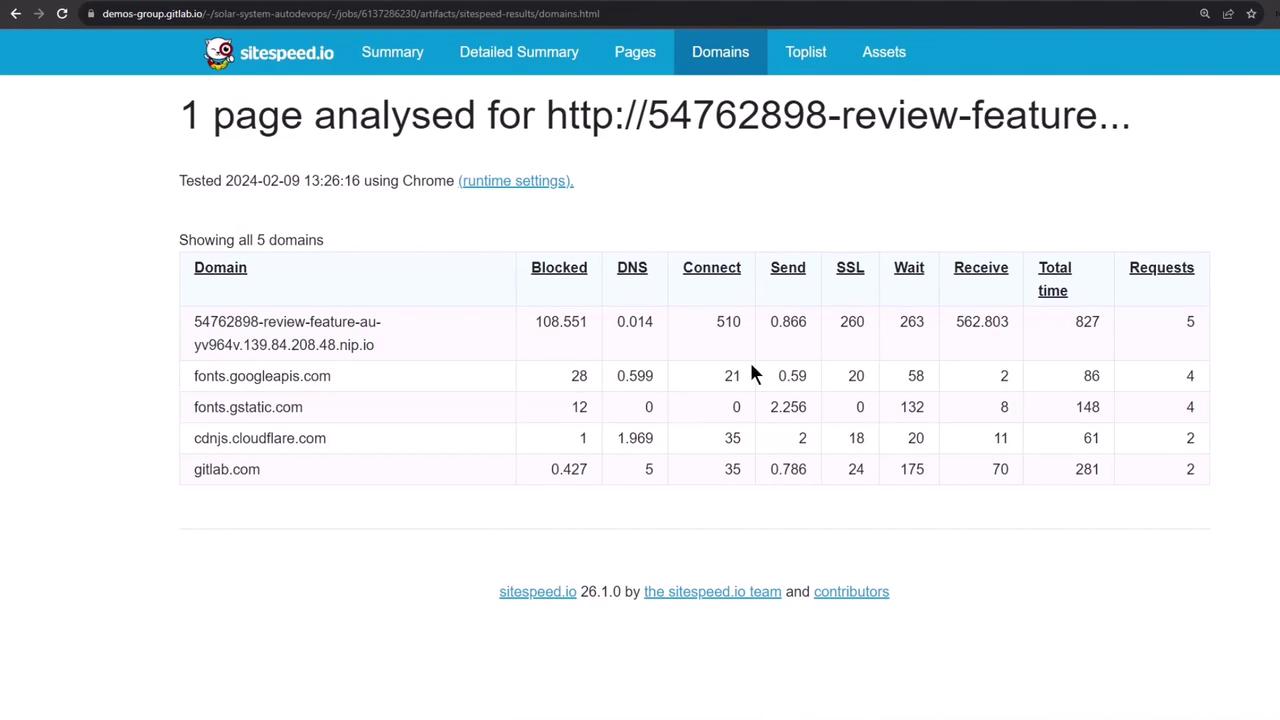
After deployment, Auto DevOps launches Auto Browser Performance Testing using sitespeed.io: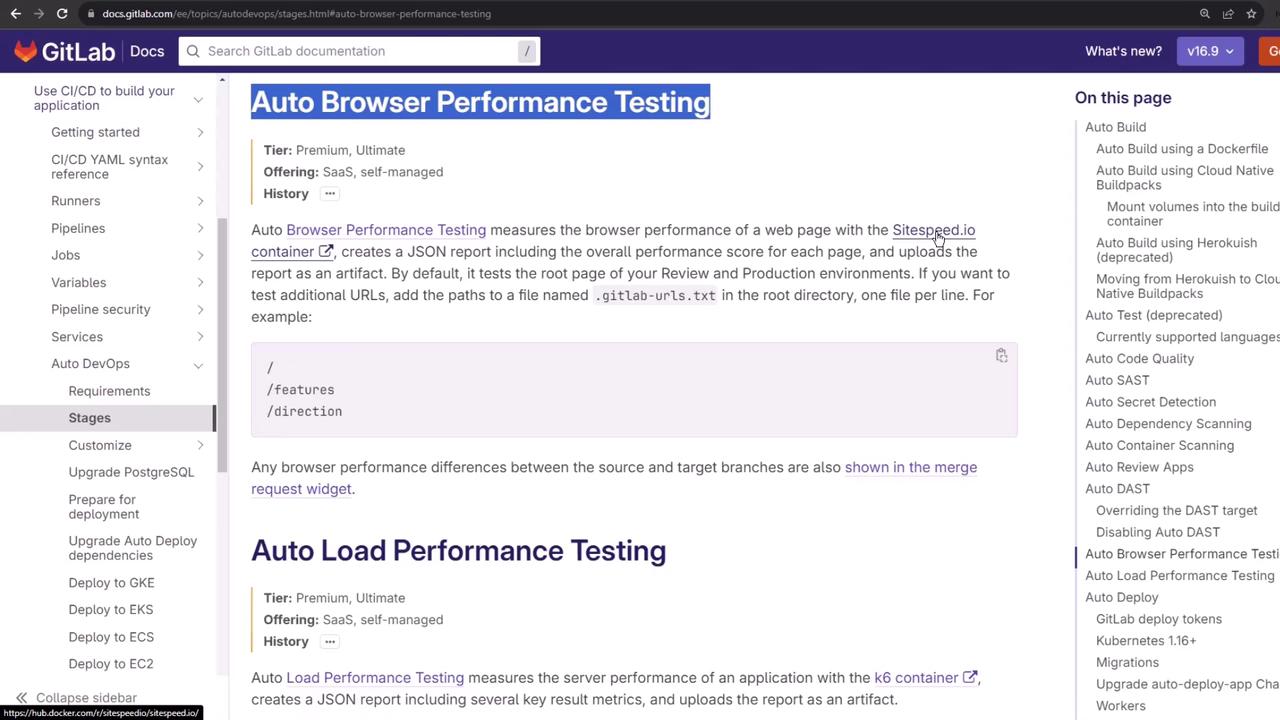
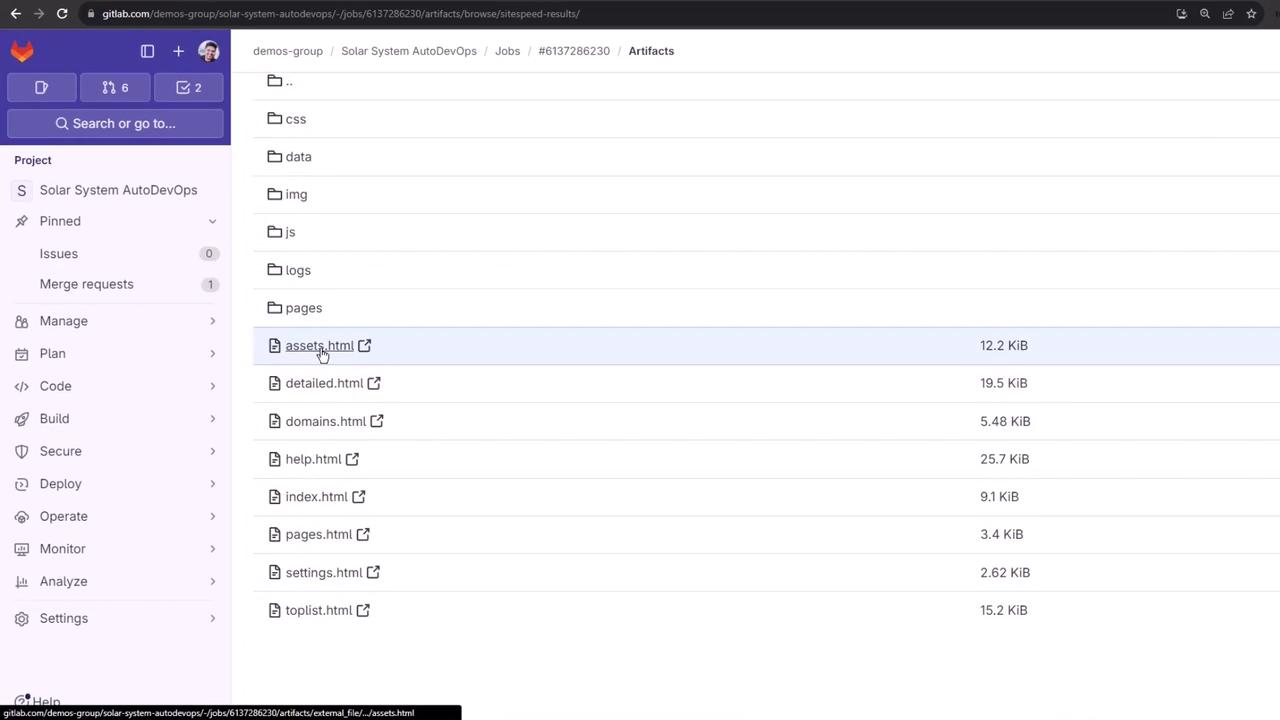
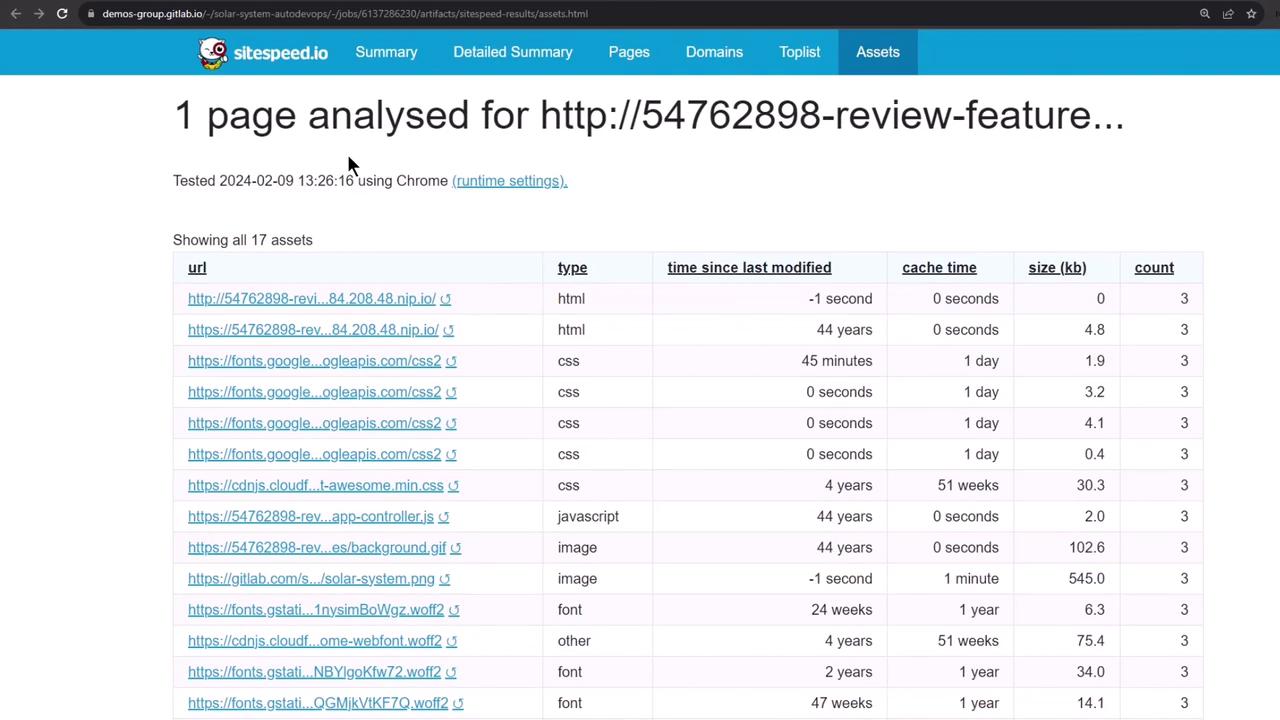
11. Manual Stop Review and Cleanup
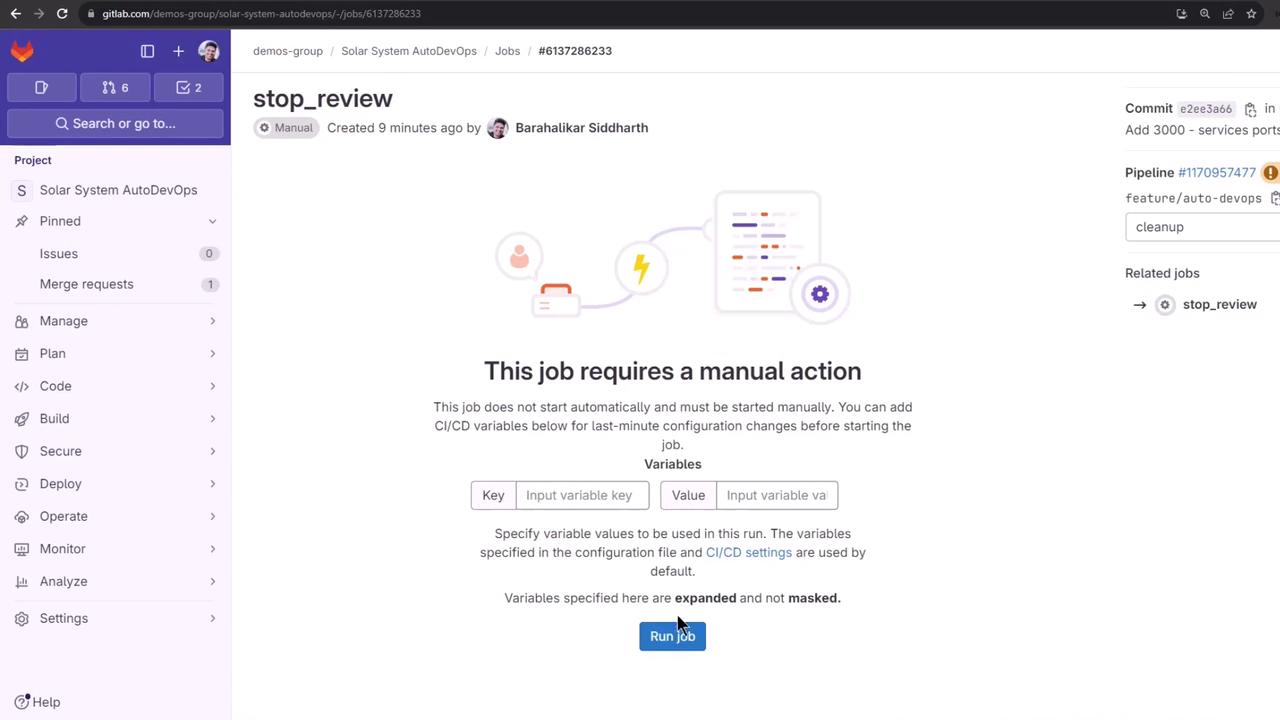
When you’re done, manually trigger the Stop Review job to delete all review resources: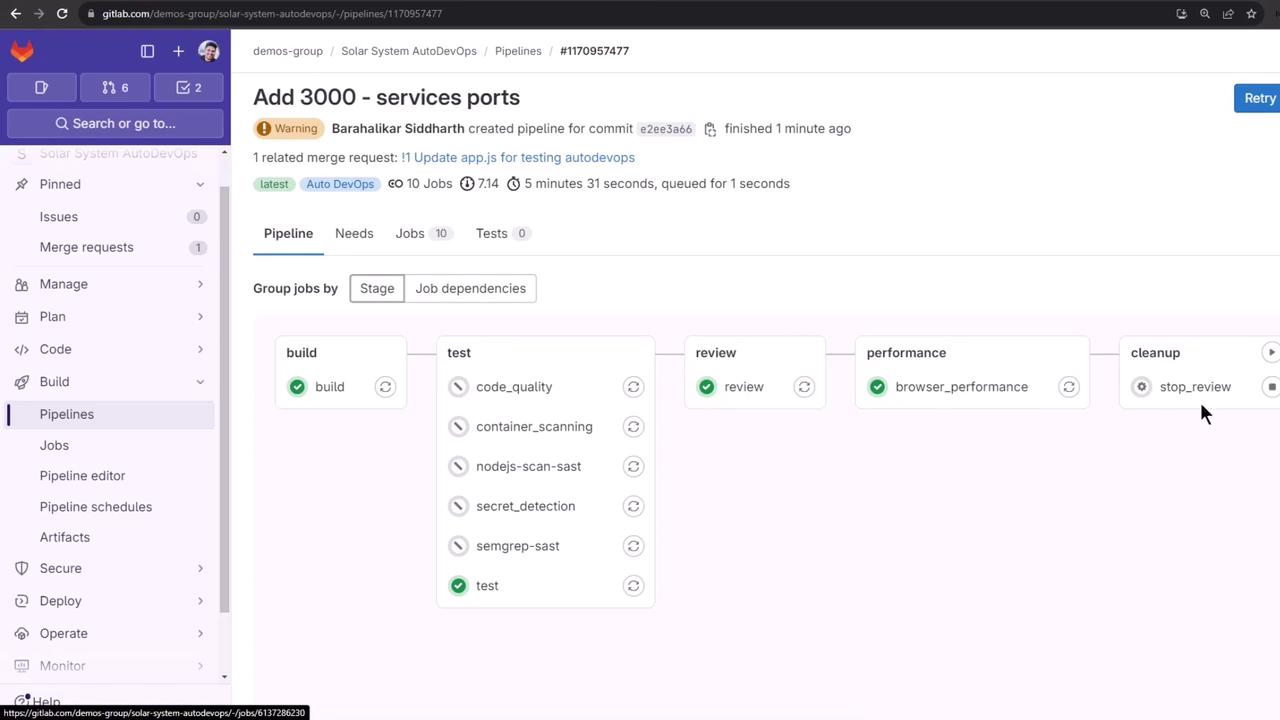
12. Reviewing Deployment History
Finally, view the stopped environment and its deployment jobs for auditing: