

- Manually install Node.js in the job (works, but slow and error-prone).
- Use a Docker image that already contains Node.js (recommended).
Installing Node.js inside a job (before_script)
You can install Node.js inside a job using the NodeSource installer. In many CI containers you run as root, sosudo is not required. Use a YAML literal block (|) to keep the multi-line shell script readable and executed as one script.
Example: shell commands to install Node.js (one-time reference)
before_script (note the YAML literal block):
Installing packages inside the job works, but every job runner will repeat these steps, which increases job runtime. Prefer using an image that already contains the tools you need.
Use the image keyword to run the job in a Node.js container
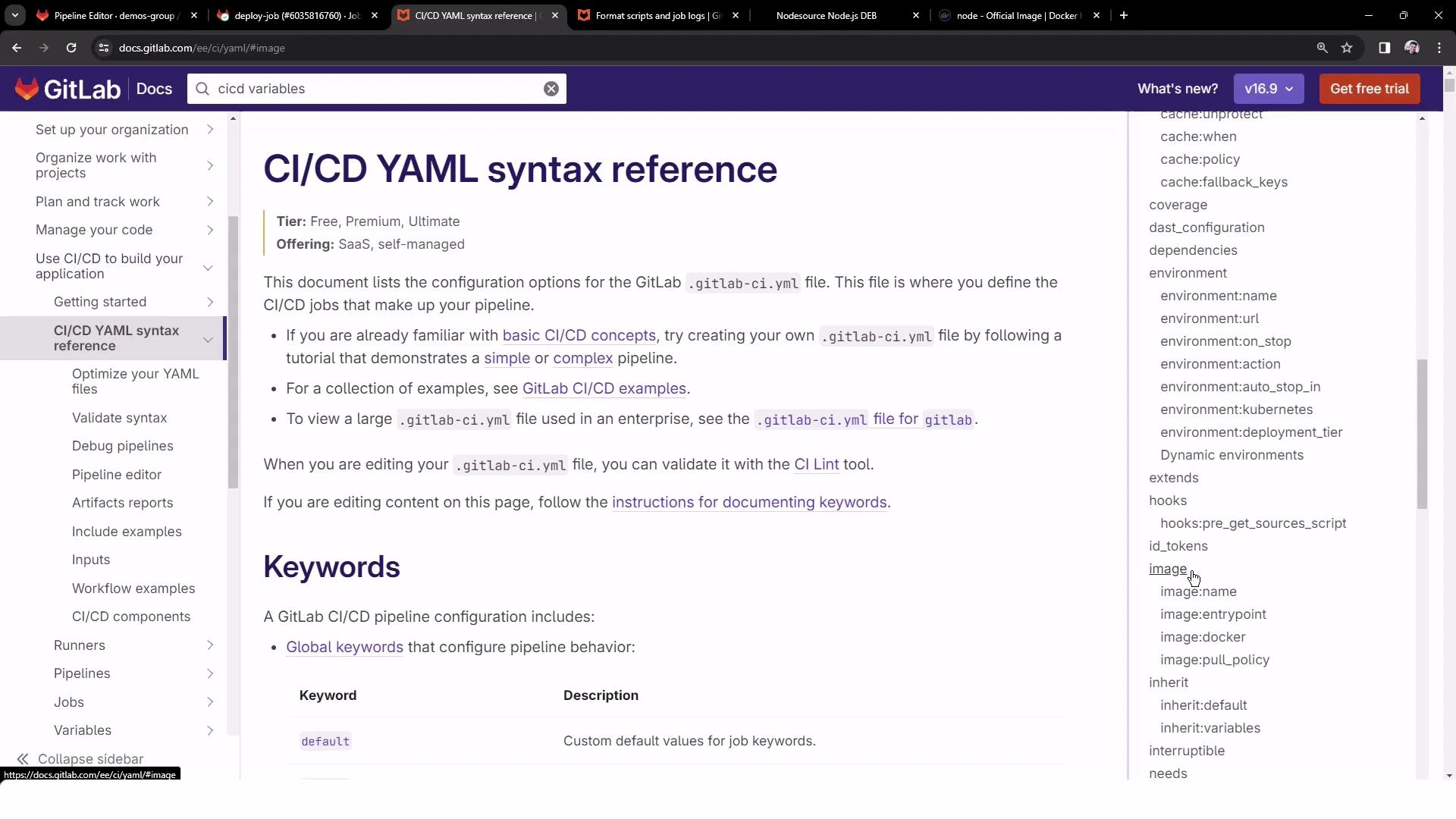
A more efficient approach is to run the job inside a container image that already includes Node.js. You can set an image globally underdefault: or per-job with the image: keyword. The GitLab CI YAML reference documents these options and related settings (pull policy, entrypoint, etc.).
- Use official images (for Node: node:<version>-alpine or node:<version>) when available for smaller images and consistent tooling.
- If your project needs extra packages, create a custom image with a Dockerfile and publish it to a registry.
- Set
image:underdefault:if multiple jobs share the same runtime to reduce repetition.
Summary
- Prefer using a Docker image that already contains the required language runtime (use the
image:keyword). - Installing software in
before_scriptis possible (use YAML literal blocks for multi-line scripts) but is slower and duplicates effort across runners. - You can set
image:per-job or globally underdefault:depending on your pipeline needs.
- GitLab CI/CD YAML reference
- NodeSource distributions (installer and repo)
- Official Node Docker images on Docker Hub