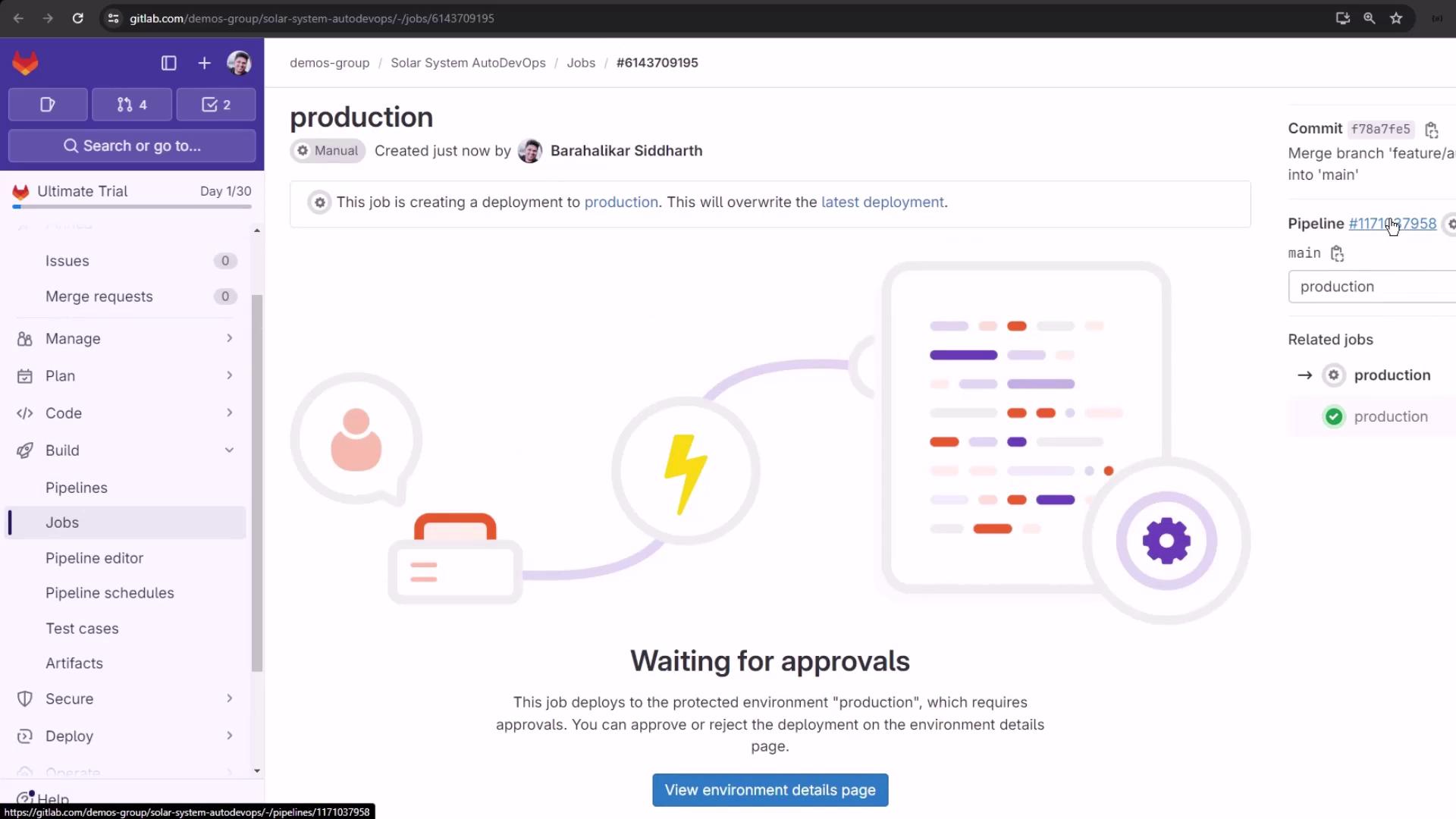
Environment Rollback Overview
GitLab’s Environment Rollback creates a new deployment job for a selected, successful commit. Note that only the deploy stage runs; any artifacts from earlier stages (build, test) must be regenerated manually before triggering the rollback.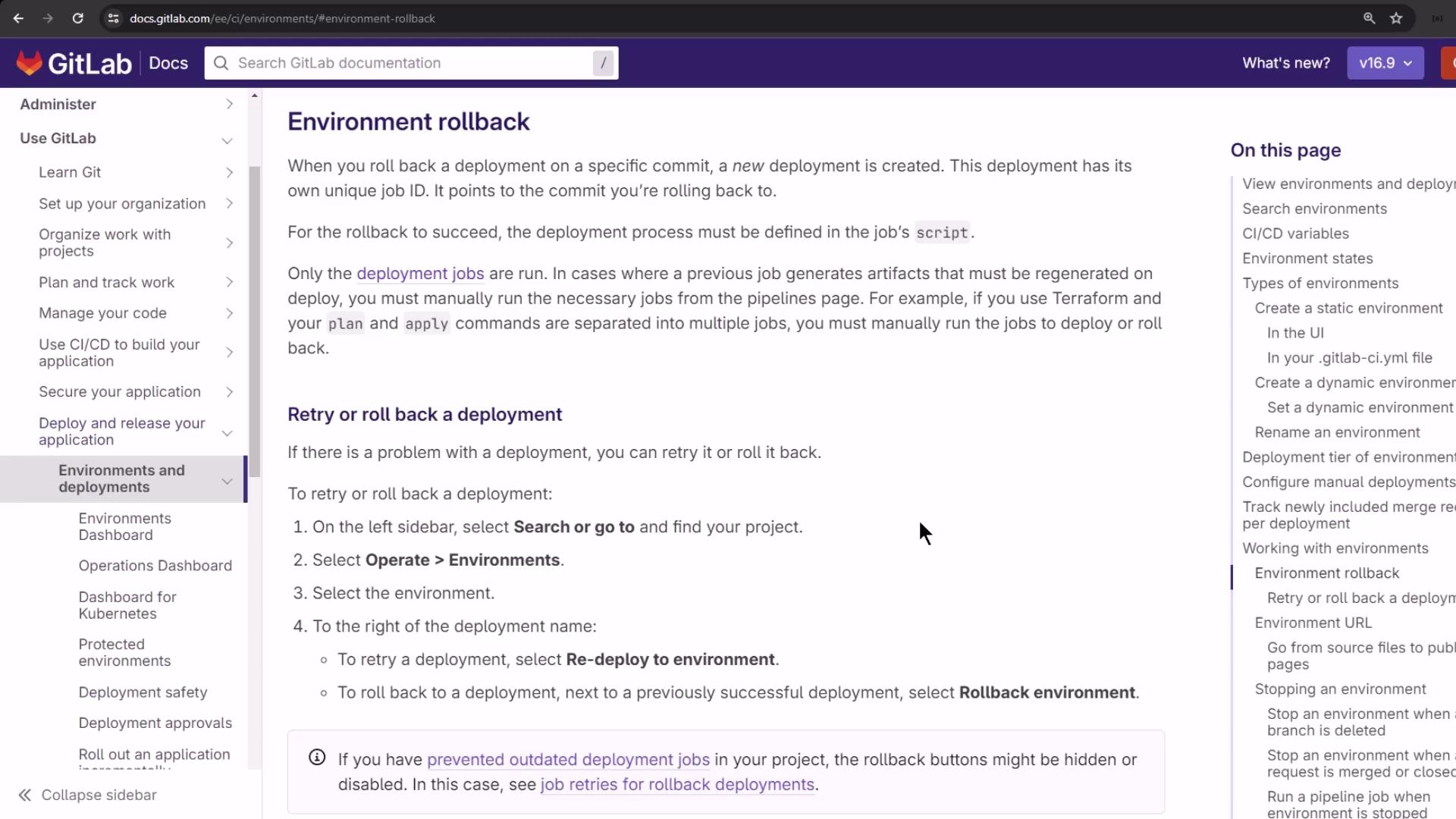
Step 1: Select the Deployment to Roll Back
- In GitLab, go to Operations → Environments.
- Click on your target environment (e.g., production).
- Locate the list of past deployments and identify a successful one. Only these can be rolled back.
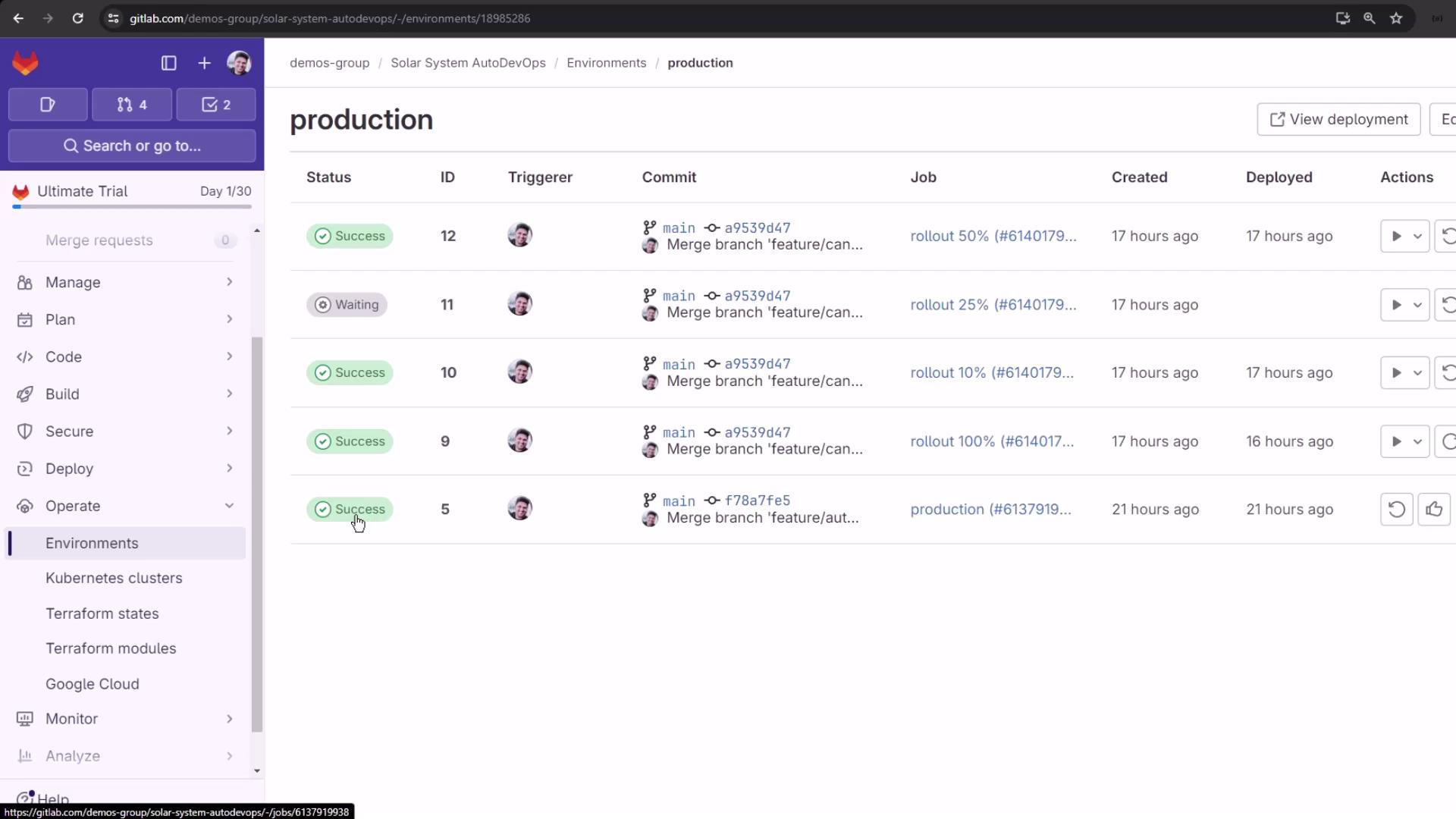
- Click Rollback next to the chosen deployment. You can also click Redeploy to reapply the same commit without changes.
Step 2: Confirm the Rollback
When you select Rollback, GitLab displays a confirmation dialog indicating the commit to revert to. Verify the commit details before proceeding.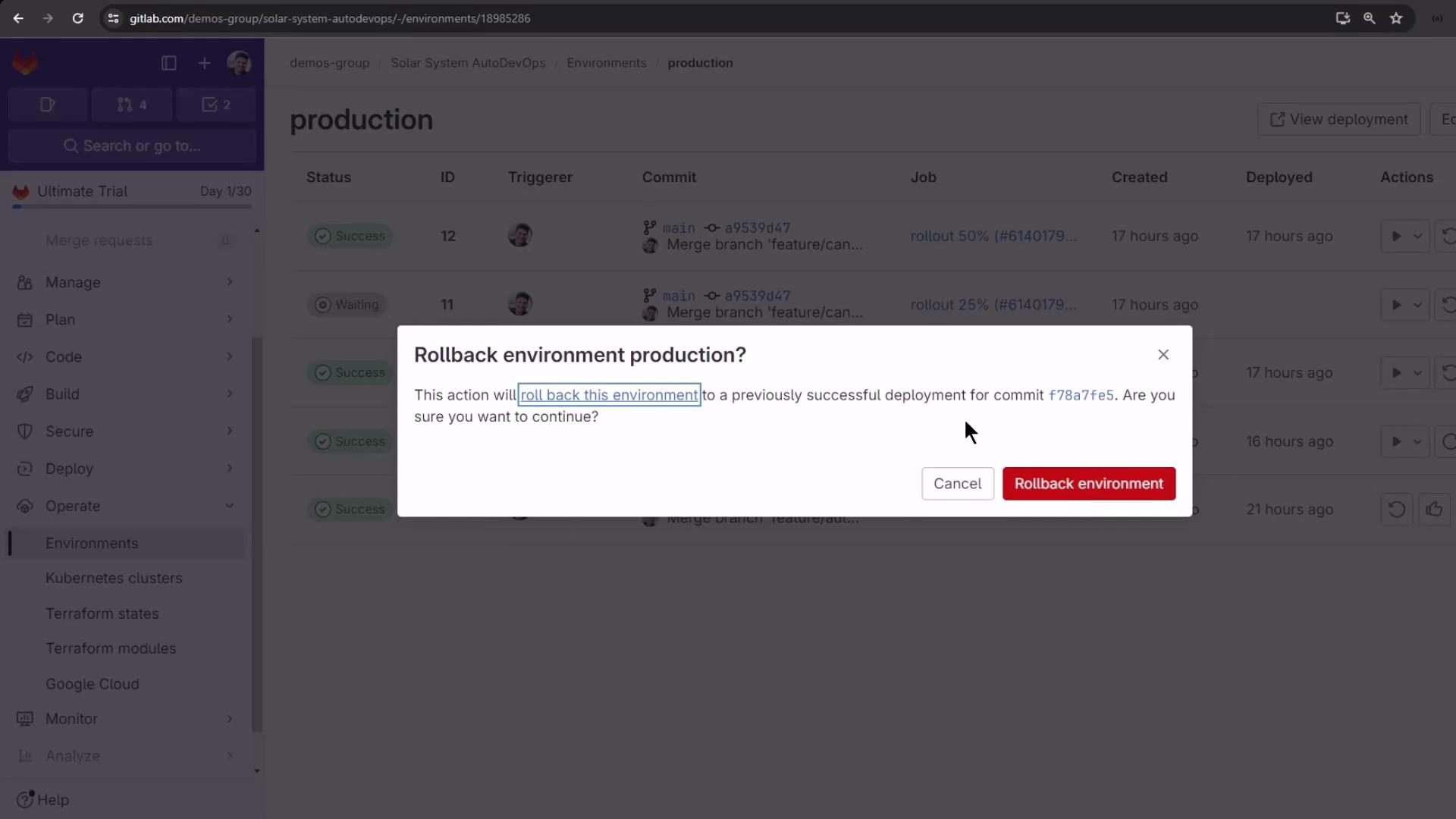
Click the commit hash in the confirmation dialog to review code changes and pipeline status before rolling back.
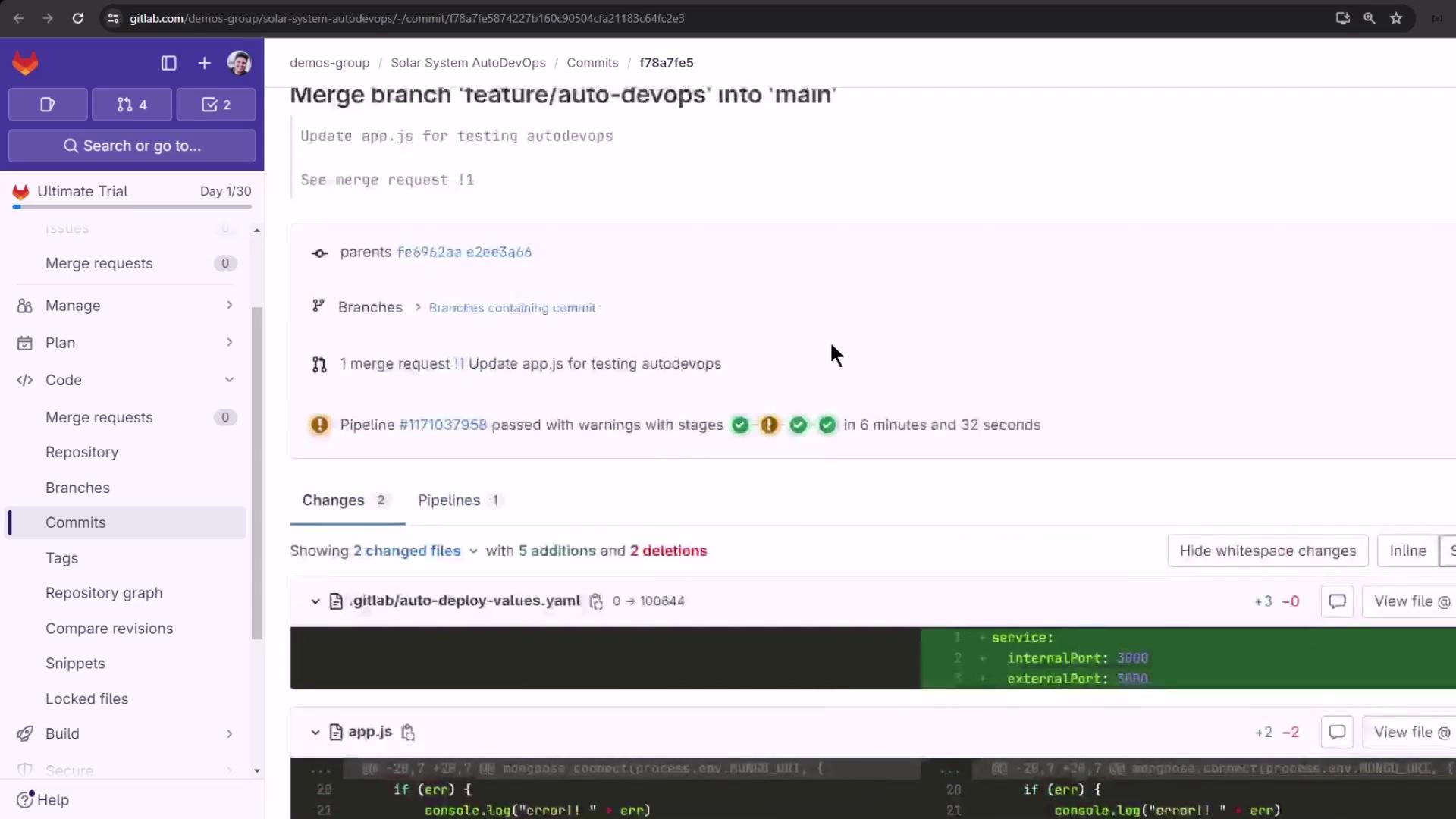
Step 3: Approve Deployment & Restore Artifacts
Once confirmed, GitLab launches a new pipeline containing only the deploy job. Other stages (build, test) are skipped, so regenerate any required artifacts first.Rollback pipelines do not rebuild artifacts. If your deployment depends on generated files, re-run those pipeline stages or upload artifacts manually before approving the rollback job.