In this guide, we’ll demonstrate how to integrate GitLab ChatOps into your Slack workspace. With GitLab ChatOps, you can trigger CI/CD pipelines, manage issues, and review job outputs—all without leaving Slack.
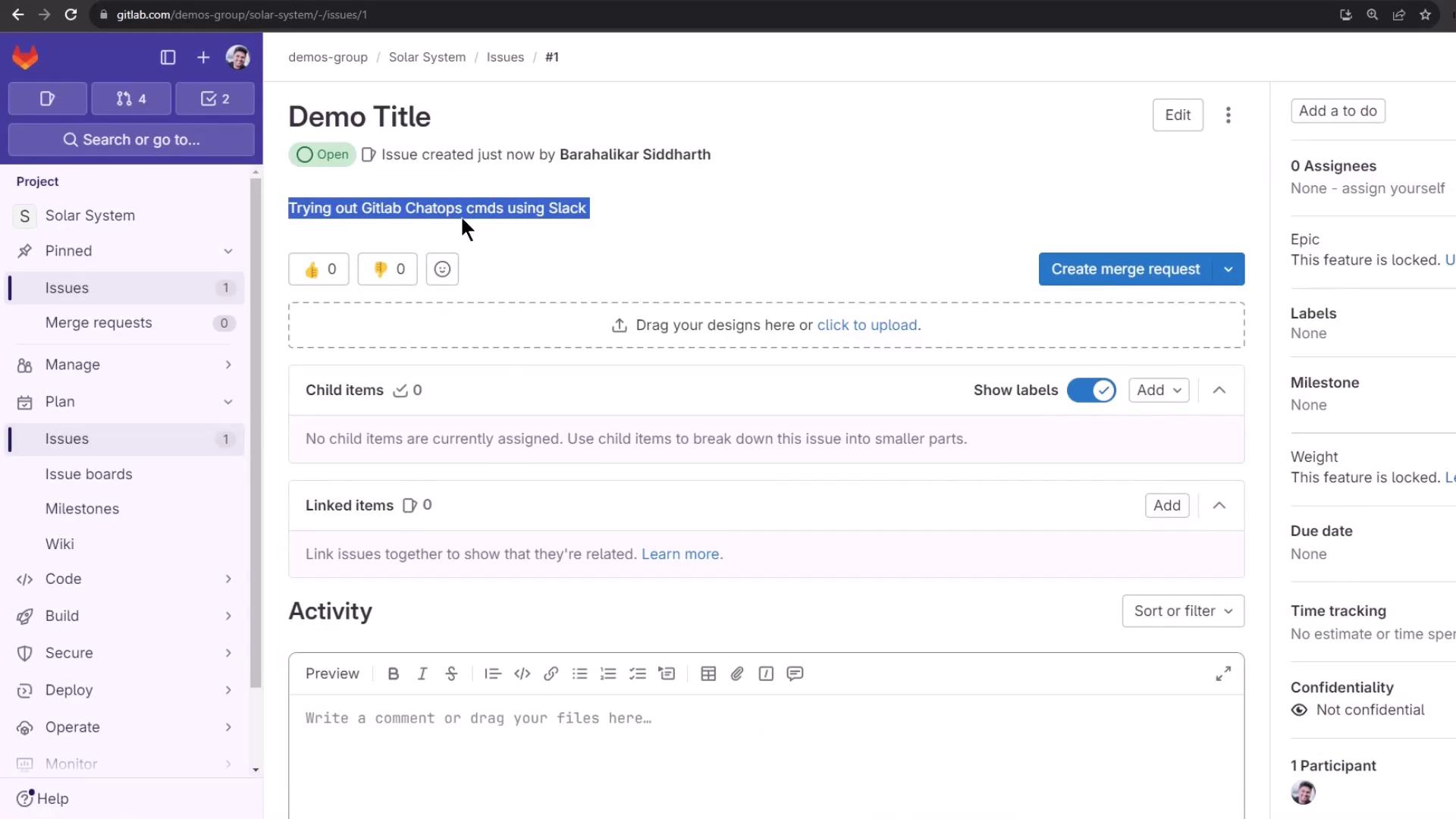
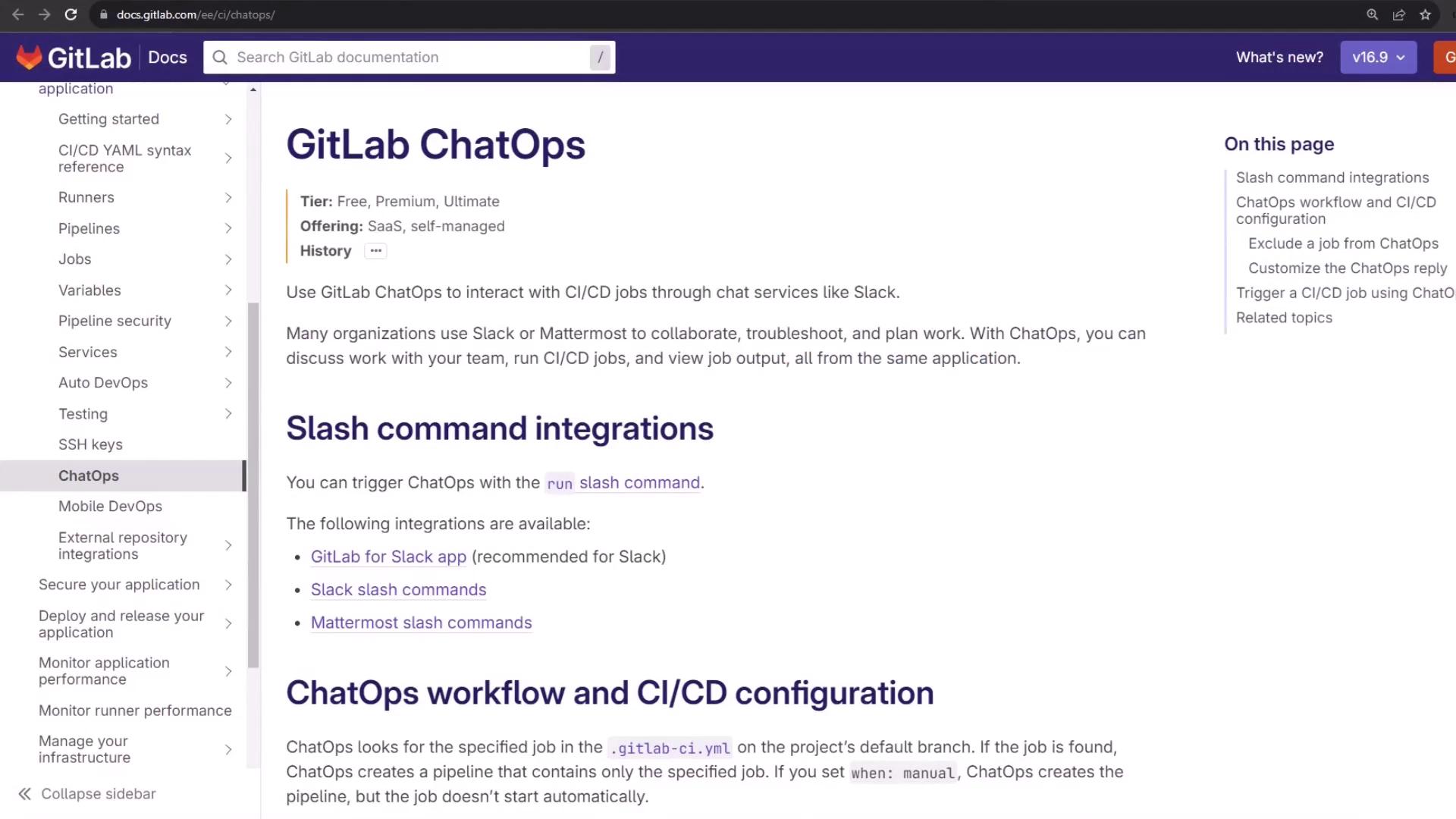
The image shows a GitLab documentation page about ChatOps, detailing its integration with CI/CD jobs through chat services like Slack, and includes information on slash command integrations and workflow configuration.

Requirements

  • A GitLab project with the GitLab for Slack app installed and configured
  • Enabled slash commands in Slack (Mattermost uses different commands)

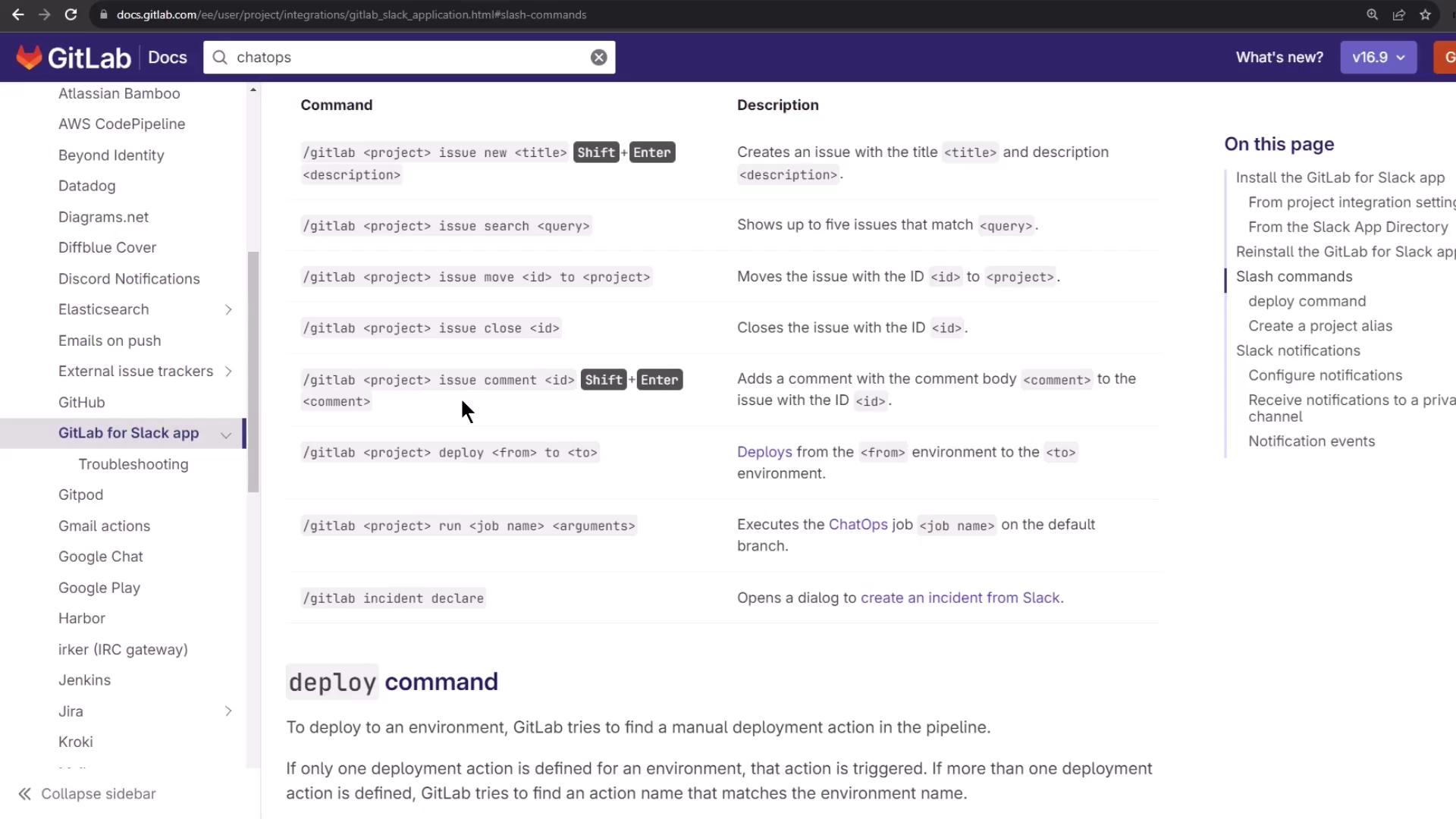
Available Slash Commands

Use the /gitlab help command to list all supported GitLab ChatOps slash commands in your workspace.
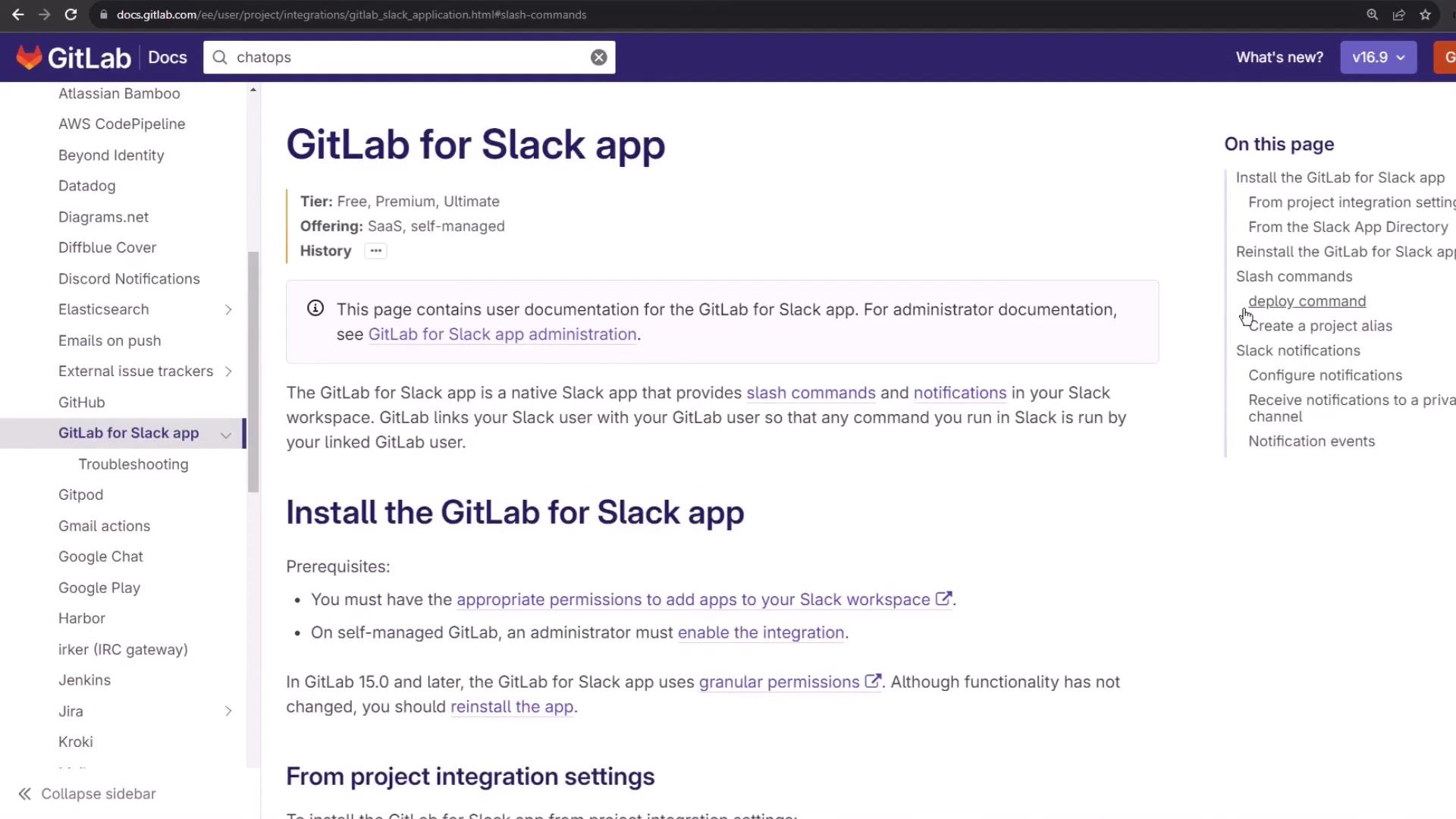
The image shows a webpage from GitLab documentation about the GitLab for Slack app, detailing installation instructions and features like slash commands and notifications.
The image shows a GitLab documentation page detailing slash commands for the GitLab Slack app, with a list of commands and their descriptions.
Slash CommandDescriptionExample
/gitlab [alias] issue show <id>Display issue details/gitlab demo-group/solar-system issue show 42
/gitlab [alias] issue new <title> <description>Create a new issue/gitlab demo-group/solar-system issue new "Bug" "Steps"
/gitlab [alias] issue close <id>Close an issue/gitlab demo-group/solar-system issue close 42
/gitlab [alias] run <job-name> [--branch=<branch>]Trigger a CI job/gitlab demo-group/solar-system run test-suite
/gitlab [alias] deploy <env> to <target-env>Deploy environment/gitlab demo-group/solar-system deploy staging to prod

List Commands in Slack

In your GitLab notification channel (e.g., #gitlab-notifications), type:
/gitlab help
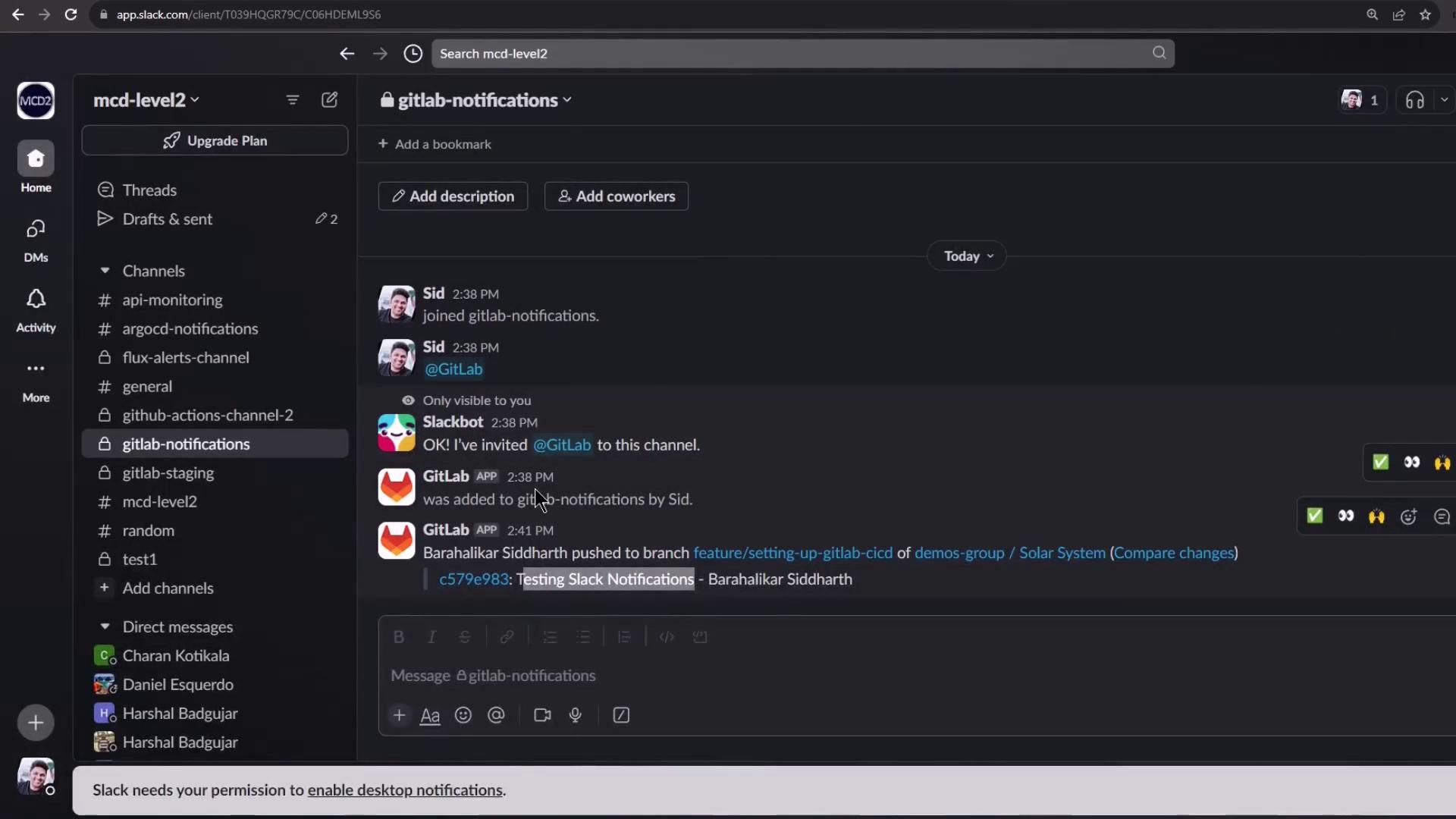
The image shows a Slack workspace with a channel named "gitlab-notifications" where users and bots are interacting, including notifications about GitLab activities.

Creating an Issue via ChatOps

You can quickly create issues directly in Slack:
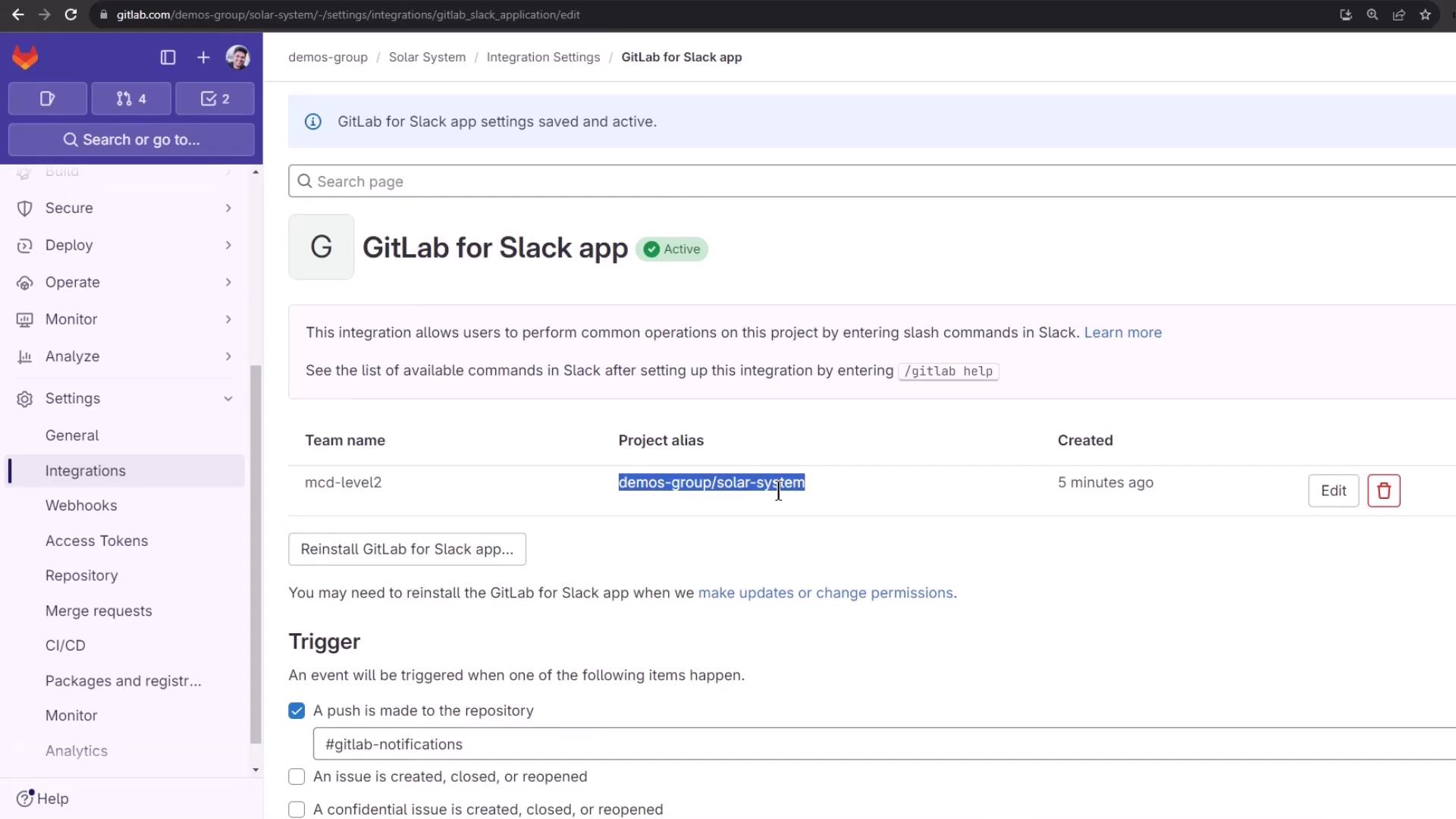
  1. Identify your project alias (group/project) set up during Slack integration.
  2. Run the new-issue command:
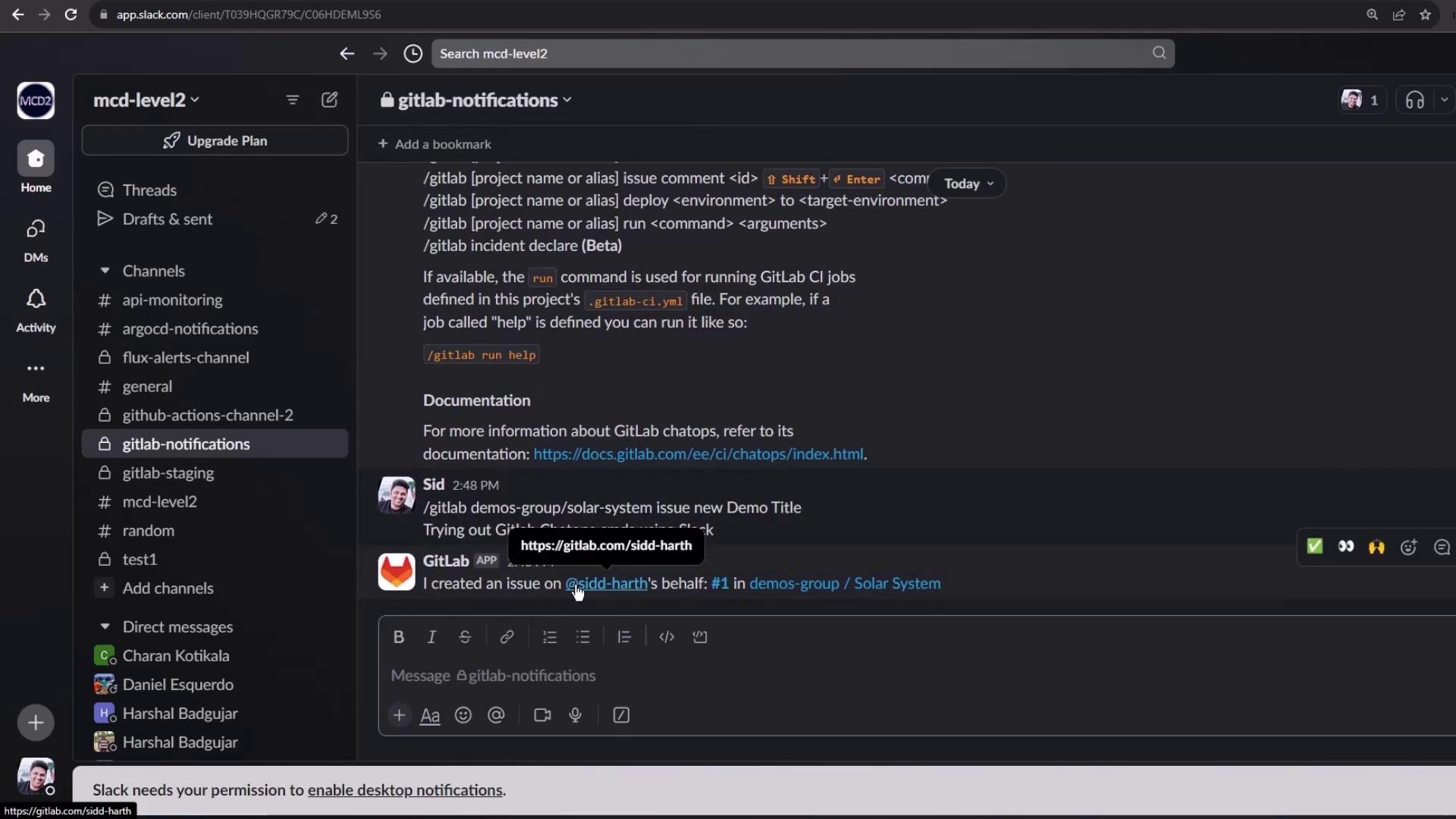
    /gitlab demos-group/solar-system issue new "Demo Title" <<Shift+Enter>>
    Trying out GitLab ChatOps commands using Slack.
    
The image shows the GitLab integration settings for a Slack app, indicating that the integration is active and configured to trigger notifications when a push is made to the repository.
The image shows a Slack interface with a channel named "gitlab-notifications" open, displaying messages related to GitLab commands and notifications.
Slack will confirm the issue creation. You can verify it in GitLab:
The image shows a GitLab interface with an open issue titled "Demo Title" in a project named "Solar System." It includes options for creating a merge request, adding labels, and managing child and linked items.

Running CI Jobs via ChatOps

Assuming your .gitlab-ci.yml defines a unit_testing job:
unit_testing:
  stage: test
  extends: .prepare_nodejs_environment
  script:
    - npm test
  artifacts:
    when: always
    expire_in: 3 days
    name: Moca-Test-Result
    paths:
      - test-results.xml
    reports:
      junit: test-results.xml
Trigger this job in Slack:
/gitlab demos-group/solar-system run unit_testing
If you need to run the job on a feature branch:
/gitlab demos-group/solar-system run unit_testing --branch="feature/setting-up-gitlab-ci"
If escaping special characters in branch names fails, you may temporarily change your project’s default branch in GitLab.
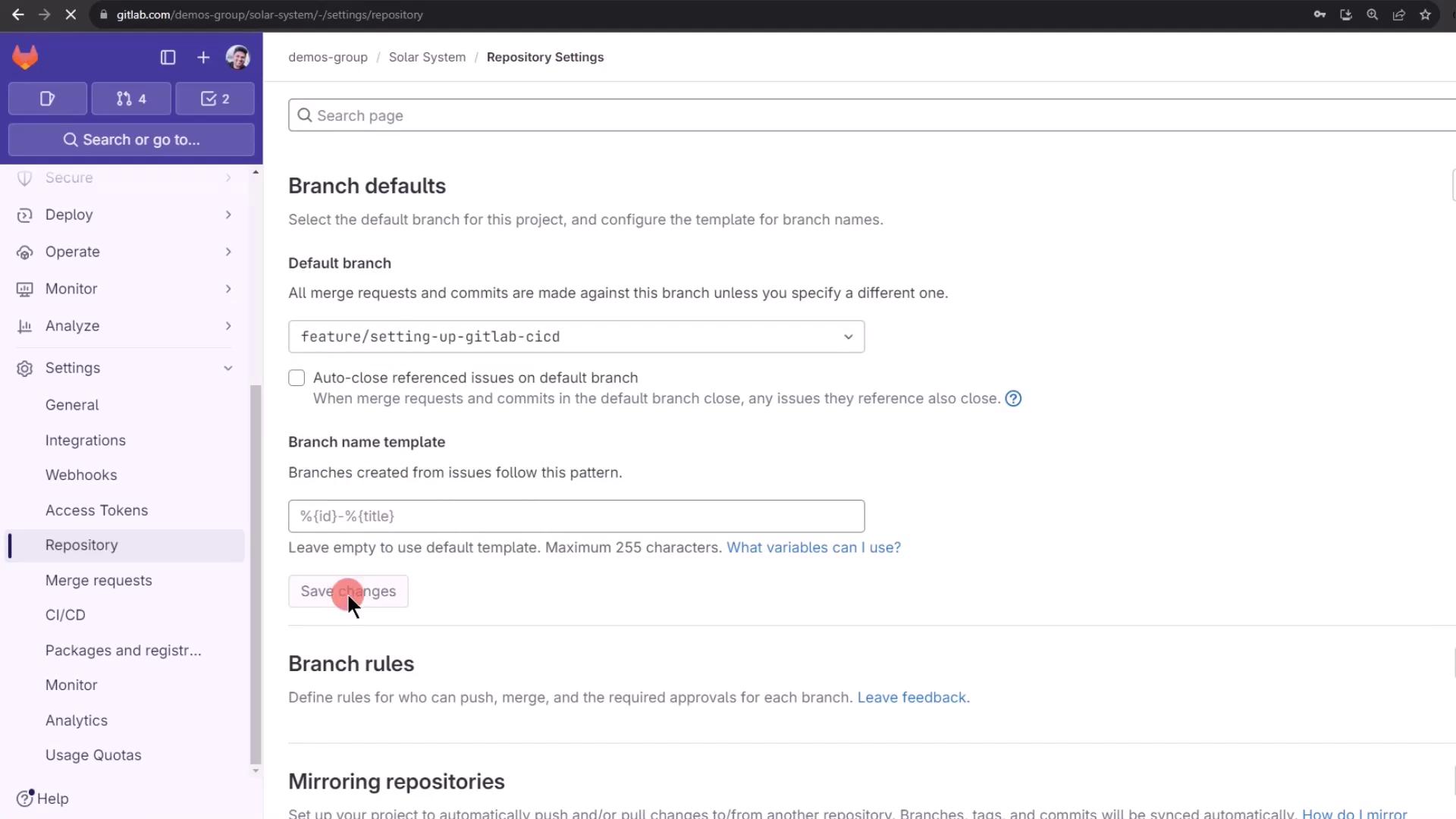
  1. Go to Settings > Repository > Default branch
  2. Select your feature branch and save
The image shows a GitLab repository settings page, specifically focusing on branch defaults and branch name templates. A cursor is hovering over the "Save changes" button.
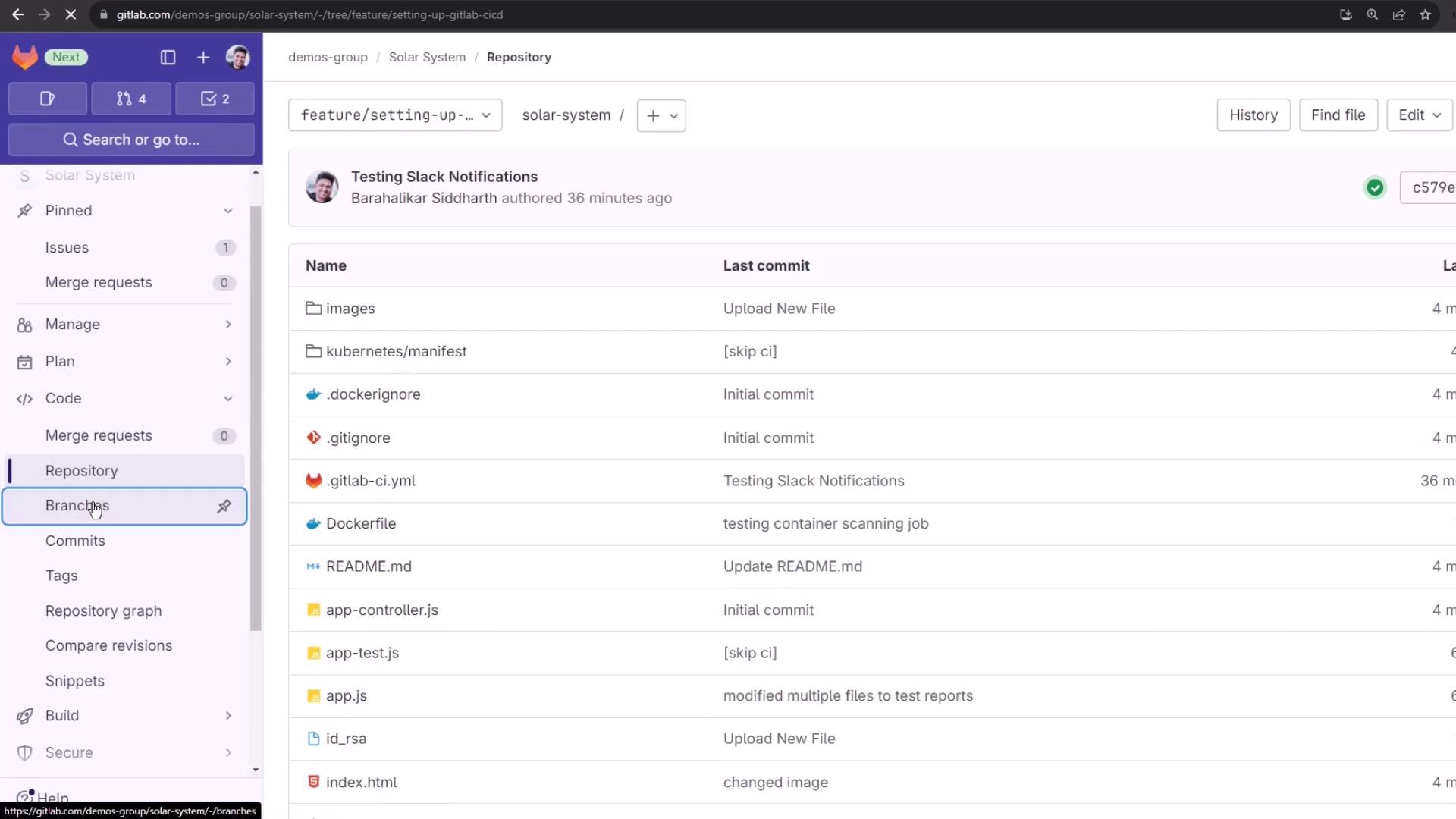
The image shows a GitLab repository interface with a list of files and their last commit messages. The sidebar includes options like branches, commits, and merge requests.
Once the default branch is updated, rerun without --branch:
/gitlab demos-group/solar-system run unit_testing
Back in GitLab you’ll see the new pipeline logs:
Using docker image sha256:b20b249d538a41dfa3e9fd70479cad96a73240fc7df1eacd8de45 for node:17-alpine3.14 ...
$ npm install
up to date, audited 385 packages in 2s
45 packages are looking for funding
run `npm fund` for details
2 vulnerabilities (1 high, 1 critical)
...
$ npm test
> Solar [email protected] test
> mocha app-test.js --timeout 10000 --reporter mocha-junit-reporter --exit
Server successfully running on port - 3000
You’ll also receive job-completion notifications directly in Slack, keeping you informed without context switching.

References