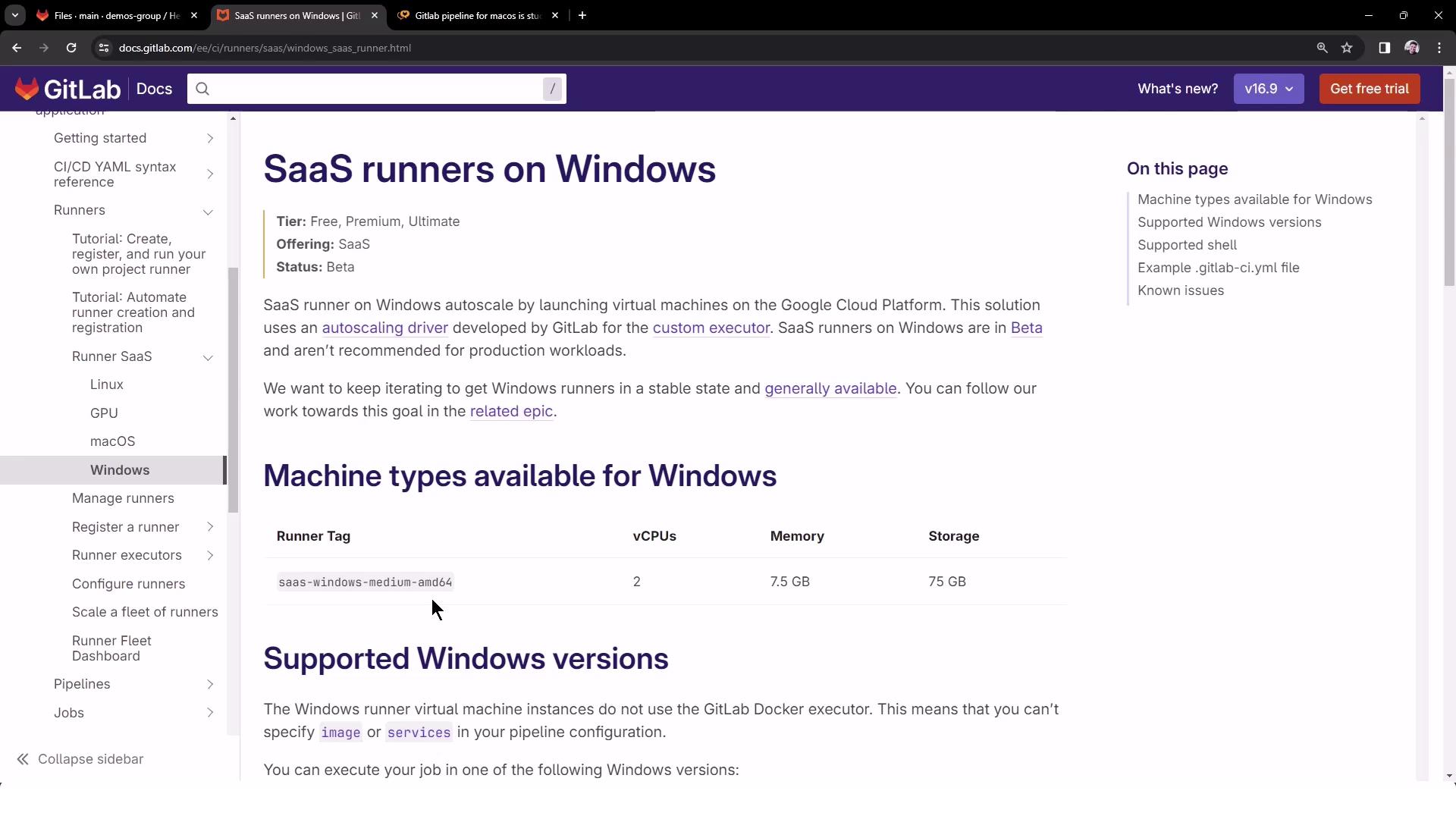
In this guide, you’ll learn how to configure GitLab CI/CD jobs to run on GitLab-hosted shared runners for Linux, GPU, Windows, and macOS. This approach leverages GitLab’s SaaS runners to simplify maintenance and reduce infrastructure overhead.
The image shows a GitLab documentation page about "Runner SaaS," detailing how to run CI/CD jobs using SaaS runners hosted by GitLab. It includes information on different types of runners like Linux, GPU, Windows, and macOS.
Windows and macOS shared runners are currently in beta and may have limited capacity. Linux runners run on Google Container-Optimized OS VMs with predefined machine specs.

Shared Runner Specifications

GitLab provides detailed specs for each runner type:
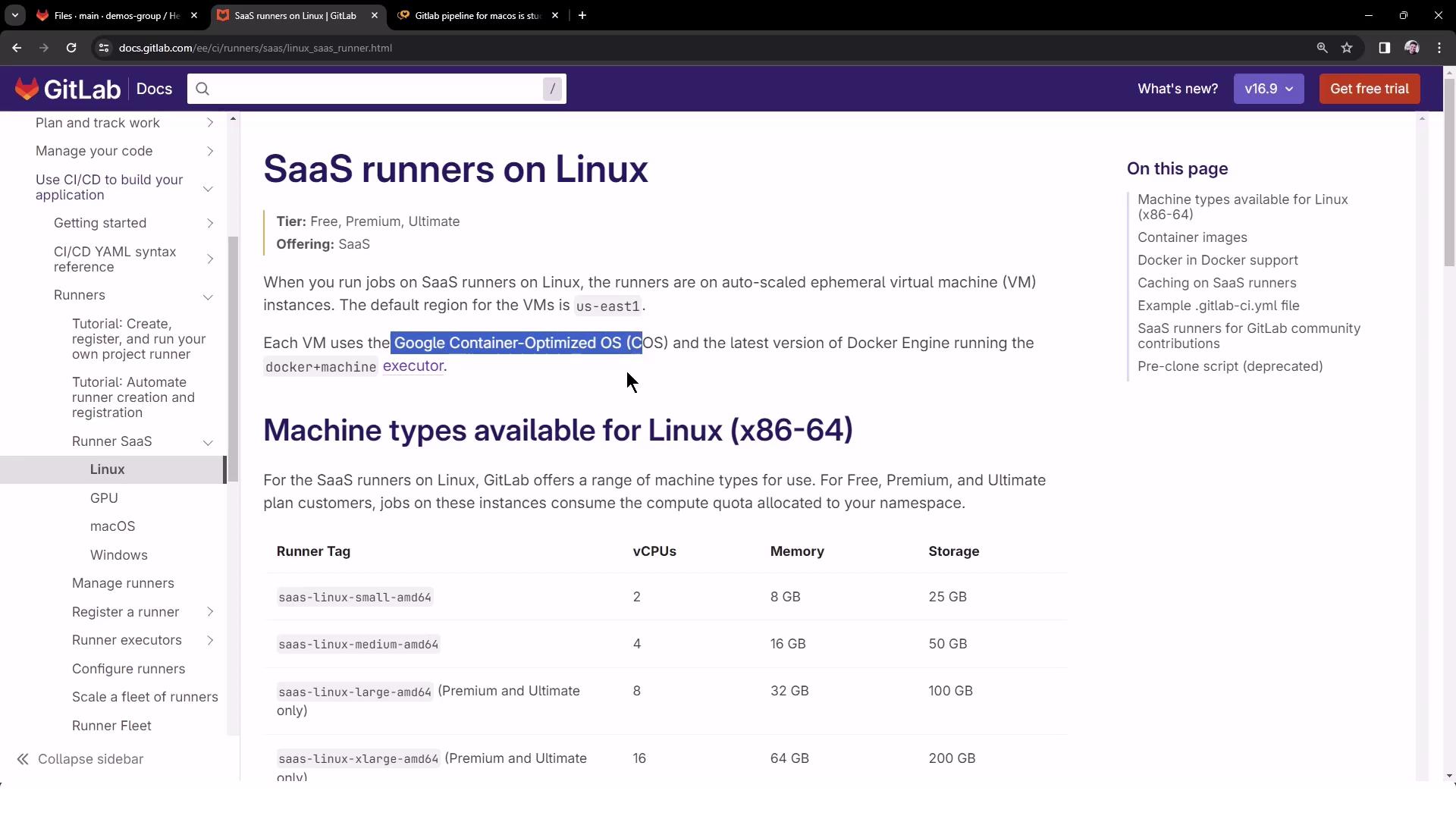
The image is a GitLab documentation page about SaaS runners on Linux, detailing machine types available for Linux with specifications like vCPUs, memory, and storage. It also mentions the use of Google Container-Optimized OS for virtual machines.
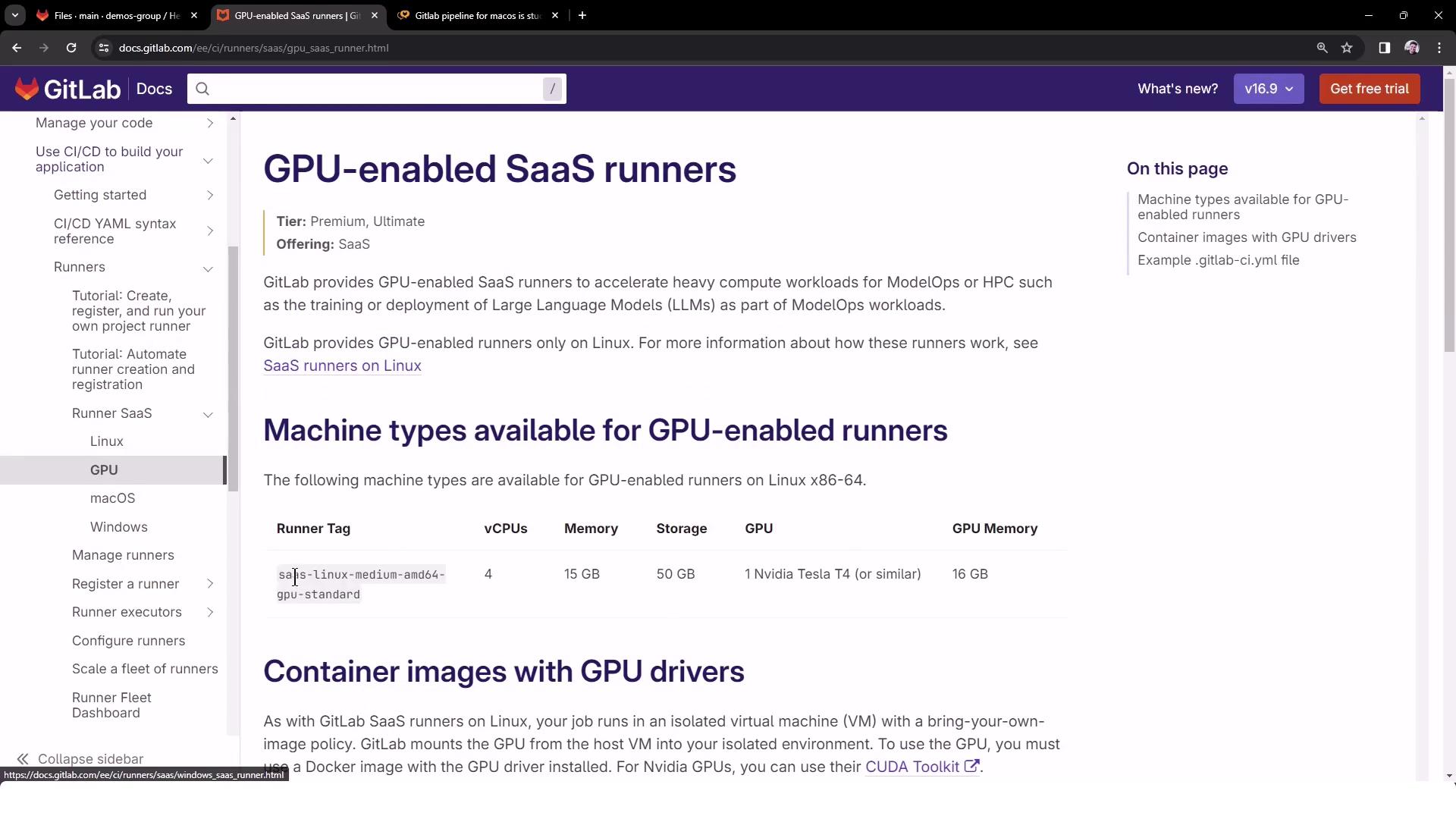
GPU-enabled runners include GPU drivers and libraries:
The image shows a GitLab documentation page about GPU-enabled SaaS runners, detailing machine types available for GPU-enabled runners and container images with GPU drivers.
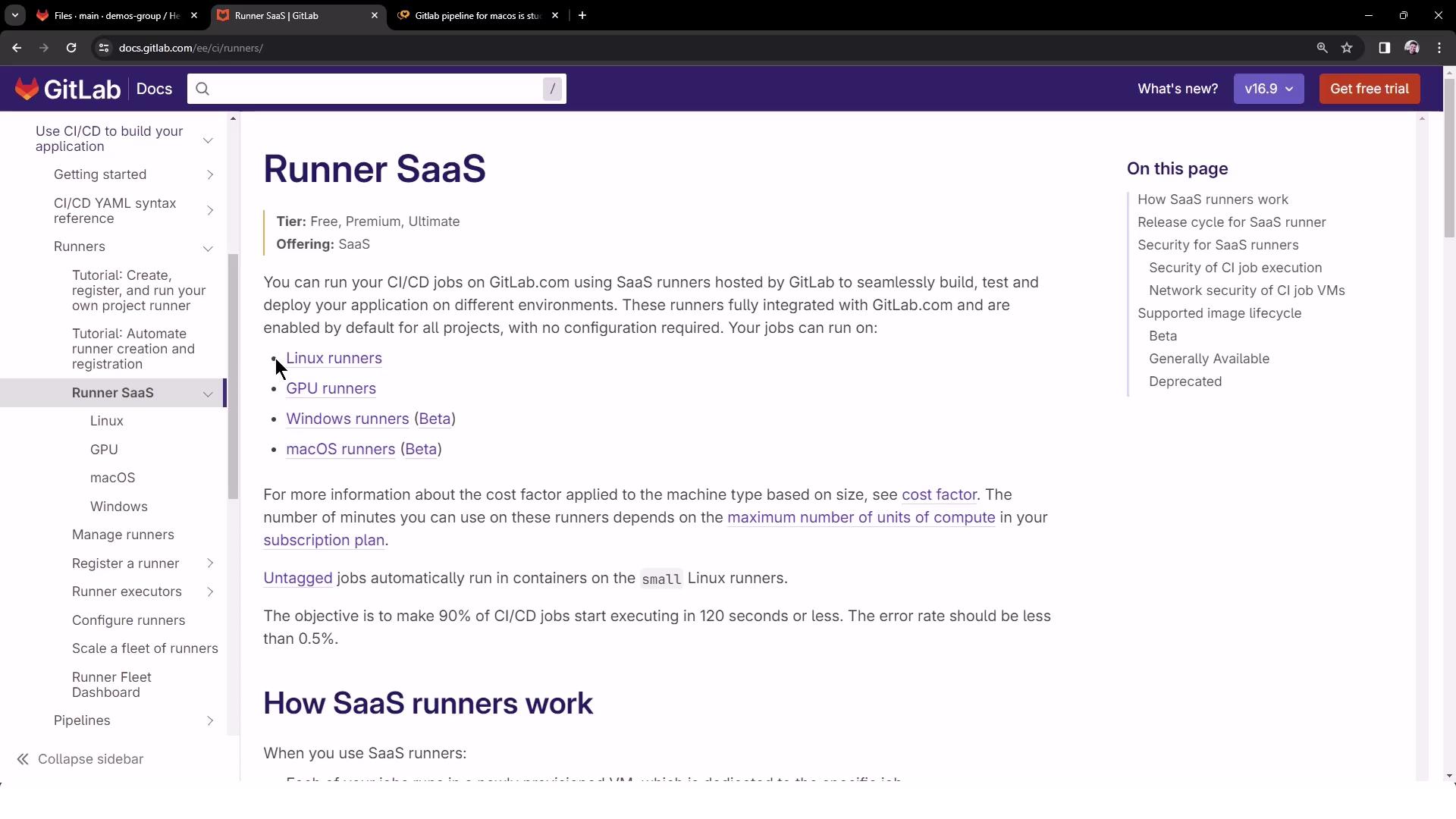
Windows runners support specific OS versions in beta:
The image shows a GitLab documentation page about SaaS runners on Windows, detailing machine types, supported Windows versions, and related information.

Configuring .gitlab-ci.yml

To target these shared runners, add tags in your pipeline definition. Create or update .gitlab-ci.yml at the project root:
The tags keyword ensures each job is picked up by the corresponding shared runner. To see all available shared runners, go to Settings → CI/CD → Runners.
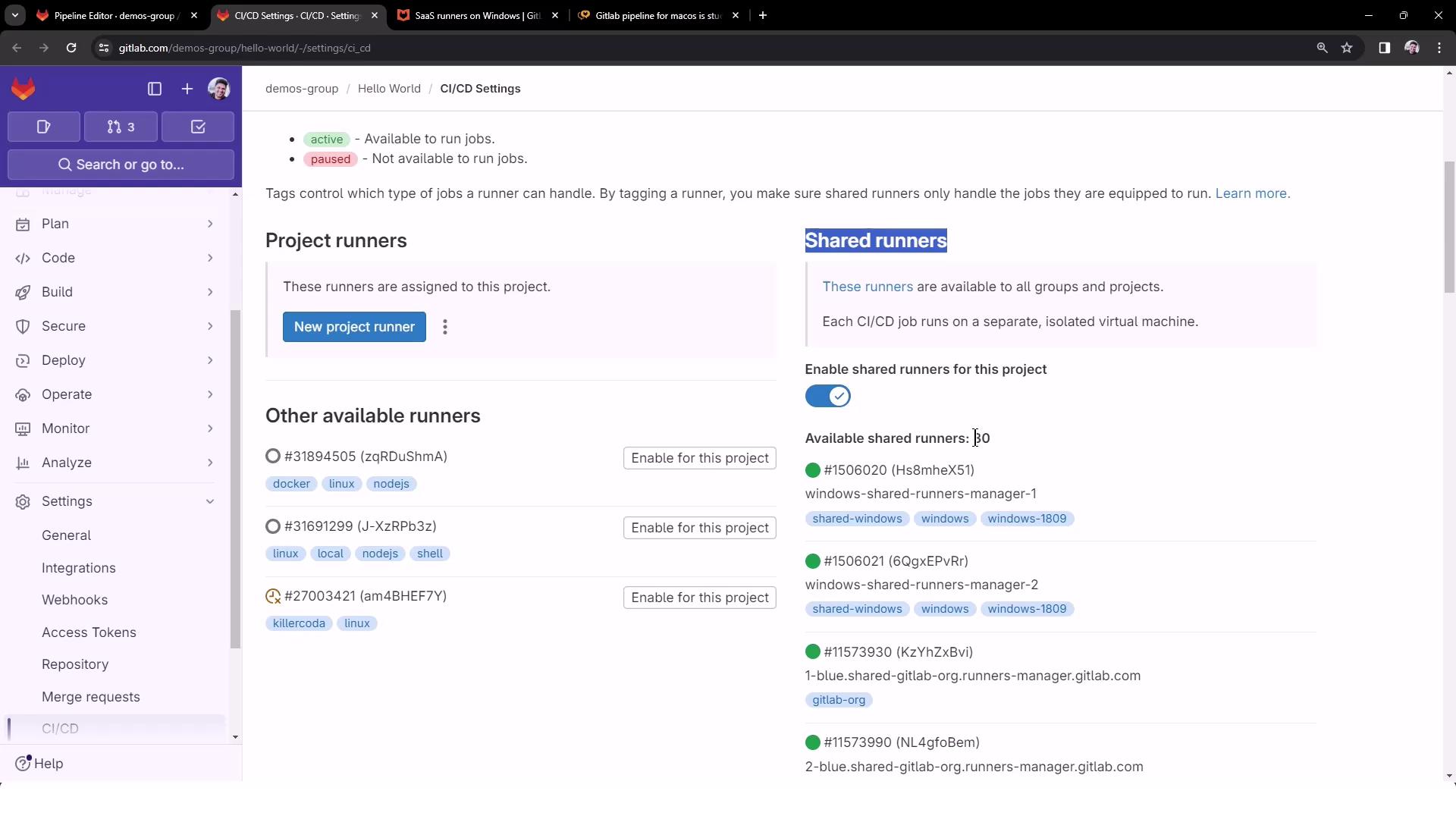
The image shows a GitLab CI/CD settings page, displaying options for project runners and shared runners, with toggles and buttons for enabling them.

Triggering the Pipeline

Commit your changes to the default branch (e.g., main) to launch the pipeline. You should see three jobs queued in parallel:
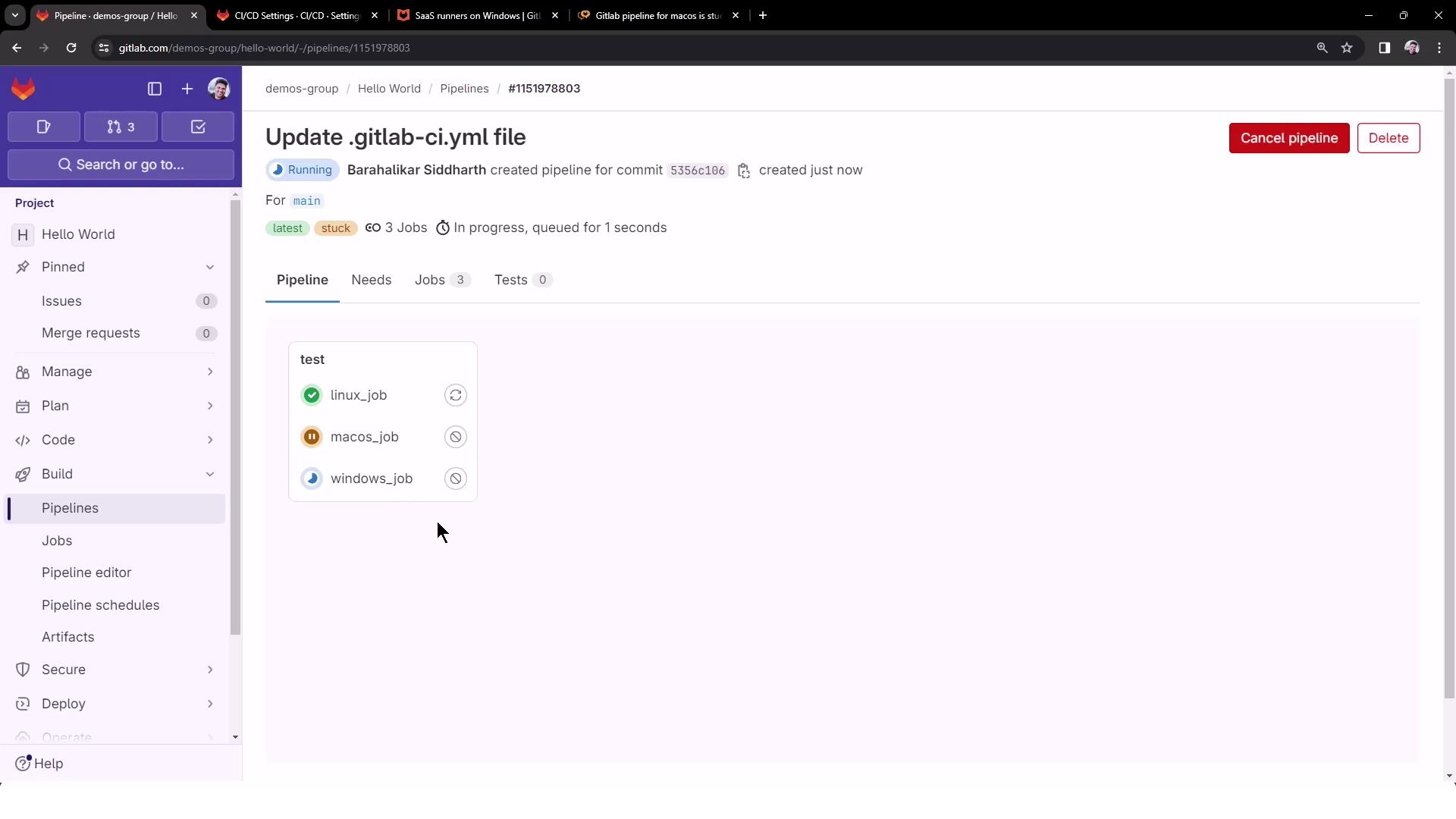
The image shows a GitLab pipeline interface with a pipeline titled "Update .gitlab-ci.yml file" that includes three jobs: linux_job, macos_job, and windows_job. The linux_job is running, the macos_job is stuck, and the windows_job is pending.
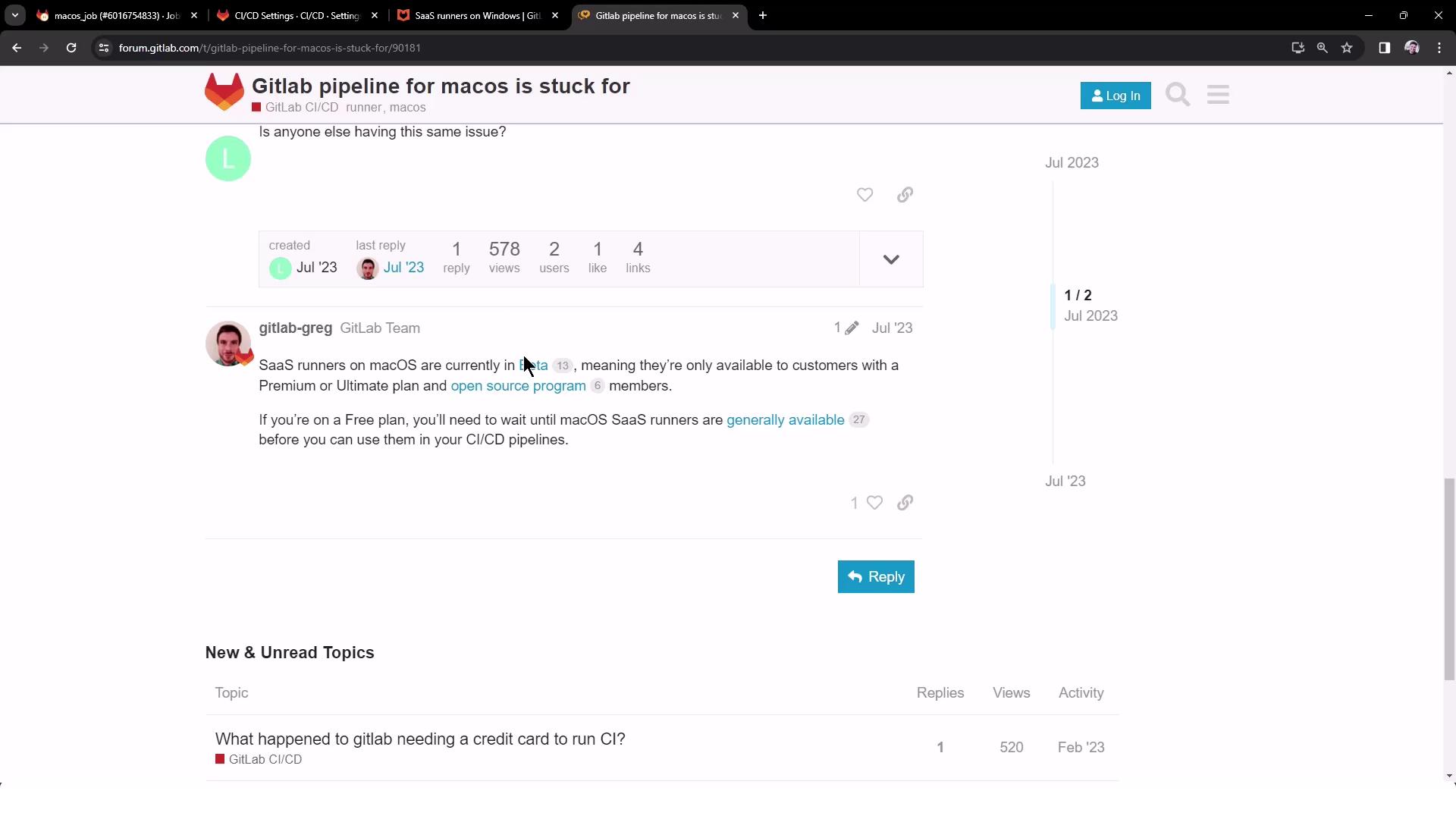
The macOS job may remain pending if there are no active runners. SaaS macOS runners are in beta and reserved for Premium/Ultimate plans.
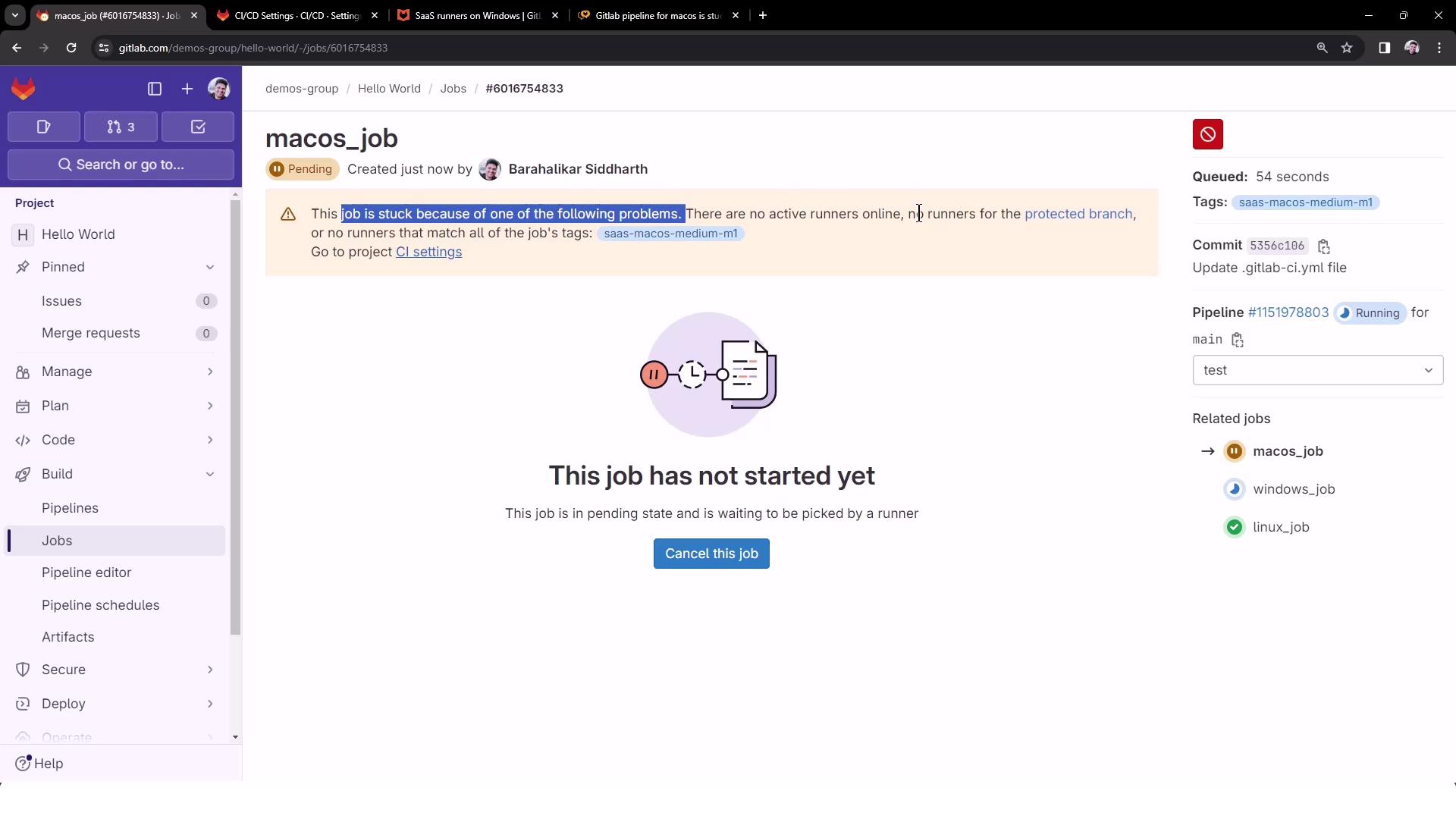
The image shows a GitLab job page where a job named "macos_job" is pending and has not started due to a lack of active runners. The job is waiting to be picked by a runner.
The image shows a GitLab forum discussion about a macOS pipeline issue, with a response explaining that SaaS runners for macOS are in beta and available only to certain plan members.
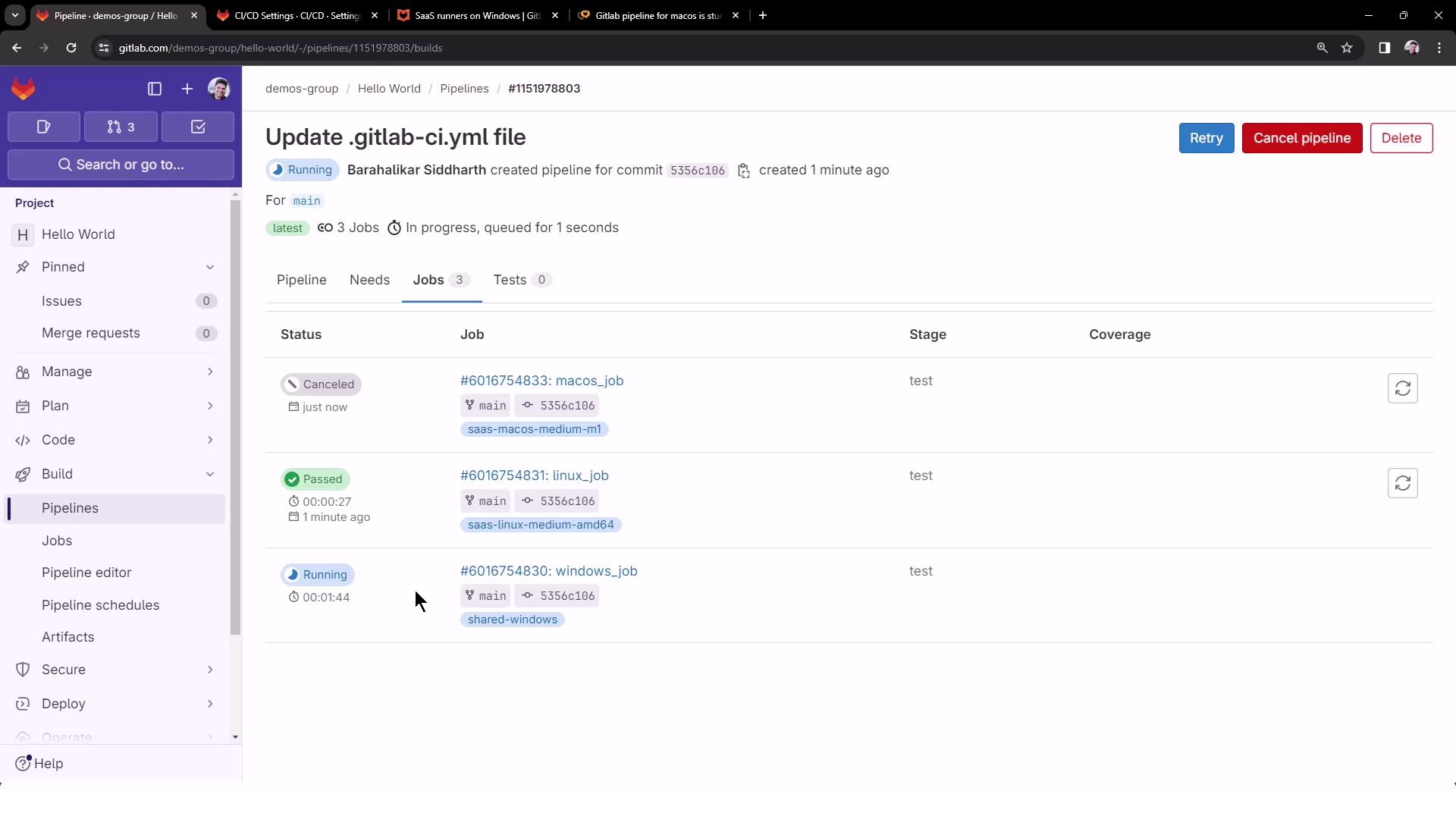
You can cancel the pending macOS job to let the Linux and Windows jobs finish. The pipeline view updates to show job statuses:
The image shows a GitLab CI/CD pipeline interface with three jobs: one canceled, one passed, and one running. The jobs are for different operating systems: macOS, Linux, and Windows.

Viewing Job Logs

Linux Job Logs

The Linux job runs on a medium VM using the Docker+machine executor:

Windows Job Logs

The Windows job spins up a custom VM executor and then runs your commands:
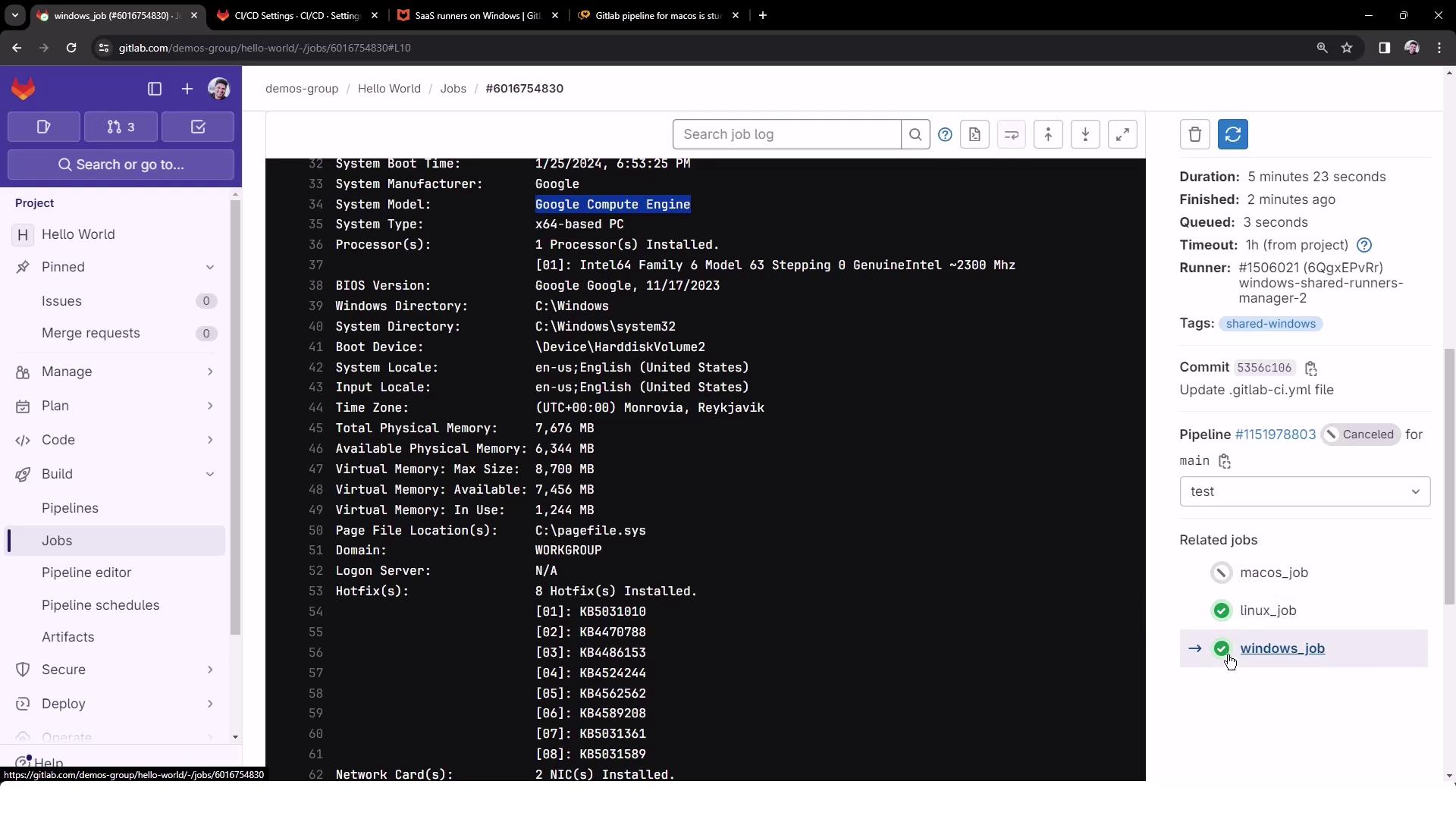
The image shows a GitLab CI/CD job interface displaying system information for a Google Compute Engine instance, including details like system type, processor, memory, and hotfixes. The sidebar includes project navigation and job details such as duration, runner, and related jobs.

Conclusion

By applying runner tags in your .gitlab-ci.yml, you can precisely target GitLab’s shared runner environments for Linux, GPU, Windows, and macOS. This setup streamlines cross-platform CI/CD workflows and offloads infrastructure maintenance to GitLab.

Watch Video