

1. Existing Pipeline Overview
Here’s the current.gitlab-ci.yml with four jobs: unit_testing, code_coverage, docker_build, and docker_test. We run these on the main branch or any feature/* branch, including merge requests.
2. Adding the docker_push Job
We’ll append a fifth stage, docker_push, under containerization. This job will:
- Depend on
docker_buildanddocker_testvianeeds - Leverage Docker-in-Docker (
dind) for pushing images - Load the previously saved artifact
- Authenticate to Docker Hub using CI/CD variables
- Push the image tagged with
$IMAGE_VERSION
Ensure your
DOCKER_PASSWORD is masked and protected in GitLab. Never hard-code credentials in your .gitlab-ci.yml.3. Defining CI/CD Variables
Navigate to Settings → CI/CD → Variables in your GitLab project and add: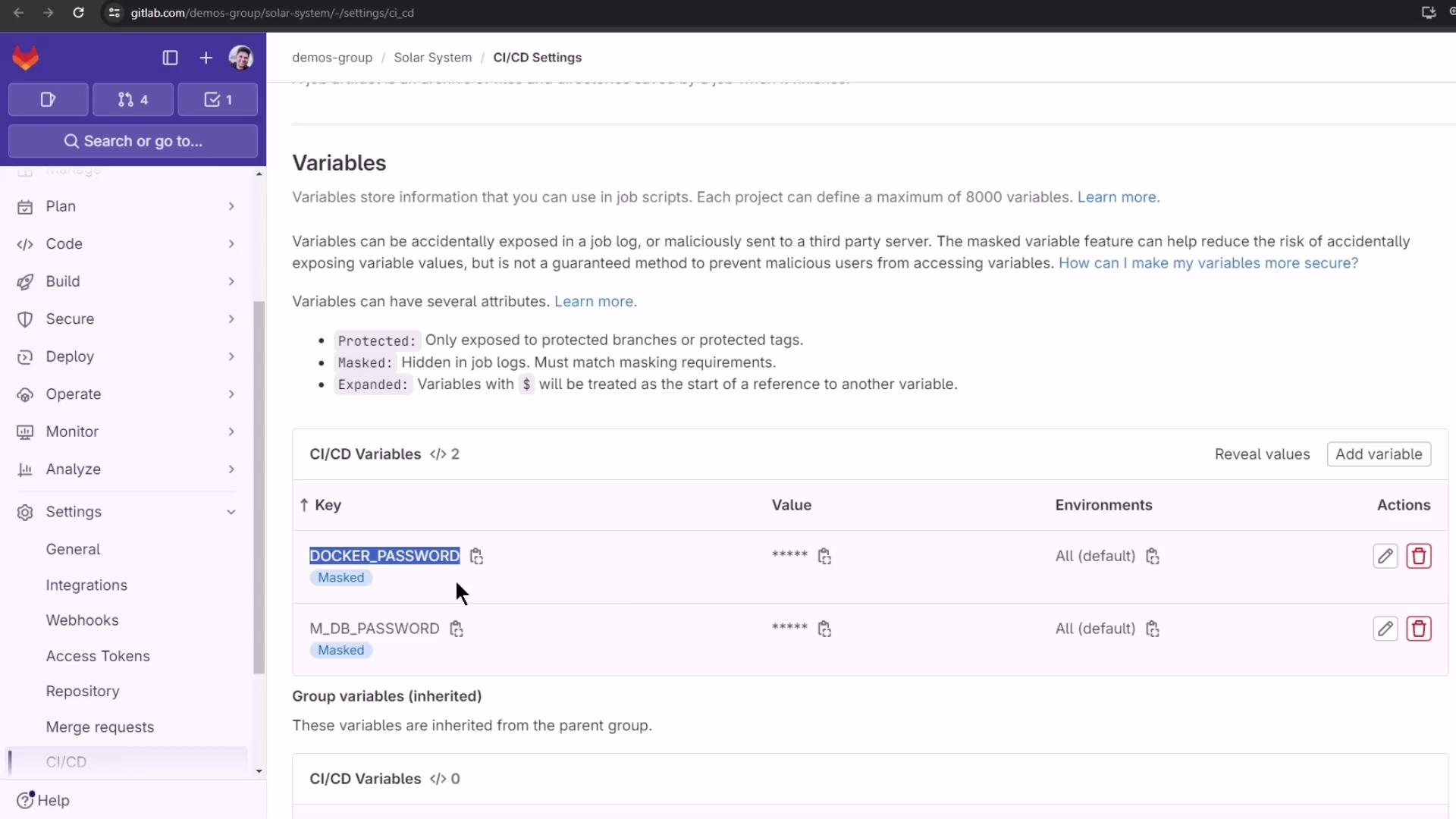
You can also set pipeline-level variables via the GitLab API or include them in a protected group for reuse across multiple projects.
4. Pipeline Visualization
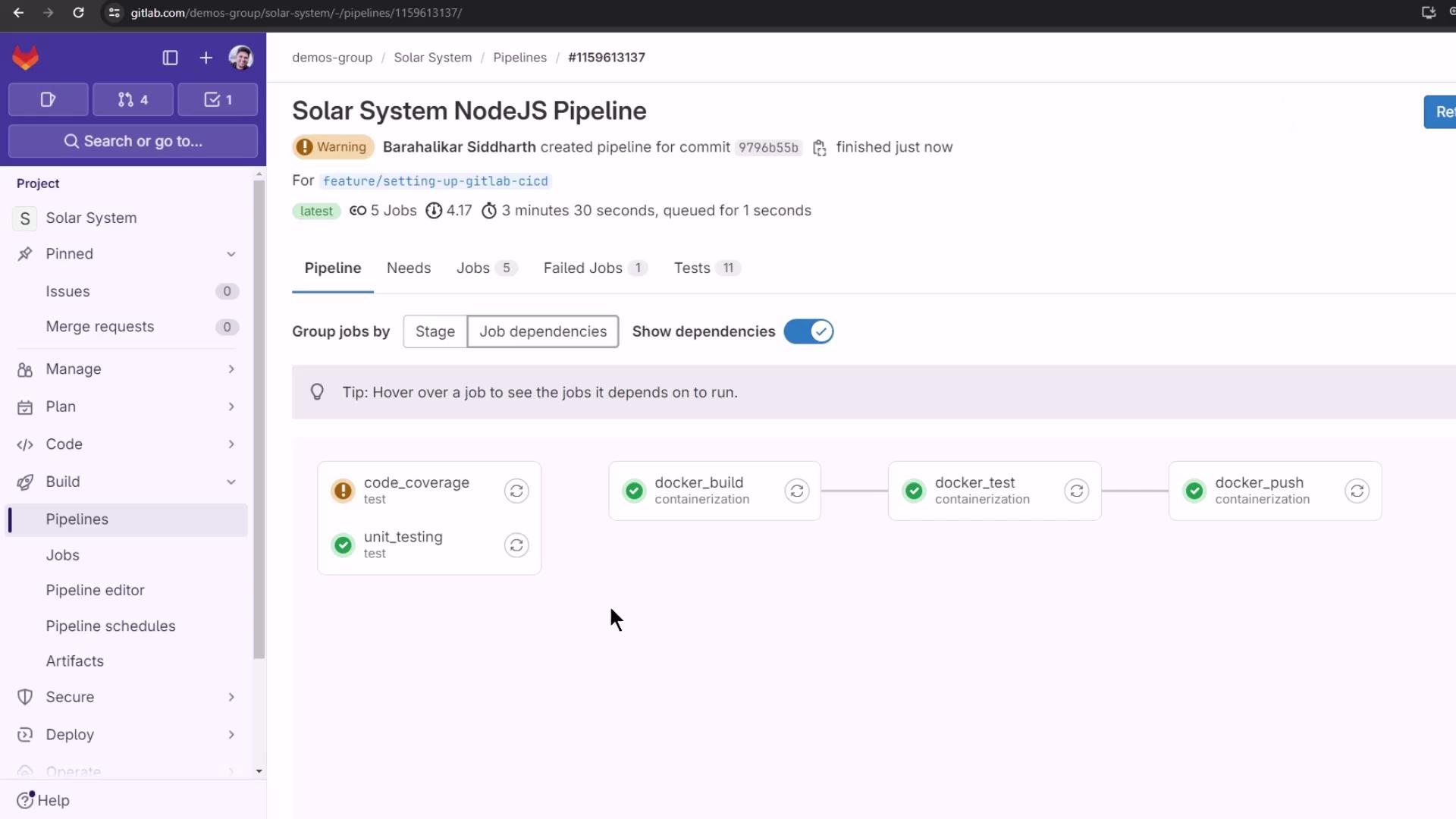
After pushing the updated.gitlab-ci.yml, GitLab will display five jobs in sequence. The docker_push job runs last, once image build and tests complete.
5. Sample docker_push Logs
Below is an example of a successful Docker push in your CI logs:
siddharth67/solar-system) to confirm the newly pushed tags.
Further Reading
- GitLab CI/CD Variables Documentation
- Docker CLI Reference:
docker push - Docker Hub Repository Management