

runner-demo) that runs unit tests against MongoDB.
Table of Contents
- 1. Import the
runner-demoProject - 2. Define the CI/CD Pipeline
- 3. Disable Shared Runners (and Observe a Stuck Pipeline)
- 4. Register a New Project Runner
- 5. Install GitLab Runner on Linux VM
- 6. Register the Runner with GitLab
- 7. Verify Runner in the GitLab UI
- 8. Examine
config.toml - 9. Explore Available Executors
- 10. List Registered Runners Locally
- References and Further Reading
1. Import the runner-demo Project
First, create or import a GitLab project namedrunner-demo in your group. Make the project public to simplify access.
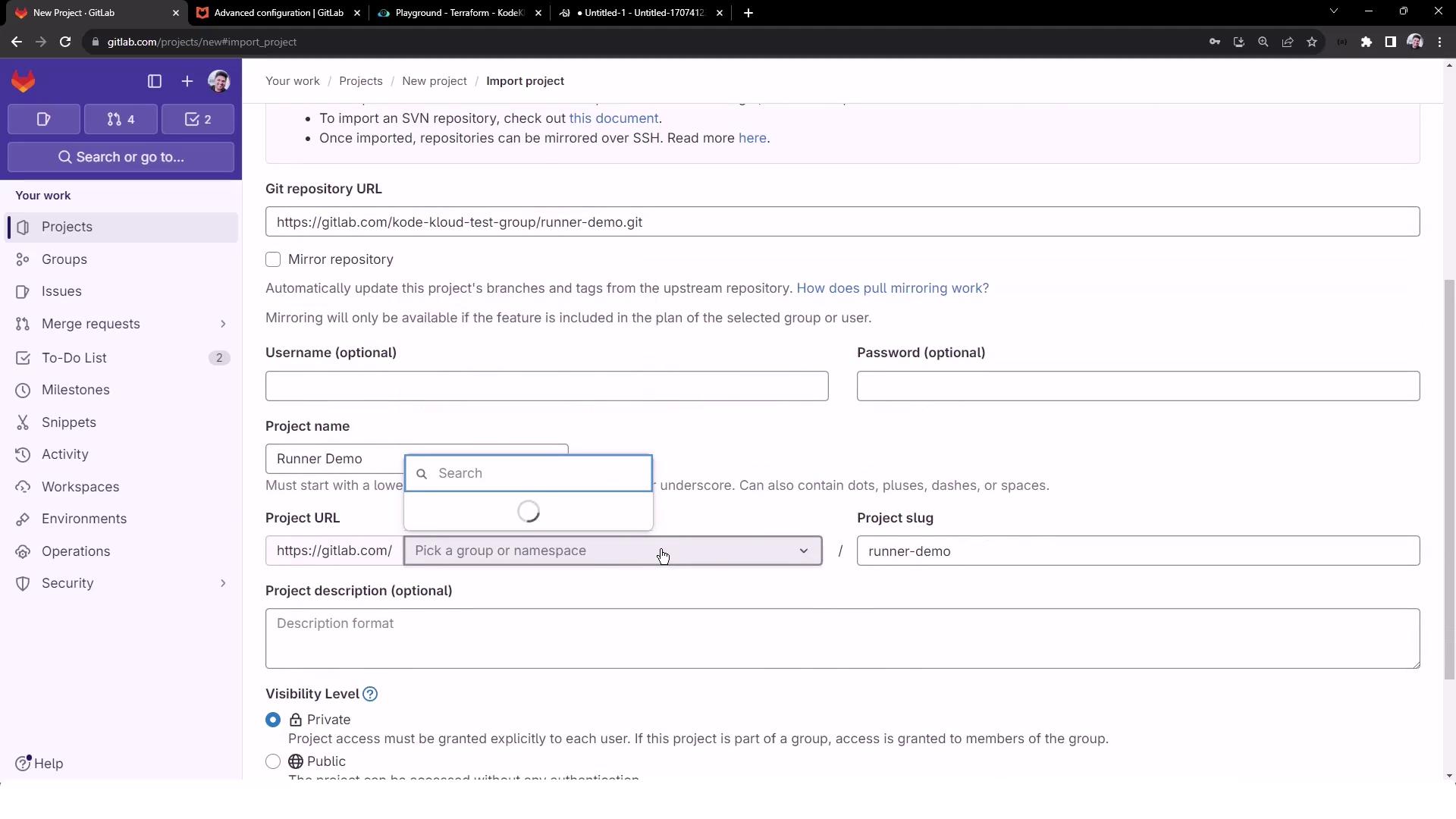
Ensure your MongoDB URI, username, and password are secured via CI/CD variables or a secrets manager—avoid hardcoding sensitive credentials.
2. Define the CI/CD Pipeline
In the root ofrunner-demo, add a file named .gitlab-ci.yml:
unit_testing job:
3. Disable Shared Runners and Observe a Stuck Pipeline
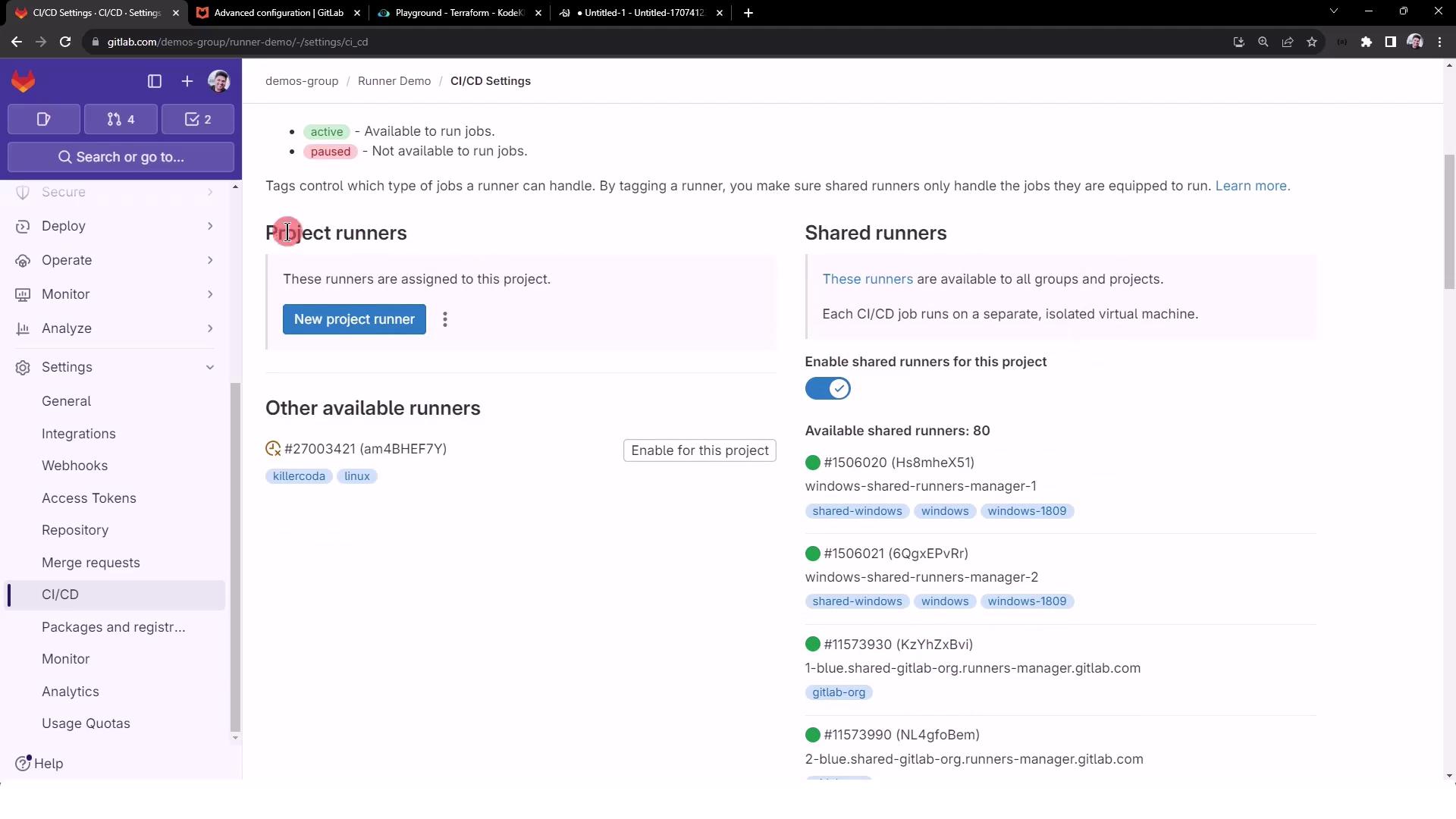
GitLab projects default to using shared runners. To demonstrate a self-managed runner, disable them:- Navigate to Settings > CI/CD > Runners.
- Toggle Shared runners off.
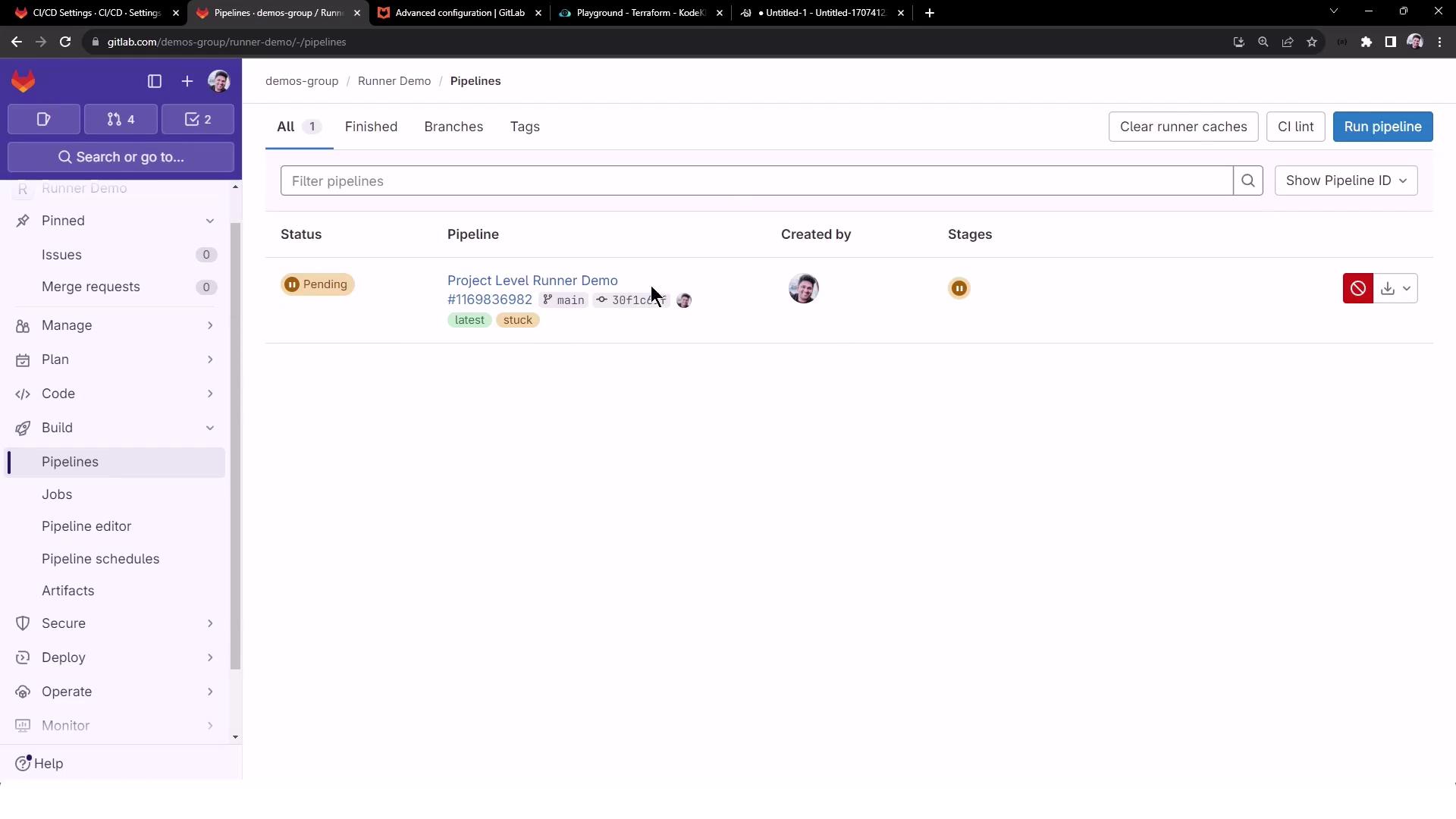
.gitlab-ci.yml to the main branch. The new pipeline will queue but remain stuck:
unit_testing job stays pending due to no active runners:
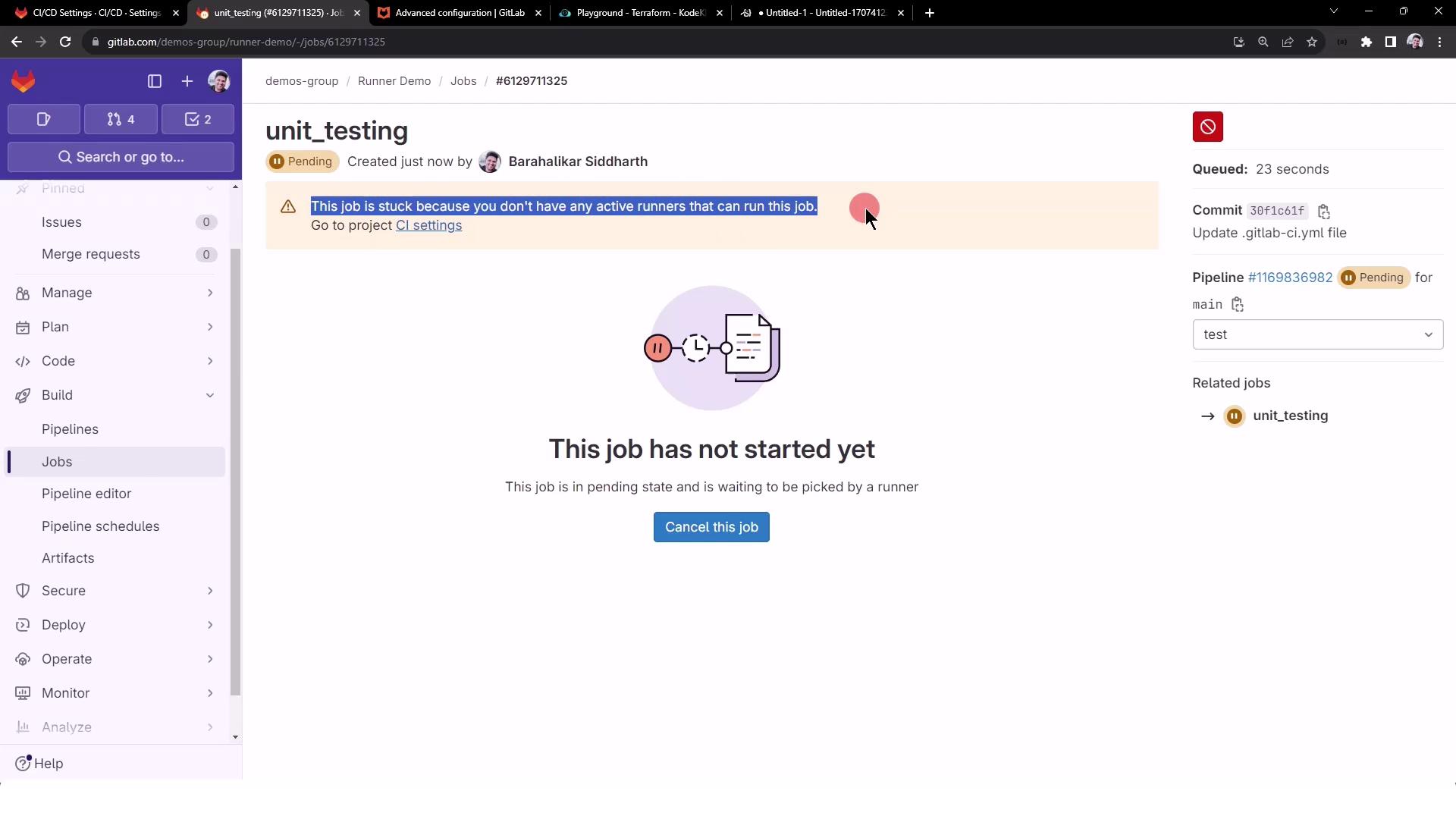
Until you register a runner, all CI/CD jobs will remain in a pending state. Make sure to add a project-level runner or re-enable shared runners.
4. Register a New Project Runner
In Settings > CI/CD > Runners > Project Runners, click New runner. Select Linux as the operating system and add a tag to scope job assignment (e.g.,NodeJS).
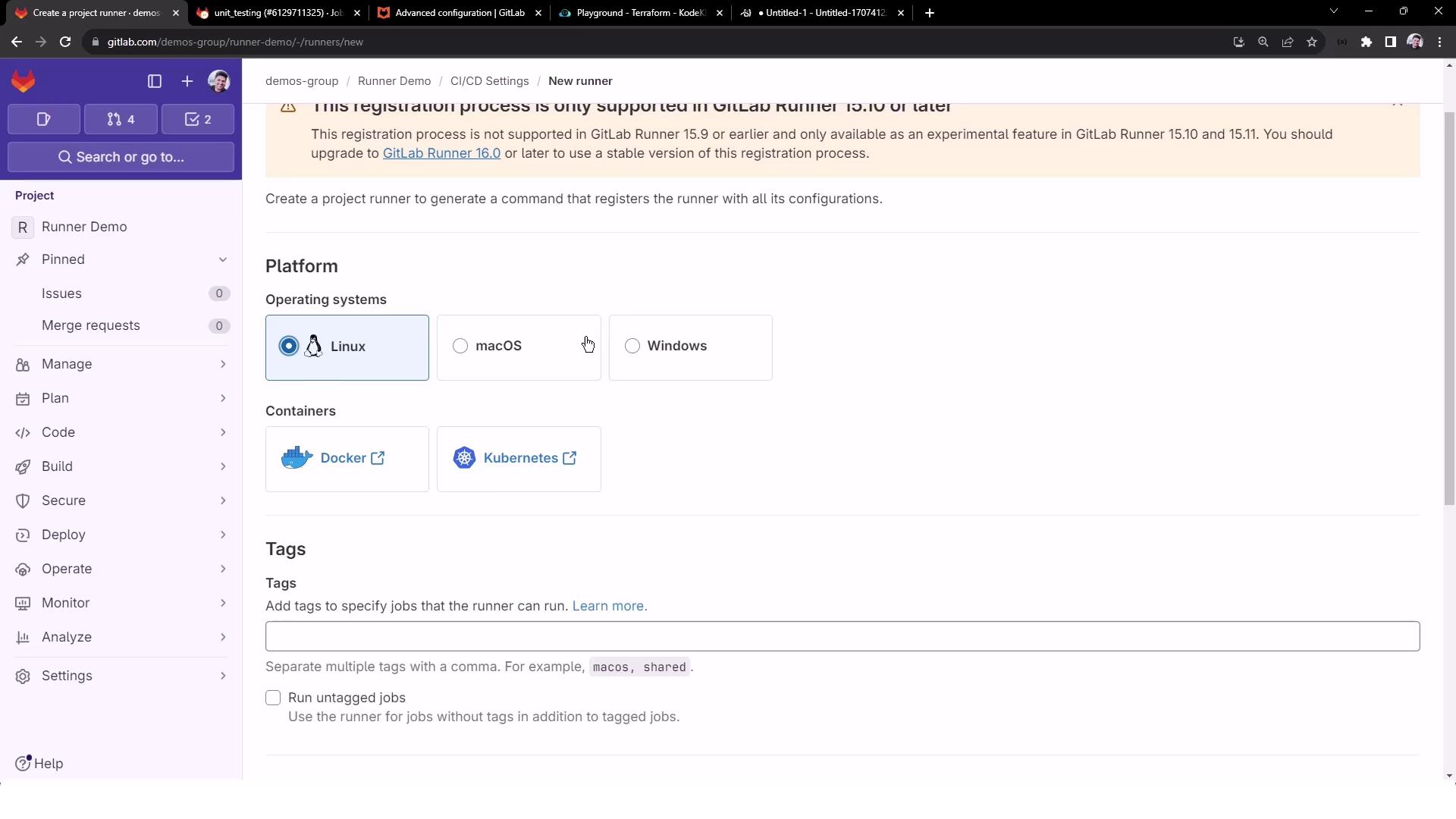
unit_testing job:

- Runner description
- Maximum job timeout
- Protection & pausing settings
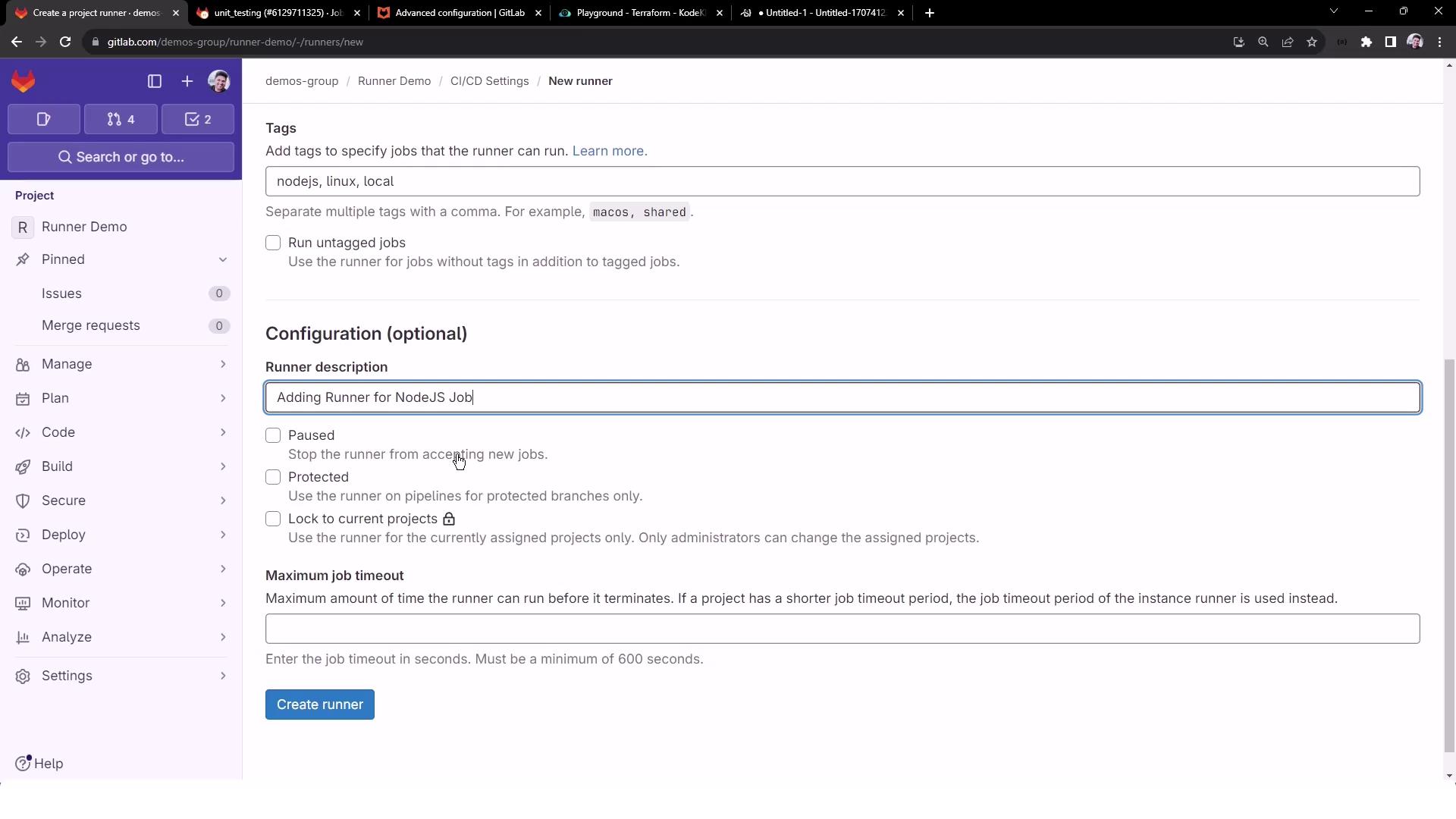
5. Install GitLab Runner on Linux VM
On your Linux VM (e.g., Ubuntu), execute the following steps:6. Register the Runner with GitLab
Use the registration token from the project UI:- Confirm the GitLab URL (
https://gitlab.com/). - Provide a runner name (e.g.,
nodejs-runner). - Enter tags (
NodeJS). - Select executor:
shell.
7. Verify Runner in the GitLab UI
Return to Settings > CI/CD > Runners. You should see your new runner listed as active:
8. Examine config.toml
The runner’s settings live in /etc/gitlab-runner/config.toml:
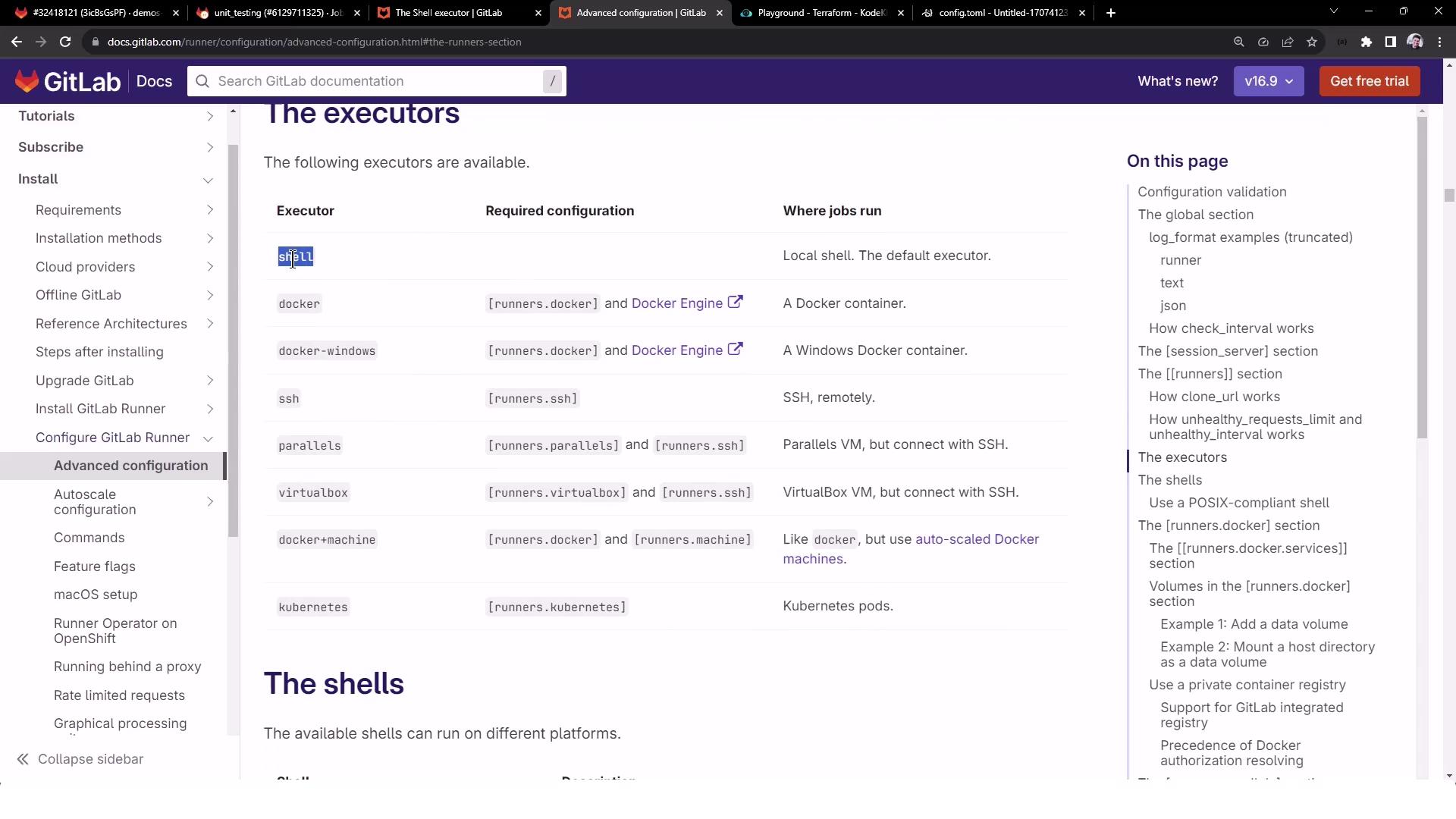
For advanced options, see Advanced Configuration Documentation.
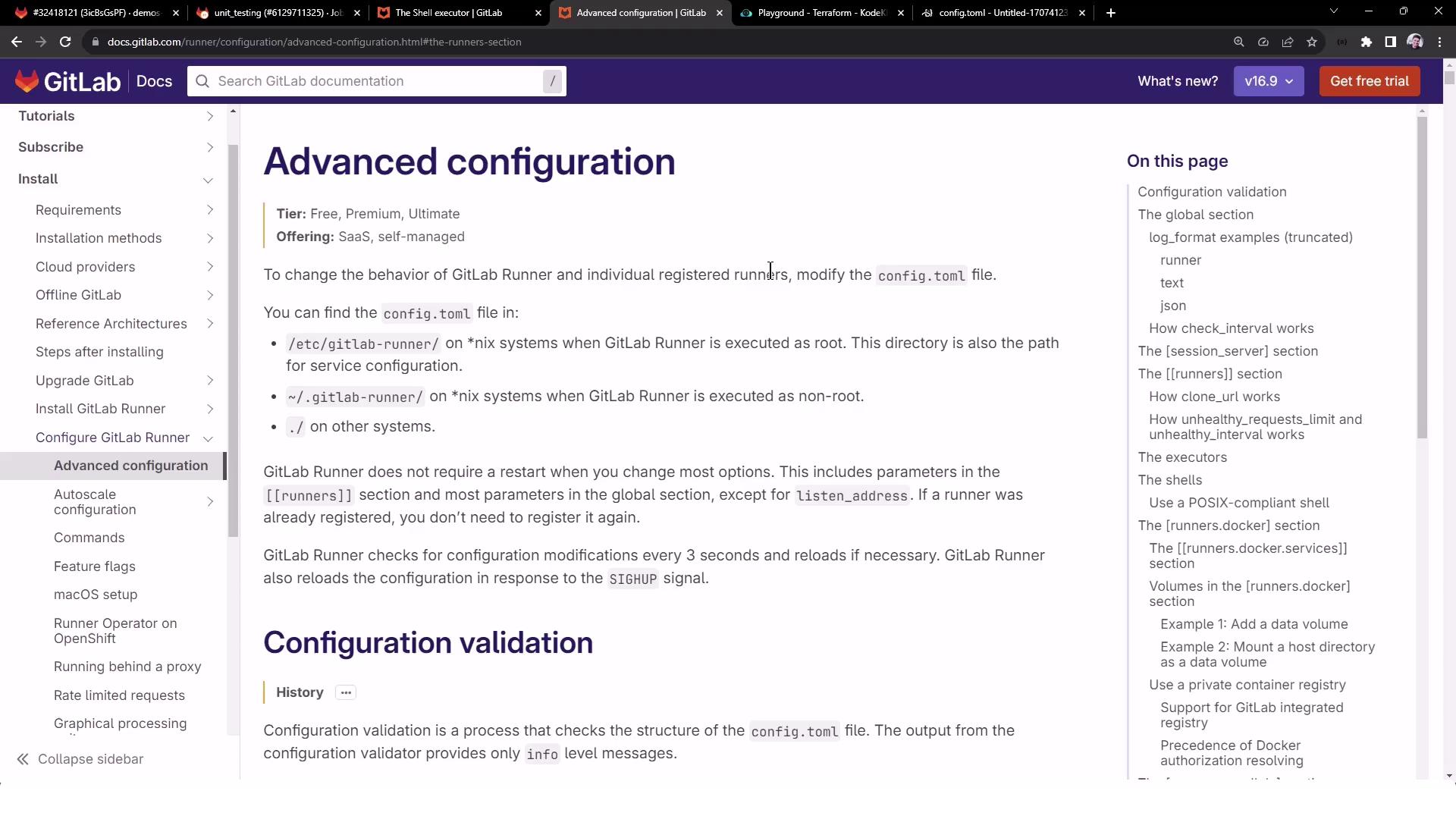
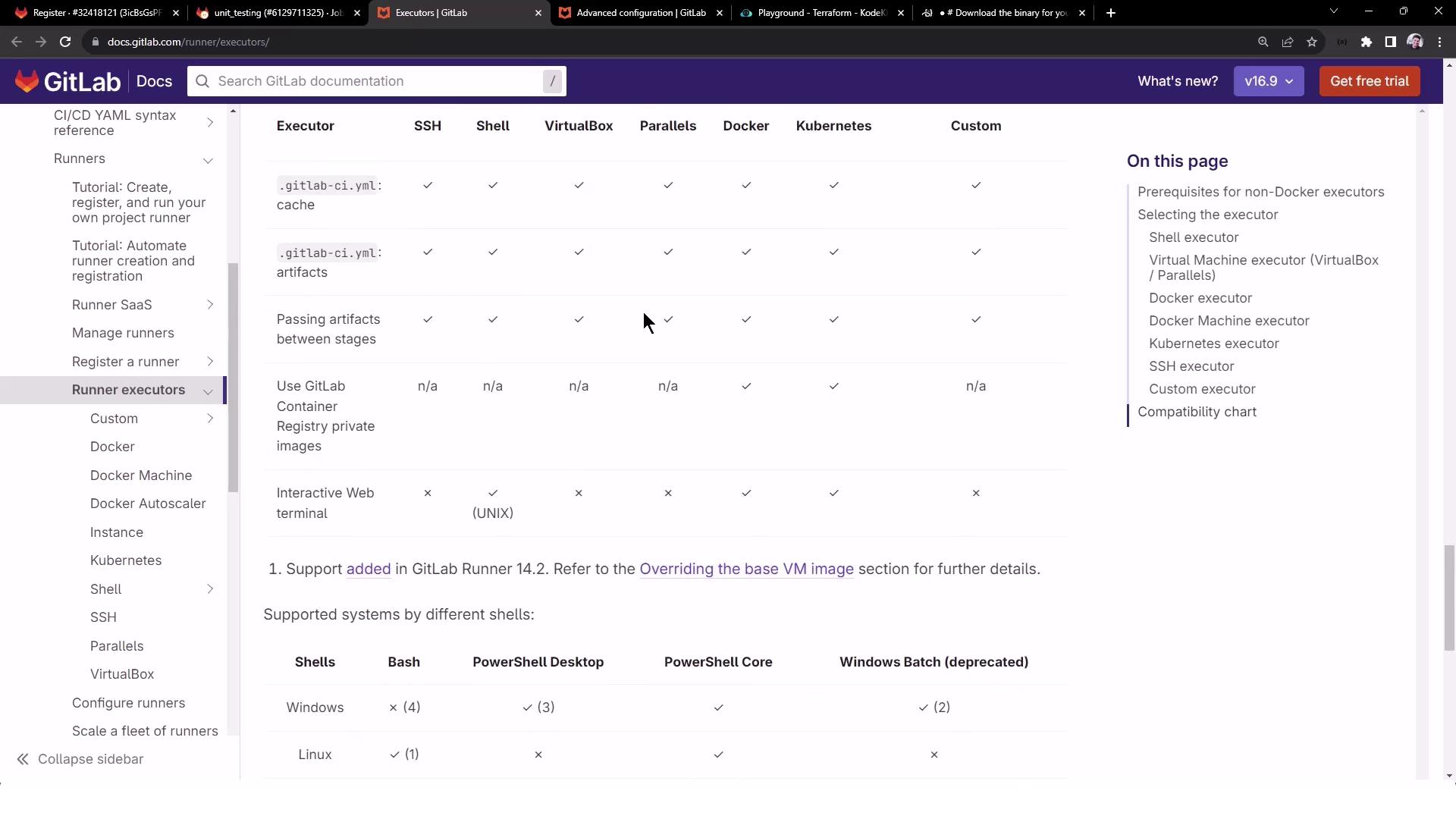
9. Explore Available Executors
GitLab Runner supports multiple executors. Review and choose the one that best fits your environment:- Shell
- Docker
- Kubernetes
- SSH
- VirtualBox
- Parallels
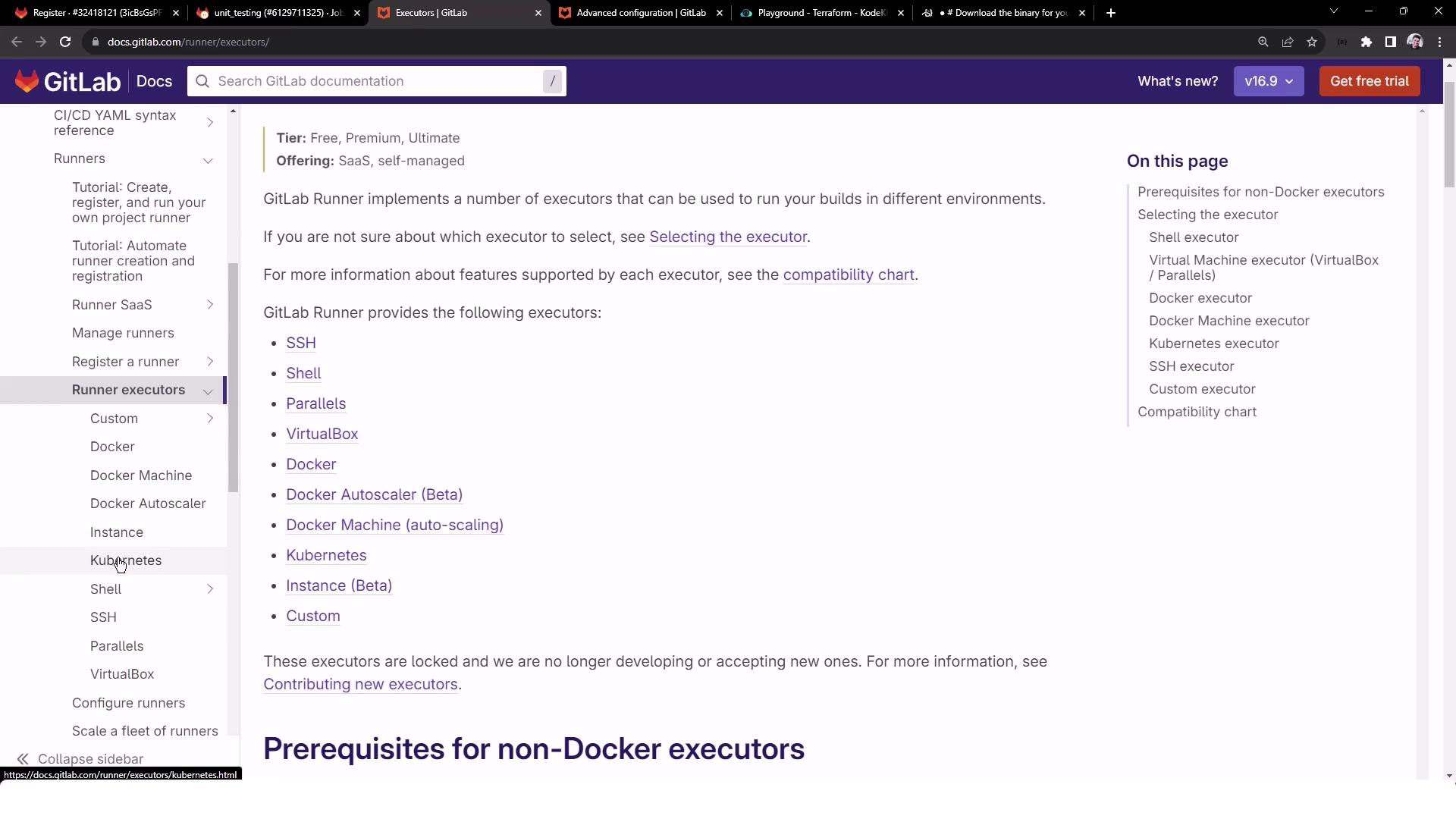

10. List Registered Runners Locally
On your runner VM, confirm the registration:References and Further Reading
- GitLab Runner Official Documentation
- Advanced Runner Configuration
- CI/CD Variables
- GitLab CI/CD Pipeline Configuration