

- Environment Dashboard
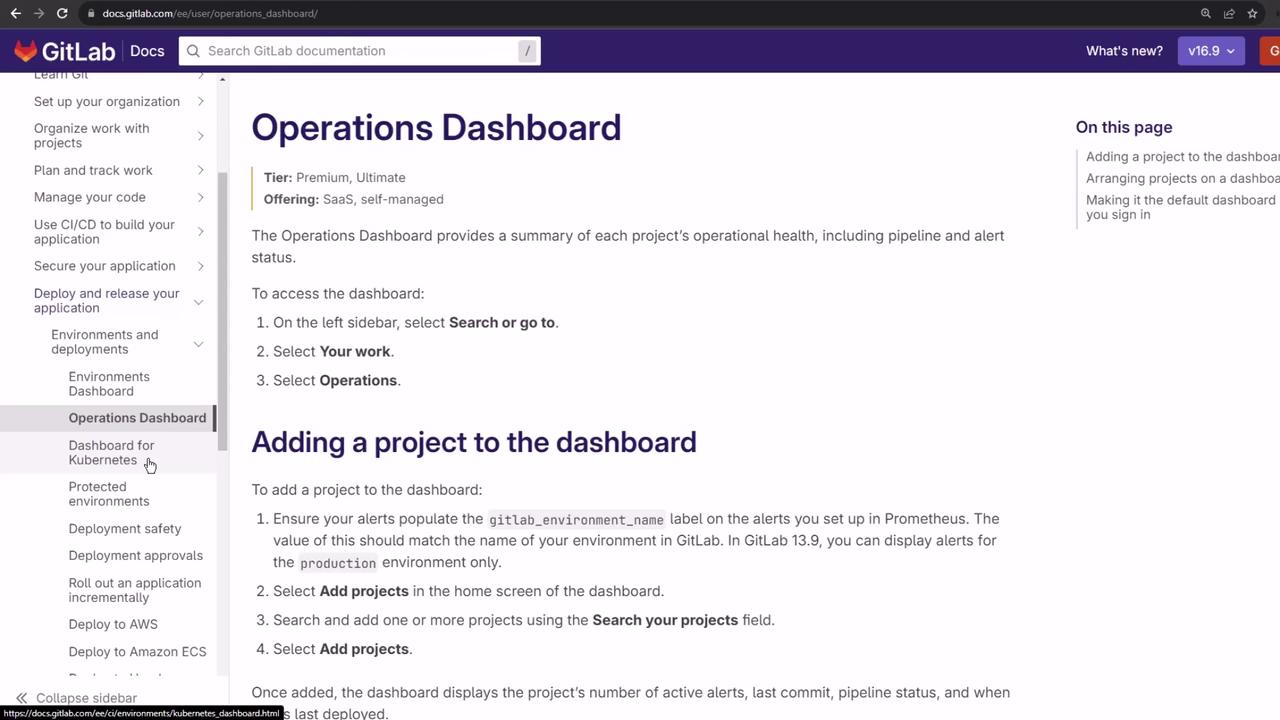
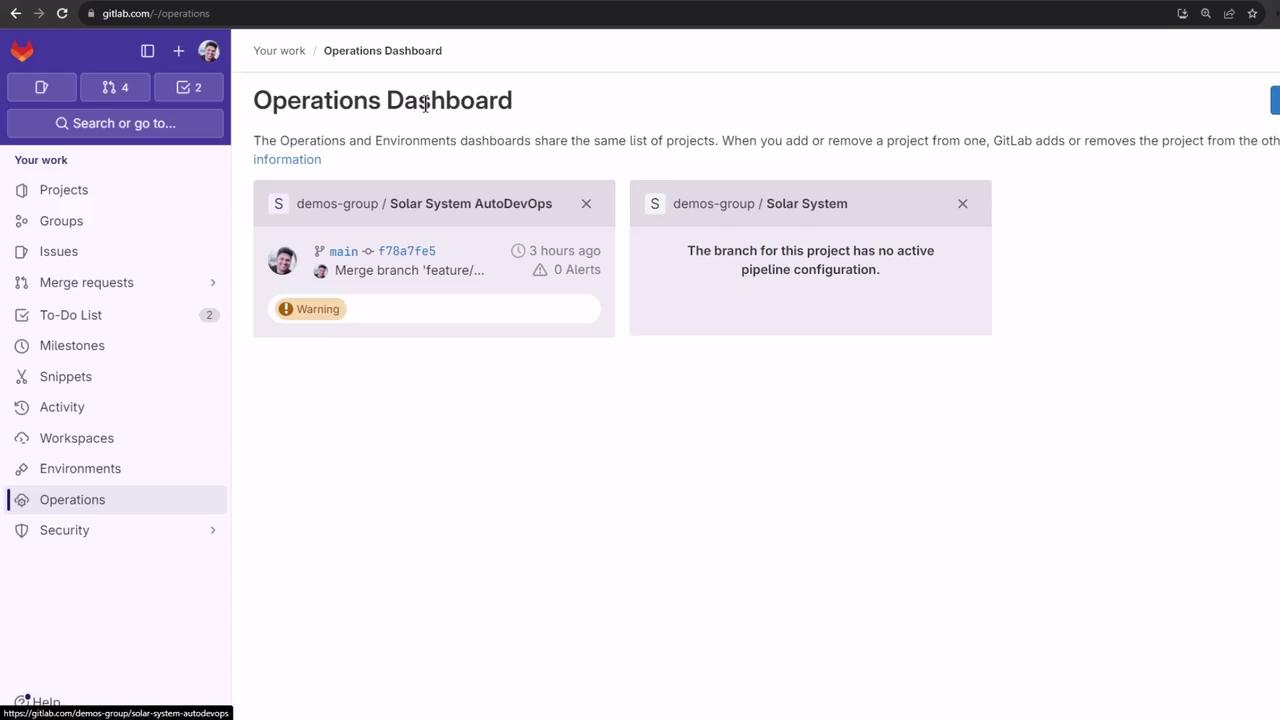
- Operations Dashboard
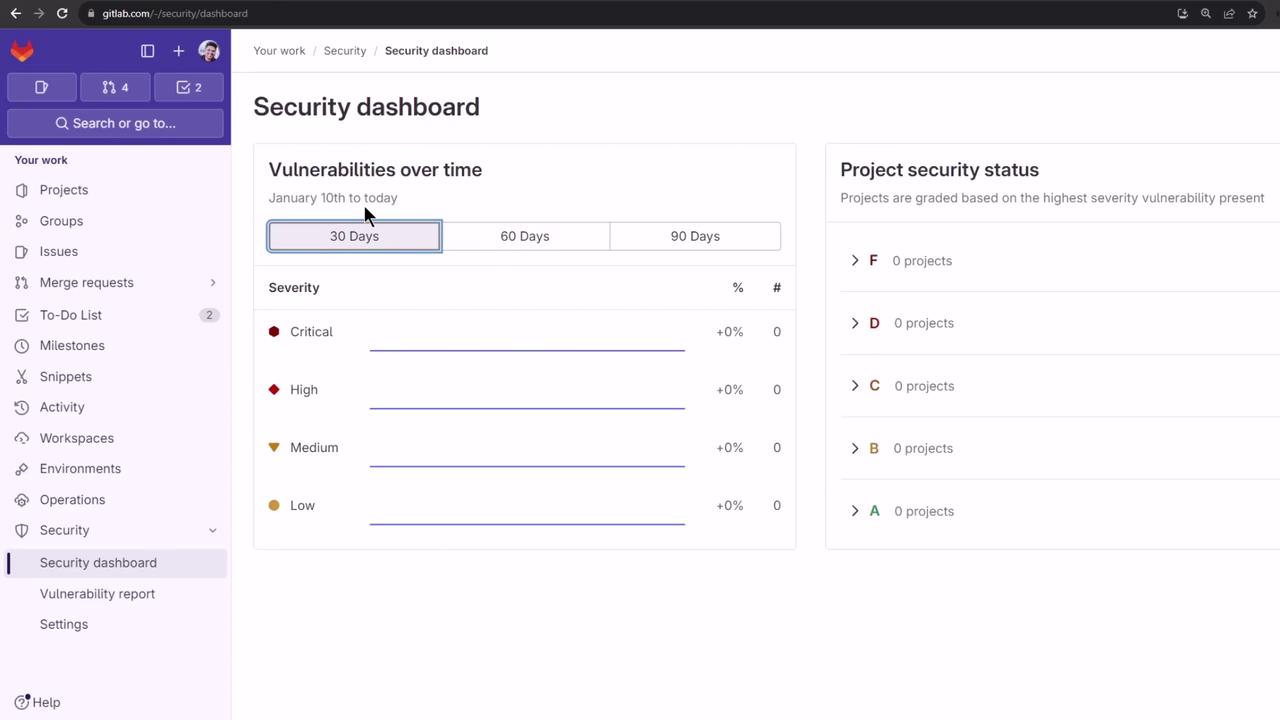
- Security Dashboard
- Protected Environments
Activate Your 30-Day Ultimate Trial
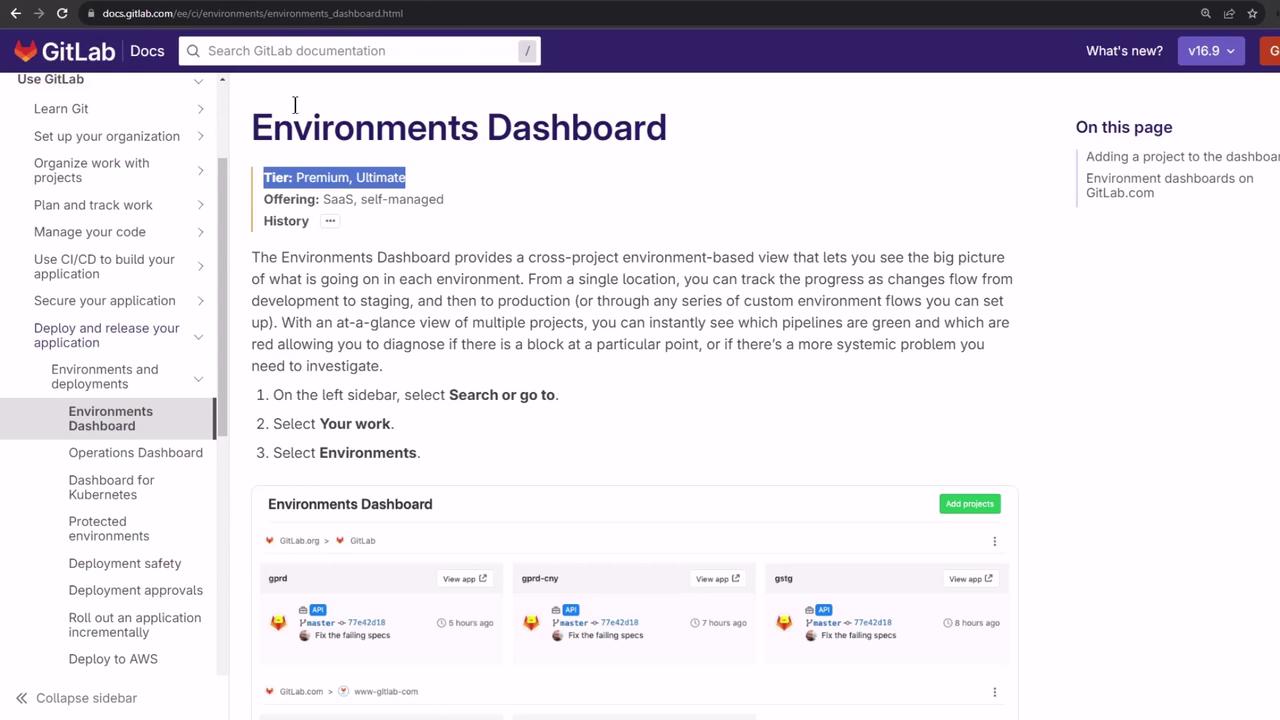
By default, the Environment, Operations, and Security dashboards are exclusive to Premium and Ultimate tiers. To test them on a Free account, start a 30-day Ultimate trial:Starting a trial does not commit you to a paid plan—your account reverts to Free when the trial ends.
- Go to Help → Documentation in the top menu.
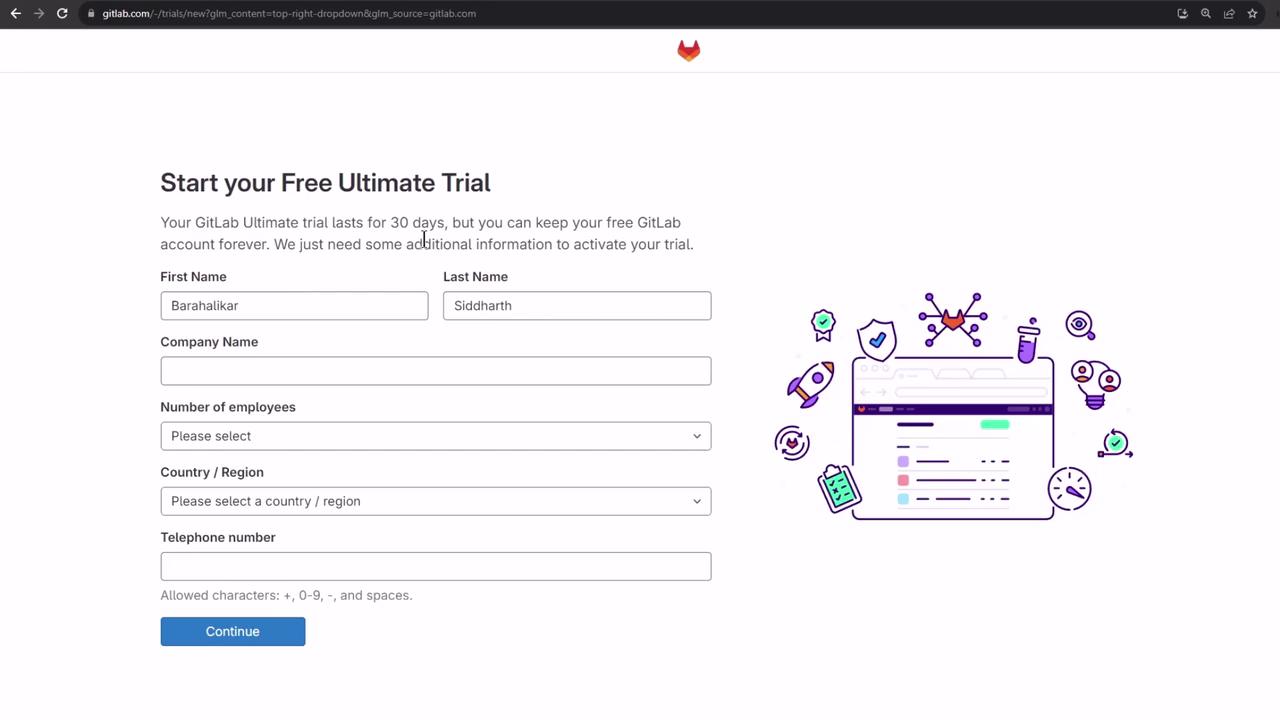
- Click Start an Ultimate trial and fill in your details: name, company, employee count, country, and phone.
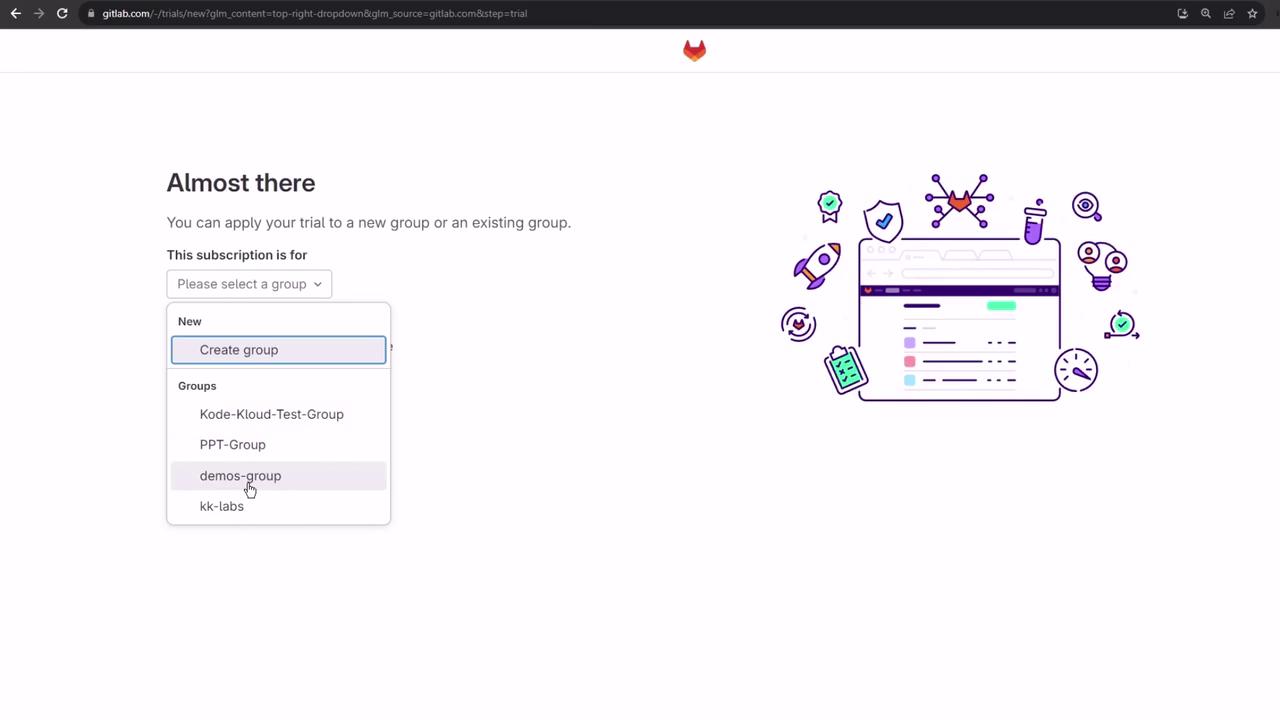
- Choose the group for the trial, for example,
demos-group. - Submit the form.
Navigate the Demos Group Dashboard
After activation, head back to Groups → demos-group to see the new dashboards and features.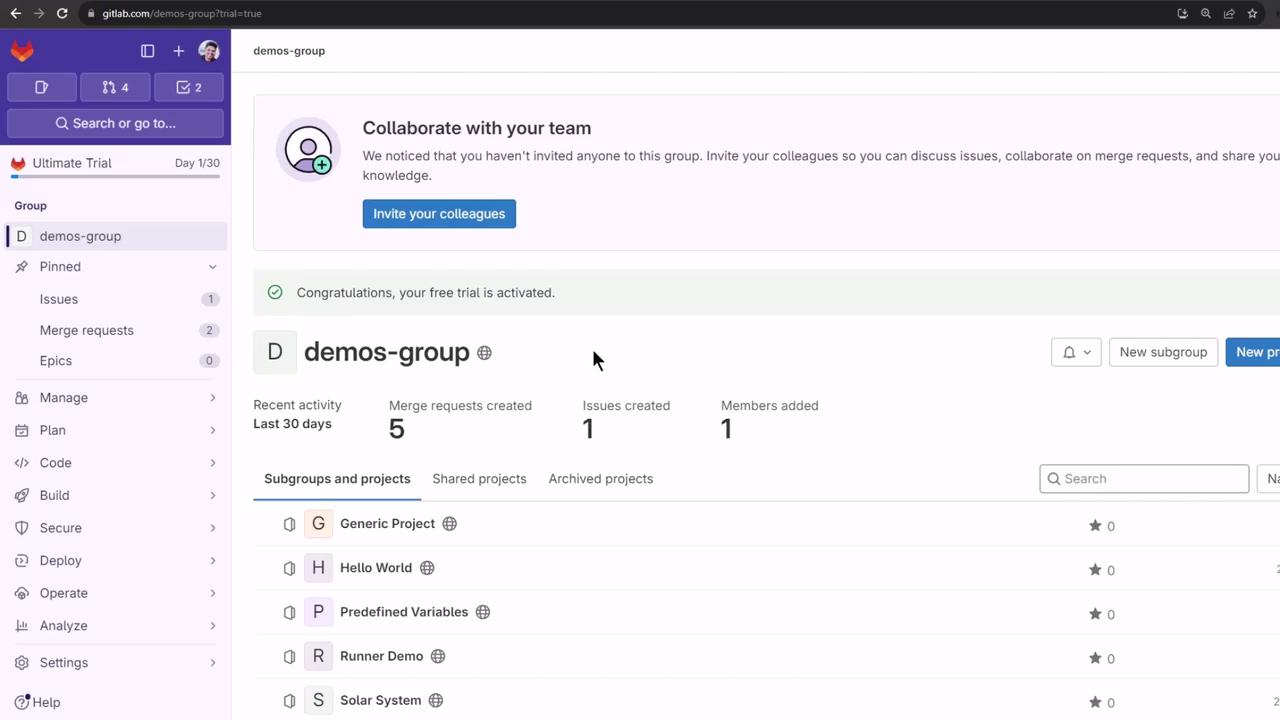
Ultimate-Tier Dashboards at a Glance
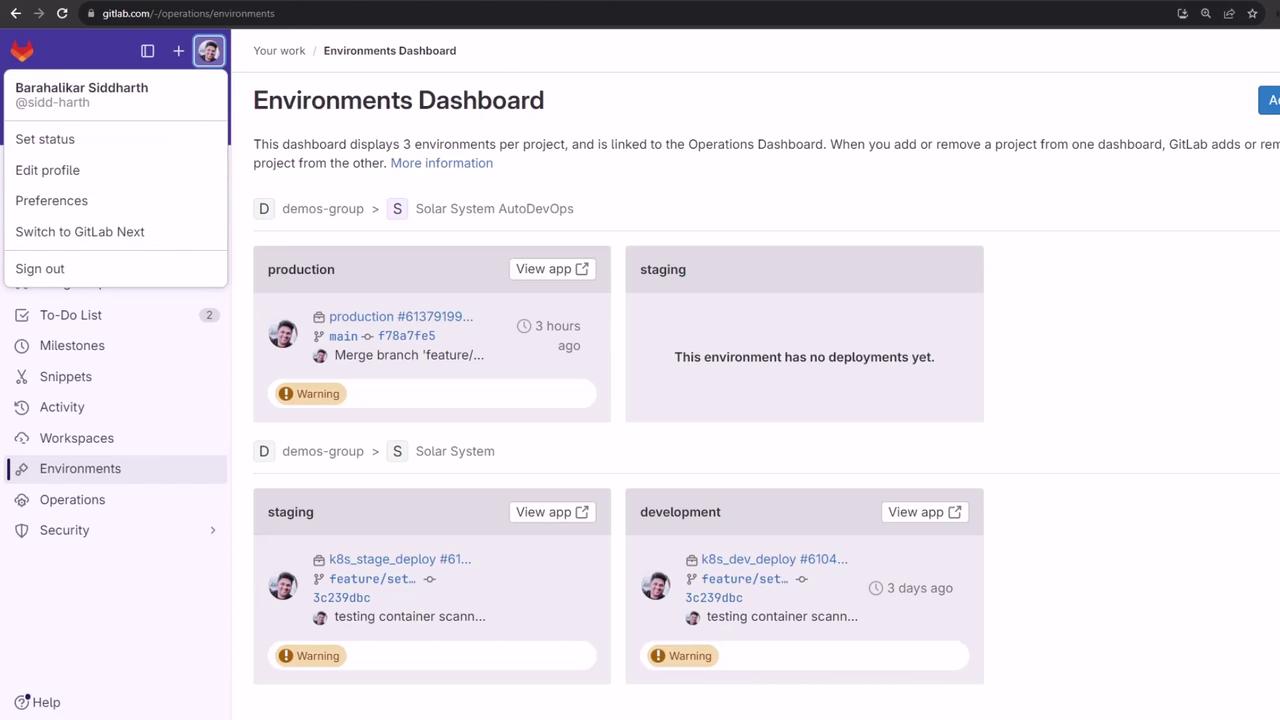
Environment Dashboard
The Environment Dashboard aggregates deployments across all your projects:- In the group view, click Manage Environments.
- Select projects (e.g.,
solar-system,solar-system-auto-devops). - Click Add.
Operations Dashboard
Monitor operational health, pipeline status, and incident alerts for each project:- Navigate to Operations → Dashboard in your group.
- Click Add projects and choose the ones you want to track.
Security Dashboard
Track vulnerabilities and compliance status across projects:- Go to Security & Compliance → Dashboard.
- Add your projects (e.g.,
solar-system,solar-system-auto-devops). - Run a pipeline with security scanning enabled.
Protected Environments in CI/CD
Give only specific users or approvers the right to deploy to sensitive environments:- Open your project (e.g., solar-system-auto-devops).
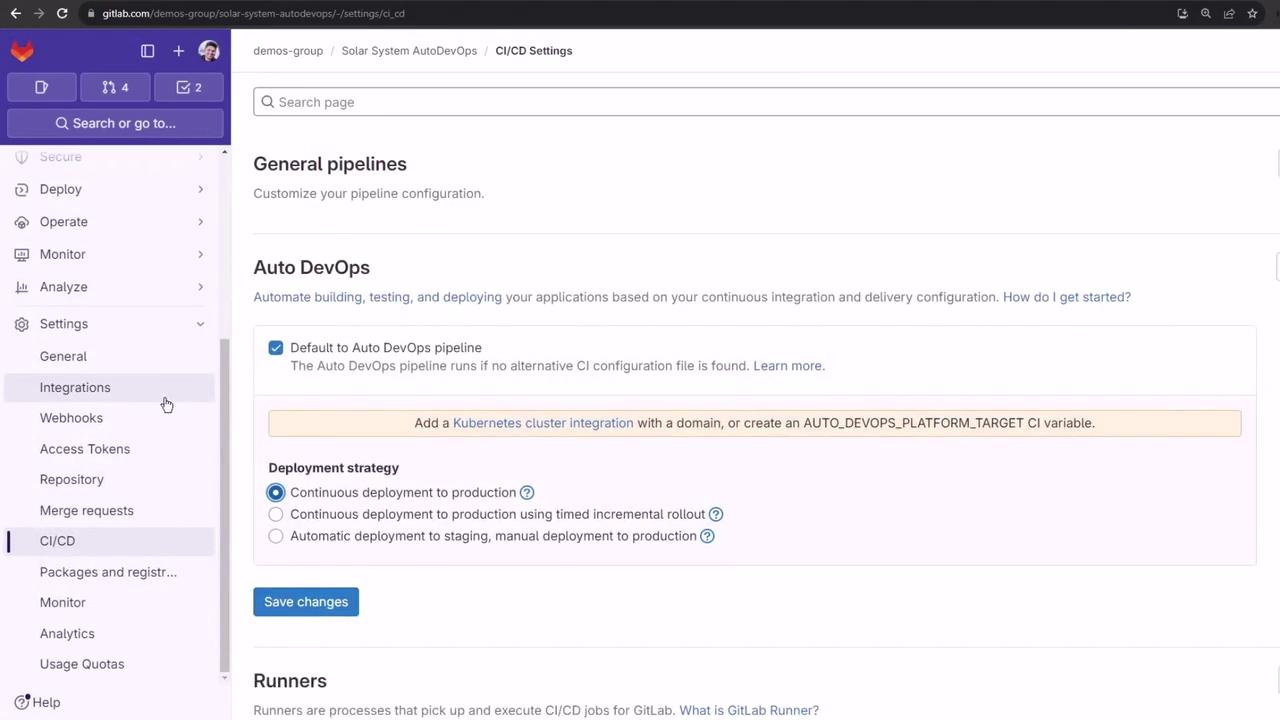
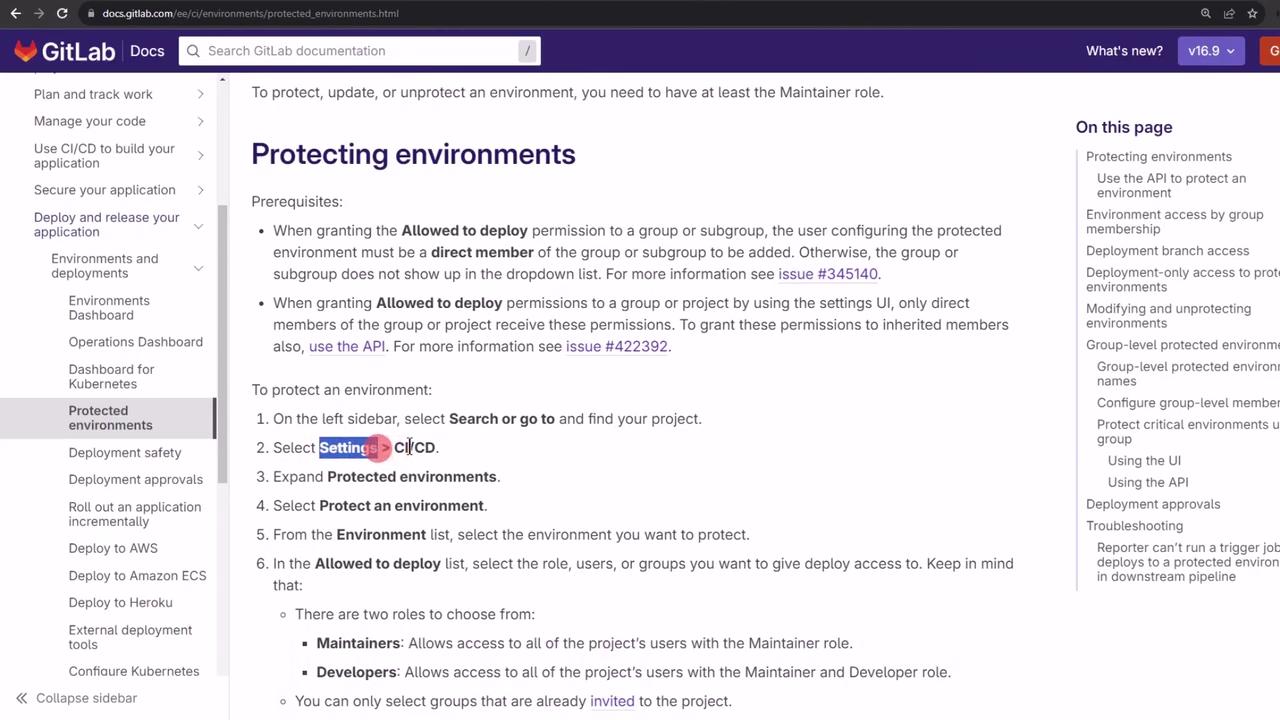
- Go to Settings → CI/CD and expand Protected Environments.
Protecting an environment is irreversible without removing rules—be cautious when specifying approvers.
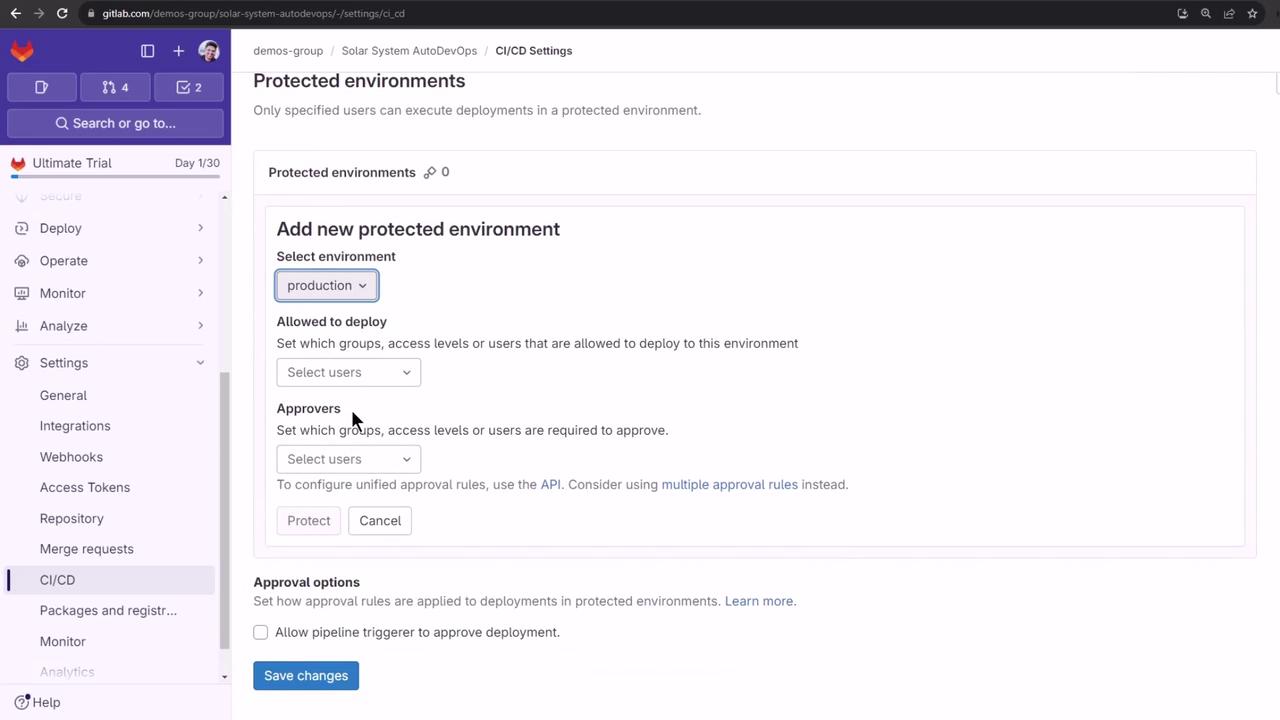
- Select environment (e.g.,
production). - Define who can deploy.
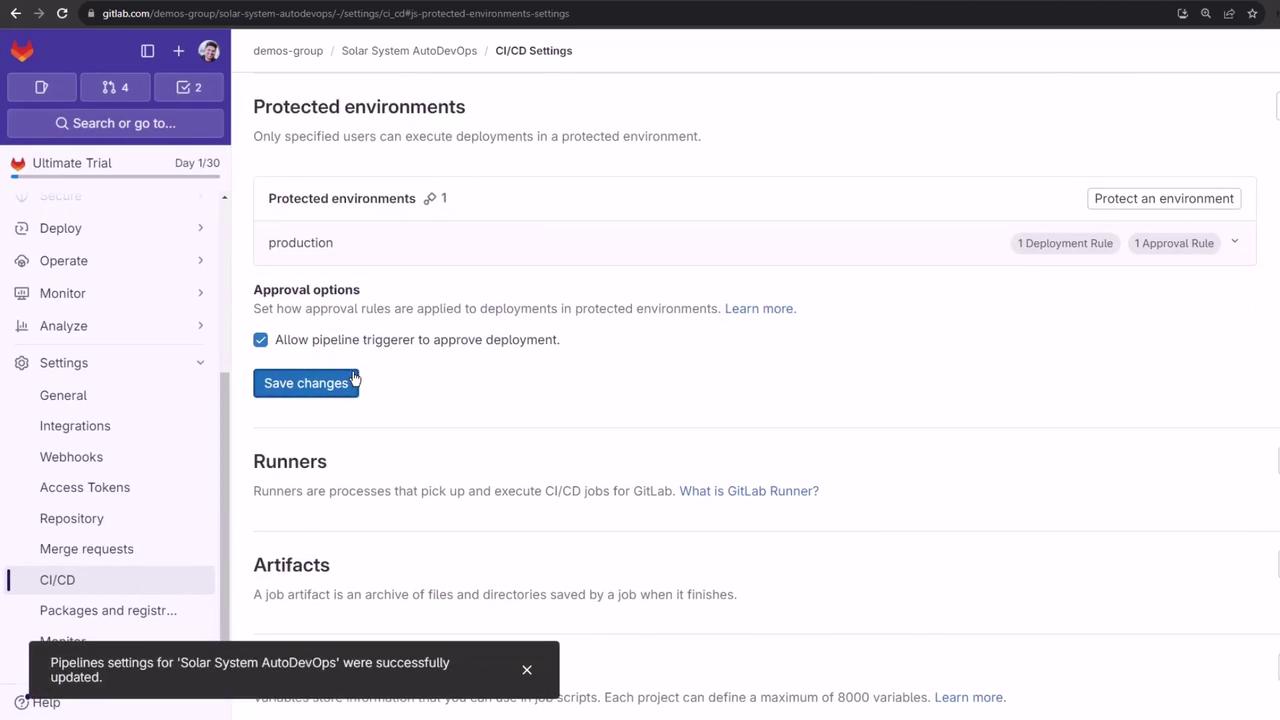
- Assign approvers and disable “Allow the person who triggered the pipeline to approve the deployment” for stricter controls.
Next Steps
Trigger another Auto DevOps pipeline to explore additional Ultimate-tier features and integrations. Stay tuned for guides on advanced security scanning, compliance reports, and performance insights.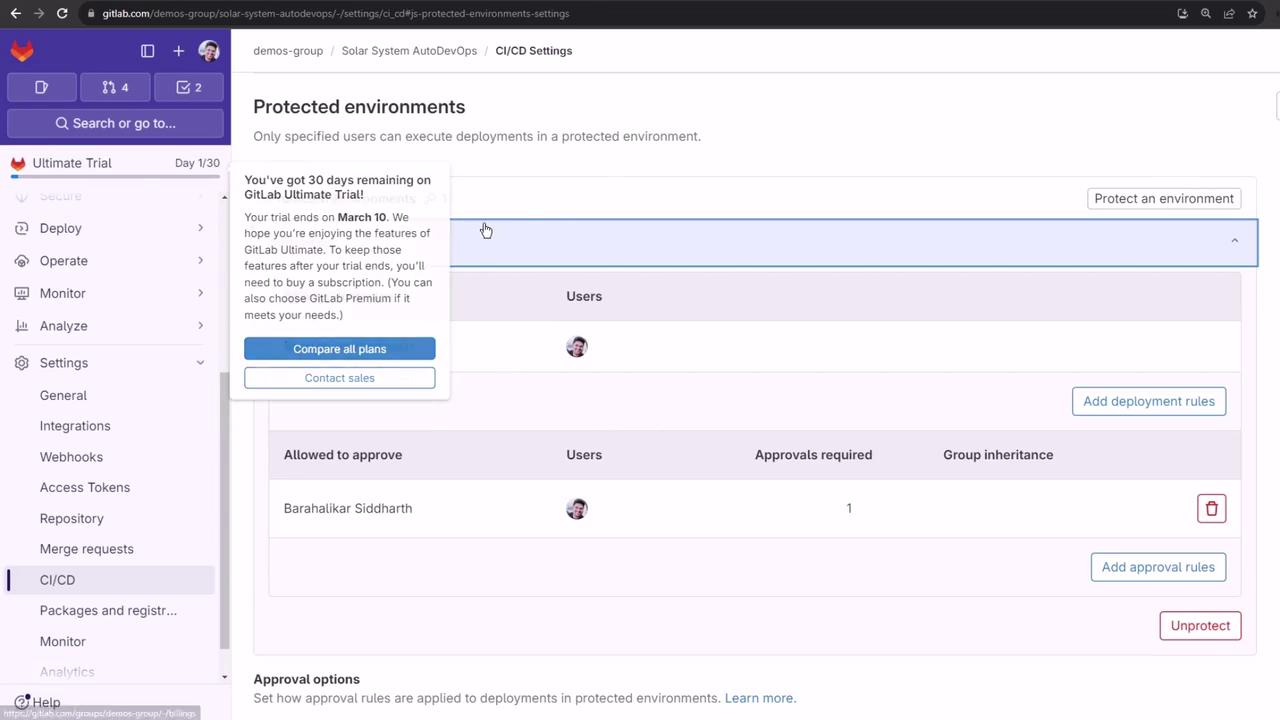
Links and References
- GitLab Documentation
- Protected Environments Docs
- Security & Compliance Docs
- Operations Dashboard Docs