

kubectl against your cluster, and your team can view the Kubernetes dashboard directly in GitLab.
1. Configure the GitLab Agent
First, create aconfig.yaml for your Kubernetes agent to enable GitOps workflows, CI/CD deployments, and dashboard access. Place this file in your repository’s default branch under:
Replace
<agent-name> with your actual agent identifier, and ensure you commit to the branch marked as default in your project’s Branches page.

config.yaml:
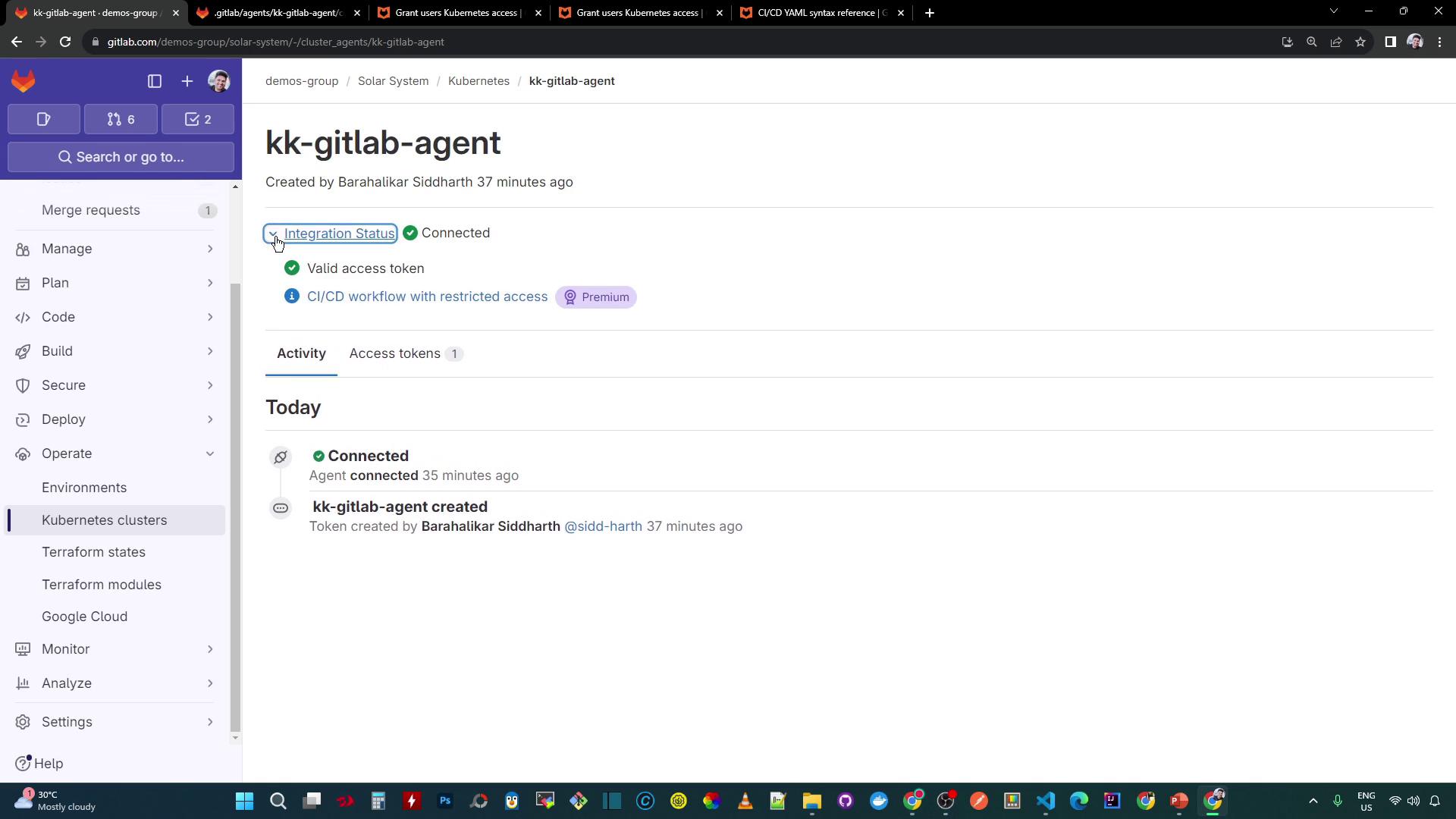
kubeconfig context for kubectl commands, and users can access the Kubernetes dashboard within GitLab environments.
You can verify the available contexts in any job script:
2. Enable the Kubernetes Dashboard
To visualize cluster resources, enable the Kubernetes dashboard in GitLab: Dashboard for Kubernetes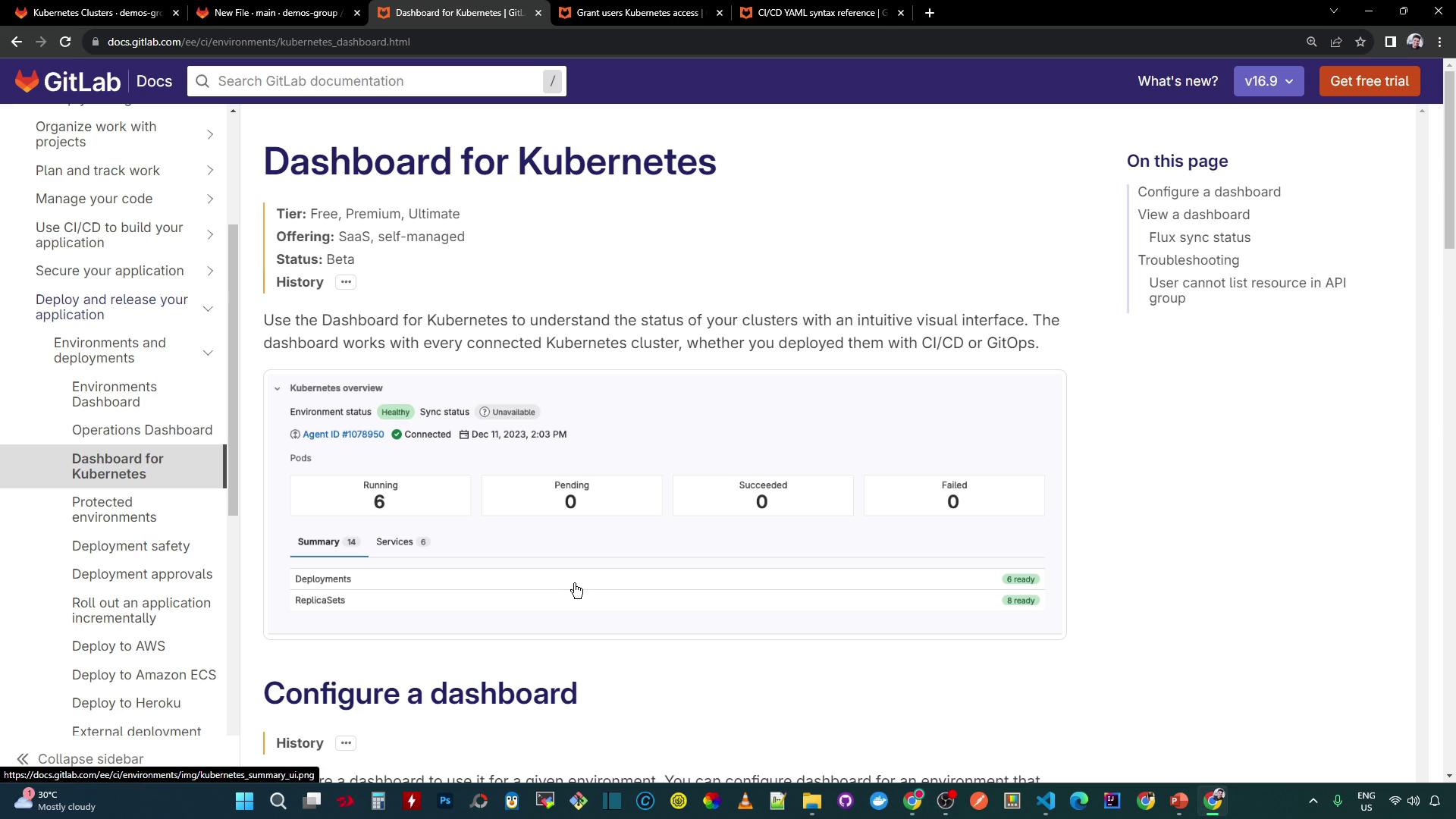
- In your project, go to Operations > Environments and click New environment.
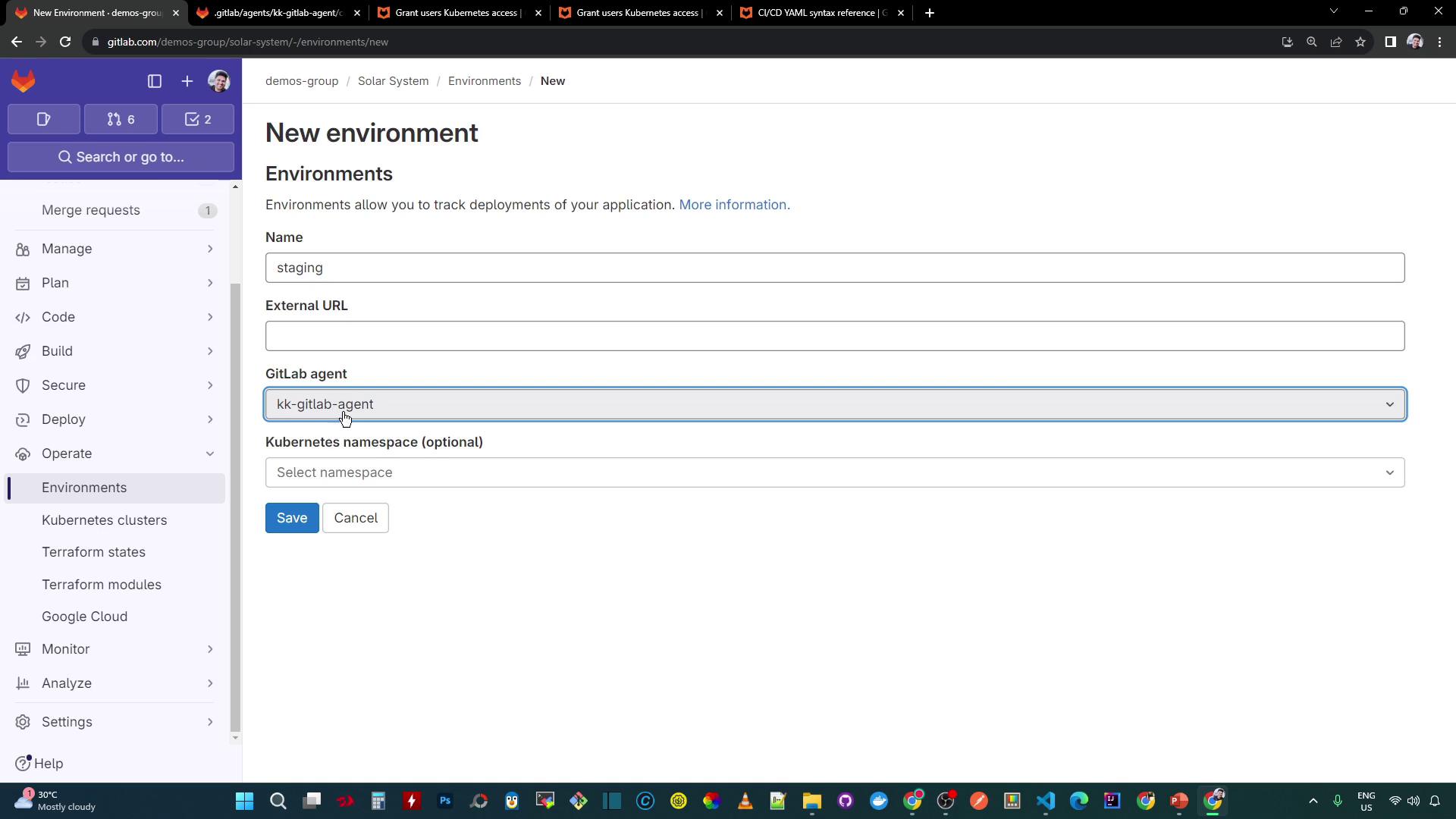
- Set the Environment name to
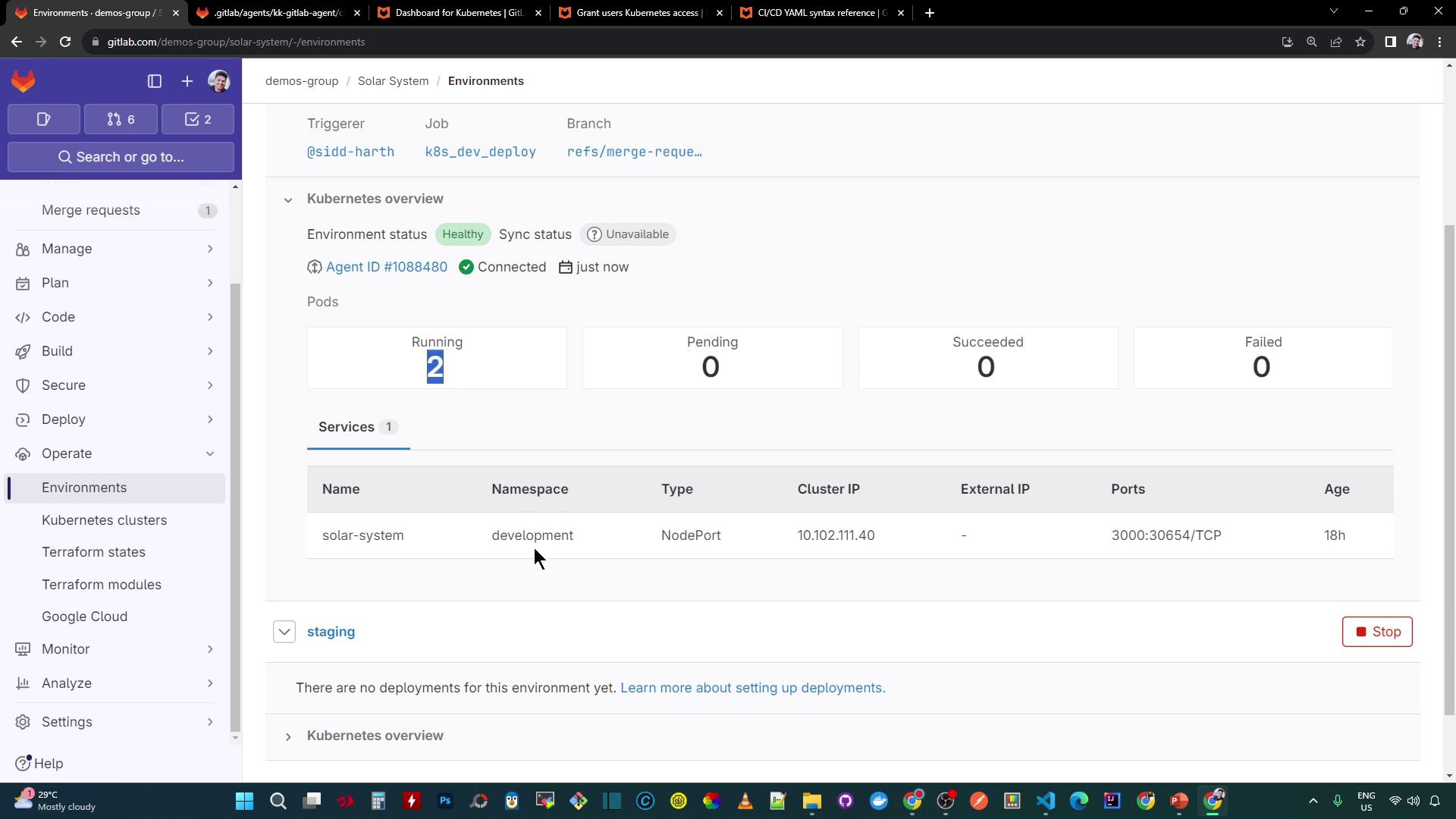
staging, select your GitLab agent, and optionally specify a Kubernetes namespace (leave blank to display all). - Click Save. The Overview dashboard now lists your Kubernetes services:
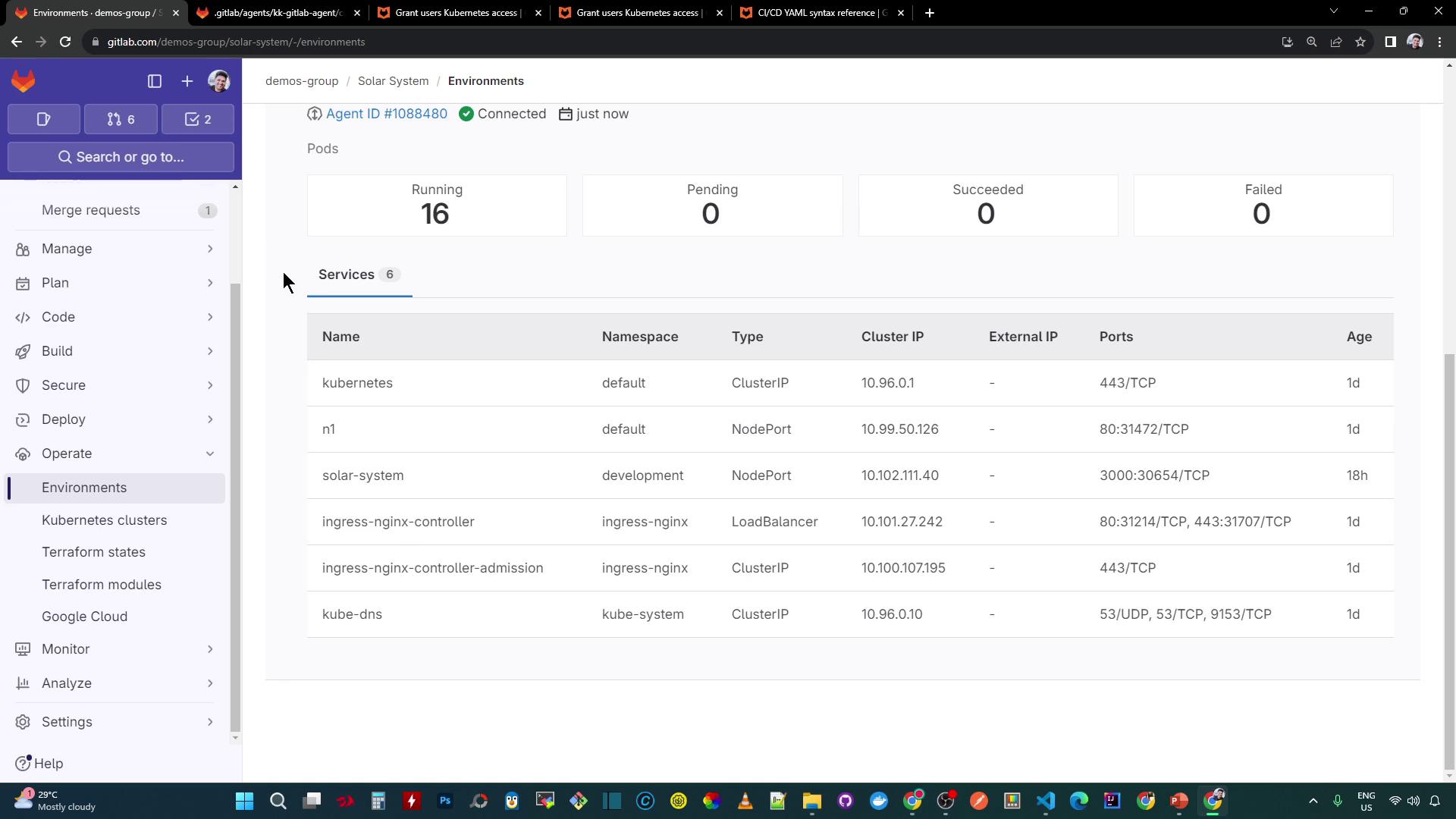
- After deploying workloads, the dashboard reflects the live status and health:

3. Scope CI/CD Variables to Staging
Isolate settings for your staging environment by defining environment-scoped variables:- Navigate to Settings > CI/CD > Variables.
- Click Add variable.
- Enter your keys and values, then set Environment scope to
staging:
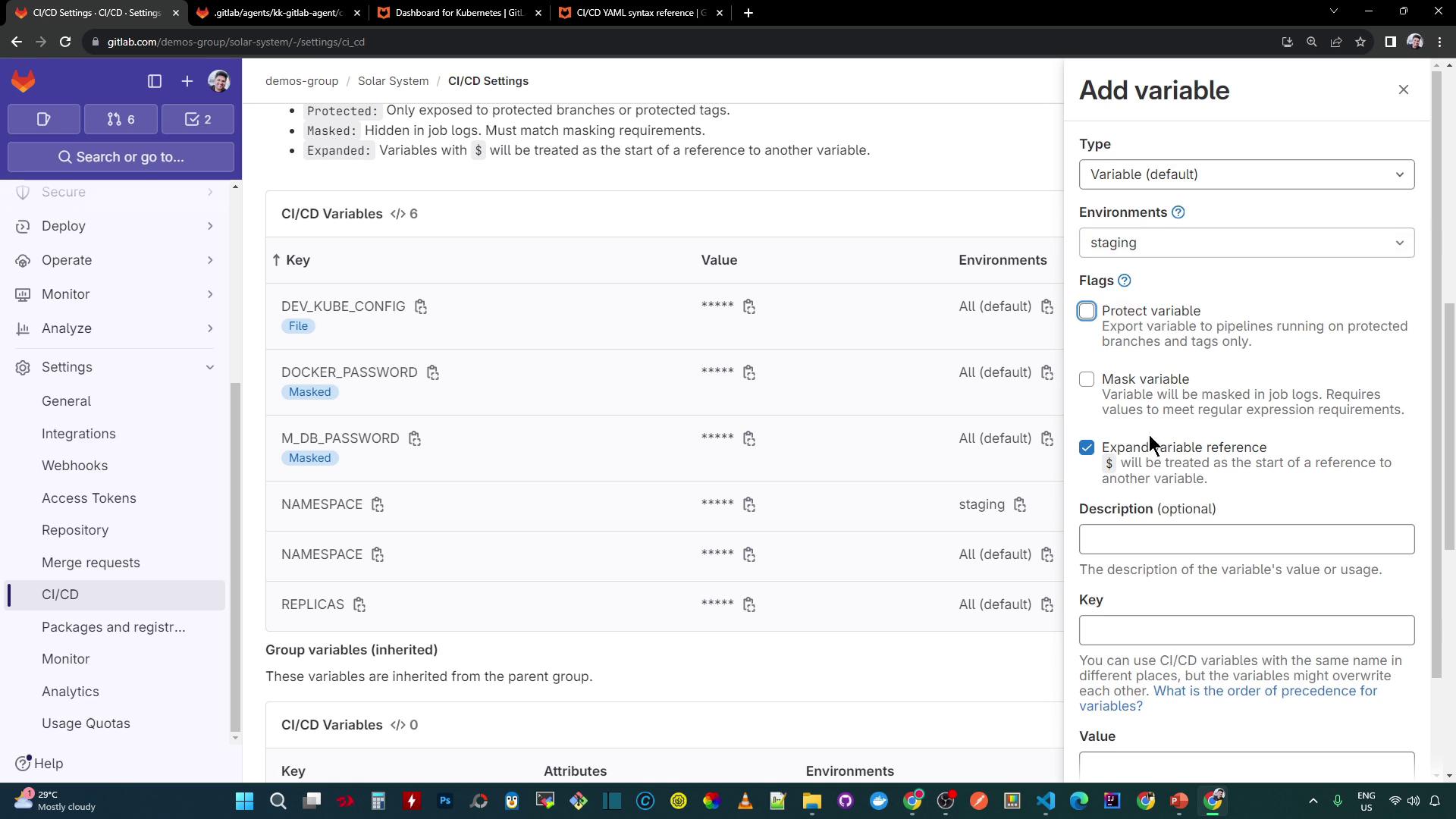
Scoped variables only apply to jobs that target the staging environment. Ensure your
.gitlab-ci.yml uses the correct environment name.