

1. Sign In to GitLab
Begin by visiting the GitLab login page. You can authenticate with your email and password or leverage single sign-on providers: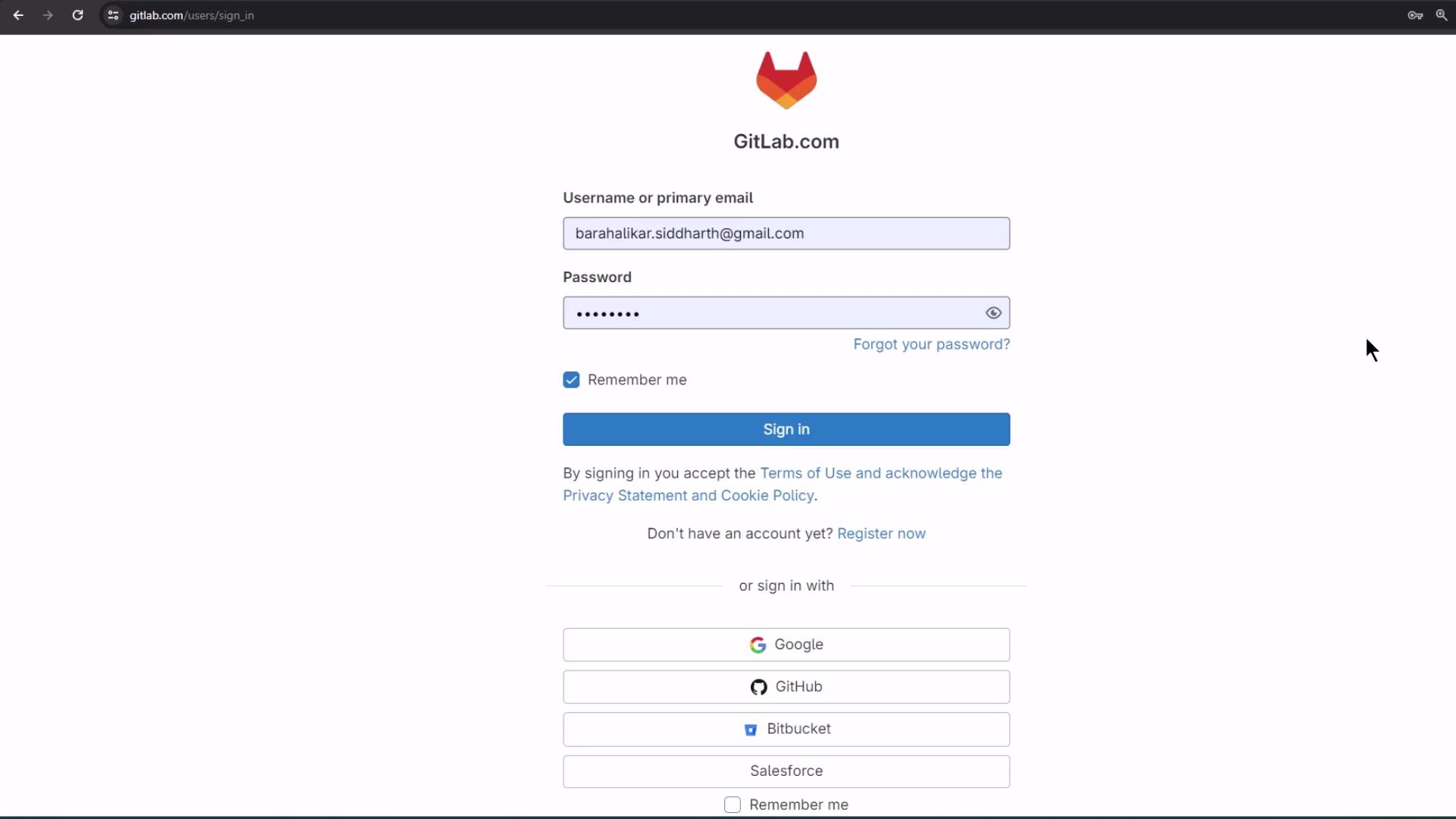
- Email and password
- GitHub
- Bitbucket
- Salesforce
2. Your Dashboard and Namespaces
After logging in, GitLab displays all your projects grouped by namespace: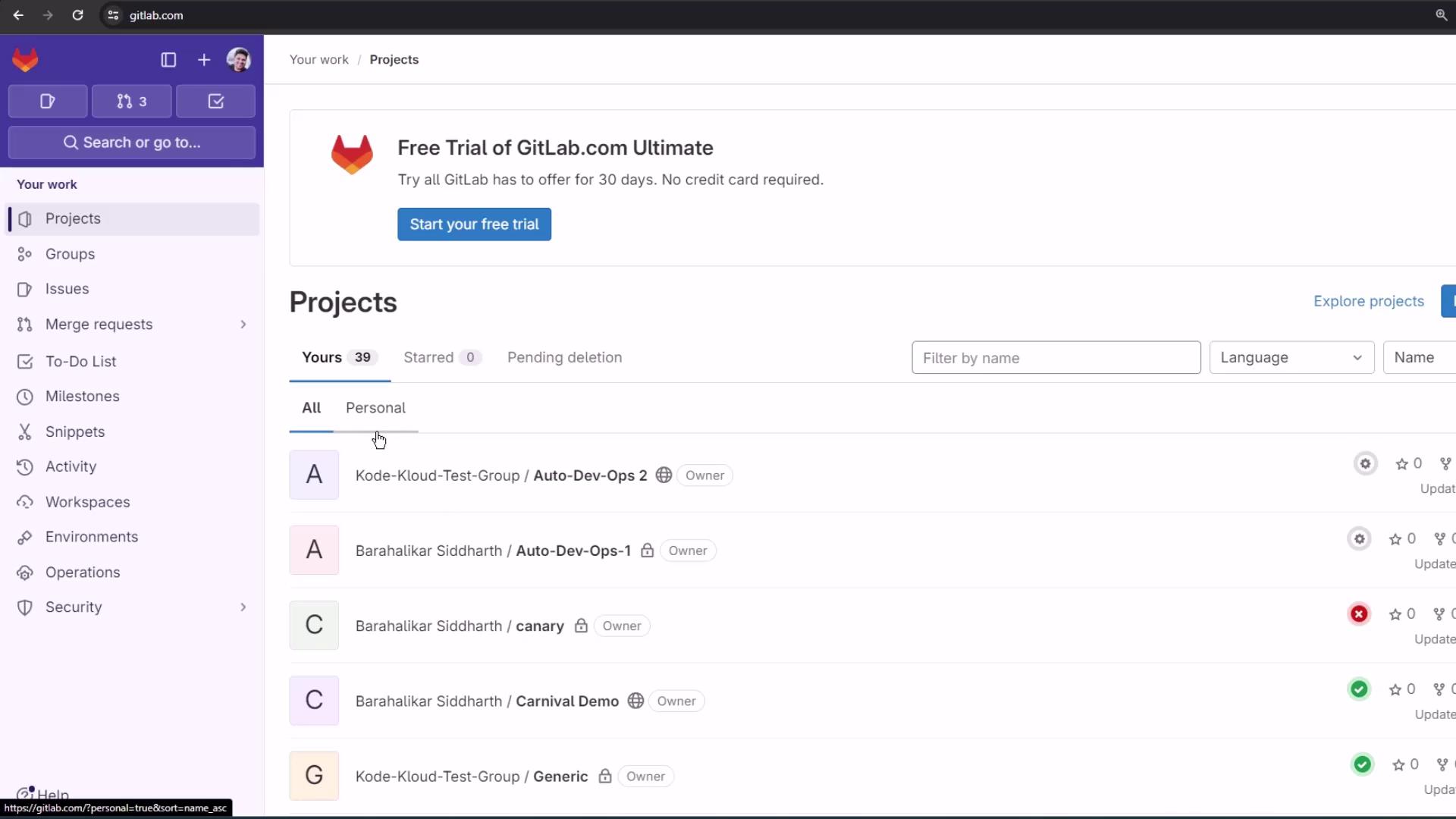
3. Understanding GitLab Projects
A project in GitLab is equivalent to a repository on other platforms. Within each project, you can:- Host your code and assets
- Track issues, boards, and merge requests
- Collaborate on code reviews
- Build, test, and deploy with integrated CI/CD pipelines
Projects in GitLab combine repository management, issue tracking, and CI/CD in one place—no extra setup required.
4. Viewing Usage Quotas
To monitor your CI/CD consumption, go to Edit Profile > Usage Quotas: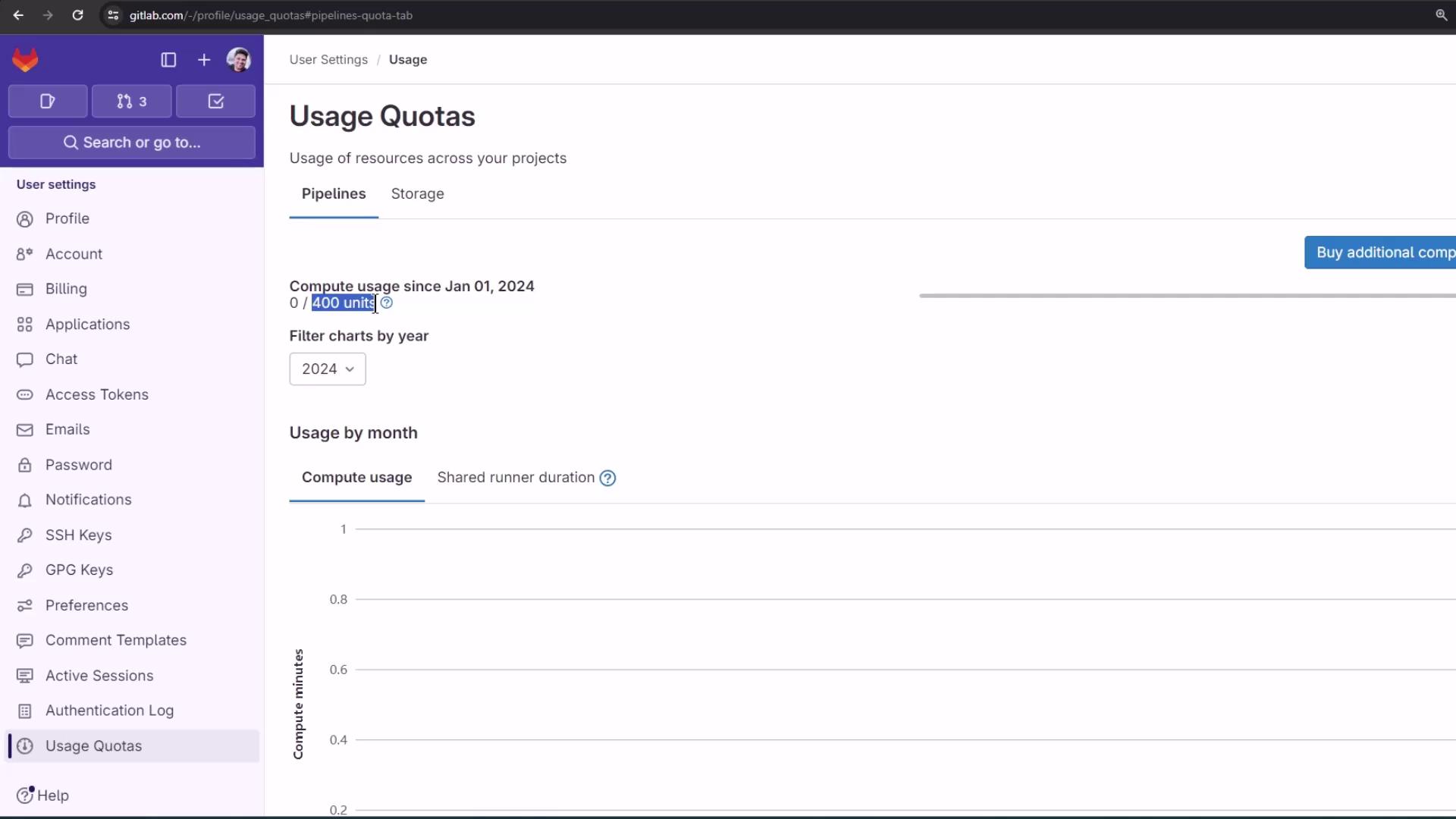
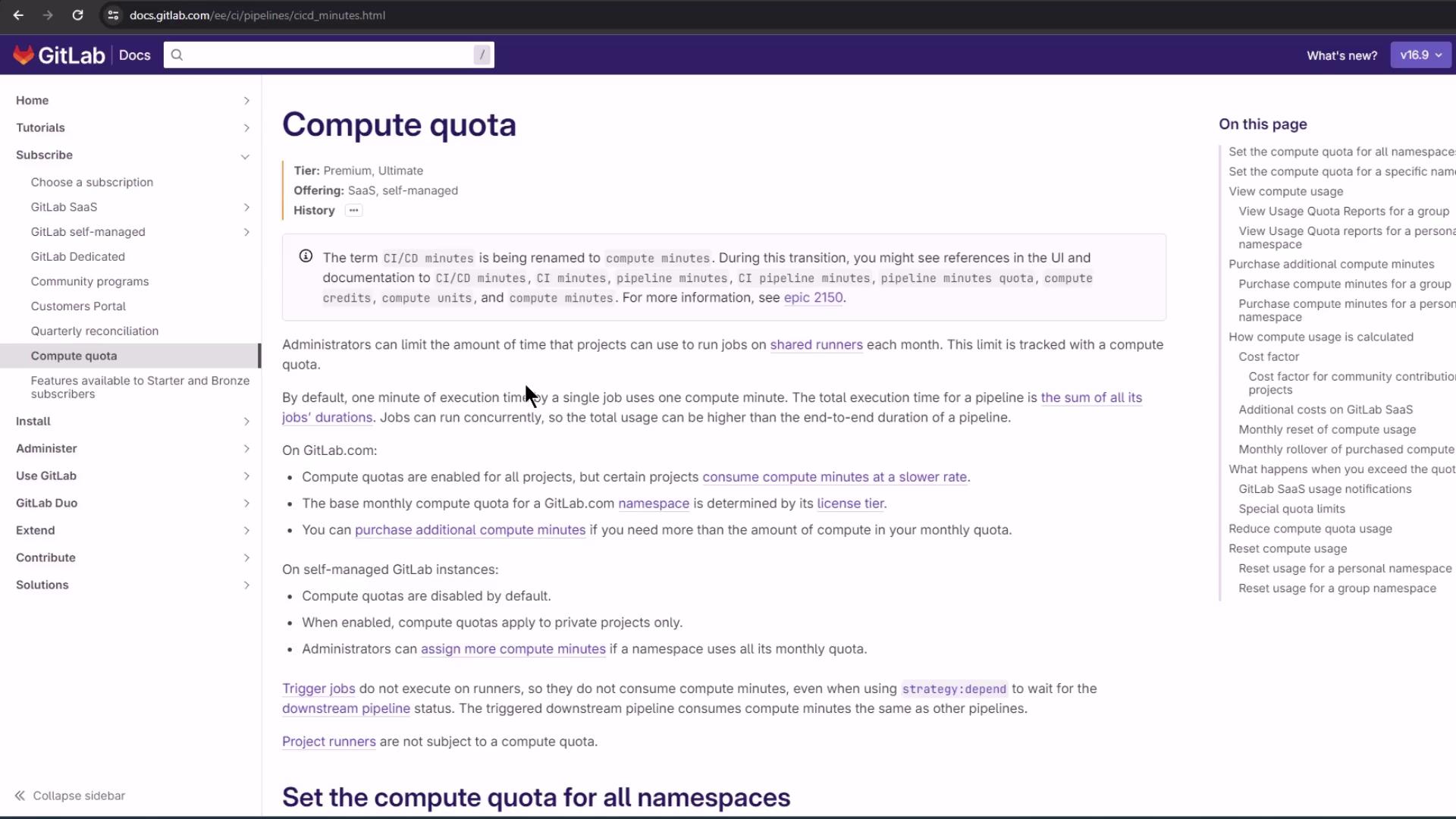
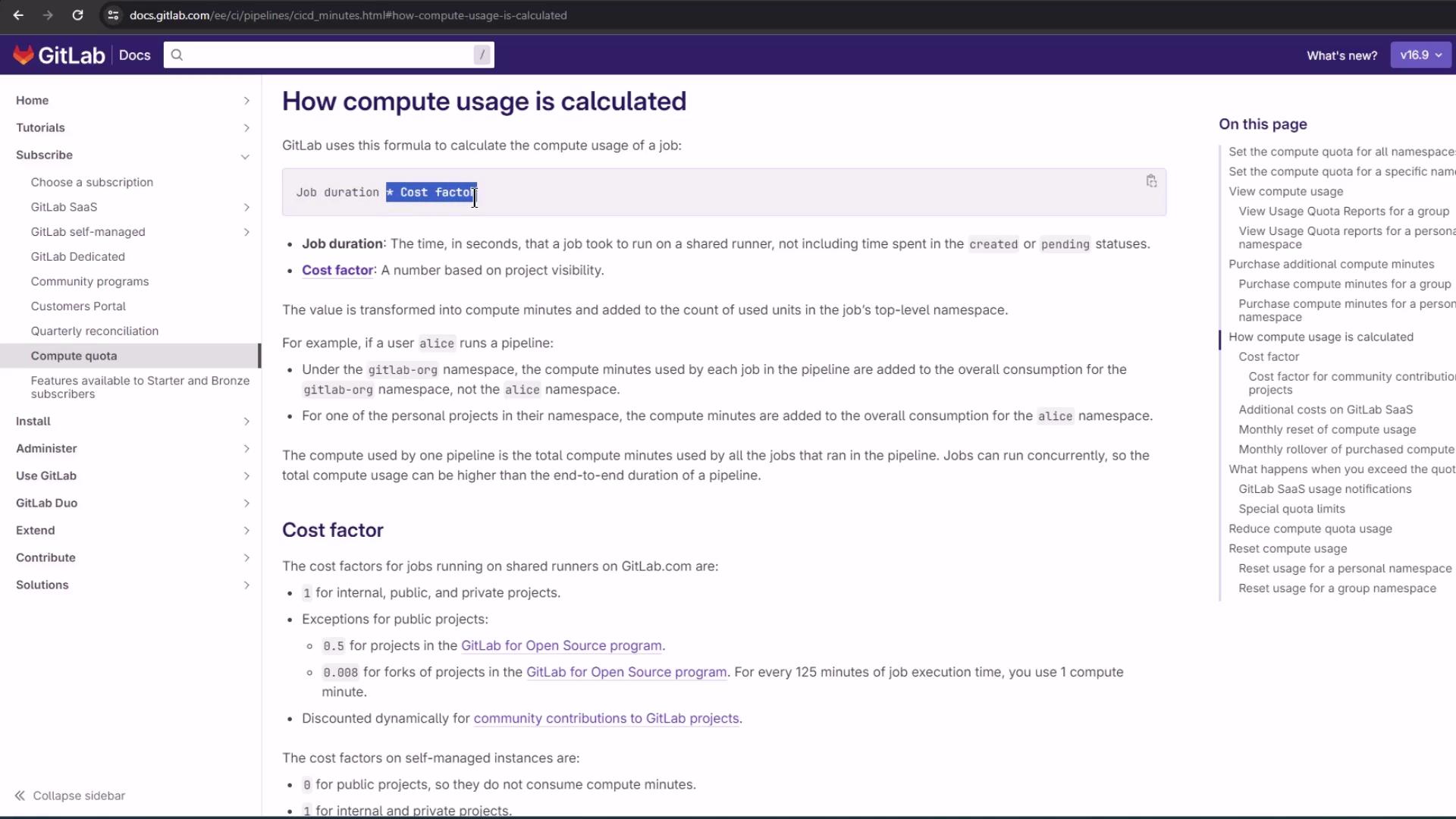
Compute usage = job duration × cost factorFor full details on compute quotas and billing, see the official documentation:
5. How Compute Usage Is Calculated
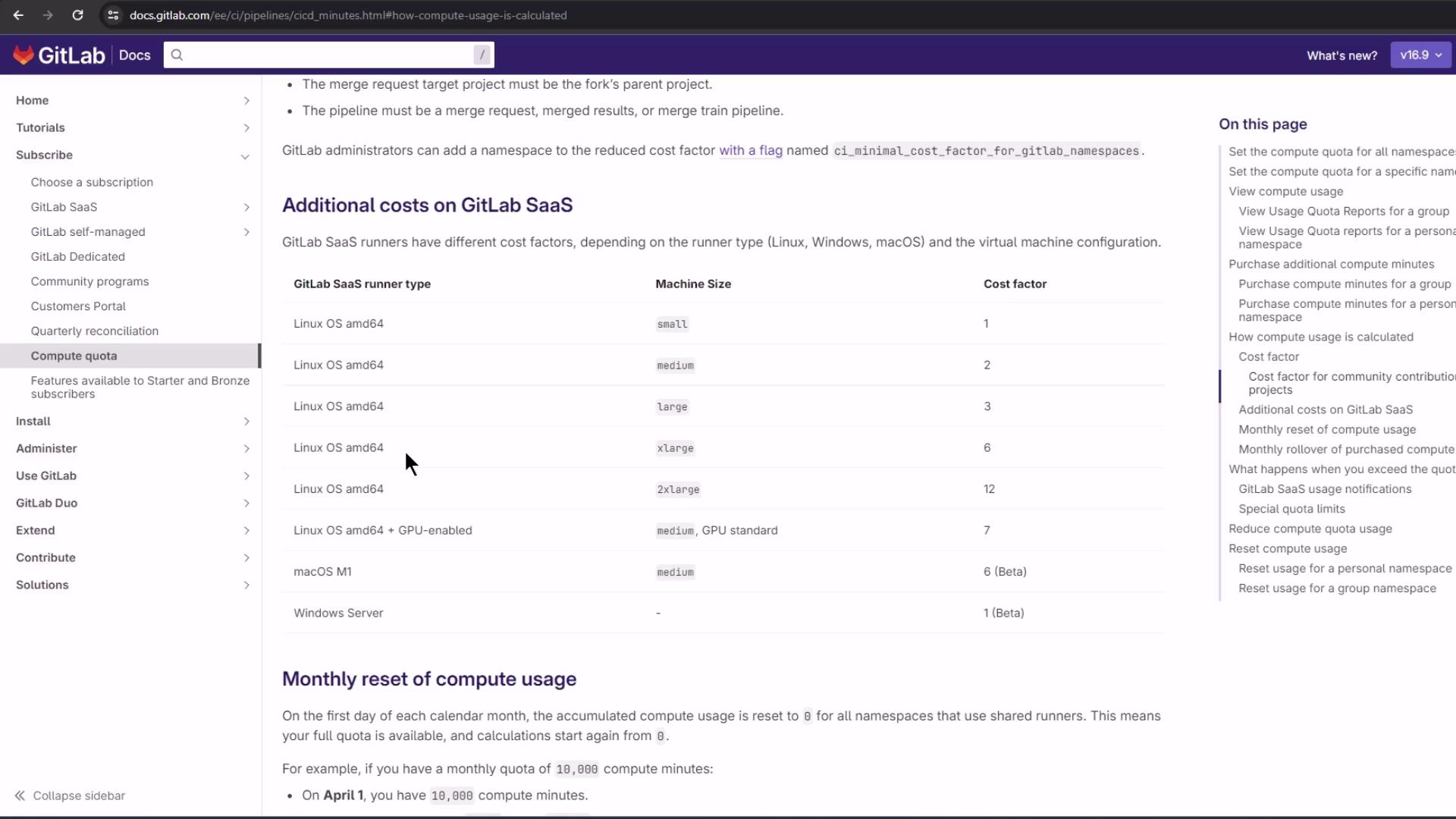
GitLab multiplies each job’s runtime by a cost factor that depends on:- Project visibility (public, internal, private, open source)
- Runner type and size (Linux, Windows, macOS, GPU-enabled, etc.)
Exceeding your monthly compute quota may incur additional charges. Monitor usage regularly and consider adding more runners or optimizing job durations.
6. Next Steps
You’re all set to explore deeper GitLab CI/CD features:- Configure custom runners and tags
- Define advanced pipeline stages and triggers
- Use environment and operations dashboards
- Integrate security and compliance scans