In this lesson we implement a canary (incremental) deployment using GitLab Auto DevOps. The pattern we demonstrate is common in CI/CD pipelines:
  • Staging: continuous deployment — commits to the default branch are deployed automatically to staging.
  • Production: continuous delivery — production deployments are gated by manual approval.
To enable this workflow you configure Auto DevOps (for example set STAGING_ENABLED=1) and choose an incremental rollout in manual mode. This allows you to step the production rollout percentage up or down during the deployment lifecycle. What is an incremental rollout (canary)? A canary deployment releases a new version to a small subset of running pods/instances first, verifies behavior, then increases the percentage of traffic (or replicas) routed to the new version. If issues appear you reduce or abort the rollout; if the release behaves correctly you continue until 100% of traffic or replicas run the new version.
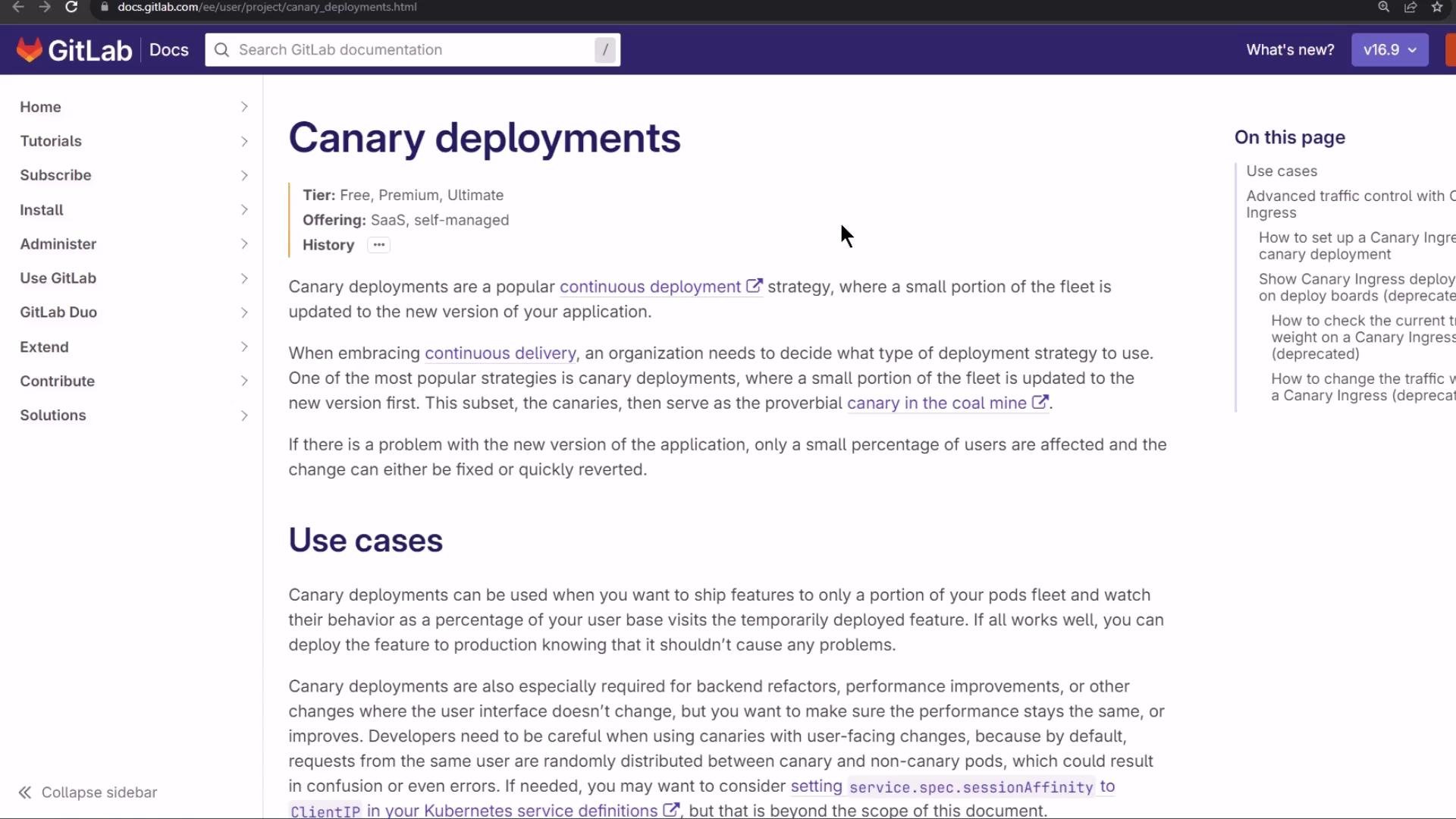
A screenshot of a GitLab Docs webpage titled "Canary deployments" showing explanatory text about continuous deployment and use cases. The page includes a left navigation menu, a top search/header bar, and an "On this page" sidebar.
A simple incremental rollout plan might look like:
With 10 replicas:
  • 10% → 1 pod runs the new version, 9 run the old version.
  • You can advance to 25%, 50%, etc.
  • If something goes wrong you can reduce the rollout percentage. After a 100% rollout the only way to return to the previous version is a rollback to a prior deployment revision.
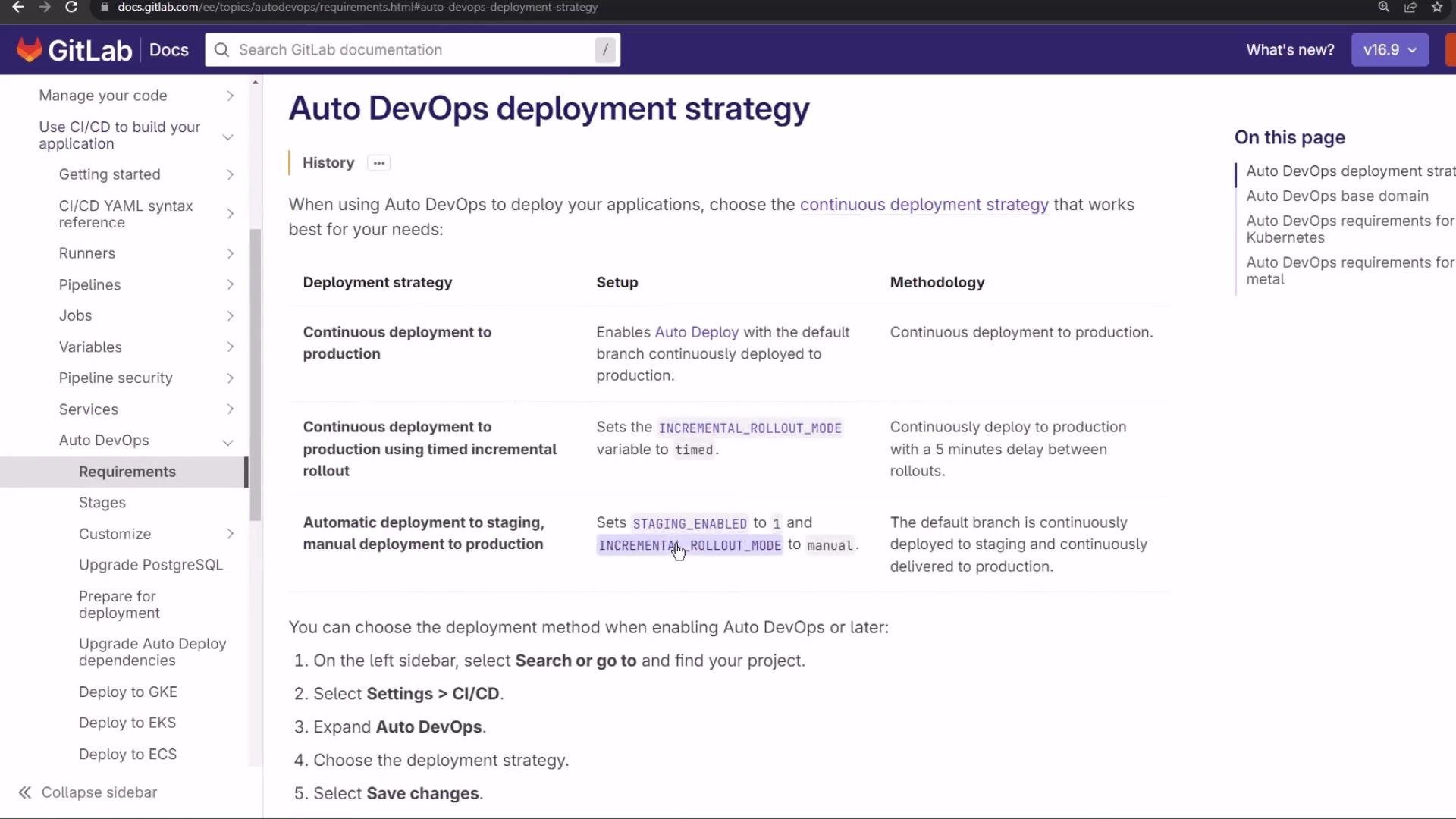
For more detail, see GitLab’s Auto DevOps documentation and the “incremental rollout” option for UI-managed canary steps: https://docs.gitlab.com/ee/topics/autodevops/
A screenshot of the GitLab Docs page titled "Auto DevOps deployment strategy," showing a table of deployment strategies and setup/methodology details. The left sidebar navigation and page contents for configuring Auto DevOps are also visible.
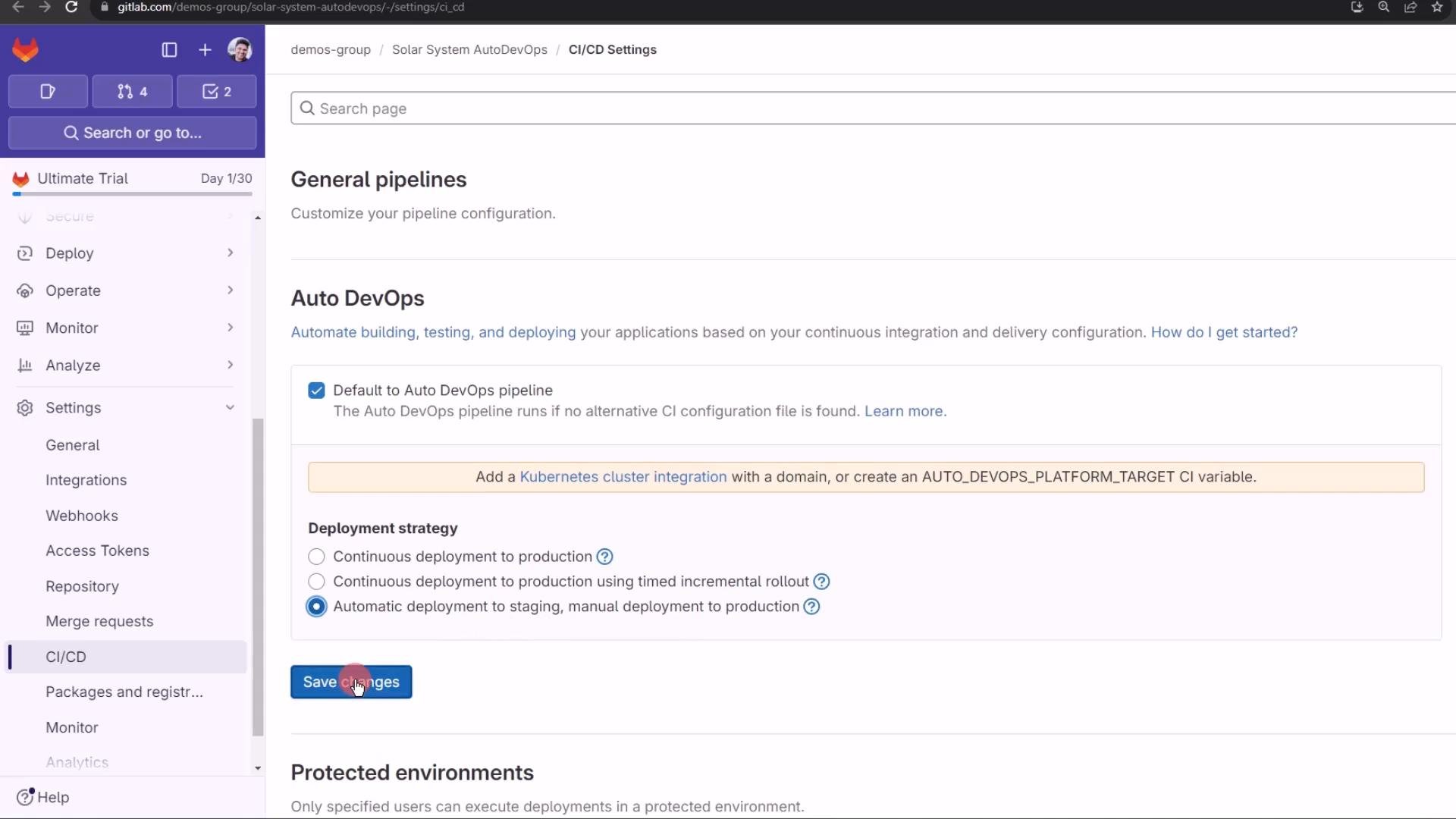
Demo: configure Auto DevOps for staging + manual production
  1. In GitLab, open your project → Settings → CI/CD → Auto DevOps.
  2. Select “Automatically deploy to staging, manually deploy to production” (the third strategy).
  3. Save changes.
Screenshot of a GitLab project's CI/CD Settings page showing Auto DevOps configuration and deployment strategy radio buttons. The left navigation menu is visible and a blue "Save changes" button is shown.
Note: changing the Auto DevOps strategy updates the configuration — it does not necessarily trigger an immediate pipeline run. In a typical workflow:
  • Protected branches and protected environments enforce approvals for production.
  • Production environments are usually protected, requiring manual approval before deployment.
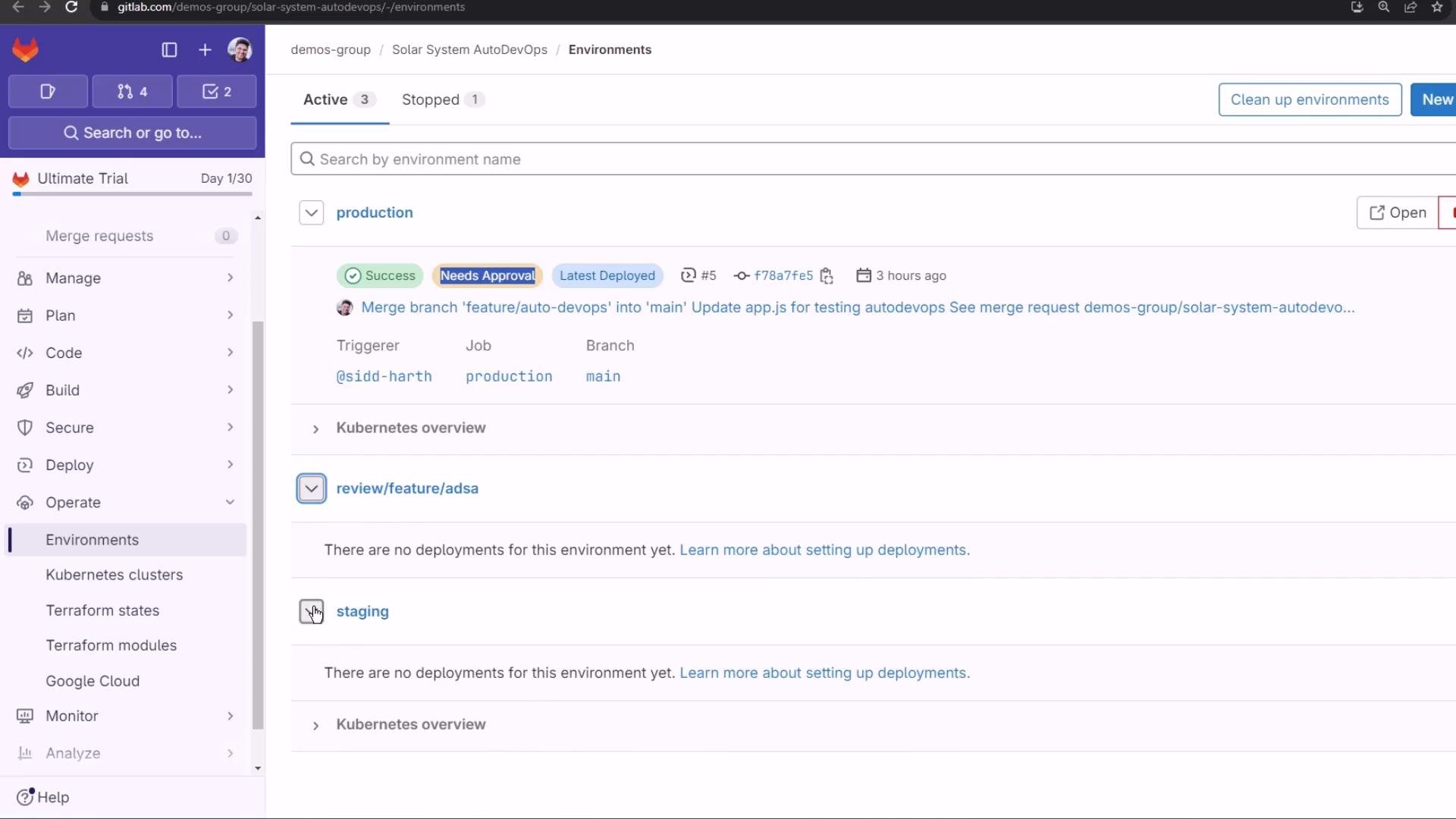
Verify environment protections at Operate → Environments: https://docs.gitlab.com/ee/ci/environments/
A GitLab web UI screenshot showing the "Environments" page for a project with entries for production, review/feature/adsa, and staging. The production row shows deployment badges (Success, Needs Approval, Latest Deployed) plus trigger, job, and branch details.
Preparing a feature branch for the canary demo For this demo repository (SolarSystemAutoDevOps) I created a feature branch containing small front-end and test changes so Auto DevOps runs the pipeline, deploys a review app, and exercises security scanning. Files changed:
  • index.html — replaced an animated GIF with a static PNG and commented out the rotation animation.
  • app.js — cleaned up logging, ensured static assets are served, and added robust DB fallbacks.
  • tests/hyphen-test.js — Mocha + Chai integration tests (use of let corrected).
Below are the cleaned, relevant snippets. index.html (static background + commented animation)
app.js (Node/Express + Mongoose — robust and simplified)
tests/hyphen-test.js (Mocha + Chai)
Commit and workflow
  • Commit with a descriptive message such as testing autodevops canary release.
  • Push as a feature branch (e.g., feature/canary-deployment) and create a merge request in the GitLab UI.
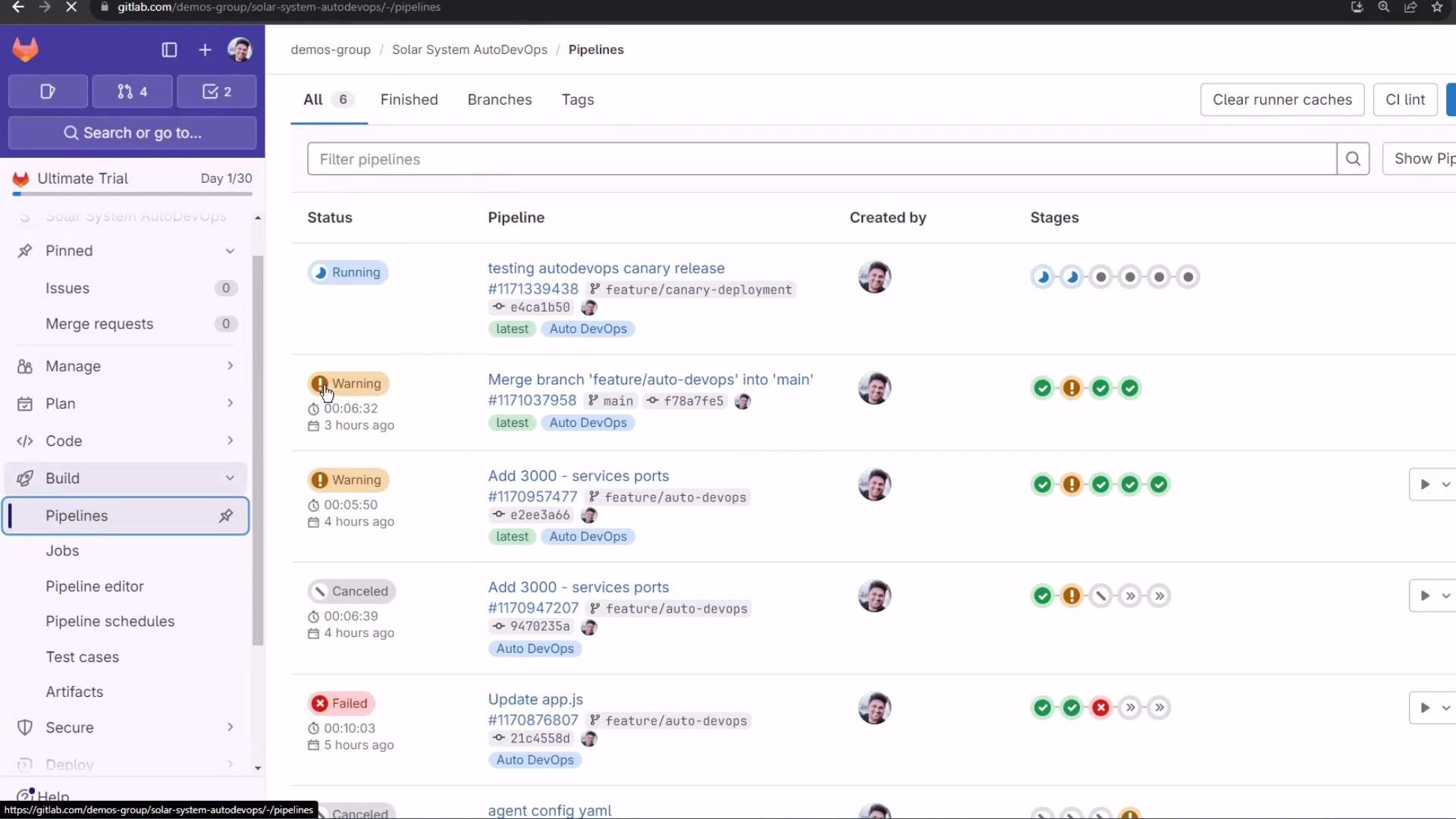
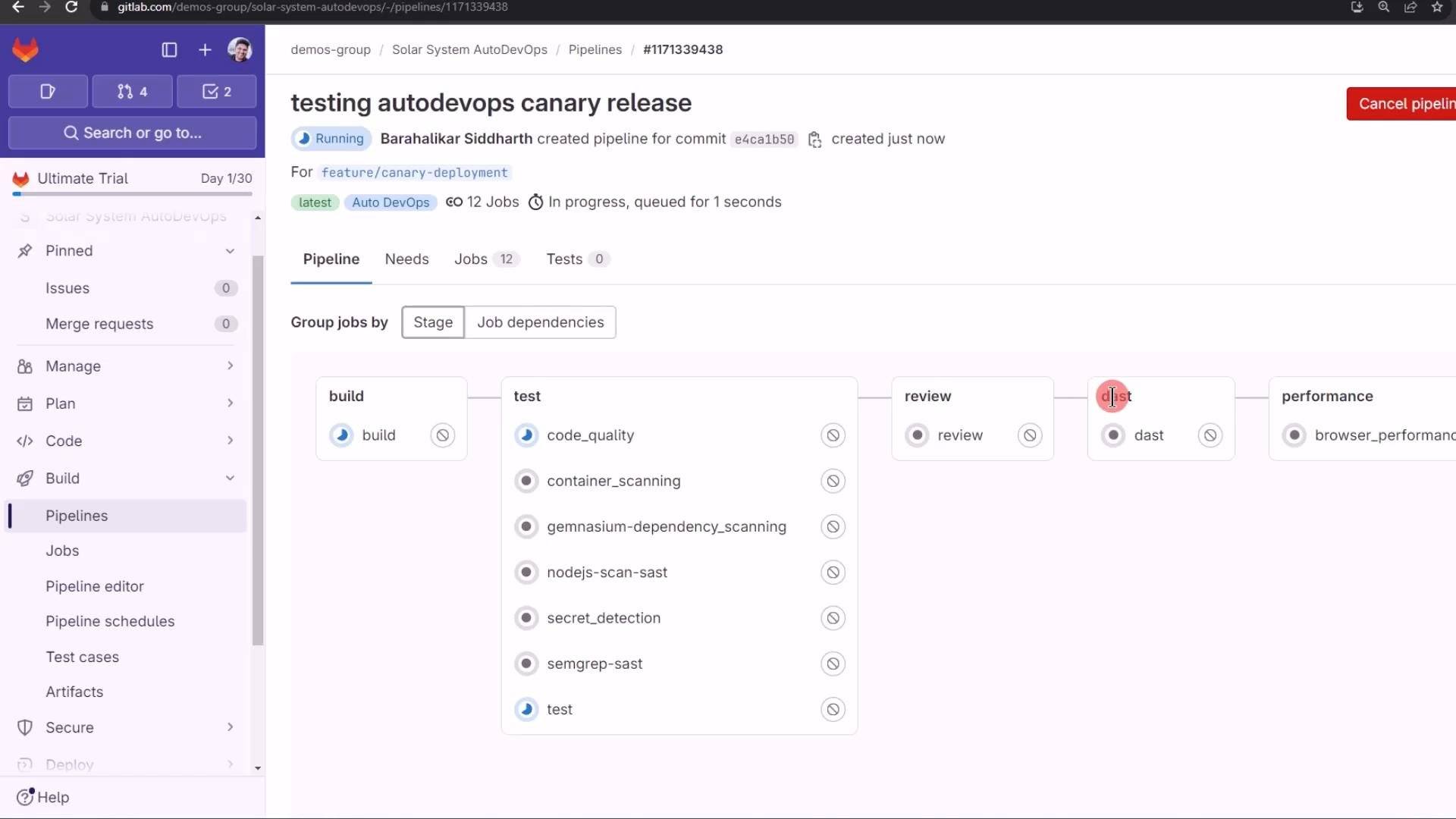
Watching the pipeline When the feature branch pipeline runs, Auto DevOps constructs many stages: build, test, review, security scans (SAST/DAST/container/dependency/secret detection), performance tests, and cleanup. The Pipelines view shows statuses and progress for each run.
A screenshot of a GitLab project's Pipelines page showing a list of CI/CD pipelines with status badges (Running, Warning, Canceled, Failed), pipeline names, timestamps, and stage progress indicators. The left sidebar displays project navigation (Pipelines, Jobs, Code, etc.) and the top has filter and action buttons.
Common security and quality jobs you might see:
Screenshot of a GitLab Pipelines page showing a running AutoDevOps canary release with pipeline stages (build, test, review, dast, performance) and a list of jobs like code_quality and container_scanning. The left sidebar shows project navigation (Pipelines, Jobs, Code, etc.).
Dependency scanning generates a Software Bill of Materials (SBOM) in CycloneDX format (gl-sbom-*.cdx.json) and dependency reports listing package names and versions. DAST uses OWASP ZAP to spider and scan a deployed review environment URL for runtime vulnerabilities.
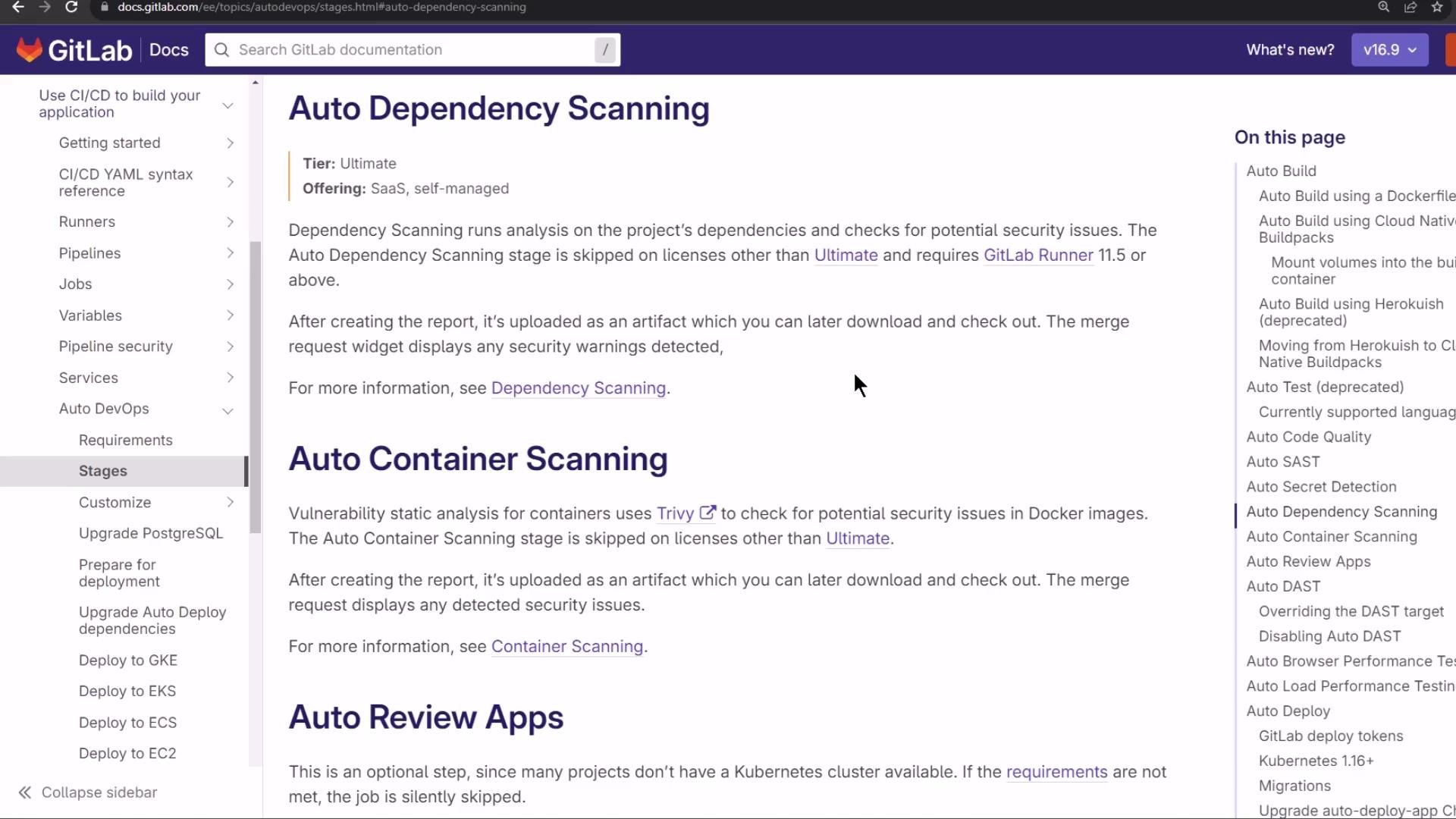
When the pipeline completes, you can inspect artifacts and generated reports. The dependency scanning job may produce a CycloneDX JSON, and other scanners will upload their corresponding artifacts.
A screenshot of the GitLab Docs webpage showing the "Auto Dependency Scanning" section. The page includes a left sidebar navigation and a right-hand table of contents.
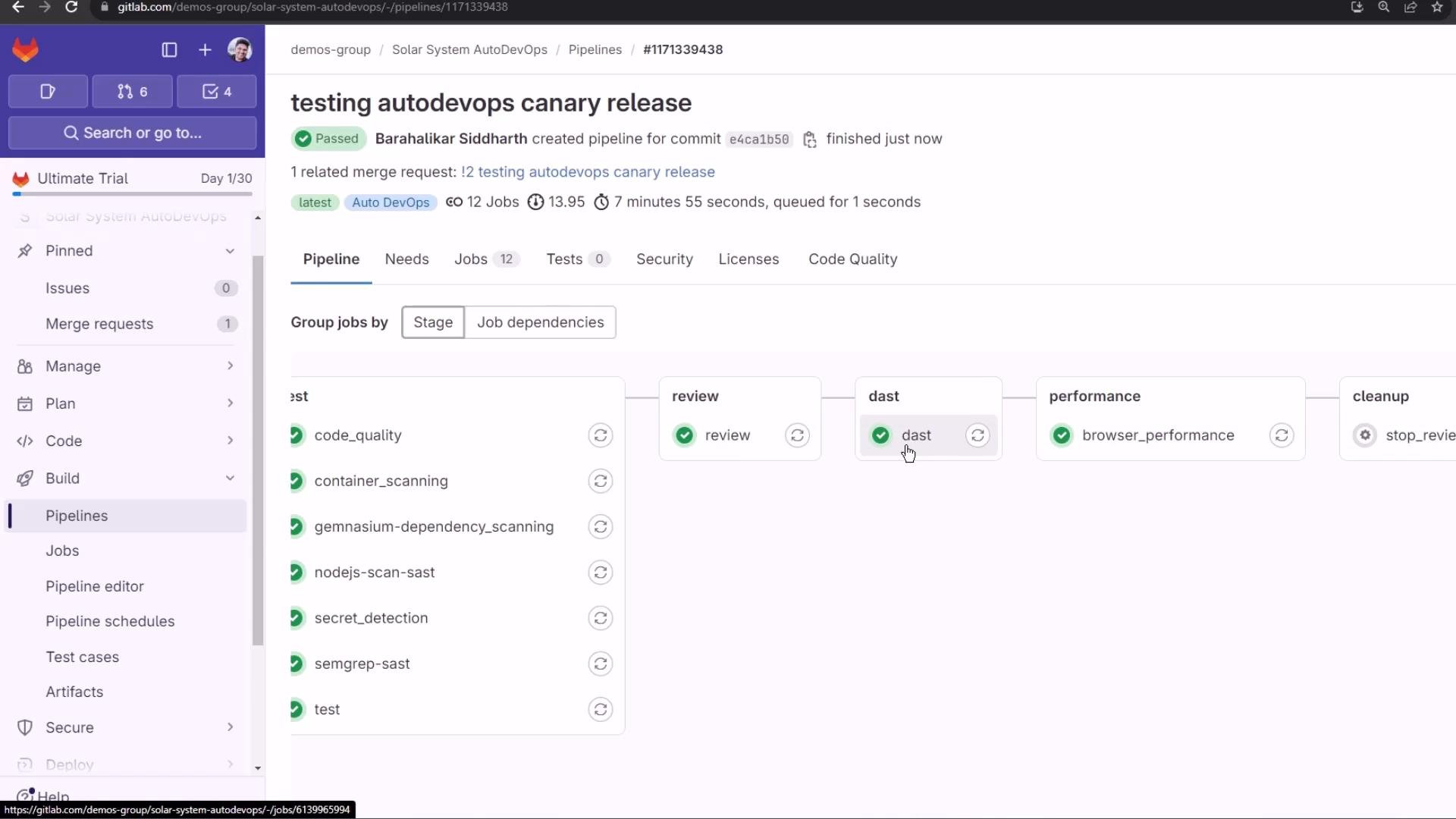
A successful pipeline run shows green checks and produced reports:
Screenshot of a GitLab Pipelines page for "testing autodevops canary release" showing a passed pipeline with stages and green check marks. Visible jobs include code_quality, container_scanning, dast, and browser_performance.
Dynamic Application Security Testing (DAST) The DAST job boots an OWASP ZAP proxy, retrieves the review environment URL saved by the review job, spiders the site, and runs passive/active scans. The job uploads a gl-dast-report.json artifact summarizing findings. Example (truncated) DAST log excerpt:
Review environments and review apps The review environment deploys the feature branch to a unique URL (often with -review-feature-...), enabling manual inspection and runtime scans. Confirm the front-end change (e.g., static background and no rotation) at the review app URL — the environment’s unique pod/identifier is often present in the URL.
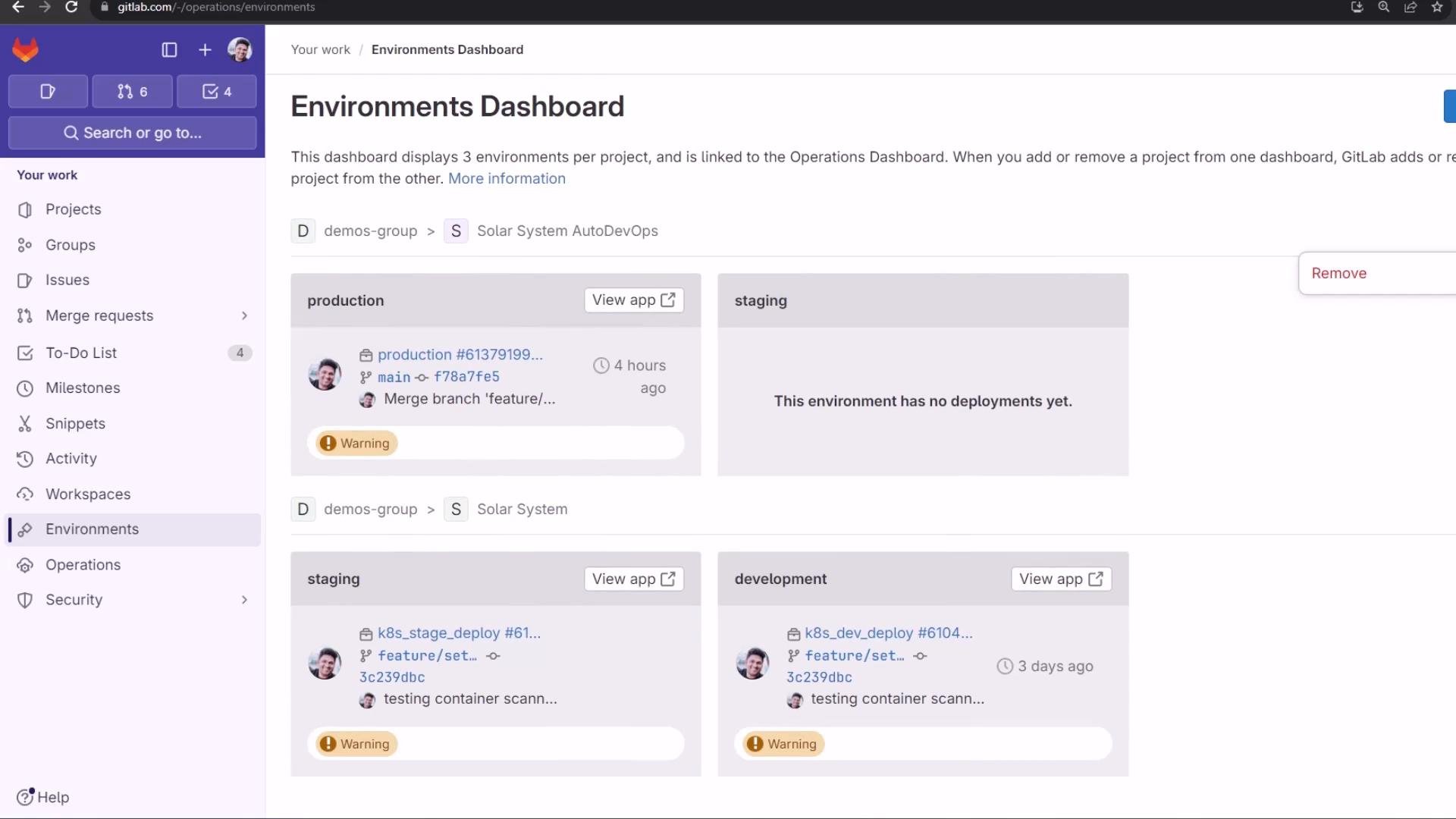
A screenshot of a GitLab "Environments Dashboard" showing environment cards for production, staging, and development with deployment details and warning badges. The left-hand GitLab navigation panel is also visible.
Merge request aggregation: reports and security findings The merge request aggregates Auto DevOps reports so reviewers can triage issues before merging. From the MR you can:
  • View the deployed review app.
  • Inspect license compliance details for dependencies.
  • Review consolidated security findings (SAST, DAST, container scanning, dependency scanning, secret detection) and create issues from findings.
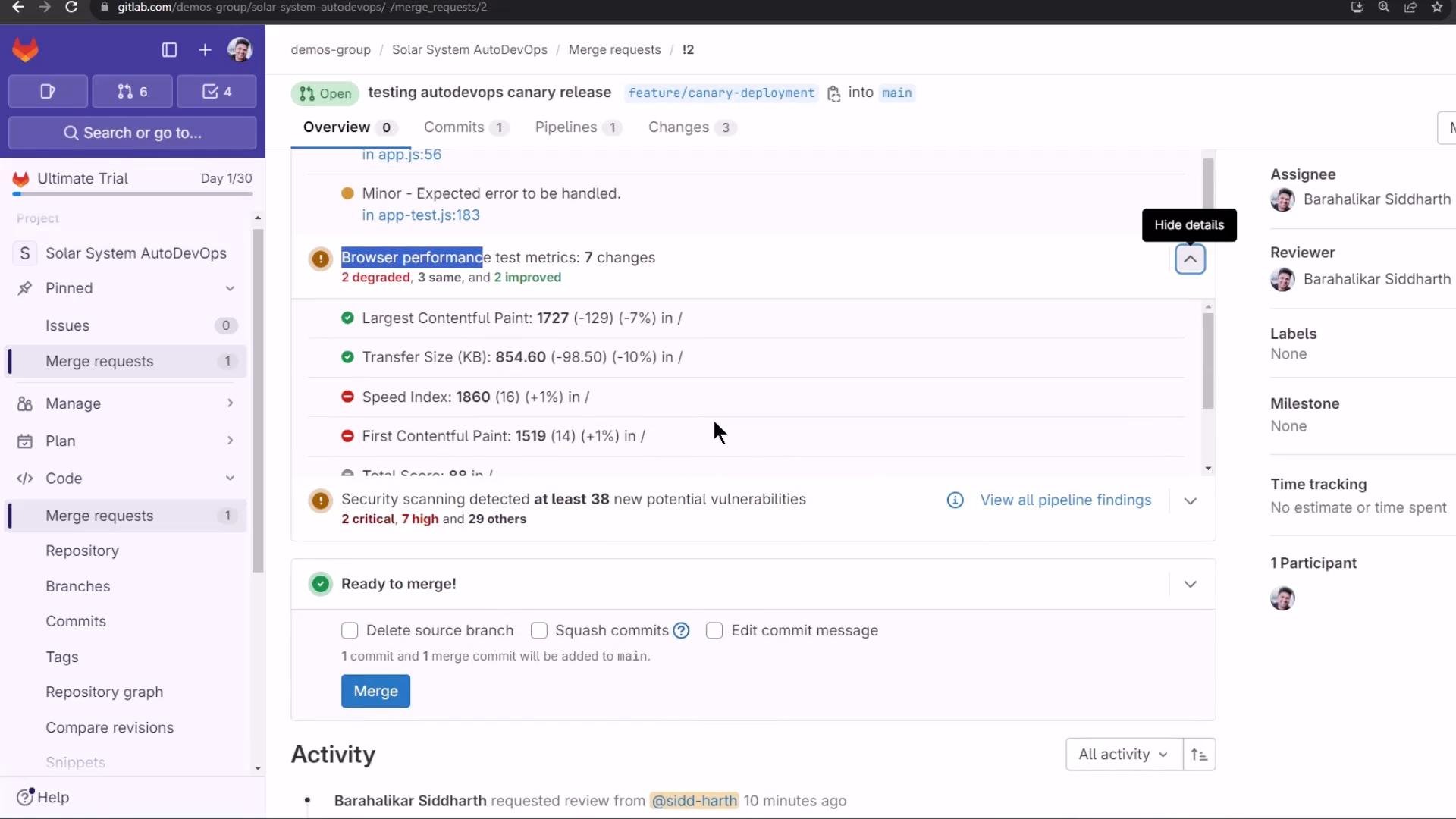
A GitLab merge request page for a "Solar System AutoDevOps" project showing browser performance test metrics, security scanning findings, and a "Ready to merge" section with a Merge button. The left sidebar shows project navigation while the right column displays assignee/reviewer avatars.
Example findings visible in the MR:
  • SAST findings: e.g., potential Node NoSQL injection.
  • DAST warnings: medium/high runtime issues.
  • Secret detection: critical findings such as exposed SSH/RSA private keys.
  • Container/dependency CVEs flagged by Trivy, Gemnasium, or comparable scanners.
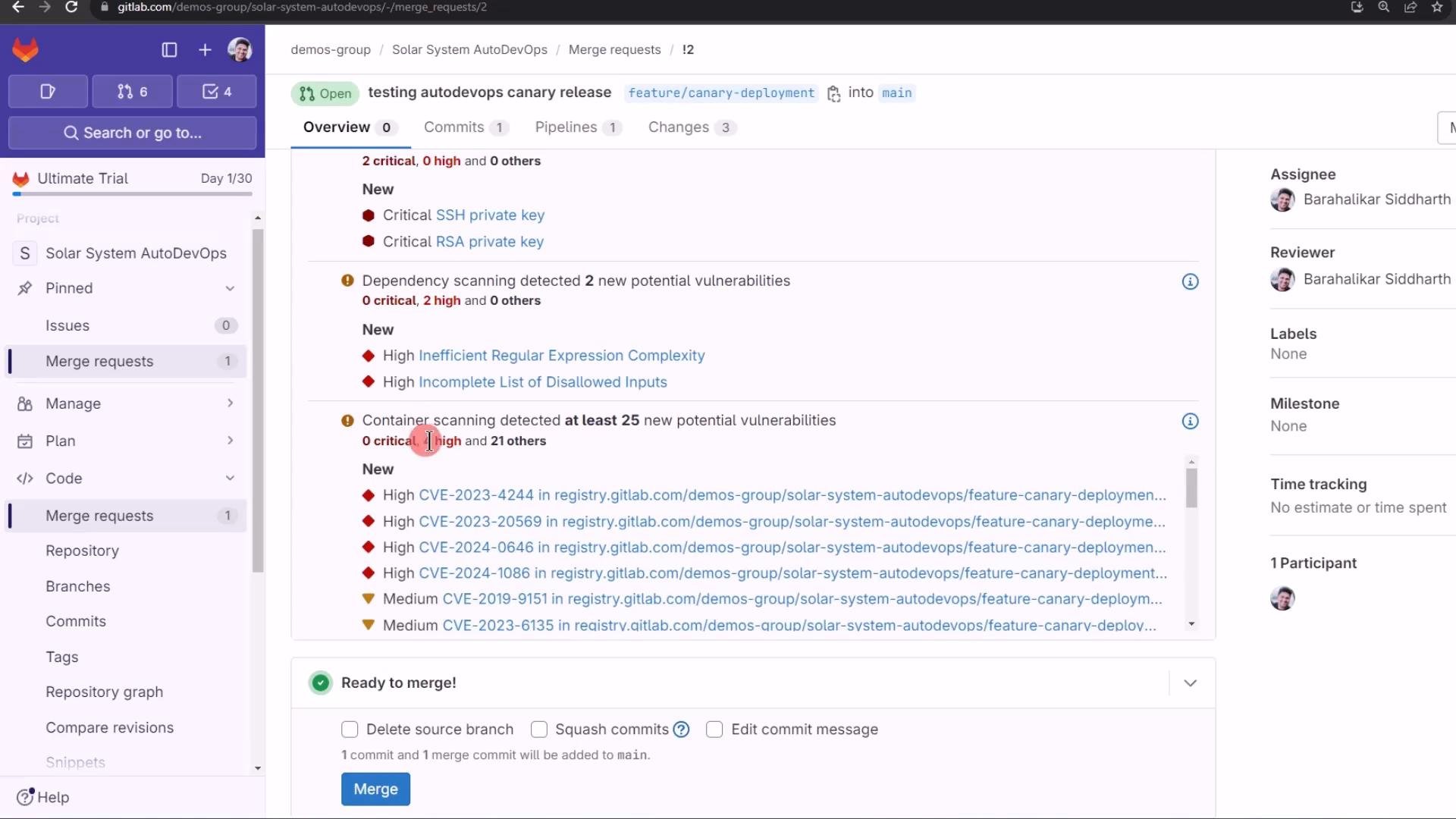
A GitLab merge request page displaying security scan findings (critical SSH/RSA private keys and multiple dependency/container vulnerabilities) and a "Ready to merge" section. The left sidebar shows project navigation and the right column lists assignee/reviewer and other merge details.
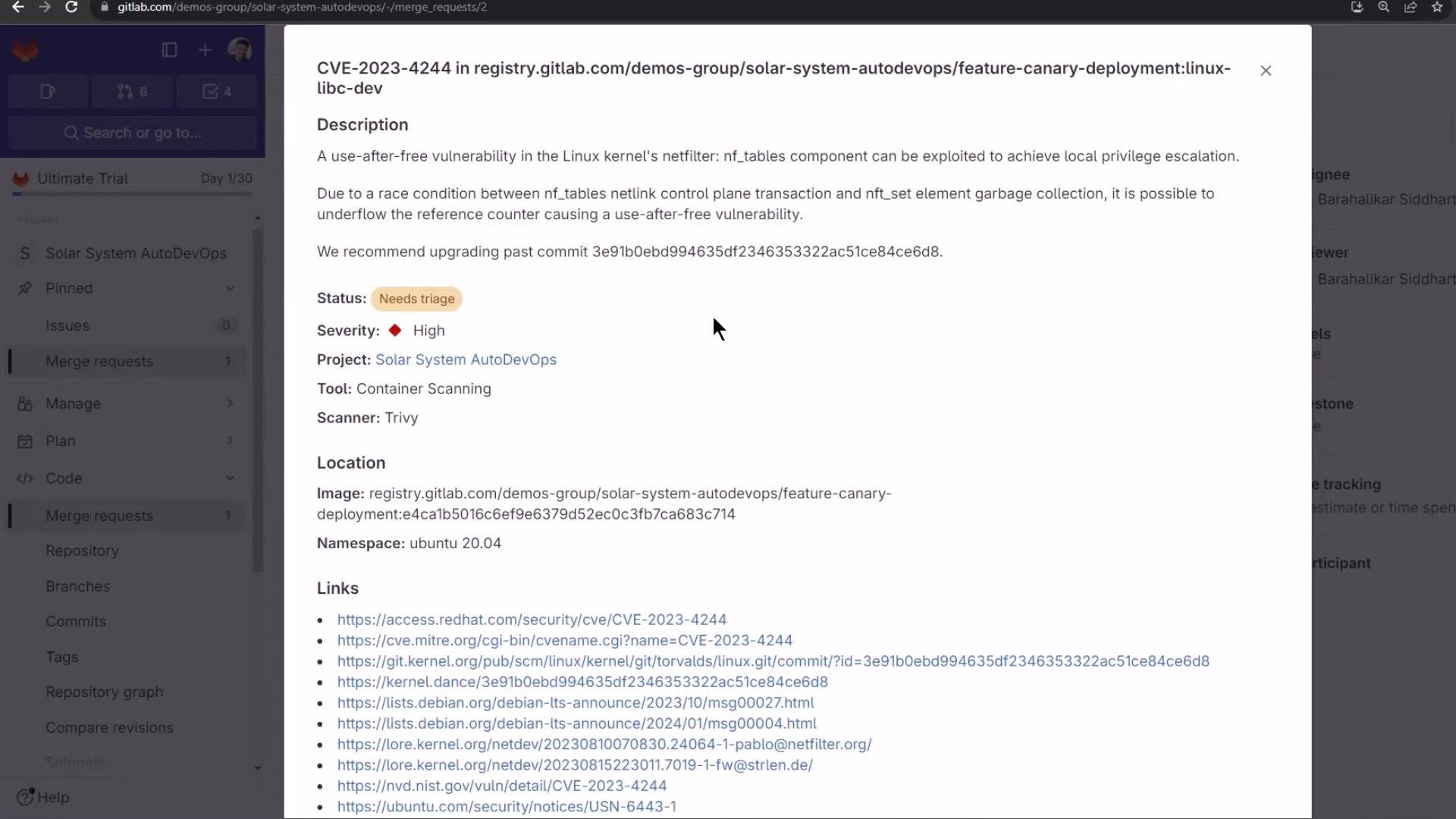
Clicking a finding opens a modal with contextual details (CVE, severity, scanner, file/image path) and remediation guidance when available.
A screenshot of a GitLab security report modal detailing CVE-2023-4244 (use-after-free) with a description, status "Needs triage", severity marked High, scanner (Trivy) and project/container info. The left side shows the GitLab project navigation for "Solar System AutoDevOps."
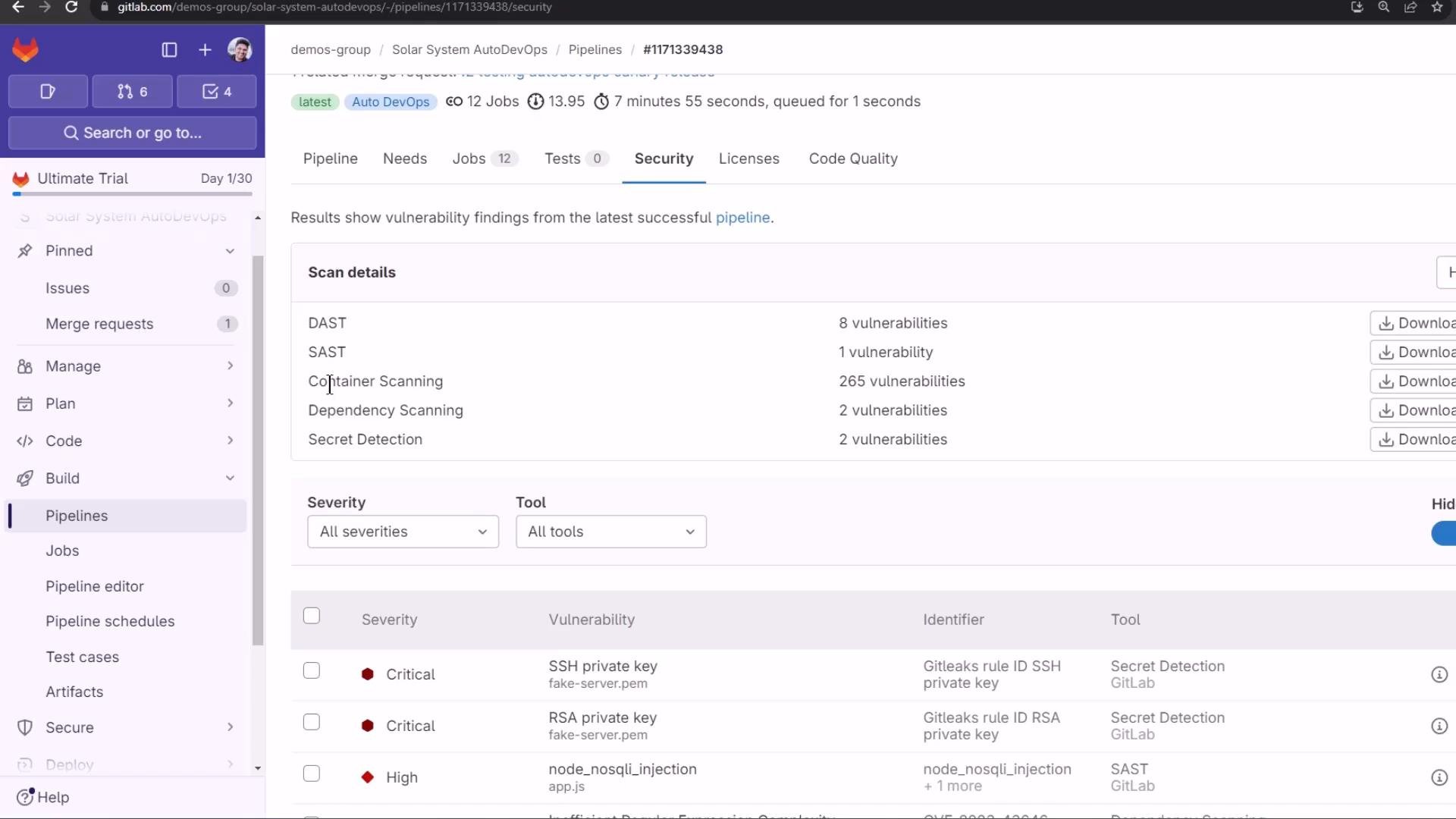
The pipeline Security tab collects and filters findings across tools and severities, giving a single pane of glass for vulnerability triage.
A screenshot of a GitLab project's Security tab showing vulnerability scan results and counts for DAST, SAST, Container Scanning, Dependency Scanning, and Secret Detection. Below that is a list of findings including critical SSH and RSA private key leaks and a high-severity node_nosqli_injection.
License compliance and code quality Auto DevOps also surfaces license compliance and code quality results in the pipeline and MR, useful for legal and maintainability reviews before merging.
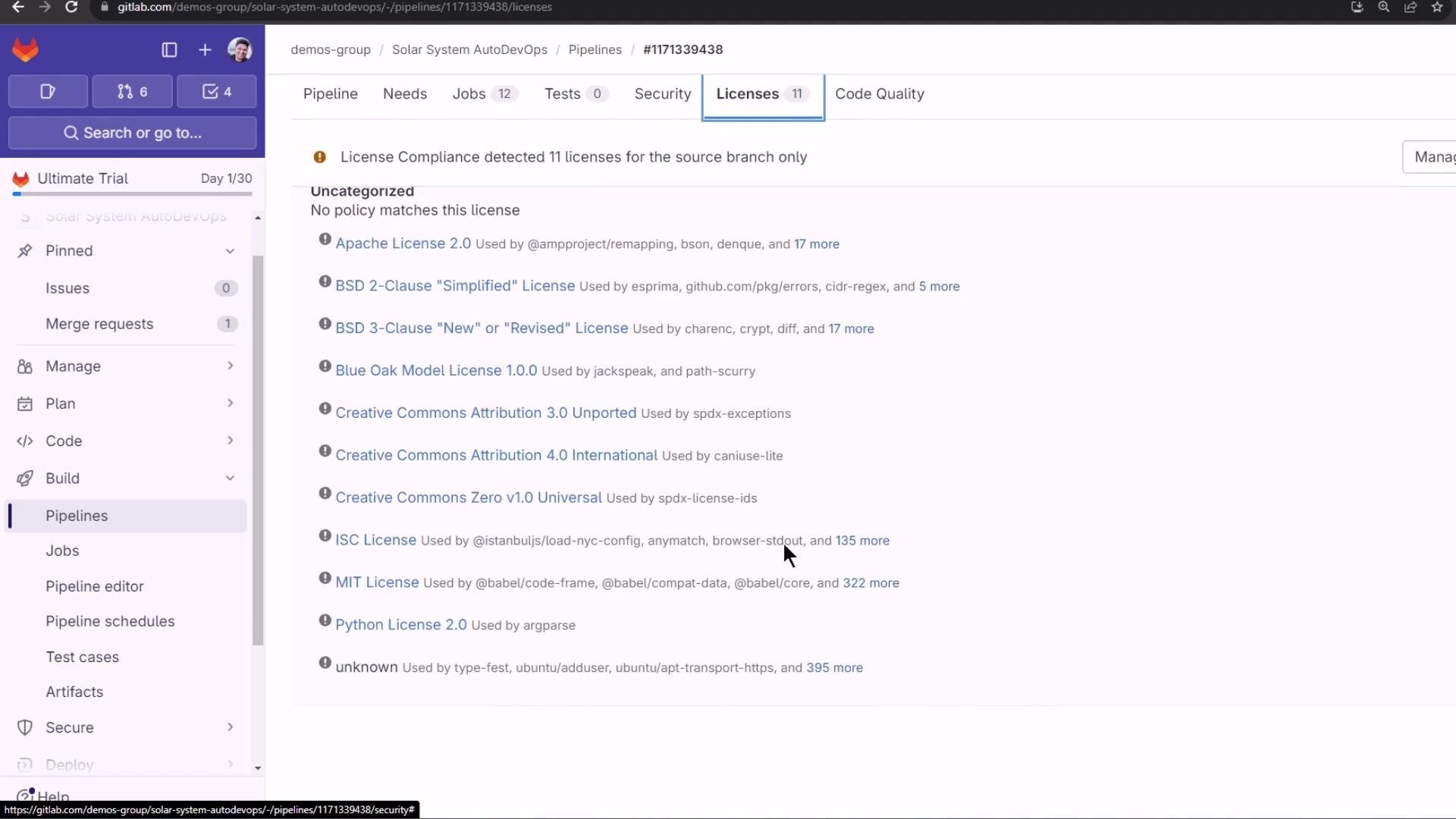
A screenshot of a GitLab project’s Pipelines → Licenses tab showing License Compliance detected 11 licenses and listing entries like Apache License 2.0, BSD 2‑Clause/3‑Clause, MIT, ISC, and others. The left sidebar shows project navigation items (Issues, Merge requests, Pipelines, Jobs).
Final notes and next steps
  • Merging to the protected default branch triggers a pipeline that requires manual approval for production deploys. The production job will be gated by environment protection.
  • In Part 2 we will merge the feature branch into the protected branch and observe the protected job and the UI-driven incremental rollout (canary) behavior for production. We’ll demonstrate manually stepping rollout percentages in the GitLab UI and handling a rollback.
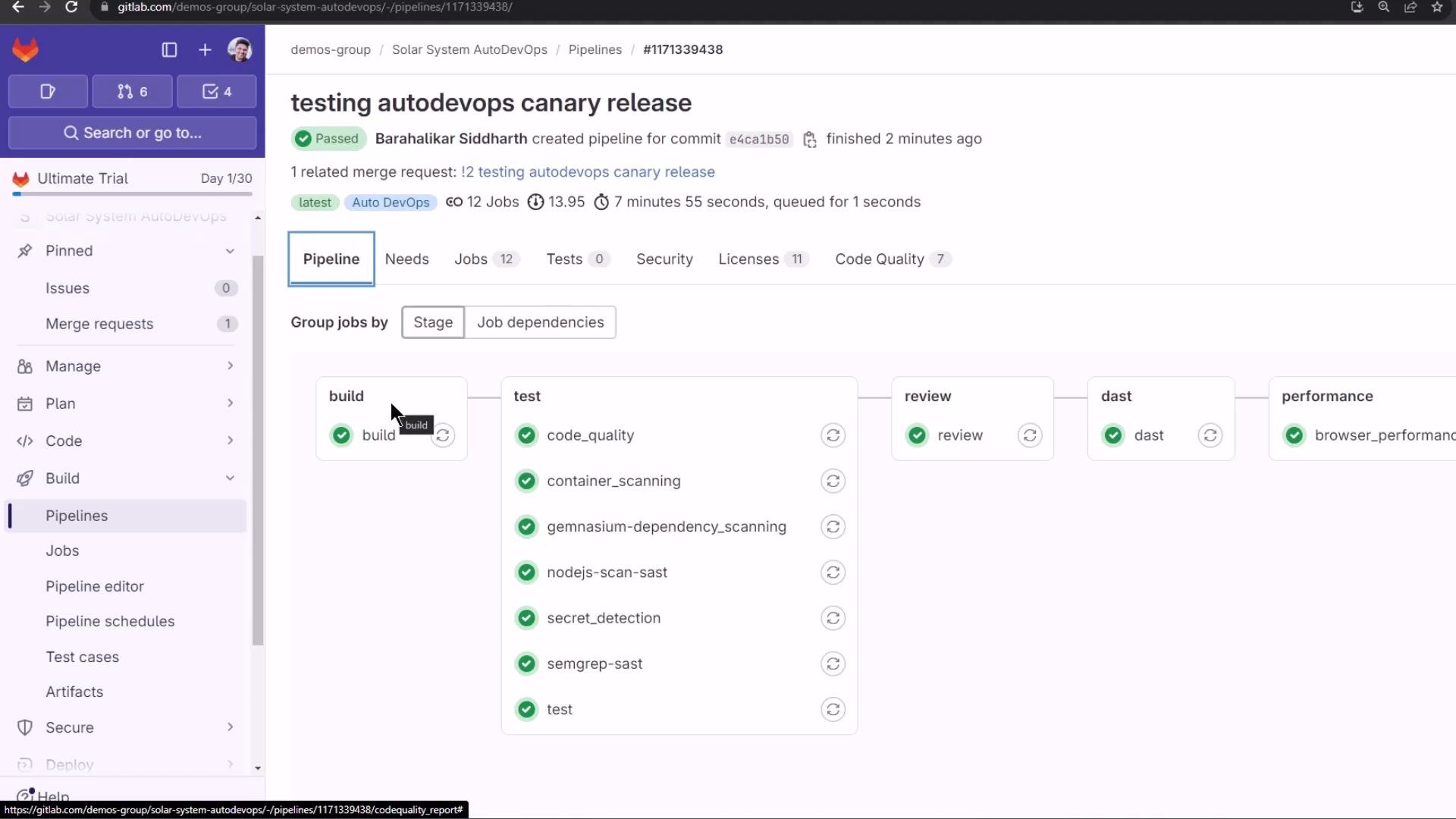
A screenshot of a GitLab Pipelines page for a "testing autodevops canary release" showing pipeline stages (build, test, review, dast, performance) with completed jobs indicated by green checkmarks. The left sidebar navigation and pipeline/job details (author, status, duration) are also visible.
Protect production environments and require approvals. Manual gates prevent unreviewed changes from reaching production and give you control over canary steps and rollbacks.
That’s all for Part 1 — in the next session we’ll perform the protected merge and exercise the incremental rollout UI to complete the canary deployment to production. Related links and references

Watch Video