

- A concise explanation of receivers vs notifiers
- Examples of route/receiver YAML for Slack and email
- How to reuse common settings with
global - How to customize messages using Go templates
- How grouping (
group_by) affects notifications - Links to relevant docs and UI tips
Receiver vs Notifier (quick definitions)
- Receiver: A logical target for grouped alerts. A receiver contains one or more notifier configurations.
- Notifier: The specific integration (Slack, email, PagerDuty, webhook, etc.) that sends the notification and defines platform-specific fields.
Example: Basic route and receiver configuration
- The
routeblock selects which receiver handles alerts. - The
receiverssection lists receiver definitions and their notifier-specific config fields.
infra-pageris the receiver name referenced by theroute.slack_configsandemail_configscontain notifier-specific fields defined by Alertmanager for Slack and email integrations.- For the full list of fields per notifier, consult the Alertmanager docs (see References).
Avoid putting secrets directly in your YAML. Store credentials in a secret manager and reference them securely where possible (for example, by templating during deployment or using your orchestration system’s secret injection).
Global configuration (DRY patterns)
When several receivers share the same values (for example, an API key or mail smarthost), put those shared settings underglobal. Receivers can then reference those global values rather than repeating them.
global and keep only per-team to addresses in each receiver to reduce duplication and simplify updates.
Notification templates (Go templates)
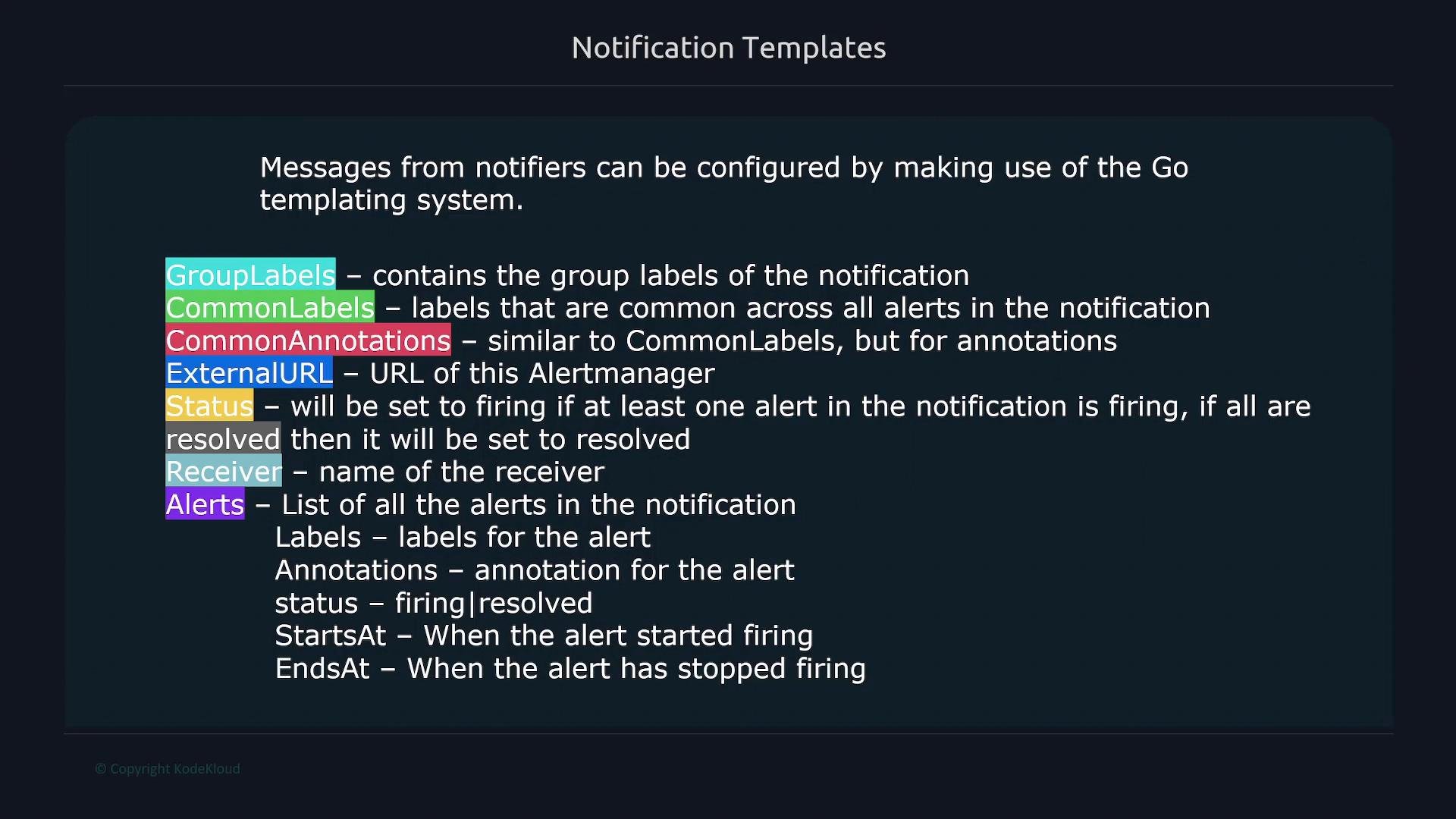
Notifier messages are customizable with Go templates, which let you compose titles and message bodies using alert metadata. Template variables available in Alertmanager include:GroupLabels— labels used to group the notification (e.g.,severity,region)CommonLabels— labels common across all alerts in the groupCommonAnnotations— annotations common across the groupExternalURL— the Alertmanager UI URL (useful for adding a link back to Alertmanager)Status—firingif at least one alert in the notification is firing;resolvedif all are resolvedReceiver— the receiver name handling the notificationAlerts— list of individual alerts in the notification; each alert exposesLabels,Annotations,Status,StartsAt, andEndsAt
Slack templating example
Below is an example receiver which sends Slack notifications. Thetitle uses GroupLabels and the text counts and iterates over alerts.
- Use
{{.GroupLabels.severity}}and{{.GroupLabels.region}}to access group label values. {{.Alerts | len}}returns the number of alerts included in the notification.{{range .Alerts}} ... {{end}}iterates through alerts; inside the loop.refers to the current alert object.{{.Annotations.description}}retrieves thedescriptionannotation for each alert (if present).- Use YAML block scalars (like
>) or multi-line strings when templates are too long for a single line.
How grouping affects notifications
The number of notifications you receive depends on your route’sgroup_by. Alerts with identical values for the keys listed in group_by are bundled into a single notification.
Example:
region="west",severity="warning"— 2 alerts (grouped together)region="east",severity="critical"— 1 alertregion="west",severity="critical"— 1 alert
severity + region combination.
Alertmanager UI and links to Prometheus
The Alertmanager UI (for example, http://localhost:9093) presents grouped notifications according to yourgroup_by settings. You can expand a group to view individual alerts, their labels, and annotations.
Example UI view:
Filtering in the UI
You can filter alerts in Alertmanager by any label key-value pair (for example,env="dev") to focus on a specific subset of alerts.
Summary
- Receivers define where notifications are sent and contain notifier-specific configurations.
- Use
globalto centralize and reuse shared settings (reduce duplication). - Customize notifications using Go templates with
GroupLabels,Alerts,CommonLabels, etc. group_bydetermines how alerts are aggregated into a single notification.- Alertmanager UI links alerts back to Prometheus for quick investigation.
Links and References
- Alertmanager docs: https://prometheus.io/docs/alerting/latest/alertmanager/
- Prometheus expression browser: https://prometheus.io/docs/visualization/browser/
- Go
text/templatedocs: https://pkg.go.dev/text/template