

prom/prometheus image, provide a prometheus.yml configuration file, bind-mount that file into the container, and expose Prometheus’ port (9090) on the host.
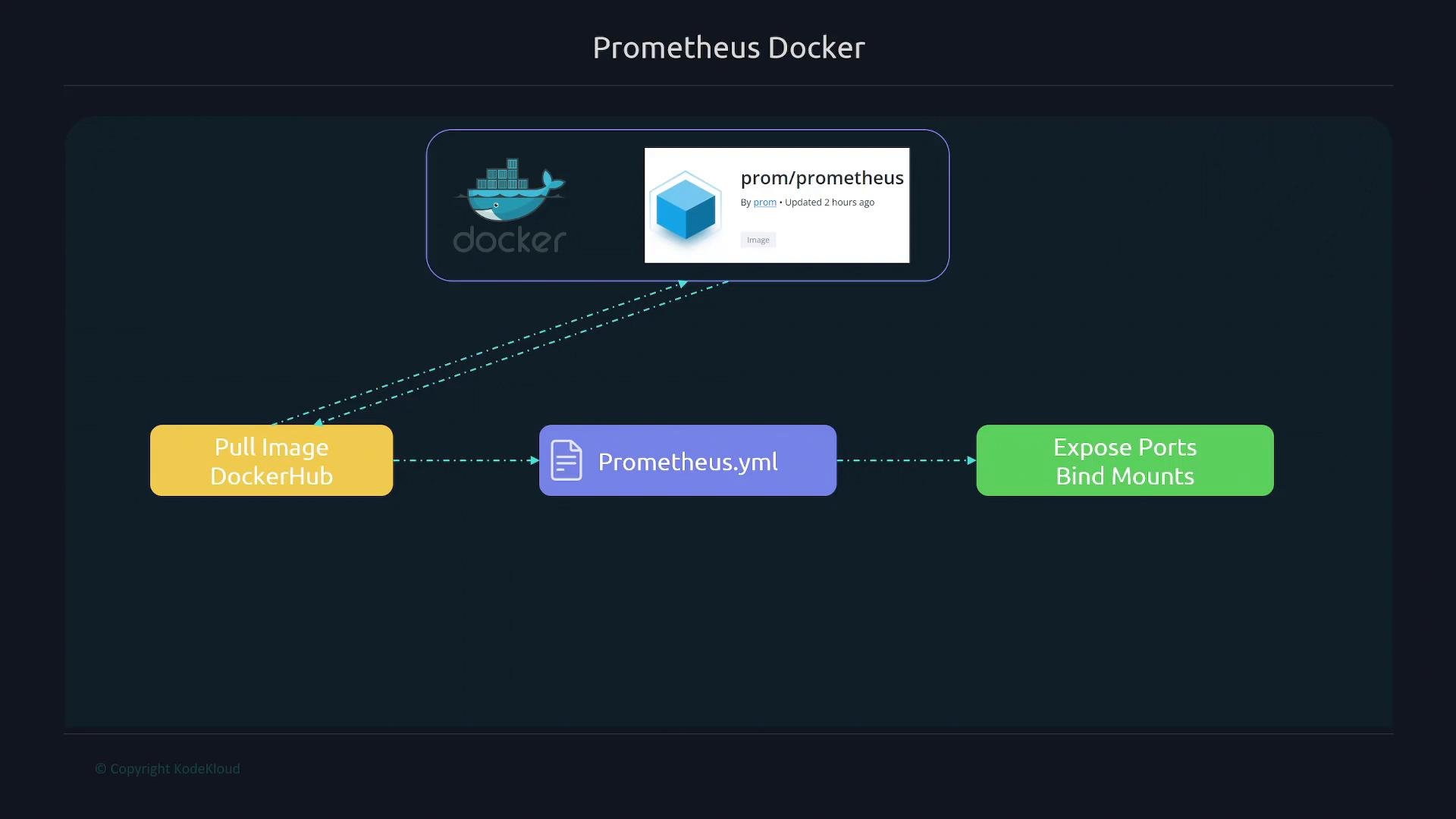
- Host stores
prometheus.ymland a directory for TSDB data. - Docker runs
prom/prometheuswith the host config file bind-mounted into the container. - Port
9090is mapped so the UI and API are reachable athttp://localhost:9090.
1. Create the Prometheus configuration on the host
Create or editprometheus.yml on your host. The configuration format is identical to bare-metal or VM installations. Example minimal config that scrapes Prometheus itself:
/path/to/prometheus.yml).
2. Run Prometheus in Docker
Run the official Prometheus image and bind-mount the configuration file and a data directory. This example runs Prometheus detached, maps port9090, mounts both the config file and a persistent data directory, and enables the lifecycle endpoint for HTTP-triggered reloads:
3. Docker run flags — quick reference
4. Lifecycle reload and useful commands
If you omit
--web.enable-lifecycle, Prometheus will not respond to HTTP reload requests. Either restart the container after editing prometheus.yml (for example docker restart prometheus) or start Prometheus with --web.enable-lifecycle and trigger a reload by POSTing to http://localhost:9090/-/reload.- Follow logs:
docker logs -f prometheus
- Restart container:
docker restart prometheus
- Trigger lifecycle reload (when
--web.enable-lifecycleis enabled):
5. Verify Prometheus is running
- Visit the UI at:
http://localhost:9090 - Check
Status -> Targetsto confirm configured scrape targets are UP. - Use logs (
docker logs -f prometheus) for troubleshooting.
References and further reading
- Prometheus docs: https://prometheus.io/docs/
- Docker Hub:
prom/prometheus— https://hub.docker.com/r/prom/prometheus